
Is your Windows 11 PC feeling sluggish when you open apps or switch between windows? Visual effects like animations, transparency, and drop shadows might be the culprit. These eye candy features look nice, but they can slow things down on older hardware or budget laptops.
The good news? You can turn off most visual effects in just a few clicks. This guide will show you two ways to do it: a quick fix through Settings, and a more thorough approach that disables everything for maximum performance.
What Are Visual Effects in Windows?
Visual effects are the animations and graphical flourishes that make Windows look polished. They include things like window fade-ins, taskbar animations, transparent backgrounds, drop shadows, and smooth scrolling.
Common visual effects include:
- Animation effects: Windows sliding in and out, smooth transitions between screens
- Transparency effects: See-through Start menu and taskbar backgrounds
- Drop shadows: Subtle shadows behind windows and text
- Thumbnails: Preview images for files and folders
- Smooth scrolling: Gradual scrolling instead of instant jumps
While these effects use minimal resources on modern PCs (anything from 2020 or later), they can still impact performance on older machines or laptops with limited RAM.
Quick Fix: Turn Off Animation and Transparency Effects
The fastest way to improve performance is to disable the two biggest resource hogs — animations and transparency. This takes about 30 seconds and you’ll barely notice the difference visually.
Step 1: Open Visual Effects Settings
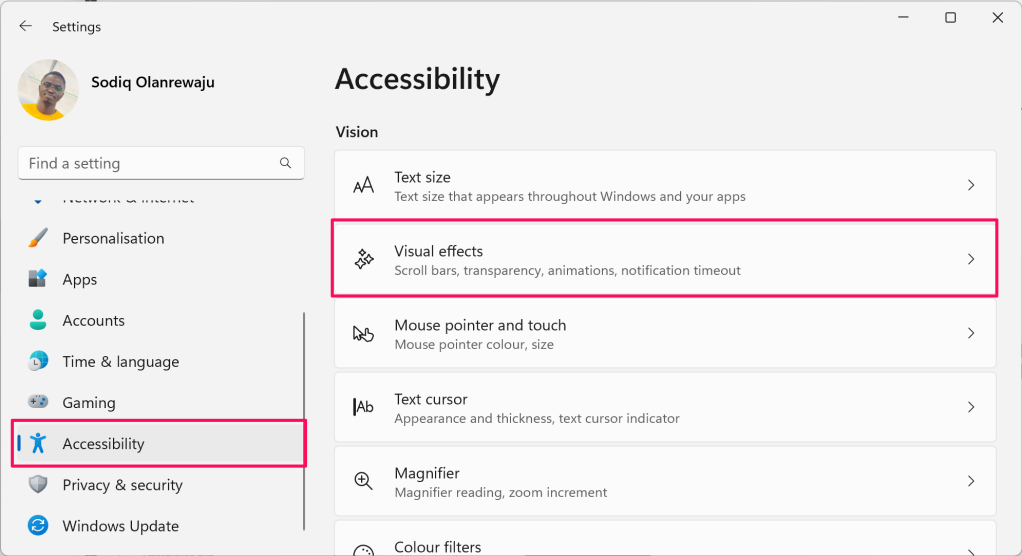
Press Windows + I to open Settings, then click Accessibility in the left sidebar and select Visual effects.
Step 2: Disable Key Effects
Toggle off Animation effects and Transparency effects. You can leave Always show scrollbars as-is — it doesn’t impact performance much.
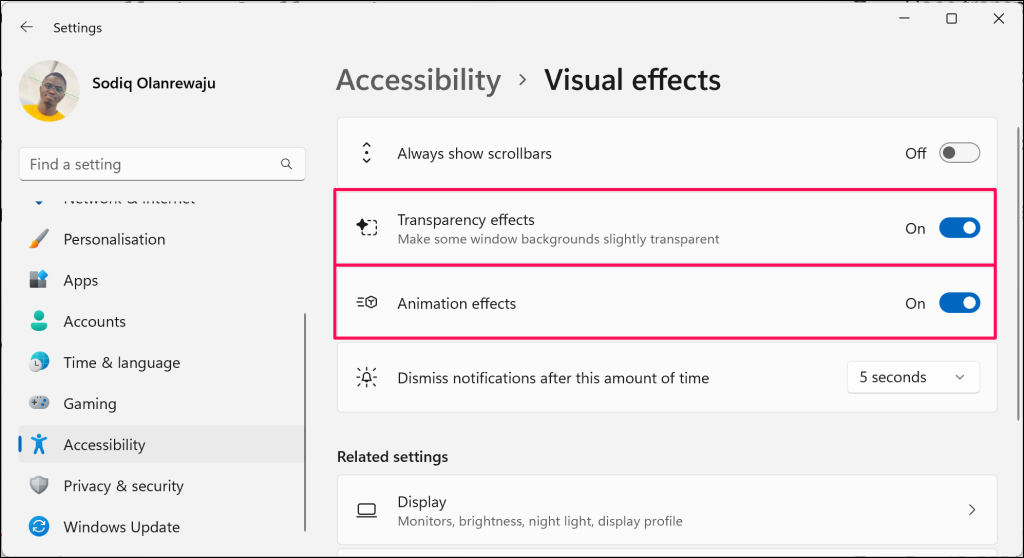
That’s it! The changes take effect immediately – no restart needed. You should notice snappier window transitions and slightly better battery life on laptops.
Advanced: Disable All Visual Effects for Maximum Performance
If you want to squeeze every bit of performance out of an older PC, you can disable all visual effects through the classic Control Panel. This is more aggressive but can make a noticeable difference on machines with 4GB of RAM or less.
Step 1: Open Performance Options
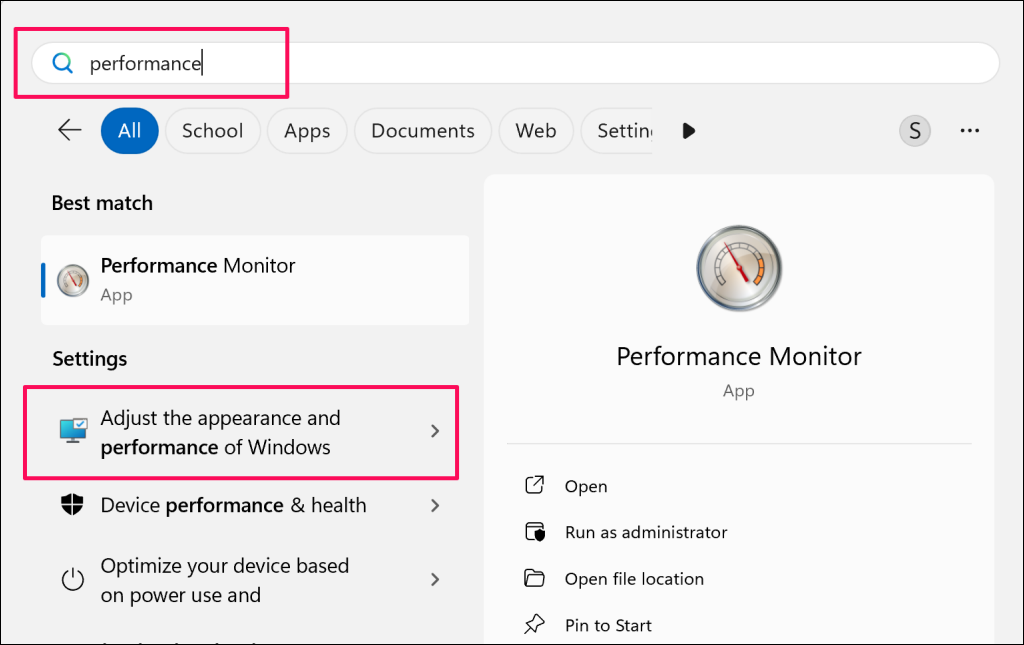
The quickest way is to search for “Adjust the appearance and performance of Windows” in the Start menu and click the top result.
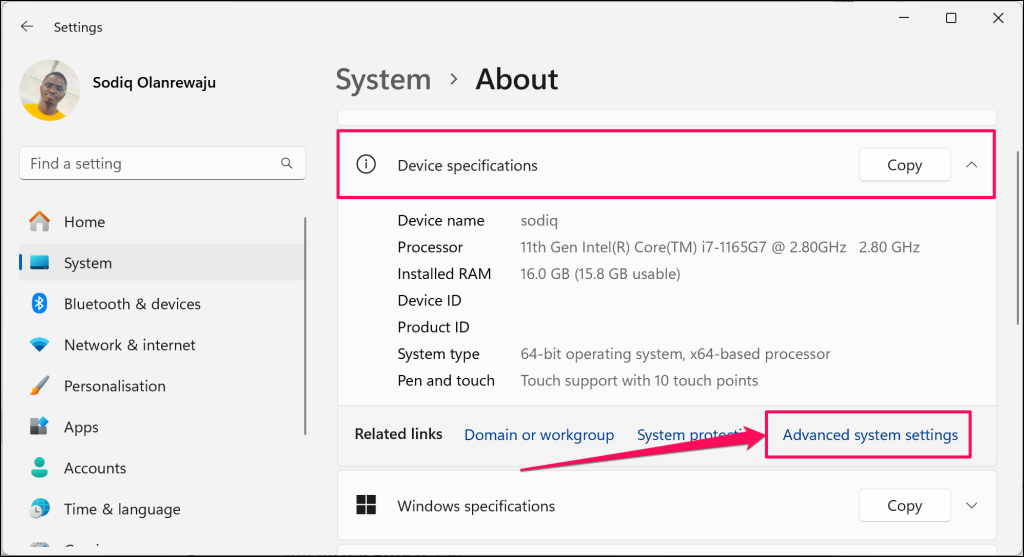
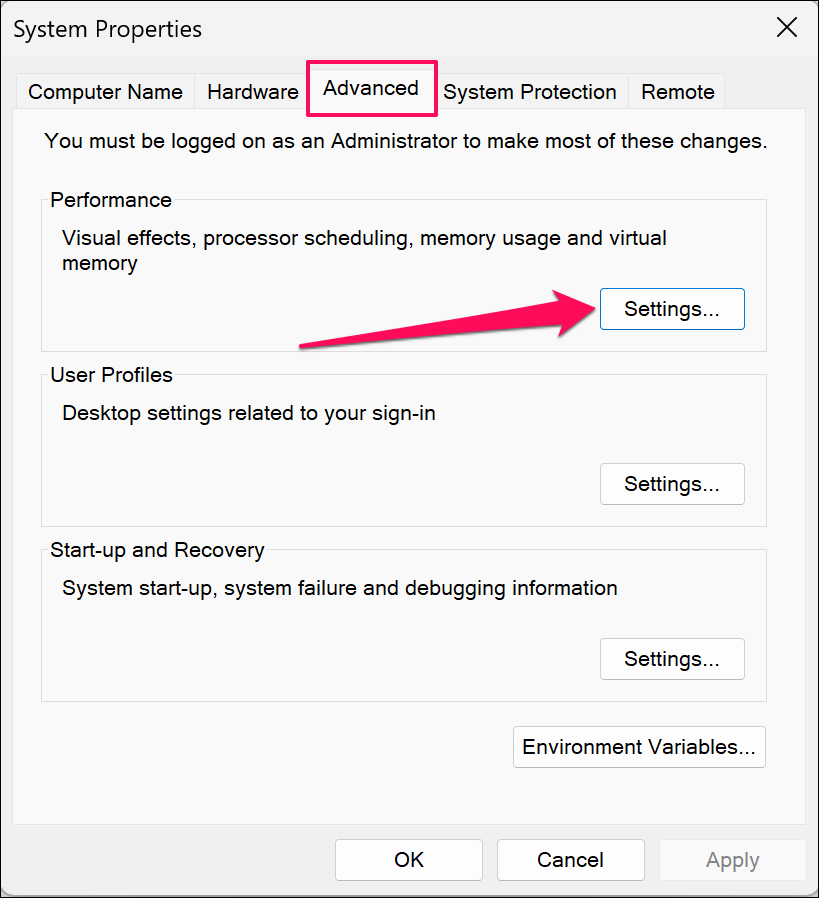
Alternative path: Go to Settings > System > About, scroll down to Related links, and click Advanced system settings. Then click the Advanced tab and select Settings under Performance.
Step 2: Choose Performance Settings
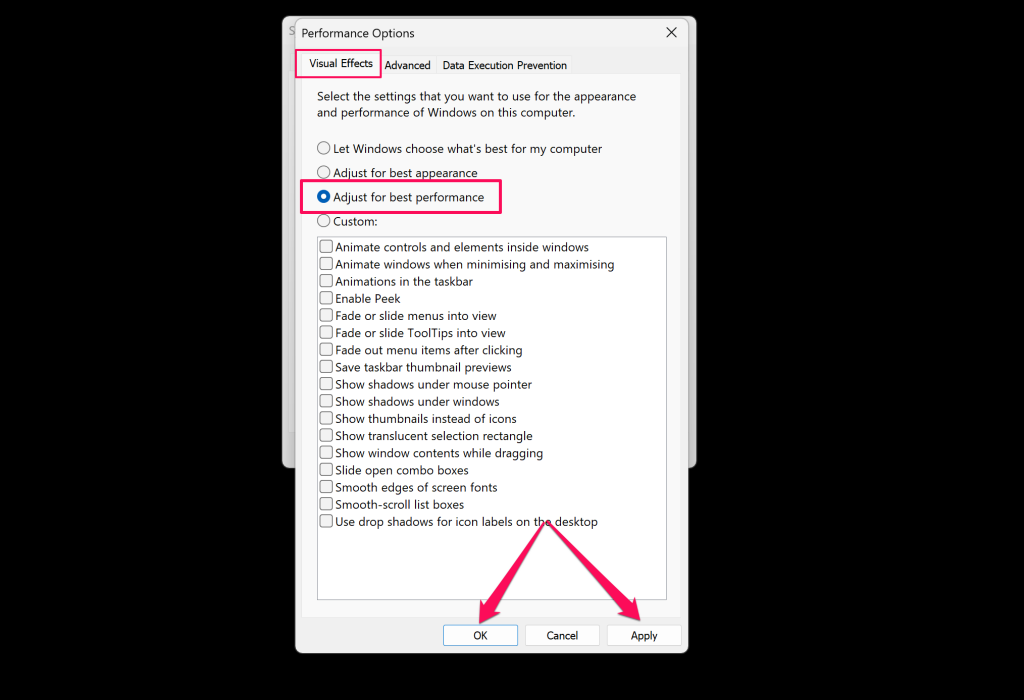
In the Performance Options window, you’ll see four radio button options. By default, Windows uses “Let Windows choose what’s best for my computer”.
Select “Adjust for best performance” and click Apply, then OK. This disables almost all visual effects for maximum speed.
Step 3: Fine-Tune with Custom Settings (Optional)
The “best performance” setting can make text look jagged because it disables font smoothing. If readability matters more than the last bit of speed, select Custom instead and cherry-pick the effects you want to keep.
Recommended custom settings to keep enabled:
- Smooth edges of screen fonts — Makes text much easier to read
- Show thumbnails instead of icons — Helpful for finding files quickly
- Use drop shadows for icon labels on the desktop — Improves text visibility
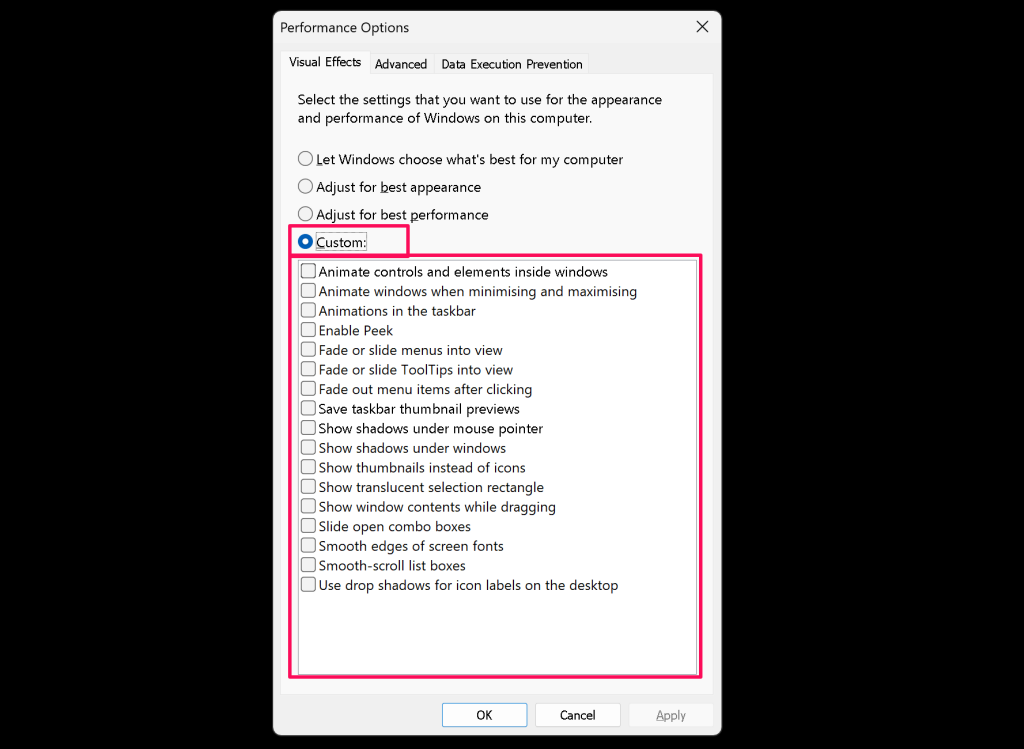
Click Apply and OK to save your custom settings.
Bonus Tip: Reduce Menu Delays
Here’s a lesser-known tweak that can make Windows feel snappier — reducing menu delay times. This requires editing the registry, so proceed carefully.
- Press
Windows + R, type regedit, and press Enter. - Navigate to
HKEY_CURRENT_USER\Control Panel\Desktop - Find MenuShowDelay (or create it if it doesn’t exist as a String Value)
- Change the value from 400 to something lower like 100 or 200
- Restart your PC for the change to take effect
This makes context menus appear faster when you right-click on things.
Tips and Troubleshooting
Common Issues
Problem: Effects won’t stay disabled after restart
Sometimes Windows resets visual effects, especially after major updates. If this happens, go back to the Performance Options and select “Let Windows choose what’s best for my computer”, apply it, then switch back to your preferred setting.
Problem: Text looks blurry or jagged
This happens when you disable font smoothing. Go back to Custom settings and make sure “Smooth edges of screen fonts” is checked. The performance impact is minimal and readability is worth it.
Problem: No noticeable performance improvement
If you have a modern PC with 8GB+ RAM and an SSD, visual effects probably aren’t your bottleneck. Consider other optimizations like disabling startup programs or running disk cleanup instead.
Pro Tips
- Quick access: Bookmark the Performance Options by typing
sysdm.cplin the Run dialog (Windows + R), then clicking the Advanced tab > Settings - Gaming focus: If you’re optimizing for gaming, also check your graphics card control panel (NVIDIA or AMD) and set power management to “Prefer maximum performance”
- Laptop users: Disabling transparency effects can extend battery life by reducing GPU usage, especially on older Intel integrated graphics
Will This Actually Speed Things Up?
Let’s be honest, if you have a decent computer from the last few years, turning off visual effects won’t transform your experience. Modern PCs handle these effects easily. But if you’re working with older hardware (pre-2018) or a budget laptop with limited RAM, you should see some improvement in responsiveness and battery life.
The bigger wins usually come from other optimizations like upgrading to an SSD, adding more RAM, or cleaning up startup programs. Visual effects tweaking is more about fine-tuning than major performance gains.
That said, it’s a quick and harmless thing to try. If you don’t notice a difference, you can always switch back to “Let Windows choose what’s best for my computer” and call it a day. For older machines though, it’s definitely worth the five minutes to set up.