
YouTube is the single most popular video streaming service on the internet. You’ve probably used it to do research, watch movies or TV shows, or maybe you have YouTube personalities that you love to follow.
What you may not realize is that there are a lot of hidden YouTube URL tricks you can use that will make your YouTube experience more streamlined. In this article, we’ll cover the 10 most useful URL tricks you can start using right now.
1. Start a Video at Any Point
Whenever you put a YouTube video link into a browser, the video starts at the beginning. However, there are times when you’d like to share a particular part of a video rather than making someone watch the whole thing.
You can do this by editing the YouTube URL with &t=MmSSs and replacing M with the minutes and SS with seconds. The combination of minutes and seconds should mark the point in the video where you want it to start.
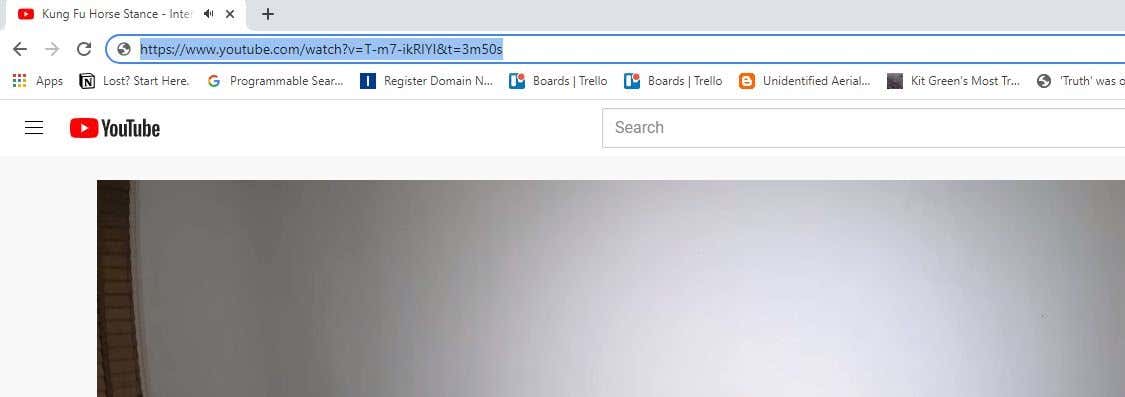
If you only want to start the video less than a minute in, you can omit the minutes addition like this:
https://www.youtube.com/watch?v=T-m7-ikRIYI&t=50s
You can also obtain this link automatically while you’re watching the YouTube video by right-clicking the video and selecting Copy video URL at current time.
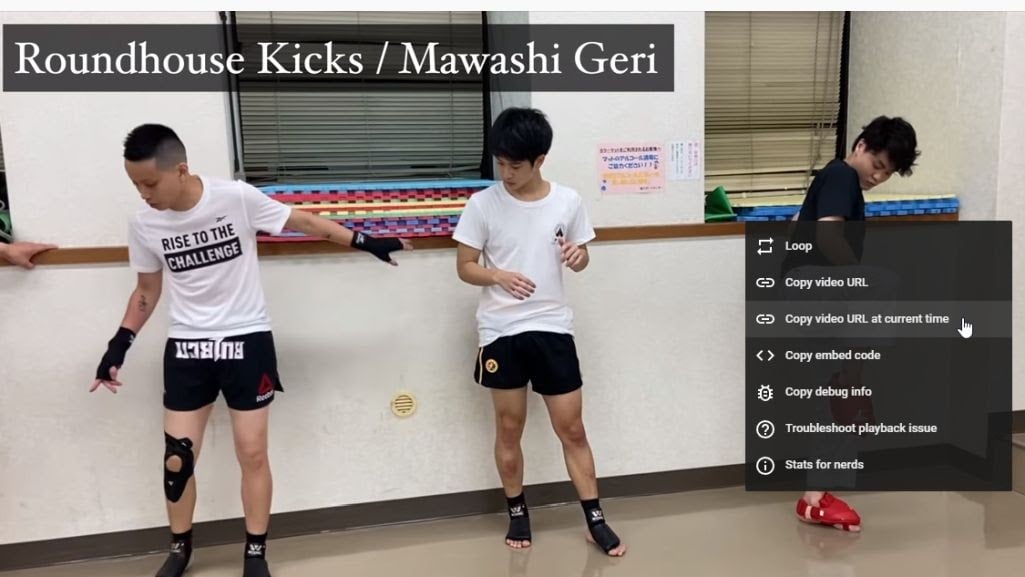
You can paste this link into a text message, email, or social media to share it with others.
2. Skip the Start of a YouTube Video
An alternative to specifying the number of minutes and seconds into the video is to just skip the beginning of the video by a set number of seconds.
This is useful if you’d like to skip a long video intro. To do this, just append a start point in seconds. For example, to skip the first 45 seconds of a video, you’ll just need to append &start=45.
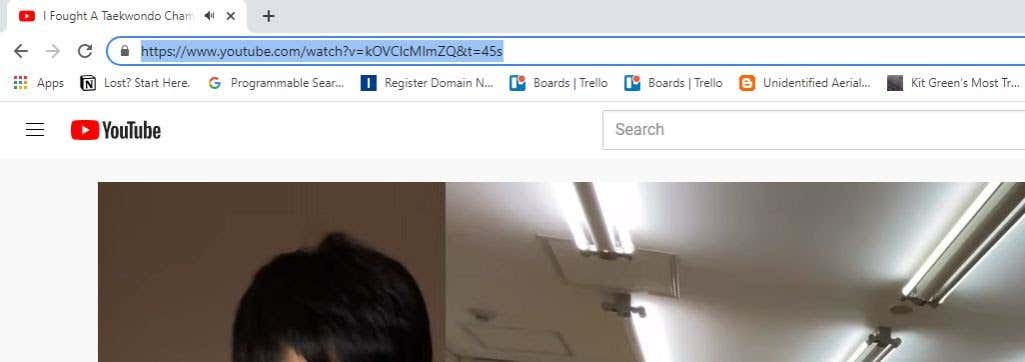
When you press Enter, you’ll notice that the URL automatically changes to the previous format, inserting the start time in seconds.
3. Create an Infinite YouTube Video Loop
On YouTube, there are a lot of videos you may enjoy playing in the background. These include ambiance videos like a fireplace or rain or even background music. You may want to leave videos like these running non-stop while you do other things.
There is an alternative site called YouTubeLoop.net that will take any YouTube URL and play it in a non-stop loop. To do this, just visit the YouTube video that you’d like to loop. Edit the URL and replace YouTube.com with YouTubeLoop.net.
For example, if the video URL is: https://www.youtube.com/watch?v=VirrGtOwVpE
Replace the URL with this: https://www.youtubeloop.net/watch?v=VirrGtOwVpE
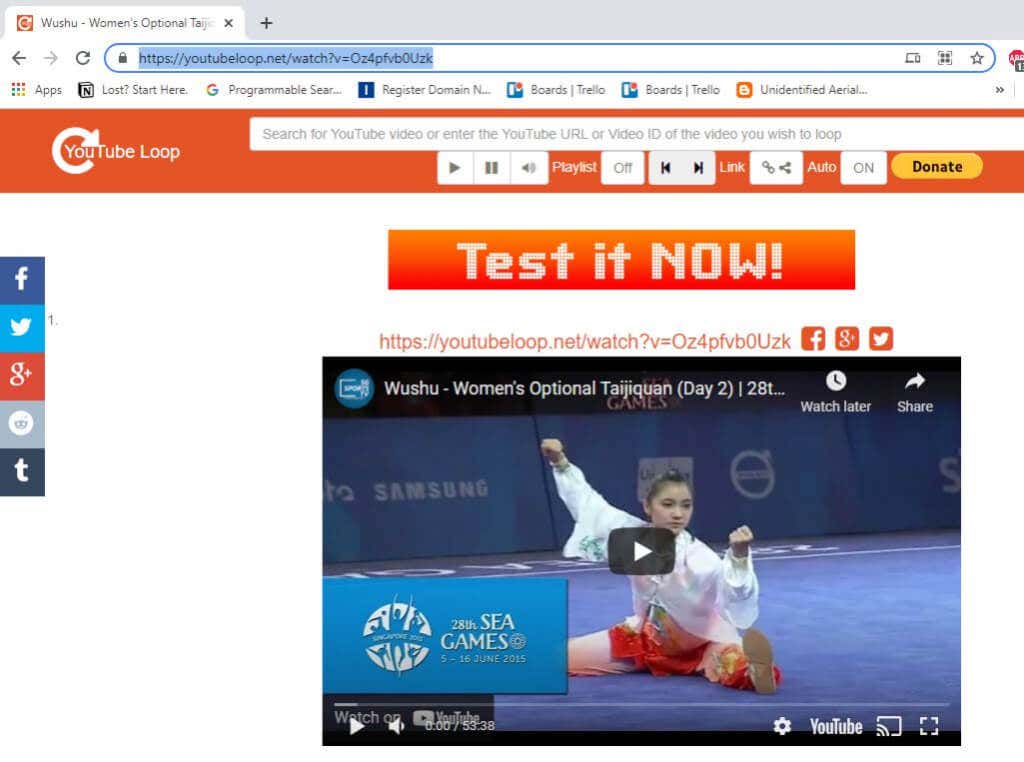
Press Enter, and the YouTubeLoop.net site will play the YouTube video in an infinite loop.
You can do this normally while watching a YouTube video by right-clicking the video and selecting Loop from the menu.
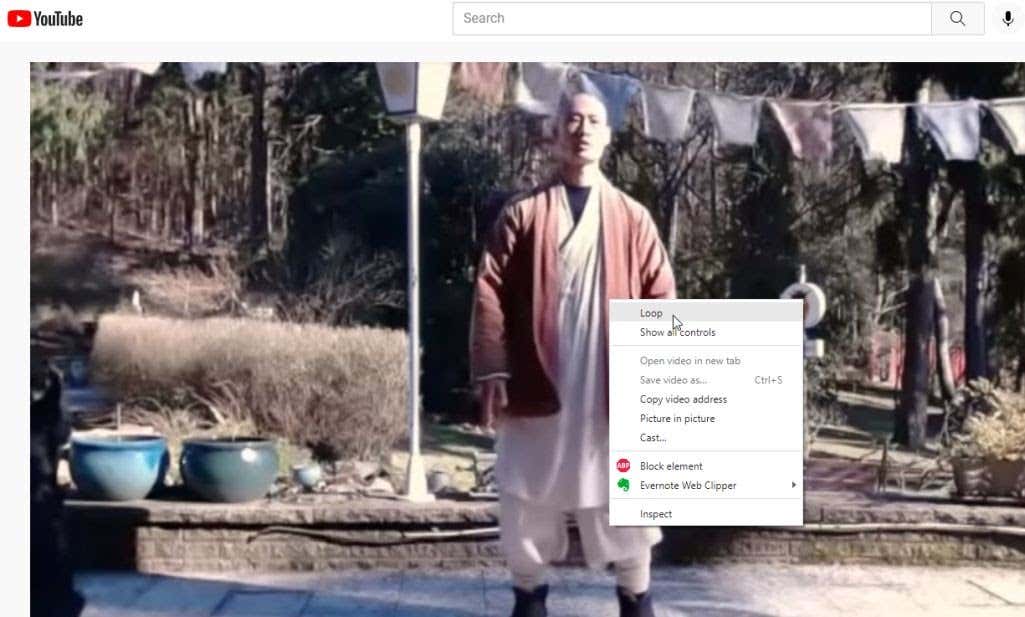
This will loop the video permanently until you repeat the process and deselect Loop.
4. Autoplay Embedded Videos
If you’re planning to share a YouTube video with a friend and want to have it play instantly when they open it, there’s another neat YouTube URL trick you can use.
To do this, just append ?autoplay=1 to the end of the video URL.
So, if the video URL you want to share is: https://www.youtube.com/watch?v=N5nIwd9AAzE
You’d append the autoplay section so the link would look like this: https://www.youtube.com/watch?v=N5nIwd9AAzE?autoplay=1
When your friend opens this link, the video will automatically start playing.
Note: In past years, you used to be able to paste links like this in social media or WordPress and the video would autoplay, however, this feature is disabled on most platforms now since they’ve become such an annoyance to users over the years.
5. Disable Related Videos
When you embed your own videos that you’ve made on your website, YouTube will often display related videos to your viewers. If you really don’t want to support your competition with extra traffic, you can disable this feature by appending ?rel=0 to the end of the embed URL.
To get the embed code, select the Share icon under your YouTube video and copy the iframe code.
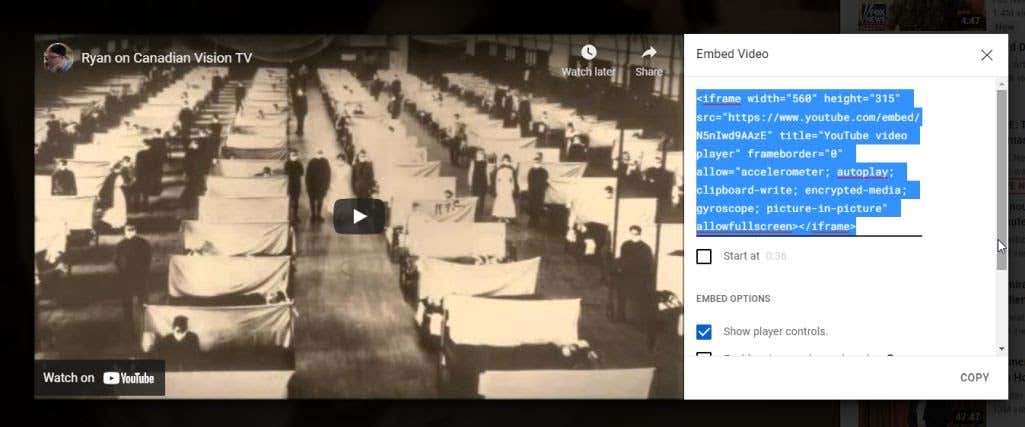
In WordPress, create a code block and paste the iframe code. Append ?rel=0 at the end of the YouTube URL.
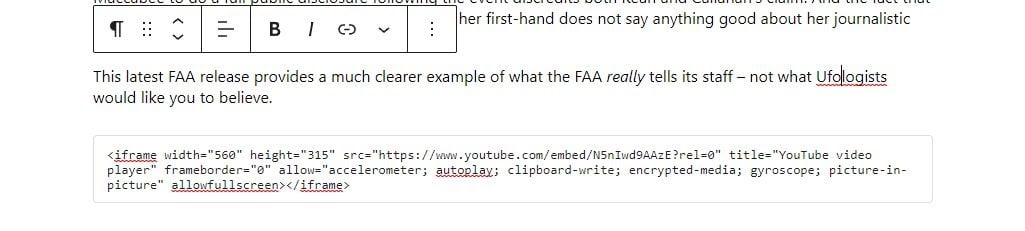
Now, when your visitors watch your YouTube video on your site, they won’t see any related videos at the end.
6. Download YouTube Video Thumbnail
If you’re writing an article or a paper for school and you want to mention a video while embedding the thumbnail into the document, there’s an easy service that lets you download the thumbnail.
To do this, you just embed the video ID into the following URL:
https://img.youtube.com/vi/<<video_id>>/maxresdefault.jpg
Replace <<video_id>> with the video ID from the YouTube URL. So if the YouTube video URL is this:
https://www.youtube.com/watch?v=NMS7OB7WRDY
You can download the YouTube video thumbnail using this link:
https://img.youtube.com/vi/NMS7OB7WRDY/maxresdefault.jpg
You’ll see the video thumbnail appear as an image on the page.
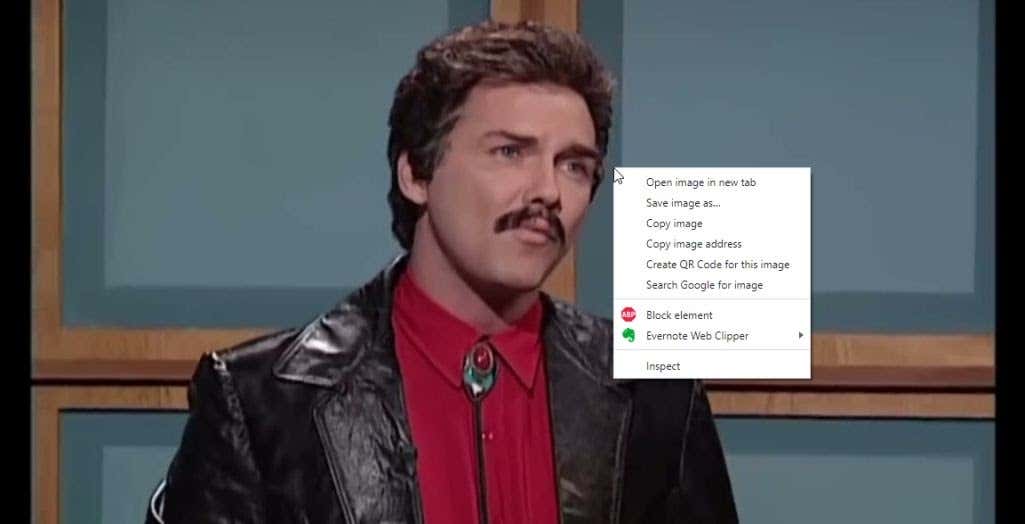
Just right-click the image and select Save image as to save it to your computer.
7. Create a Playlist Without a YouTube Account
You might already use playlists on YouTube. If you select the Save link under any video, you’ll see the option to save the video to one of your existing playlists, or create a new one.
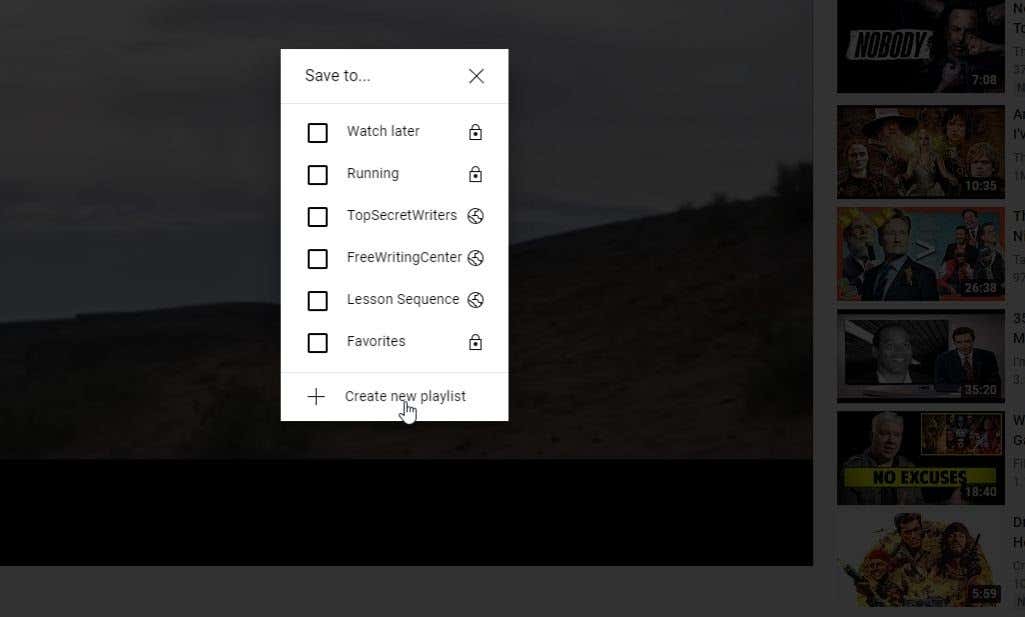
But what if you’ve collected a list of several video IDs and you just want to watch a playlist without actually saving it anywhere? You can do this with a single YouTube URL trick.
http://www.youtube.com/watch_videos?video_ids=1st_ID,2nd_ID,3rd_ID
Just insert each video ID you’ve collected into the URL as shown above, separated by commas. You can append as many video IDs as you want. For example, if you have four video IDs, your URL will look something like this:
http://www.youtube.com/watch_videos?video_ids=ZwD1kG4PI0w,RxINRbE2R8A,Fo_lDTDSO-M,h0Hd3uWKFKY
When you paste this into a browser and press Enter, you can watch all videos in order as a quick playlist.
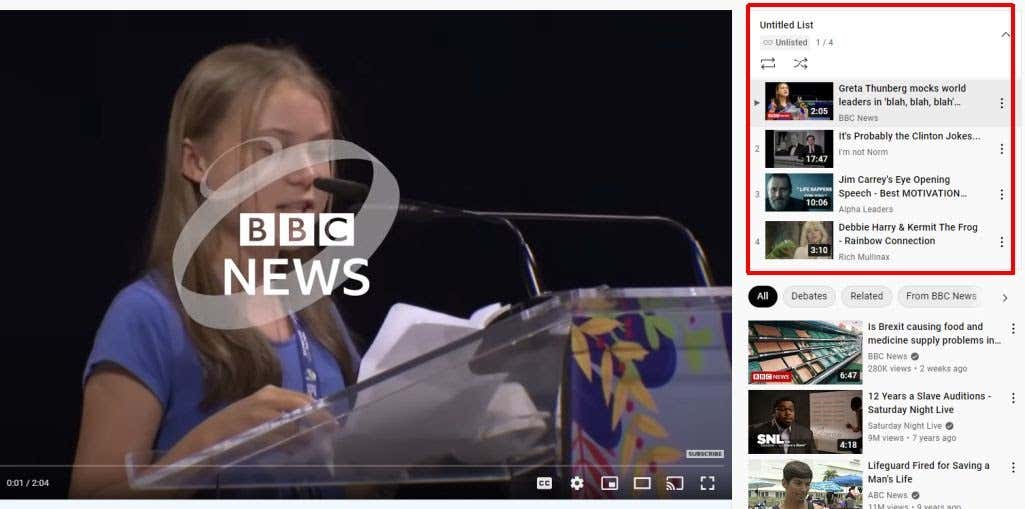
This is a quick and convenient way to watch a bunch of videos in series without having to stop and click on each one when you’re done watching.
8. See Only Your YouTube Subscriptions
If you visit the YouTube main page as most people do, you’ll see a list of YouTube recommendations for you. Many of these may be irrelevant and nothing that you actually care about.
You already have a list of content that you’re actually interested in. These are your channel subscriptions. This is one of the simplest YouTube URL tricks that you can bookmark to use every day. Just go straight to your subscriptions by loading YouTube using the subscription feed URL:
https://www.youtube.com/feed/subscriptions
This will open YouTube and only show you all of your subscriptions, and nothing else.
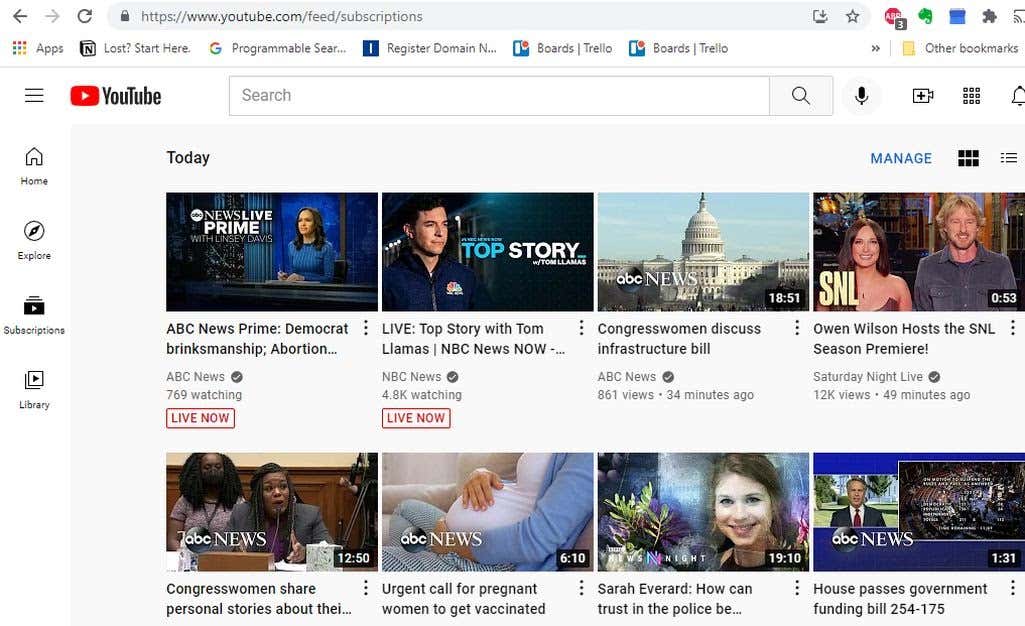
No more irrelevant recommendations, just start watching the stuff you already know you love.
9. Create a GIF from a YouTube Video
Have you ever wanted to create a GIF that you could share on social media featuring your favorite TV clip or movie scene? You can do this if you can find a very short YouTube video featuring that scene.
You can use a site called gifyoutube.com that’ll let you create and edit a GIF based on any YouTube video, so long as you have the ID.
gifs.com/gif/<<video_id>>
So if your YouTube video that you want to create a GIF from is NO8k8m, you just have to append this into the gifs.com URL as follows:
This will open the entire video on the gifs.com website in a simple editor tool. First, select the timeline of the video at the point where you want your GIF to start.
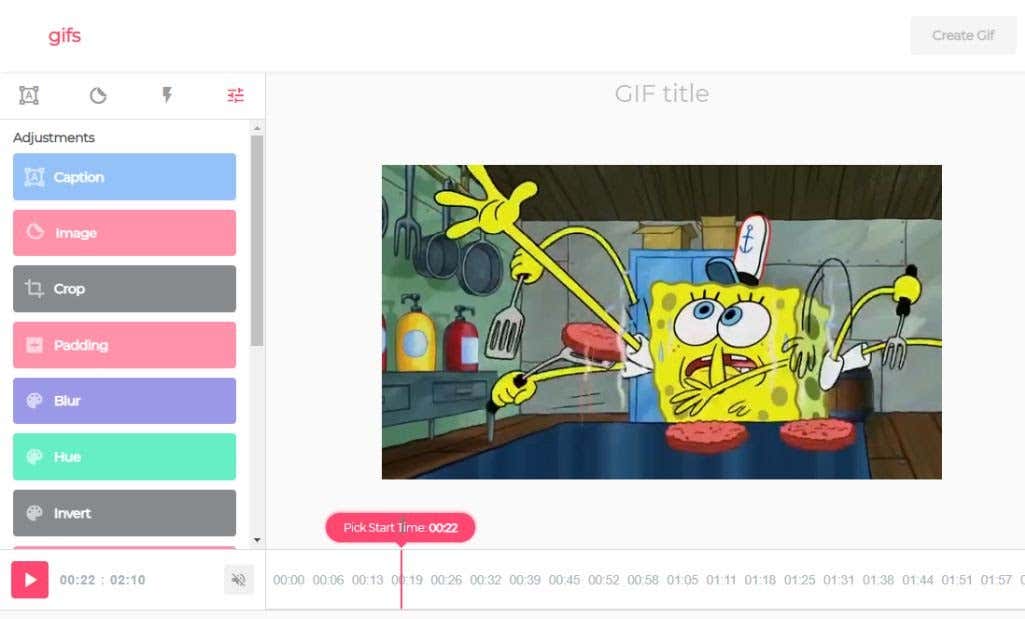
Next, select the point in the timeline where you want your GIF to end.
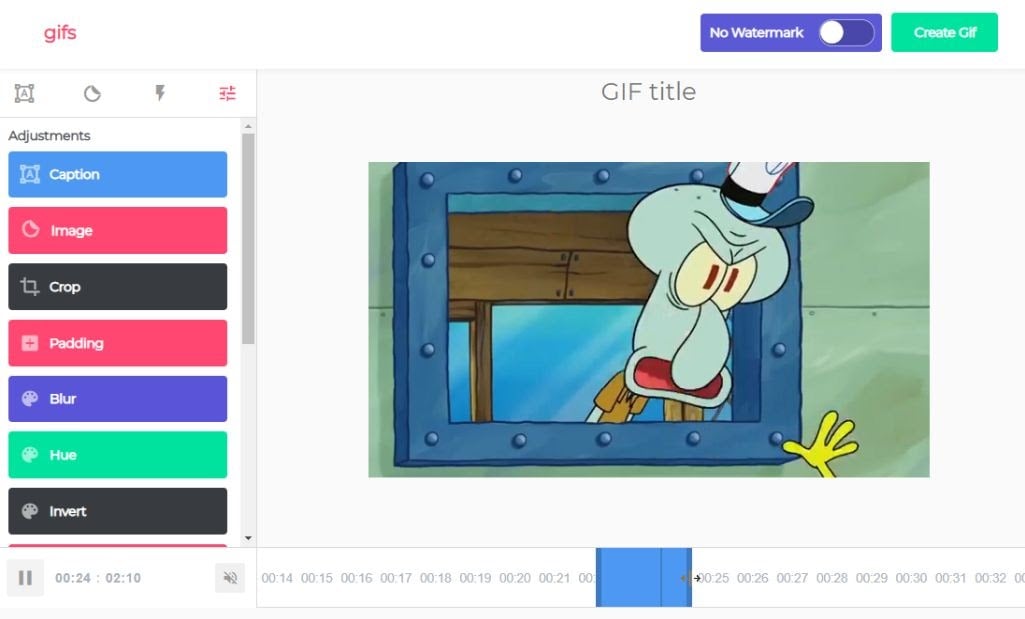
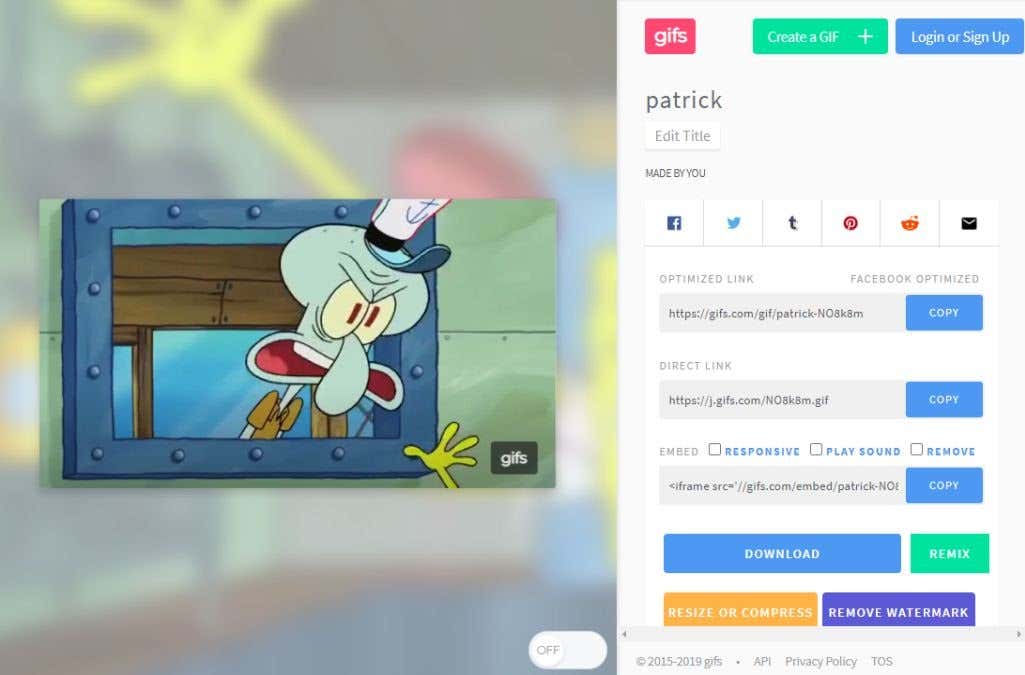
Select Create GIF, and walk through the quick wizard that will create the GIF for you. On the last step, you’ll see several optimized links for social media that you can use, or download the GIF to your computer.
It couldn’t be any easier to create fun GIFs that you can share wherever you like.