
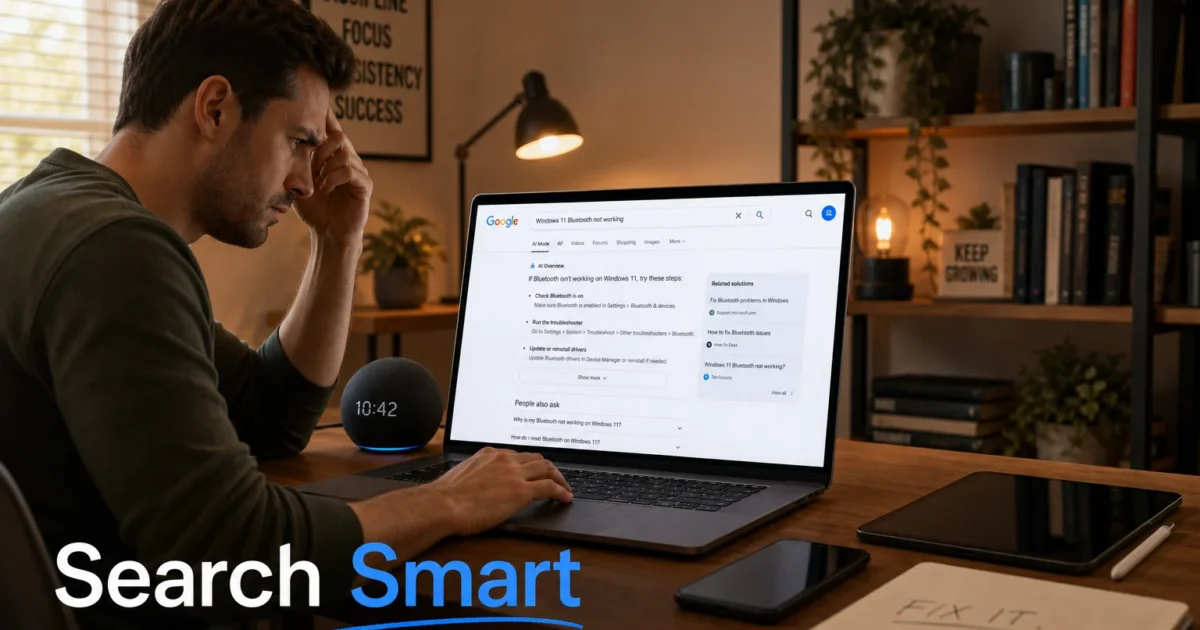
Has Google ever just… not given you what you wanted? You type in a perfectly reasonable question and get back an AI-generated summary, a stack of ads, and three articles that all say the same unhelpful thing. You try rephrasing. You scroll to page two (you actually scroll to page two!). Still nothing.
That’s been getting worse, not better. Results are packed with AI-generated content, and Google’s AI Overview boxes take up half the screen before you even see a real website. But Google is still extraordinarily powerful when you know how to push it in the right direction.
These eight tips cover both the classic techniques that still work and the newer tricks that actually matter in 2026. By the end, you’ll know how to get precise results, skip the AI summaries, filter out spam, and track down things that have felt impossible to find.
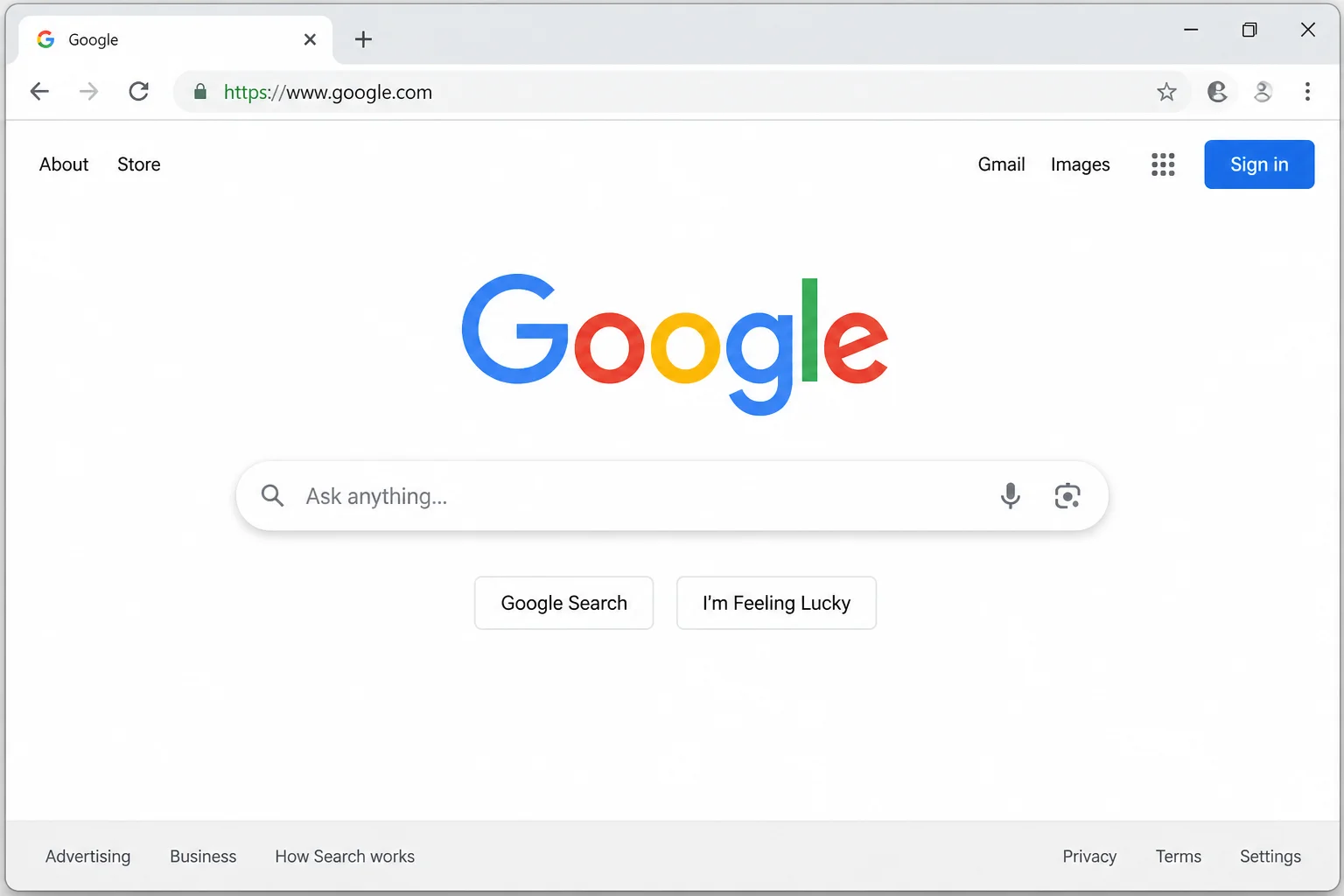
1. Think Like a Search Engine
Google reads your query left to right, so the words you put first carry the most weight. Lead with the most important keyword, not a conversational opener. Instead of “why is my Bluetooth acting weird on my computer,” try windows 11 bluetooth not working. Short, specific, front-loaded.
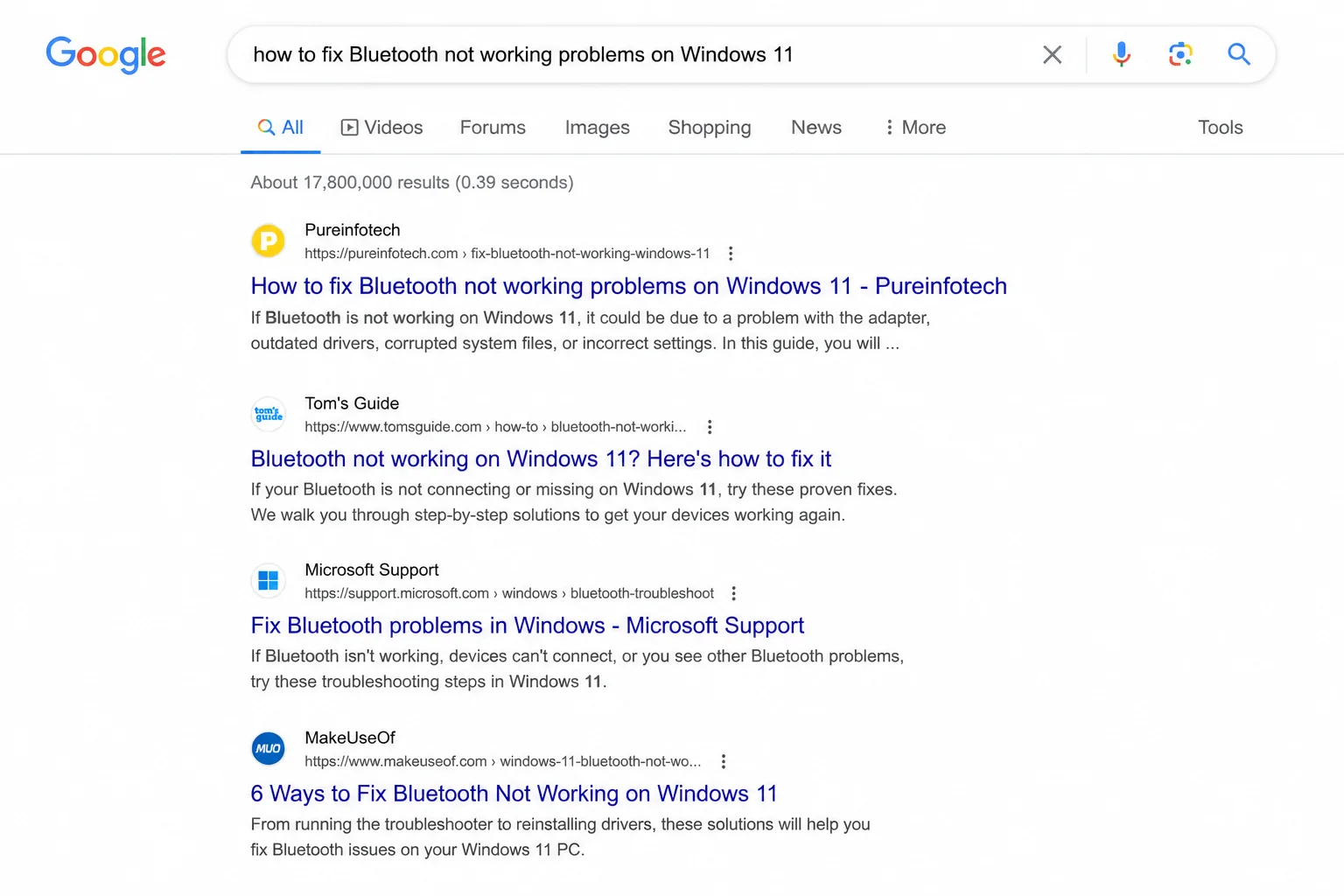
Specific nouns beat vague descriptions every time. Error codes, model numbers, and version numbers work especially well. RTX 4080 coil whine fix lands you in the right forum thread in seconds. “My graphics card is making a weird sound” gives you something generic.
When you’re troubleshooting, include the exact error message, device model, and OS version all at once, like hp envy x360 "boot device not found" 3F0 windows 11 24H2. You’ll find threads where someone fixed the exact same issue instead of a generic help center page.
Google also expands your query automatically, sometimes without telling you. Search for “tablet stand” and it might include results for “iPad holder” and “phone mount.” That’s fine when you’re browsing. When you need precise results, Tip 5 covers how to turn that off.
2. Think Like Other People
Your phrasing makes sense to you, but the people who wrote the pages Google indexes used their own words, and those might not match yours.
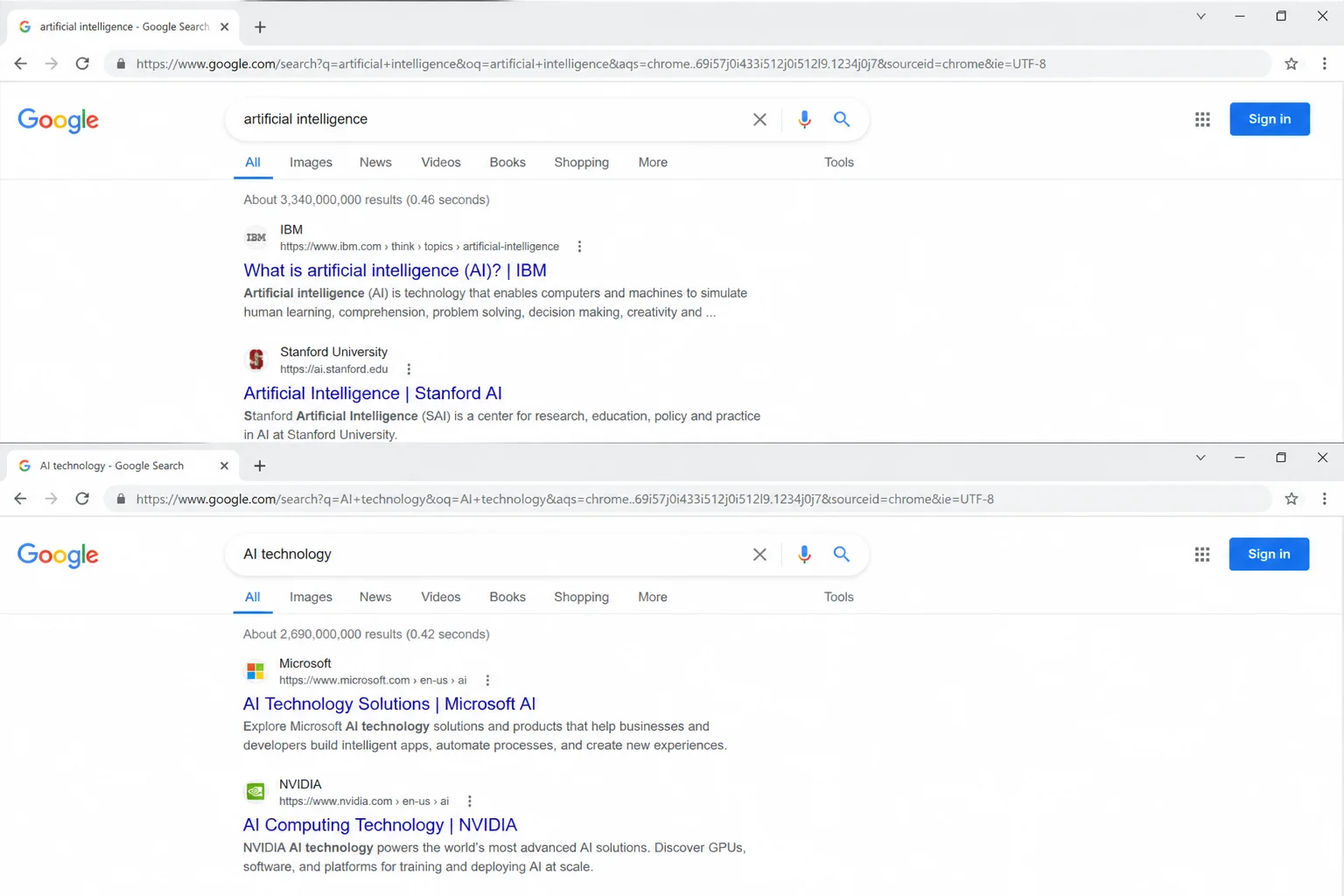
If you’re coming up empty, try rewording from scratch. A thesaurus genuinely helps. If you’ve been searching for “couch,” try “sofa,” “sectional,” or “loveseat” and see what changes. For cross-cultural or international searches, look up the local terminology. What you call a “garbage bin” might be a “rubbish bin” or “trash can” depending on where the best results were written. Google Translate can also reframe your phrase in another language; the non-English web sometimes has exactly what you couldn’t find in English.
3. Search Around the Thing You Want
Sometimes you can’t find something because you’re coming at it too directly. Try searching for the things around it instead: related people, events, concepts, or contexts that tend to appear alongside what you actually want.
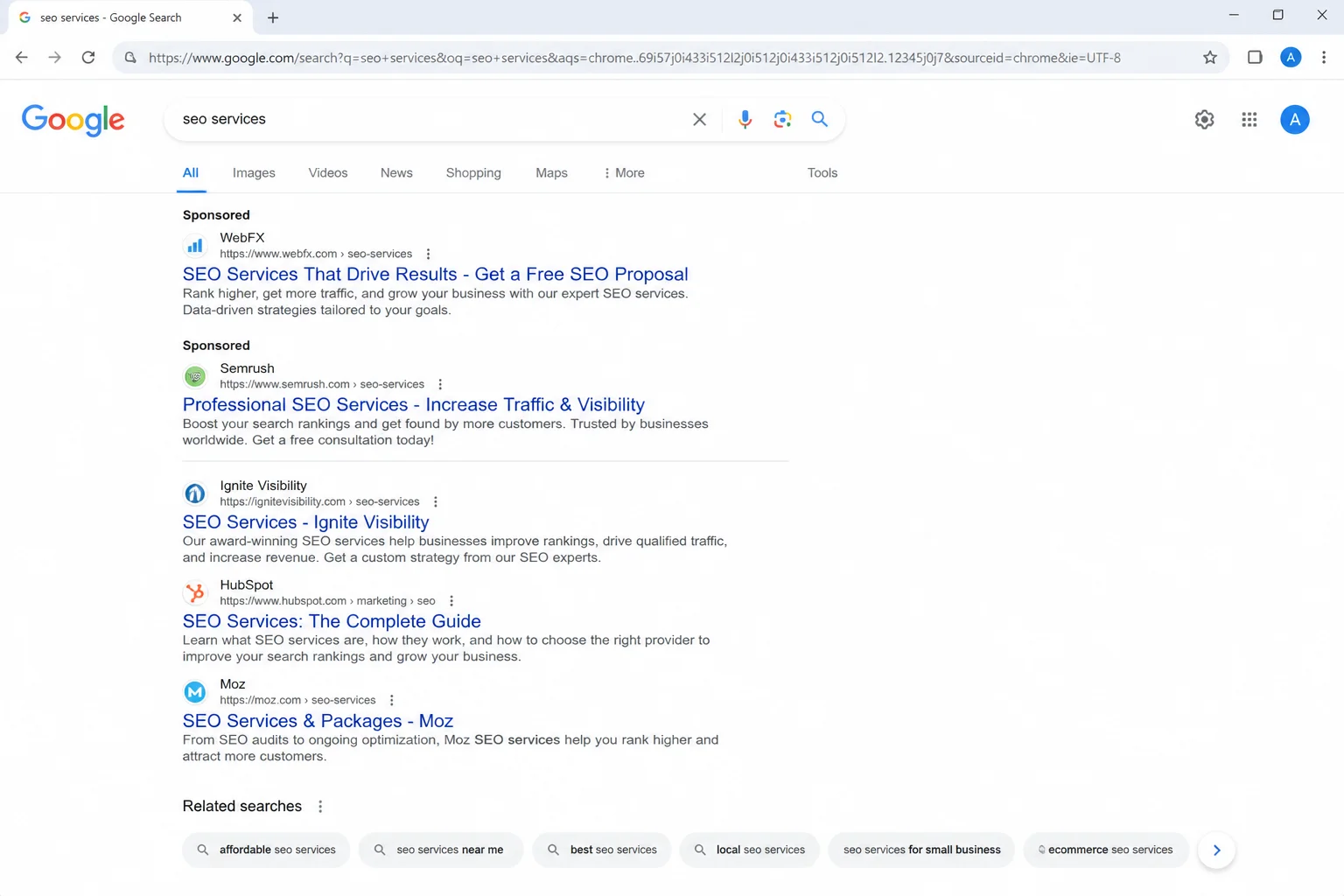
Say you’re trying to find a specific obscure documentary but can’t remember the title. Don’t only search the title. Search the subject it covered, the era, the director’s other work, the platform you watched it on. One of those adjacent searches often surfaces your actual target in passing. The same logic works for niche research: searching nearby concepts pulls up forums and articles that are all discussing your real topic from a slightly different angle.
4. Play Charades With Keywords
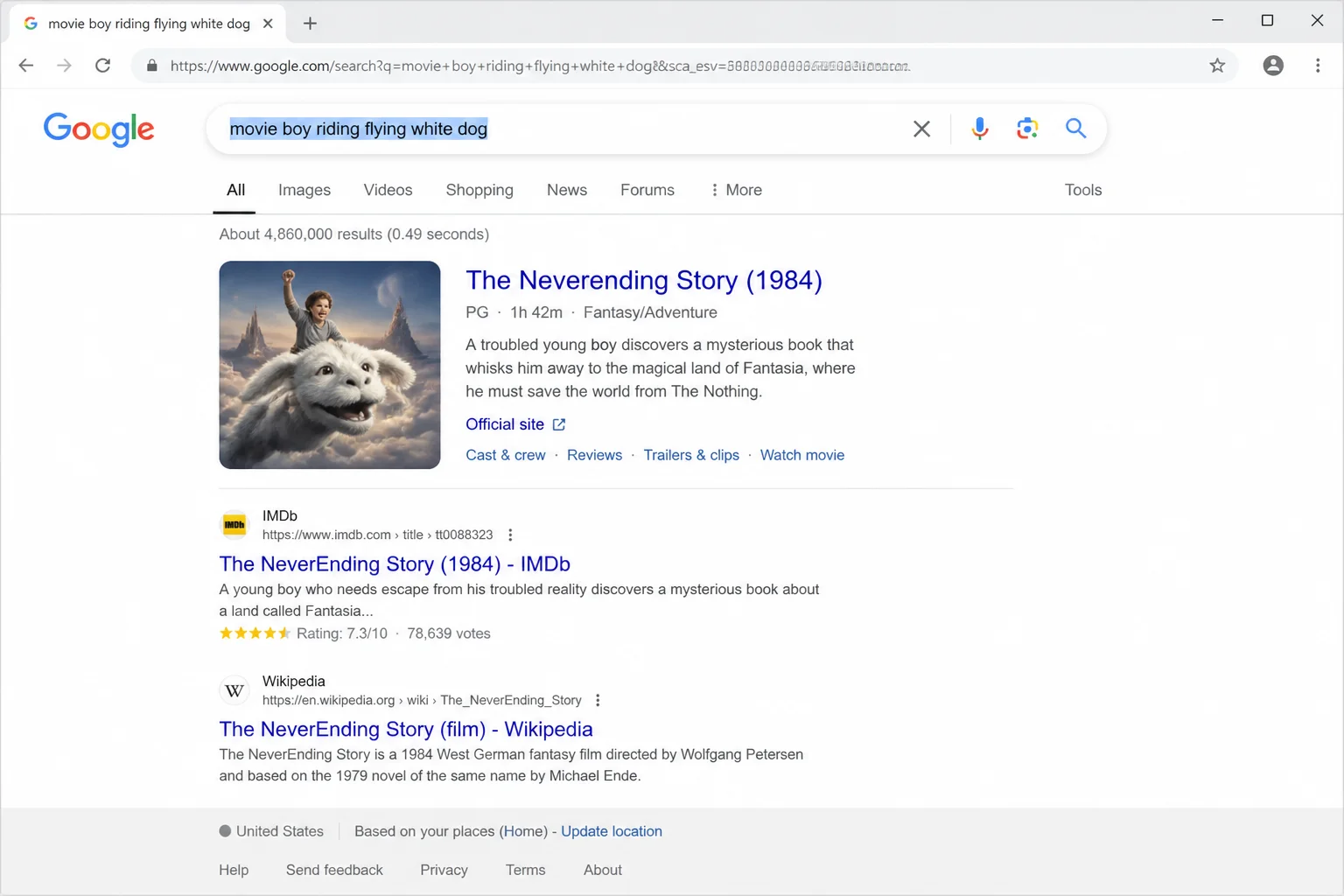
Can’t remember the name of something? List everything you can remember instead. “Movie with flying dog” pulls up The Neverending Story immediately. The more specific fragments you combine, the more likely the unique mix of terms points exactly where you need to go.
For visual searches, you don’t need words at all. On Android and some Chromebooks, Circle to Search lets you circle anything on your screen (a product, a logo, a piece of text) and search for it visually. On any device, go to images.google.com, upload or paste a photo, and Google will identify objects, scenes, and text in the image. It’s surprisingly accurate for products, plants, UI elements, and anything else you spot in the real world but don’t know the name of.
5. Get Real Results Without the AI Summary
Google’s AI Overview, the synthesized answer box that appears above organic results, is handy for simple questions. For anything technical, niche, or specialized, it often crowds out the actual pages you need. Getting past it takes about two seconds.
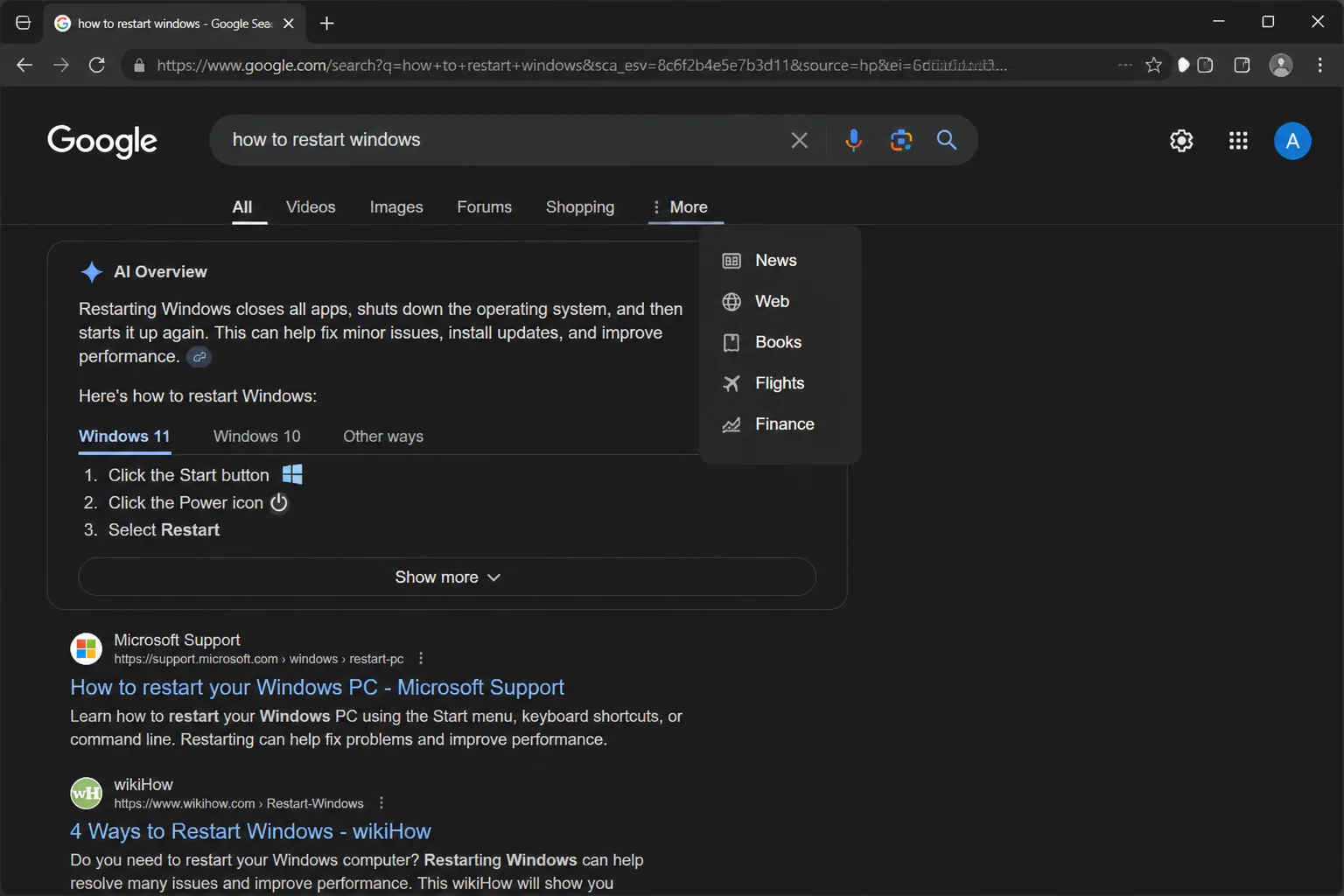
To suppress AI Overviews: Add -AI to the end of your query (with a space before the minus). This clears the AI Overview panel on most searches.
To see only organic web results: After searching, click More in the category bar below the search box, then choose Web. The page strips back to a plain list of results: no AI box, no featured snippets, no shopping carousels.
To stop Google from rewriting your query: Click Tools under the search bar, then change All results to Verbatim. Google searches exactly what you typed and stops swapping in similar terms or “correcting” your phrasing. This is the move for error messages, exact quotes, and niche technical terminology that Google keeps “improving.”
6. Use Search Operators
Search operators are commands you type directly into the search bar. They’ve worked for years, and they matter more now that Google automatically broadens queries without asking.
Here are the ones worth actually knowing:
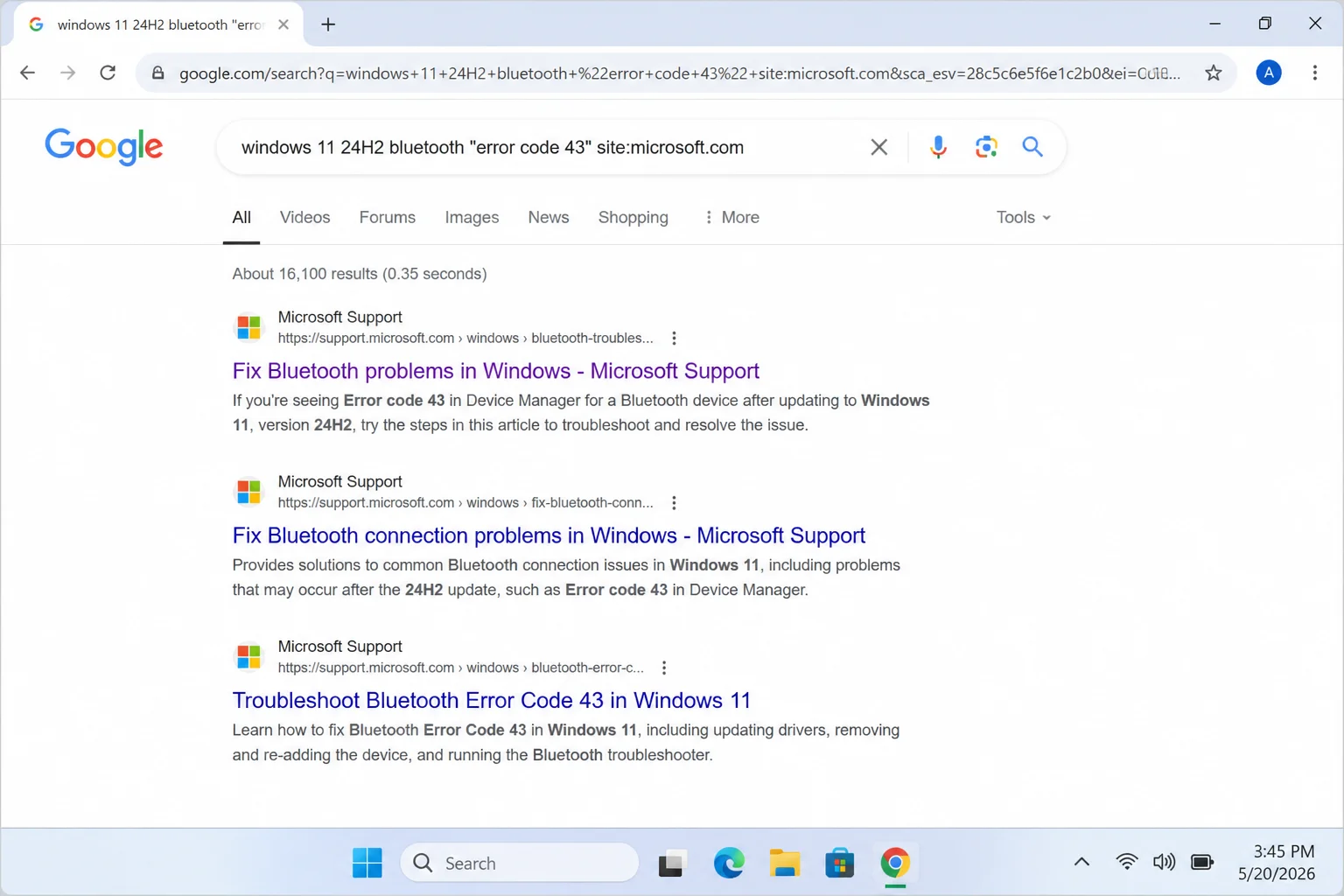
"quotes": Forces an exact phrase match."error code 43"only returns pages that contain that exact string.-word: Excludes a term.apple -fruitfilters out recipe pages when you’re looking for Apple the company.site:: Limits results to one domain.windows 11 24H2 bluetooth site:microsoft.comsearches only Microsoft’s site.filetype:: Finds specific file types.filetype:pdf "intel arc driver release notes"returns PDFs only.intitle:: Requires your term in the page title.intitle:review "sony wh-1000xm6"surfaces actual review pages with the product name in the title.inurl:: Requires your term in the URL. Useful for tracking down official documentation.before:/after:: Filters by date.marketing strategy before:2023-01-01returns older content;after:2025-07-01limits results to recent pages only.
Combining operators is where things get precise. windows 11 24H2 bluetooth "error code 43" site:microsoft.com narrows a maddening problem down to Microsoft’s own pages in one shot.
7. Filter by Date to Cut Through the Spam
A huge chunk of what Google surfaces now is AI-generated content published purely to capture search traffic. It’s thin and generic. Date filters cut through it.
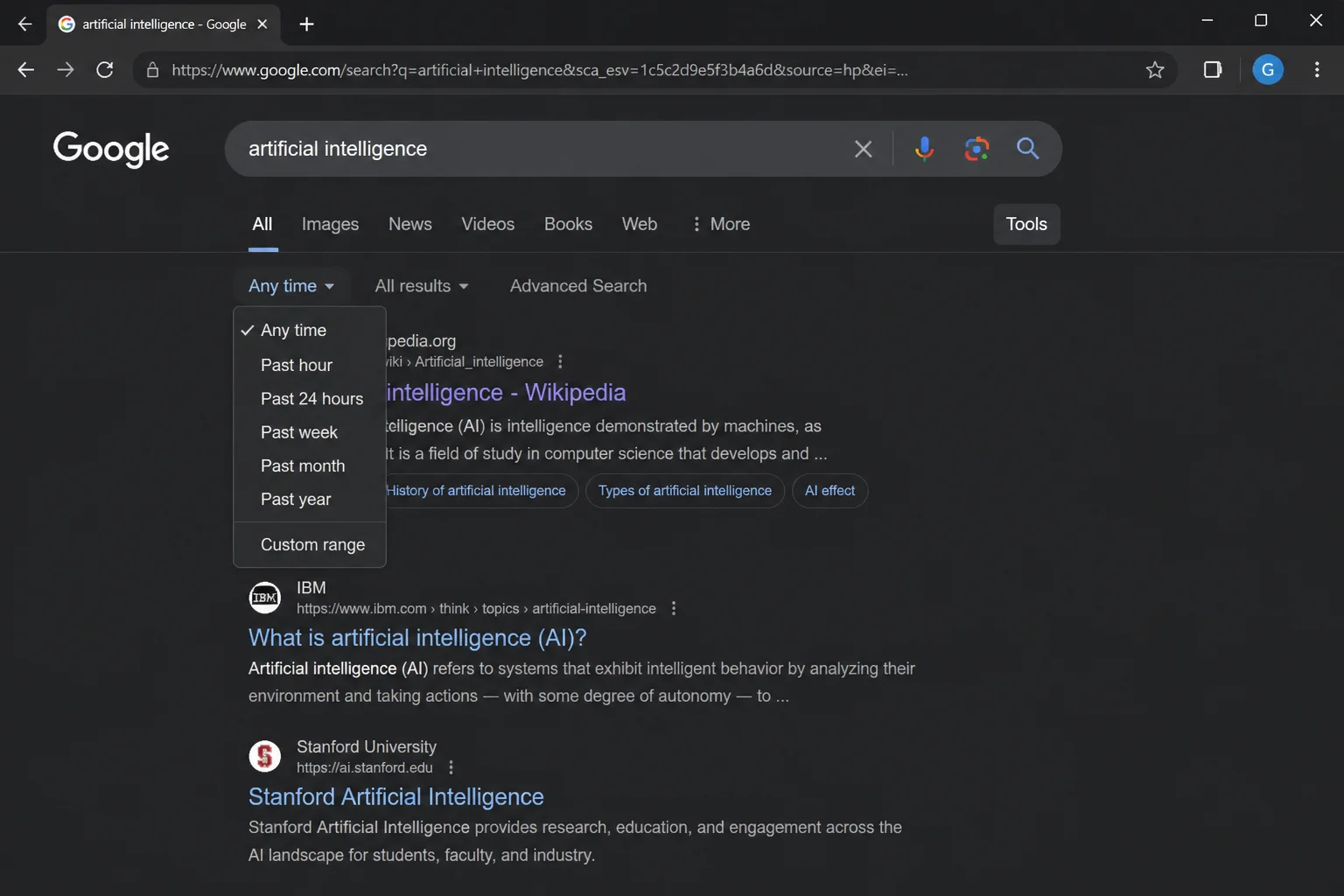
After any search, click Tools under the search bar, then open the Any time dropdown:
- Choose Past month or Past year for current technical info: drivers, OS compatibility updates, recent product reviews
- Use Custom range with a date cutoff when you want older, pre-AI content, or add
before:2023-01-01directly to your query for the same effect
The before: and after: operators from Tip 6 do the same thing inline. filetype:pdf "intel arc driver" after:2025-07-01 finds recent, official PDFs without wading through stale blog posts.
8. Ask Real People
Search engines can’t always match a community of people who actually know what they’re talking about. For anything niche, obscure, or based on lived experience, real human discussion often gets you further than algorithmic results.
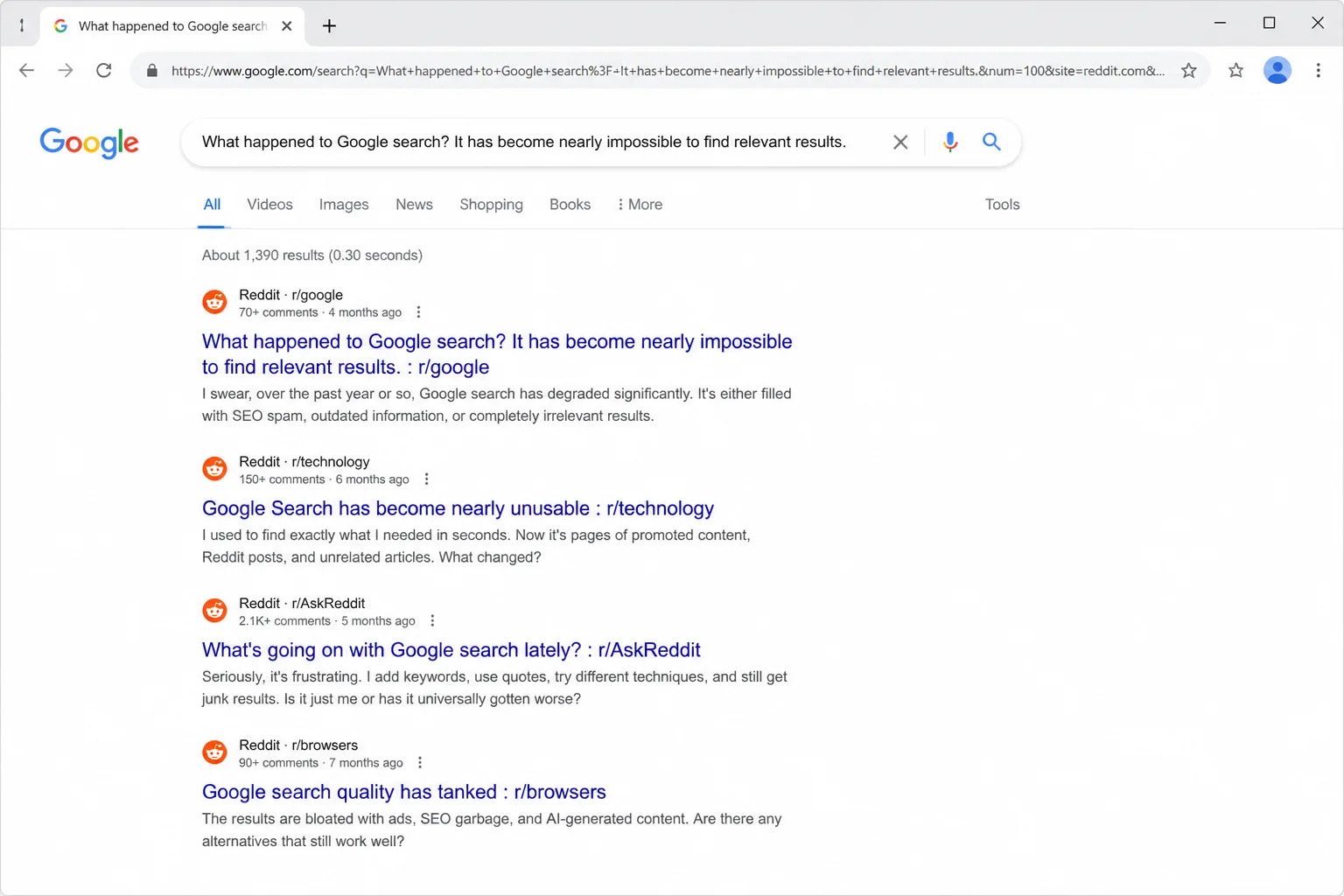
Use Google to find those communities. Add site:reddit.com or site:news.ycombinator.com to your query and you’ll pull up real discussion instead of the same manufacturer FAQ recycled across 40 review sites. sony wh-1000xm5 disconnecting site:reddit.com finds actual user threads where people tested and solved the same problem.
For genuinely stubborn questions, Reddit and Quora are worth posting in directly. A specific, well-described question in the right subreddit can get a targeted, experience-based answer in hours. No guarantees, but when Google’s coming up empty, you’ve got nothing to lose.
Tips and Troubleshooting
Common Issues
Google keeps correcting or rewriting my search
Wrap specific phrases in quotes to lock them in. Then switch to Verbatim mode: click Tools > All results > Verbatim. Google searches exactly what you typed, no substitutions.
Results are full of AI-generated spam
Add site:reddit.com or site:news.ycombinator.com to find human-written discussion. Or click Tools > Any time > Custom range and set a cutoff before January 2023.
I need official documentation without blog spam
Combine site: with official domains, site:microsoft.com, site:support.apple.com, site:developer.chrome.com, and add filetype:pdf for spec sheets and release notes.
I keep getting generic results instead of help with my exact error
Include the exact error code, OS version, and device model in your query. hp envy x360 "boot device not found" 3F0 windows 11 24H2 finds threads where someone solved the exact same issue.
Pro Tips
- Try AI Mode for complex research: Google’s AI Mode (powered by Gemini) handles multi-step queries and lets you refine and follow up in conversation. Just verify what it tells you using the Web filter and operators before acting on it.
- Use Advanced Search: On desktop, click Tools > Advanced search for a form with language, region, and date controls. Operators get you there faster, but it’s a useful starting point if you’re not sure which operator you need.
- Try a privacy-focused alternative: DuckDuckGo and StartPage are worth bookmarking for searches you’d rather not have tracked. StartPage returns Google-derived results with tracking stripped out.
Wrapping Up
You’re no longer stuck staring at a wall of AI summaries and recycled posts. Put your important keywords first, use operators for precision, switch to Verbatim when Google won’t cooperate, and filter by date when results feel stale or spammy. For the genuinely stubborn searches, a site:reddit.com query or a direct post in the right community will get you further than another round of rephrasing.
The Web filter and Verbatim mode alone are worth remembering. Once you know how to strip results back to real websites and force Google to actually search what you typed, you’ll reach for both of them constantly.
| Tip | What It Does | When to Use It |
|---|---|---|
| 1. Think Like a Search Engine | Keywords first, specific nouns, error codes | Every search |
| 2. Think Like Other People | Synonyms, thesaurus, Google Translate | When results feel off or too narrow |
| 3. Search Around the Thing | Related concepts and adjacent contexts | Obscure or hard-to-name topics |
| 4. Play Charades With Keywords | Describe what you remember; image search for visuals | Forgotten names, visual identification |
| 5. Web Filter & Verbatim Mode | Skip AI Overviews, force exact matching | When AI or query rewrites get in the way |
| 6. Search Operators | Quotes, minus, site:, filetype:, date operators | Precision and technical searches |
| 7. Date Filters | Filter by recency or cutoff date | Cutting through AI-generated spam |
| 8. Ask Real People | site:reddit.com, community posts | Niche or experience-based questions |