

Tired of staring at the same boring Windows desktop day after day? You’re not alone. The default Windows shell (that’s the taskbar, Start menu, and desktop interface you interact with) can feel pretty limiting when you want to make your PC truly yours.
Here’s the thing: full shell replacements aren’t as popular as they used to be. Most of the classic options from the early 2010s have either been abandoned or don’t play nice with Windows 11’s security features. But don’t worry, there are still some great ways to completely transform your desktop experience, from the few remaining shell replacements to powerful customization tools that give you tons of control without the headaches.
What Are Shell Replacements and Desktop Customizers?
A shell replacement is a program that completely takes over Windows’ default interface (explorer.exe). Instead of the familiar taskbar and Start menu, you get an entirely different way to launch programs, manage files, and interact with your computer.
Key differences:
- Full Shell Replacements: Replace explorer.exe entirely — riskier but offer complete control
- Desktop Customizers: Work alongside Windows to modify the look and add features — safer and more stable
- Start Menu Replacements: Focus specifically on bringing back classic Start menus or adding new functionality
Most people today go with customizers rather than full replacements because they’re way more stable and won’t break when Windows updates.
Before You Begin
Make sure you have:
- A computer running Windows 10 or 11 (most tools don’t support older versions anymore)
- A system backup or restore point (especially important for full shell replacements)
- Administrator access to install and configure these tools
Important: Full shell replacements can cause boot loops or system instability. Always create a backup before trying them!
The Best Shell Replacements Still Active in 2026
Cairo Shell (Full Replacement)
Cairo Shell is pretty much the only modern shell replacement that’s still actively maintained and works with Windows 11. It gives your desktop a clean, tile-based look that’s somewhat similar to macOS.
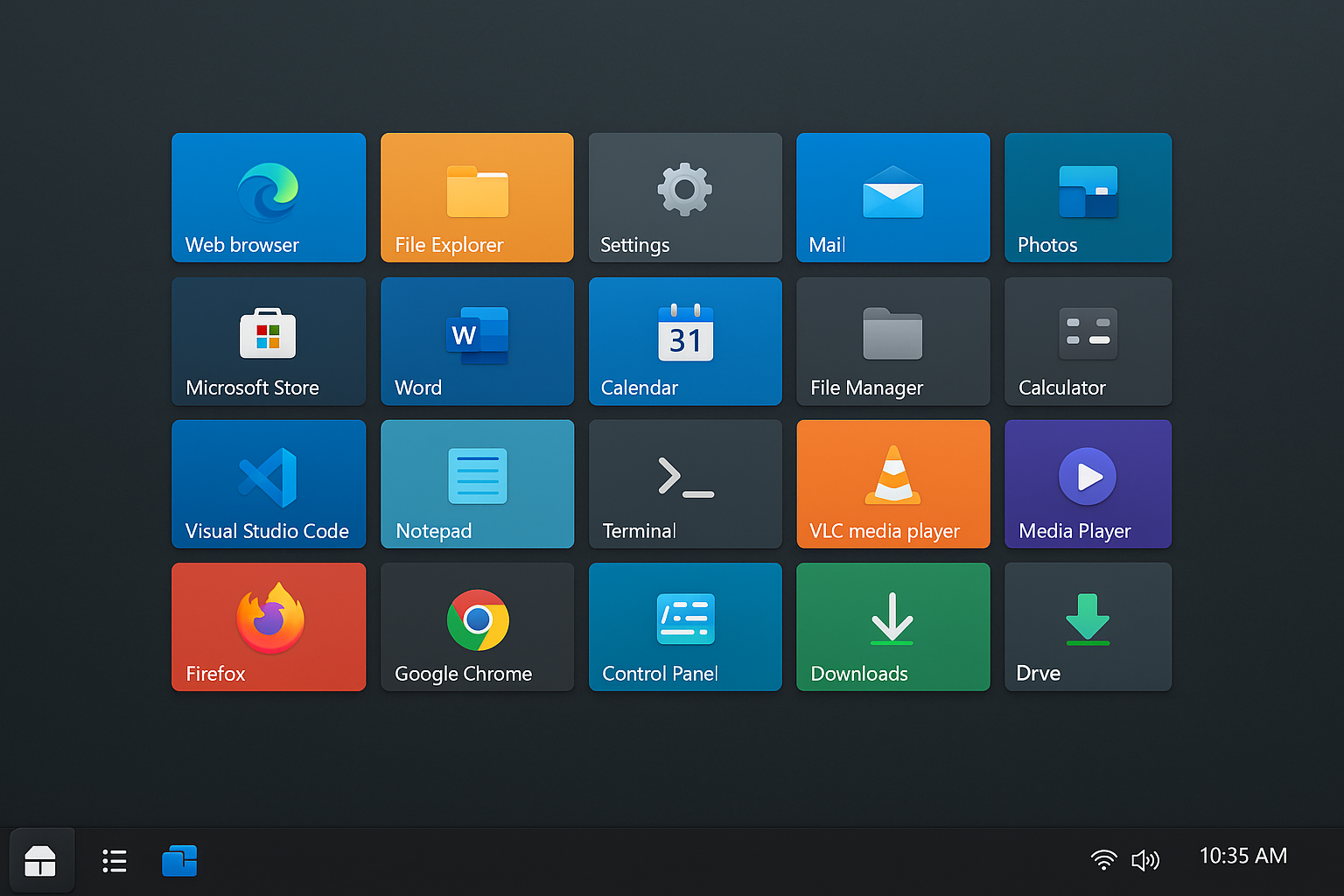
What makes it good:
- Active Development: Still gets regular updates for Windows 11 compatibility
- Modern Design: Clean, minimalist interface that doesn’t look like it’s from 2005
- Stable: More reliable than most other full replacements
The downside: It’s not super customizable compared to desktop enhancement tools, and you’ll lose some Windows 11 features like the system tray notifications.
Better Alternative: Desktop Enhancement Tools
Here’s where things get interesting. Instead of completely replacing Windows’ shell (which can break things), these tools enhance what you already have. They’re safer, more stable, and honestly give you better results.
Open-Shell (Start Menu Replacement)
Open-Shell picked up where Classic Shell left off when that project was abandoned. If you miss the Windows 7 or XP Start menu, this is your best bet.
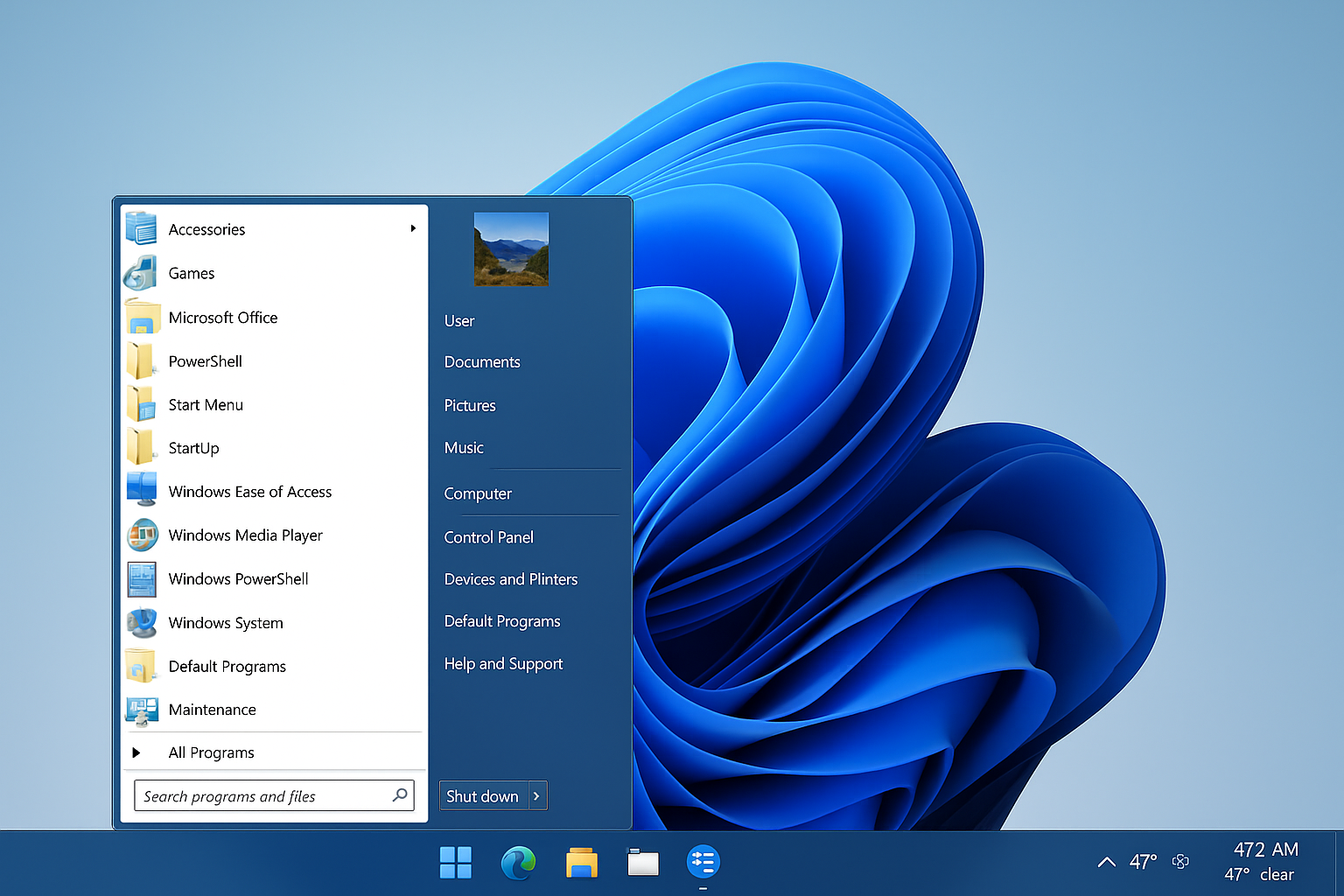
Key features:
- Classic Start Menus: Windows 7, XP, or even Windows 2000 styles
- Highly Customizable: Change colors, fonts, and layouts to your heart’s content
- Windows 11 Compatible: Works perfectly with the latest Windows updates
Start11 by Stardock (Premium)
If you don’t mind spending about $6, Start11 is probably the most polished Start menu replacement available. Stardock has been making Windows customization tools for decades, and it shows.
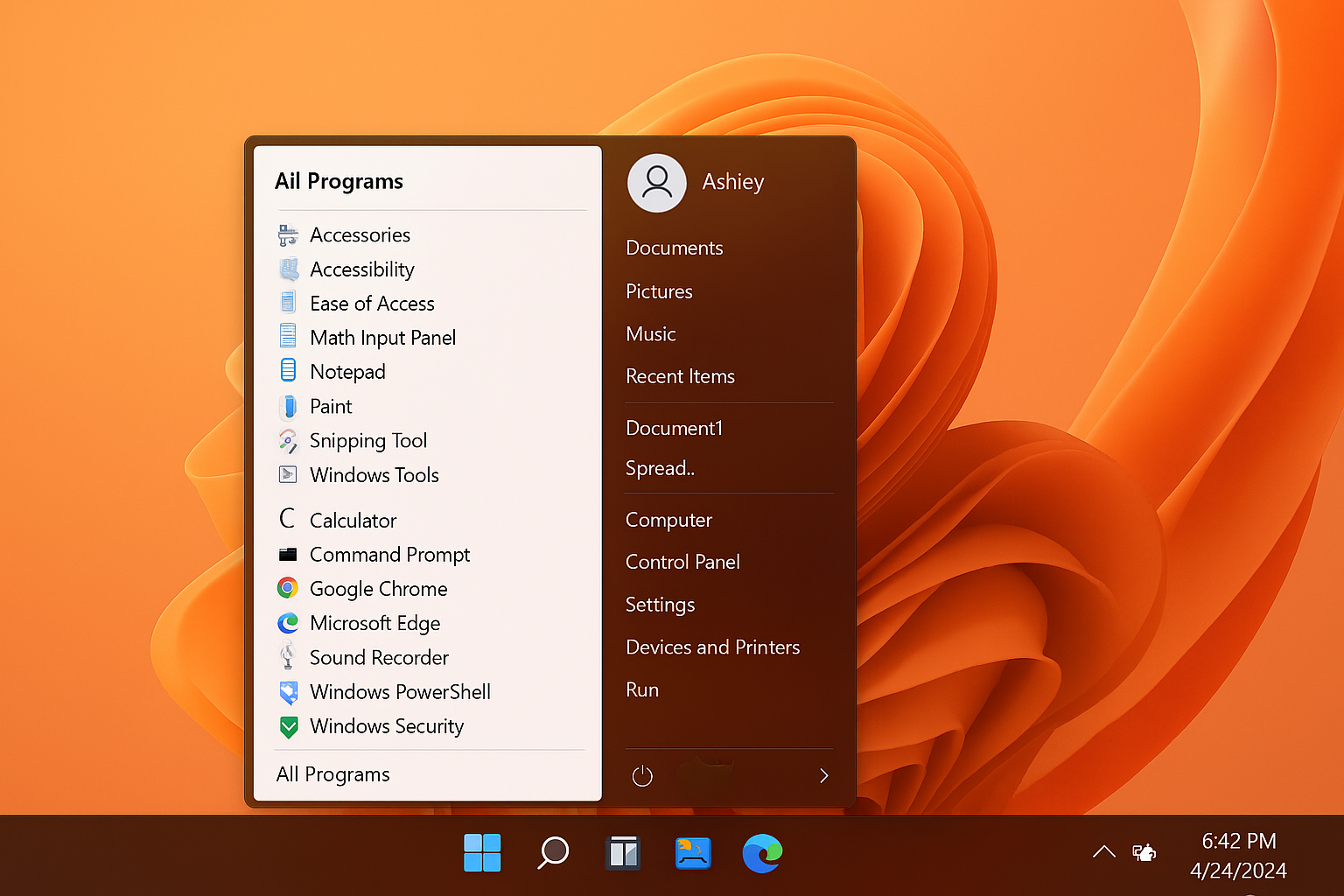
Why it’s worth the money:
- Multiple Styles: Classic Windows, modern tiles, or completely custom designs
- Perfect Integration: Feels like it’s part of Windows, not bolted on
- Regular Updates: Stardock keeps it compatible with every Windows update
StartAllBack (Windows 11 Fixer)
StartAllBack is specifically designed to fix Windows 11’s most annoying changes. If you upgraded from Windows 10 and hate the new interface, this tool brings back the old functionality.
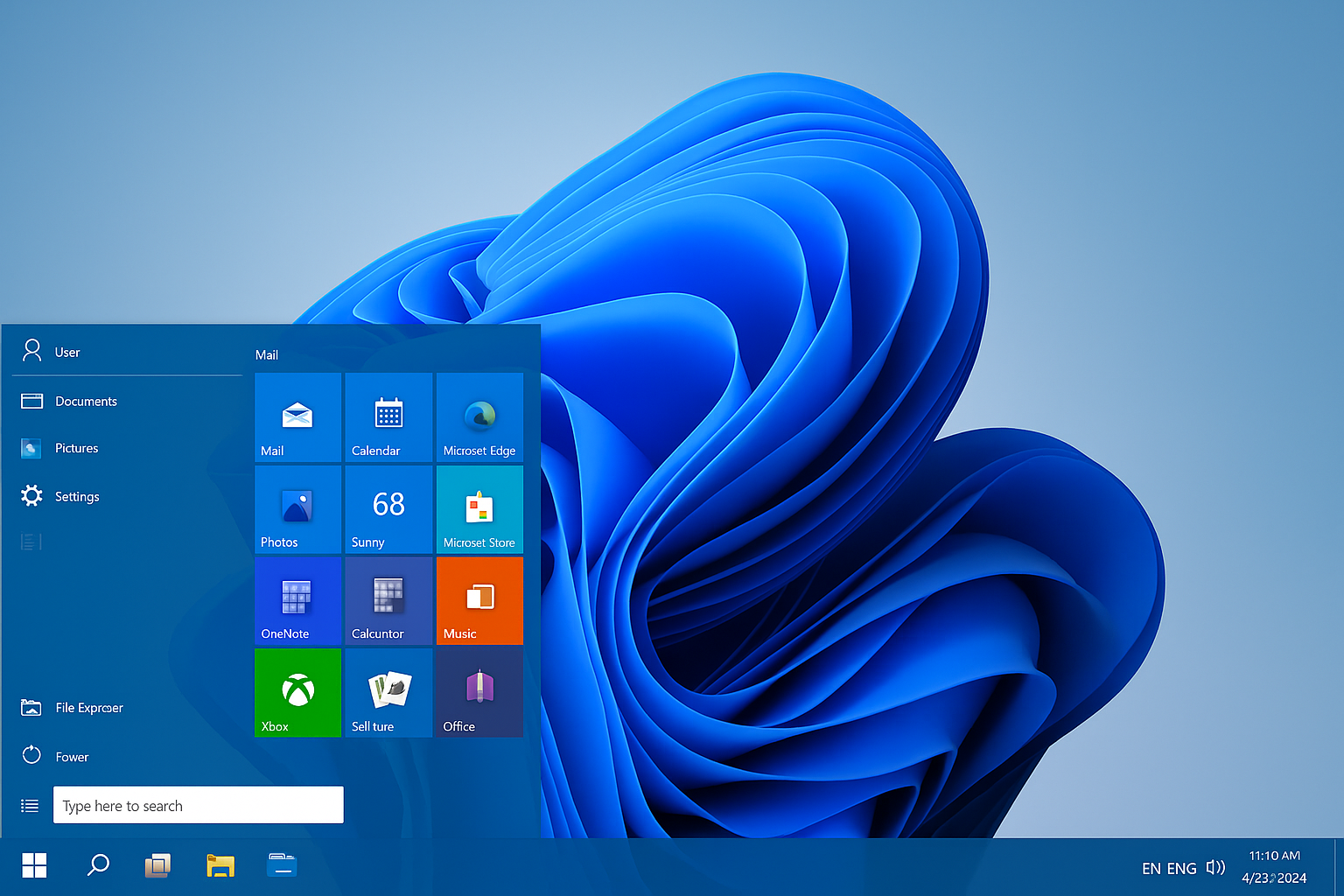
What it fixes:
- Taskbar: Brings back the Windows 10 taskbar with all its features
- Start Menu: Restores the Windows 10 Start menu layout
- Explorer: Fixes the context menus and brings back classic features
ExplorerPatcher (Free and Powerful)
This free, open-source tool on GitHub is incredibly popular for fixing Windows 11’s interface changes. It’s more technical than the others but completely free.
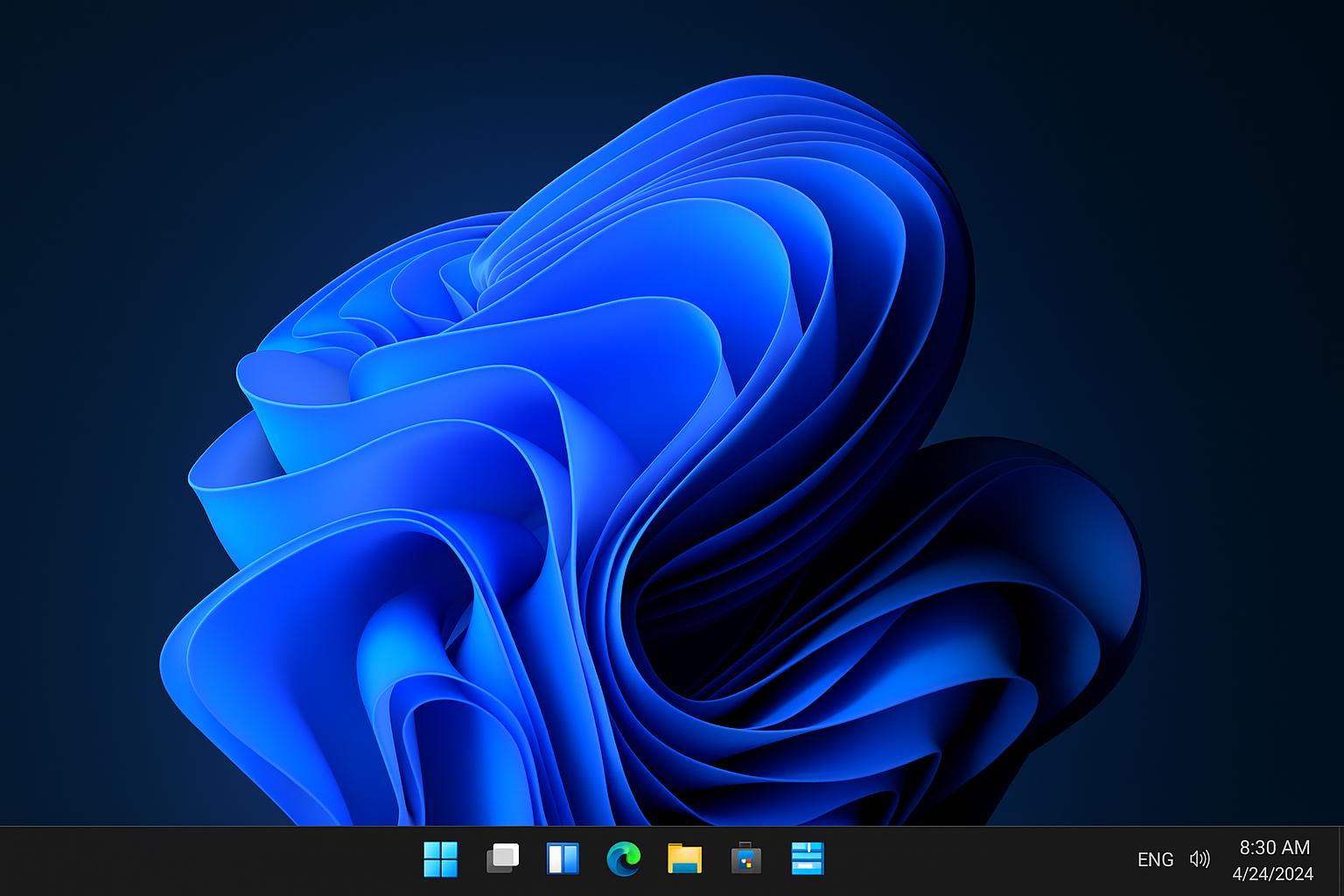
What makes it special:
- Completely Free: Open source and available on GitHub
- Deep Customization: Can modify almost every aspect of the Windows 11 interface
- Active Community: Regular updates and lots of user support
Desktop Customization Powerhouses
Rainmeter (The Customization King)
Rainmeter isn’t a shell replacement — it’s something even better. It lets you add customizable widgets (called “skins”) to your desktop that can show anything from system monitoring to weather to music controls.
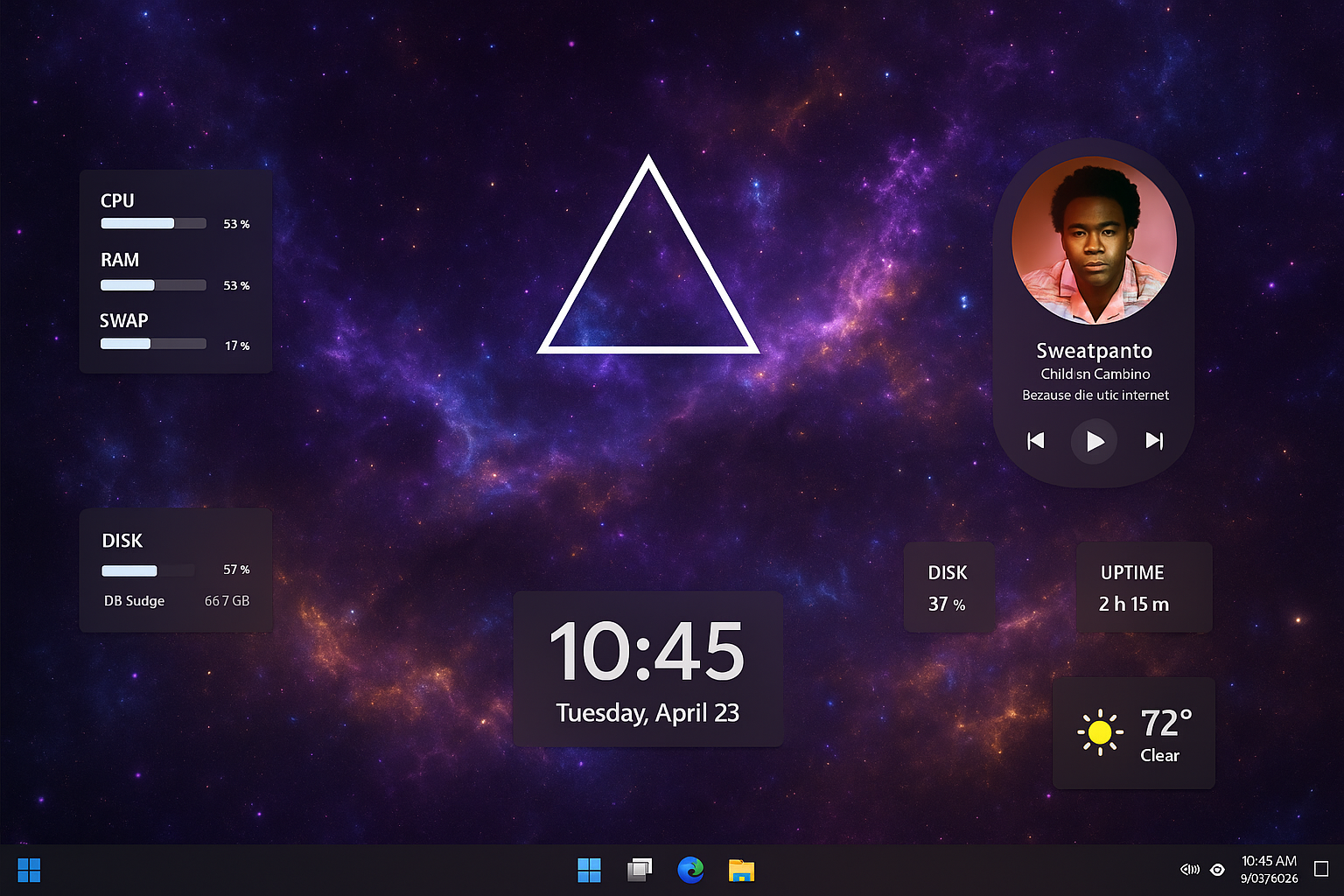
Why everyone loves it:
- Massive Community: Thousands of free skins available online
- System Monitoring: See CPU, RAM, and network usage in beautiful displays
- Endless Possibilities: If you can imagine it, someone has probably made a skin for it
WindowBlinds by Stardock
WindowBlinds changes how your actual windows look – the title bars, borders, and buttons. It’s like giving every program a makeover.
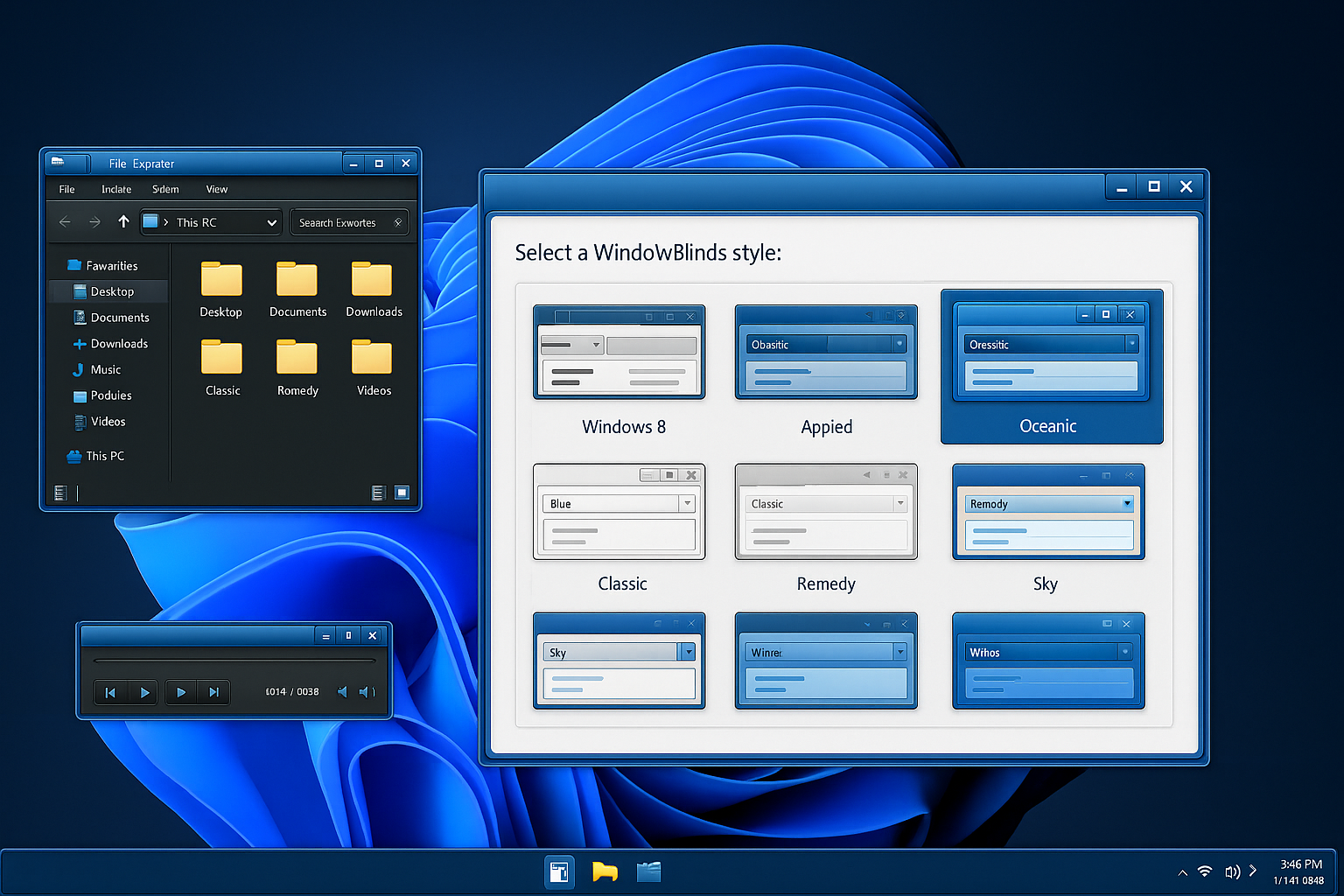
What it does:
- Window Themes: Completely change how program windows look
- Color Schemes: Match everything to your preferred colors
- Transparency Effects: Add glass or transparency effects to windows
How to Safely Try Shell Replacements
If you really want to try a full shell replacement like Cairo, here’s how to do it safely:
Step 1: Create a Backup
Before doing anything, create a system restore point. Press Windows + R, type rstrui, and hit Enter. Click Create and give it a name like “Before Shell Replacement.”
Step 2: Download and Install
Download Cairo Shell from their official website and install it normally. Don’t worry — just installing it won’t change anything yet.
Step 3: Test the Replacement
Press Ctrl + Shift + Esc to open Task Manager. Click More details if needed, then find “Windows Explorer” in the list. Right-click it and select End task. Your desktop and taskbar will disappear (this is normal!).
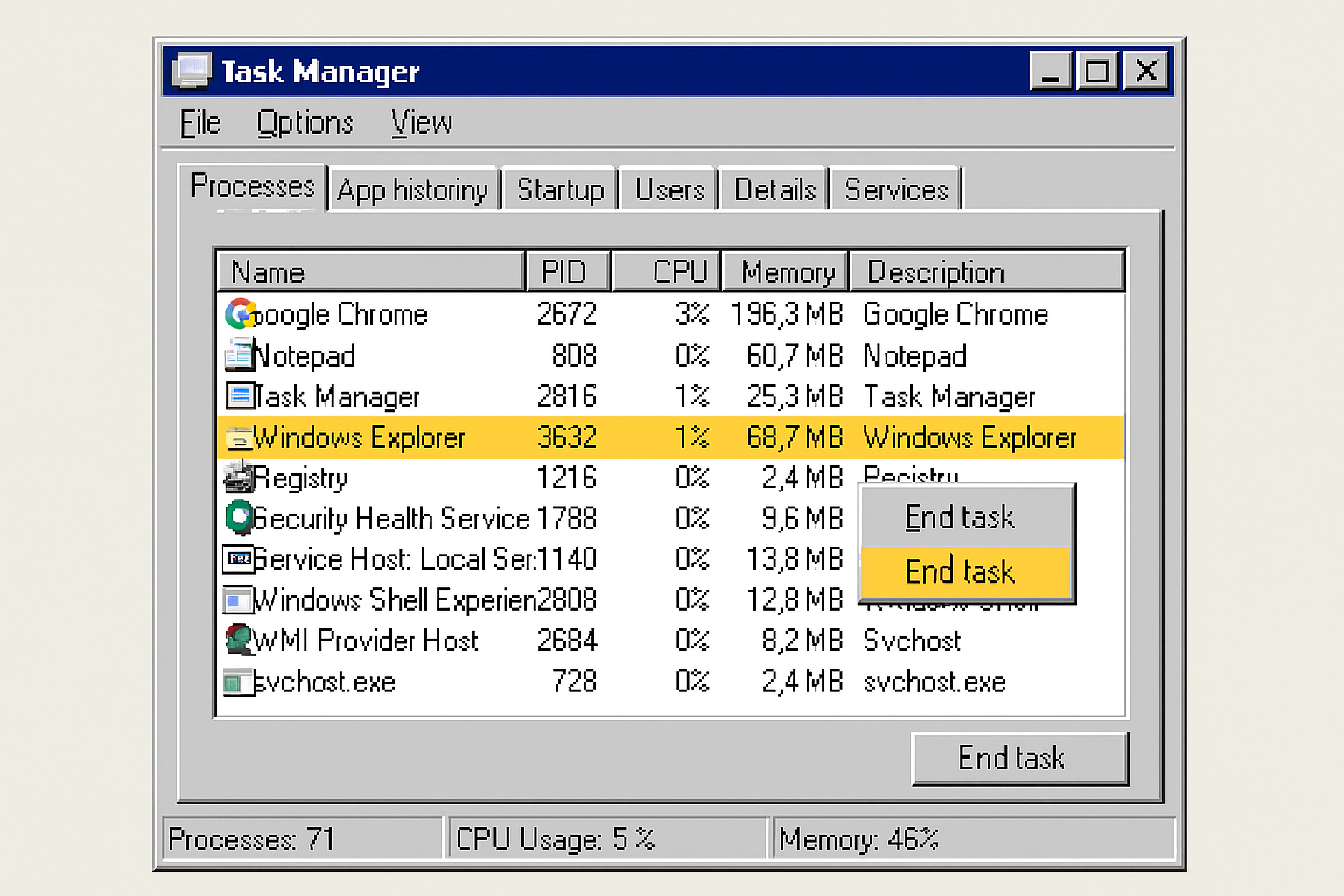
Now click File > Run new task in Task Manager, type the path to your shell replacement executable, and click OK. The new shell should start up.
Step 4: Revert if Needed
To go back to the normal Windows shell, open Task Manager again (it should still be running), click File > Run new task, type explorer.exe, and hit Enter. Your normal desktop will return.
What Happened to All the Classic Shell Replacements?
You might have heard of programs like Blackbox, Emerge Desktop, LiteStep, or Classic Shell. Here’s the deal: most of them are either completely dead or haven’t been updated in years. Windows 10 and 11 have much stricter security, and these old programs just can’t keep up.
The graveyard includes:
- Classic Shell: Abandoned in 2017 (but Open-Shell carries on its legacy)
- Emerge Desktop: Last update in 2015, doesn’t work with modern Windows
- LiteStep: Last update in 2011, definitely not Windows 11 compatible
- Blackbox variants: Most stopped working after Windows 8
Tips and Troubleshooting
Common Issues
Problem: The shell replacement crashes on startup
This usually happens with Windows 11’s security features. Try running the program as administrator, or check if there’s a Windows 11-specific version available.
Problem: System tray icons disappear
Full shell replacements often break the system tray. You’ll need to manually launch programs or use the Task Manager to access them.
Problem: Can’t get back to normal Windows
If you’re stuck in a shell replacement, press Ctrl + Shift + Esc to open Task Manager, then File > Run new task > type explorer.exe and hit Enter.
Pro Tips
- Start small: Try Start menu replacements before jumping to full shell replacements
- Check compatibility: Make sure any tool you download specifically mentions Windows 11 support
- Join communities: Reddit’s r/Windows10 and r/Windows11 have great customization advice
- Keep it simple: The most reliable customizations are often the simplest ones
Which Option Should You Choose?
Here’s my honest take after years of testing these tools: skip the full shell replacements unless you’re feeling really adventurous. The modern enhancement tools like Open-Shell, Start11, and Rainmeter give you 90% of the customization benefits with way less risk of breaking your system.
If you just want your Windows 11 PC to feel more like Windows 10, go with StartAllBack or ExplorerPatcher. If you want to add cool desktop widgets and monitoring, Rainmeter is unbeatable. And if you miss the classic Start menu, Open-Shell is perfect and completely free.
The days of needing to completely replace Windows’ shell are pretty much over! The enhancement tools have gotten so good that they’re honestly better than full replacements for most people.