
Ever received a PDF packed with great photos or graphics that you desperately wanted to save as separate image files? You’re not alone. Whether it’s product images, charts, or photos someone sent you in a report, getting those images out of a PDF can feel trickier than it should be.
The good news: there are plenty of ways to do it in 2026, and most of them are free. In this guide, we’ll walk through six methods, from quick one-image grabs to bulk extraction of every image in the file, so you can pick whichever fits your situation best. We’ll start with the simplest no-install options and work up to the more powerful tools.
Before You Begin
A couple of quick things worth knowing before you dive in:
- Copyright still applies. Just because you can extract an image doesn’t mean you have the right to use it however you want. Make sure you have permission to use the images you’re pulling out.
- Don’t upload sensitive PDFs to online tools. If your PDF contains confidential or private information, stick to the offline methods (Methods 1, 4, and 5).
- Scanned PDFs are trickier. If your PDF is a scanned document (basically a photo of a page), there are no discrete image objects to extract. The whole page is one big image. The screenshot method works best for those.
Method 1 – Take a Screenshot (Windows & macOS)
This is the quickest option if you only need to grab one or two images. It’s not the most precise method, but it works on any PDF in any viewer, even scanned documents where other methods fail. The catch is that image quality depends on your screen resolution, not the original image resolution, so it’s not ideal for high-quality print work.
On Windows 10/11
- Open your PDF in Microsoft Edge, Adobe Acrobat Reader, or any other viewer.
- Zoom in on the image so it fills as much of your screen as possible. This gives you the best quality capture.
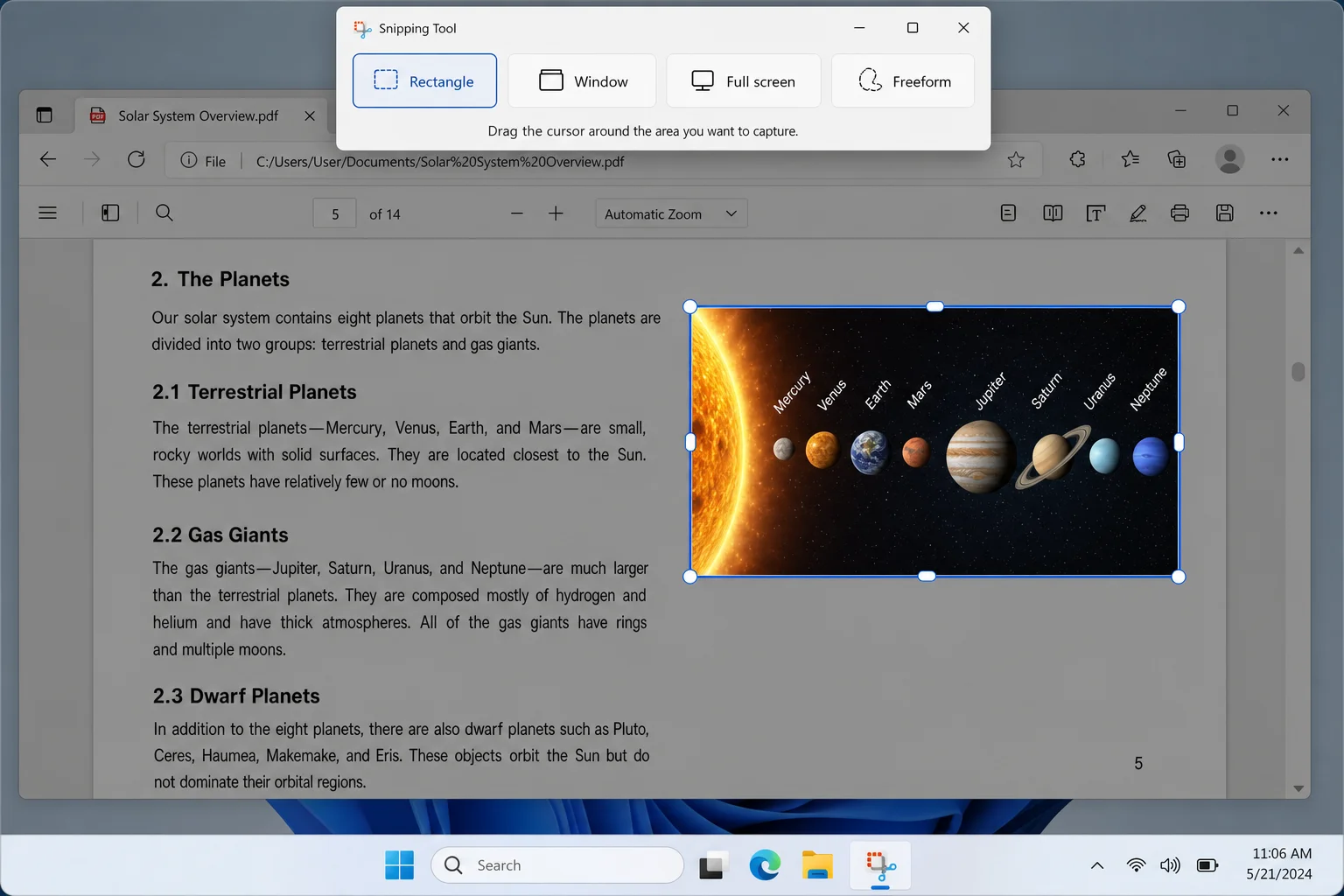
- Press
Windows + Shift + Sto open the Snipping Tool overlay. - Click and drag a rectangle around the image.
- A notification will pop up in the bottom-right corner. Click it to open the snip in Snipping Tool.
- Click Save (the floppy disk icon) and choose PNG or JPEG as your format, then pick a save location.
On macOS
- Open your PDF in Preview or your browser.
- Zoom in on the image as much as you can.
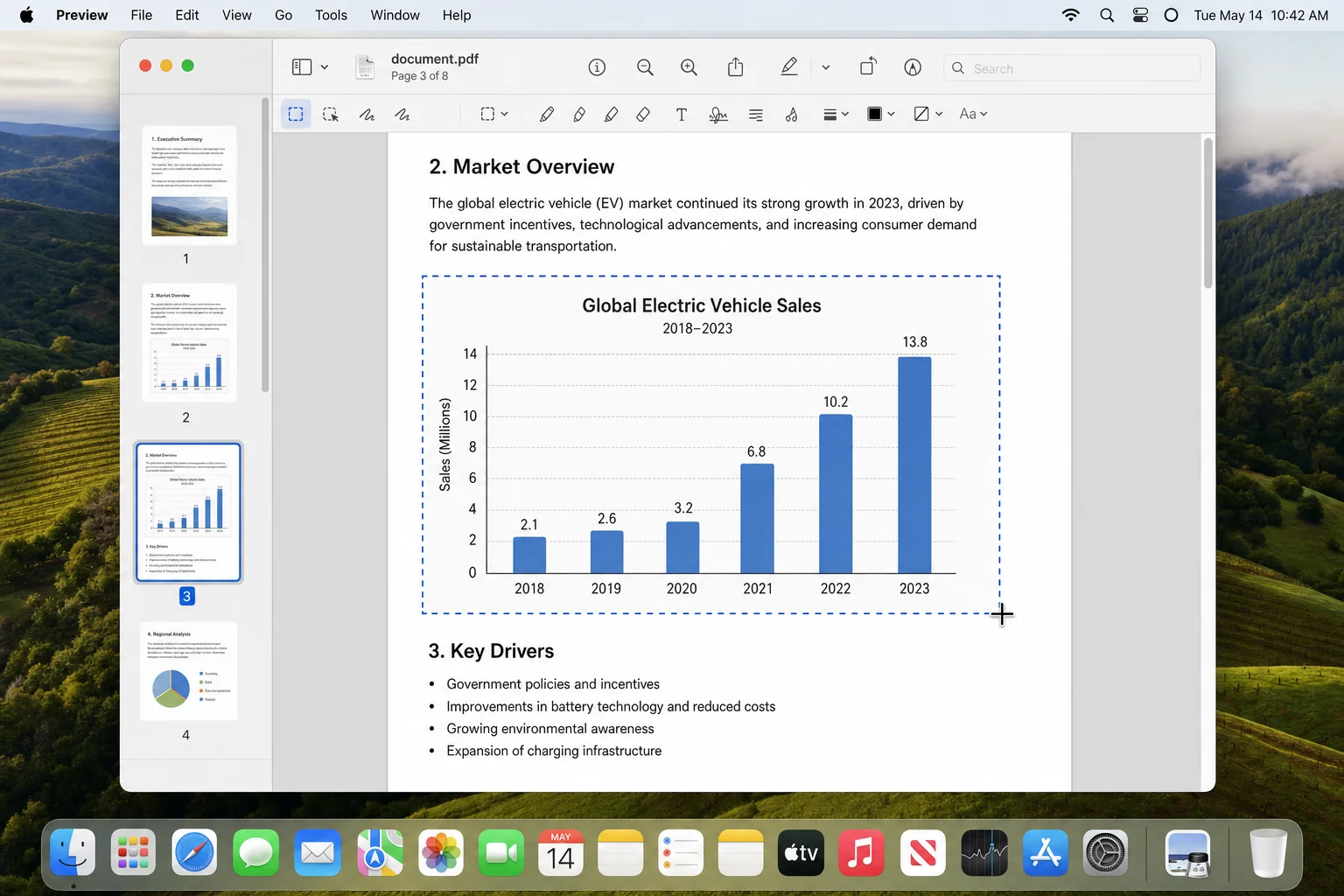
- Press
Shift + Command + 4. - Your cursor turns into a crosshair. Click and drag to select the image area.
- The screenshot saves automatically as a PNG on your desktop. You can open it in Preview and export it as JPEG or TIFF if needed.
Method 2 – Free Online Tools
If you don’t want to install anything and your PDF isn’t confidential, online tools are a seriously convenient option. Most of them let you upload a PDF and download all the extracted images as a ZIP file in about 60 seconds. Just be aware that free tiers usually have file size limits or daily usage caps.
Adobe Acrobat Online
- Go to Adobe Acrobat’s online PDF to image converter.
- Click Select a file or drag and drop your PDF onto the page.
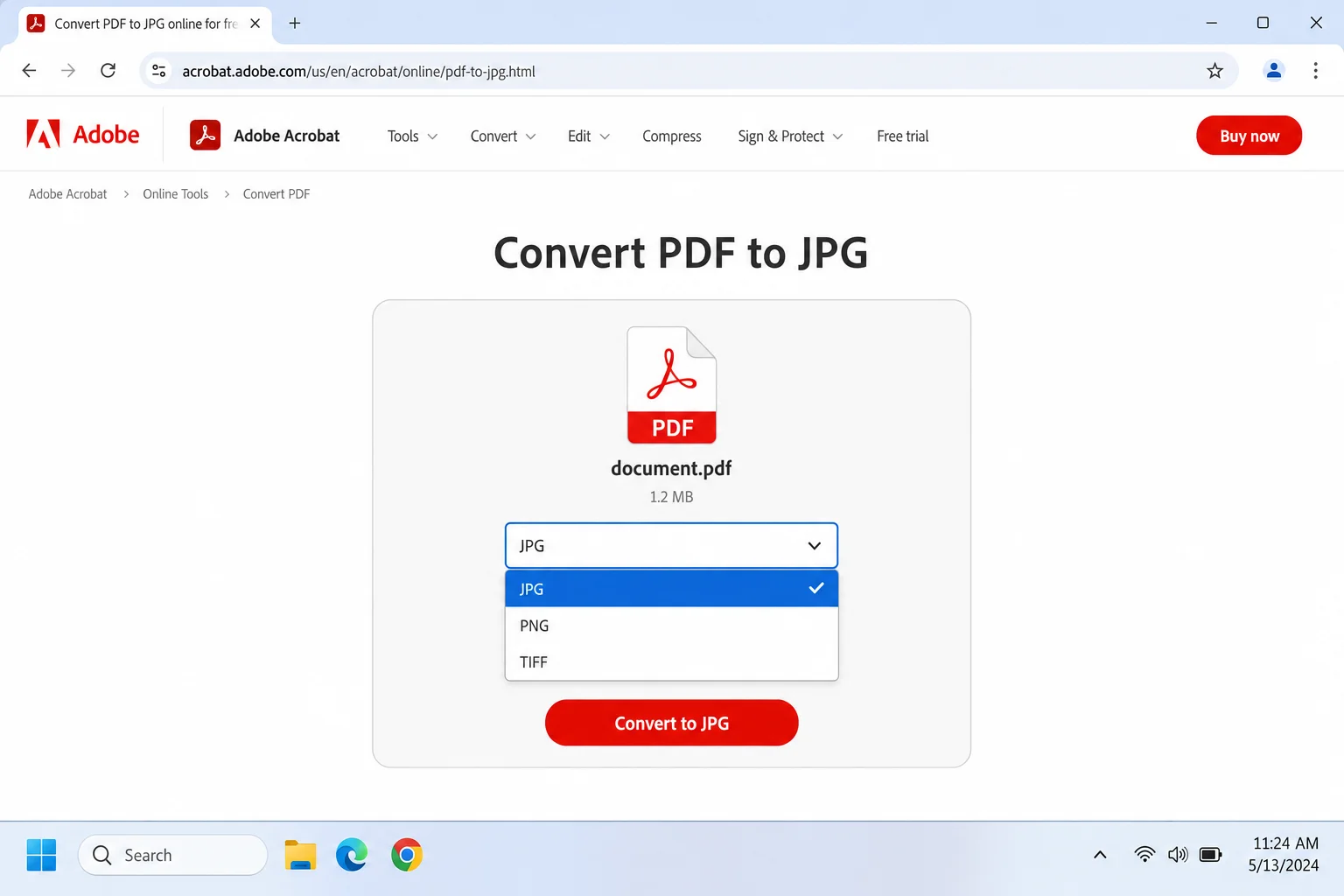
- Use the Convert to dropdown to choose JPG, PNG, or TIFF.
- Click the convert button and wait for it to process.
- Download the result. You’ll get a ZIP file containing all the converted images.
- On Windows, right-click the ZIP and choose Extract All… to unpack the images. On macOS, just double-click the ZIP.
PDFCandy
PDFCandy’s Extract Images tool is one of the cleanest online options out there. It pulls all embedded images directly from the PDF (not page screenshots) and lets you download them individually or all at once as a ZIP.
- Go to PDFCandy’s Extract Images page.
- Click Add file or drag your PDF onto the upload area. You can also import from Google Drive or Dropbox.
- Click the button to start the extraction.
- Once it’s done, download individual images or click Download all to get a ZIP of everything.
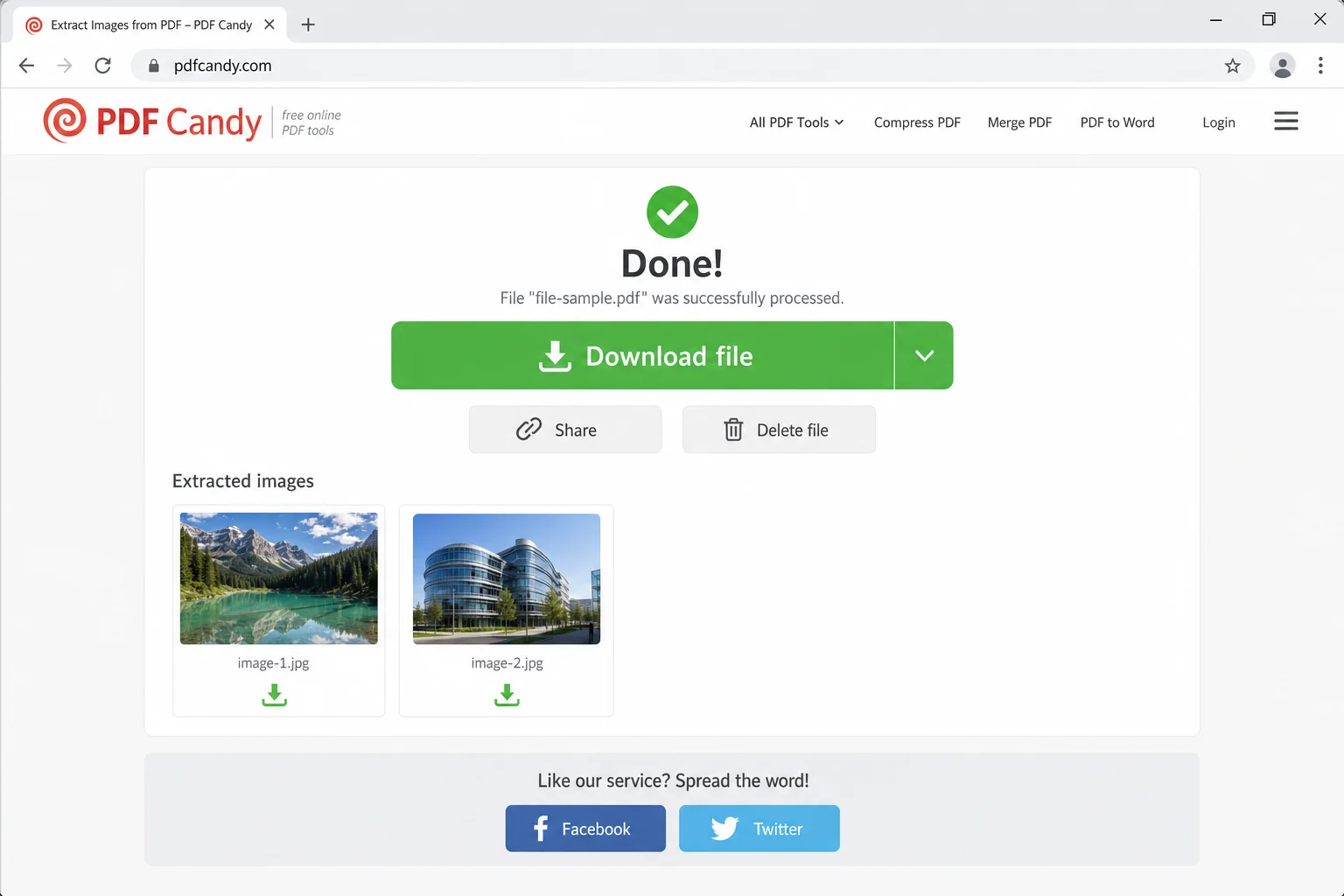
One heads-up: PDFCandy (and most online tools) will pull every embedded image, including small icons, logos, and decorative graphics you probably don’t want. You may need to delete a few extras after downloading.
Method 3 – Right-Click Copy in Adobe Acrobat Reader (Free)
If you have Adobe Acrobat Reader installed (the free version), you can copy individual images directly from a PDF without taking a screenshot. This method grabs the actual image data rather than a screen capture, so you get better quality, as long as the PDF isn’t a scanned document.
- Open your PDF in Adobe Acrobat Reader.
- Click the image you want to extract. It should get a blue highlight border around it.
- Right-click the image and look for Copy Image or Save Image As…
- If you see Save Image As…, choose that. You can save directly as JPEG or TIFF without opening another app.
- If you only see Copy Image, click it, then paste into an image editor like Paint (Windows) or Preview (macOS) and save from there.
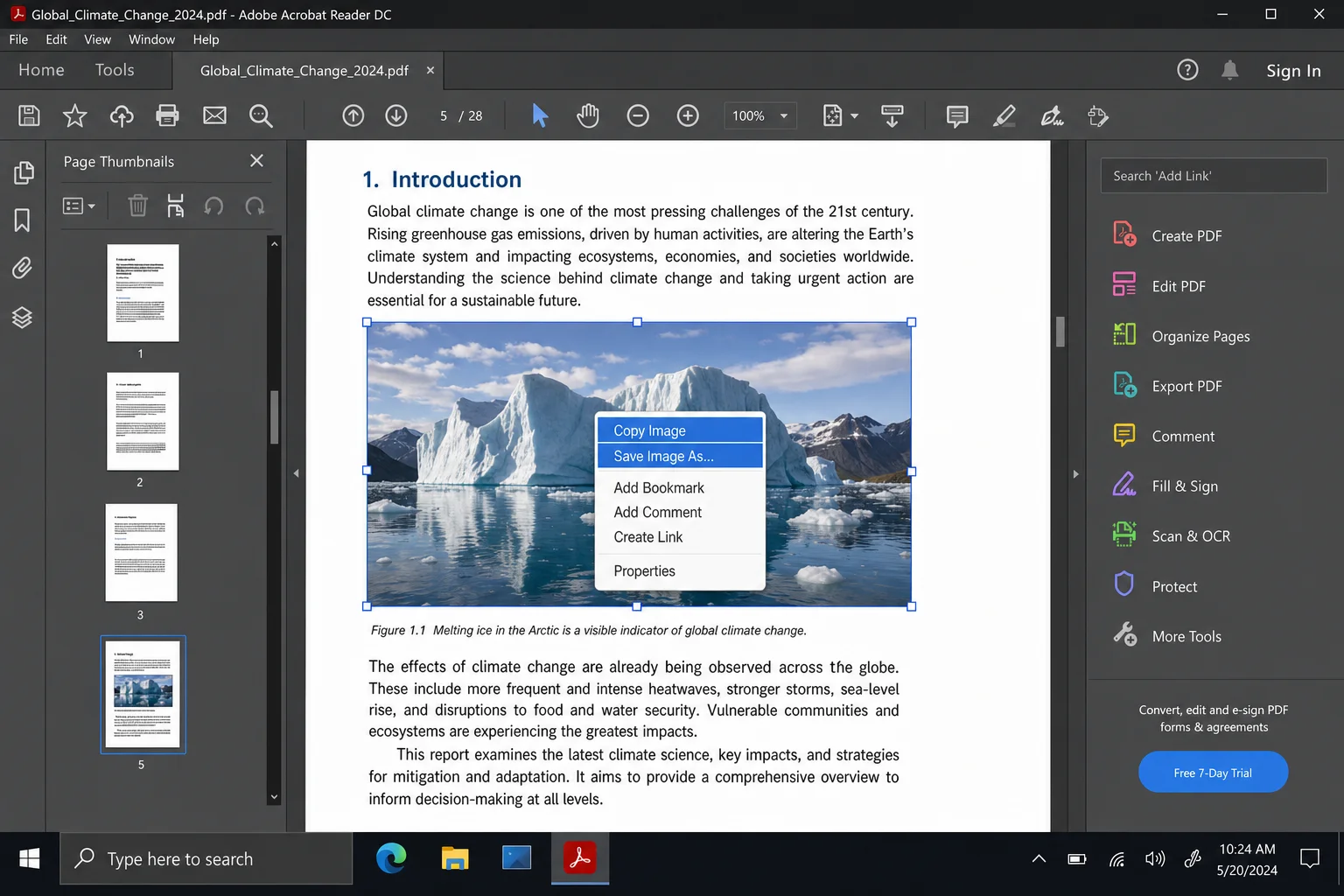
If the right-click menu doesn’t show those options, the image is probably part of a scanned page or the PDF has security restrictions. In that case, fall back to the screenshot method or try one of the online tools.
Method 4 – Bulk Export with Adobe Acrobat Pro
If you have Adobe Acrobat Pro (the paid subscription version), this is hands-down the most powerful way to extract images. You can dump every single image out of a PDF in one shot, choose your output format, and even filter out tiny images you don’t want. It’s the go-to method for anyone who does this regularly.
- Open your PDF in Adobe Acrobat Pro.
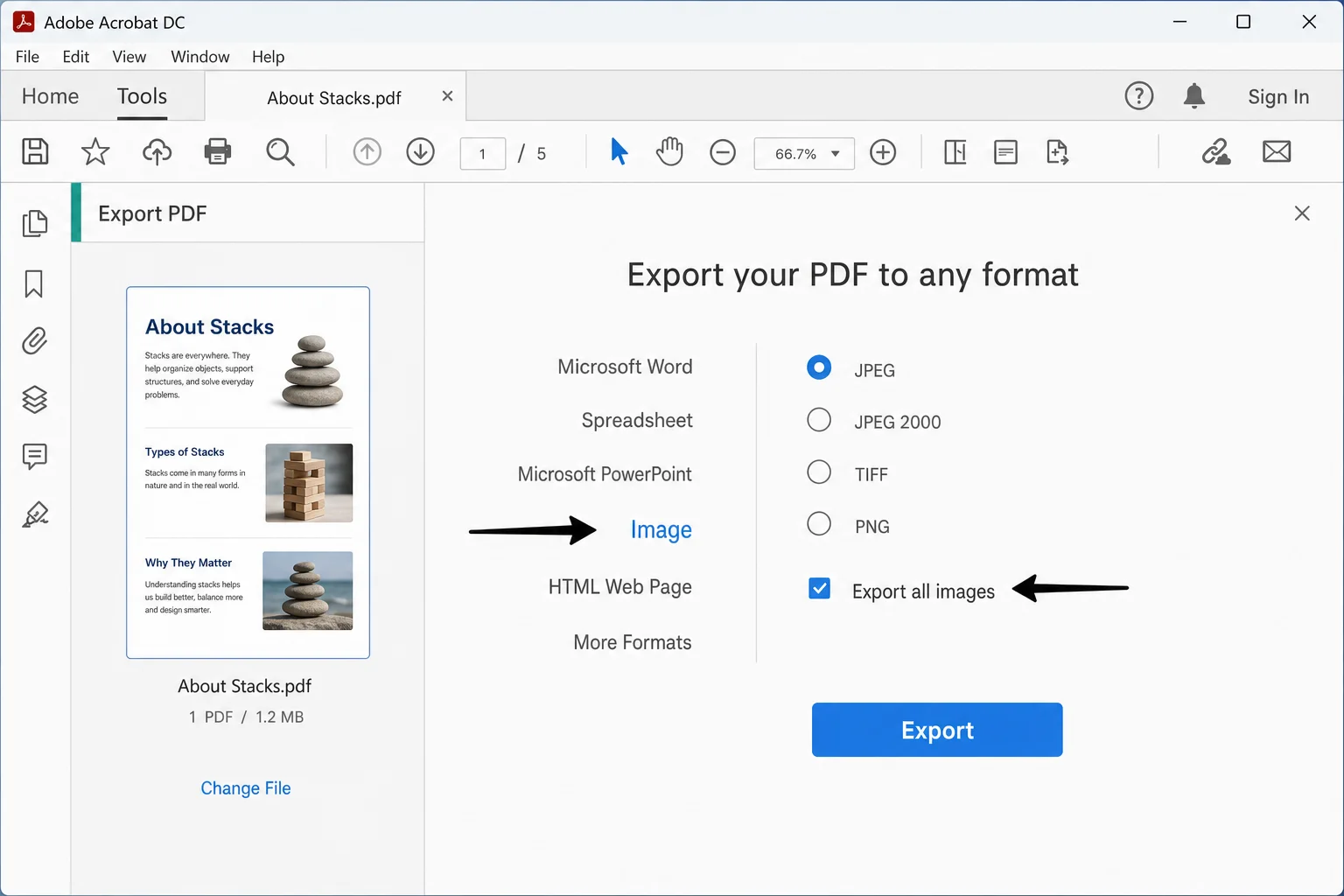
- Click the All tools panel (or the Tools tab) and select Export PDF.
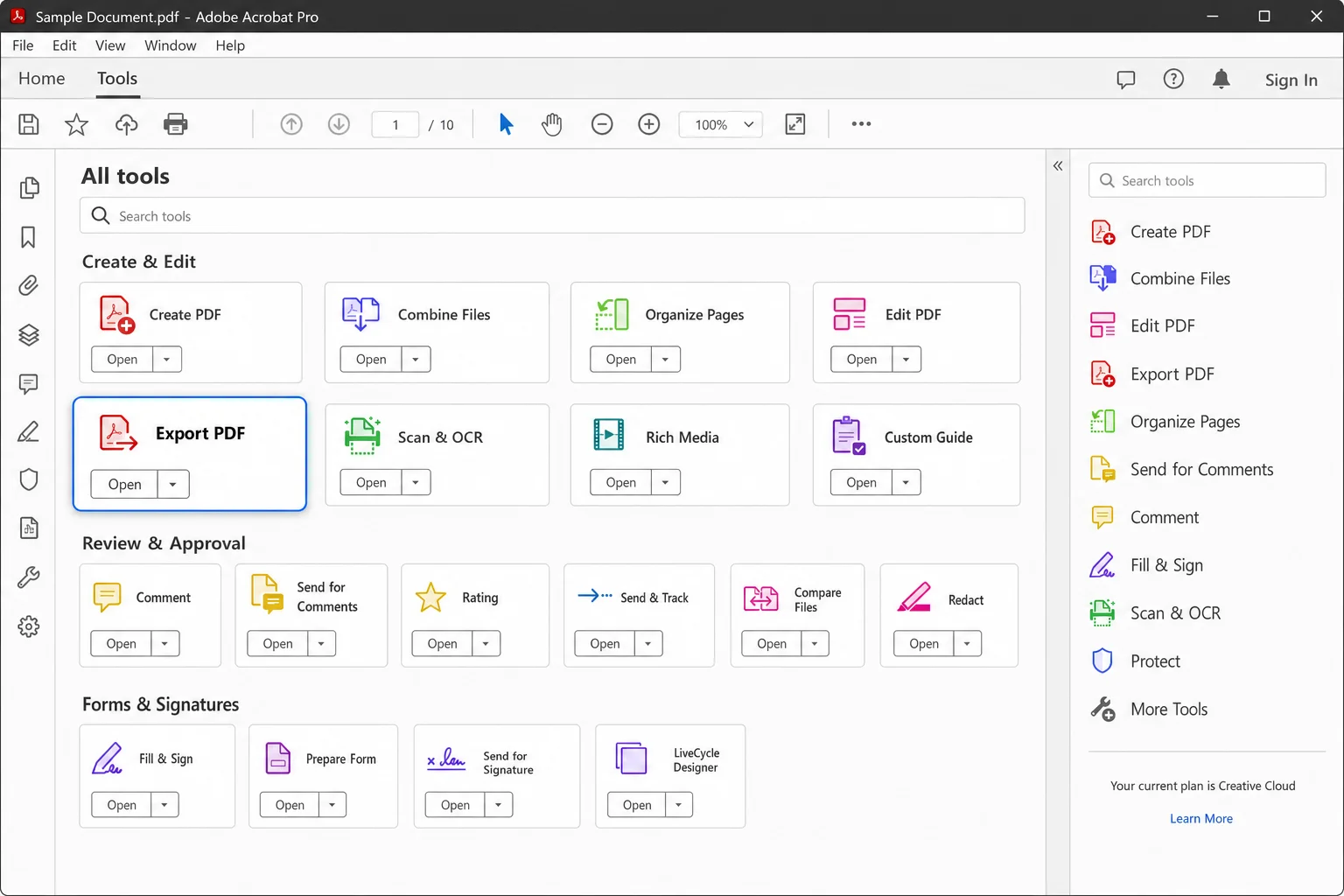
- Under Export To, click Image.
- Choose your format: JPEG, JPEG 2000, PNG, or TIFF.
- Make sure the Export all images option is selected.
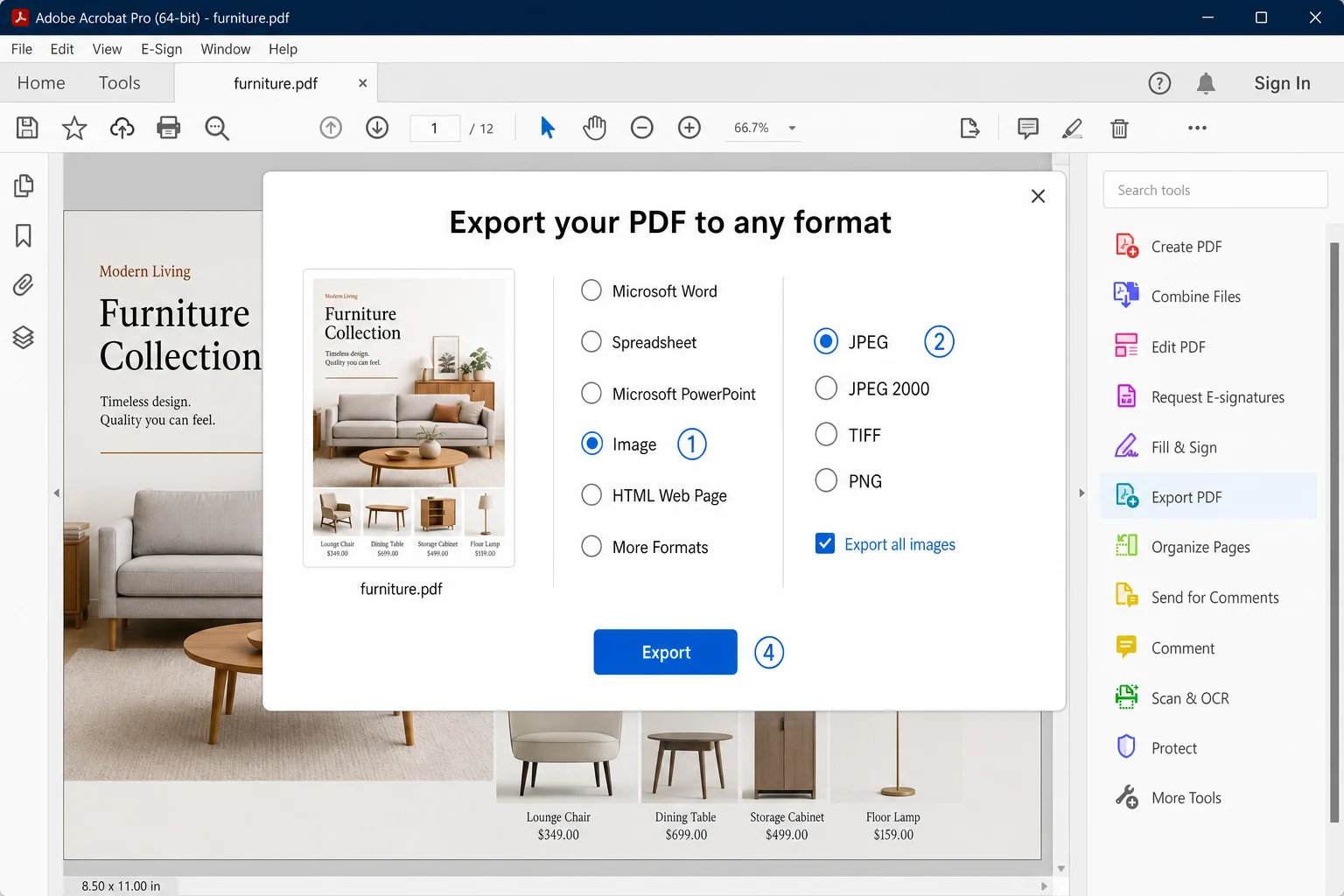
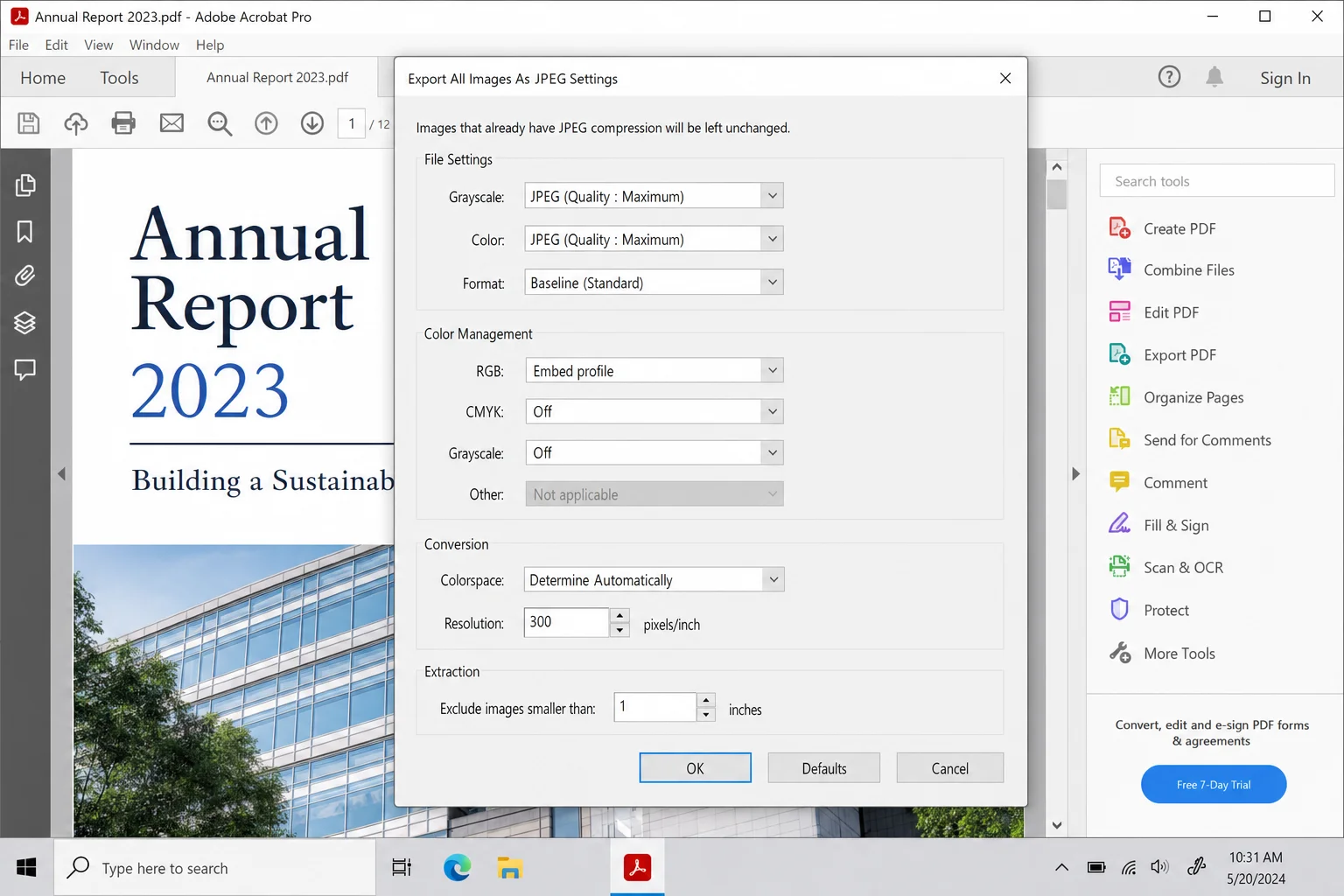
- Click the gear icon (Settings) to fine-tune the output:
- Resolution/quality: Adjust compression and resolution. Note that Acrobat won’t artificially increase quality beyond what’s in the original. If the source image is low-res, it’ll stay low-res.
- Minimum image size: Set a minimum pixel size to skip small icons and decorative graphics you don’t want.
- Click Export, choose a destination folder, and click Save.
Acrobat will save each image as a separate file, named with the PDF filename, page number, and sequence number (e.g., Report_Page_1_Image0001.jpg). Super organized.
Method 5 – Adobe Photoshop
Got Photoshop? You can open a PDF directly in it and choose exactly which embedded images you want to pull out. This is great if you want to do some editing right away after extracting.
- Open Photoshop and go to File > Open, then select your PDF file.
- The Import PDF dialog will appear automatically.
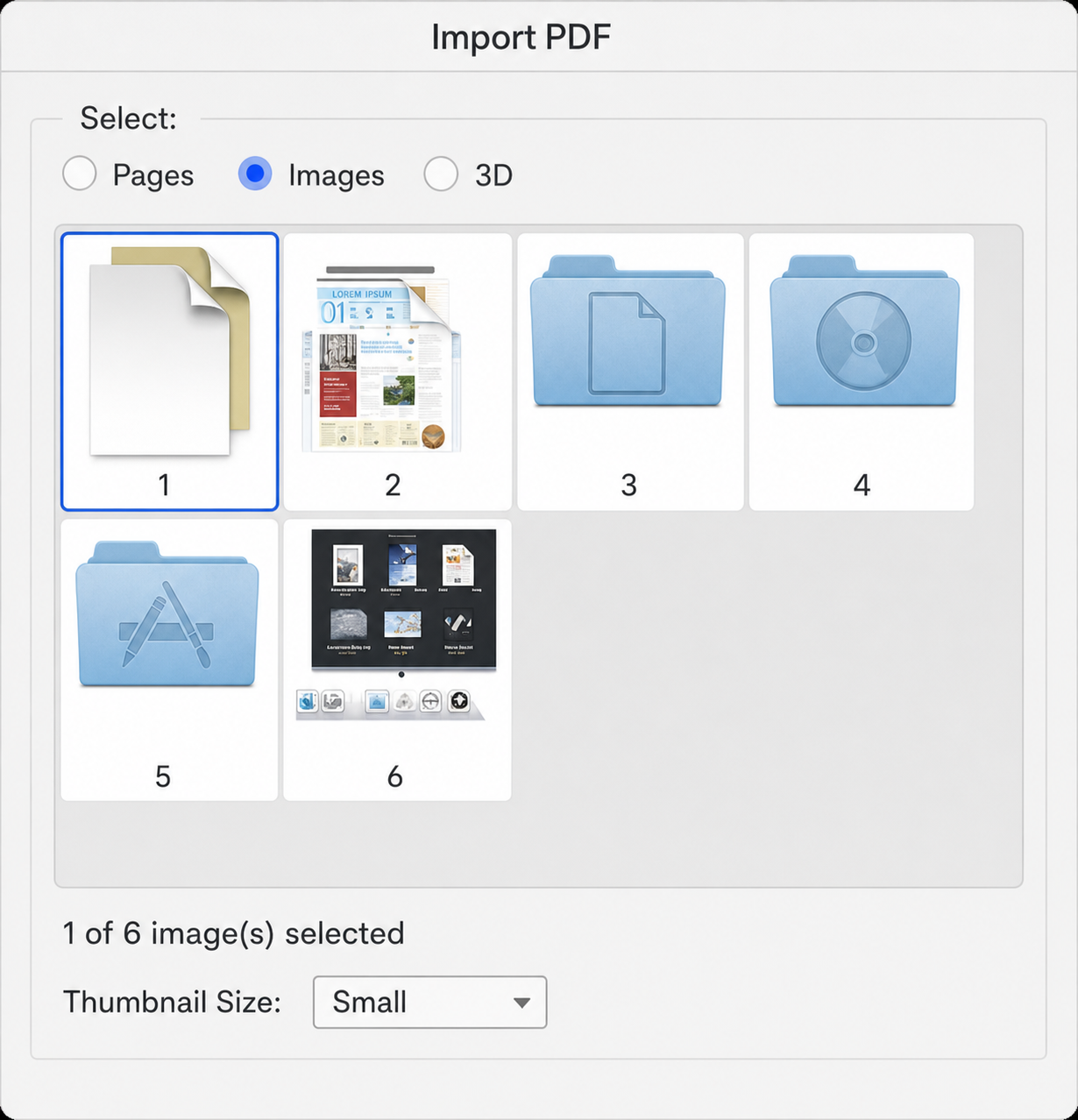
- Click the Images radio button at the top of the dialog (not Pages, as that converts whole pages rather than just the embedded images).
- You’ll see thumbnails of all the images in the PDF. Click to select the ones you want. Hold
Shiftto select multiple images.
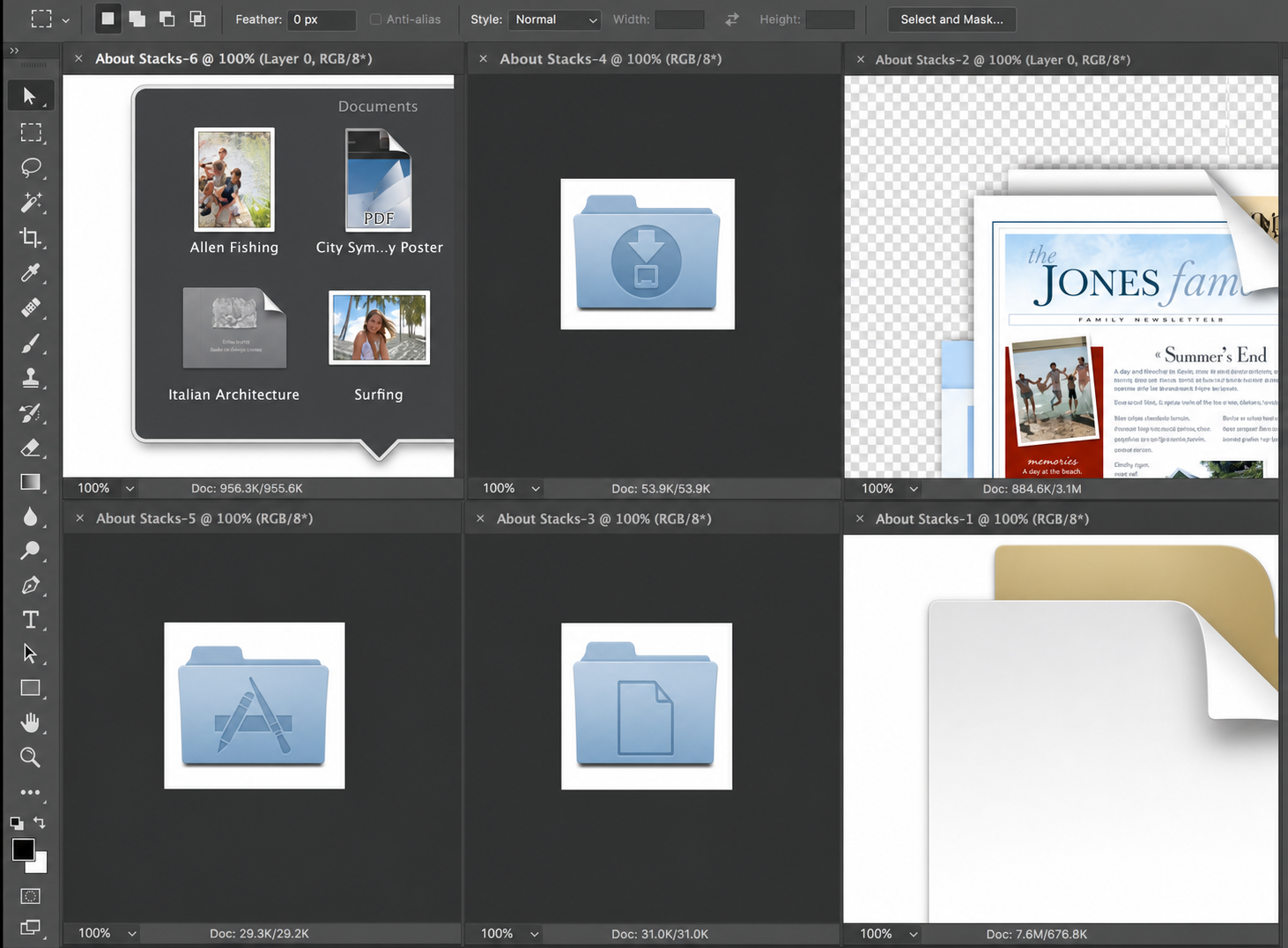
- Click OK. Each selected image opens in its own tab in Photoshop.
- Go to File > Export > Export As… (or Save As) for each tab and save in your preferred format: JPEG, PNG, or TIFF.
This method gives you a lot of control, especially if you need to tweak colors, resize, or adjust anything before saving.
Method 6 – Use macOS Preview to Export Pages as Images
If you’re on a Mac and don’t have Acrobat or Photoshop, Preview has a handy built-in export feature that can convert PDF pages to image files. It’s not the same as extracting individual embedded images, as it captures the whole page as an image, but for many use cases, that’s totally fine.
- Open your PDF in Preview (just double-click the PDF file).
- In the sidebar, click the page (or pages) you want to export as images. Hold
Commandto select multiple pages. - Go to File > Export.
- In the Format dropdown, choose JPEG, PNG, or TIFF.
- Adjust the quality slider if needed, then click Save.
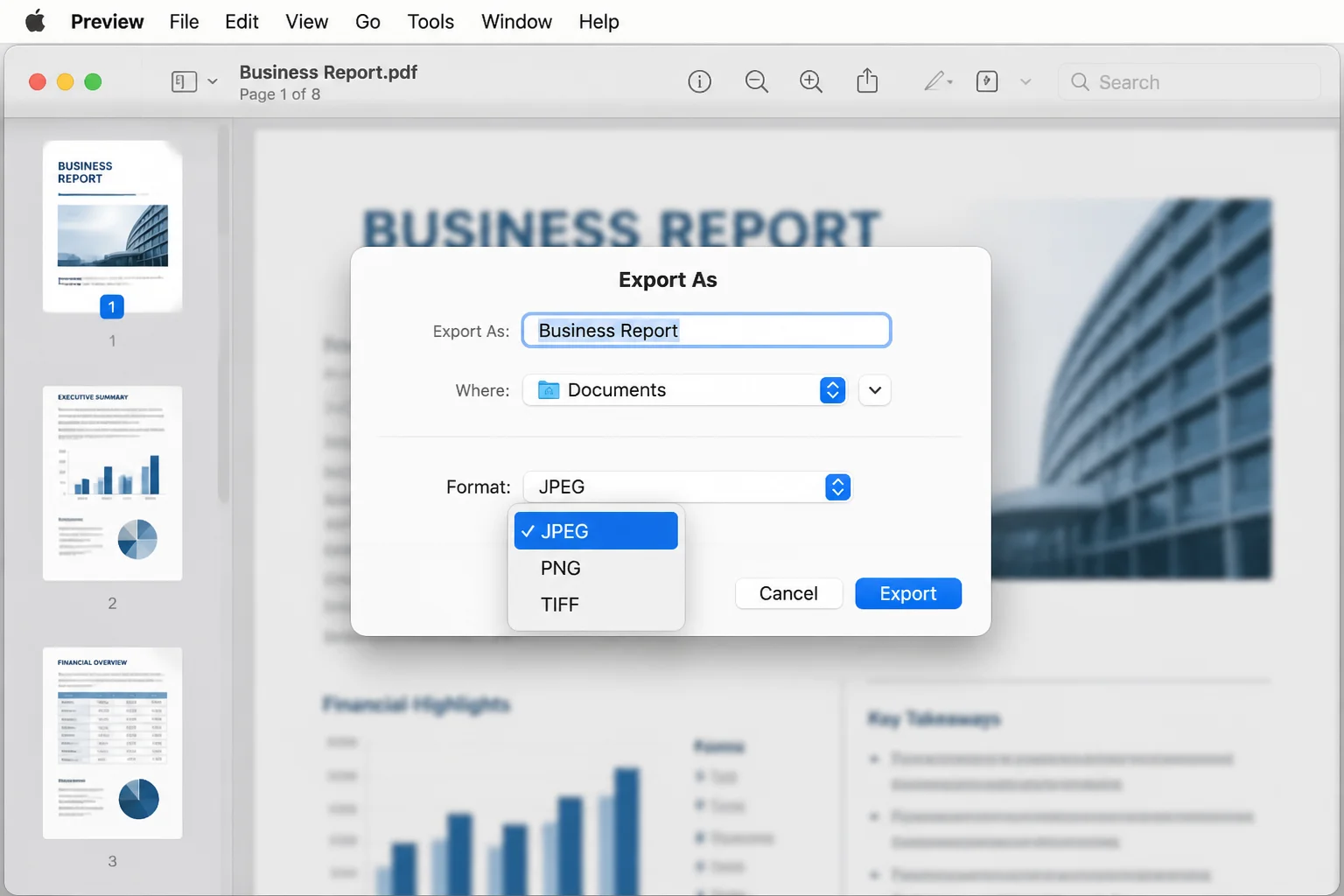
If you need to export multiple pages, you’ll have to repeat the export process for each one. Preview doesn’t do a true batch export of all pages at once. For that, you’re better off with Acrobat Pro or one of the online tools.
Tips and Troubleshooting
Common Issues
Problem: The extracted image looks blurry or low-resolution
This usually means the original image in the PDF was low-resolution to begin with, which is often the case with scanned documents. No tool can create detail that isn’t there. If quality matters, try to get the original image file from whoever sent you the PDF, or request a higher-resolution version of the document.
Problem: Right-click copy doesn’t show any image options
The image is either part of a scanned page (so it’s not a discrete image object) or the PDF has security/DRM restrictions that block copying. Your best options are the screenshot method or, if legally allowed, an online extractor that processes the raw file data.
Problem: The online tool won’t accept my PDF (file too large)
Most free online tools cap file sizes somewhere between 10–100 MB. If your PDF is huge, try splitting it into smaller chunks first using a free split-PDF tool, then upload each part. Alternatively, use Adobe Acrobat Pro or Preview offline, as there are no size limits there.
Problem: I’m getting tons of tiny icons and logos I don’t want
If you’re using Adobe Acrobat Pro, open the export settings (gear icon) and set a minimum image size. Anything below that threshold gets skipped. Online tools don’t always offer this filter, so you may need to manually delete the small stuff after downloading.
Problem: The colors look different after extraction
Some PDFs use CMYK color profiles (common in print documents), and not every tool handles the conversion to RGB correctly. For color-critical work, use Adobe Acrobat Pro or Photoshop, which properly manage color profiles during export.
Pro Tips
- Zoom in before screenshotting: The bigger the image appears on your screen, the better quality your screenshot capture will be. Use
Ctrl + +(Windows) orCommand + +(macOS) to zoom in. - Check your browser first: If the PDF is open in Chrome or Edge, try right-clicking directly on an image. You might see a Save image as option without needing any extra tools.
- Keep sensitive PDFs offline: Never upload a PDF containing personal data, financial info, or anything confidential to an online service. Use Acrobat Pro, Photoshop, or Preview instead.
- For batch jobs on Windows, try pdfimages: If you’re comfortable with the command line, the free
pdfimagestool (part of the Poppler library) can extract every embedded image from a PDF in one command. It’s a bit nerdy but incredibly fast for large files.
Which Method Should You Use?
Here’s a quick summary to help you pick the right approach:
| Method | Best For | Cost | Batch Export? |
|---|---|---|---|
| Screenshot (Snipping Tool / macOS) | 1–2 images, scanned PDFs | Free (built-in) | No |
| Online tools (Adobe, PDFCandy) | Quick jobs, non-sensitive PDFs | Free (with limits) | Yes |
| Acrobat Reader right-click copy | Single images, free option | Free | No |
| Adobe Acrobat Pro bulk export | All images at once, best quality | Paid subscription | Yes |
| Adobe Photoshop | Extracting + editing images | Paid subscription | Yes (manual) |
| macOS Preview export | Mac users, page-level export | Free (built-in) | Limited |
For most people, the online tools (Method 2) are the sweet spot, as they’re fast, free, and require no software to install. If you need to do this regularly or work with sensitive files, Adobe Acrobat Pro’s bulk export is worth it. And if you just need one quick image from a PDF you’re already viewing, a screenshot gets the job done in about 10 seconds flat. Good luck!