How to Make Your Computer Talk/Speak What You Type
Posted on November 3, 2008 at 5:25 am
Here’s a cool little feature of Windows that can be abused so that you can make your computer talk or speak whatever you tell it! This method takes advantage of a built-in API installed on most Windows XP machines called SAPI (Speech Application Programming Interface).
The Microsoft Speech API is what is used for the Narrative accessibility feature built into Windows. You can also write programs that call the API, which would allow you to let your applications speak.
But making your computer say what you want is pretty easy actually! Here’s how you do it:
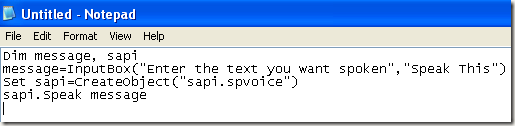
Step 1: Open Notepad and paste the following text into a new document:
Dim message, sapi
message=InputBox(“Enter the text you want spoken”,”Speak This”)
Set sapi=CreateObject(“sapi.spvoice”)
sapi.Speak message
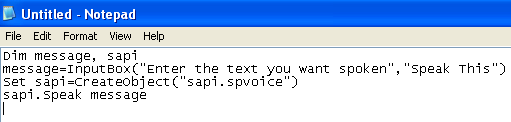
It should basically look something like this:
Now when you go to save the file, give it any name, but make sure you also type .VBS after the name. Also, for the Save as type box, choose All files instead of the default Text Documents.
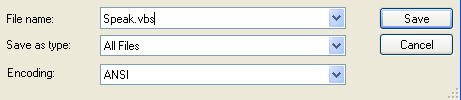
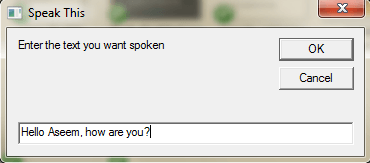
Now double-click on the VBS file and you should see a input box where you can type in the text you want spoken! Go ahead and type something and click OK.
![]()
That’s it! Your computer will speak to you in the default voice, which for me was some scary seductive male type of voice! What about yours? Enjoy (This would be fun to do on someone else’s computer as a joke.)
» Filed Under Fun Stuff
Related Posts
- How to Change the Default Program to Open a File With
- Replace Notepad in Windows 7
- How to Open Multiple Programs in Windows at Once
- Hide and Lock Text Files in Windows
- How to Quickly Paste Copied Text to Notepad
if I put code like this:
Dim message, sapi
Set sapi=CreateObject(”sapi.spvoice”)
sapi.Speak “Who are you?”
And then I set it to run at restart on someone’s pc, so when it restart… Will it work???
Thank
not working for me…
it says:
LINE: 2
CHAR: 18
ERROR: INVALID CHARACTER
CODE: 800A0408
SOURCE: MICROSOFT VBSCRIPT COMPILATION ERROR
can you tell me what am I doing wrong????
ok, ok. I found it!!!
the ” character was wrong. Ok, it works great! Thanks…
How can I change the voice????
Your instructions worked well, the computer speaks, my kids thought it was very cool.
i tried to do this but i keep getting the same error codeINE: 2
CHAR: 18
ERROR: INVALID CHARACTER
CODE: 800A0408
I think it’s only for XP computers??? Won’t work on vista for me anyway.
Thanks, the kids love it, especially since I added a loop:
Dim message, sapi
message=InputBox(“Enter the text you want spoken”,”speak this”)
set sapi=CreateObject(“sapi.spvoice”)
For i=1 to 10
sapi. Speak message
Next
Here is the corrected code:
Dim message, sapi
message=InputBox(“Enter the text you want spoken”, “Speak This”)
Set sapi=CreateObject(“sapi.spvoice”)
sapi.Speak message
Randy if you copied and pasted the text from the website you will have to go back in and change the ” marks to your own. You will manually have to type them into the code. They dont copy and paste right. That should fix your problem.
Everyone, if you receive the error message when attempting to open the file, replace the copied quotation marks (all of them) by pressing the quotation key when each is highlighted. It doesn’t recognize the quotations provided.
You have to change all ” to ”
Or you will get a character error.
ummmmmm its not working for me theres an error same as all the other peoples on line two
please explain
Thanks it works
Hey this is great. I was wondering if there is something I can add to the script that will keep the box from disappearing after I enter the phrase I want spoken.
Hey, very cool! I’m driving my wife crazy.
Same question as Al: can we keep the box from disappearing?
@Jeff – You can prevent the box from disappearing by putting the entire thing in a For or While loop. You’ll need to know a bit of VBScript code in order to do this though. I’ll see if I can try to modify it myself and then post in here in the comments. But if you are technically savvy, you can search in Google for “VBScript while loop”, etc and see if you can get it to work. Feel bad for the wife! haha
This is so cool! Can you tell us how to make it loop? thanks.
when you add:
Dim message, sapi
message=InputBox(”Enter the text you want spoken”, “Speak This”)
Set sapi=CreateObject(”sapi.spvoice”)
sapi.Speak message
change manually change the ” because it reads it wrong in notepad…then it should work
Really cool thanks my kids got a kick out this.
this is pretty cool! but the voice isnt
is there a website to change the voice?
not working for me…
it says:
LINE: 2
CHAR: 18
ERROR: INVALID CHARACTER
CODE: 800A0408
SOURCE: MICROSOFT VBSCRIPT COMPILATION ERROR
can you tell me what am I doing wrong????
Lovely. Great site.
this is cool and effective but how can you change the voice?
Ran this script in a remote script program to wierd out my coworkers. With a slight modification, you can make it say anything you like without a popup.
Dim message, sapi
Set sapi=CreateObject(“sapi.spvoice”)
sapi.Speak “INSERT TEXT HERE
It works great. I have vista and did have to delete the quotation marks and retype them in.
Is there a way to record it in a .wav or similar file?
Have tried all suggestions listed and changed fonts…I still get the same error everyone else does…what is the problem…can anyone help??
heres my code, i just added a loop
Dim message, sapi
Do
message=InputBox(“Enter the text you want spoken”, “Speak This”)
Set sapi=CreateObject(“sapi.spvoice”)
sapi.Speak message
Loop
then the dialogue box reappears after the speech.
I lost my voice so I made a slight twist on this.
Dim message, sapi
do
message=InputBox(“Enter the text you want spoken”,”Speak This”)
Set sapi=CreateObject(“sapi.spvoice”)
sapi.Speak message
loop until message = “”
Will keep going until you hit cancel, close it with the x in the top right, alt+f4, or just hit OK or enter on a blank box.
It just sat in the background while I was working and then could alt+tab when I needed it.
Oh, and notepad doesn’t have “fonts”, so I don’t know what you were using, unless it was wordpad.
it is not showing me any typing box and i did everything right:(
Hi Sound2Man,
Can you give me somes tips or the code you used for the below????? as I have been wanting to do that for ages at work…
Cheers
GKL®
———————
sound2man said on : February 4th, 2009 at 12:04 pm
Ran this script in a remote script program to wierd out my coworkers. With a slight modification, you can make it say anything you like without a popup.
Dim message, sapi
Set sapi=CreateObject(”sapi.spvoice”)
sapi.Speak “INSERT TEXT HERE
Hi Guys,
I am running Windows XP
I type the vbs code as instructed and I changed the quotation marks and I still am getting an error Line 2 Character 18 Error 800A0408
Origen Error in the compilation of Microsoft VBscript
how do you change the voice?
Guys, what you have to do is copy and past the code into Notepad, but delete and re-make the quotes (“”)….must re-make all of the “.
This is great! Now I can hear someone tell me how wonderful I am all day…every girls dream.
I get the box, type something in, hit “OK” or enter, then the box disappears and no voice. I have Windows XP.
You know you can just go into the Control Panel and click the Speech icon? It does the same thing, but better!
Hey this works….thanks so much for all the help!!!
mine is not working it says:
LINE: 2
CHAR: 18
ERROR: INVALID CHARACTER
CODE: 800A0408
SOURCE: MICROSOFT VBSCRIPT COMPILATION ERROR
Thanks for this. Can you tell me how to make the voice speek when the computer is restarted?
Thanks so much for this!!! I just had surgery on my throat and can’t talk write now so this will help me tremendously!!!
I used something that makes it reappear after talking, but it reappears after you close it! So I cant close it! nooo!
Thanks, this is way cool!
what can be done to the input box to increase the amount of text you can type?
Thanks this is awesome my lil girl just loves when the computer talks to her!
thinks pc is now really called claire : ) priceless
This is SO SUPERB!!! is there anyway to change the talking voice?
Wow…thanks! Had no idea my laptop could speak! Awesome A+++++
Hi folks,
Try this one:
Dim message, sapi
Set sapi=CreateObject(“sapi.spvoice”)
do
message=InputBox(“Enter the text you want spoken”,”Speak This”)
if ucase(message) = “” then
sapi.speak “o k, I will stop!”
else
sapi.Speak message
end if
loop while ucase(message) “”
Of course, as per comments above, make sure you replace all double quotes in the script with normal double quotes, as the website seems to add some troublesome formatting to them.
This script puts the input box in a loop. Pressing either OK or Cancel without typing anything will cause it to go away.
Let’s try this again: VB’s not equal operator, which is LessThan GreaterThan symbols side-by-side, is not showing up here. Anyway, you could also use:
loop while not ucase(message) = “”
Hi,
So I modified the script to speak to me a random number between 1 and 12, here it is
Dim message, sapi
Do
Dim max,min
max=12
min=1
message=(Int((max-min+1)*Rnd+min))
Set sapi=CreateObject(“sapi.spvoice”)
sapi.Speak message
loop until message=”"
The way this is written it will go on forever, and that’s fine for the moment but how can I make it speak slower?
Thanks
Is there any program that can do reverse of this ??
Ie what I say can be turned to text for say a messenger program?
This is awesome, but is there a way of extending the limit on how much can be typed/spoken. It wont let me input more than 41 words at a time…
You can also do this on a mac, just open Terminal and type- say i want it to say something – and replace i want it to say something with what you want it to say.
My OS is Vista Ultimate 64bit. I found the solution and it work on my computer.
The solution for the
“LINE: 2
CHAR: 18
ERROR: INVALID CHARACTER
CODE: 800A0408
SOURCE: MICROSOFT VBSCRIPT COMPILATION ERROR”
You have to physically retype the all “.
So it would be like this:
Dim message, sapi
message=InputBox(“Enter the text you want spoken”,”Speak This”)
Set sapi=CreateObject(“sapi.spvoice”)
sapi.Speak message
How can I change the voice????
Please can someone upload a newer version with different voice? This voice is scary…
it keeps on saying
LINE: 2
CHAR: 18
ERROR: INVALID CHARACTER
CODE: 800A0408
SOURCE: MICROSOFT VBSCRIPT COMPILATION ERROR
You can change the voice (how fast it talks and the tone) by going to Control Panel and the Speech. My computer only has Microsoft Sam on it. I assume you can download more voices somewhere.
Go to Control Panel;
Go to Sounds, Speech, and Audio Devices;
Go to Speech;
Type what you want in the text box and click Preview Voice.
Awesome! I can’t believe I can make my computer speak! This is so cool! Will go freak out some family now!
This is not working for me! I am not able to run the script and get my computer to speak! Please help!
Wow, that’s really cool! I love having the computer talk to me! Neato!
Ok so if you are having trouble with this what you do is you have to type it out yourself if you copy and pasted it after that if you dont want the box and you just want to click it and it will say what you type you make the code like this
Dim message, sapi
message=”what you want it to say”
Set sapi=CreateObject(“sapi.spvoice”)
sapi.Speak message
if you want it to run at start-up goto
right click start click start-up-programs-start-up and then just put it in their
if you want different voices goto the microsoft site they have mary and mike for you
This is really cool! It actually works. I will now have my computer talk to my wife. heh heh
Hi, every time I try to run this script it says “invalid characters” and a bunch of other stuff. How can I get it to work?
How can you change the voice without changing the control panel’s settings into mary, mike’s voice or else? But just change the code inside the .vbs? So that i can make it more interesting because there is all type of people voice in the vbs.
This is amazing, you can make your computer talk for free! Try it!
is there some way that i can let it autoplay whenever i open a folder? or someone accessed my flash drive? just to freak them out?
Is there any way of getting a programme where the computer types what you say? Kind of the opposite to what your does? Would seriously help me!!!
Can you make your computer speak out your word documents?? if so how.
can you make the computer have a unlimited amount of words to say?
What you want is talk to speech, there are programs for this, the most famous being Dragon Naturally Speaking.
I am not able to get my computer to speak! I do not know what I am doing wrong! Please help!
Thanks for this cool code! I got it to work the first time! I had to tweak the quotes, but it worked fine for me and the computer is talking!
dude, go to control panel. click on speach. then type what ever you want, this has been a option sence like windows 98, also you can slow it down and speed it up as much as you want, id it does not disapear on you after you play it, i know i spell like a moron, but you all suck!
ok i used this
Dim message, sapi
Do
message=InputBox(”Enter the text you want spoken”, “Speak This”)
Set sapi=CreateObject(”sapi.spvoice”)
sapi.Speak message
Loop
and now the box keeps poping up but wont go away when i click x
How can I make my computer speak when someone opens a program? Like the double-click Internet Explorer and it says “You are not supposed to browse the Net!” Possible?
Let’s use this……Put this file to the start menu>>startup
Dim message, sapi
Set sapi=CreateObject(“sapi.spvoice”)
sapi.Speak “Bomb Is Activated!!”
sapi.Speak “Explotion In 20 seconds”
sapi.Speak “20, 19, 18, 17, 16, 15, 14, 13, 12, 11″
sapi.Speak “10, 9, 8, 7, 6, 5, 4, 3, 2, 1. boom!!!”
set shell = createobject(“wscript.shell”)
shell.run(“shutdown.exe -s -t 00″)
Save it as haha.vbs
warning!!! Do It On Your Own Risk!!!
This is a neat tool. I had no idea I had this on my PC!
will this work in skype calls?
My computer is speaking! Yay! Thanks!
It isnt working for me, I saved it then I opened it and nothing happened! Computer not speaking at all!
What’s wrong? Please tell me quickly.
Ok.It’s not working for me I’m doing everything but when it says “Now double-click on the VBS file and you should see a input box where you can type in the text you want spoken! Go ahead and type something and click OK.” That’s not working for me. Please help.
Dear Liz,
Well, Is there an error message that pops up?
If there were, Try to find a mistake in the script.
The error message box should look like this:
**********************************************************
*Windows Script Host * X *
**********************************************************
* Script: C:\Documents And Settings\Haha\Speak.vbs*
* X Line: 2 *
* Char: 18 *
* Error: Invalid Character *
* Code: 800A0408 *
* Source: Microsoft VBScript compilation error *
* ************ *
* * OK * *
* ************ *
**********************************************************
Try to edit your VBScript. Follow the instruction in the message box. Line: 2, Char: 18, Error: Invalid Character.
Search for it in line 2, char 18. Maybe the error is this.
(“Enter the text you want spoken”,”Speak This”)
And This,
(“sapi.spvoice”)
The (“”) Must Be Retype. The error is the (“”) must be (“”)
But not (“”). Thanks……
Ok!! Ok!!
This web just have a problem with the quote (“”).
So just retype that in your computer.
Ok… so I’m trying to find the Speech program that already comes on the computer but it’s not there! I go to my Control Panel but there is nothing that says Sounds, Speech, and Audio Devices to click on to get to Speech! I have Windows Vista. Can someone help me?
This is a great tool because you don’t have to worry about Narrator and all the junk he/she has to say. Oh yeah, and for the 75th comment, garv, I have Windows 7 and I can’t find “speach” because I don’t think it is there. So this program is for all the junkies who miss “speach.”
This is not working for me! My computer won’t speak! I keep getting an error message that there is a restriction on my computer and the administrator has prevented me from running scripts. Why?
Do anyone know how to change the “narrator”?
I don’t really like that “Narrator’s” sound.
Please help!!
Tips:
(To Change It With The Script.)
What are you guys doing! You can already do this in XP! Click on Start, Control Panel and then click on Speech. The Text To Speech box pops up, then type your text, you can change voices and volume. This works 100% in XP!
Hi, how can I change the words so that the computer speaks something else?
thank you for posting this, and also (including everyone else) for correcting the ”=” problem
this was a big help! thank you again!
I get an error message when running the script:
Line: 1
Char: 1
How can I fix this so my computer can speak?!
I get the box, type something in, hit “OK” or enter, then the box disappears and no voice. I have Windows XP.
Try this – LiveGadgets.net, ands look for a gadget called “Say It!”. I have Windows Vista, so there is constantly a speech bubble on my desktop able to say what i want. Same voice as other options alreasy mentioned!! It’s brilliant and hope i helped some of yous.
for you muff,
press backspace and then type what you want
Dear addie, command number 94,
Maybe there is a mistake in your script.
Try not to copy the script from here.
R E T Y P E it in yout computer:
Dim message, sapi
message=InputBox(“Enter the text you want spoken”,”Speak This”)
Set sapi=CreateObject(“sapi.spvoice”)
sapi.Speak message
it only opens up the normal notepad and it won’t change to the new one. Am I supposed to do something else?
Make sure to save the file as a .BAT file in order for it to run properly. The file name should be example.bat.
for the variation that sound2man posted, if you put the file after you made it on notepad inside of the startup folder it will say your message when you log on
If you are having problems, check out post 90, that worked for my computer. No it’s talking!
Thanks for showing me how to do this! I freaked out my little brother by making the computer talk at a certain time of day! I used Scheduled Tasks in Windows if anyone wanted to know.
Is there a way to change the language so that my computer will speak in Spanish or a different language?
hey, i tried it and it works great, but it kept disappearing everytime i typed something into it. so i read one post that said add “loop” to the end of it, and so i did and now the thing wont go away when i press (X). can someone guide me through getting rid of it?
do this
Dim message, sapi
message=InputBox(“Enter the text you want spoken”,”Computer Talk”)
Set sapi=CreateObject(“sapi.spvoice”)
sapi.Speak “Ha Ha Ha! You actually thought that i would say that retarted s%%t!”
It will do something, funny, but you have to find out what
Dear Tech:
I need some kind of tool that speaks every word I type and it will be converted into voice exactly after typing the words. This tool only convert after you typing and clicking the file you save. Therefore, the question is. What tool or propram for blind people when they work on computer only hearing for voice when they type the words? Some kind of 3th party software?
Does this only work on Windows XP? I can’t get my Windows 7 machine to speak? Does the code have to be updated or something? Help!
For those who want more voices, you will probably need to use Speakonia, a great text-to-speech program.
You can download it here:
http://www.cfs-technologies.com/home/?id=1.4
Hoo-Boy! – What a lot of hassle about a sweet little script!
Now for some BASICS:
1. This is a Visual Basic Script !!! – Do NOT save it as a .txt file, or notepad is all you’ll ever see when you dbl-click the file! SAVE IT WITH THE EXTENSION .VBS – If you don’t know how to do that, then scripts are NOT for you!
2. READ the PREVIOUS POSTS! – Nearly every site like this will convert the quote characters into the same rotten things that MS Word uses! – And those characters DO NOT WORK IN SCRIPTS! Also, reading earlier posts shows that the lt and gt signs are stripped – also common on sites like this.
3. Follow the directions carefully…
a. Type the following in notepad:
Dim message, sapi
message=InputBox(QQEnter the text you want spokenQQ,QQSpeak ThisQQ)
Set sapi=CreateObject(QQsapi.spvoiceQQ)
sapi.Speak message
b. In Notepad, Edit – Replace – Find what: QQ – Replace with: ” (a standard quote mark, ‘rabbit-ears’, the key usually found immediately to the left of the Enter Key)
c. In Notepad, File – Save As (NOTE THE SAVE AS!!!) – Save as type: All Files (Second radio button from top) – File name: “speak.vbs” (Note the quotes! – AND the .vbs extension!!)
d. Now it should work!
4. The words you hear appear in the script – have a look, and you’ll see EXACTLY where to change things!
5. If you add the plain ‘Loop’ statement to the MsgBox version, you have told it to CONTINUALLY REPEAT ITSELF! – So DON”T DO THAT! – Examine some of the other posts, and you’ll see how to control things from the MsgBox. – Check for blank input and then quit.
6. Just like a movie SCRIPT, this little SCRIPT is telling Windows what to do, and when, and what with, simply put:
Dim … says we need some space for message and sapi;
message=”…” says we want “message” to be what’s written here;
set sapi= says to Create an Object which will do what we want;
sapi.Speak message says to use the Object we created above to do something with ‘message’ – i.e. Speak it!
Three guesses what ‘Loop’ says to do? – Yeah, it will go on forever unless we qualify that ‘Loop’ instruction – maybe best to avoid that, and use one of the tests in some of the other posts.
I see LOTS of people with THE SAME QUESTION! – How’s about READING the OTHER POSTS Eh? – Posts 2 & 3 queried and the solved the Quotes problem, but it just HAD to be re-queried at Posts 6, 13, 22, 39 and 57 – WHAT-THA???
Post 95 mentions ‘SayIt’ – and that works very well indeed, keep in mind that this original post was intended NOT as a Fully-fledged Application, but a Code Snippet.
Post 103 asks about language – just type in whatever you want to hear – the voice can NOT translate, but it WILL say ‘Si’ instead of ‘Yes’ IF YOU TYPE THE ‘Si’
Post 80 asked about using it with Skype calls – How on earth is the sound created going to divert itself to the Skype Application? – This is intended to be OUTPUT from the Sound Card (to Speakers), and Skype wants to get INPUT from the Sound Card (from microphone). You’ll need something along the lines of an Answering Machine Application in order to do that.
I hope this clears some of the questions, and with any luck, not only will you have some fun, but proceed to learn some more about scripting.
check post 90.it works great for me:-]
Hey guys,
I have a new vbscript, I think this can help with the post 104 “Andrew” and post 76 “to me”.
Dim message, sapi
Set sapi=CreateObject(“sapi.spvoice”)
do
message=InputBox(“Enter the text you want spoken”,”Speak This”)
sapi.Speak message
loop until message=”"
This will exit the window when the message is blank.
umm well were do i find the notepad?
hi i know how to make the dialog box keep coming up:
here is the item (replace all quote marks with new ones)
do
Dim message, sapi
message=InputBox(“Enter the text you want spoken”,”Speak This”)
Set sapi=CreateObject(“sapi.spvoice”)
sapi.Speak message
loop
This is super, it really works! My computer can talk!
What type of notepad do you use? 2009 or 2007?
Hello, I followed your directions, but I get an error message in Windows. What to do?
Hahaha it is great! Lol I have some ladies voice
My laptop said it was an error. HELP! I really want to try it.
#
not working for me…
it says:
LINE: 2
CHAR: 18
ERROR: INVALID CHARACTER
CODE: 800A0408
SOURCE: MICROSOFT VBSCRIPT
COMPILATION ERROR
can you tell me what am I doing wrong????
Copy this code:
And a box will appear , type in it anything!!!!!!!
msgbox (“Made by rahat!”)
do
set wshshell=wscript.createobject (“wscript.shell”)
strInput = InputBox(“Type Below, To Hear It Spoken!”, “text to talk”)
If strInput = False Then
WScript.quit
Else
If Len(StrInput) = 0 Then
WScript.Echo “You did not enter anything. Try again”
Else
Dim userInput
Set Sapi = Wscript.CreateObject(“SAPI.SpVoice”)
Sapi.speak strInput
End If
End If
loop
Aseem, você não tem nenhuma dica de um programa que eu escreva e o pc fale, e eu consiga gravar o que ele disse ?
Eu preciso colocar uma gravação pra um vídeo entendeu, ele estaria narrando o vídeo,mas como fica muito chiado no microfone, eu procurei um programa assim.
Beijos!
It worked fine for me, I found this program that works without installing the software. Copy and paste the file but change all of the “” Because it wnt work so you must change all of them, for me I just typed out the whole document.
You need to copy the picture. not the text (no ctrl c + v).
because in the text are soms spacebars written, and also the “”s are wrong. copy this:
dim message, sapi
message=InputBox(“Type here”,”Talk”)
set sapi=CreateObject(“sapi.spvoice”)
sapi.Speak message
Grz.
Pinda.
It worked for me!!! Do you know how to make my computer talk with female voice??
Thanks!!
It did not work. I’ll try agin.
On my computer it does not work like that, and I have a Windows XP. For the people that can not get it to work can follow these steps.
1) Click the Start button
2) Go to “Control Panel”
3) Click on “Speech”
4) Look under the sentence that says “Use the following text to preview the voice:” and backspace the words that are in the bar.
5) Type whatever things you want to and push “Preview Voice”.
P.S. You can change the speed of the voice by dragging the arrow back and forth.
This is so fun.
Thanks!!
I got a solution for (VISTA), only you have to download this:
biblprog.org.ua/en/speech_api/
Download it and have fun!!
its working for me, my computer can speak!
uuum, what is a vbs file?
for the people who cant get it to work., if u copied it, you have to remove the quotes, and then retype the quotes back in. dont know why this is, but they actually look different than the ones you copy, plus the program will work then.
to madalyn>> vbs is visual basic script. a programing language, that creates all the cool gui’s you get in windows, like boxes, windows
Hey. Do you know how I can get it so that whenever I click on something, (say: Mozilla Firefox) it will say something like: “Opening window terminal.” ???
I am loving it…….
@Jeff
To make the voice speak when you run a program, you will need to use AutoIt – just google it and click the first link. (in the installer, set it to run the script when you open them.)
Now go to Start, Programs, AutoIt v3, SciTE Script Editor and type this in, then save it to “%homedrive%%homepath%\start menu\programs\startup\sapispeak.au3″ (with the quotes).
$sapi=ObjCreate(“sapi.spvoice”) ;Start sapi
$sapi.speak(” “) ;Initialise sapi
While 1
WinWait(“Firefox”) ;Wait for a Firefox window
$sapi.speak(“Starting Firefox.”) ;Speak
WEnd
Replace Firefox with any word that appears in the title bar of the program you want it to speak for, refer to the “Window Titles and Text (Basic)” page of the help file for details. Now log off and log on again and when you run the program you set it to, the voice says what you typed. To stop it, click the AutoIt icon in the system tray and choose exit.
Please help after doing the above it says
Line 2
Char 34
Error unterminated string constant
code 800A0409
Source Microsoft VBSscript compilation error
Thanks