
Your computer is probably the most valuable asset in your home, even though it’s not the most expensive. Gaining access to your computer can make a lot of money for creators of spyware, malware and ransomware. For example, a new ransomware called CryptoWall has been going around lately that encrypts everything on your hard drive and won’t give you the decryption key until you pay them money.
A lot of systems become infected when someone opens an email attachment that appears to be safe, but in reality is malware. To protect yourself from those type of situations, you really need a real-time monitoring program in order to stop the malware from installing itself immediately.
I’m going to mention a couple of great free anti-malware programs, but most of them do not include real-time monitoring in the free versions. Whether you should purchase the premium or pro versions depends on what kind of computer user you are. If you haven’t gotten a virus or malware in many years, you probably know how to avoid these types of scams, but if you’re uncertain about whether something is legitimate or not, it’s probably a good idea to have more protection.
Malwarebytes Anti-Malware
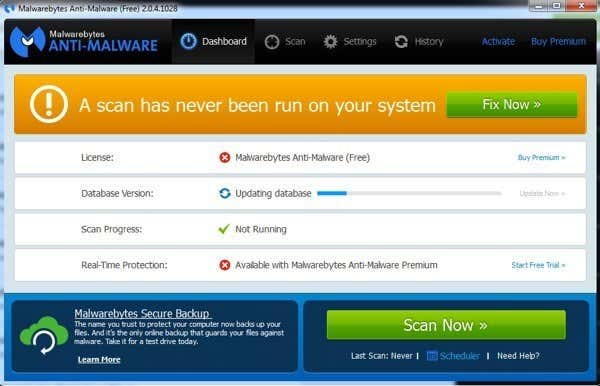
One of the best tools for repairing malware infections is Malwarebytes Anti-Malware. The free version includes anti-malware, anti-spyware and anti-rootkit protection. The big downside to the free version is that it does not include real-time protection or automated scans, so malware would not be blocked from installing itself onto your system and would only be removed once you ran a manual scan.
Overall, it’s a great product and can really help you remove any pre-existing malware on your system. However, the real value of the program is in the real-time monitoring and protection available only in the premium version ($25).
Spybot Search & Destroy
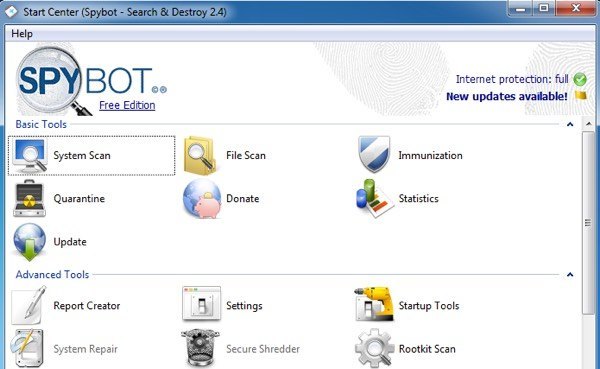
Spybot has been around for a very long time and has a very good track record of finding and removing spyware and malware. It’s trustworthy and regularly updated.
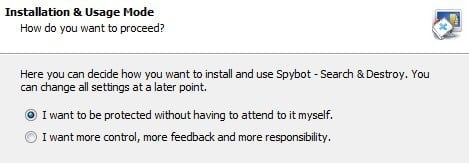
When installing Spybot, you’ll be asked whether you want to be protected automatically or whether you want more control and feedback from the program, so pick the option that suits you best.
Once you run the program, you’ll need to click the update button on the second window to download the latest signatures.
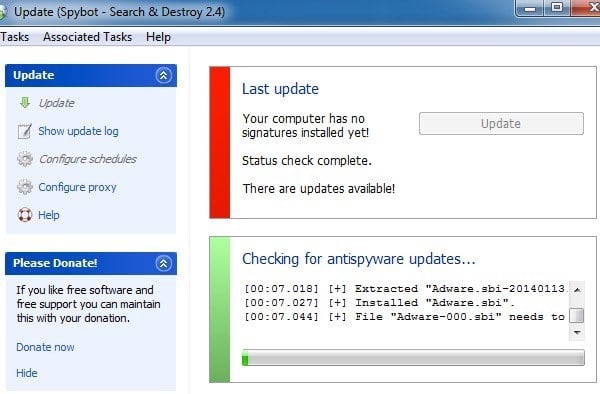
Once complete, you can go back to the main window and perform a system or file scan. Again, there is no live protection in the free version. Also, the free version only has malware and rootkit protection, not virus protection. They have a Home version for $14 and a Professional version for $26.
It does have a feature called Immunization, which basically is website blocking of known malware sites. It’s not enabled by default, so you have to manually enable it.
Ad-Aware
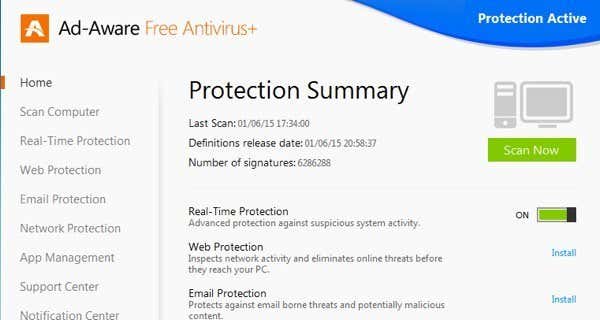
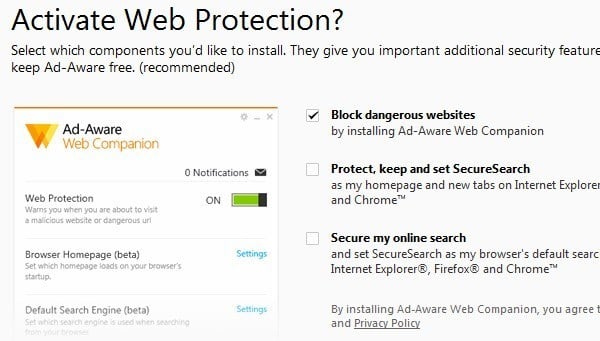
Ad-Aware has also been around for a very long time and is one of the best antivirus programs out there. When installing the program, make sure to uncheck the two boxes for SecureSearch as that is not really worth it. Google does just fine protecting your searches.
The best thing about Ad-Aware is that it supports real-time protection in the free version! Just about all the other programs require a paid version for real-time monitoring. They do have several paid versions ranging from $24 to $50, but you get a lot of protection without having to pay anything.
In the paid versions, you can also get email protection, which is really useful to avoid those nefarious attachments that can infect your system.
SUPERAntiSpyware
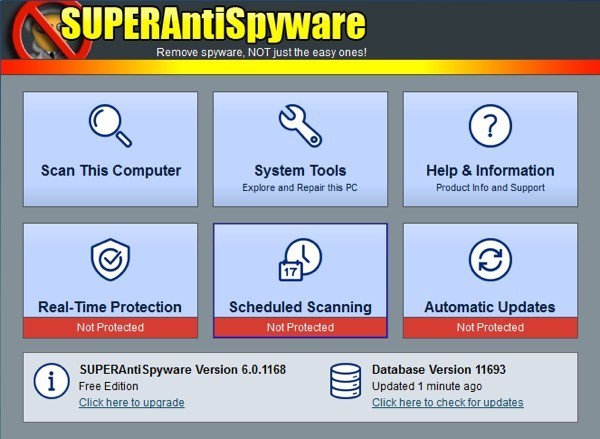
SUPERAntiSpyware is another spyware/malware removal program that has a long history. A lot of these older programs have gotten better and better over the years and that’s why you keep hearing the same names over and over again.
Again, the free version does not include real-time protection, scheduled scans or automatic updates. The paid version is $20, but it’s a yearly fee. I’m willing to pay companies like Kaspersky a yearly subscription fee because they do an excellent job, but I really don’t think SUPERAntiSpyware is worth $20 every year. If you plan to purchase an anti-spyware program, it’s best to pick one of the above-mentioned ones instead.
AdwCleaner
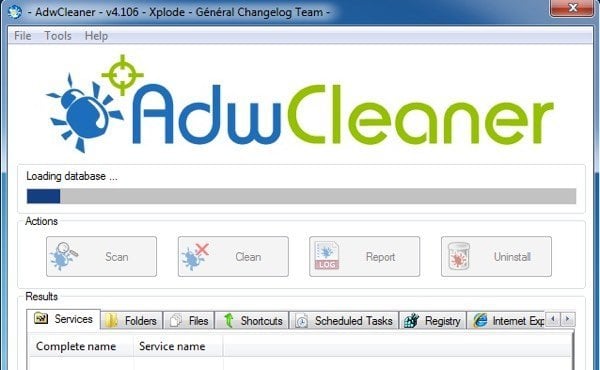
AdwCleaner is probably the only program you may not have already heard about. Basically, this program focuses on toolbars, browser hijackers, adware, etc.
The program is very simple to use and there aren’t any options to configure. Just click Scan, then go through the tabs to make sure everything checked is unwanted and then click Clean.
The program catches a lot of malware that other programs sometimes miss, so that’s why I have mentioned it here. In my opinion after using malware programs for the last 15 years, these are the best options in terms of freeware. I would highly recommend, though, purchasing a full version of one of the programs for real-time protection. Enjoy!