
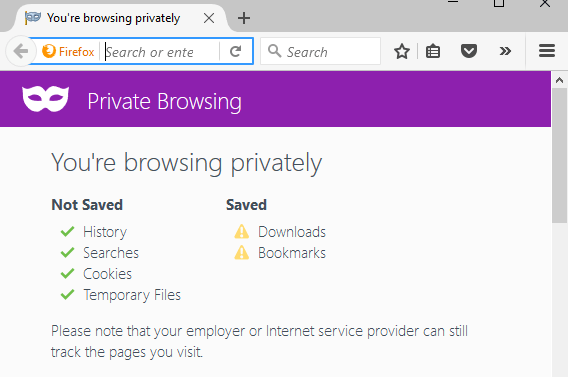
Private Browsing is a mode in all modern web browsers that, when activated, will delete any session data such as browsing history and cookies. If you want to browse the Internet without anything being stored locally on your computer, private browsing mode is the best choice.
Note that private browsing mode will not allow you to browse the web anonymously or prevent others websites or middlemen like your ISP from tracking your activity. If you want to do that, make sure to read my post on how to properly remove your search history.
In this article, I’ll show you how to create shortcuts that will allow you to open your favorite web browser in private mode by default. The method for creating and editing the shortcut is pretty much the same for all browsers, so I’ll talk about how to do that first.
Creating a Shortcut
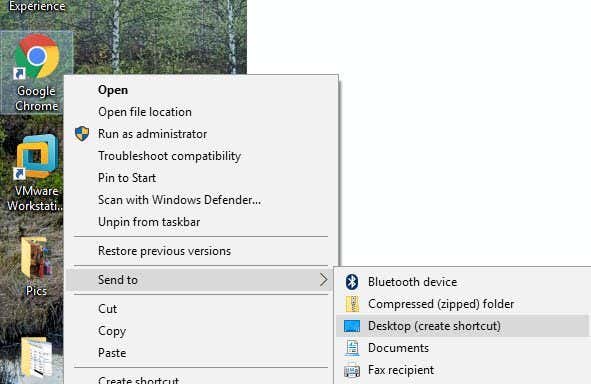
If you already have a shortcut for your web browser on your desktop, then simply right-click on it and choose Send to – Desktop (create shortcut). You can also just open the Start Menu and drag and drop the program onto the desktop to create a shortcut.
If you don’t have a shortcut for your browser, you can create one by navigating to the folder that contains the EXE file. You’ll find all of these in C:\Program Files\ or C:\Program Files (x86)\ under the appropriate program name.
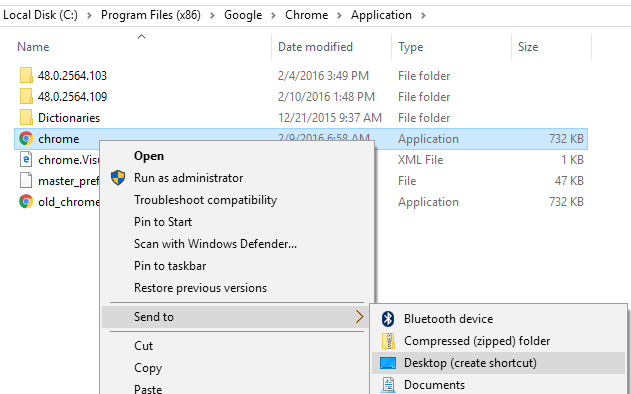
Right-click and choose the same options as mentioned above. To edit a shortcut, right-click the shortcut on the desktop and select Properties from the pop-up menu.

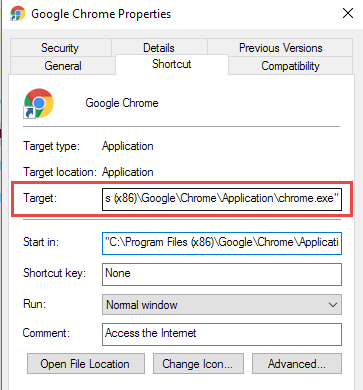
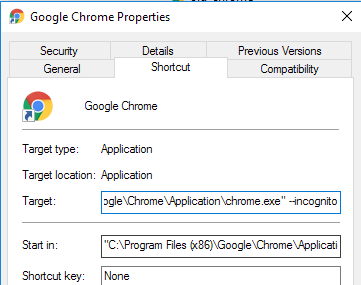
This will bring up the Properties dialog box with the Shortcut tab active. For each browser, we need to edit the command that is listed in the Target box by adding a parameter. See the following sections for the text to add to the end of the command for each browser.
Google Chrome
Google Chrome calls their private browsing mode Incognito mode. You can read my previous post to learn how to enable private browsing mode in Chrome and Opera.
To start Chrome in Incognito mode by default when using the shortcut, edit the shortcut as mentioned above, and add the command line switch —incognito at the end of the line in the Target edit box.
NOTE: It’s a double dash/hyphen before incognito and a space before the dashes.
"C:\Program Files (x86)\Google\Chrome\Application\chrome.exe" --incognito
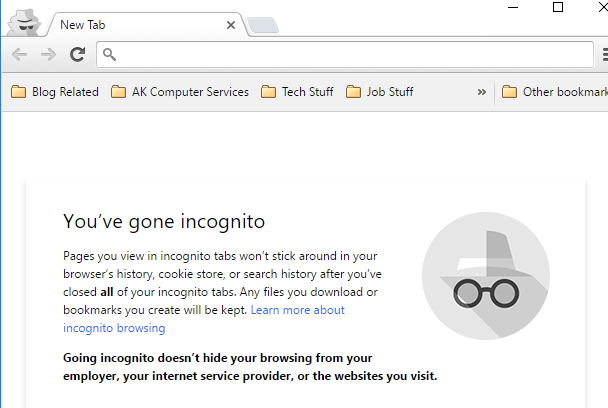
Chrome displays a detective-like icon in the upper-left corner of the window to indicate you are running in Incognito mode.
Mozilla Firefox
To learn how to turn on private browsing mode temporarily and permanently from within Firefox, see our previous post, Turn on Private Browsing in Firefox.
To start Firefox in private browsing mode by default when using the shortcut, edit the shortcut as mentioned above, and add the command line switch –private at the end of the line in the Target edit box.
NOTE: It’s a single hyphen before private and a space before the hyphen.
"C:\Program Files (x86)\Mozilla Firefox\firefox.exe" -private
When you open Firefox, it will display a purple bar across the top indicating that you are now privately browsing.
Internet Explorer/Microsoft Edge
Internet Explorer calls their private browsing mode InPrivate Browsing and it’s been a feature of IE since IE 8. Check out my previous post on how to enable InPrivate browsing in IE and Microsoft Edge.
To start Internet Explorer in InPrivate browsing mode by default when using the shortcut, edit the shortcut as mentioned above, and add the same command line switch as for Firefox, –private, at the end of the line in the Target edit box.
NOTE: It’s a single hyphen before private and a space before the hyphen.
"C:\Program Files\Internet Explorer\iexplore.exe" -private
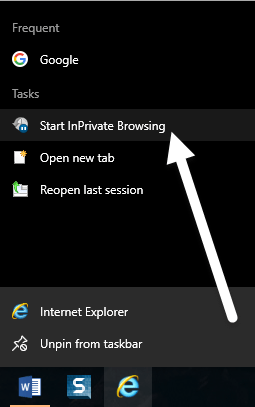
You can also easily start Internet Explorer in InPrivate browsing mode using the default icon on the taskbar. Right-click the Internet Explorer button on the taskbar and select Start InPrivate Browsing from the pop-up menu.
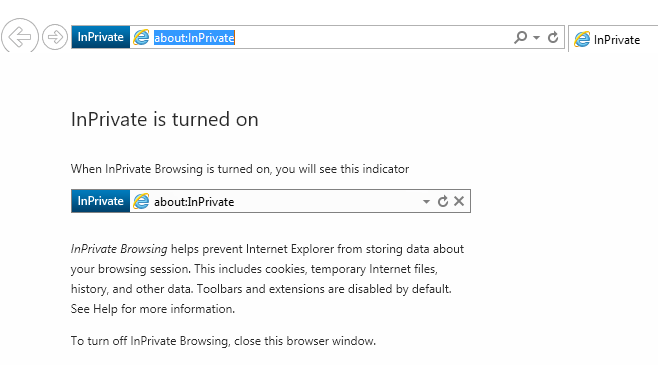
Once you start Internet Explorer in InPrivate browsing mode, the program indicates you are in InPrivate mode in several ways: an InPrivate indicator is shown in the address bar, the title of the new tab is InPrivate and you get a message indicating it is turned on.
Note that if you can’t find the shortcut link to IE, you can click on Start and type in internet explorer. Then right-click and choose Open File Location.
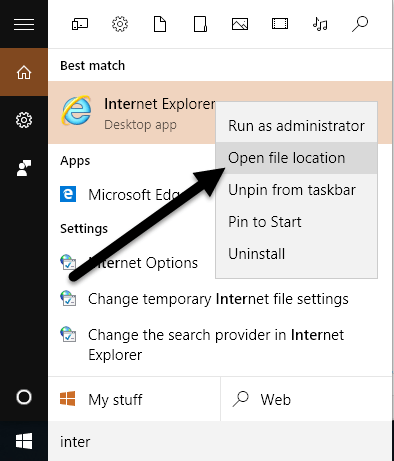
Unfortunately, this doesn’t seem to work with Microsoft Edge just yet. I was able to find the application file for Edge here:
C:\Windows\SystemApps\Microsoft.MicrosoftEdge_8wekyb3d8bbwe
However, when you try to create a desktop shortcut, it simply doesn’t open Edge. The only way to open Edge right now is from the Start Menu or Taskbar. Maybe this will change in the future.
Opera
To learn how to turn on Opera’s private browsing mode from within the program, see our previous post, Turn on Private Browsing Mode in Chrome and Opera.
Unlike other browsers, Opera’s command line switch doesn’t actually work anymore. In older versions of Opera, you could create a new private tab or a new private window in which all tabs were private. The most recent version of Opera just supports a new private window like all other browsers.
However, the command line switch for Opera is -newprivatetab, which doesn’t work anymore. The command line switch to start a full private browsing Opera window, if it exists, is not listed in Opera’s documentation on their site that we could find (http://www.opera.com/docs/switches/).
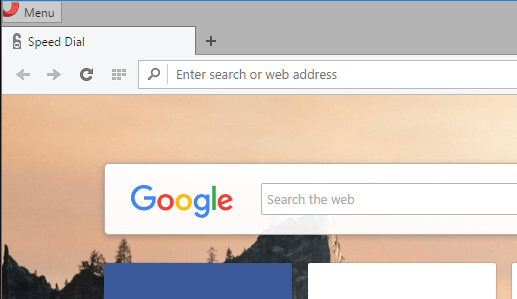
This means that when you use the shortcut, it simply opens a new non-private tab. It only opens a new private tab if you already have a private window open! So this command line switch is pretty useless at this point if you are using Opera. You can tell when Opera is in private mode if you see the lock icon at the front-left of the tab.
NOTE: It’s a single hyphen before newprivatetab and a space before the hyphen.
"C:\Program Files (x86)\Opera\launcher.exe" -newprivatetab
We covered the most popular browsers in this article for creating a shortcut to private browsing. If you have any questions, feel free to comment. Enjoy!