
Running out of disk space on your hard drive? Need to figure out which folders are taking up the most space? Previously, I had written about a useful program called TreeSize that you can use to quickly find the largest directories on a drive. However, it would be really nice if you could simply see the size of a folder while browsing in Windows Explorer. Instead, only the size of files are shown in the Explorer interface.
Here’s what the normal Windows Explorer interface looks like when in Details view:
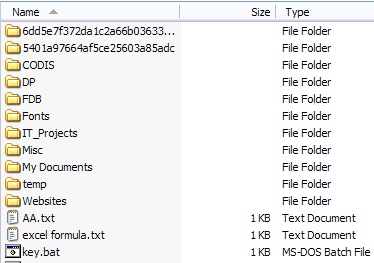
So if you want to figure out which folders are taking up a lot of space, you have to manually right-click on each one and choose Properties. That’s just plain tedious and annoying! Why not simply have Windows Explorer calculate the folder sizes and display them for you?
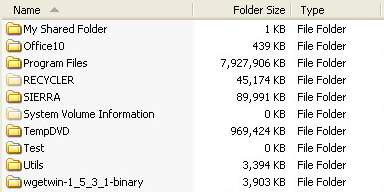
Folder Size does just that for us. Folder Size is a freeware Windows utility that adds a new column to the Details view in Windows Explorer for Windows XP. The new column not only shows the size of files, but also shows the size of folders. It also keeps track of which folders you view and scans them in the background so that you can see the complete size of all files within the folder.
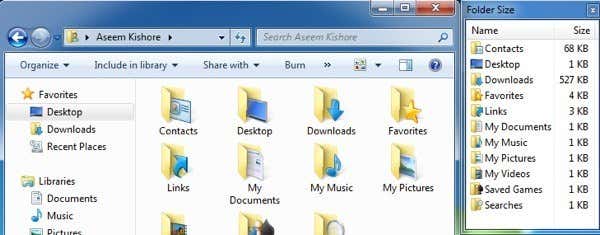
In Windows Vista, Windows 7 and Windows 8, the program cannot edit the explorer interface, so it instead loads up a floating windows to the right of the explorer screen.
Here are a couple of its major features:
-
No need to switch to another program to view folder sizes. Also, it shows up in Open and Save dialog boxes (Windows XP only).
-
No scanning required before you start, folder sizes are displayed immediately. Large folders are scanned in the background while you browse.
-
The window will automatically update the folder sizes in real time
As of right now, the software works on Windows 2000 and Windows XP so that the column is displayed directly within Explorer. In Windows Vista and higher, the pop up window will display instead. The popup window is not the greatest solution and it can become a little annoying after a while. Thankfully, it does close when you close Explorer.
The developer realized this annoying issue and also made a small taskbar icon so that you can close the popup window when you don’t need it and simply click on the taskbar icon whenever you want to see folder sizes. After a few minutes, the program had scanned all the folders on my disk and I was able to instantly see the folder sizes.
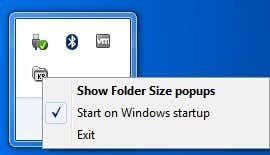
If you don’t want the popup window to appear at all when you open an instance of Explorer, just right-click on the taskbar icon and uncheck the Show Folder Size popups. This way, you can just let in run in the background and whenever you want to see folder sizes, just single click on the icon in the taskbar to open the window.
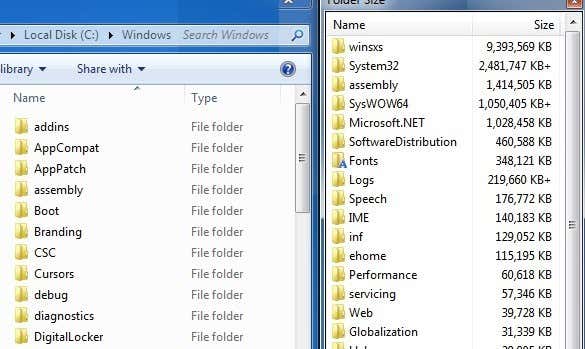
The software also supports 64-bit machines, so that should make some people happy. There are some known issues with the software that the developer hopes to fix in the next version and they include:
1. Sometimes the size of the Windows directory will be reported larger than the actual size because of the use of hard links in the system.
2. The background service can sometimes run into permissions issues on certain machines.
3. The background scanning in Windows Vista and higher is not optimized fully as of yet.
4. Sometimes the pop up covers the close button on the Windows Explorer interface.
I didn’t run into any of these issues while running the program in Windows 7, but you should be aware of them as they might cause problems. Overall, it’s a good program, but I wish the developer was able to hack Windows 7/8 to get the size to show up as a column rather than in a separate window. Still, it’s close and with the hiding options and the fact that it closes with Explorer, it’s still a utility I would use. Enjoy!