
Really big files are a common occurrence. As the quality of our media increases, so do the files along with it. Compression software can squeeze an HD-quality film into a single gigabyte file, but it is time-consuming and impractical for most people.
What happens when you want to move such a large file? Can you break a large file into smaller chunks to make sharing easier?
Here’s how you split a file into multiple files using free software.
GSplit
GSplit is a free file splitting tool you can use to split up those large files. With GSplit, you can:
· Control the individual split file sizes and the output file types
· Unite your split files into a single file
· Create a custom naming scheme for split files
· Use the Express file splitter for rapid file splitting
· Create self-uniting split files
First up, download and install GSplit. When ready, open GSplit and select Original File from the menu on the left. Browse to the file you want to split. Now, select Destination Folder from the menu, and browse to where you want the multiple split files to end up.
Before moving to the Split File! option (where the splitting takes place), open the Type and Size menu. You can use GSplit to split a file into multiple files in a few different ways. For example, you can specify how many output files you want, and GSplit will tell you how big each split piece will be. Alternatively, you can set the size of each output file, and GSplit will tell you how many files that will create.
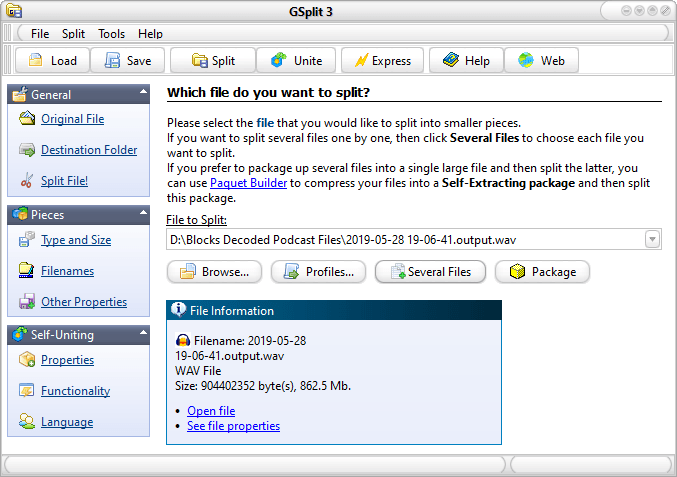
There is also the option to split the files in a specified pattern according to the file contents (although this is an advanced option).
Once you decide the file splitting configuration, select Split File!, then Split! GSplit will begin processing your file. The time it takes to split a file into multiple files depends on the complexity of the output options and the size of the original file.
GSplit creates a handy executable for when you want to reassemble your files. You’ll find the executable in the same folder as the split files. Double-click the executable file to launch the reassembly process and to confirm the location of the output file. The default executable name is disk1.EXE, although if you create a custom naming scheme it will match your settings.
Once you finish splitting your files, check outhow to transfer files between computers on the same network.
Manually Reassemble Files With GUnite
GSplit includes a reassembly tool called GUnite. From the GSplit top menu, select Unite. GUnite will open in a new window.
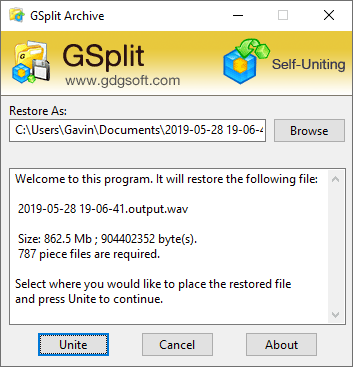
Browse to the location of your split files. You must locate the folder containing the GSplit pieces, carrying the .GSD file extension, as per the image below.
Select the first file in the sequence, then Select Output to confirm where you want the file after reconstruction. Finally, select Restore File. Like the file splitting process, the restoration process takes time depending on the file size, number of chunks, and so on.
7-Zip
Did you know that the popular free archive tool, 7-Zip, also includes a file splitting tool? Your output files will form part of an archive, which could save you disk space, too.
Back to the best file splitters. With 7-Zip, you can:
· Split large files into multiple files
· Customize the number of small file parts
· Use a variety of compression algorithms to decrease file sizes
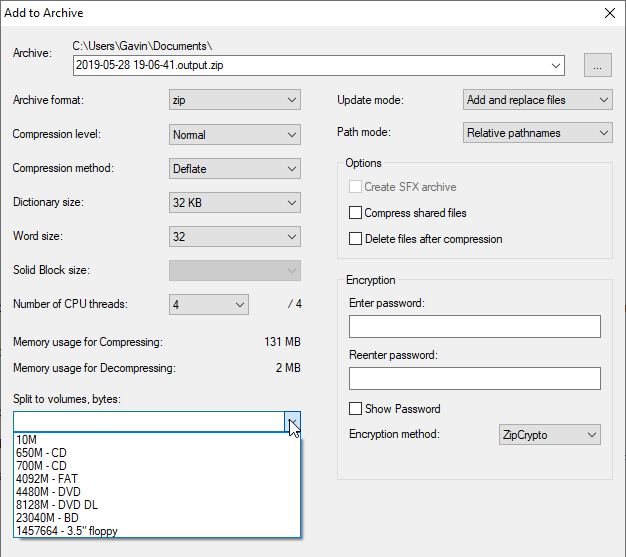
First up, right-click the file you want to split into smaller pieces, then select 7-Zip > Add to Archive. Give your archive a name. Under Split to Volumes, bytes, input the size of split files you want. There are several options in the dropdown menu, although they may not correspond to your large file. If that’s the case, you can enter a custom output file size.
Press OK when you are ready and let 7-Zip split your large file into smaller bits.
When you want to reconstruct your file pieces, find the first split file in the archive, right-click and select 7-Zip > Extract to [File Name]. You’ll find your original file in the output folder.
FFSJ
FFSJ, or the Fastest File Splitter and Joiner, is your final option for splitting and joining large files. With FFSJ, you can:
· Split large files into multiple files
· Automatically delete source files
· Encrypt output files for extra security
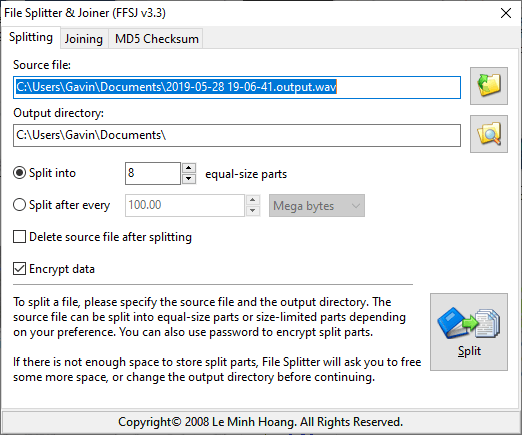
You’ll find easy to use options allowing you to split your file into equal parts or split using specific file sizes. There is also the option to delete the source file after splitting the file, or to encrypt the output files for extra protection. If you choose to encrypt the files, you must enter a password before the file splitter begins.
To split a large file with FFSJ, select your input file, then the output file location. Similarly, when you want to join the split files, open FFSJ, and select the Joining tab. Browse to the folder containing the first split file part, then add an output folder for your reconstructed files.
What Is The Best Free Large File Splitter?
You have several options to split a file into multiple files. The three options are easy to use and have different file splitting options. For instance, you can use 7-Zip to split and compress your output files, potentially saving space on your hard drive.
Once you’ve split your files, you might want to send them to your friends. Check out the best ways to send large files as email attachments.