
An ISO file is a disc image file that contains all the files and folders found on an optical disc. However, ISO files aren’t useful until you write or burn them to a USB drive or disc.
If you want to transfer large files or programs over the web, an ISO file can help you with that. This is because the ISO file can contain every single file required for the program to run. For example, you can purchase or download Windows 10 in ISO format, ready for mounting in a virtual machine or extraction to a device.
If you want to create, mount, or burn ISO image files for free, there are a number of solutions you can use which we’ll discuss in this guide.
How To Create ISO Files For Free On Windows 10
Windows doesn’t have a native way of creating ISO image files for free, but you can use freeware tools to create the files. For this guide, we’ll use the BurnAware Free program to create an ISO file on Windows 10 from a disc.
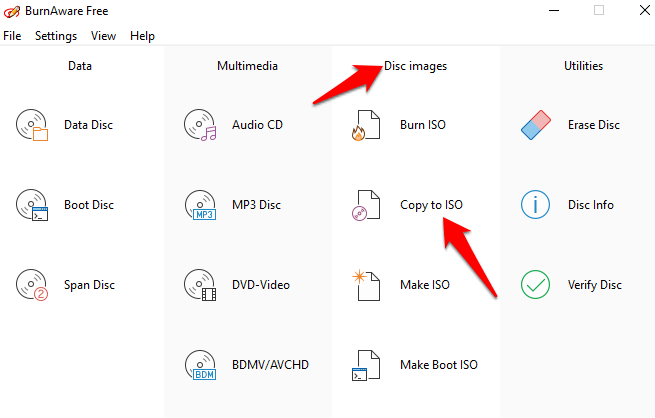
- Download, install and run BurnAware Free. Under Disc Images, click Copy to ISO.
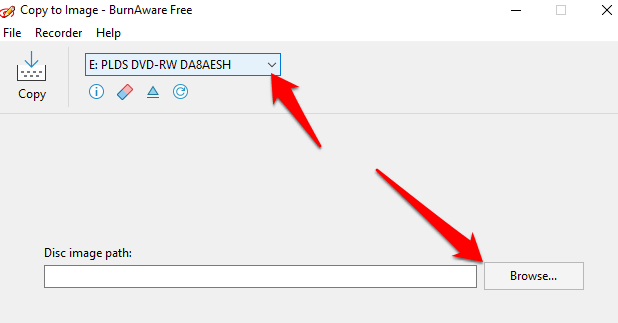
- Select the disc you want to use from the drop-down menu. Make sure the disc is supported by your optical drive, and then select Browse.
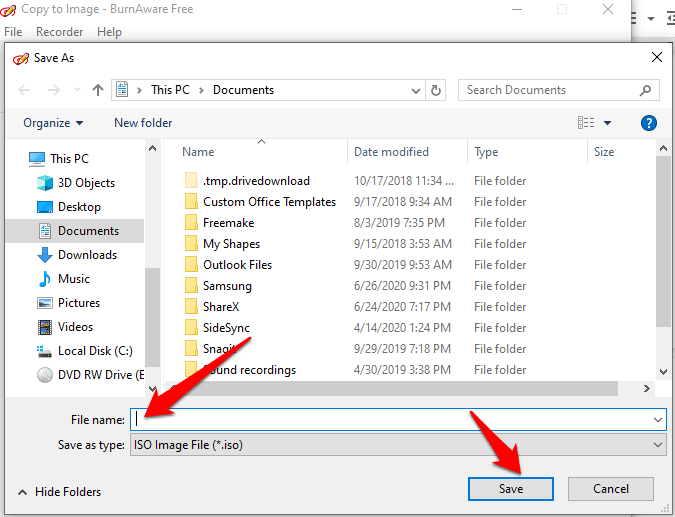
- Give the file a name in the File name text box and select a location to save the file to. Click Save.
- Insert the disc you chose and select Copy.
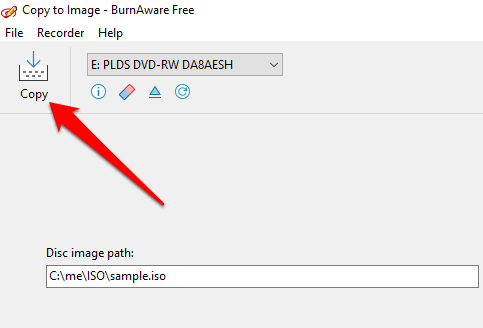
- Wait until the ISO file is created from the disc. The Copy process completed successfully message will appear once the file is created.
The ISO file will be saved in the location you chose with the file name you entered. Close the Copy to Image window, and then eject the disc you were using from the drive.
How To Create ISO Files For Free On MacOS
If you have a Mac computer, you can use Disk Utility and other included tools to create an ISO image file.
Create An ISO Image File With Disk Utility
With Disk Utility, you can create an ISO file in these ways:
- Create an ISO file for storage
- Create a secure disc image
- Create an ISO file from a folder, disc, or from a connected device
How to create ISO files for storage using Disk Utility:
- Click Menu > Applications > Utilities > Disk Utility.
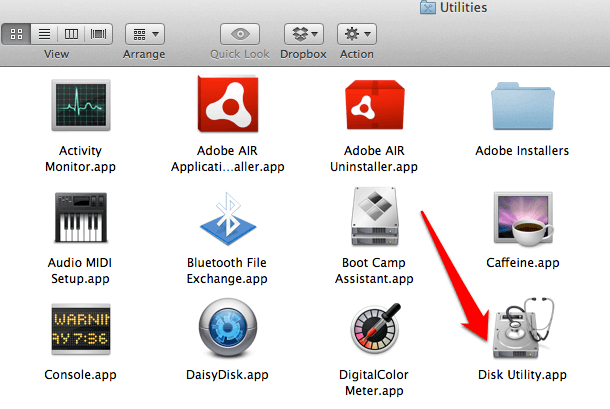
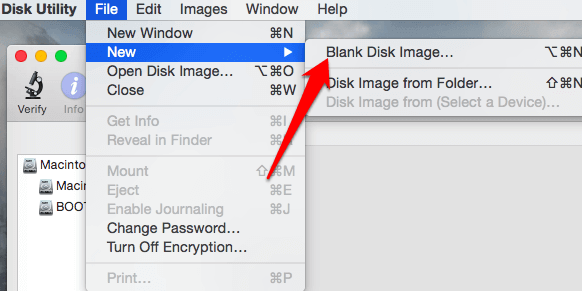
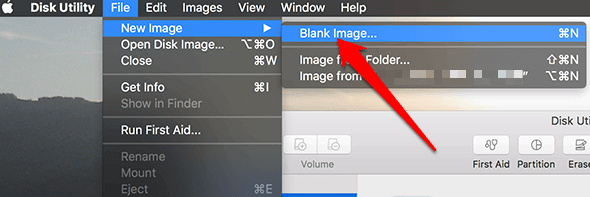
- Select File > New Image > Blank Image.
- Name the new file, add tags, and choose a location to save it to. You can also change the format and size for the disc image but leave encryption settings as disabled. Select an option from the Image Format menu as well: Sparse bundle disc image, DVD/CD master, sparse disc image, or read/write image.
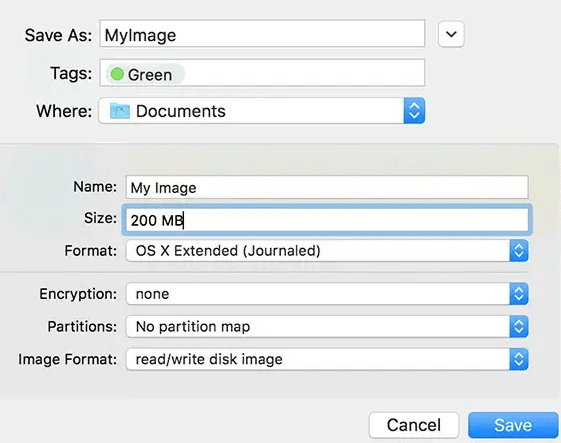
- Click Save to create the image file and then click Done.
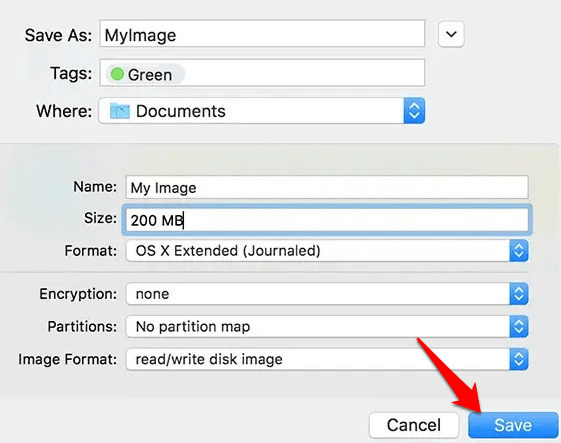
Disk Utility will create the ISO image file where you saved it. From here you can mount the ISO image file.
You can also use Disk Utility to create an ISO image file for free from a disc.
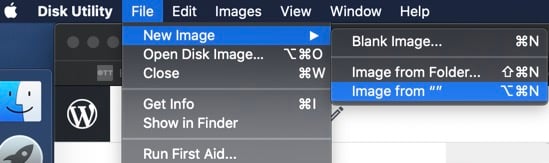
- Open Disk Utility, and select a volume, disc, or the connected device. Click File > New Image and then select Image from (your device name). If the device has no name, it’ll show up as “”.
- Enter a name for the file, add tags where necessary, and then choose a location to save it. Click Save and then click Done.
Note: When creating an ISO file from a disc, make sure the disc isn’t corrupted or damaged as the resulting ISO file won’t be a reliable backup.
Note: You can create an ISO file that holds the contents of a folder or of a connected device. To do this, open Disk Utility, and click File > New Image > Image from Folder. Select the folder from the dialog and click Open. Enter a name for the ISO file, add the necessary tags, and select a location to save it. Click Save > Done.
If you have confidential documents, you can create a secure ISO file and put the documents in an encrypted ISO image file.
- Open Disk Utility, select File > New Image > Blank Image.
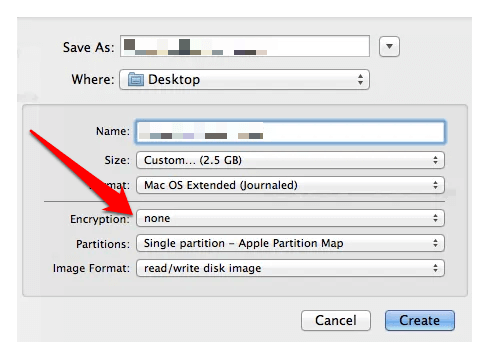
- Give the ISO file a name, add tags where necessary, and then choose a location to save the file. Click the encryption menu and select an encryption option.
- Enter a password, and re-enter to confirm the password. Make sure you remember this password as you will use it to unlock the ISO file, and then click Choose.
- Click Save > Done. Go to Finder and copy the confidential documents you want to protect to the ISO image file.
How To Mount An ISO Image File
Mounting an ISO image file “tricks” your computer into thinking that the file is an actual disc. For example, if you’re playing a video game that requires its original disc, you can create and mount the ISO image file of that disc to play the game instead of inserting the physical disc.
When you mount an ISO image file, Windows will create a virtual drive for the file the same way a drive is created for a physical disc. This way, you can play a video game, install an application, watch a movie or listen to music from the ISO file without burning any data to a physical disc.
How To Mount An ISO Image File On Windows 10 And MacOS
You can mount an ISO image file natively by double-clicking on the ISO image file.
You can also use the File Explorer app to mount an ISO image file on Windows 10.
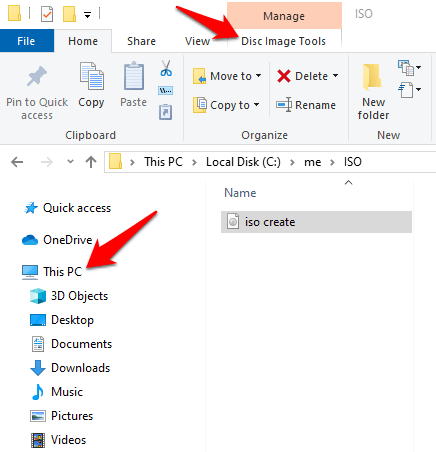
- Open File Explorer and select the ISO image file you want to mount. Click the Disc Image Tools tab. The Disc Image Tools tab only appears when you select the ISO image file.
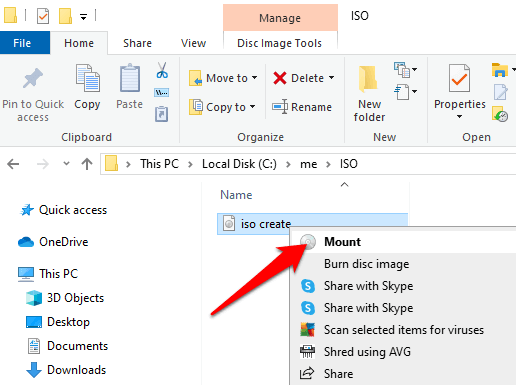
- Click Mount in the upper left side. Windows will immediately create and open the contents of the ISO image file.
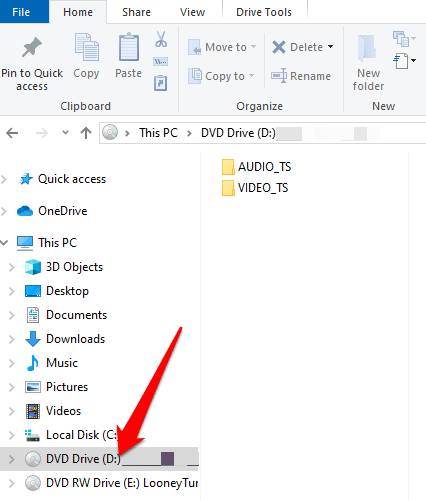
- In the left pane of the File Explorer window, click This PC, and you’ll see the virtual drive appear alongside other drives on your PC’s system. You can copy files from the ISO image file to your hard drive, and do whatever you want with the files.
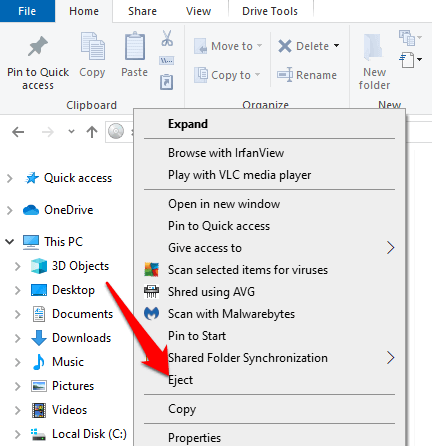
- To unmount the ISO image file in Windows, right-click on the virtual drive in File Explorer and click Eject.
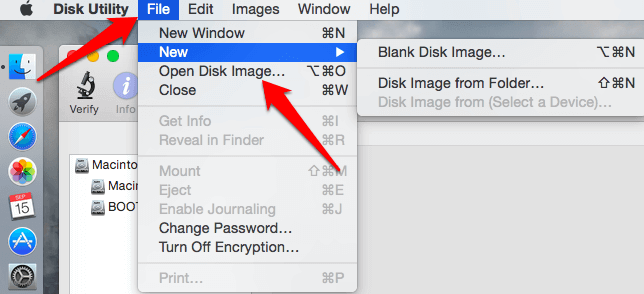
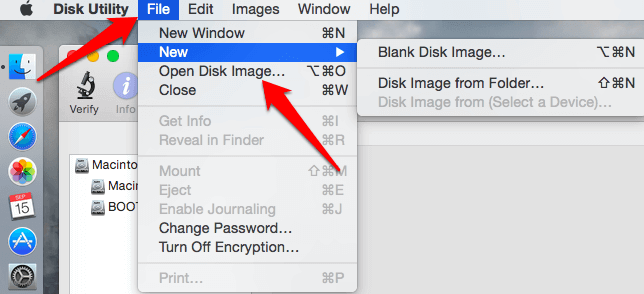
To mount an ISO image file on your Mac computer, just double-click on the file. You can also mount an ISO image file on macOS by opening up Disk Utility and going to File > Open Disk Image, or opening up a Terminal window and typing hdiutil mount filename.iso.
Burn An ISO Image File To Disc On Windows 10
When you burn an ISO file to a disc, you create a duplicate of the original disc including the files, copyright protections, and other settings.
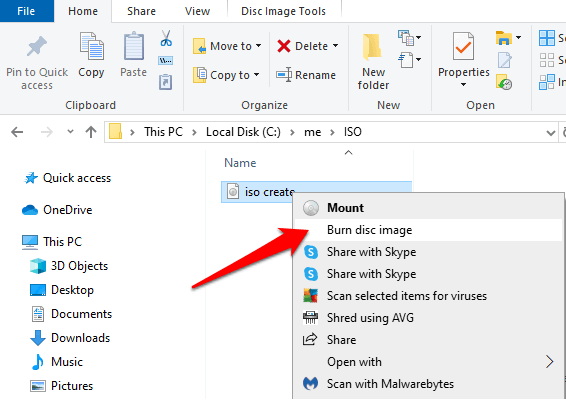
- Insert a blank disc in your computer’s optical drive. Right-click on the ISO image file and click Burn disc image.
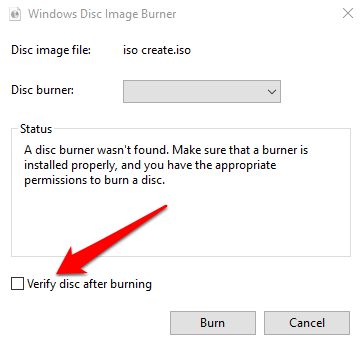
- Confirm that the ISO was burned without errors by clicking “Verify disc after burning”.
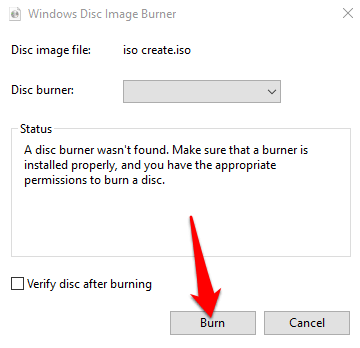
- Click Burn.
Burn An ISO Image To Disc On MacOS
There are three different ways to burn an ISO image file for free on macOS:
- Finder application
- Disk Utility
- A Command Line or hdiutil in Terminal
Burn An ISO Image Using Finder Application
- Open Finder and look for the ISO file. Click once to select the file, and then click File > Burn Disk Image (file name) to disc option. You can also right-click the ISO file and select Burn Disk Image.
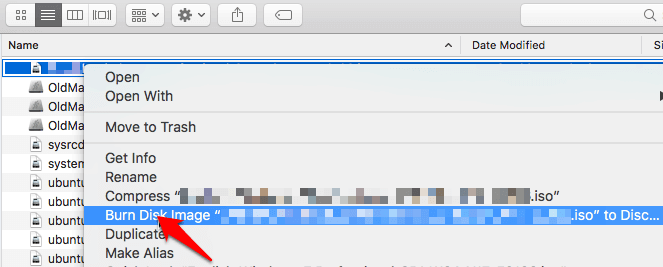
- Insert a blank disc into the drive and click Burn to start burning the ISO file to the disc.
Burn An ISO Image To Disc Using Disk Utility
- Click Applications > Utilities > Disk Utility to open the utility.
- Click File > Open Disk Image. You’ll see the available drives listed by name in the left pane.
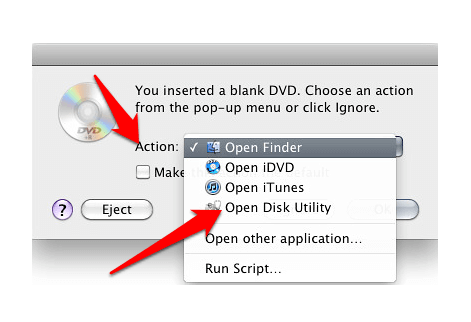
- Insert a blank disc into the Mac drive. Click Action > Open Disk Utility > OK.
- In the Disk Utility (Super Drive) window, drag the ISO (.iso or .dmg) file from a Finder window or from your desktop into the Disk Utility window. Drop the file in an empty area in the left pane below Mac drive names.
- Select the ISO file in the left pane and click Burn at the upper left side.
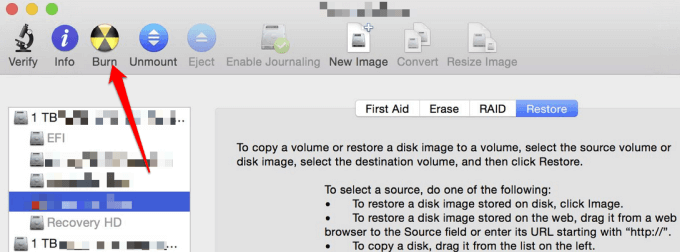
- The Burn Disc In: window will show the destination for the file i.e. the blank disc. Click Burn.
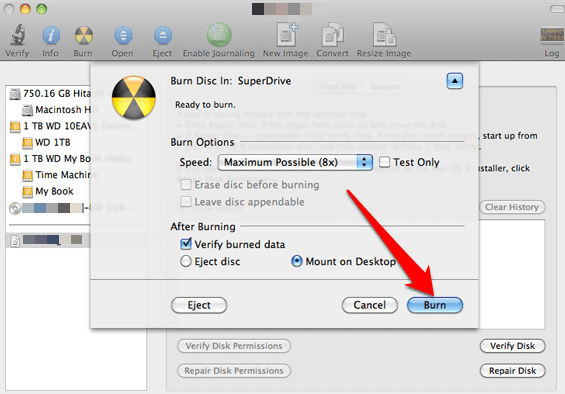
- Once the burning process is complete, the disc will be automatically ejected from the drive. You’ll also receive a message that the ISO image was burned successfully. Click OK to exit.
Burn An ISO Image To Disc Using Terminal
- Move your ISO image file to the desktop or any location that’s easier for you to find, and insert a blank disc into the Mac drive.
- Open Terminal from Finder by clicking Applications > Utilities, and then double-click Terminal. You can also click the Launchpad icon in the Dock and enter Terminal in the search box.
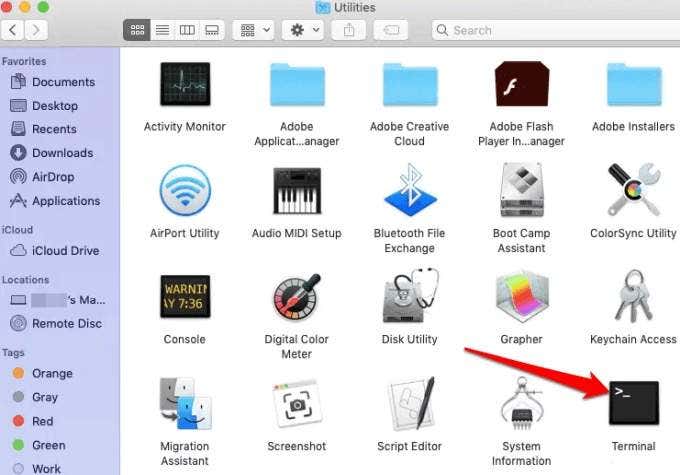
- Type the command: hdiutil burn ~/PathToYourISOFilename.iso. The ISO image file will start burning onto the disc you inserted. Click Return.
How To Extract An ISO Image File
You can extract the contents of your ISO image file to a folder if you don’t want to burn the file to a disc or other storage device.
Extracting the ISO file will copy all its contents directly to the folder and you can view the contents the same way you would with any other folder on your computer. However, you can’t burn the folder directly to a device.
A free unzip program like 7-Zip can help you extract the ISO file to a folder. Simply right-click on the ISO file, select 7-Zip > Extract to “”.
Easily Work With ISO Image Files
We hope you now know how to create, mount, and burn ISO image files for free using native or third-party tools. If you were able to follow these steps and successfully created, mounted and burned ISO image files, share with us in a comment.