
Word and PDF are the most popular file formats used today, but there’s no easy way to convert a PDF file to Word format.
There are many reasons why you’d want to convert a PDF file to Word, the main one being to create an editable version of an existing document. Whatever your reason, this guide explains how to convert a PDF to Word.
How to Convert PDF to Word in Windows
Whether you’re using a Windows PC or a Mac, we’ll show you a few ways to convert a PDF file into a Word document. The best method largely depends on the apps you’re most comfortable using such as Word, Google Docs or Adobe Acrobat, and your personal preference.
Convert a PDF File to Word Using Microsoft Word
You can convert a PDF file to Word within Microsoft Word. This method will automatically convert your PDF into a DOCX file where the PDF is mostly text.
Note: Once your PDF is converted, its formatting, which includes line and page breaks, may be different from the original file.
- Open a Word document, select File > Open, find the PDF file and select Open. This will open the PDF file within Word.
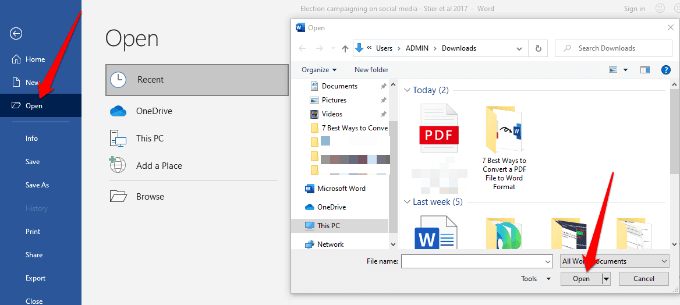
- You may get a prompt that says Word will now convert your PDF to an editable document. Select OK to continue.

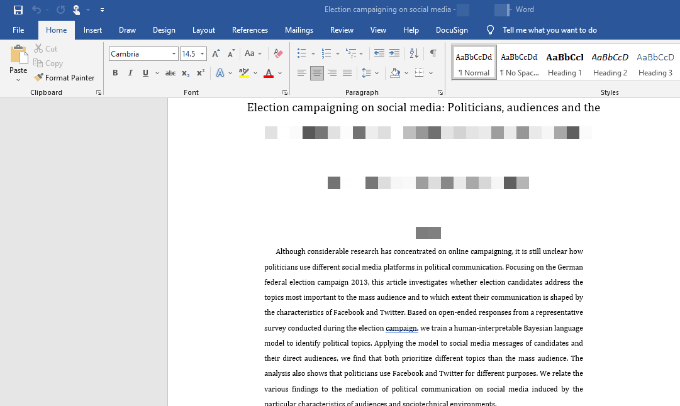
- Word will convert the PDF file to an editable Word document so you can edit, copy, cut or format the text. Once you’re done, Word will automatically save the edited file as a DOCX file in the default location.
Convert a PDF File to Word Using Adobe Acrobat
It’s possible to convert a PDF to Word format in Adobe Acrobat but the feature is only available in premium versions of Adobe Acrobat.
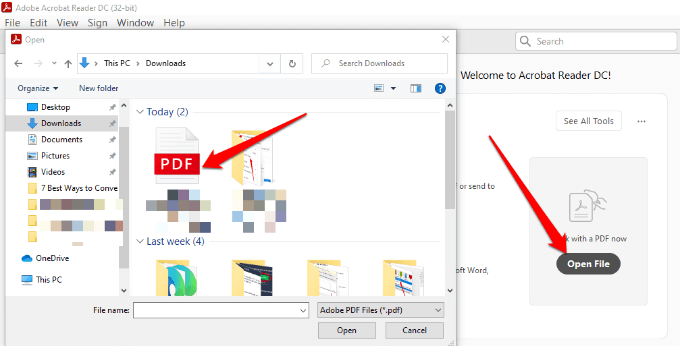
- Open Adobe Acrobat DC, select the Open file, choose the PDF file and then select Open.
- In the left pane, select Export > Microsoft Word (*.docx).
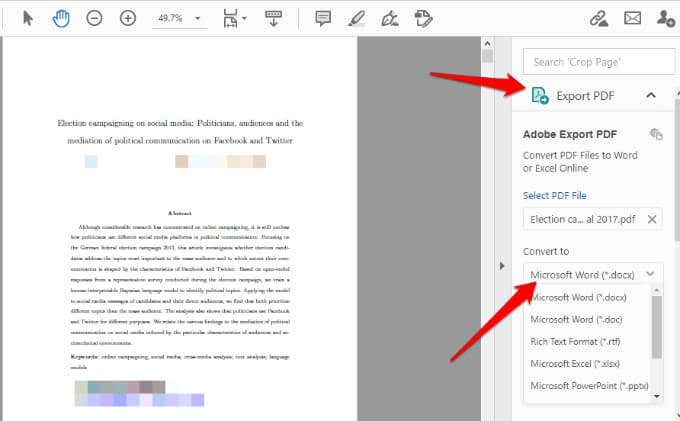
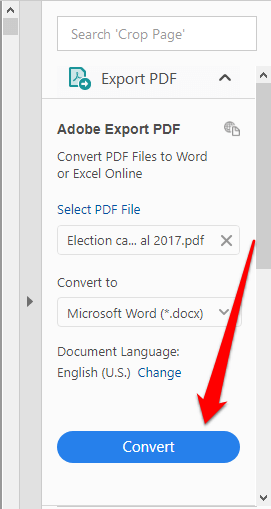
- Select Convert.
- If prompted, log in to your Adobe account and your converted PDF file will open in Word.
Convert PDF to Word Using Google Docs
Google Docs has improved over the years with more sophisticated editing, formatting and markup features. You can use Google Docs to convert a PDF to Word and easily format text and paragraphs using its smart editing and styling tools.
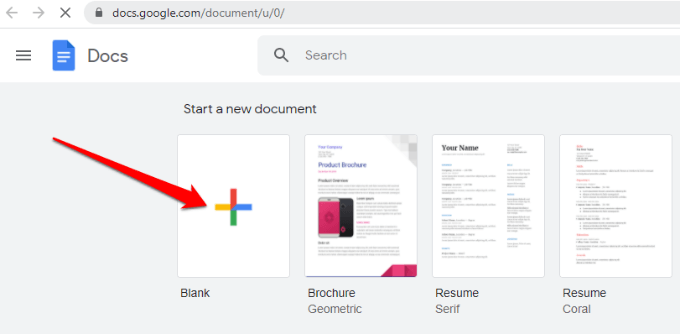
- Open Google Docs and select the plus sign to open a Blank document.
- In the new Google Docs page, select File > Open.
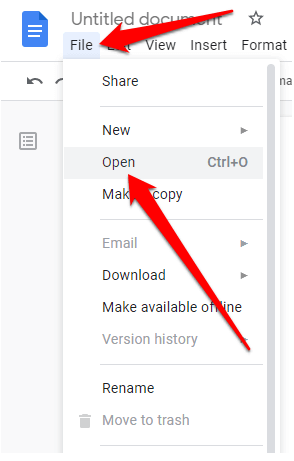
- Select the Upload tab and then click Select a file from your device > Open.
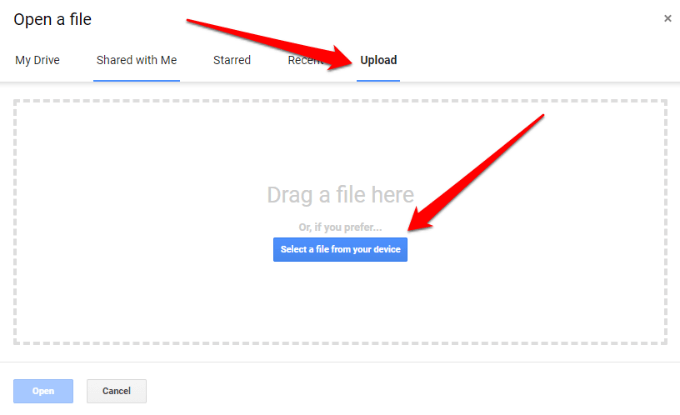
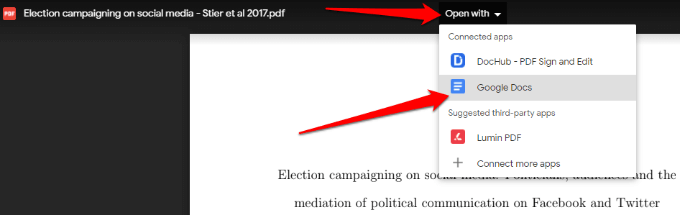
- The document will open in a new tab. Select Open with > Google Docs to open the PDF as a Google Doc file.
- Select File > Make a copy.
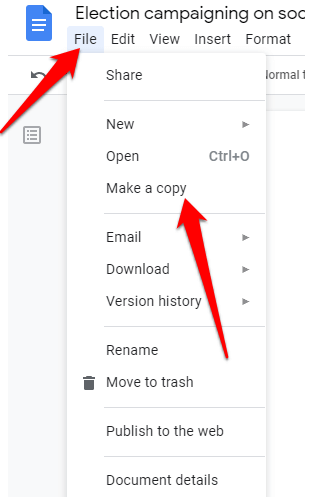
- Select the location you’d like to save the converted document to and then select OK.
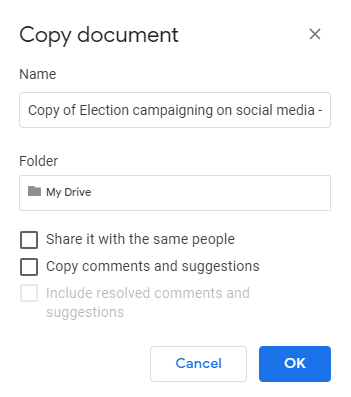
Note: You can also select File > Download to download the converted PDF file as a Word document onto your computer.
Convert a PDF File to Word Format Using CamScanner
If you want to convert a PDF file to Word and maintain the file’s original layout, you can use CamScanner PDF to Word converter. The online tool converts files in PDF to Word format and works with any web browser so you don’t have to install any program or download an app.
- Open CamScanner PDF to Word converter and select Files in PC/Mac to import your PDF file. You can also drag and drop the PDF file onto the CamScanner web page.
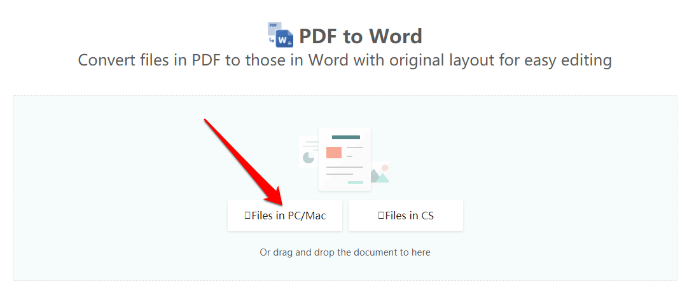
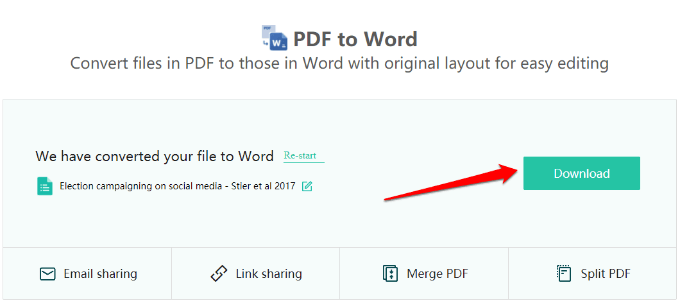
- Wait for the conversion to complete and then select Download to save the file.
How to Convert PDF to Word on Mac
There are different options you have on your Mac for converting a PDF file to Word format easier editing and formatting. These include using Adobe Acrobat Pro DC, Automator, or a free web-based converter tool.
Convert PDF to Word Using Adobe Acrobat Pro DC
Adobe Acrobat Pro DC is a premium plan that allows you to convert a PDF file to Word format directly from the PDF itself. You can use the seven-day free trial version of the software if you just want to convert a few files or pay the monthly subscription if you need to convert PDFs to Word on a regular basis.
- Go to https://acrobat.adobe.com/us/en/acrobat/how-to/pdf-to-word-doc-converter.html and select Start free trial.
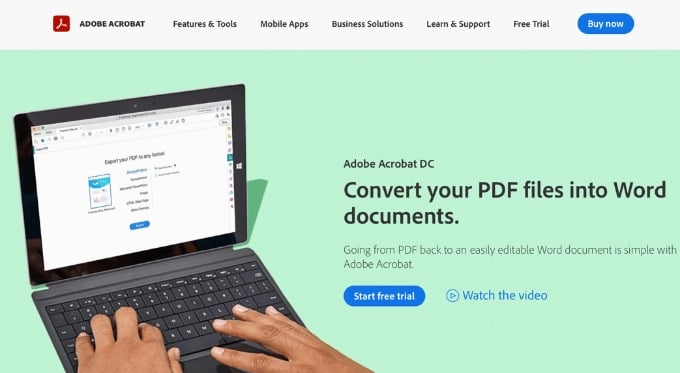
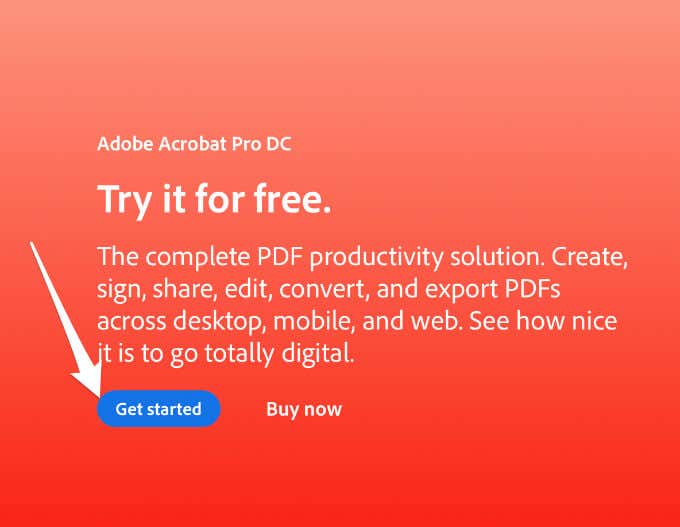
- Select Get started.
- Next, center your email address, choose the plan you’d like to sign up for and then select Continue.
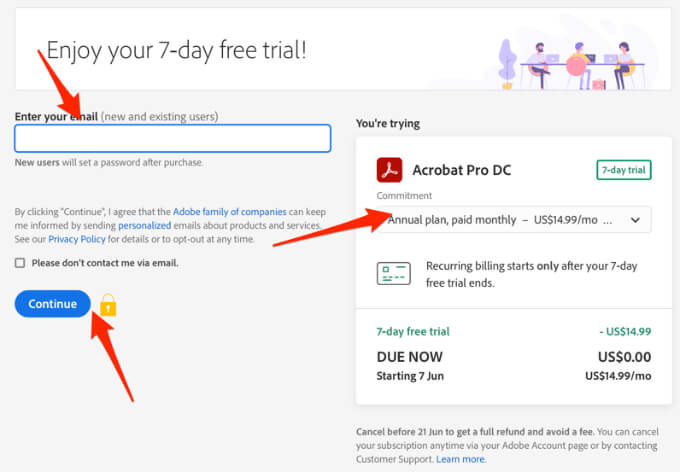
Note: If you’re just using the service for a one-time document conversion, make sure you cancel the plan before the seven-day trial lapses otherwise payment will be collected on the 8th day. If you cancel, you can still use the service to view PDFs, fill forms and comment.
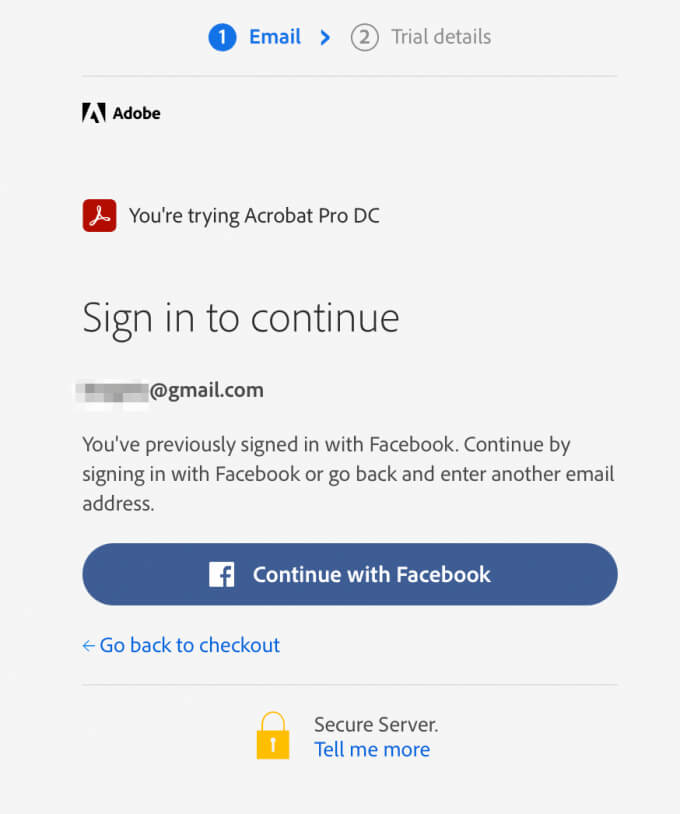
- Create or log in to your Adobe account.
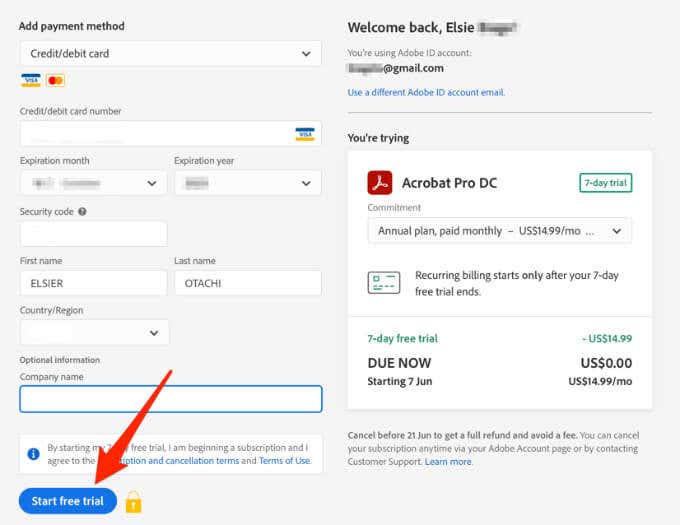
- Enter your payment information and select Start free trial.
- Select Get started and the software will be downloaded to your Mac. Once the download completes, double-click on the Adobe Pro DC file download to start the installation.
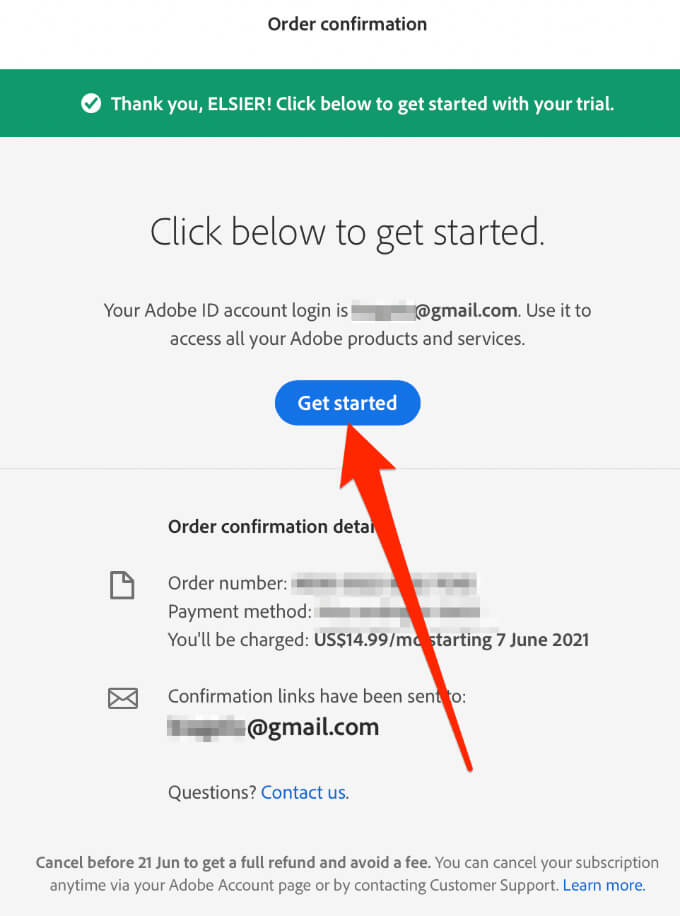
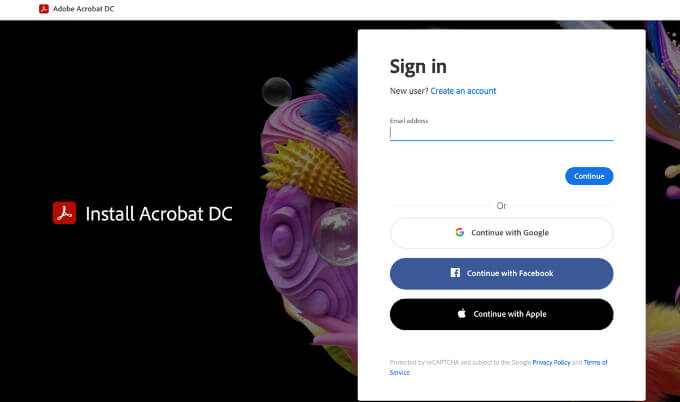
- Download and install Adobe Acrobat Pro DC. Sign in with your Mac’s username and password, and sign in with your Adobe Acrobat logins. Select Continue.
Note: If your Mac has the Apple silicon chip, you’ll get a prompt asking you to install the Intel-based version of the software on your device as Adobe is still developing a new version of the app for Apple silicon.
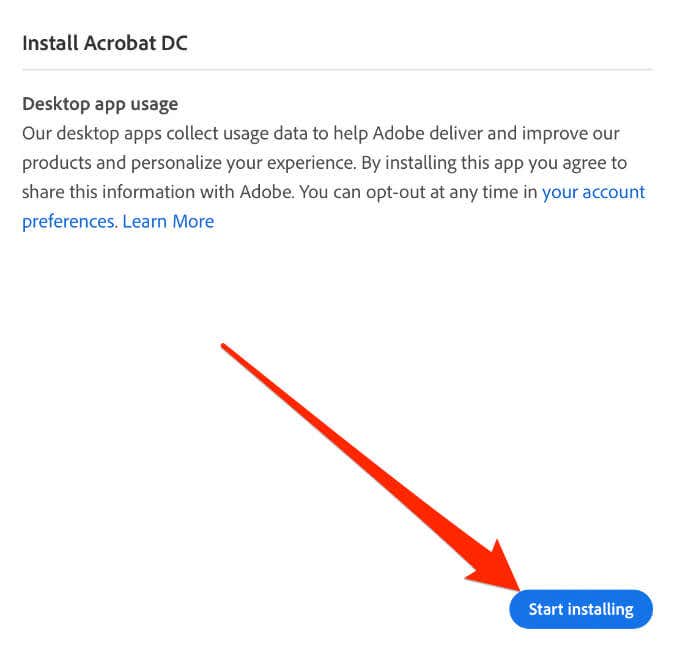
- Select Start installing and wait for the installation process to complete, after which the application will open automatically.
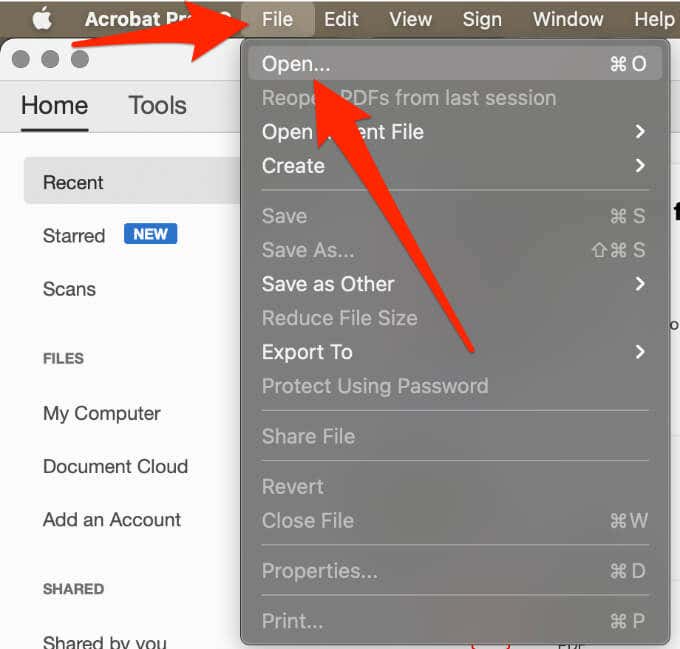
- Next, select File > Open and select the PDF file you want to convert to Word.
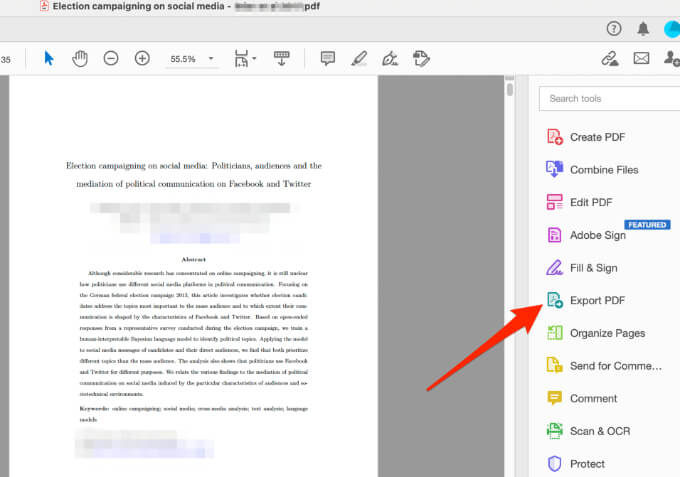
- Select Export PDF in the vertical menu on the right side.
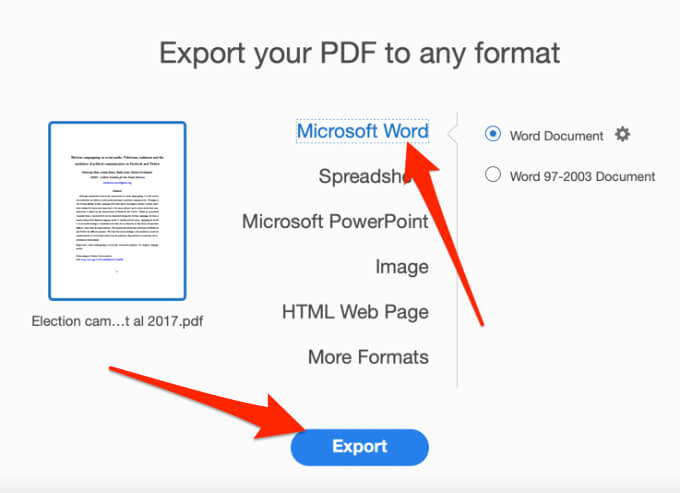
- Next, highlight the Microsoft Word option and then select Export.
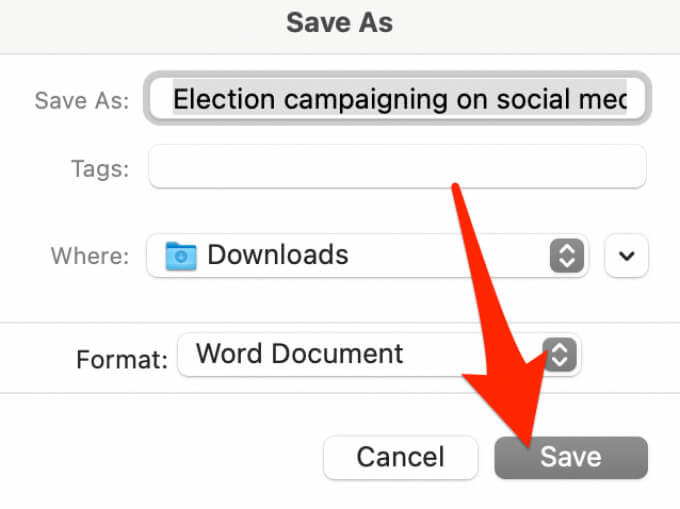
- Choose the location you’d like to save your file to on your Mac, rename the file if you want, and then select Save. The converted file will open automatically in Word once the conversion process is complete.
Convert PDF to Word Using Automator
Automator is an often overlooked application installed on all Mac computers that’s used for creating workflows. The app automates certain repetitive tasks and can make using your Mac a lot easier than it already is.
You can use Automator to save a PDF as a rich text file, which you can open in Word and save as a Word document.
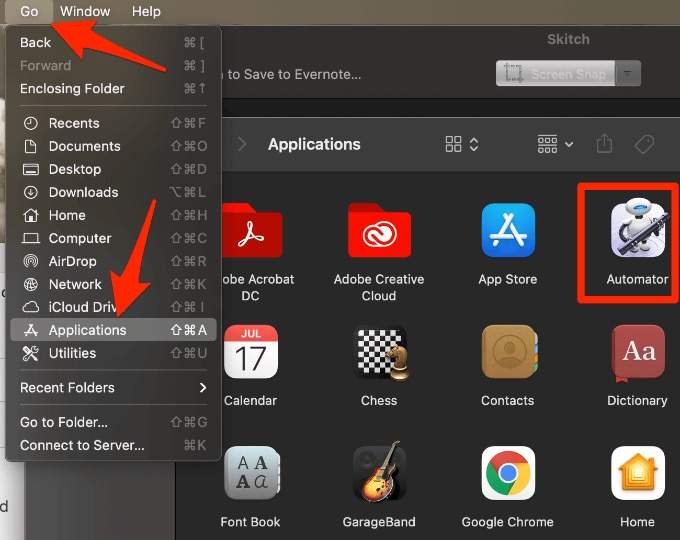
- Select Go > Applications > Automator.
- In the Choose a type for your document popup, select Workflow > Choose.

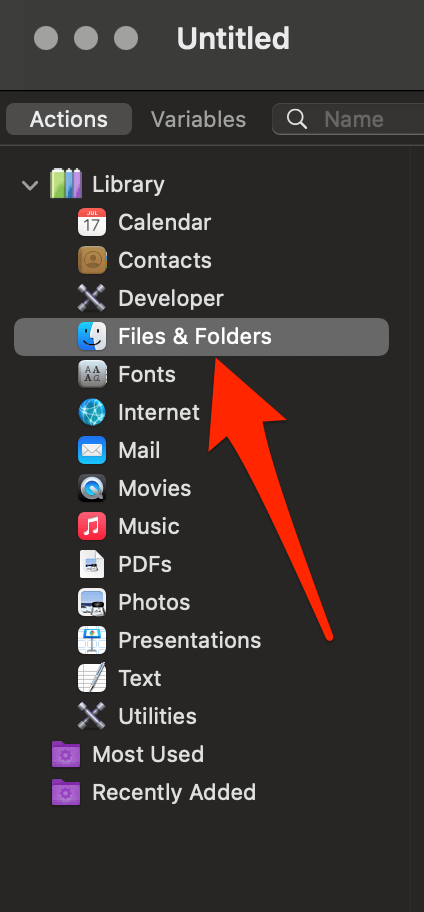
- Next, select Files & Folders from the column on the left side.
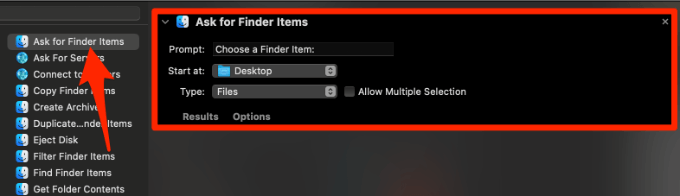
- Select Ask for Finder Items and drag it into the open space. A new box will appear in the space you just dragged the entry into.
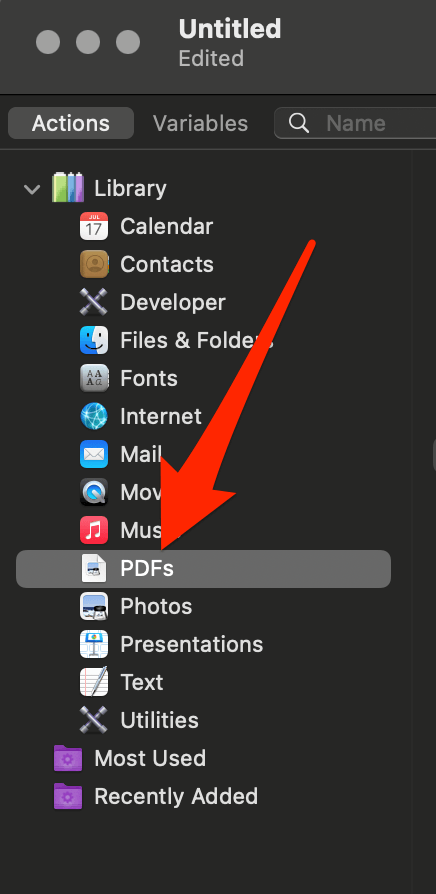
- Go back to the column on the left side and select PDFs.
- Select Extract PDF Text in the middle column and drag it into the open space under the Ask for Finder Items box.
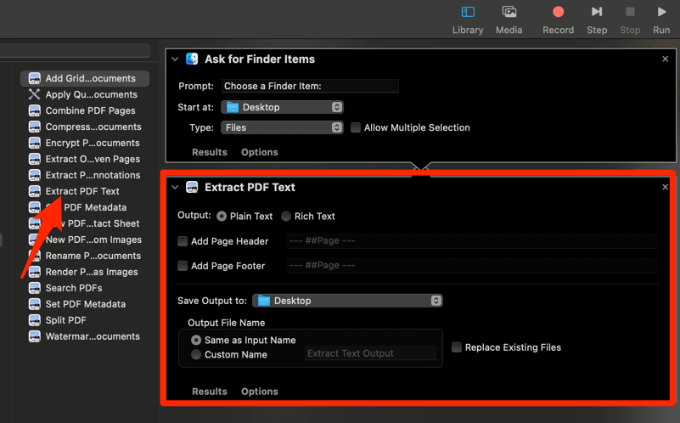
- Next, select Rich Text in the Extract PDF Text box.
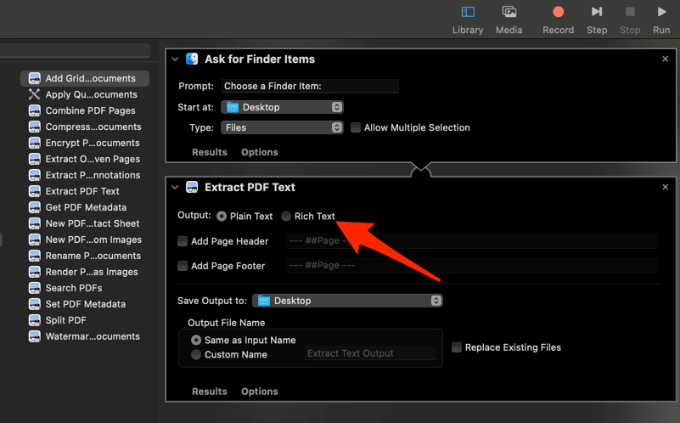
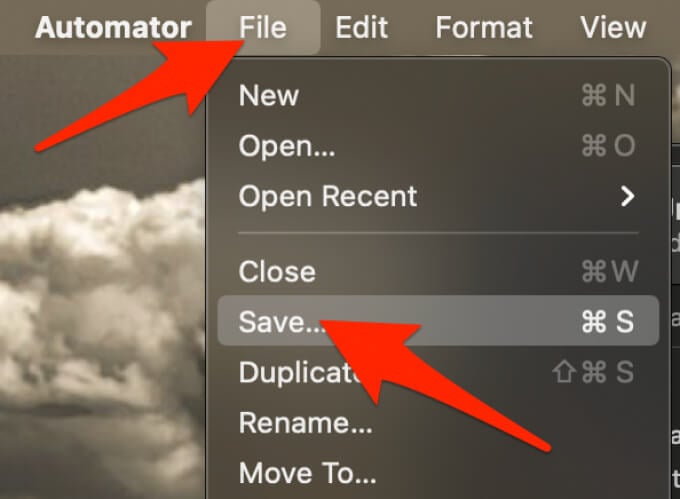
- Select File > Save and give the new workflow a name.
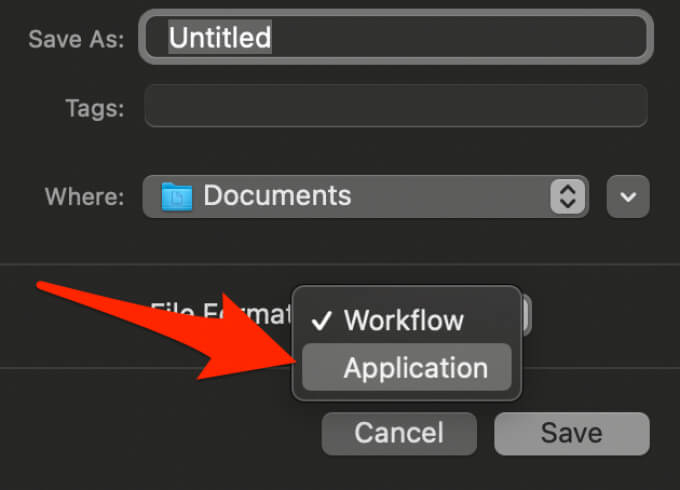
- Instead of Workflow, select Application next to File Format and save the workflow anywhere you want on your Mac.
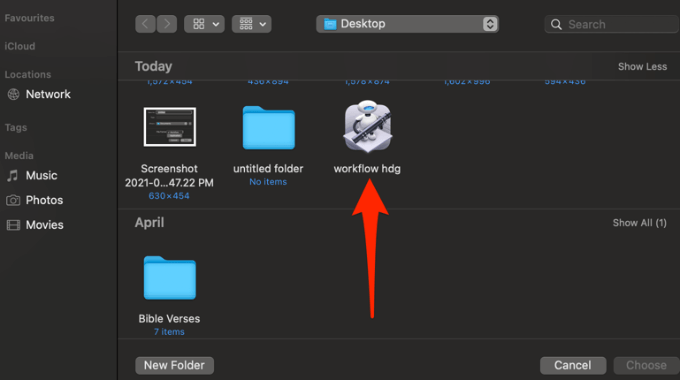
- Double-click the folder containing the workflow you just created, and then double-click the robot icon with the name you gave it.
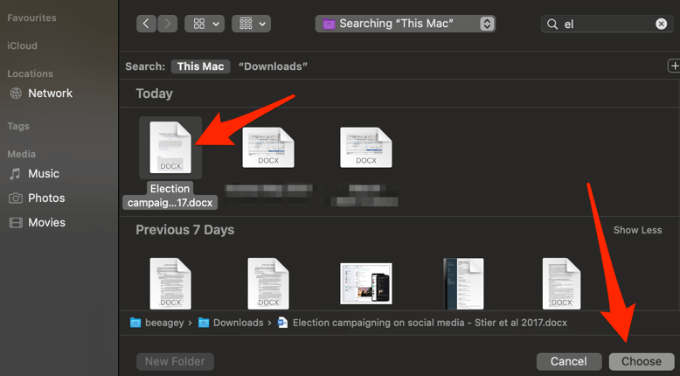
- Select your PDF file and then select Choose. This way, the file will be converted and saved as a Rich Text file in the same folder that contains your PDF file.
- Right-click on the Rich Text document, hover your mouse pointer over Open With and then select Word.
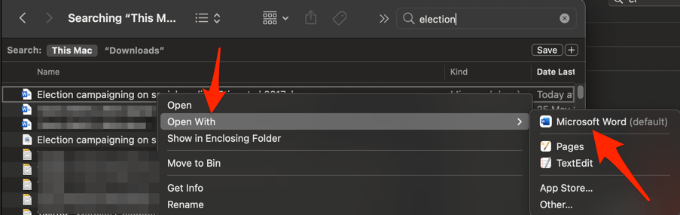
When the file opens in Word, you can save it as a standard Word document. From here on, anytime you want to convert a PDF file to Word format, you can use the workflow app you just created.
Note: Once you’re done editing in Word, you can select Export to convert it back to a PDF file.
Convert a PDF File to Word Using a Free Online Tool
If using Adobe Acrobat Pro DC or Automator seems long and tedious, you can convert a PDF file to Word format using an online converter tool. Some of the best free online converter tools include Smallpdf, Nitro, UniPDF, CamScanner or WPS PDF to Word converter.
For this guide, we used Smallpdf to convert PDF to Word format on a Mac.
- Go to Smallpdf PDF to Word in a browser on your Mac.
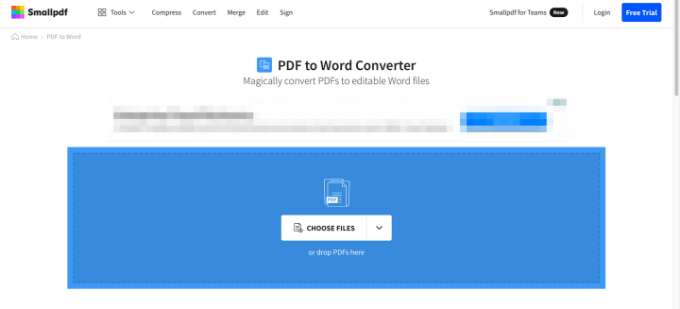
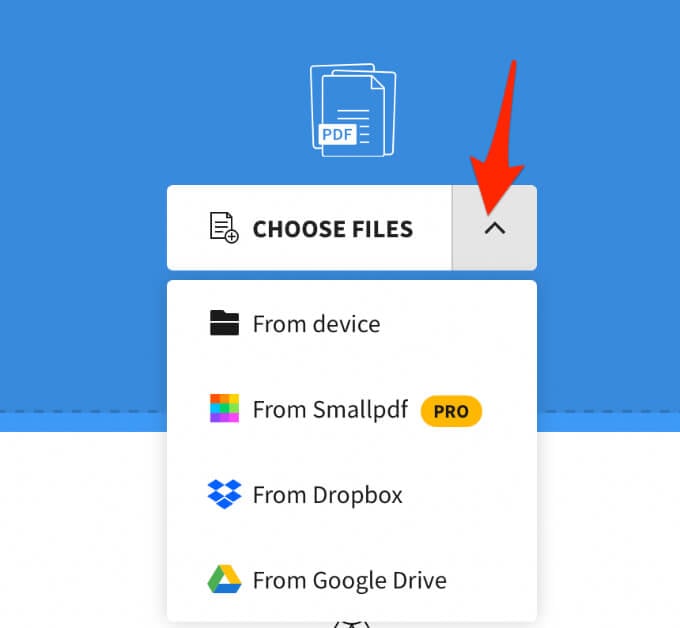
- Select Choose Files to find your PDF file and upload it to Smallpdf or drag and drop the file into the blue space on the Smallpdf web page. You can also select the arrow next to Choose Files and select the location you want to open your PDF file from.
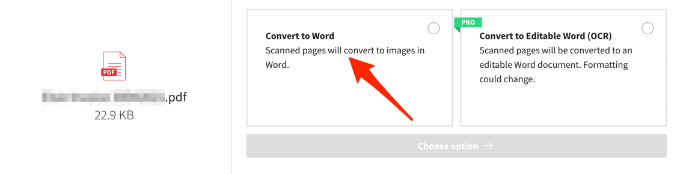
- Select Convert to Word and wait for the file to be converted.
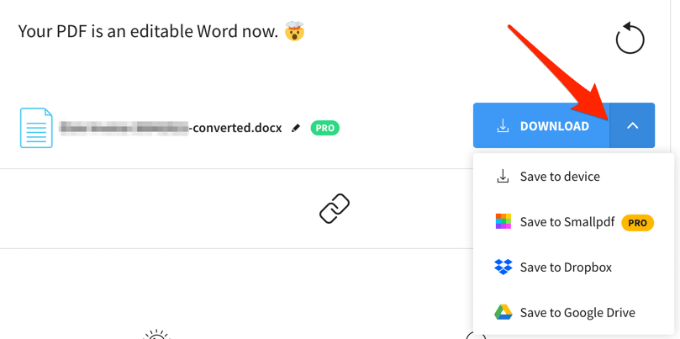
- Once done, select the down arrow next to the file name to download it as a DOCX file. You can save the file to Google Drive or Dropbox or select the envelope icon to generate a link on the web.
Convert PDFs to Word for Easy Editing
Converting a PDF file to Word format isn’t hard to do if you know how to go about it. The easiest method is to use a web-based tool because all you do is upload your file and the tool quickly converts the PDF into a Word document that you can download, edit and save to your device or cloud storage.
Leave a comment and let us know which method worked best for you. And if you need it, we also have a guide covering how to convert PDFs to Google Slides.