
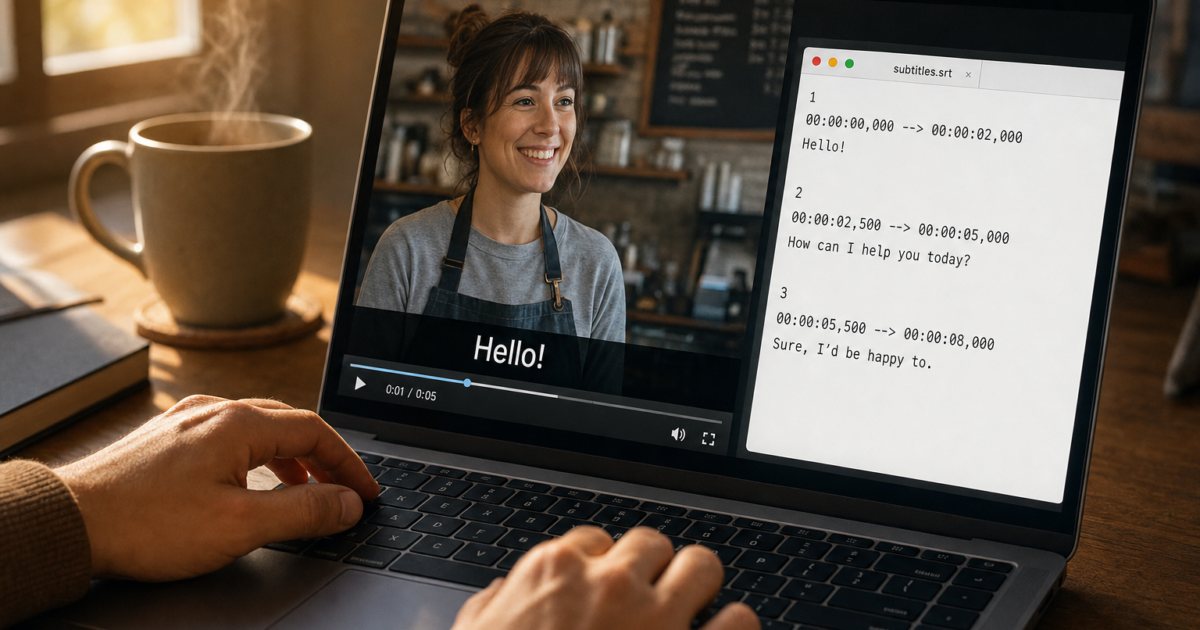
So you’ve got a video, maybe something you recorded, downloaded, or received, and the dialogue is in a language your friends don’t speak. Or maybe you just want captions for accessibility. Either way, you’ve been struggling to figure out how to actually add subtitles without making the whole thing a nightmare. Good news: it’s a lot easier in 2026 than it used to be, and you’ve got more options than ever.
In this guide, you’ll learn three things: how to create a subtitle file from scratch, how to attach it to a local video for playback on your computer or TV, and how to upload subtitles to YouTube. Whether you want quick-and-easy or precise and professional, there’s a method here for you.
What Are Subtitle Files (and Why SRT Is Your Best Friend)?
Before we dive in, here’s a quick explainer. A subtitle file is a separate text file that tells your video player what words to display and when. The most common format is .srt (SubRip Text), and it looks something like this:
1
00:00:03,000 --> 00:00:06,000
Hello!

2
00:00:06,500 --> 00:00:10,000
Welcome to our video with English subtitles.
Each block has a number, a start and end time (in hours:minutes:seconds,milliseconds format), and the text to display. That’s it. SRT is supported by pretty much every video player, platform, and device on the planet, which is why we’ll be using it throughout this guide.
There are two kinds of subtitles worth knowing about:
- Soft subtitles, stored as a separate track inside or alongside the video. Viewers can toggle them on or off. This is the recommended approach for most situations.
- Hard-coded subtitles (burned in), permanently baked into the video image. Always visible, can’t be turned off. Useful for social media clips or when the target device doesn’t support subtitle tracks.
What You’ll Need
Depending on which method you choose, you’ll need one or more of these free tools:
- Aegisub, a free subtitle editor for Windows, macOS, and Linux. Great for precise timing.
- Subtitle Edit, another excellent free subtitle editor. Windows-primary, but it runs on macOS/Linux via Wine or Mono.
- HandBrake, a free video encoder for Windows, macOS, and Linux. Used to burn subtitles into a video.
- MKVToolNix, a free tool for embedding soft subtitles into MKV files without re-encoding. Available for Windows, macOS, and Linux.
- VLC Media Player, a free player for testing your subtitles. Works on everything.
If you’d rather skip the manual work and let AI do the heavy lifting, tools like Veed.io, Kapwing, CapCut, and Descript can auto-transcribe your video and generate a subtitle file for you. We’ll cover that option too.
Step 1: Create Your Subtitle File (SRT)
You’ve got two paths here: do it manually with a subtitle editor (most control) or use an AI tool to auto-generate it (fastest). Pick whichever fits your situation.
Option A: Create Subtitles Manually with Aegisub
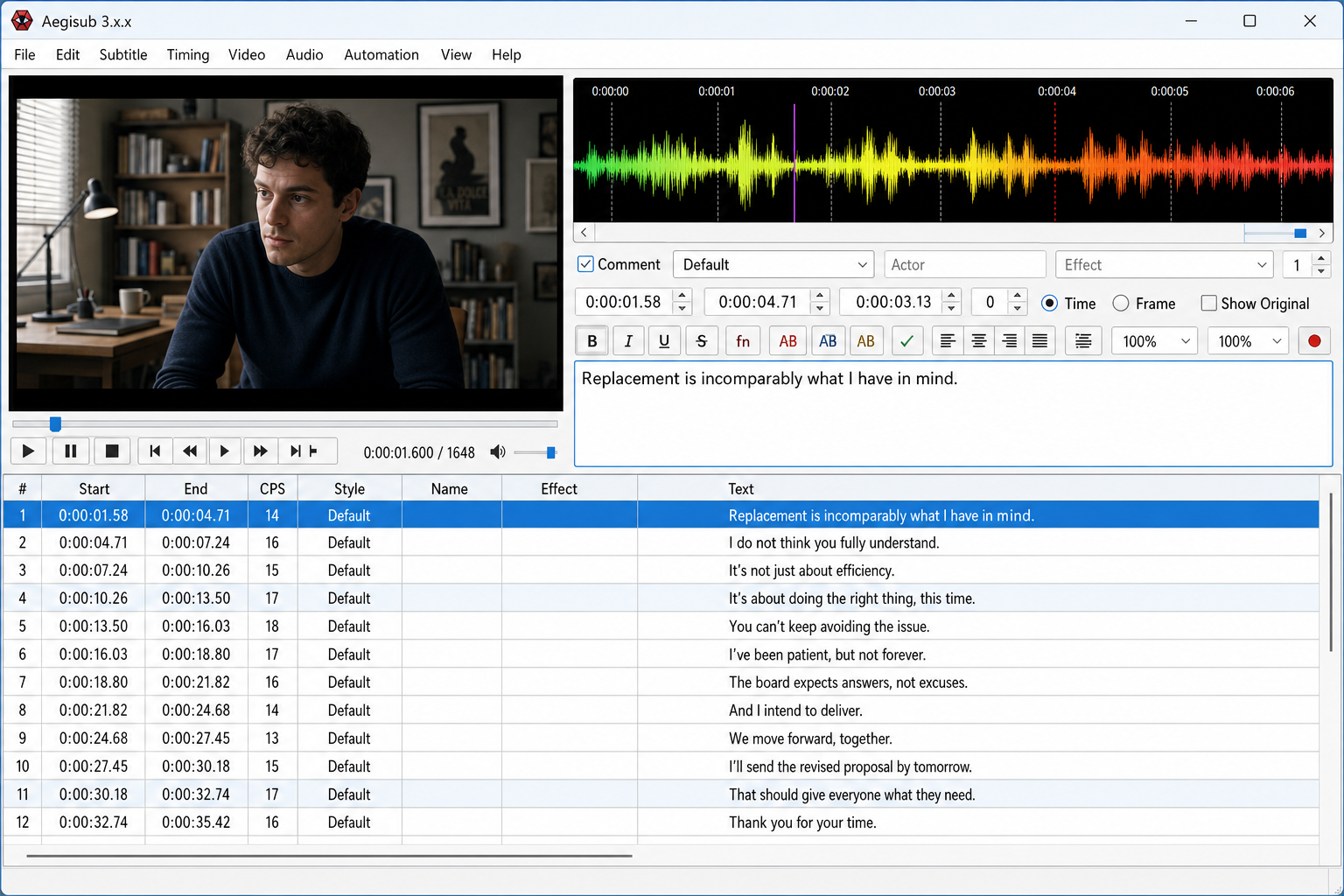
Aegisub is a free, cross-platform subtitle editor that lets you watch your video and set subtitle timing down to the millisecond. It’s the go-to tool if you need accurate, professional-quality subtitles.
- Download and install Aegisub from aegisub.org.
- Open Aegisub and go to Video > Open Video. Select your video file. It will appear in the preview window at the top.
- Play the video and pause it at the moment you want your first subtitle to appear.
- In the subtitle grid at the bottom, click on the first empty row.
- Type your subtitle text in the text box below the grid. You’ll see it appear on the video preview as you type.
- Set the Start Time and End Time for that subtitle line. You can type the times manually or use the Set start time and Set end time buttons while the video is playing. This is the easiest way to nail the timing.
- To add the next subtitle line, press
Enteror click the + button to insert a new row. Repeat for every line of dialogue. - When you’re done, go to File > Export Subtitles. In the format dropdown, choose SubRip (.srt). Save the file in the same folder as your video and give it the exact same filename as the video (e.g., if your video is
mymovie.mp4, name the subtitle filemymovie.srt).
Pro tip: Keep each subtitle to two lines maximum, and aim for each line to stay on screen for at least one second. Subtitles that flash by too quickly are frustrating to read.
Option B: Use an AI Tool to Auto-Generate Subtitles
If you’d rather not time every line manually, AI transcription tools can do most of the work for you. This is especially handy if you’re starting from a video with clear speech.
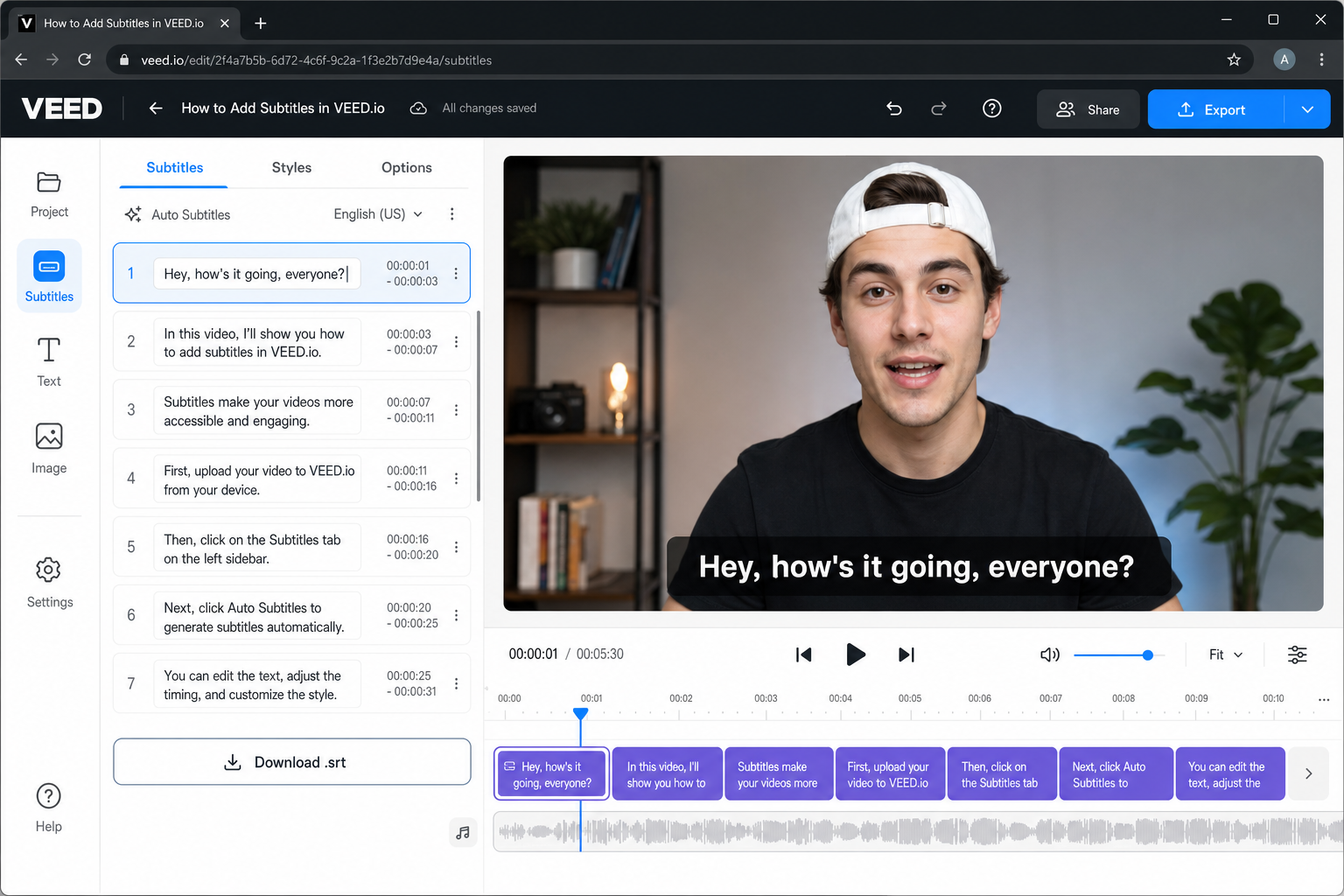
- Go to a tool like Veed.io, Kapwing, or CapCut Desktop.
- Upload your video file.
- Look for an Auto Subtitle or Auto Transcribe option. Select the source language of the video (e.g., Hindi).
- If you need the subtitles in a different language, look for a Translate option after the transcript is generated.
- Once the transcript appears, review and edit it carefully. AI gets things wrong, especially with names, accents, or background noise. Don’t skip this step.
- Export the result as an .srt file. Most of these tools have an export or download option specifically for subtitle files.
If you’re dealing with sensitive or private video content and don’t want to upload it to a cloud service, look into Whisper, an open-source AI transcription tool from OpenAI that runs locally on your computer. There are several free GUI apps that make it easy to use without touching a command line.
Step 2: Add the Subtitles to Your Video
Now that you have an SRT file, you need to decide how you want to use it. Here are your three main options, from simplest to most involved.
Option A: Keep the SRT File Alongside the Video (Easiest)
This is the simplest approach and doesn’t touch the video file at all. Most modern video players, including VLC, Plex, Kodi, and many smart TVs, will automatically detect a subtitle file if it’s in the same folder as the video and has the same name.
- Make sure your subtitle file has the same base name as the video. For example:
mymovie.mp4andmymovie.srt(ormymovie.en.srtif you want to specify the language). - Put both files in the same folder.
- Open the video in VLC. VLC should automatically detect the subtitle file and load it.
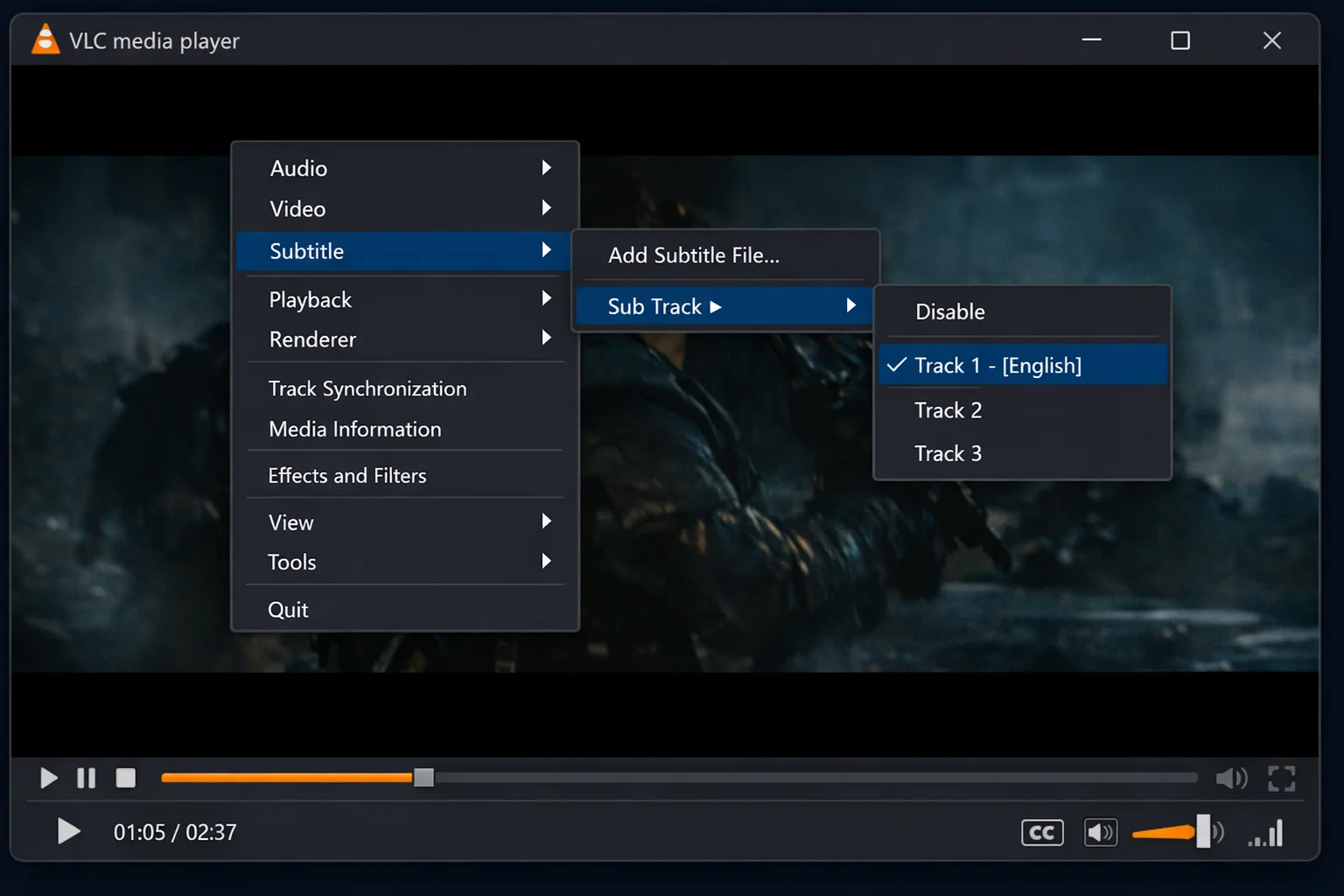
- If subtitles don’t appear automatically, right-click anywhere on the video, go to Subtitle > Sub Track, and select your subtitle track.
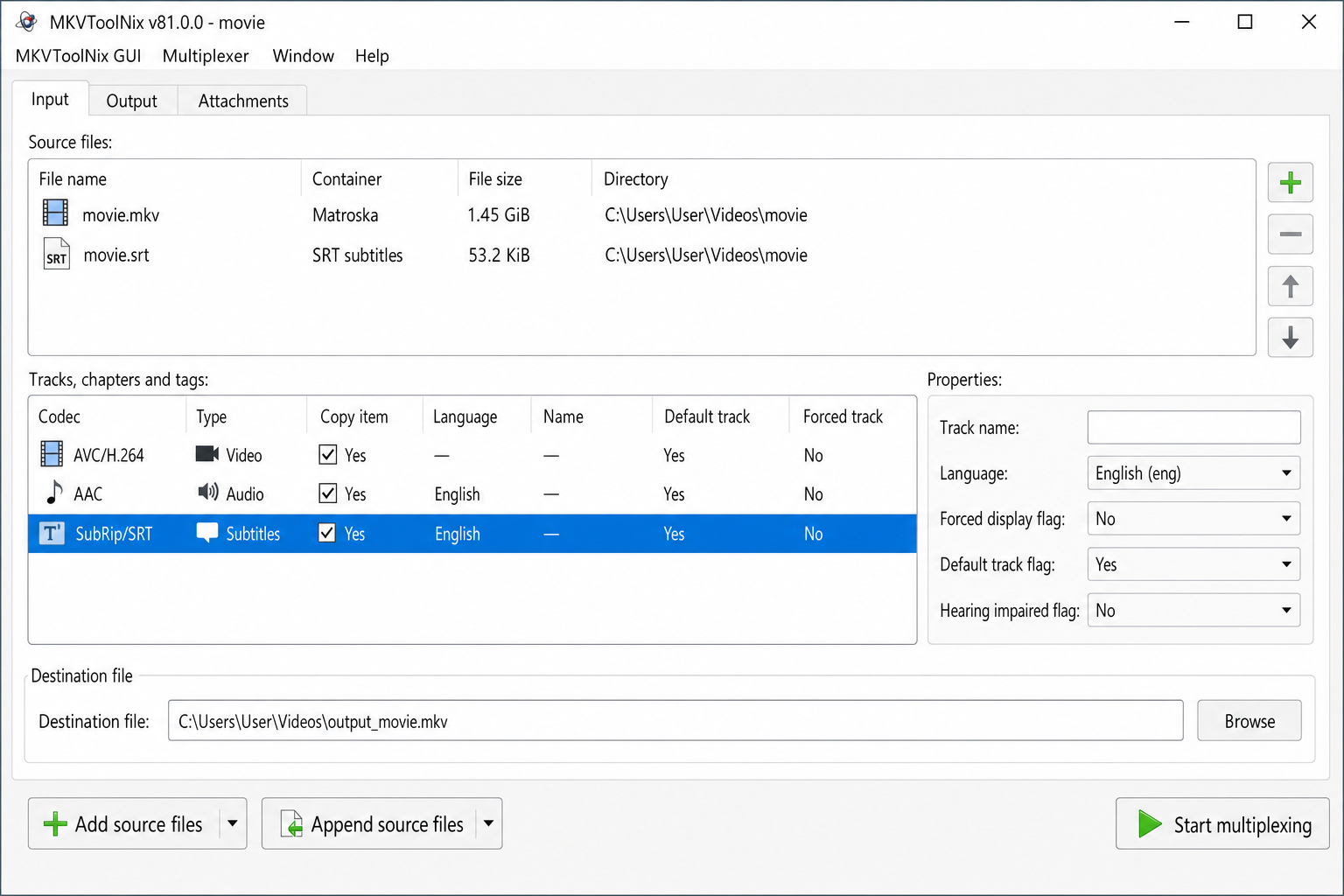
Option B: Embed Subtitles Inside the Video File with MKVToolNix (No Re-Encoding)
This method packages your subtitle file inside the video container. Think of it like putting the subtitles in the same “box” as the video. The subtitle stays toggleable (viewers can turn it on or off), and best of all, there’s no re-encoding, so the process is fast and there’s zero quality loss. The output will be an MKV file, which is widely supported by PC players and media servers like Plex.
- Download and install MKVToolNix from mkvtoolnix.download.
- Open MKVToolNix GUI.
- Under the Input tab, click Add source files and select your video file.
- Click Add source files again and add your .srt subtitle file.
- In the track list, find the subtitle track. Make sure it’s checked. You can also set the language (e.g., English) and give it a name like “English subtitles.”
- Under Output, choose where to save the new file.
- Click Start multiplexing. MKVToolNix will create a new MKV file with the subtitle track embedded inside.
Option C: Burn Subtitles Permanently into the Video with HandBrake
Use this option when you need the subtitles to always be visible, for example for a social media clip, a presentation, or sharing with someone whose player doesn’t support subtitle tracks. The downside is that this re-encodes the video (which takes longer and can slightly reduce quality) and the subtitles can’t be turned off.
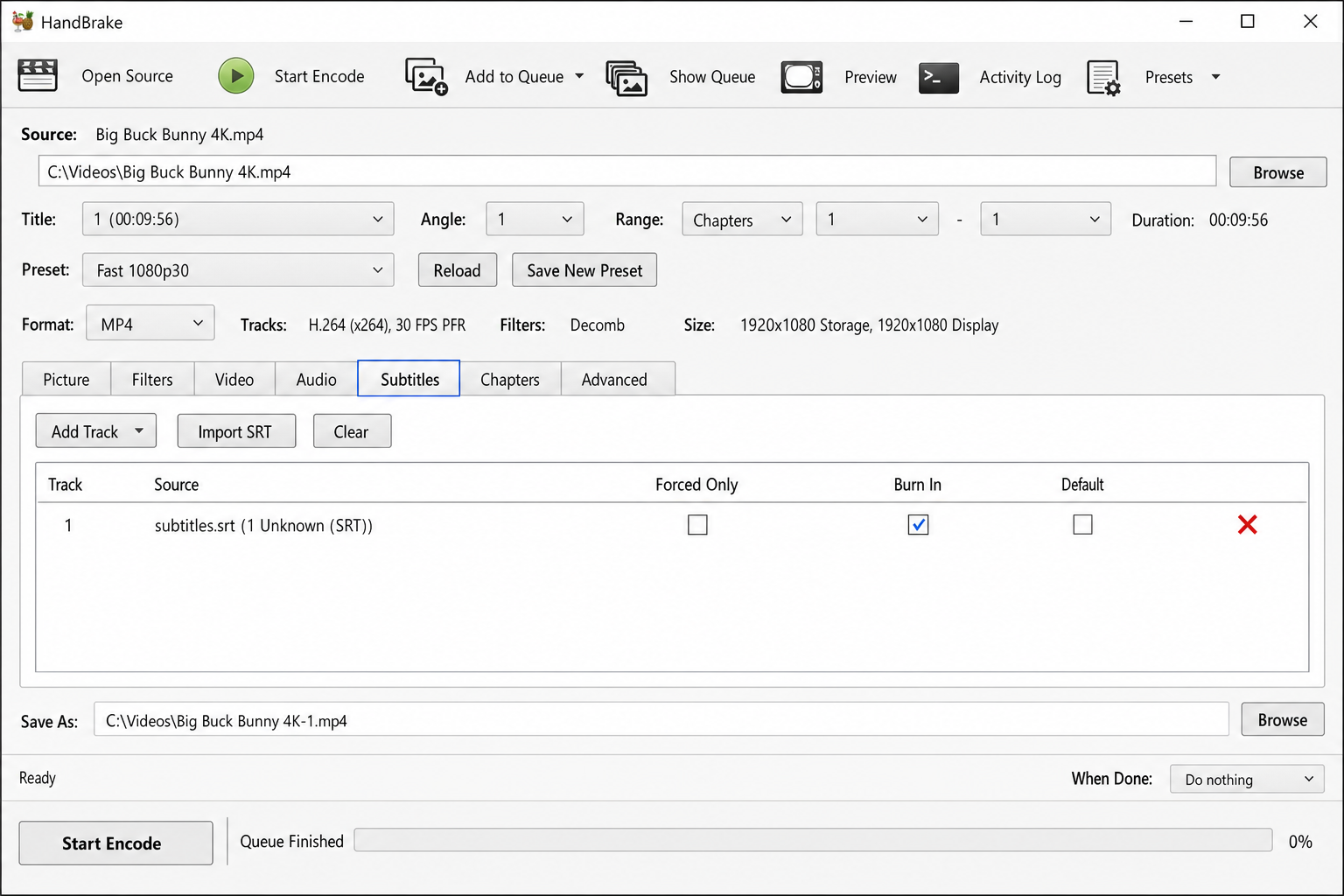
- Download and install HandBrake from handbrake.fr. It’s available for Windows, macOS, and Linux.
- Open HandBrake and click Open Source. Select your video file.
- Choose a destination folder for the output file under Save As.
- Click the Subtitles tab near the bottom of the window.
- Click Import SRT and select your subtitle file. It will appear in the track list.
- Check the Burn In checkbox next to the subtitle track. This is what permanently bakes the subtitles into the video.
- Choose your output format (MP4 or MKV) and adjust quality settings if needed. The default preset works fine for most people.
- Click Start Encode and wait for HandBrake to finish.
Step 3: Add Subtitles to a YouTube Video
If you’re uploading to YouTube, the process is actually pretty straightforward. This is arguably the best way to share a subtitled video with friends, since they can watch it in any browser or on any device without needing any special software.
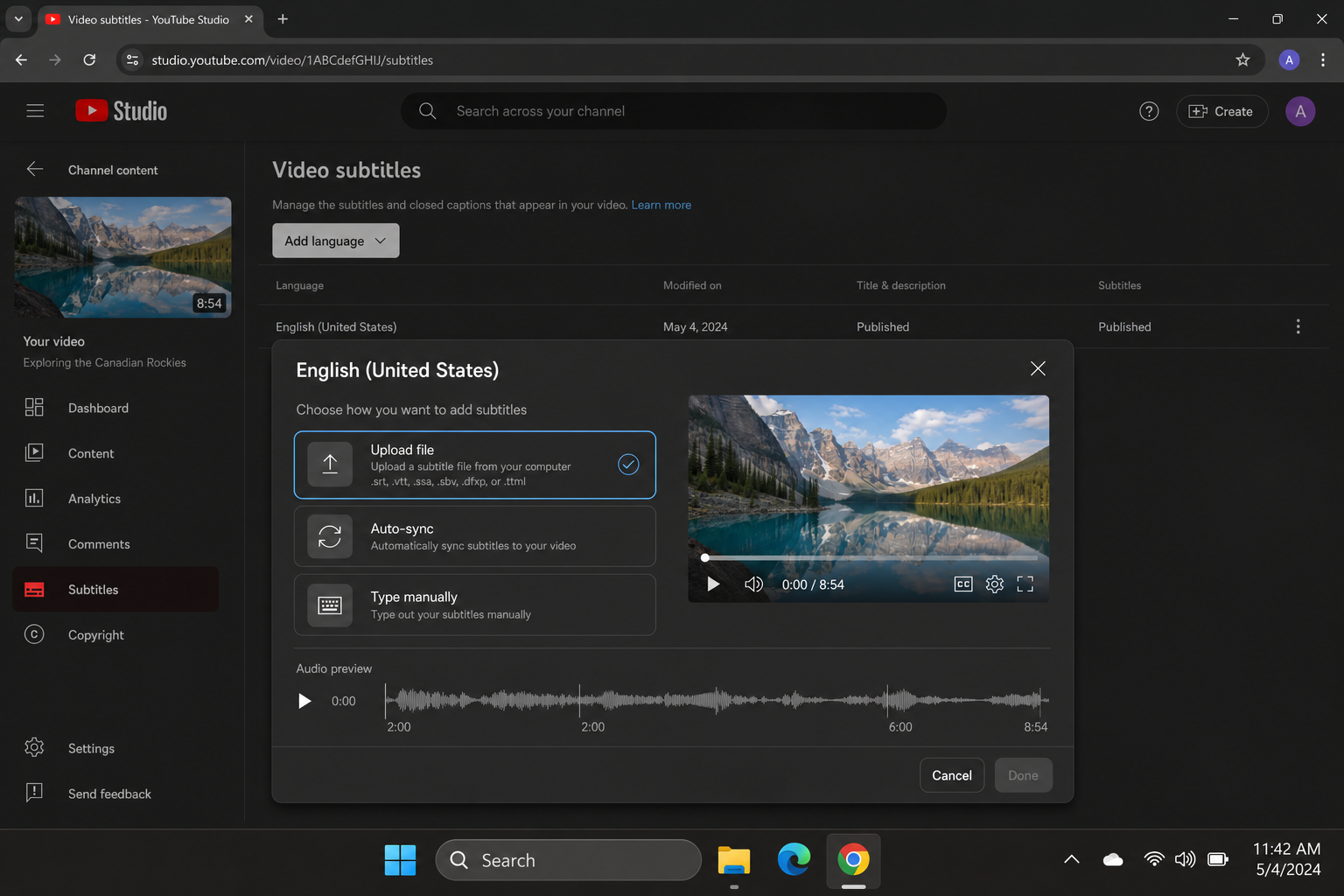
- Upload your video to YouTube as normal through YouTube Studio.
- Once the video is uploaded, go to YouTube Studio > Content and click on the video.
- In the left sidebar, click Subtitles.
- Click Add language and choose the language your subtitles are in (e.g., English).
- Click Add under the “Subtitles” column.
- Choose Upload file. Since your SRT already has timing information, select With timing and upload your .srt file.
- Review the subtitles in the editor that appears. Make any final corrections, then click Publish.
Your viewers will now see a CC button on the video player. They can toggle the subtitles on or off, and YouTube will even let them change the font size and appearance in their own settings. For more detail on this process, check out our guide on how to add subtitles to a YouTube video.
Tips and Troubleshooting
Common Issues
Problem: Subtitles aren’t showing up in VLC or my media player
This is almost always a naming issue. Double-check that your subtitle file has the exact same base name as the video file and that both are in the same folder. Also make sure subtitles are actually enabled. In VLC, go to Subtitle > Sub Track and pick the track. If the track is grayed out, VLC hasn’t found the file.
Problem: Subtitles are out of sync with the video
This happens when the subtitle timing doesn’t match the video. In Subtitle Edit or Aegisub, use the “Shift all times” feature to offset every subtitle by a fixed amount (e.g., +2 seconds or -1.5 seconds). If the subtitles start in sync but gradually drift further out, you may need to adjust the frame rate. Both tools have a “Change frame rate” option for exactly this.
In VLC, you can also do a quick fix on the fly: press H to delay subtitles or G to speed them up while the video is playing.
Problem: Subtitles work on my PC but not on my TV
Some TVs are picky about subtitle formats. Make sure your SRT file is saved with UTF-8 encoding (no BOM). Most subtitle editors do this by default, but it’s worth checking. If the TV still won’t play it, try embedding the subtitle into an MKV file using MKVToolNix (Option B above), which is better supported by smart TVs and media players than a separate SRT file.
Problem: YouTube’s auto-generated captions are wrong
Auto-captions are handy but not always accurate, especially for non-English languages or heavy accents. The fix is simple: upload your own SRT file using the steps above. Your manually created subtitles will take priority over the auto-generated ones for that language.
Pro Tips
- Use soft subtitles whenever possible: They can be toggled on and off, support multiple languages, and don’t require re-encoding the video. Hard-coded subtitles are really only necessary for social media clips or situations where you have no control over the player.
- Keep subtitle lines short: Aim for no more than two lines per subtitle block, and try not to exceed about 42 characters per line. Long lines get cut off on smaller screens.
- Test in VLC first: Before embedding or uploading anything, drop your SRT next to the video and open it in VLC. It’s the fastest way to catch timing issues or encoding problems.
- SRT vs ASS format: SRT is the safest choice for compatibility. The ASS format (.ass) supports fancy styling like custom fonts, colors, and positioning, but not every player or platform supports it. Stick with SRT unless you specifically need advanced styling.
- For social media (TikTok, Instagram Reels): These platforms have built-in auto-caption tools. Use them. They’re fast, and they let you style the text directly in the app. If you need more control, burn in subtitles using HandBrake or CapCut before uploading.
Wrapping Up
Adding subtitles to a video is no longer the complicated, software-juggling exercise it used to be. Create your SRT file in Aegisub or let an AI tool handle the transcription, then decide whether you want to keep the subtitle file separate (easiest), embed it into an MKV with MKVToolNix (best for local playback), burn it in with HandBrake (best for social media), or upload it to YouTube (best for sharing). The whole workflow can take as little as 20 minutes for a short video once you know what you’re doing.
Honestly, the YouTube route is the easiest for sharing with friends. No one needs to install anything, the subtitles are toggleable, and it works on every device. If you run into sync issues or your subtitles aren’t showing up, check the troubleshooting section above. Nine times out of ten it’s a file naming or encoding issue that’s easy to fix.