
Did you know that you can use Microsoft Word to create your own barcodes? Creating your own barcodes is actually kind of cool and pretty easy to do. Once you have a barcode, you can stick it onto anything you want and then scan them using a physical barcode scanner or with your smartphone by downloading an app.
There are several different types of barcodes and I’ll try to show you how to create as many of them as possible for free. In order to create certain types of barcodes, you need specialized commercial software, so I won’t mention those. The most common 1D barcodes are Code 39, Code 128, UPC-A, UPC-E, EAN-8, EAN-13, etc. 2D barcodes include DataMatrix, PDF 417 and QR codes.
In order to create a barcode, you have to install a barcode font onto your system and then use that font in any program that supports fonts like Word, WordPad, etc.
Download Barcode Font
The first step is to download a barcode font and install it on your system. Either you can search Google for barcode fonts or you can download the one you want from these sites below. My suggestion for most people is to use Code 39, Code 128 or QR code fonts as they are the most popular and the easiest to scan.
Code 39 is best for very short text, just a few characters. You’ll notice the barcode becomes very long very quickly when using Code 39. Code 128 can handle a lot more text and the barcode will remain relatively small. With QR codes, you can store a lot of data and the size of the square will get bigger depending on the amount of data.
However, there are a few caveats about using barcodes in Word. Most 1D barcodes require a start and stop character in the barcode for it to be scannable. For Code 39, all you have to do is add the start symbol (*) to the front and back of the text.
For example, if you download a Code 39 barcode, then you would type *Hello* to create a scannable barcode that will read the word Hello when scanned. If you want to include a space in a Code 39 barcode, you have to use the equals symbol (=). So, you would have to type *Hello=John* in Word to get the text Hello John when scanned.
For Code 128, it’s not that simple. In addition to start and stop symbols, you also need some special checksum characters. Unfortunately, you can’t type these on your own and will have to first encode the text into the proper format and then paste it into Word. I’ll walk you through the steps below.
With QR codes and Word, the main problem is that each code square will end up being only one letter. This is because it’s a font in Word and that means each letter has to have its own character. So a five letter word like hello will look like this in Word when using a QR code font:
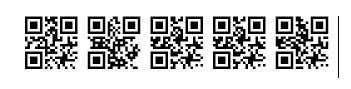
A single QR code can actually store a lot of data, but that is only if you generate the QR code using third-party software or using a free online barcode generator. If you’re going to use Word, you’ll have to live with one QR code storing just one letter, number or symbol.
Code 39:
http://www.barcodesinc.com/free-barcode-font/
http://www.idautomation.com/free-barcode-products/code39-font/
Code 128:
http://www.dafont.com/code-128.font
http://www.jtbarton.com/Barcodes/Code128.aspx
http://www.barcodelink.net/barcode-font.php
QR Code:
http://www.dafont.com/qr-font-tfb.font
Install Barcode Font
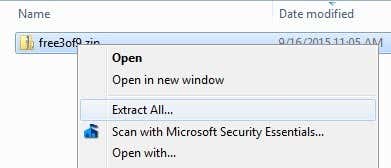
Once you have downloaded the font, it will normally be included in a ZIP archive. Go to your downloads folder in Explorer, right-click on the archive and choose Extract All.
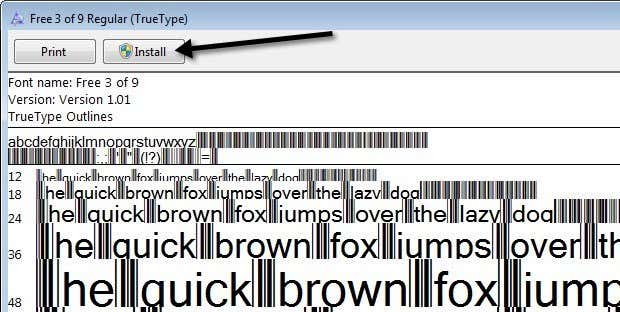
Open the folder and you might see several files, one of them ending in TTF, which stands for True Type Font. Double-click on the font file and a window will pop up showing you the barcode font in different sizes.
Click on the Install button at the top and the font will be installed into the C:\Windows\Fonts folder. You will have to close Word and reopen it in order to see the new font installed.
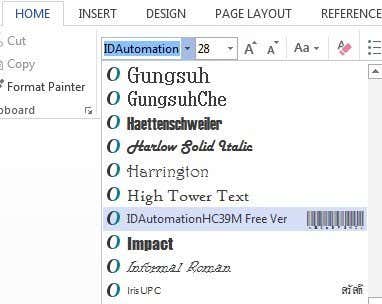
Depending on which barcode font you download, you may see just the barcode in the list of fonts or you will see a name and then a picture of the barcode to the right. Your barcode font is now installed and ready to use!
Generating Barcodes in Word
Now let’s get to the fun part. Let’s start by generating a Code 39 barcode in Word. To do this, I downloaded and installed the IDAutomation Code 39 font, which adds the text that you type to the bottom of the barcode. All of the other ones just show the barcode, but I’m using this one for instructional purposes.
First go ahead and type the text you want in your barcode. For example, let’s type *John=Doe* as shown below.
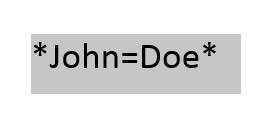
Go ahead and increase the size of the font to something bigger like 20 or 28. Now select the text and then select the Code 39 font from the list. The text should automatically be converted into a barcode and you’ll see the text at the bottom for this particular barcode.
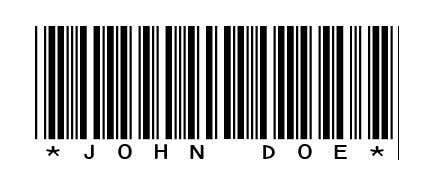
You’ll notice that the equals sign has been converted into a space in the barcode. You now have a scannable code 39 barcode! It’s pretty much that easy. Skip down to the Scanning Barcodes section to learn how you can scan it using a smartphone app.
Now let’s try creating a Code 128 barcode. First pick a Code 128 font from the above list, download it and install it. Once you do that, you have to go to the following website to encode your text into the appropriate format.
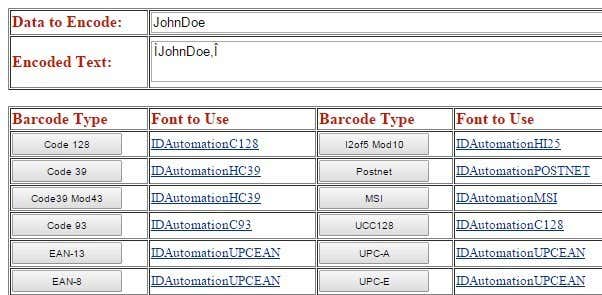
Type in the text in the Data to Encode box and then click on the Code 128 button at the top left. The Encoded Text box will generate the appropriate text, which you can then copy and paste into Word. Make sure to increase the size of the font to 48 or 72.
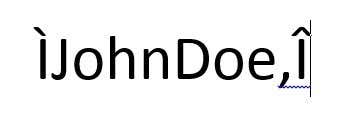
Now select the text and change it to the Code 128 barcode font you installed. It should create a nice looking barcode, which you can then scan. The only issue I ran into was spaces in Code 128 barcodes. When using the online encoder, it uses a special character for the space, but when I converted that to a barcode, the special character remained and wasn’t converted into a space. Couldn’t figure out how to fix it, so if you figure it out, let us know!
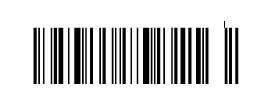
The same process can be done for QR codes or any other type of barcode. The barcode encoder website is also useful for generating Code 93, UPC-E and other barcode formats.
Scanning Barcodes
If you have a physical barcode scanner, you can obviously just use that to scan your barcodes, but if you’re doing this as a personal home project, you might not have one laying around. In these cases, you can download free barcode scanning apps on your phone to scan your barcodes.
What’s really nice about these apps too is that you can create the barcode on your computer and scan them using the app before you even print them out. This way you can check to make sure they are scannable first.
My favorite app on the iPhone is Beep, a very simple barcode scanner that supports many different types of barcodes. It’s fast, free and works really well.
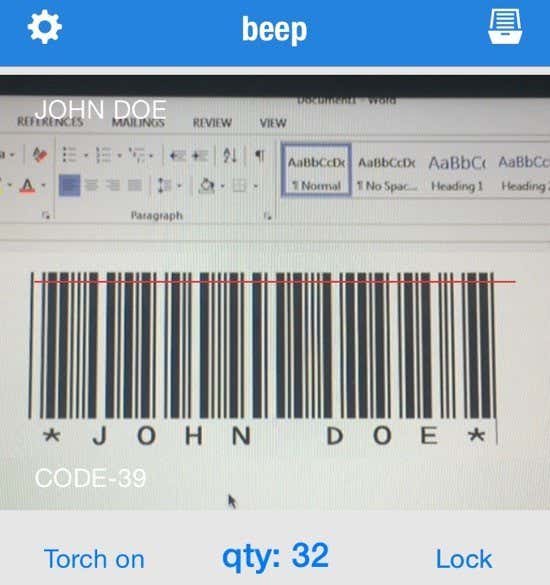
When it scans a barcode, it’ll tell you the type of barcode (Code 39, 128, etc) and it’ll show you the text at the top left. As for Android, I haven’t used any myself, but there are many apps in the Google Play Store, so feel free to try out different ones.
Hopefully, this guide was enough to get you started with barcodes in Word. If you run into trouble, feel free to post a comment and I’ll try to help. Enjoy!