How to capture and extract still images from video
Posted on May 6, 2008 at 5:22 am
Wish you could take a frame right out of your video and save it as a picture? I have a bunch of videos stored on my computer taken from my digital camera with scenes that I would want to extract to still images. If you’re in the same boat, then read on!
For some reason, it’s pretty hard to find an application that extracts images from videos and that is free! I’ve been looking for one for a long time and I finally found one after reading a related tech blog.
ImageGrab is a free program that you can use to extract images from all kind of videos including AVI, MPEG, WMV, live video streams, un-encrypted DVDs and many others formats.
It’s pretty easy to use and works well! Also, the great thing about this program is that it requires no installation, just download and run the EXE file, so it won’t slow down your computer or add keys to your registry! That’s what I like to hear!
First you need to load a video into the program, so click the open folder icon at the far left.
You should now see your video in the window below along with the navigation keys at the bottom. You’ll also see the size of the video and the size of the image still at the top left.
If for some strange reason your video is upside down, which the author of the program suggests it could be because of the decoder on your system, you’ll need to press the Invert button, which looks like two arrows in opposite directions.
Now it’s time to actual grab a still image from your video! First set the folder where you want the pictures to be saved by clicking on the folder icon at the top right.
Finally, navigate the video until you reach the frame you want to grab. You can use the arrow keys on your keyboard for precision. Now when you have the desired frame in view, use any of the buttons in the second group to extract the image:
or F5: Takes a snapshot without saving it to the disk.
or F7: Saves the previous snapshot to the disk.
or CTRL+C: Copies the snapshot to the clipboard.
I don’t really know why you would want to take a snapshot and not save it, but the option is there for those who enjoy that!
That’s it! You have just captured a still image from a video! Now go post it somewhere so we can all see! Enjoy!
[tags]extract stills from video, capture stills from video, capturing stills from video, extract images from video, create stills from video[/tags]
» Filed Under Computer Tips
Related Posts
- Grab or capture still images or frames from a video or DVD
- Jing – Free Windows & Mac screen capturing and recording software
- Extract images from PDF files to TIFF, JPEG, etc
- Capture screenshots in Windows with Screenshot Captor
- Clip2Net – Share files, folders and screenshots easily
Sorry man, but I have a way where most people don’t have to install anything. In Windows Movie Maker, pause on the frame you want to capture, then either up in one of the menus, or right below the movie, or both, is a little picture of a camera. Press that.
Chris, I just tried it out and you’re brilliant! I never knew you could do that. That is a super easy way to extract a still image from a video! And Windows Movie Maker is already on all Windows XP and Windows Vista computers.
Thanks a bunch!
Thank you very much! I was very surprised when I found this out too.
Chris, 12
before this i am using nero player to capture images from video. now i will try movie maker as well as ImageGrab
Ajay, both are excellent ways to capture stills from videos. I actually like the Windows Movie Maker method better since I don’t even need any additional software!
Don’t you just love my great idea? Hehehe
i have used windows movie maker and it’s pretty easy way to execute the task.
thanks for helping out.
Does anyone know how to automatically capture a full sequence of stills from video? I did it once to capture a golf swing, but can’t remember which application I used!!
As tony has said ,in a video there are 30 frames per second is there a way to get all frames in given time interval.
anyone found this feature in Windows Live Movie Maker in windows 7? only been looking 45min, but jeesh, did they take it away?
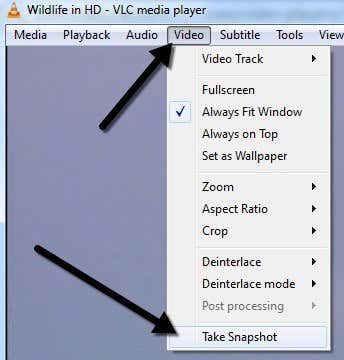
The simplest and quickest way I found is with the video player VLC media player, which is a great player for many video formats. All you have to do is press on View and select Advanced Controls, then icons appear, including a camera, gives you a choice to record a video clip or photo by photo, just press the camera and it takes the picture. You can use with motion video and you can also grab still images from DVD.
OK, so I was able to capture the still frame using Movie Maker, but now how do I take and save that image into another folder outside of Movie Maker?
@Super T:
I have VLC Media Player and I never got the View option or the camera icon. I would LOVE to find another program like SC Video Decompiler – unfortuantely, said program is giving me runtime errors after having reinstalled after a reformat – when it DID work for me, you loaded the video file and had the option of Extract All Frames and it would extract all the frames in the video with the click of a button. I still haven’t found out why its giving me the errors – unknown file type and overflow – but I hope that the company who put it out will help me fix it. It is freeware that you can get online. Just google SC Video Decompiler, who knows, it might work for you.
ridiculous! movie maker in windows 7 is crippled! how can a company like microsoft get away with providing these stupid upgrades that go back 10 years, over and over?
Windows 7 Movie Maker is retarded…I Cannot find where you can capture a still frame!! grrr?!!
There are no navigation keys below the picture, nor is there a “deinterlace” window.
The command line instructions for saving the frames of a video as a sequence of images from VLC are found here…
http://wiki.videolan.org/Video_Output
…which proves it’s indeed possible. Which leads to the following:
hubpages.com/hub/making-screencaps-with-vlc
download.cnet.com/8301-2007_4-9828117-12.html
Chris, I LOVE YOU!!!
I still found Image Grab to be much better then Windows Movie Maker. It gives you more control over the picture control. Plus for some reason with WMM I kept getting a snapshot that was much smaller then the original video. With Image Grab they are the same size.
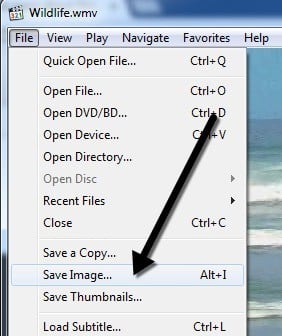
Thanks, I also use VLC media player to extract still images from video.
Does it make any difference what type of digital camera you use to capture a still photo from the video?
Windows 7 doesn’t have the image capture feature that vista and xp did. No wonder apple overtook them.
U can also take an image from any video format by playing the video & pausing it on the moment ur image appears (the scene that u wish to capture), then, after pausing the video, just press the PRINT SCREEN button given on ur keyboard (it’s usually near the BACKSPACE button). Then, open paint or any image editing application & press CTRL+V n ur image will get pasted there alongwith the entire screen, then u can edit it as u want using any other application or paint itself.
Hope this helps
printscreen button pressing and ctrl+v pressing on the video pause image gives you a black screen on any application. how to get the image is the problem.
I cannot find that camera in Movie Maker anywhere… I am using Windows Live Movie Maker with Windows 7. Help!
Hello, Chris. You are a life saver. Couldn’t get this to work to save my life. Thanks to your great article, I now know of a program that does exactly what I need and doesn’t bog my system down.
I accidentally found a way to do this with Windows 7 when I was first playing around with Windows 7 a week or two ago. However, I could not remember how I did it until I searched here and elsewhere. Apparently, Windows 7 has a feature called a snipping tool. If you pause the frame (YouTube works) and search for “snipping tool” on the Start menu using the Search for programs and files box, you should see it appear above. Then, click and drag with your mouse over the image and save in whatever format you want.
I hope this helps.
I cannot find the camera on Windows Movie Maker either.
Please help!!
Thanks for this very nice and awesome image grabber.It is helpful.