

Want to browse without leaving traces on your computer? Private browsing mode is a good start, but it’s not the privacy superhero you might think it is. Chrome and Opera both offer private modes, but they work very differently — and honestly, neither one gives you the complete privacy protection you probably want.
In this guide, you’ll learn how to enable private browsing in both browsers, what it actually does (and doesn’t do), and why you might want to consider better alternatives if privacy is really important to you.
What Is Private Browsing Mode?
Private browsing mode is a feature that prevents your browser from storing your browsing history, cookies, and other data locally on your computer. When you close the private window, it’s like that browsing session never happened — at least on your device.
Key Features:
- No Local History: Your browsing history won’t appear in your browser’s history list
- Temporary Cookies: Cookies are deleted when you close the private window
- No Form Data: Passwords and form entries aren’t saved
- Fresh Session: Each private window starts with a clean slate
Important Reality Check: Private browsing only affects what’s stored on your computer. Your internet service provider, the websites you visit, and your network administrator can still see everything you do. It’s more like “don’t save my history” mode than true privacy mode.
How to Enable Private Browsing in Chrome
Chrome calls its private mode Incognito mode. Here’s how to turn it on:
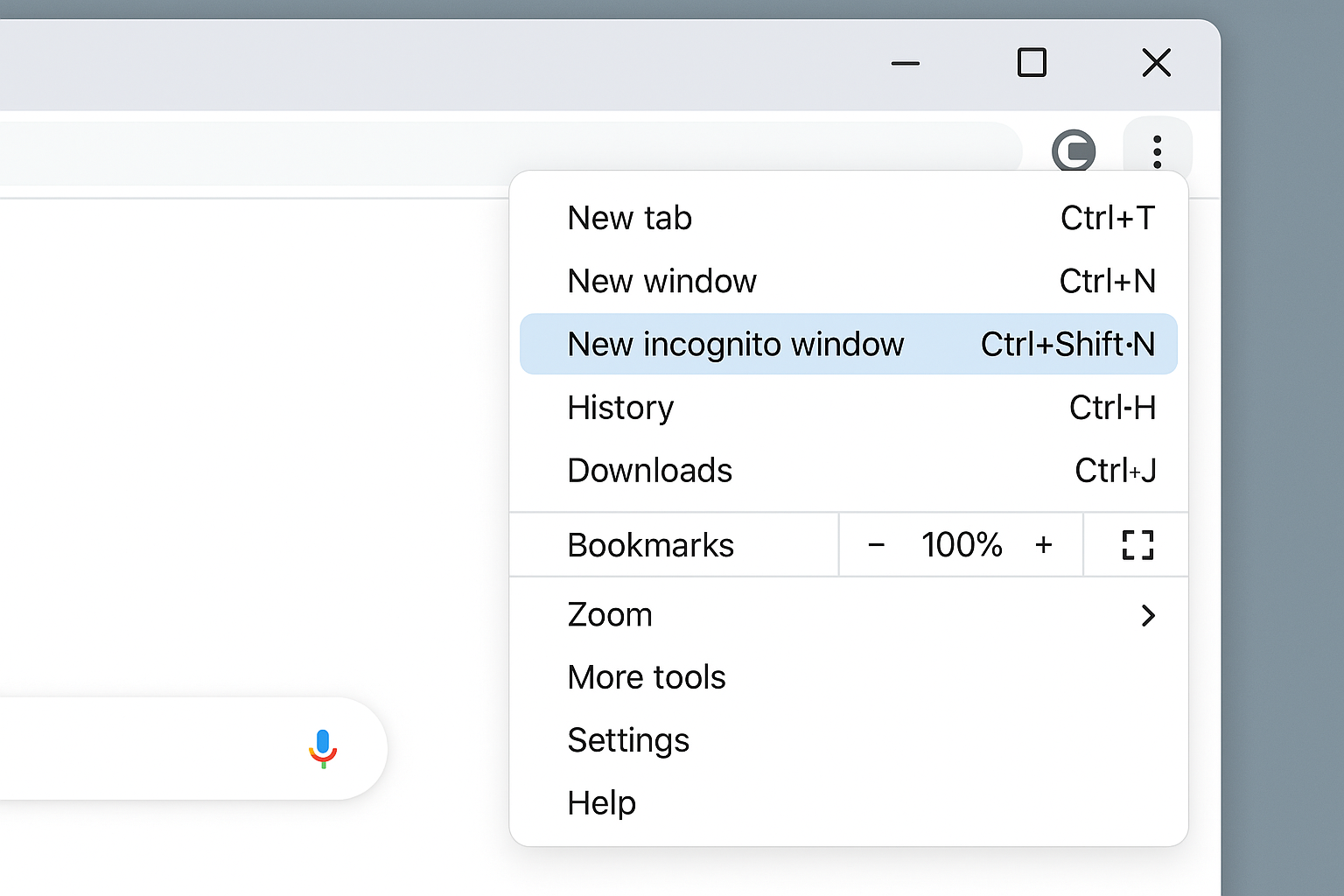
Method 1: Using the Menu
- Click the three-dot menu in the top-right corner of Chrome
- Select New incognito window
Method 2: Keyboard Shortcut (Faster)
Press Ctrl + Shift + N on Windows/Linux or Cmd + Shift + N on macOS. This is way faster once you get used to it.
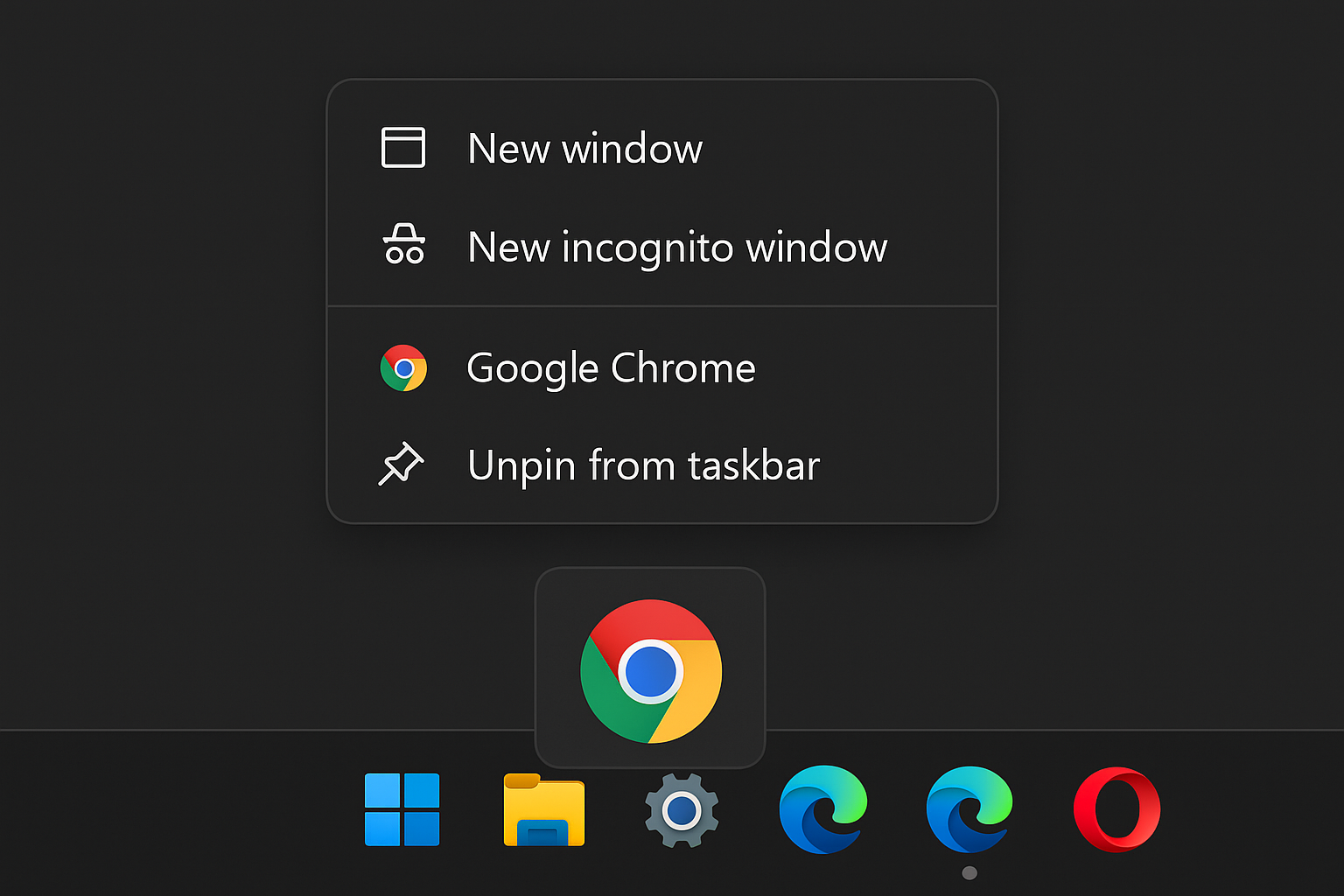
Method 3: From the Taskbar
- Right-click on the Chrome icon in your taskbar
- Select New incognito window
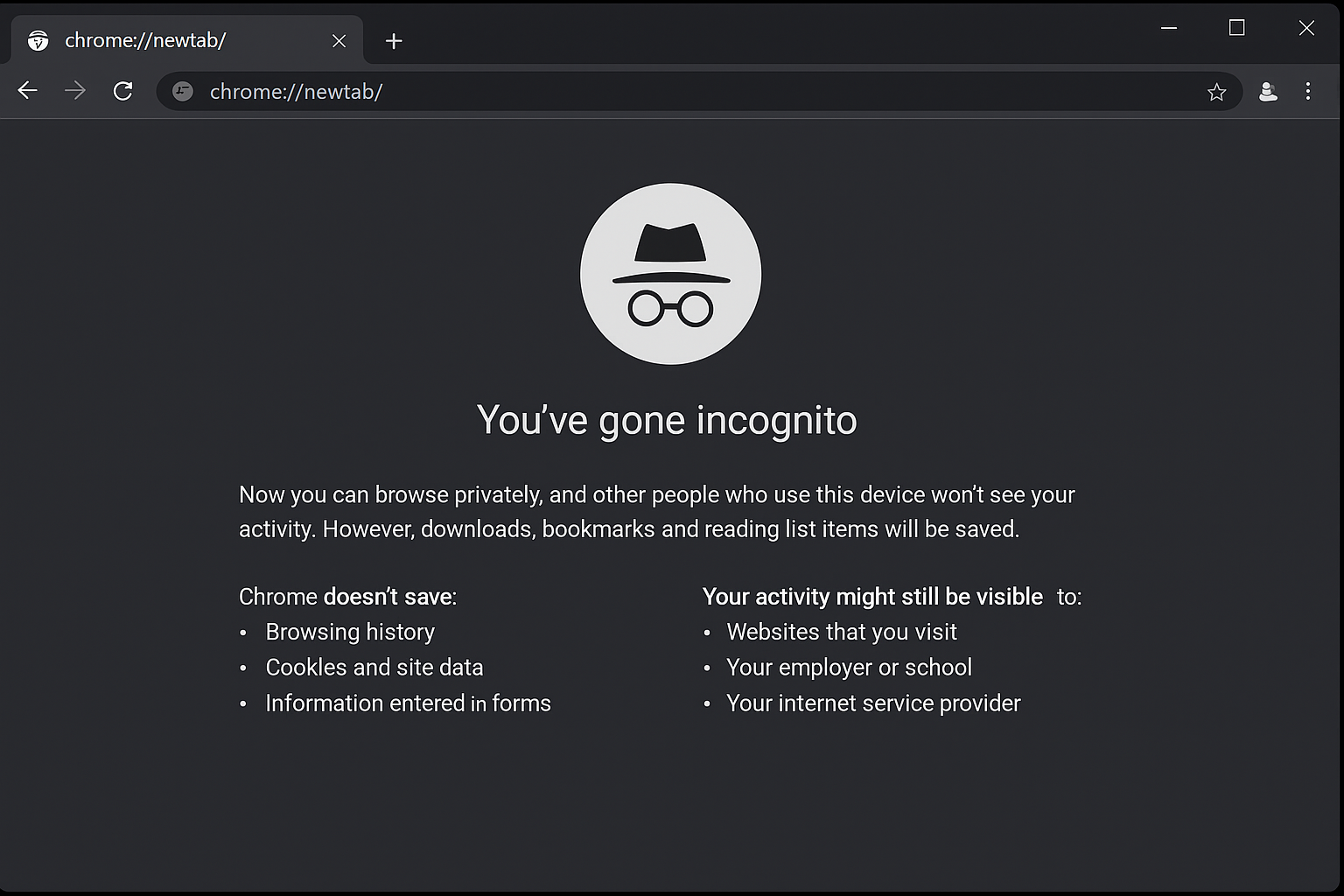
You’ll know you’re in Incognito mode when you see the dark theme and the detective hat icon in the top-left corner. Chrome will also show you a message explaining what Incognito mode does and doesn’t do.
How to Enable Private Browsing in Opera
Opera’s private mode works similarly to Chrome’s, but it comes with some nice extras (more on that in a bit).
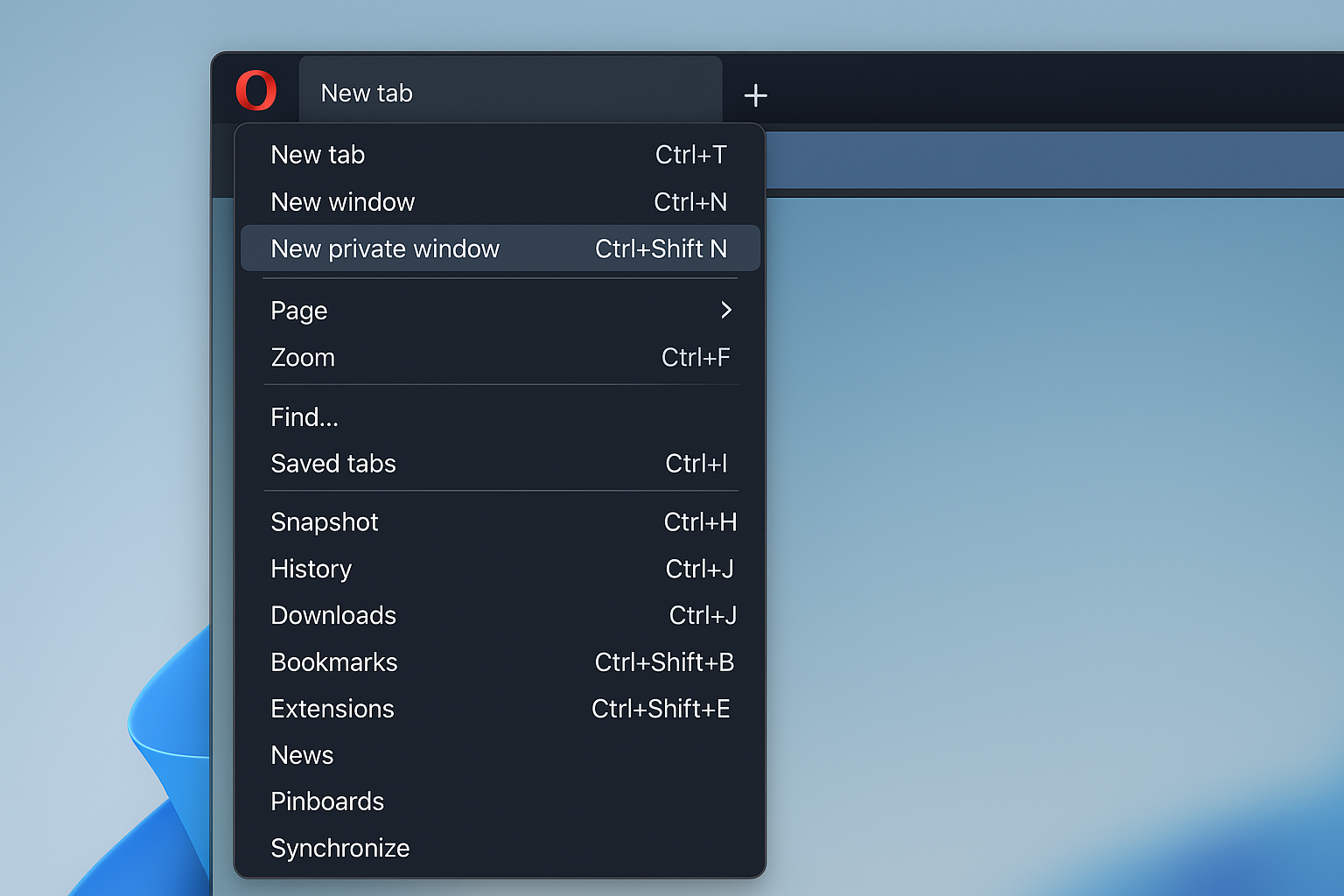
Method 1: Using the Menu
- Click the Menu button in the top-left corner (it looks like the Opera logo)
- Select New private window
Method 2: Keyboard Shortcut
Press Ctrl + Shift + N on Windows/Linux or Cmd + Shift + N on macOS — same as Chrome.
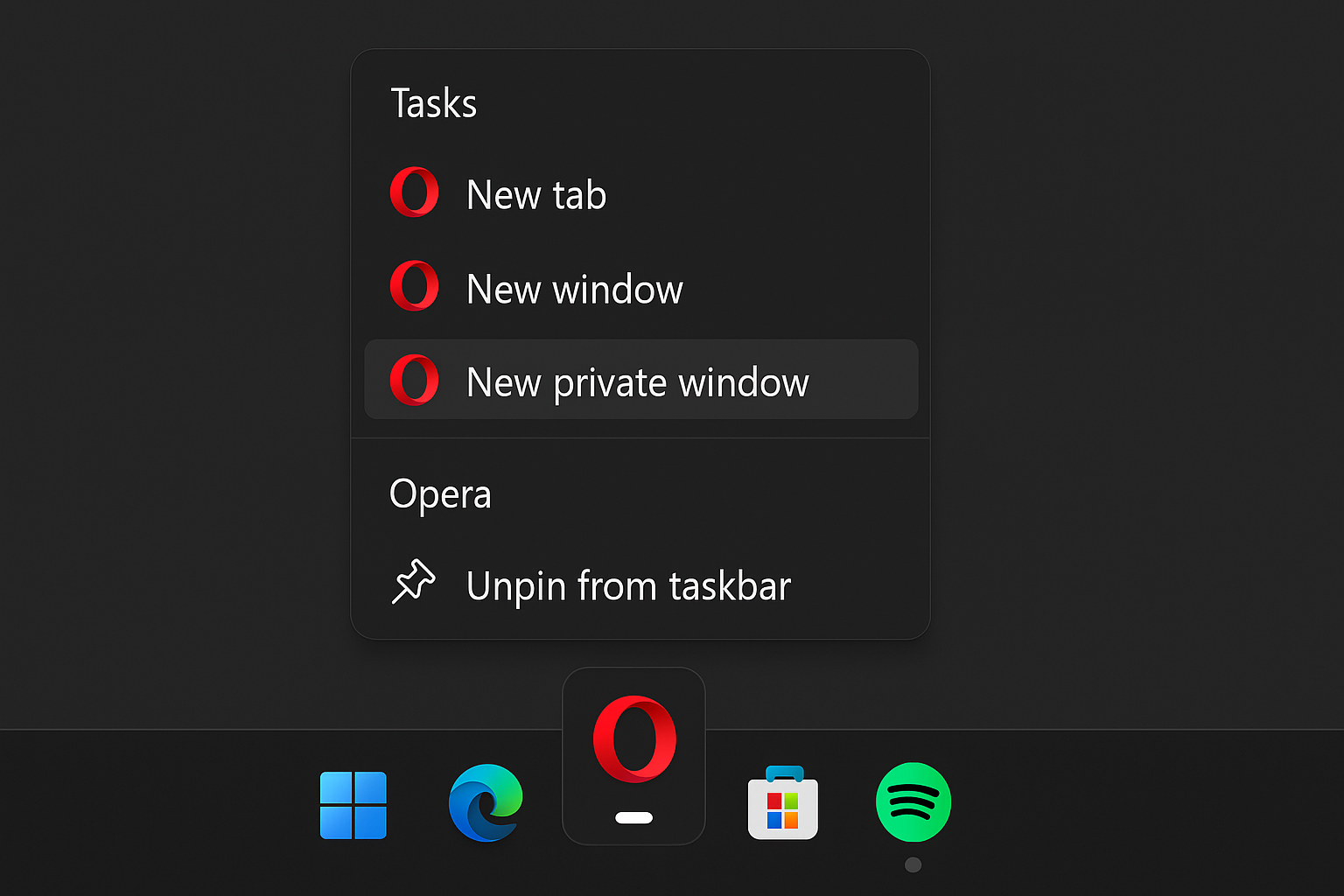
Method 3: From the Taskbar
- Right-click on the Opera icon in your taskbar
- Select New private window
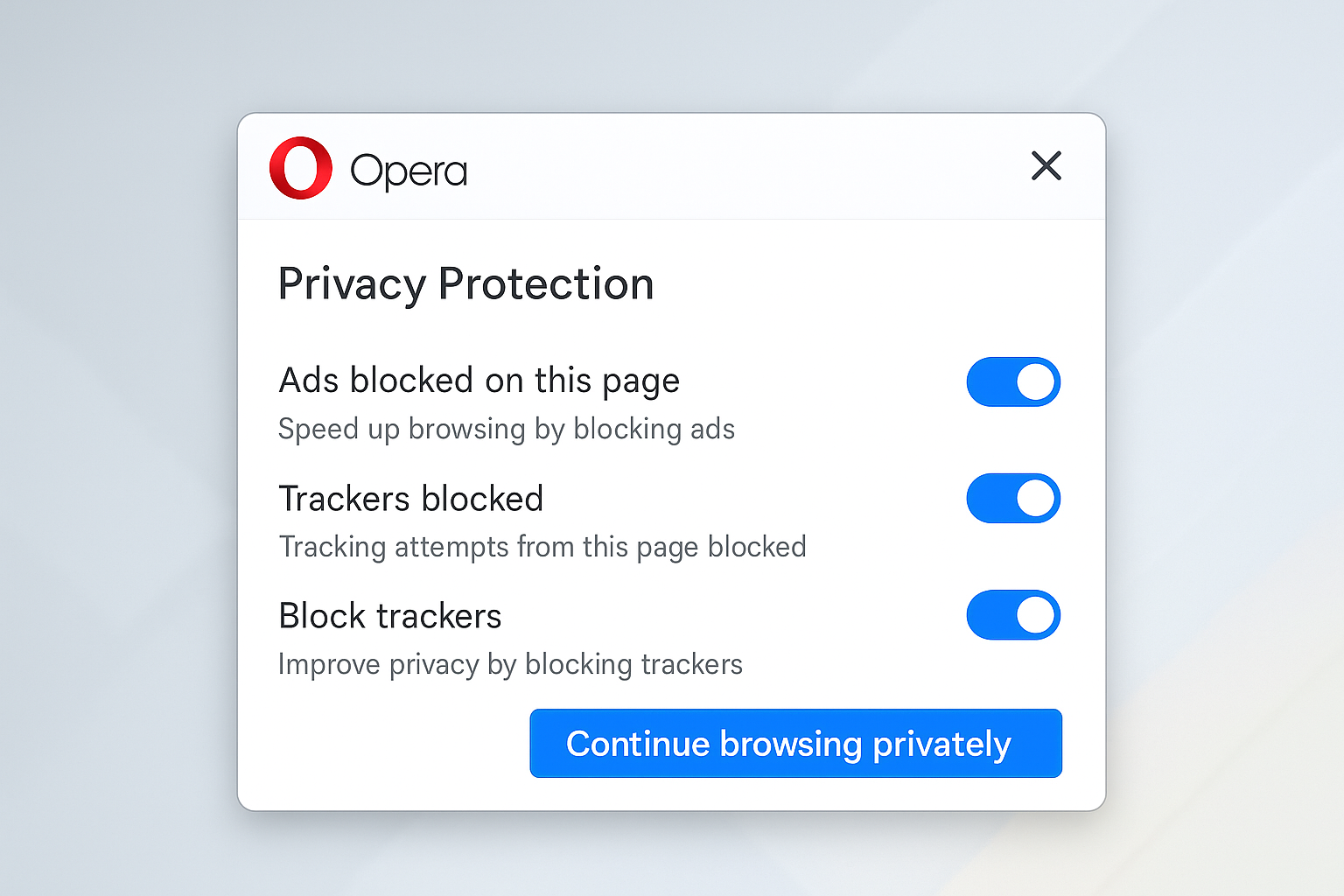
Opera’s private window will show you a confirmation message, and you’ll notice small lock icons on each tab to remind you that you’re browsing privately.
Chrome vs Opera: Which Private Mode Is Better?
Here’s where things get interesting. While both browsers offer basic private browsing, Opera actually gives you much better privacy protection right out of the box.
Chrome’s Incognito Mode
What it does:
- Blocks third-party cookies by default
- Doesn’t save your browsing history locally
- Clears temporary data when you close the window
What it doesn’t do:
- Google still collects data from Chrome, even in Incognito mode
- Your IP address is still visible to websites
- No built-in tracker blocking
- ISPs and network admins can still see your activity
Opera’s Private Mode
What it does (the good stuff):
- Everything Chrome’s Incognito mode does
- Free built-in VPN: Masks your IP address without needing separate software
- Tracker Blocker: Blocks analytics, cryptojacking, and tracking pixels by default
- Ad Blocker: Stops resource-heavy ads before they load
- Better Cookie Management: More control over what gets stored
Honestly? Opera’s private mode is actually private in ways that Chrome’s just isn’t. The built-in VPN alone makes it worth considering if you care about privacy.
The Truth About Private Browsing: It’s Not Enough
I hate to break it to you, but private browsing mode — even Opera’s enhanced version — isn’t the privacy solution you probably think it is. Here’s what still gets tracked:
- Your ISP: They can see every website you visit
- Website Tracking: Most sites still track you with fingerprinting and other methods
- Network Administrators: If you’re on a work or school network, they can monitor your activity
- DNS Queries: Your DNS provider knows which sites you’re looking up
Better Alternatives for Real Privacy
If you actually want privacy (not just “don’t save my history”), here are some better options:
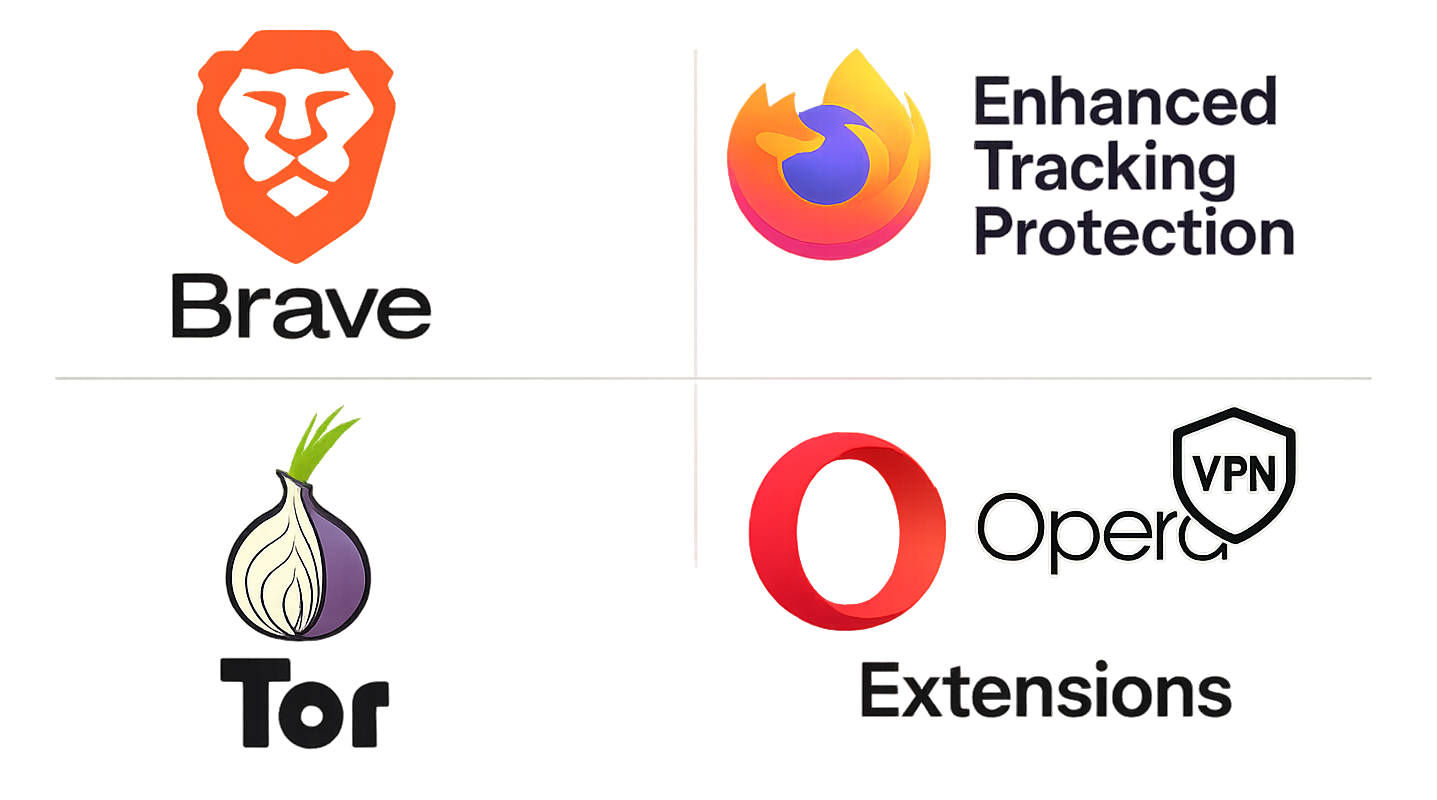
- Brave Browser: Blocks 97% of trackers by default and has built-in ad blocking. It’s like Chrome but actually private.
- Firefox with Enhanced Tracking Protection: Blocks about 85% of trackers and gives you tons of privacy customization options.
- Tor Browser: Maximum anonymity through onion routing, but it’s slow and better for specific high-privacy needs.
- Opera + VPN + Extensions: If you like Opera, combine it with privacy extensions like uBlock Origin for even better protection.
Tips and Troubleshooting
Common Issues
Problem: Private mode feels slower than normal browsing
This is normal, especially in Opera with the VPN enabled. The extra privacy features add some overhead. If speed matters more than privacy, you can disable the VPN in Opera’s private windows.
Problem: Some websites don’t work properly in private mode
Some sites detect private browsing and limit functionality. You can either:
- Use a regular browser window for those sites
- Try a different browser (some sites only detect certain private modes)
- Clear your cookies and try again
Pro Tips
- Keyboard shortcuts are your friend:
Ctrl + Shift + N(Windows) orCmd + Shift + N(macOS) works in both browsers - Mix and match: Use Opera’s private mode for general privacy and Tor for anything really sensitive
- Check your extensions: Most browser extensions are disabled in private mode by default, which is actually a good thing for privacy
- Don’t forget to close: Private mode only works when you actually close the private windows
Wrapping Up
Private browsing mode is a decent first step for basic privacy, but it’s honestly not the complete solution most people think it is. Chrome’s Incognito mode just prevents local history storage, while Opera’s private mode actually gives you some real privacy tools like a built-in VPN and tracker blocking.
If you’re just trying to keep your browsing history off your computer, either browser works fine. But if you actually want privacy from tracking, data collection, and surveillance, you’ll want to look at dedicated privacy browsers like Brave or Firefox with the right extensions. The good news? Now you know the difference and can choose what works best for your needs.