
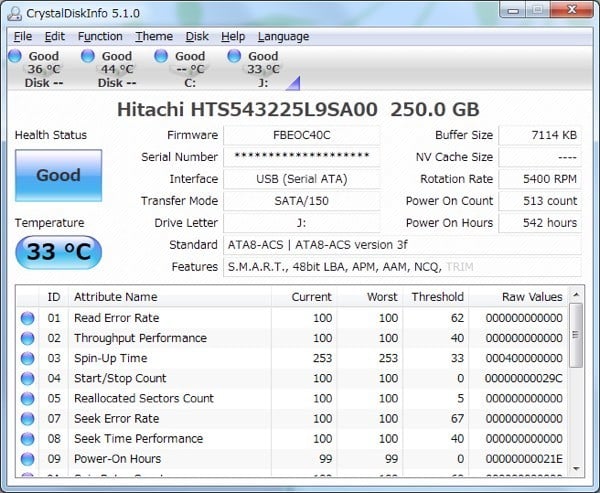
Have you recently received a new computer or have an older one lying around and wanted to find out the RPM of the hard drive? Even though a lot of newer laptops come with SSDs (solid state drives), most desktops and a majority of laptops still use traditional spinning platter hard disks.
If you have an older computer, you may be considering replacing a slower hard drive with a faster one. Even though you could opt for an SSD, traditional hard drives still cost much less and can give you a lot more storage for that cheaper price. When ordering a new hard drive, it’s very important to check the interface type and the RPM.
If you’re into higher end computers like servers or gaming machines, etc, then you can purchase hard drives that have a 10K or 15K RPM, which are extremely fast. For consumer purposes though, all laptops and most desktops will either be 5400 or 7200 RPM.
Here are a couple of methods you can try to find the RPM value of your hard drive.
Check the Label on the Hard Drive
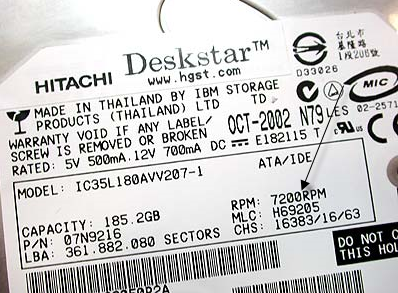
This may sound like an obvious answer, but it is also the MOST certain way of knowing the RPM of your hard drive. Of course, it means you have to open up your computer and possibly take off a few screws, but it’ll definitely give you the most reliable answer.
Also, most desktops from Dell and other manufacturers make their hard drives perfectly visible when you open the computer, hence no need to unscrew anything or pull anything out. Just open the box and look inside.
Use Device Manager & MSINFO32
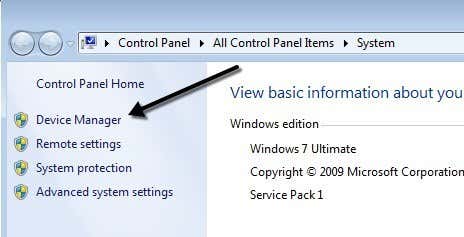
Another easy way is to simply look up the model number of your hard drive in Google. You’ll be able to find all the specifications for the hard drive on the manufacturers web site. In order to find the model number, simply right-click on Computer and go to Properties. Next click on the Device Manager link on the left. You can also just open Control Panel and click on Device Manager from there.
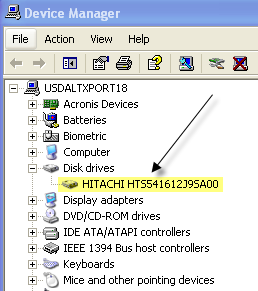
Now expand Disk drives and you should see the model number of your hard drive, like shown below. On my computer, it shows the entire model number of the hard drive (Hitachi HTS54…), which makes it really easy to look up. Note that if the model number is not listed completely under the Disk drives section, you can right-click on the drive and choose Properties.
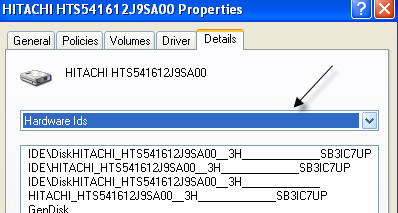
Click on the Details tab and from the drop down menu choose Hardware Ids, which will give you the exact model number for sure. As you can see, it’s listed multiple times, but the number is the same. You can ignore all the stuff after the underscore, as that is not related to the model number.
There is also a system information tool in Windows that you can use to get the model number for the hard drive too. Click on Start and type in msinfo32 and press Enter.
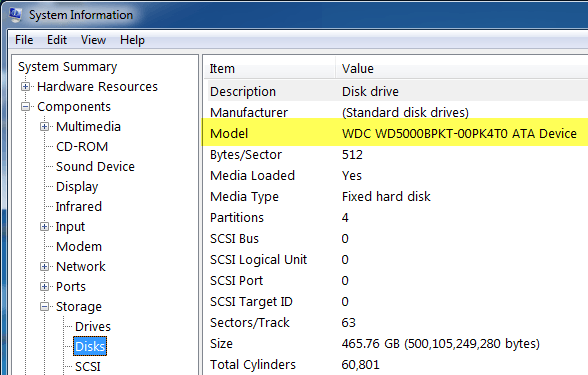
Expand Components, then Storage and click on Disks. At the top you will see Manufacturer and Model. Google the model number and you should get the info for that exact hard drive.
Use a Third Party Utility
You should be able to determine the RPM using the methods mentioned above, but if not, you can also download free third-party utilities that not only give you the RPM, but also lots of other information about the disk including the interface type, firmware, serial number, cache size, buffer size and more.
I will post the links below to several that I have used in the past, which are free and free of any spyware or malware. If your disk supports S.M.A.R.T, then these programs can also tell you the status of the hard drive, the temperature, etc. If you’re just trying to find the RPM, some of these programs might be overkill.
http://crystalmark.info/software/CrystalDiskInfo/index-e.html