
Ever heard of tweaking your mouse? Just about everyone has a desktop and along with that a mouse to perform all the tasks on the computer. We spend so much time using a mouse, but usually spend no time trying to make sure we are getting all the juice we can from that little controller!
However, you can greatly increase your productivity with a few simple mouse tweaks in Windows or via some third party apps. I’m going to go through a couple of apps that I’ve run across over the last few years that make my mouse into something more than just a roaming pointer! My last post was about customizing the right-click context menu, so also make sure to check that out after you finish this article.

Always Wheel
Always Wheel is a tiny little portable app that does something I really think should have been built into Windows as a feature. It basically makes all windows scrollable even if they are not active. Such a simple little tweak, but it’s amazing how many times I’ve actually used it.
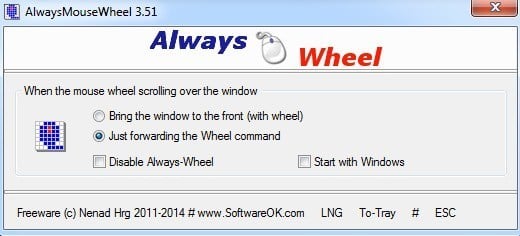
I personally have a bunch of windows open all the time and since Windows doesn’t have the same virtual desktop features yet like OS X, you end up with a lot of overlapping windows. Once you run the program, it’s set by default to just forward the wheel command to that particular window, but you can also choose to bring the window forward using the wheel.
Thankfully, it has an option to start with Windows and if you only need it for one session, you can just press the To-Tray button to minimize the program but keep it running in the background. Highly recommended even if you think you might never use it. Another program that does the same thing is WizMouse.
Volumouse
As I’ve mentioned before, I love the coders over at Nirsoft because they always create awesome little utilities that fix specific problems in Windows. Volmouse is a nifty little app that lets you control the volume control using your mouse wheel.
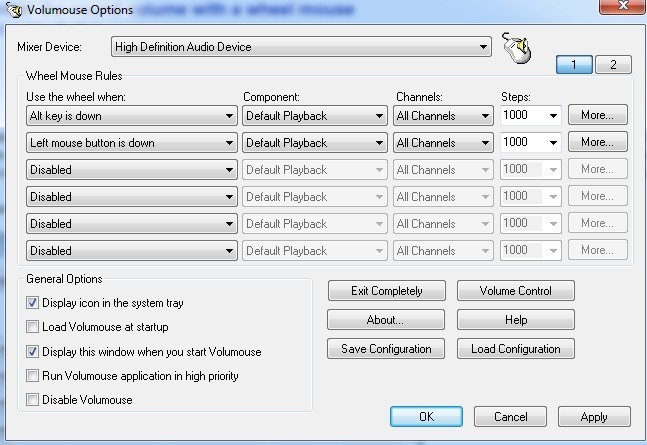
Don’t worry, it won’t replace the mouse wheel as only a volume control! By default, the program is setup to use the mouse wheel to control the volume only when either the ALT key is held down or when the left mouse button is held down. You can choose from a huge list of other options if you like by clicking on the dropdown.
In addition, you can change the component you want to control from Default Playback, which is just the volume to Default Recording, Speakers, Microphone, Screen Brightness, etc. So you can setup different configurations and control many items at once using this program. All of that and it won’t even interfere with the normal mouse functionality in any of your programs. If you adjust the volume on your machine quite often, this program is perfect for you.
NeatMouse
NeatMouse comes in really handy when you no longer can use your mouse. This doesn’t happen very often, but I’ve run into the issue a couple of times over the years and I was actually able to use NeatMouse on two occasions. Basically, it lets you control the mouse pointer using the keyboard.
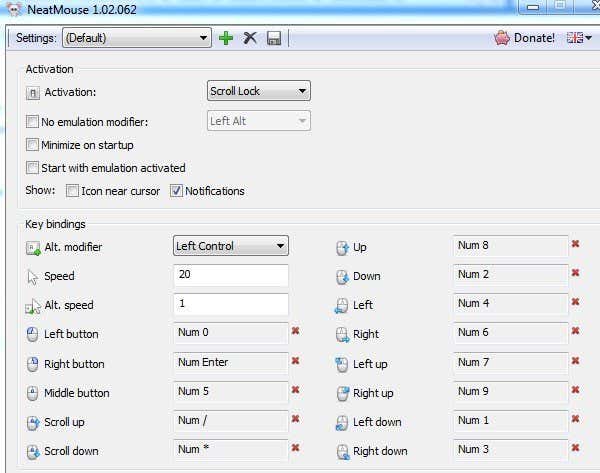
It’s worth noting that this program won’t really work with a laptop because it requires the use the number pad that is located at the far right of desktop keyboards. I tried it on a laptop and it didn’t work! Anyway, the program just runs in the background and you can activate it using Caps Lock, Scroll Lock, Num Lock or a custom hotkey.
Then you can go about moving the mouse by using the keys on the number pad. You can control pretty much everything from scrolling, left/right/middle buttons, moving up, down, left, right and diagonally also. If you need to actually use on of the keys on the number pad, you can check the No emulator modifier and choose a key so that when it’s pressed and then a number key is pressed, it will work normally instead of moving the mouse.
X-Mouse Button Control
Lastly, for those serious tweakers out there, X-Mouse Button Control is geek dreamland for tweaking your mouse. It’s got so many options and features that I had to actually sit down and read the user manual before I could really figure out how to use it properly. However, once I got it setup and working, I was amazed at how much functionality I could add to my mouse using this app.
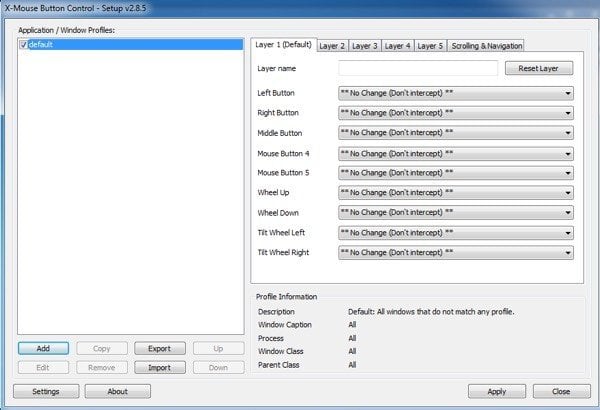
If you have any of those newer mice with 4 to 5 buttons, you can really go crazy with X-Mouse Button Control. Actually, the developer states that this program only is useful for a mouse with 4 to 5 buttons. The main thing about the program is creating different profiles for each application you use. Each button on your mouse can perform a different action depending on whether you are using Chrome or Word or Explorer or Photoshop, etc.
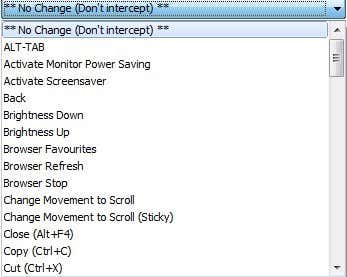
On top of that, you can configure up to 5 layers for each profile and then switch between them using mouse buttons or hotkeys. This means one button on your mouse can perform up to 5 different actions in a single application. If you click on any of the drop downs, you’ll see a huge list of actions you can perform.
There are, of course, a ton of other programs for tweaking your mouse, but these are my favorites. If you have a different program that you would like to recommend, feel free to post it in the comments. Enjoy!