
Skip to content
ONLINE 101010 TECH 010101 TIPS
  • Latest
  • News
  • How-To
  • Social
  • Streaming
  • Gaming
  • Reviews
  • Latest
  • News
  • How-To
  • Social
  • Streaming
  • Gaming
  • Reviews
  1. Home/
  2. Social Media/
  3. What to Do If You Forgot Your Twitter Password

What to Do If You Forgot Your Twitter Password

Patrick Hearn
March 27, 2022
3 min read
 - twitter

Twitter is one of the most popular social media platforms. If you forget your password, though, it’s not much use. The good news is that it’s pretty easy to reset your Twitter password if you forget it or get locked out of your account.

If you forget your Twitter password, the first thing you should do is reset it. 

How to Reset Your Forgotten Twitter Password from the Web

If you can’t access your Twitter account and need a new password, you’ll first need an up-to-date email address and a valid phone number. 

  1. Go to Twitter.com and select Sign In, then select Forgot Password.
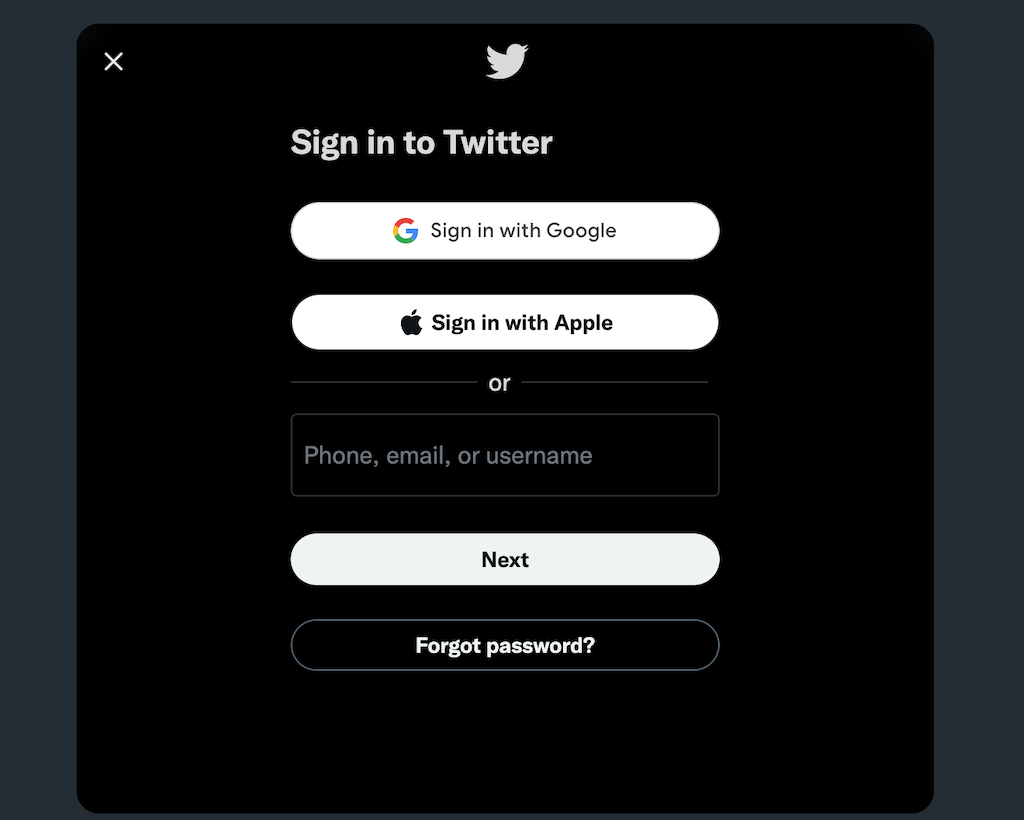
How to Reset Your Forgotten Twitter Password from the Web image
  1. In the menu that appears, type in your Twitter username, your phone number, or your email address, then select Search. 
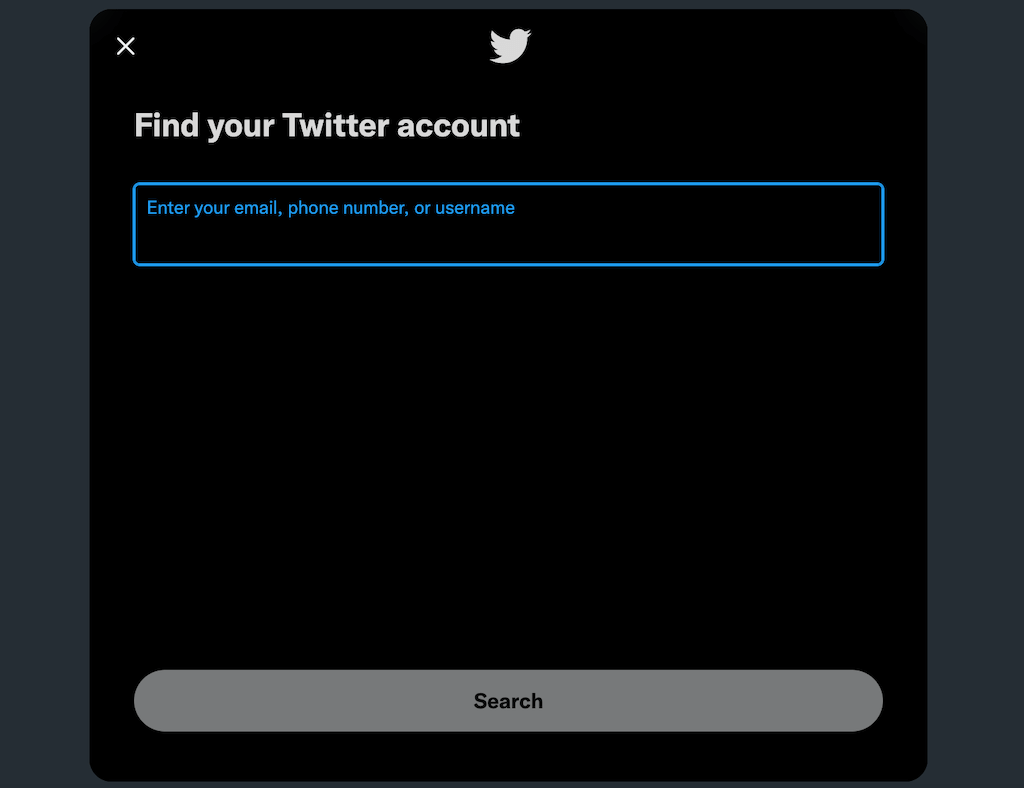
How to Reset Your Forgotten Twitter Password from the Web image 2
  1. If Twitter finds your account, you can select whether you want to receive the confirmation code to your email address or through an SMS text message, then select Continue. 
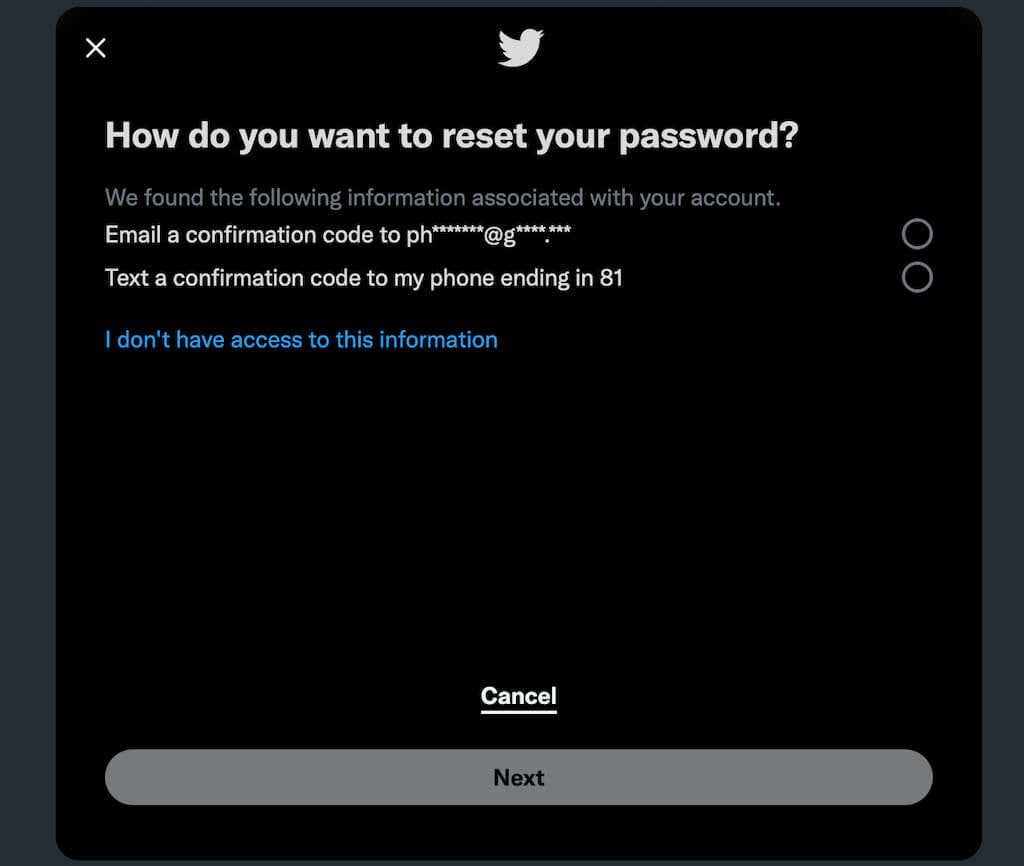
How to Reset Your Forgotten Twitter Password from the Web image 3
  1. Enter the code in the text field on the next screen and select Verify.
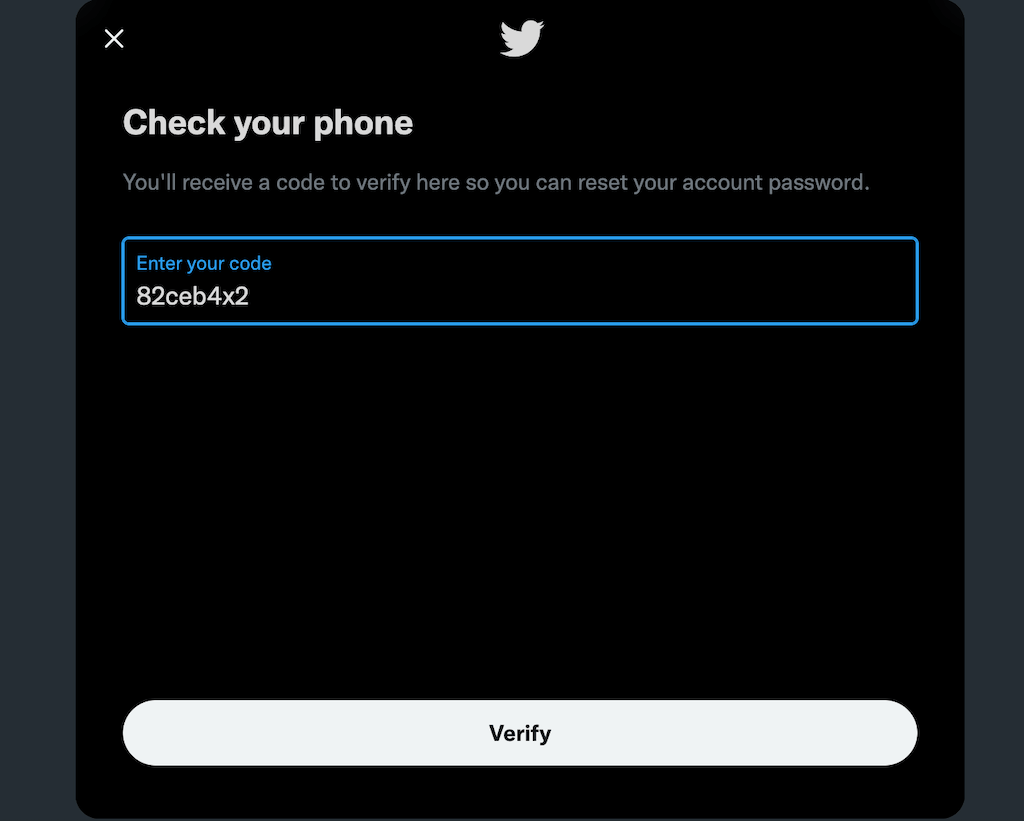
How to Reset Your Forgotten Twitter Password from the Web image 4
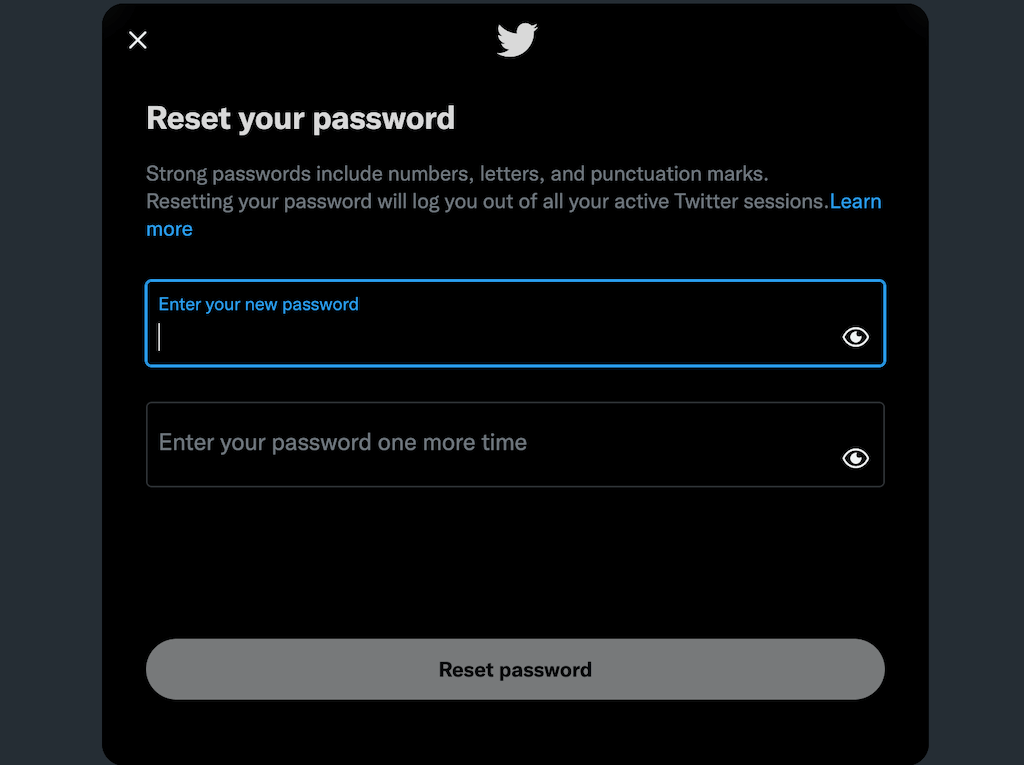
  1. Enter your new password twice—once to create it, and once to verify and select Reset Password.
How to Reset Your Forgotten Twitter Password from the Web image 5
  1. On the next screen, select why you chose to reset your password. You can choose between Forgot password, Account may have been accessed by someone else, or Another reason, then select Next.

How to Reset Twitter Password Through The Twitter App

If you only use Twitter on your phone, you can reset the password through the app or the mobile Twitter website. This method works for both Android and iOS.

  1. Open the Twitter app.
How to Reset Twitter Password Through The Twitter App image
  1. Tap Log in > Forgot password?
  2. Enter your Twitter name, phone number, or email address and tap Search.

How to Reset Twitter Password Through The Twitter App image 2
  1. If you have an account associated with Twitter, you can choose to receive a confirmation code through email or text. Select one of these options and tap Next.
How to Reset Twitter Password Through The Twitter App image 3
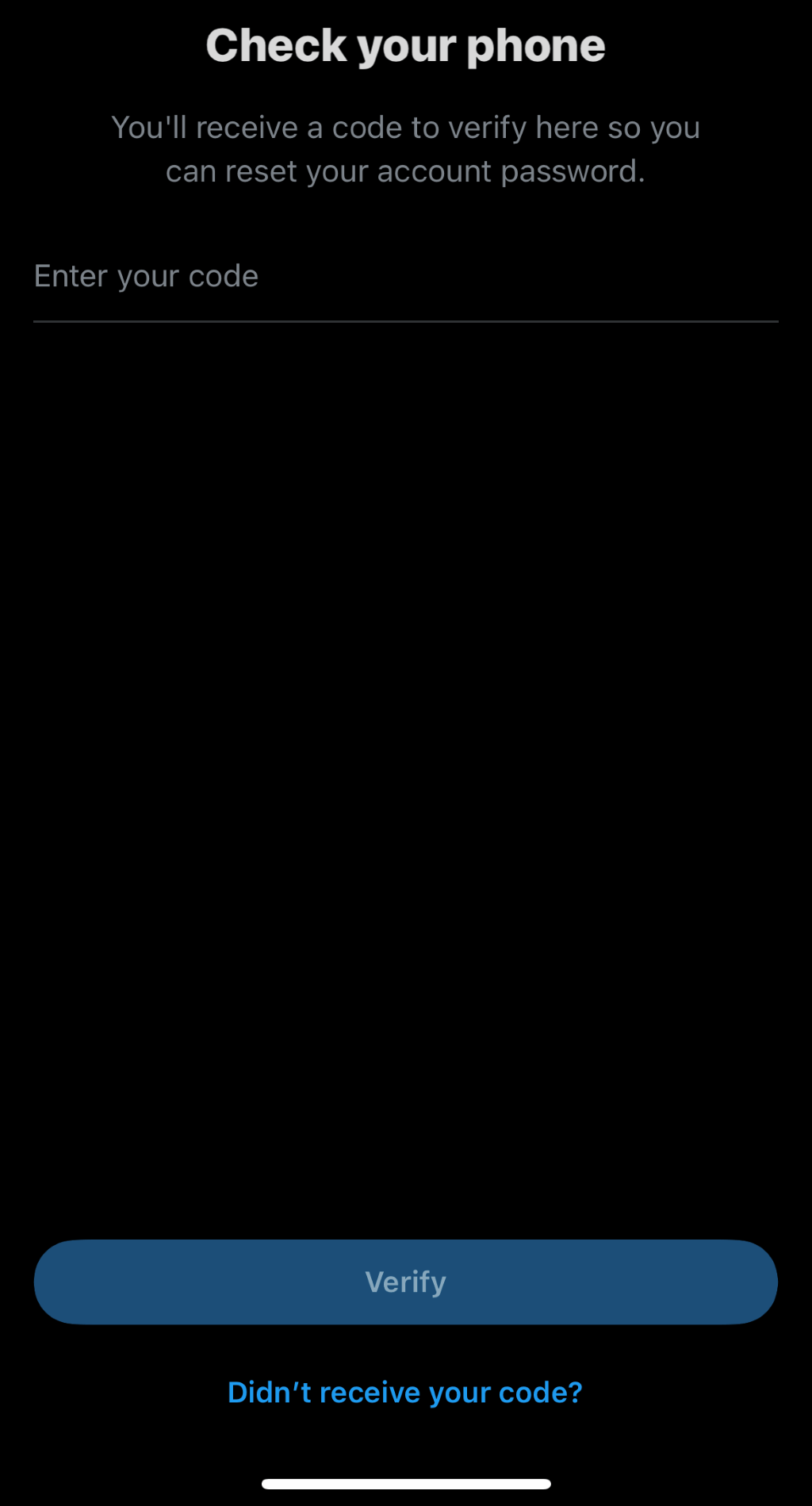
  1. Enter your verification code and tap Verify.
How to Reset Twitter Password Through The Twitter App image 4
  1. Enter your new password and then tap Reset password.
How to Reset Twitter Password Through The Twitter App image 5
  1. Select why you changed your password, then tap Next.

After this, your password will be reset, and you’ll have full access to your Twitter account. If you can’t get the Twitter app to work, try going to mobile.twitter.com and resetting your password there. 

What to Do If Password Reset Doesn’t Work

If these methods don’t work (or you suspect you might have been locked out of your account by a hacker), you might need to reach out to Twitter support. You will need to submit a Support Request. Include your Twitter account’s email address and the account username you use to log in, as well as the last time you remember having access to the account.

Recovering a compromised account can be a complicated process. If you can, enable two-factor authentication. This will require you to enter a unique code sent to your email inbox or your phone each time you want to log in. You should also avoid logging into the Twitter Android app or iPhone app on a shared, unsecured network. 

Twitter password recovery is easy, thankfully. Even if you lose access to your account, you can complete this process with just a few steps. 

Tags: X (Twitter)
Share
Written by

Patrick Hearn

Patrick is an Atlanta-based technology writer with a background in programming and smart home technology. When he isn’t writing, nose to the grindstone, he can be found keeping up with the latest developments in the tech world and upping his coffee game. <a href='https://www.online-tech-tips.com/author/phearn/'>Read Patrick's Full Bio</a>

View Patrick's Profile

Recent Posts

  •  - personal finance tools
    10 AI Money Apps That Make Mint Look MedievalJun 6, 2025
  •  - smartwatches
    Is a Smartwatch Worth It in 2025 and Beyond?May 20, 2025
  •  - slow wifi
    How to Fix Slow Wi-Fi on Your SmartphoneMay 6, 2025
  • Programmer coding at computer. - vibe coding
    Vibe Coding 101: Your Guide to AI-Powered ProgrammingMar 26, 2025

Search

Categories

  • Gaming (345)
  • How-To (1,120)
  • News (43)
  • Reviews (437)
  • Social Media (461)
  • Streaming (173)
  • Uncategorized (4)

Popular Tags

Adobe AI Alexa Amazon Android Buying Guides ChatGPT Chrome Discord Explainers Facebook FireTV Gadget Reviews Gmail Google Google Docs Google Maps Google Sheets Home Networking Hulu Instagram Internet LinkedIn Minecraft Netflix Nintendo Switch PlayStation Premiere Reddit Remote Work Roblox Roku Roundups Smart Home Snapchat Software Reviews Spotify Steam TikTok Twitch VR WhatsApp Windows X (Twitter) YouTube

Our Publishing Family

Online Tech Tips is part of the AK Internet Consulting publishing family.

  • HELP DESK GEEK
  • THE BACK ROOM TECH
  • SWITCHING TO MAC
  • XBOX ADVISOR

Daily Email Newsletter

Connect With Us

About Online Tech Tips

Online Tech Tips has published easy-to-follow technology tutorials, honest reviews, and practical how-to guides since 2007 — helping millions of readers solve tech problems and get more from their devices.

Learn More →

© 2007-2026 Online Tech Tips.com, LLC.
All Rights Reserved.

  • Home
  • About Us
  • Editorial Standards
  • Contact Us
  • Terms of Use
  • Privacy Policy
Online