

If you’re running an active Discord server, you might find yourself overwhelmed with the number of messages that your users are sending. This is especially true if you’re streaming with an active audience, where you can expect messages to quickly pick up speed in a channel, and where not every message you see will be appropriate.
While you could use moderators (or Discord moderation bots) to help you bring your server under control, you could take advantage of Discord’s slow mode feature instead. This will help you reduce message speed and make it easier to moderate. To help you, here’s everything you need to know about slow mode on Discord.
What Is Slow Mode on Discord?
Discord’s slow mode feature is designed to reduce the number of messages that appear in a channel. When you send a message on Discord, the message usually appears immediately afterwards in the channel for others to view. If you and other users are sending multiple messages, however, this can make it difficult to follow.
A way around this is to use slow mode on Discord to limit how many messages a user can send in a short space of time. For instance, if you send a message in a channel with slow mode enabled, you won’t be able to send another message for the duration of the cooldown period. This can be set to any time between five seconds and six hours.
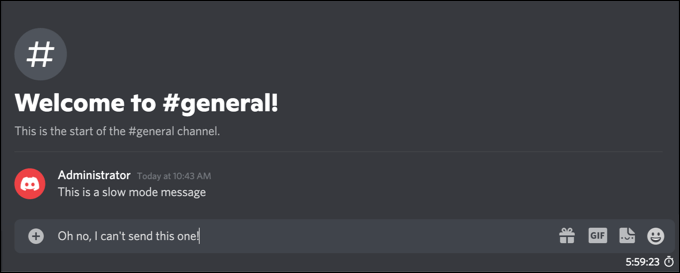
This restriction will only apply to standard Discord users. If the user has a Discord server role with Manage Channel or Manage Messages permissions, or these permissions are applied to the user in that channel directly, then slow mode won’t apply, and the user will be able to send messages as normal.
Enabling this feature helps to reduce channel message spam, as it allows users to send messages, but only in single bursts. If you’re a standard user, you can also mute other Discord users you don’t like, hiding their messages from view. For server owners, you’re free to kick or ban disruptive users in the server settings menu.
How to Enable or Disable Slow Mode on Discord on PC or Mac
Discord’s slow mode isn’t enabled on channels by default, but you can activate it on your server in channels that are particularly busy. Only server administrators or users with permissions to edit a channel’s settings are able to enable slow mode, and the setting can be switched on or off at any time.
If you want to enable or disable slow mode on a Discord server using your PC or Mac, here’s what you’ll need to do.
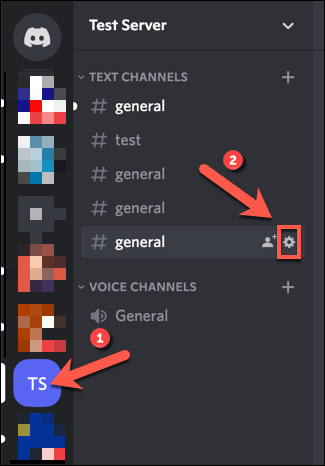
- To start, open the Discord PC or Mac client or open the Discord web client in your web browser. Once you’ve signed in, select your server from the vertical list on the left, then select a channel you wish to enable or disable slow mode in. Select the Edit Channel icon next to the channel name to proceed.
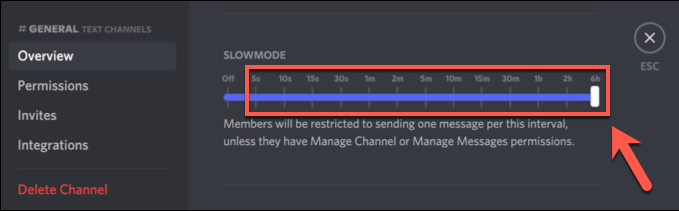
- In the Overview settings menu for the Discord channel, use your mouse to move the Slowmode slider to the right to enable it, choosing a time period between 5s (five seconds) and 6h (six hours) in length.
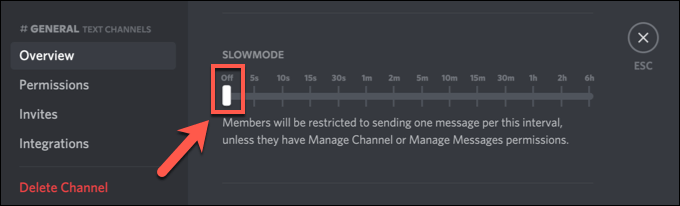
- If you’d prefer to disable Discord’s slow mode, use your mouse to move the slider to the Off position instead.
- After choosing to enable or disable slow mode, or if you’re increasing or decreasing the slow mode cooldown period, you’ll need to save your new channel settings. Select Save Changes in the menu bar at the bottom to confirm any changes you’ve made.

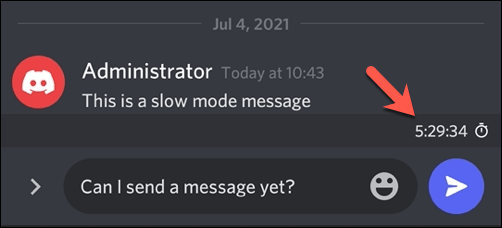
The new slow mode settings you select will activate immediately. If you choose to enable slow mode, any user without the Manage Channel or Manage Messages permission for that channel will see a cooldown timer underneath the channel message text box. This will run for the cooldown period you selected.
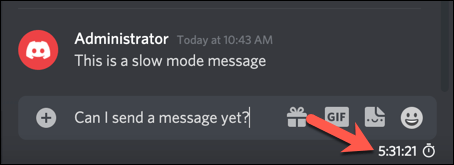
If you’ve disabled slow mode on Discord, however, your users will be able to send messages without any time limitations.
How to Enable or Disable Slow Mode on Mobile Devices
You can actively manage your Discord server setting using the Discord app on Android or Apple iPhone/iPad devices. If you have the app installed, you can follow the steps below to quickly enable or disable slow mode on Discord using your mobile device.
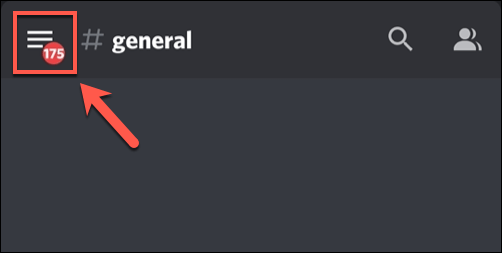
- To start, open the Discord app on your Android or Apple device and sign in (if you haven’t already). In the Discord app, select the menu icon in the top left to view the server and channel list.
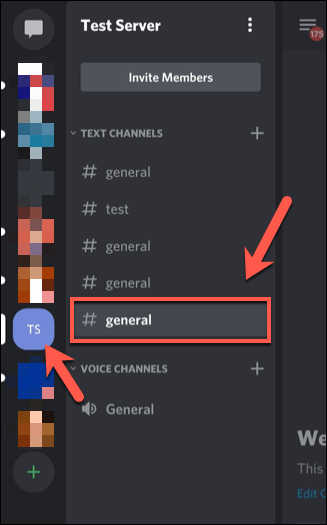
- Select your server from the vertical channel list on the left. On the right, select and hold a channel in the channel list until the pop-up settings menu appears at the bottom.
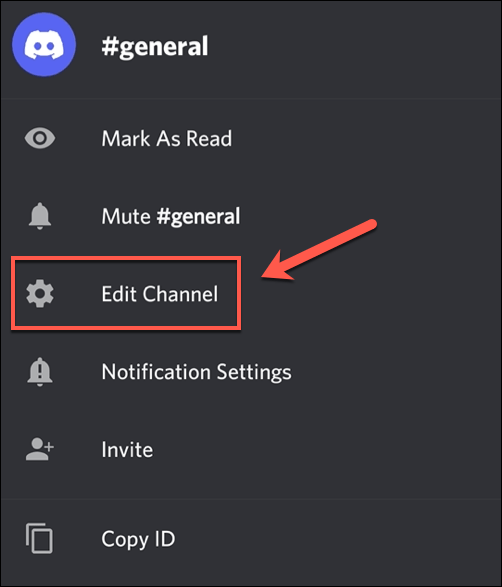
- In the channel menu, select the Edit Channel option.
- Swipe down to the bottom of the Channel Settings menu to view the Slowmode options. Using your finger, move the Slowmode cooldown slider to the right to enable the feature, choosing any period between five seconds and six hours.
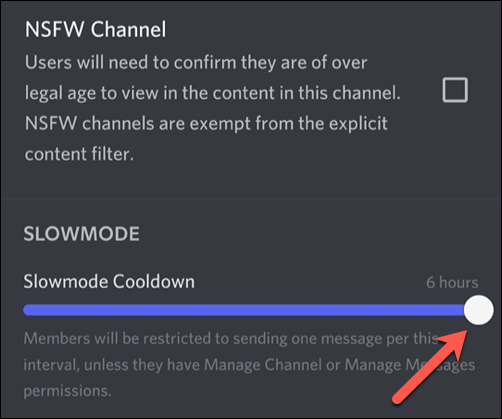
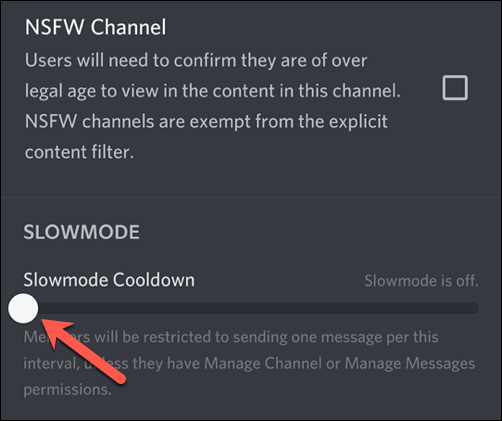
- If you want to disable slow mode, move the slider to the furthest point on the left until the Slowmode is off message appears on the right.
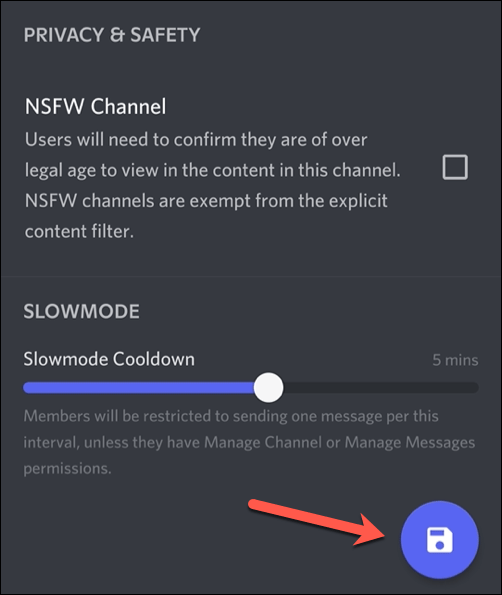
- To save your new channel settings, select the Save button at the bottom of the menu. Once you’ve saved your settings, use the arrow button in the top left or your device’s back button to exit the menu.
Any channel settings you change will be activated as soon as you save the changes. If you enable slow mode, the cooldown period you selected will apply to that channel for any messages sent by users without Manage Channel or Manage Server permissions. The timer itself will appear above the channel message text box.
If you disable slow mode, any message cooldown periods will be removed immediately, allowing users to send messages without any timing restrictions.
Using Discord Effectively
Using slow mode on Discord, you can quickly get to grips with your server moderation, making it easier to read messages and filter inappropriate comments. There are other ways you can use Discord more effectively, from adding color to Discord messages to using the Discord in-game overlay during gameplay.
If Discord isn’t opening or you’re having troubleshooting issues, you can always switch to the Discord web client or Discord Canary, the testing version of the software. Discord isn’t for everyone, however, so if you’re looking for an alternative, you could always give Slack or Teamspeak a try instead.