 Sandy Writtenhouse · August 3, 2023 · 3 min read
 Have you heard that you can “pin” videos or comments on TikTok but aren’t sure exactly what that means? Here, we’ll explain the Pin feature and how to use it on TikTok.
What Does Pinned Mean on TikTok?
Pinning to most means saving an item to the top of your list. You’ll see the feature on other social media platforms like Instagram. Instagram users can pin a comment or post to make it the first one you see.
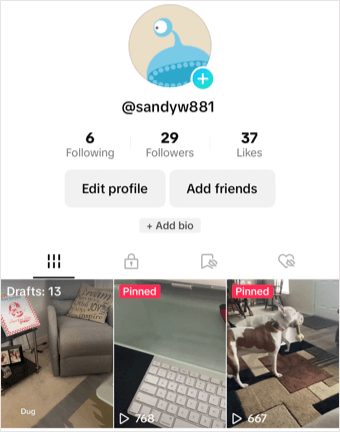
Following this same theory, you can pin one of your TikTok videos to place that clip at the top of your profile. When a follower views your profile, they see that video you’ve pinned right at the top along with a “Pinned” indicator in red.
As of this writing, the ability to pin TikTok comments is no longer available. If you long-press a comment to select Pin from the pop-up menu, you’ll notice the option is missing.
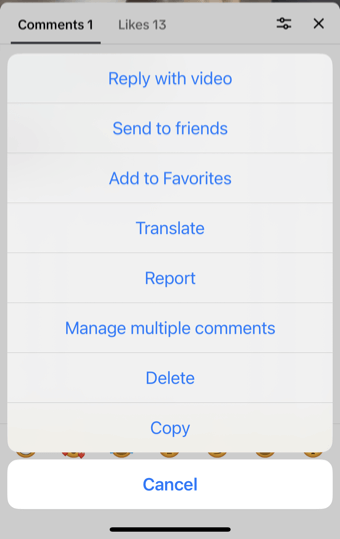
It’s difficult to determine exactly when TikTok removed the feature; however, it’s been discussed on websites like Reddit, Quora, and even TikTok itself.
The reason the Pin feature was removed isn’t clear either. Some believe it was to reduce harassing, negative, or malicious comments. However, TikTok hasn’t confirmed this nor provided a concrete reason (as of yet).
Luckily, you do still have the ability to pin a TikTok video, so let’s take a long at how to do so.
How to Pin a Video on TikTok
If you want to make sure other TikTok users see your favorite videos or those you’re most proud of, you can pin up to three. Should you want to pin another, you’ll need to first unpin a video (explained below) and then pin the next one.
Additionally, the Pin feature is only available in the TikTok mobile app. It’s not yet a feature you can use on the TikTok website on your computer.
- Open the TikTok app on your Android or iOS device and select the Profile tab.
- Play the video you want to pin.
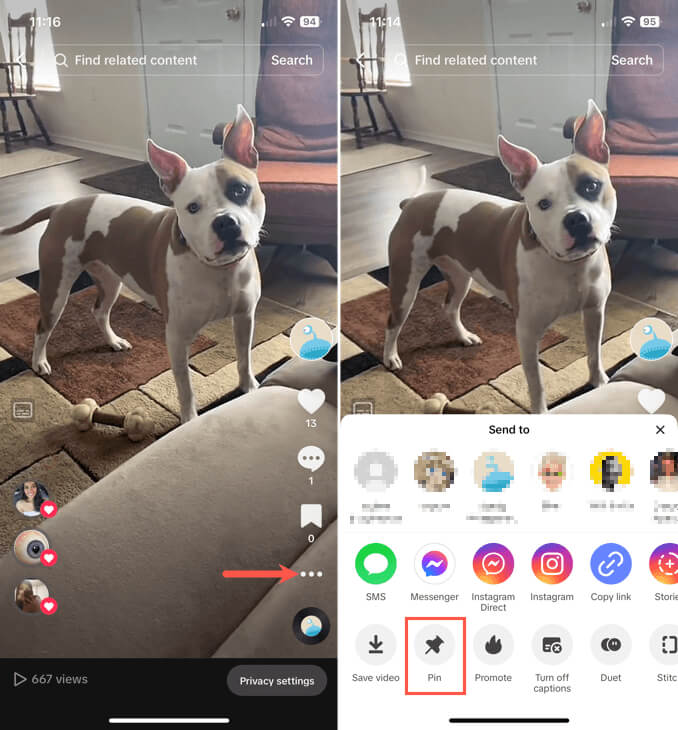
- Use the three dots on the right to open the menu and choose Pin in the bottom row.
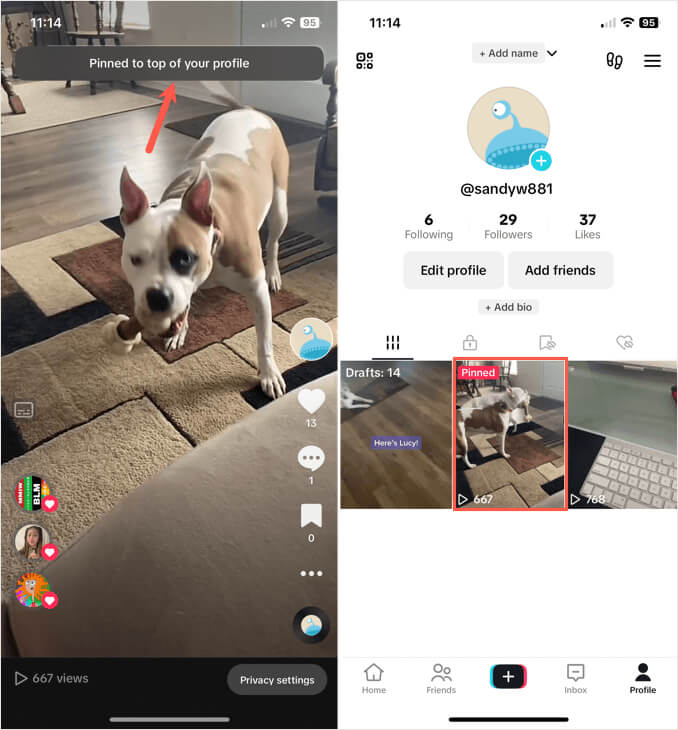
You’ll see a brief message at the top that you’ve pinned the video. When you return to your profile page, you’ll see the video at the top of your list and the Pinned indicator on it in red.
How to Unpin a Video on TikTok
If you decide later you want to remove a video from the top of your list or prefer to pin a different one and have reached the three-video limit, you can unpin a pinned video.
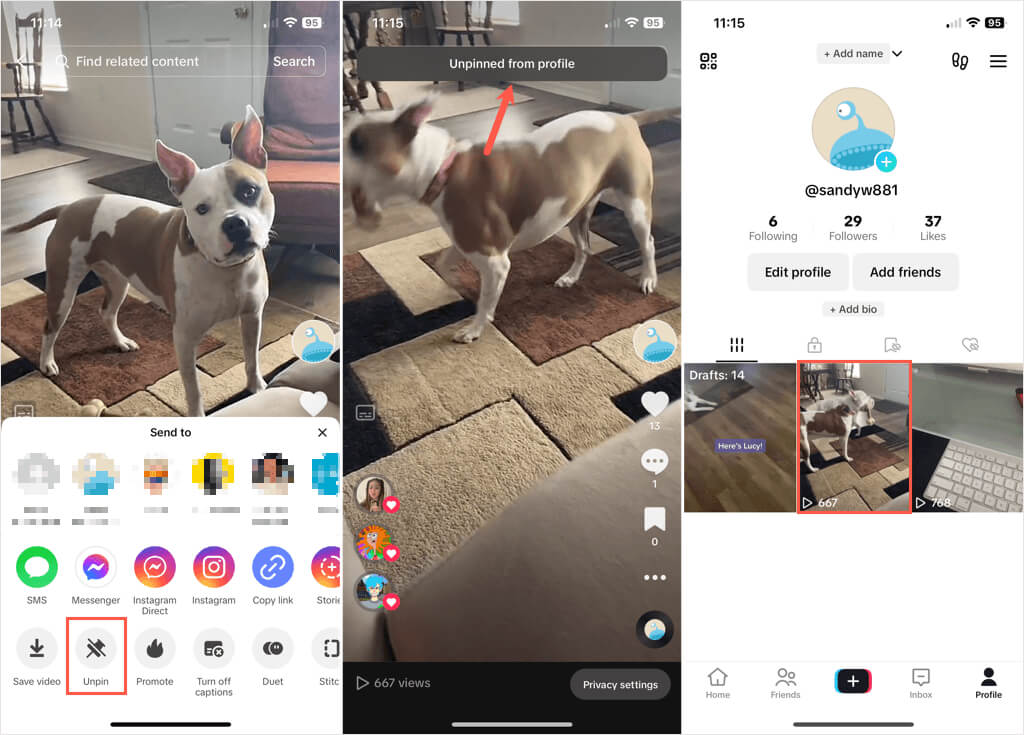
Follow the same steps as above to launch the TikTok app, play the video, and open the three-dot menu. Then, choose Unpin.
You’ll see a message that the video has been unpinned. When you view your TikTok profile, the Pinned indicator no longer appears and the video returns to its original spot in your list.
Will You Add a TikTok Pin?
Pinning a video on TikTok is simple and can ensure your followers easily spot those videos you want them to see most. As far as pinning comments, maybe the feature will resurface on TikTok in the future. What are your thoughts on the TikTok pin feature?
Now that you know how to pin a video on TikTok, check out our tutorial for using text to speech on TikTok.
