

Whether you’re new to Instagram or have been using it for a few years, it’s never too late to upgrade your Instagram profile. Compared to other social media platforms, a profile page on Instagram doesn’t require too much work if you know what you’re doing.
This time we’ll specifically talk about Instagram Highlights. Have you seen people feature their Instagram stories in little circles on their profiles? In this tutorial, we’ll show you how to add those to your profile page as well. Here you’ll find out what Instagram Highlights are, why you should use them, and how to create your own.
What Are Instagram Highlights?
Instagram Highlights are the stories from your stories’ archive that you choose to feature on your profile page. If you have an Instagram Story and want your followers to see it even after the original 24 hours, you can store it in one of your Highlights and keep it on your page for as long as you like.
Unlike normal stories, once you add your archived stories into Highlights, you won’t be able to see the list of viewers or the views count. You also won’t be able to see how many new people watch your stories once you’ve added them in a Highlight. Still, this is a good way to keep the best stories on your profile.

You can add both photo and video stories to your Instagram Highlights. The only limit is 100 stories per one Highlight. At the same time, you can add as many Highlights to your Instagram profile as you want. The viewers will simply need to scroll left to see the Highlights that don’t fit on the screen.
How to Use Instagram Story Highlights
You’ve probably seen Instagram influencers have many Highlights on their profiles. They can spice up your profile, as well as give new followers a chance to get to know you before they see your fresh stories and posts. If you’re running a professional Instagram account for your business or have a blog on Instagram, you need to learn how to use Instagram Highlights for marketing purposes.
First things first, let’s take you through the path of how to create Highlights on Instagram, add or delete stories from them, as well as how to decorate them with a custom cover photo.
How to Enable the Archiving Feature on Instagram
You can create a new highlight on Instagram using your current active stories or your archived stories. To do that, you need to have an archiving feature enabled on your account. Normally, it’s set to active by default but if you have it turned off, here’s how to switch the archiving feature back on.
- Open Instagram and go to your profile.
- From there, select Menu in the top right corner of the screen.
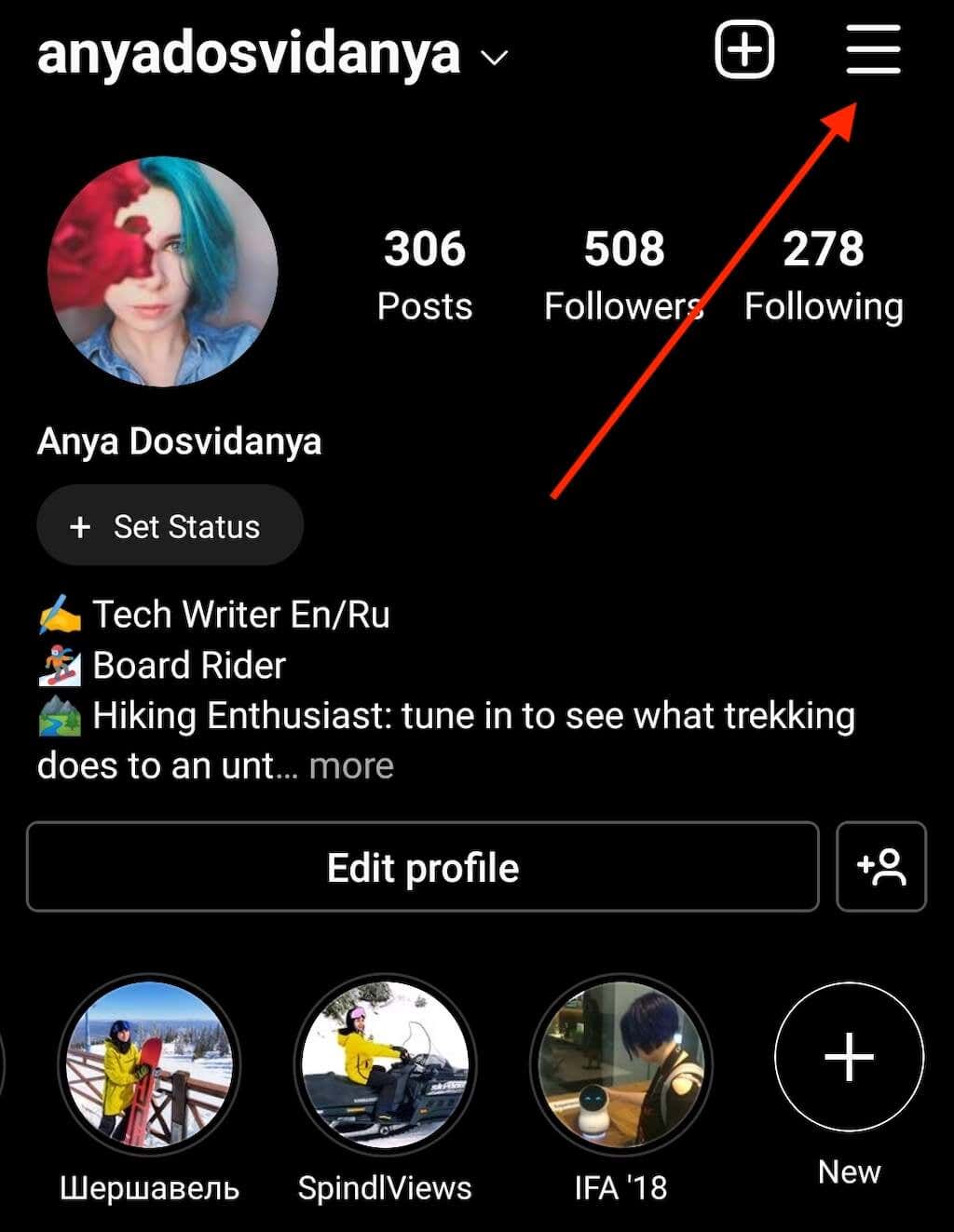
- Follow the path Settings > Privacy > Story.
- Scroll down until you see Saving and select the toggle next to Save story to archive to turn the feature on.
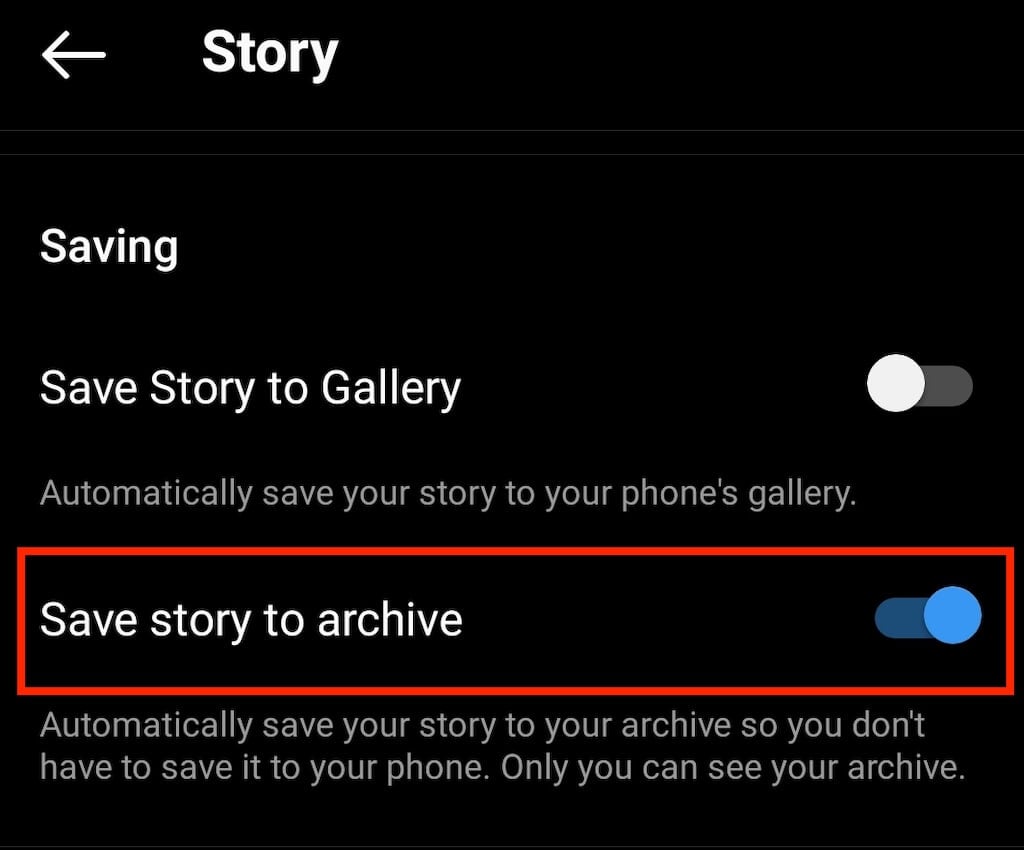
Once you make sure that you have the archived stories enabled, you can proceed to creating your first Instagram Highlight.
How to Create an Instagram Highlight
The steps for creating a new Highlight are the same for both iPhone and Android users. Here’s how to create an Instagram Highlight using one of your current stories.
- Open Instagram and open the story that you want to add to the Highlight.
- Select Highlight from the bottom right corner of your screen.
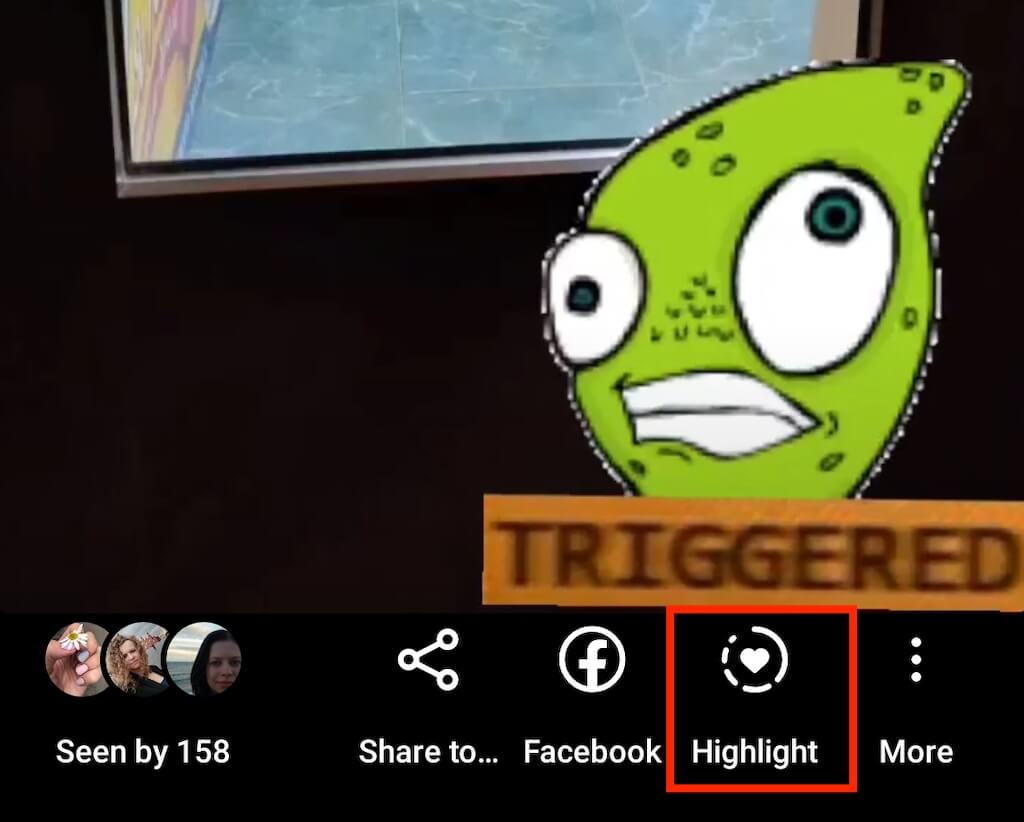
- Under Add to highlight, select New.

- Create a name for your Highlight, then select Add > Done.
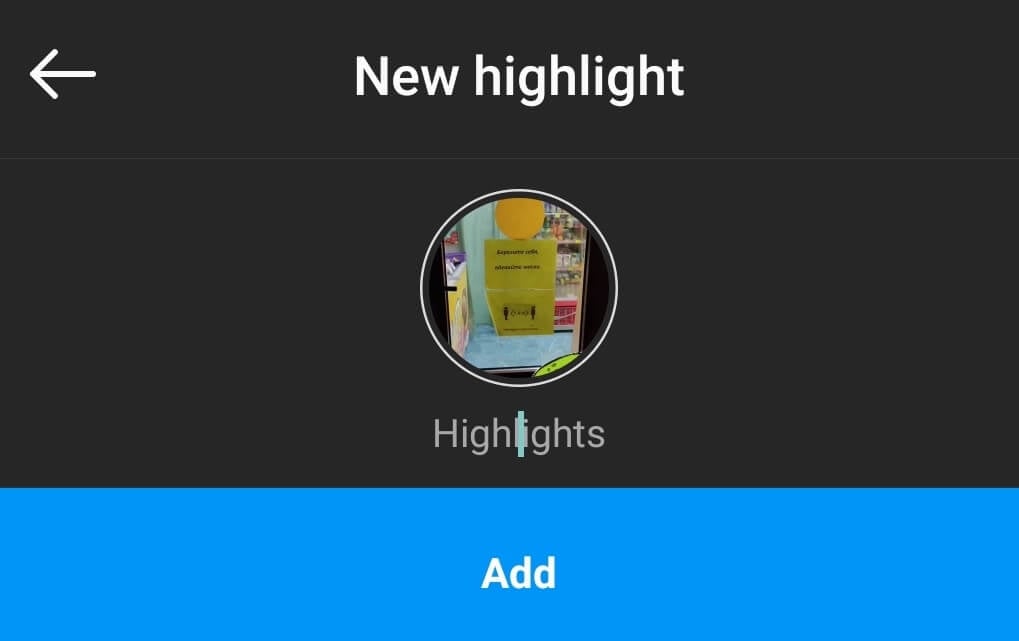
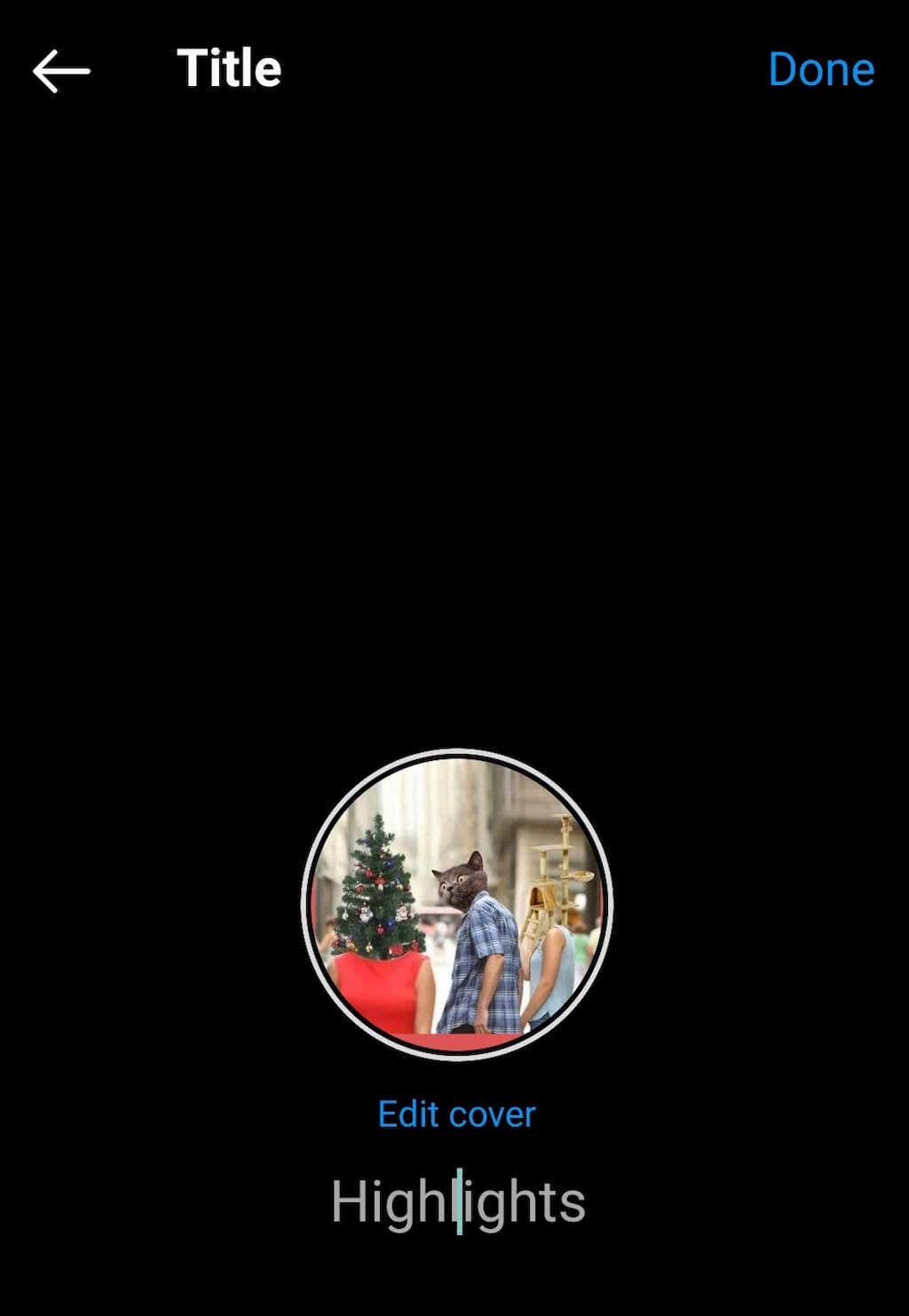
If you leave the name blank, your highlight will just appear to Instagram users as “Highlights”. You can also edit the name later. You can also edit the Instagram story highlight covers but we’ll come back to that in a bit.
If you want to create an Instagram Highlight using your archived stories content, follow the steps below.
- Open your Instagram profile.
- Select the New Highlight circle.
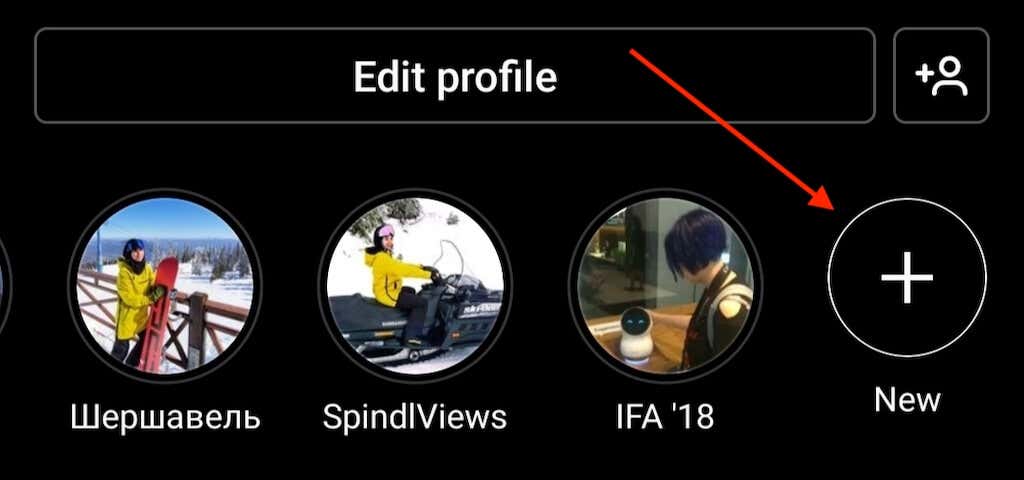
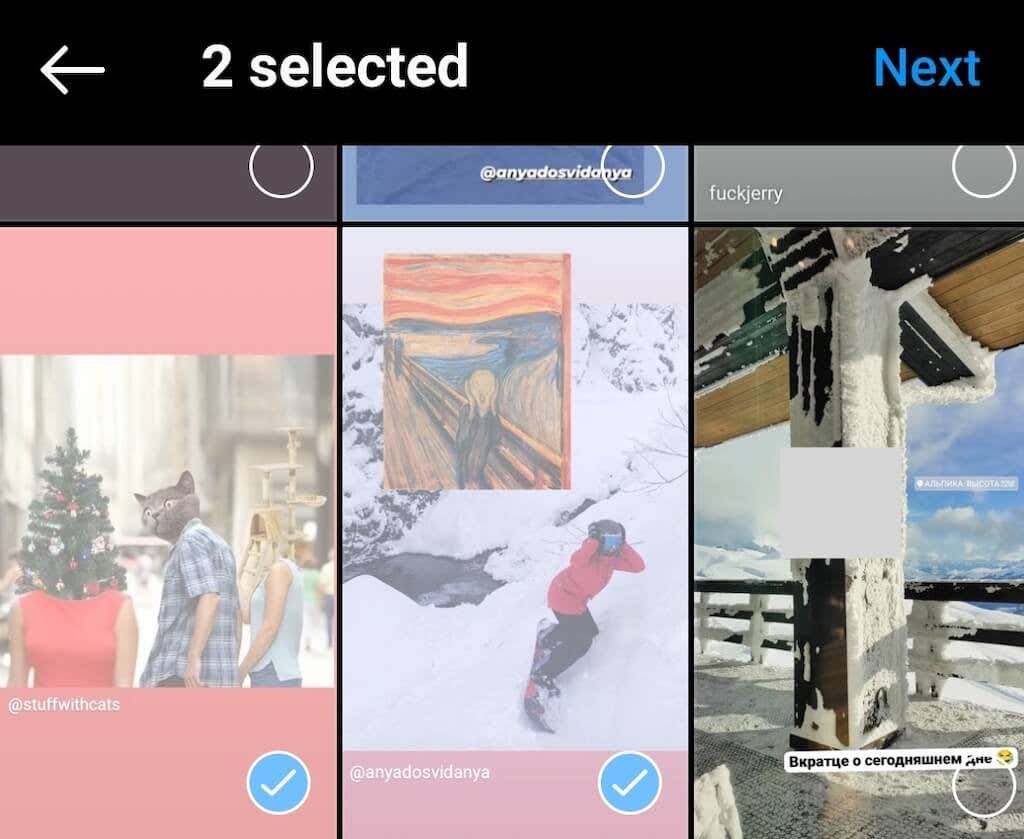
- You’ll see all of your past stories that you posted earlier. Select the one(s) that you want to add to your new Highlight, then select Next.
- Create a name for your Highlight, then select Add > Done.
You’ll now see your new Instagram Highlight appear on your profile.
How to Add New Stories to Your Instagram Highlight
If your highlight is dedicated to something ongoing in your life (like daily pictures of your pet), you’ll need to add new stories to it later. Here’s how you can do that.
- Open the Highlight that you want to add more stories to.
- In the bottom-right corner, select More.

- Select Edit highlight > Stories.
- Select the stories that you’d like to add to your highlight.
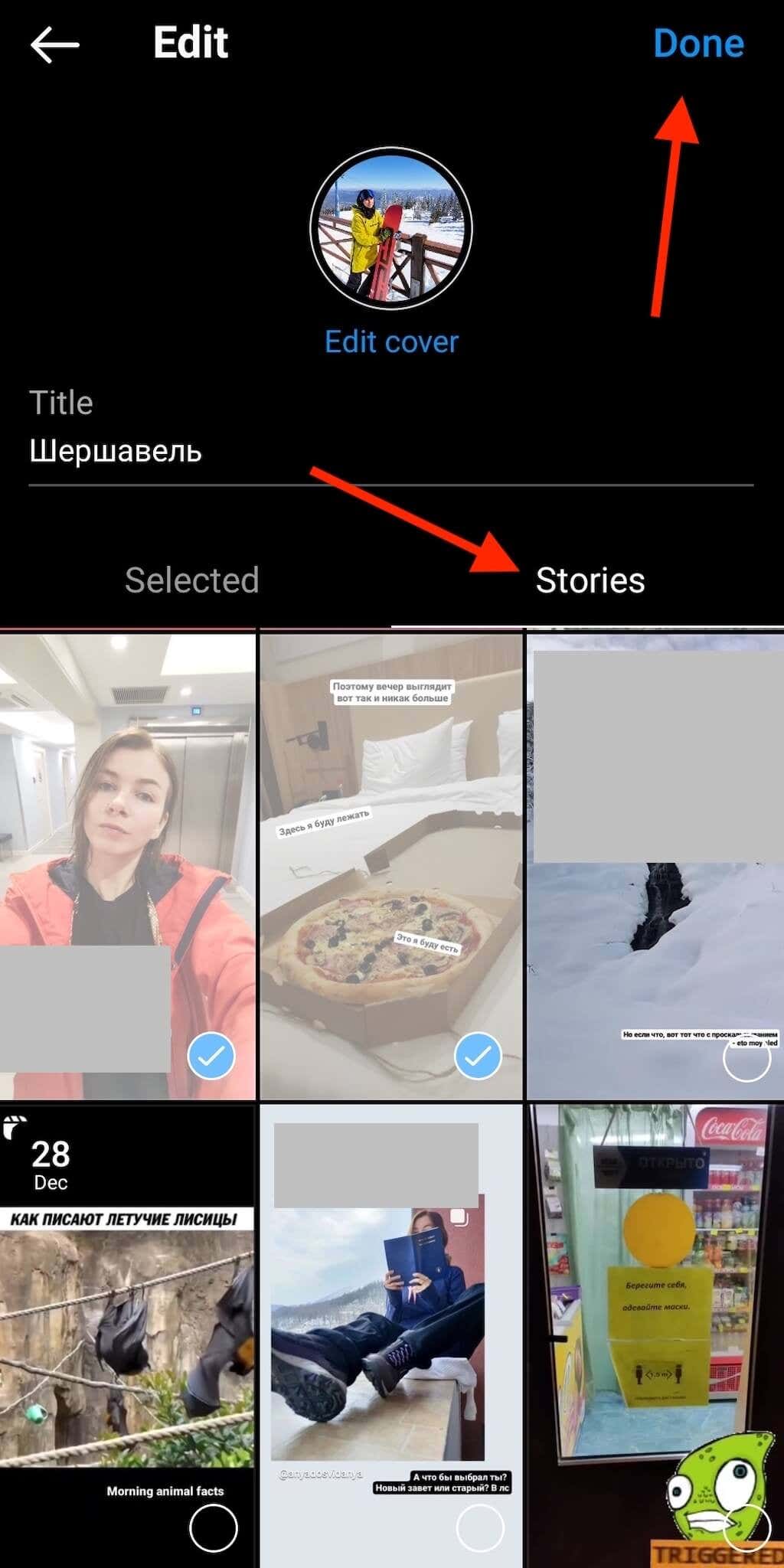
- When you’re finished, select Done.
New stories will then appear in your Highlight.
How to Remove Stories From Your Highlight
You might accidentally add the wrong story to your highlight, or maybe you just changed your mind and decide to remove some of them. To delete certain stories from your Instagram Highlight, follow the steps below.
- Open your Instagram Highlight and find the story that you want to remove from it.
- Select More in the bottom-right corner.
- Select Remove from highlight. Then select Remove to confirm.
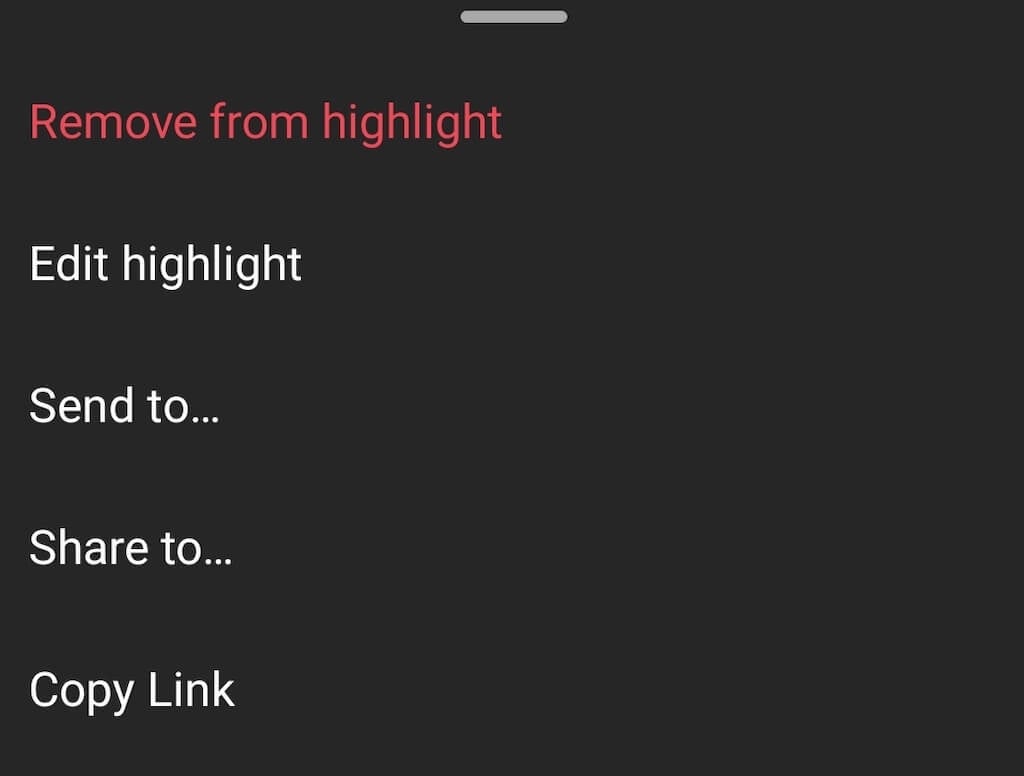
You can later add the same stories back to your highlight if you change your mind.
How to Make Instagram Highlight Covers
When you create a new Highlight, Instagram automatically assigns the cover image for it from the stories that you added. Sometimes it works well but often it looks weird as the image needs to be perfectly centered in order to look good in a circle shape.
If you look at Instagram accounts with a big following, you’ll see that most of them use custom cover images as their Instagram Highlight icons. If you choose that path, you can get creative and feature your own hashtags, stickers, and emojis on your covers. You can also make sure to follow your brand colors, so that your Highlights fit better with your Instagram feed.
There are plenty of ways you can use to create custom images for your Instagram Highlights. You can search the internet for free icons and templates that you can use, or use a tool like Canva to create your own.
Once you have that ready, here’s how to edit the cover of your highlight.
- Open the Highlight that you want to edit and select More.
- Select Edit highlight > Edit cover.
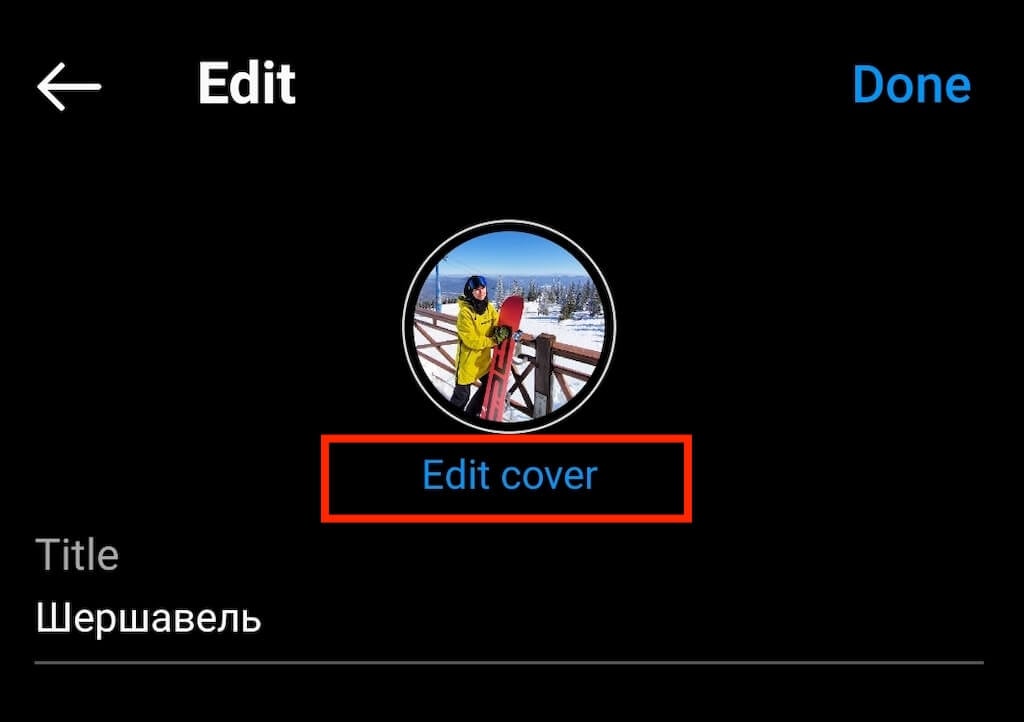
- You’ll see the picture that you have as your current highlight cover, as well as a line of pictures from the other stories in your highlight that you can choose from.
- Swipe all the way left and select the image icon to add a new image.
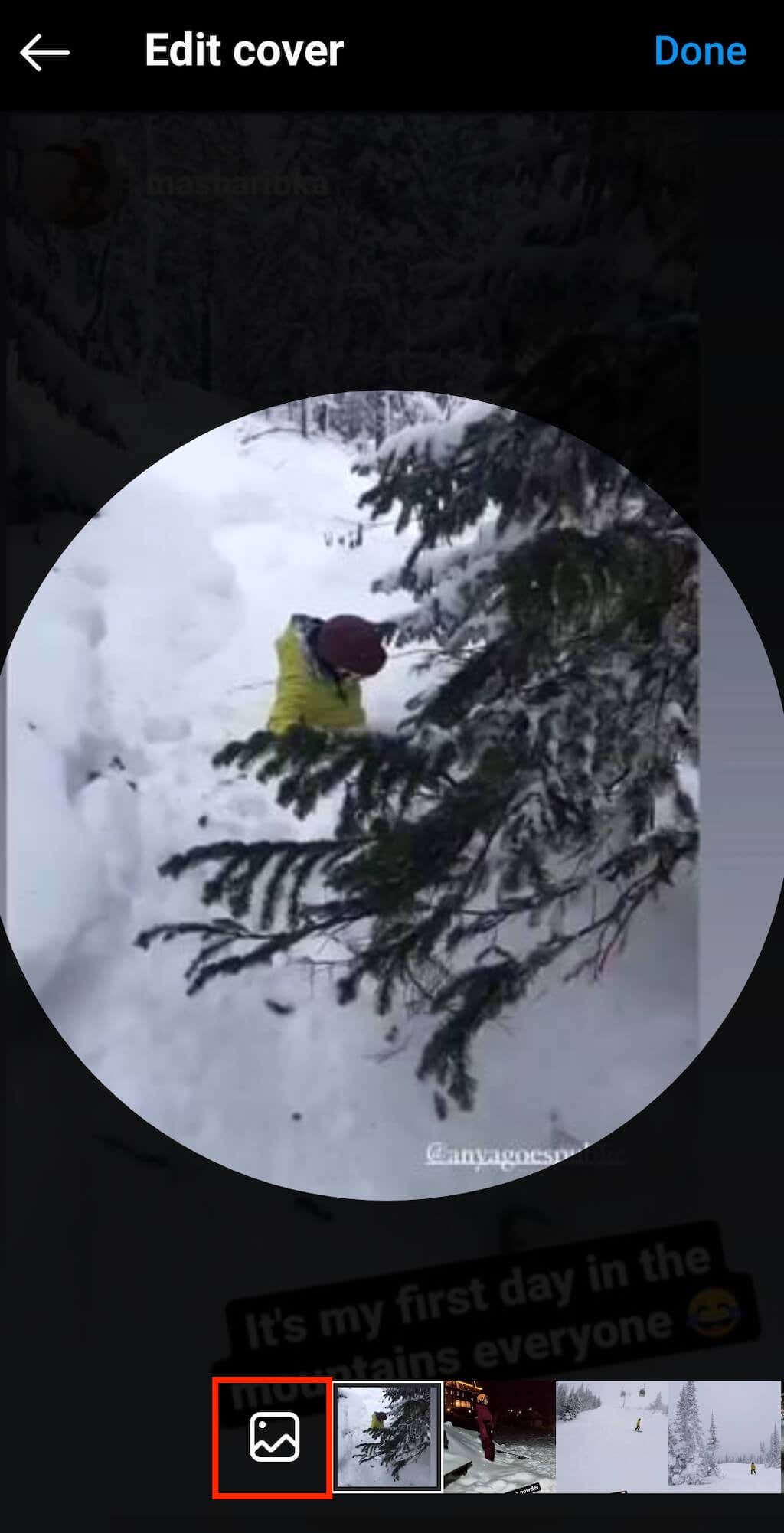
- Now select the custom image that you want to have as your highlight cover.
- Select Done when you’re finished.
How to Delete an Instagram Highlight
If you ever decide that you don’t want to have a certain Highlight featured on your profile anymore, you can easily remove it from your page. To do that, follow the steps below.
- Tap and hold the highlight that you want to remove.
- Select Delete highlight from the pop-up menu.
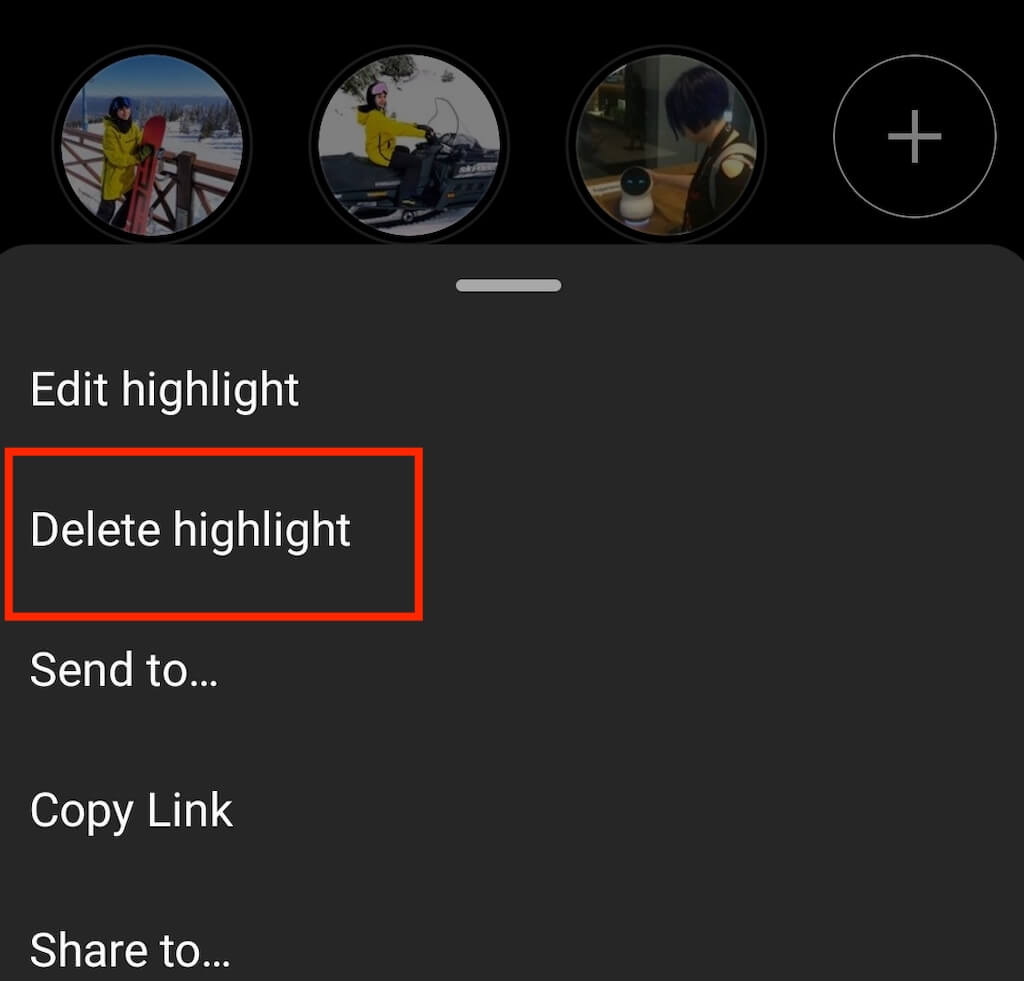
That’s it, you’ll have to create a new highlight from scratch if you want to restore it later.
Time to Upgrade Your Instagram Profile
Instagram has plenty of tools that you can use to make your profile stand out and attract new audiences. That includes Instagram stories and highlights. Make sure to take advantage of these to grow your following and build your profile on Instagram and social media in general.