

As a TikTok user, you probably watch many videos that you enjoy. But what if you forget to like, favorite, or comment on a video that you love? Using the Watch History on TikTok, you can go back in time.
Once you turn on the TikTok Watch History, you can access those videos you’ve viewed in the past seven days any time you like. If you want to keep a copy of your Watch History, we’ll also show you how to download it.
As of this writing, November 2022, the Watch History feature is only available in the TikTok mobile app on Android and iPhone, not the web application.
Use the TikTok Watch History Feature
You can enable Watch History for TikTok on Android or iPhone in just a few taps.
- Open the TikTok app on your device and head to the Profile tab.
- Tap the three lines in the top right corner to view the menu and select Settings and privacy in the pop-up window.
- In the Content & Display section, pick Watch history.
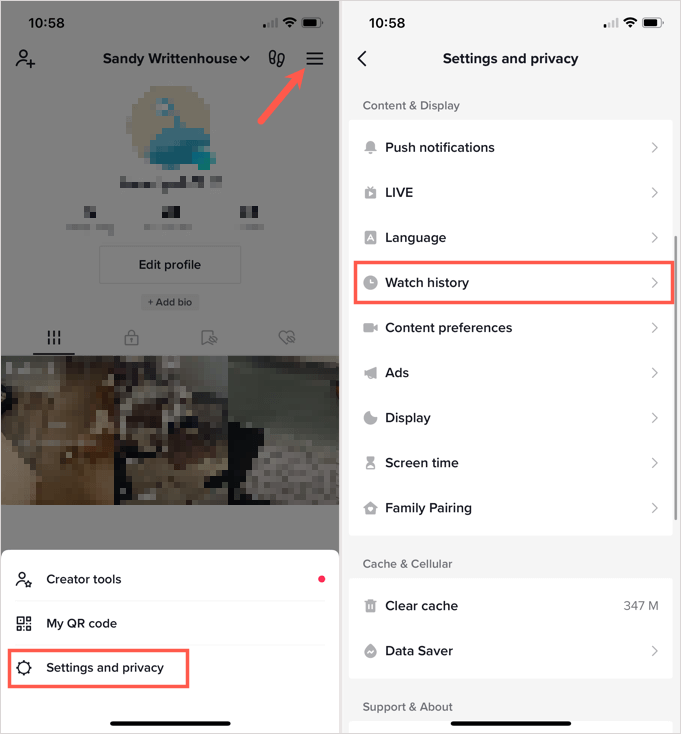
- The first time you access your Watch History, you may see a pop-up message about the feature. This lets you know that the feature is turned on and that you can turn it off in the Watch history settings. Tap OK.

- If you don’t see the pop-up message, select the gear icon on the top right of your watched videos. Then, turn on the toggle for Watch history.
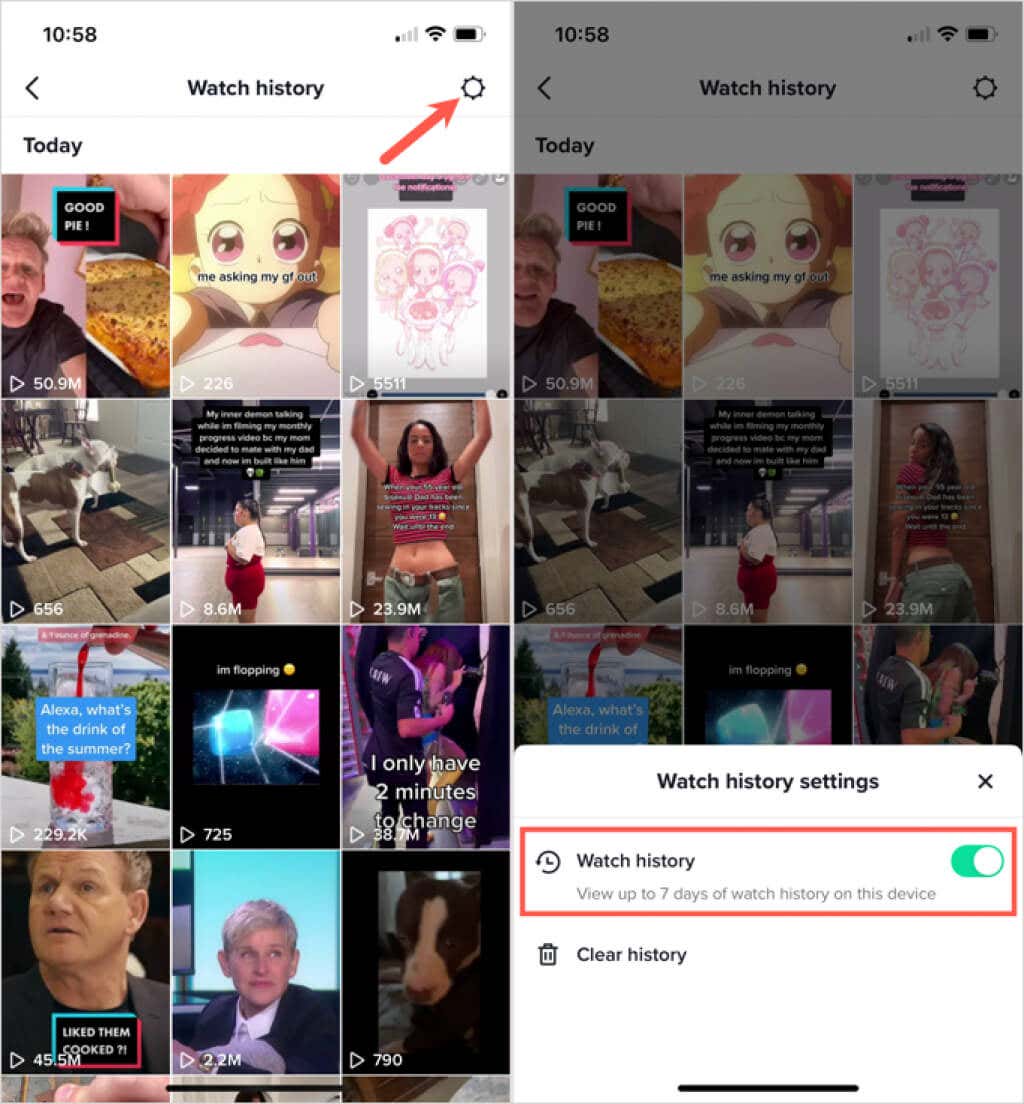
You can then select any video you see in your history to watch it again, add it to your favorites, or make a comment; just like you’re watching it for the first time.
Clear Your Watch History
The TikTok Watch History can fill up quickly if you view a lot of videos in a day. You can clear the history in the Watch History settings if you like.
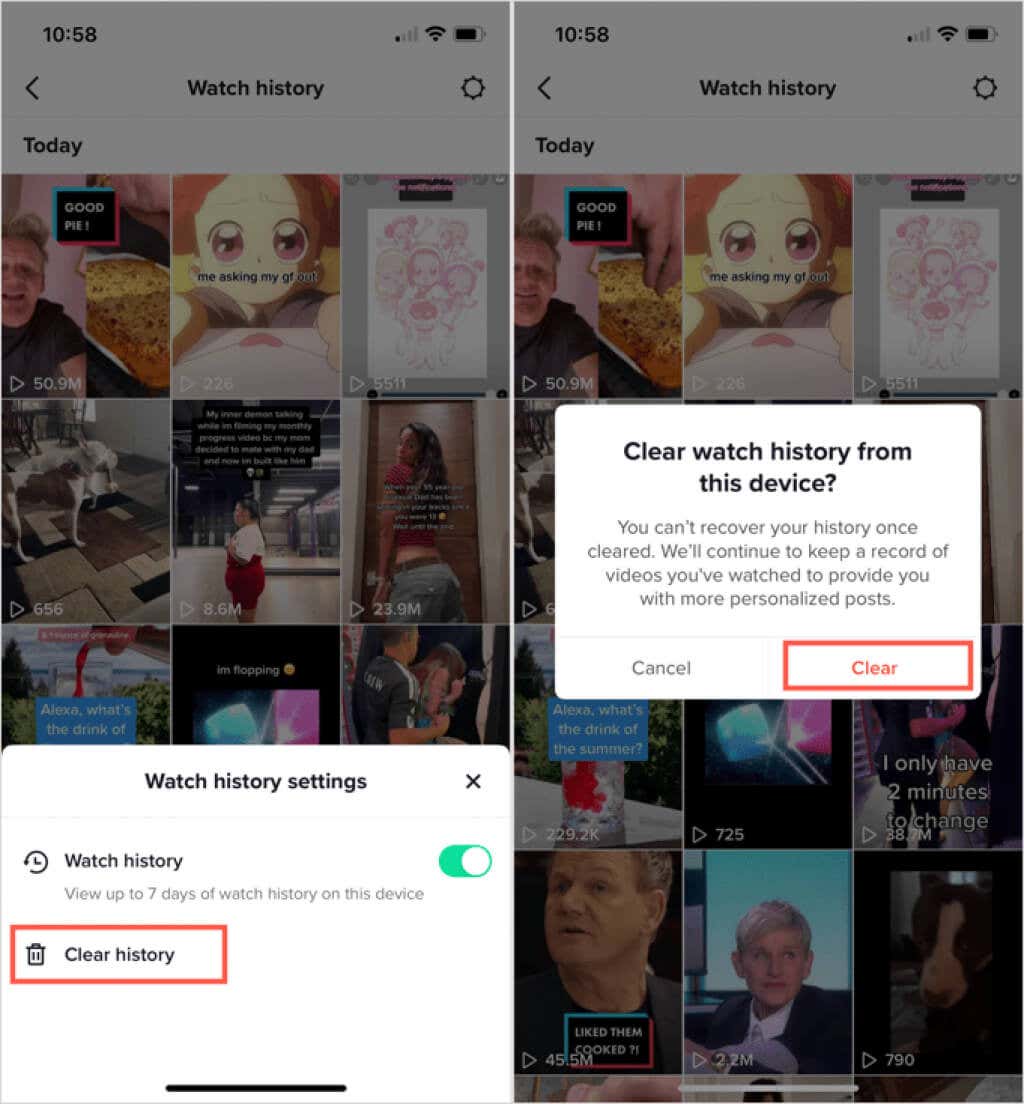
- Go to the Profile tab, select the three-line menu on the top right, and choose Settings and privacy.
- Pick Watch History and tap the gear icon on the top right.
- Select Clear history in the pop-up menu at the bottom.
- Confirm this action by selecting Clear.
Use the TikTok Search Filter
If you want a quick and easy way to see a certain video in your Watch History, you can do so using the TikTok search filter feature in the mobile app.
- Visit the Home tab and tap the magnifying glass button at the top to open the Search tool.
- Enter a search term for the video into the box at the top and select Search. To find all videos, enter an asterisk (*) into the Search bar instead.
- Tap the filter icon that displays on the right of the Search box.
- Turn on the toggle at the top of the filters for Watched videos.
- Optionally, you can select an option in the Date posted section and pick a sort preference at the bottom.
- Select Apply.
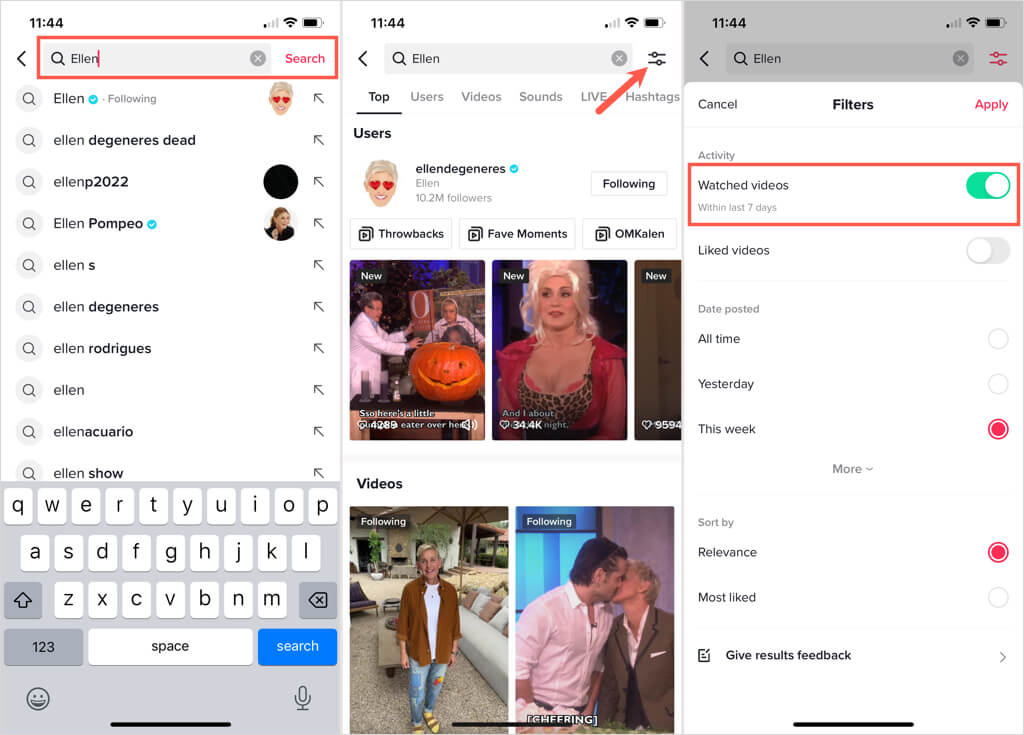
You should then see those videos you’ve watched related to your search term display.
Download Your TikTok Data
If you want to hold onto a copy of your Watch History, you can download your TikTok profile data which includes a text file of your Browsing History. Luckily, this feature is available in both the mobile app and web application.
Note: As you’ll see when you request your data in both locations below, it can take a few days for you to receive the file. Additionally, the data file will be available for you to download for up to four days.
Download TikTok Data in the Mobile App
- Open TikTok and go to the Profile tab.
- Tap the three lines on the top right and pick Settings and privacy.
- Select Account and then Download your data.

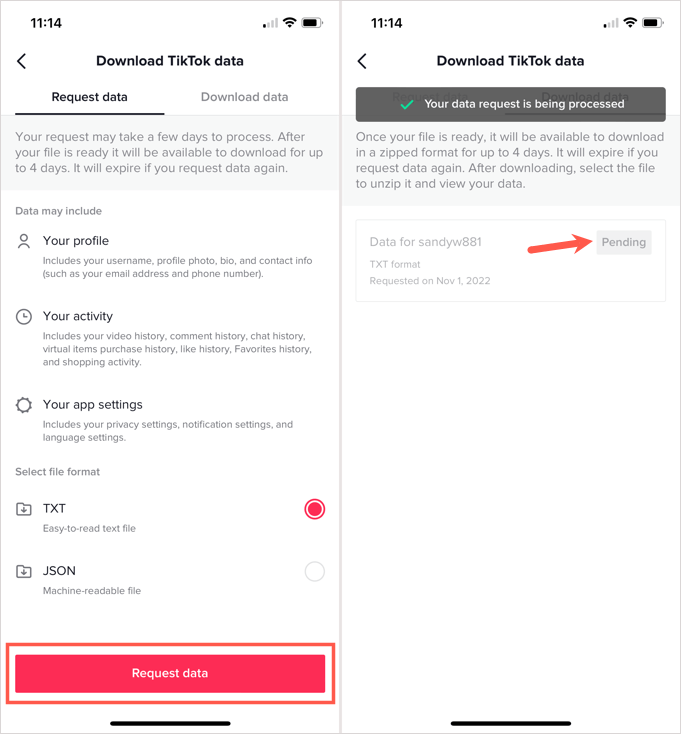
- On the Request data tab, you’ll see a list of the data you’ll receive.
- Choose whether you’d like a TXT or JSON file.
- Tap Request data.
- You can head to this same location in the settings and go to the Download data tab to obtain your ZIP file. In the meantime, you’ll see your request is Pending.
Download TikTok Data on the Web
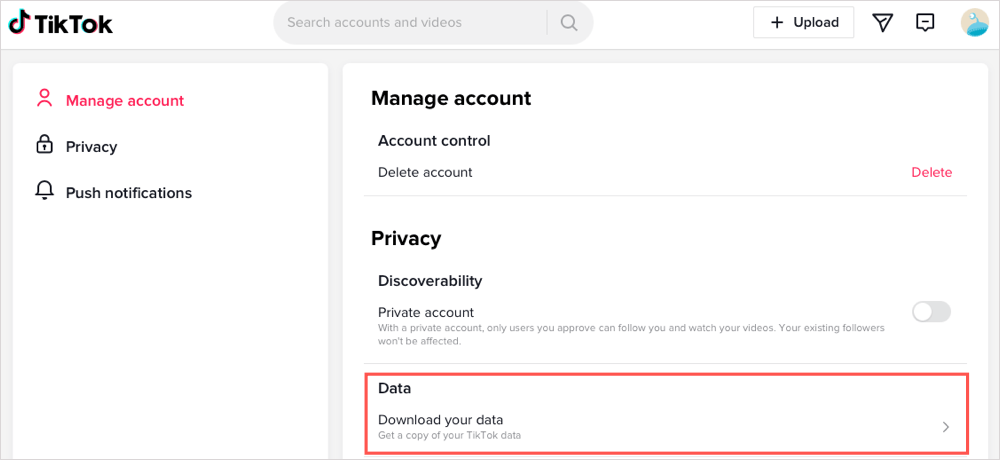
- Sign in on the TikTok website, select your profile picture on the top right, and pick Settings.
- On the left, choose Manage account.
- On the right, select Download your data in the Privacy section.
- Open the Request data tab and you’ll see a brief description of the data you’ll receive.
- Choose the file format you’d like.
- Pick Request data.
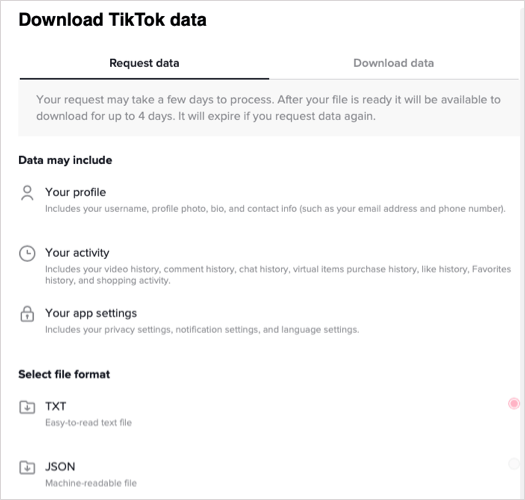
- When your file is ready, you can return to this spot and get the zipped file on the Download data tab. Once you send the request, you’ll see it as Pending.

When you enjoy TikTok videos that you forget to like or add to your favorites, remember this tip for viewing your Watch History. For more, look at how to see who viewed your profile and videos on TikTok.