
Instagram has always been about sharing images with other users. But what if you want to save someone else’s photo or video to view it later? This used to be possible only if you downloaded photos from Instagram. Now you can use a feature called Instagram Collections.
Save posts, photos, and videos from other accounts, organize them into collections, and view, share, or download them later. Here’s how to create and manage your Instagram collections.
Why Use Instagram Collections?
Instagram Collections is a feature that works the same way Pinterest does. It allows you to save posts that you find interesting for later use. This could be useful when you come across a product or service that you’d like to buy or use but don’t have time to do it right this second. You can “pin it” and save it for later.
As another option, use Instagram Collections for inspiration. Find ideas about items to buy, future travel destinations, or plan a marketing campaign of your own goods and services.
Finally, Instagram Collections allow you to save posts from accounts that you don’t want to follow. Whether it’s an acquaintance you don’t want to keep in touch with or a business account whose posts you don’t want to have in your feed. Now you can keep an eye on them without letting them know.
How To Create Instagram Collections
Before you start organizing posts you save on Instagram, you need to create your first Instagram collection.
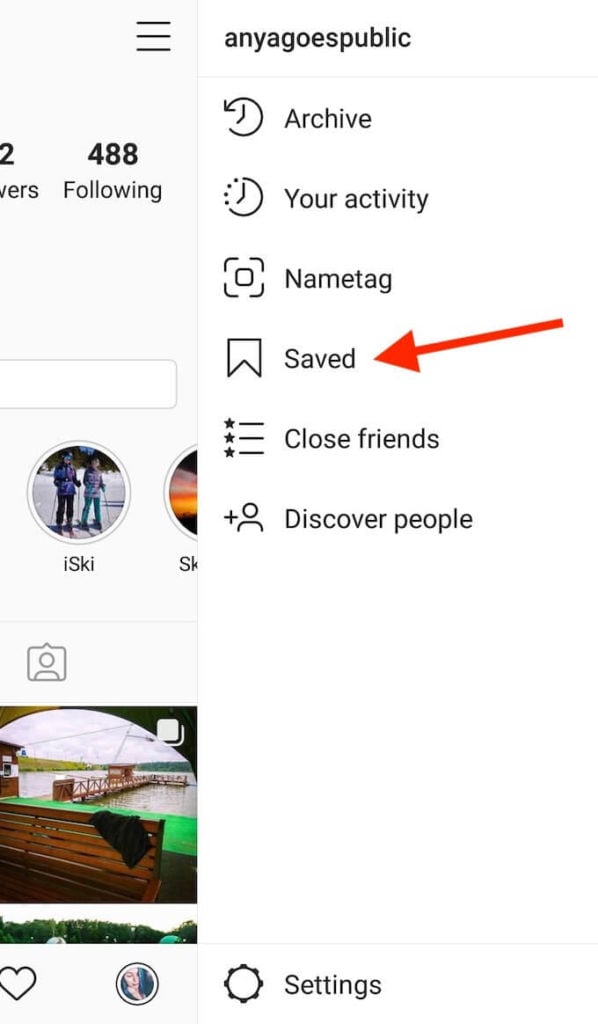
- Open your Instagram profile and click the three vertical lines menu button.
- Select Saved.
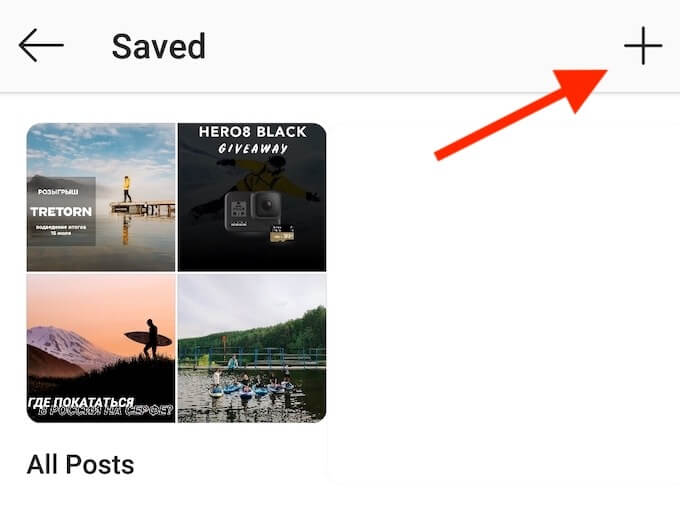
- Click the Plus sign. If you already have saved posts, you can add them to your new collection straight away. When you’re done, click Next.
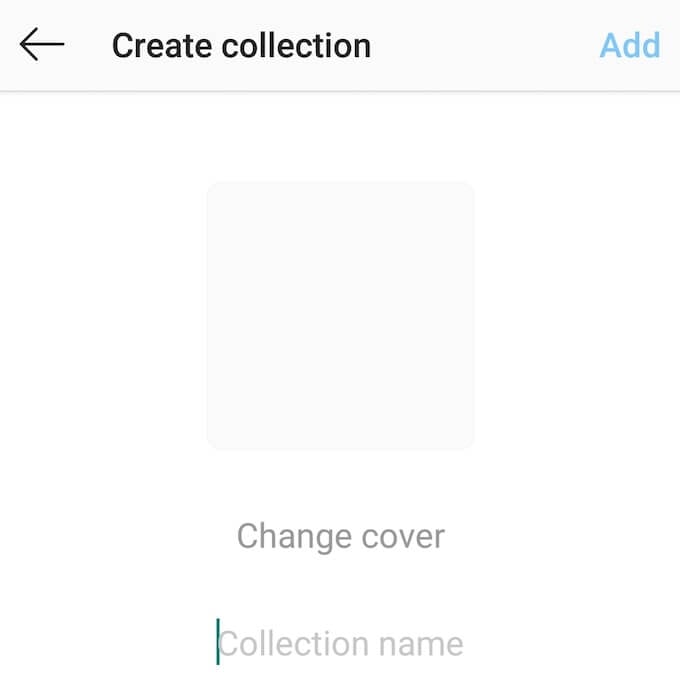
- Enter the name of your first collection and click Add (Android) or Done (iOS). Here you can also pick a cover image for your collection. Click Change Cover and pick a picture from one of the posts that you’ve already added to the collection.
Create New Collections While Browsing Instagram
You can also create Instagram collections as you’re browsing when you save posts that you like. Here’s how to do that:

- Find a post you like, then tap and hold the Bookmark button in the lower right corner of the post. It will open the Save to menu.
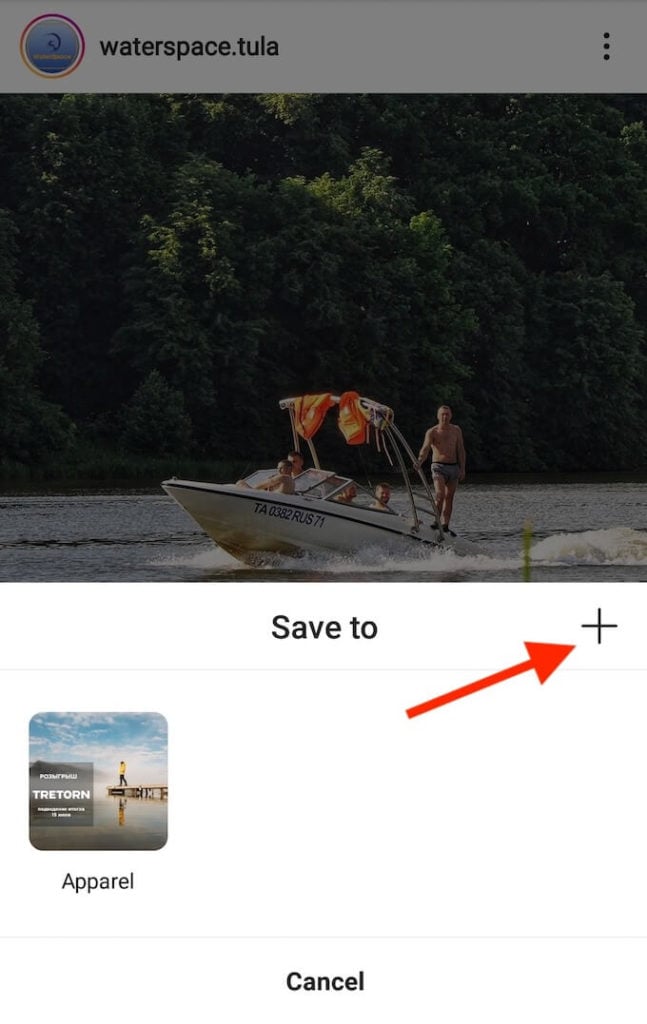
- In the Save to menu, tap the Plus sign.
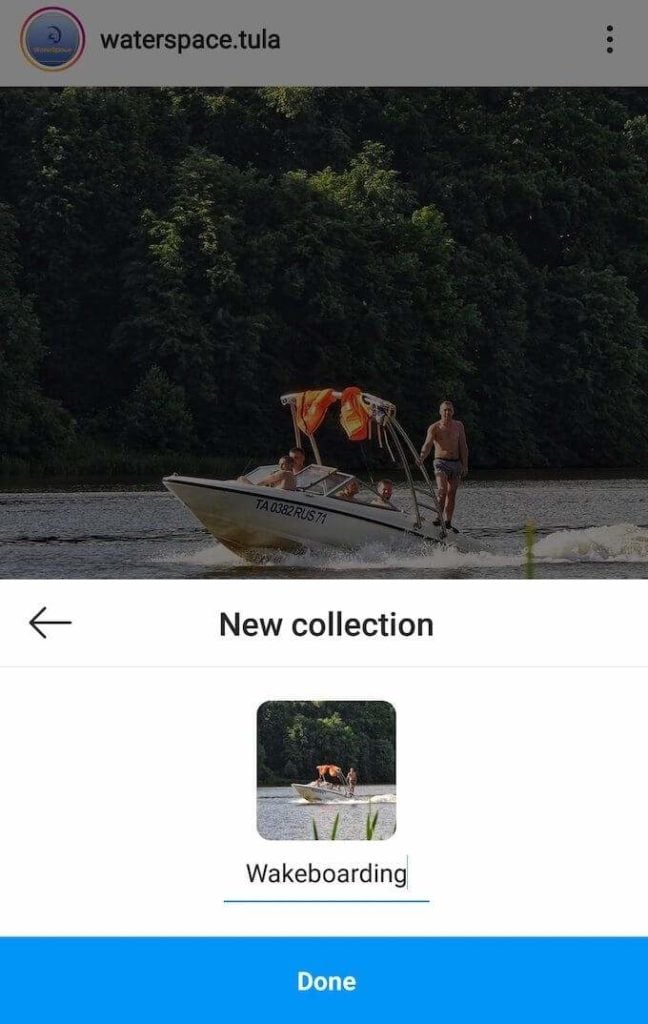
- Type the name of your new collection and click Done.
How To Manage Your Collections
Instagram collections live in your Saved posts. You can view, edit them, add and remove posts from them at any time.
Add Posts To Your Collections
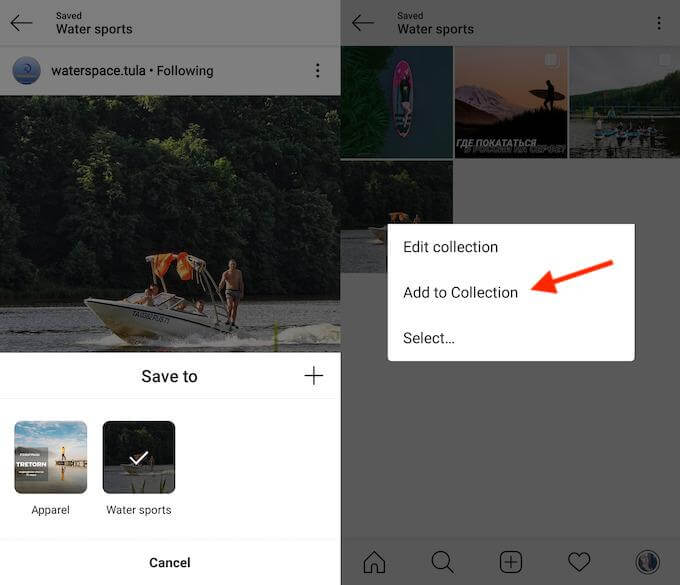
Adding posts to your Instagram collections is easy. All you have to do is tap and hold the Bookmark button when you find the post you’d like to add. Then choose the collection you’d like to add this post to. Instagram allows you to add the same post to multiple collections.
Alternatively, go straight to one of your Instagram collections, tap the three vertical dots in the upper-right corner, and choose the Add to Collection to add posts from Saved.
Remove Posts From Your Collections
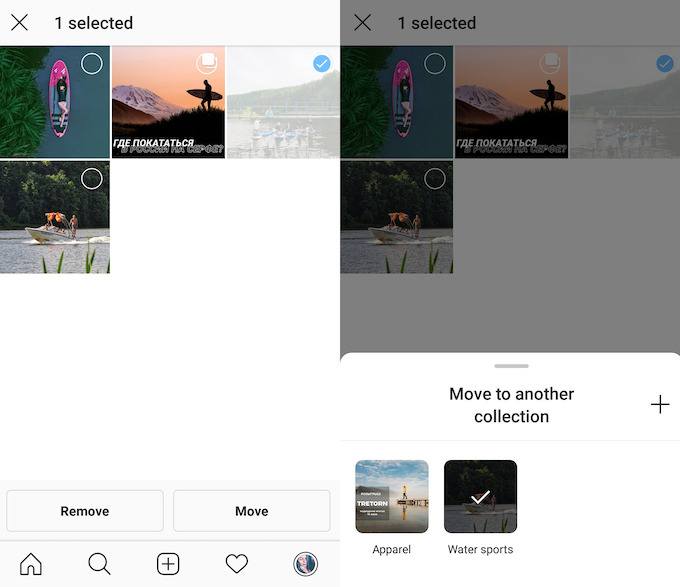
To remove a post from a collection, go to your profile and open Saved posts. Then go to one of your collections and find the post you want to remove. Tap the Bookmark button once to remove it. From the pop up menu you can choose to either remove the post from this single collection or delete it from your Saved posts altogether.
If you want to remove multiple posts from the collection, tap the three vertical dots in the upper-right corner and click Select. Click the posts you want to remove and then select to either Remove them from the collection or Move them to a different one.
Edit Your Collections
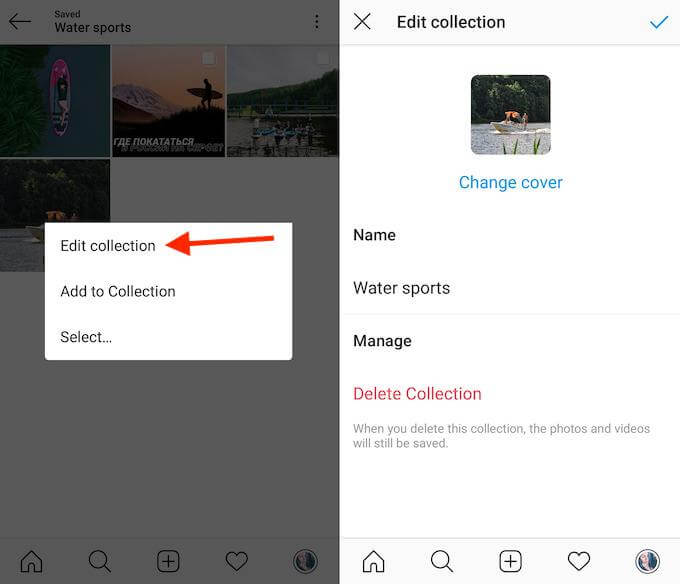
Open the collection you want to edit and tap the three vertical dots. Select Edit collection and it will open the menu that you can use to change the name or the cover of your collection, as well as delete the collection entirely from your Instagram account.
Get Creative With Instagram Collections
When you first start using this feature, your first thought may be to use Instagram Collections for creating themed groups of posts or images for later use. Like making a foodie collection to gather all the recipes that you want to try at home, or putting together an exercise collection to keep all of the training posts for motivation.
You can get much more out of this feature if you try and get creative with your collections.
- Plan Your Future Travels With Instagram Collections
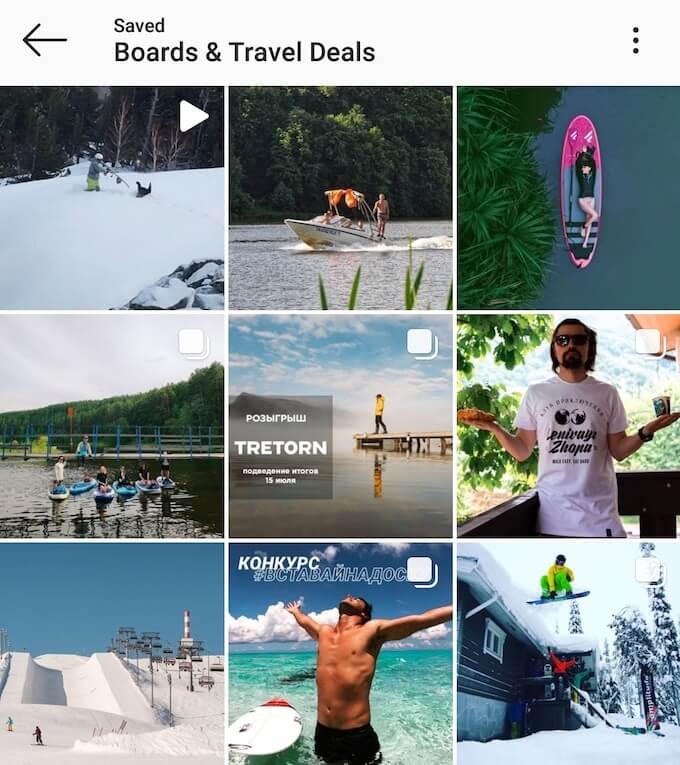
Many users post reviews of the travel destinations they visit. If you follow travel blogs on Instagram, you probably know that they often share promotional offers and travel deals with their followers. A collection with the places you’d like to visit won’t only save you time on planning your trips but can potentially save you money.
- Turn Your Collections Into Mood Boards
If you’re a visual person or someone who needs to imagine the whole action plan before starting a project, you know how beneficial mood boards can be. If you have an idea or thoughts on some topic and need to visualise it, create a special Instagram collection for it. It will help you progress and further develop your idea.
- Use Collections For Tracking Your Competition
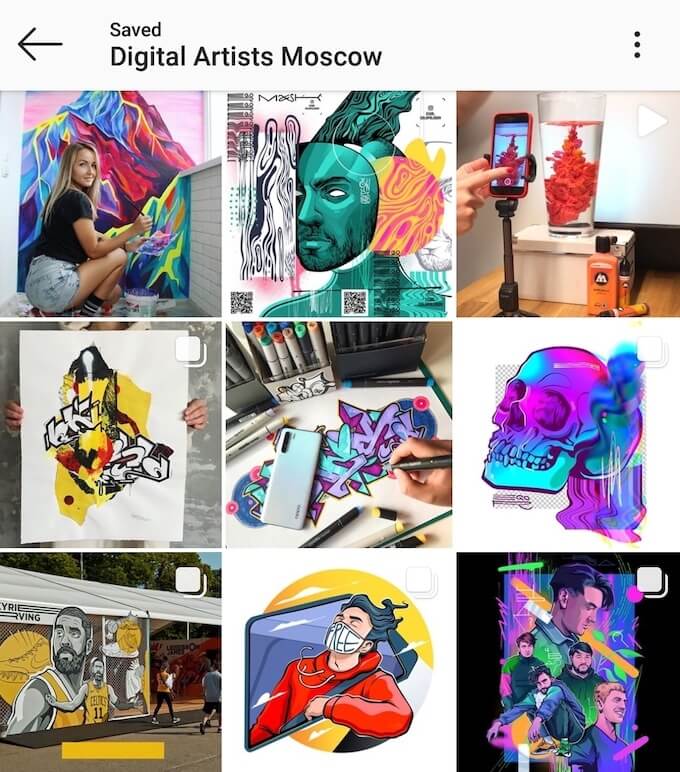
If you have a business account on Instagram, this feature can help you track your competition. You can view and save the posts from your competitors without having to follow them. And since your collections are private, they won’t know you’re watching.
Get The Most Out Of Instagram
Those are just a few examples of how Instagram Collections give you more possibilities within the app. If you’re looking to improve your Instagram user experience further, you’ll have to dive deeper into the app and in some cases use the third-party apps.
What would you use your Instagram Collections for? Share your thoughts and ideas with us in the comments below.