
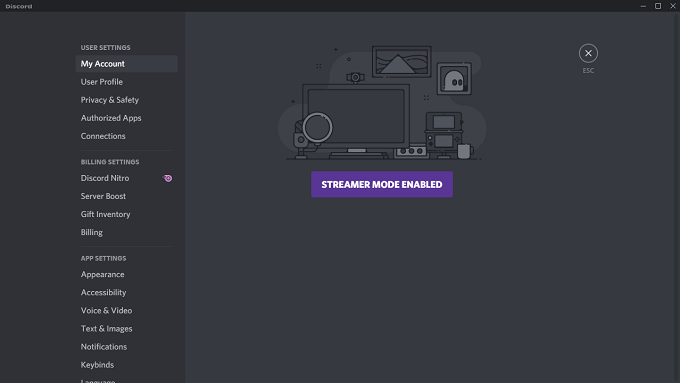
These days, anyone can be a streamer. Discord makes it easy to broadcast your gameplay to adoring fans all across the web — but it also means that pop-ups, messages, and personal information may appear on-screen. Discord Streamer Mode helps hide that.
The last thing you want is for thousands of viewers to see a private message sent to a friend, or for the public to see the invite code that lets them join your private Discord channel. Discord Streamer Mode can protect you by blocking personal information from view.
What Is Discord Streamer Mode?
Discord Streamer Mode is an optional setting within Discord that gives you granular options for protecting your personal information. You can choose exactly what information you want to display or hide. You can also choose whether to automatically enable Streamer Mode when you begin streaming.
It also enables you to eliminate things that might detract from your stream, such as notifications and system sounds. Discord Streamer Mode is a powerful privacy tool that helps protect your personal information.
Imagine this: You’re streaming, and you have a few thousand viewers. You like your fans, but you don’t want them to know where you live. Suddenly, a real-life friend messages you with information about an upcoming barbecue, along with the address.
Without Streamer Mode, everyone watching will see the message. As long as you have Discord Streamer Mode turned on, the private message will not pop up on stream and you can check it after you’re done gaming.
How to Enable Discord Streamer Mode
Discord makes it easy to find and enable Streamer Mode.
- Open Discord.
- Select the User Settings icon towards the bottom left (the gear beside your username).
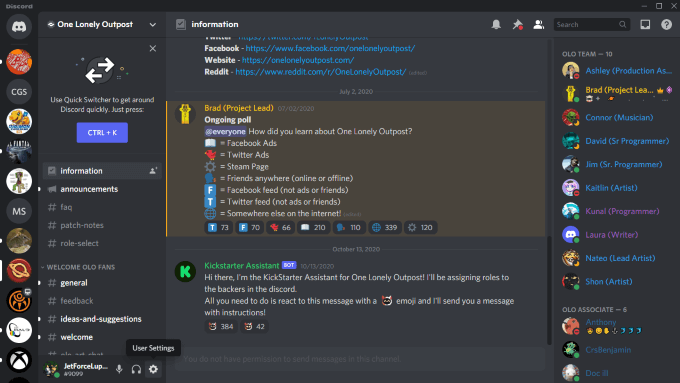
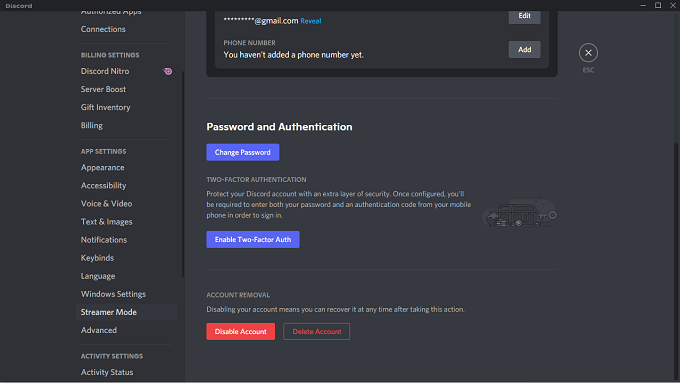
- Select Streamer Mode from the left-hand menu.
- Select the toggle beside Enable Streamer Mode.
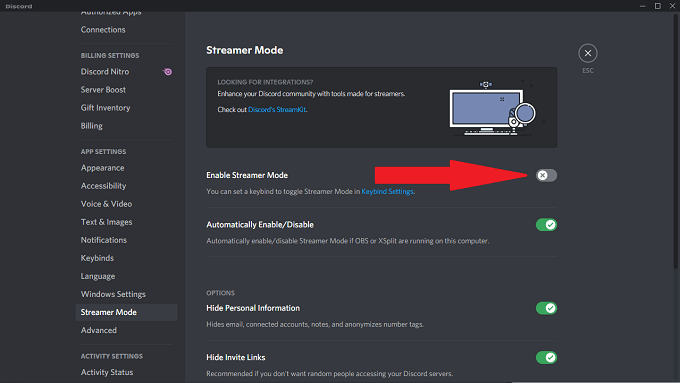
Turning Streamer Mode on is as easy as that. By default, Streamer Mode is set to automatically enable and protect all possible information, but you can configure this according to your own preferences.
You can also choose to activate or deactivate Streamer Mode through a simple keybind.
How to Set Up Streamer Mode Keybindings
Here is how to set up a keybind to toggle Streamer Mode on and off.
- Open Discord.
- Select the User Settings icon (the gear beside your username.)
- Select Keybinds from the left-hand menu.
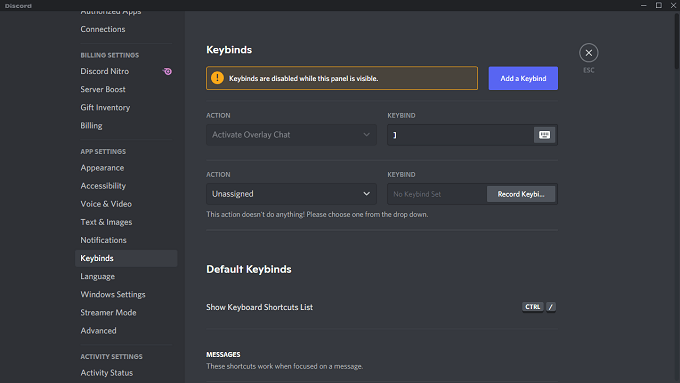
- Select Add a Keybind.
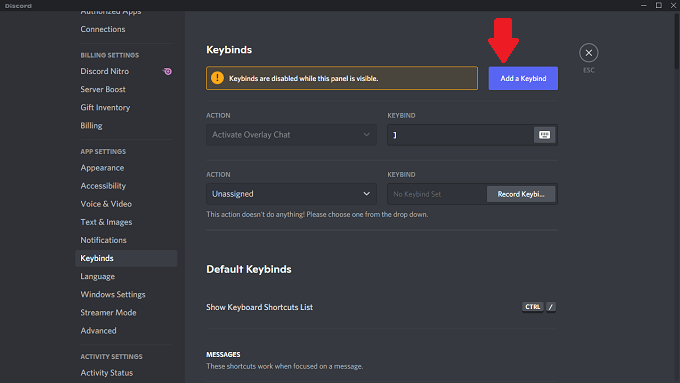
- Select Toggle Streamer Mode from the drop-down menu underneath Action.
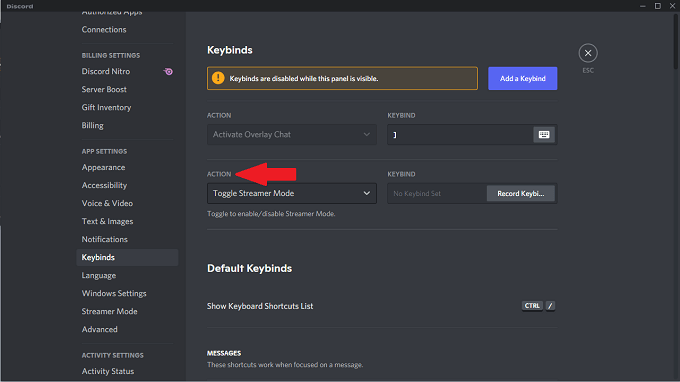
- Select the field underneath Keybind and enter the key or combination of keys you want to use.
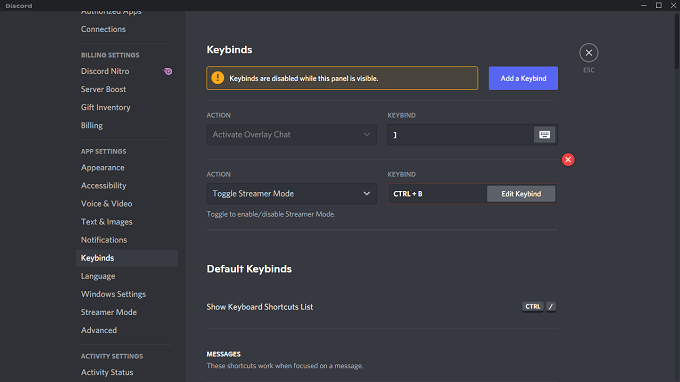
After you set the keybind, you can tap it any time Discord is active to enable or disable Streamer Mode.
What Streamer Mode Protects
Streamer Mode gives you multiple options that keep your personal information safe.
Hide Personal Information: Blocks any private information from appearing on-screen. This includes information like emails, connected accounts, notes, and it even anonymizes your username so that people can’t randomly send you or your contacts friend requests.
Hide Invite Links: Blocks information about invitations to other Discord servers. This is one you absolutely need to enable if you don’t want random viewers joining your server.
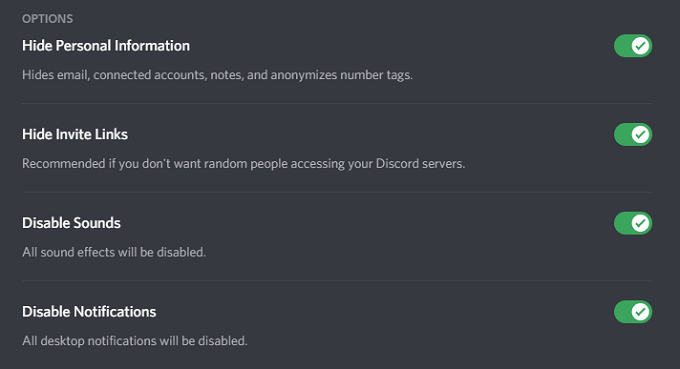
Disable Sounds: Blocks all Discord-related sound effects, such as a message ding or custom sound effects.
Disable Notifications: Blocks all notifications stemming from your desktop. If you have other messaging apps that pop up on screen, the last thing you want is someone reading a personal message. This setting blocks that.
In addition to these options, Discord also gives you the ability to automatically enable Streamer Mode if OBS or XSplit is running on your computer. You will need to connect Discord to these services.
How to Connect OBS And XSplit to Discord
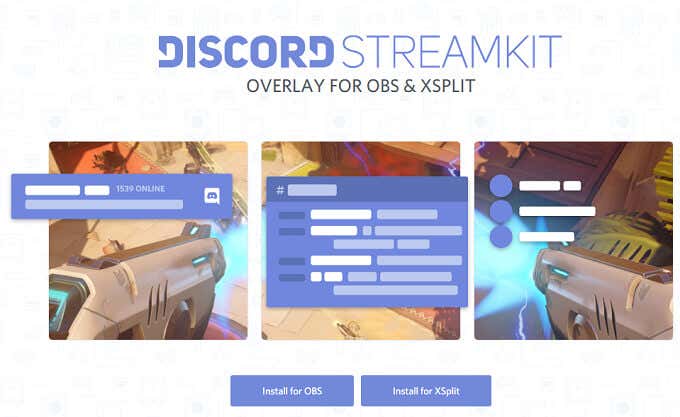
Discord provides a toolset called StreamKit that allows you to easily connect outside services to Discord. You can access this by going to the Discord StreamKit website.
- Go to the Discord StreamKit website.
- Scroll down to OBS or XSplit and click Connect to Discord.
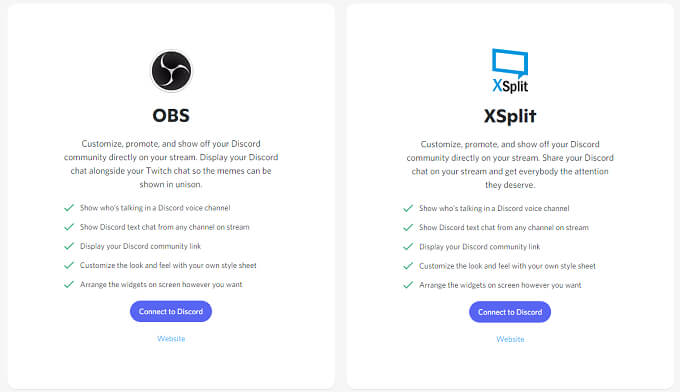
- Another window will open. Select Install for OBS or Install for XSplit.
- This opens Discord. Select Authorize to give permission for the service to connect.
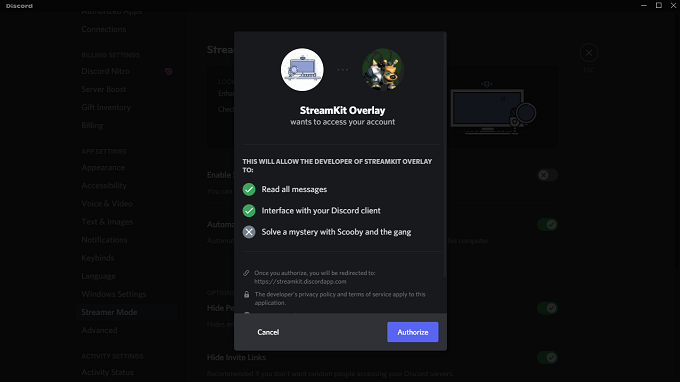
After you authorize the application, the job is done. You can automatically enable Discord Streamer Mode when you launch OBS or XSplit — just select the setting within Discord as shown earlier.
If you’re a streamer and you use Discord (and let’s face it: most gamers do), do yourself a favor: turn on Streamer Mode. It will help protect you against accidentally revealing personal information to all of your viewers.