

Instagram isn’t the easiest place to share your thoughts and feelings if it’s in text form. You can add a message underneath your images, but what if you need to leave a longer message for your friends and followers? The best way to do this is to use notes on Instagram.
What Are Instagram Notes?
Notes are text updates above your profile photo in the Instagram app. Each note is a maximum of 60 characters, consists of text or emojis, and lasts up to 24 hours (or less if you manually remove it before that time). Notes are a great way to express yourself and connect with your friends on Instagram.
You can use notes on Instagram to share your mood, plans, opinions, or anything else that comes to your mind with your Instagram friends and followers. You can also see what your friends post and respond to their notes through direct messages (DMs).
How to Create a Note on Instagram
Creating a note on Instagram via the Instagram app is simple. Before proceeding, ensure you’ve updated your Instagram app to the latest version.
To create a note on Instagram, follow these steps. The screenshots below are from Instagram’s Android app.
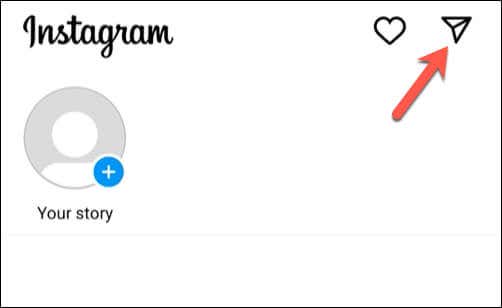
- Open the Instagram app on your phone and tap the messages icon in the app’s top-right corner. The iOS icon is a lightning bolt inside a speech bubble.

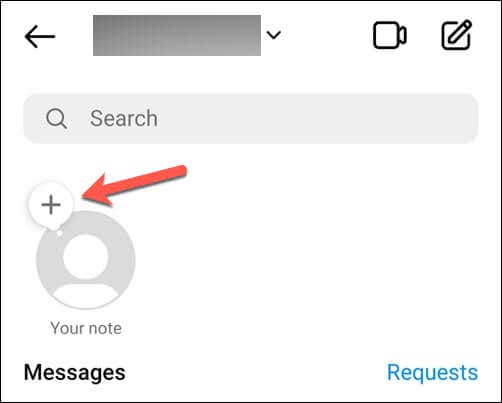
- At the top of your messages, you’ll see your profile picture icon with a plus sign above it—tap on it to create a new note.
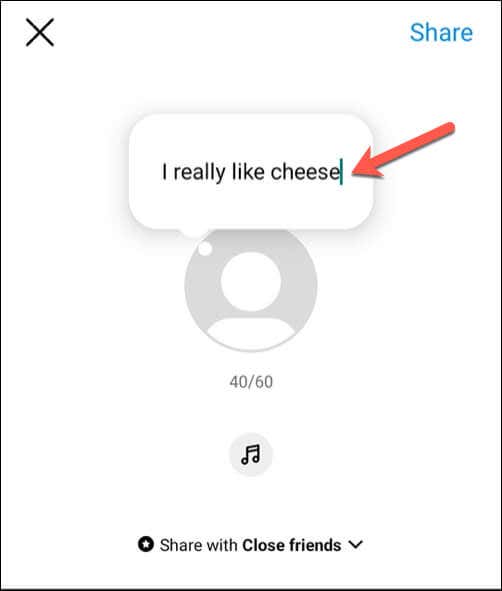
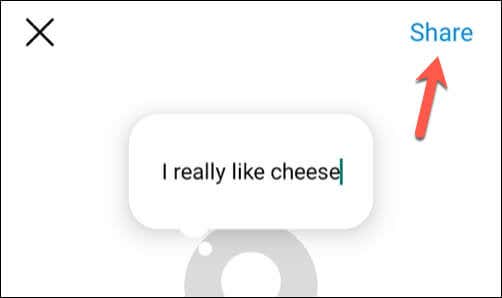
- You’ll see a pop-up window where you can type your note. You can use text and emojis, but keep your note within the 60 character limit.
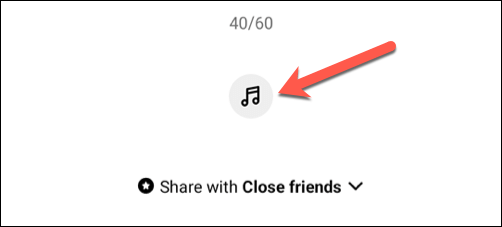
- If you want to add music to back the message for users to hear when they open the note, tap the Music icon and select the audio you want to use.
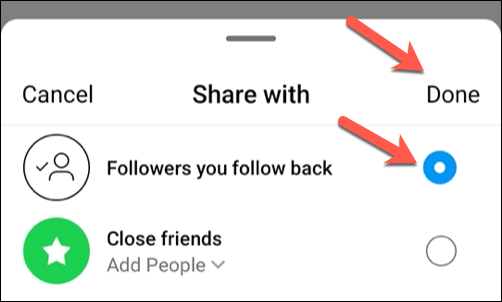
- Below your text, you’ll see a Share with option—tap this to choose who you want to share your note with.
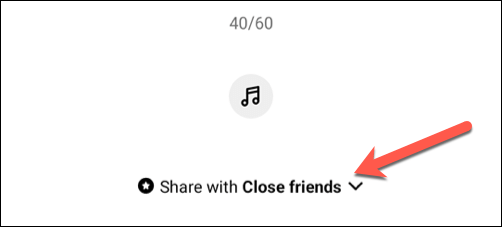
- You’ll have two options in the pop-up menu: Followers that you follow back or Close friends. You can choose who you want to share your notes with by tapping on the circle next to the option. If you select Close friends, you can also tap on the arrow below to edit your close friends list. Only those followers will be able to see your note. Notes are meant to be shared with groups of contacts and not individually.
- Press Done to save your choice.
- When finished, tap the Share button in the top-right.
Your note will appear above your profile photo in the messages list. It’ll remain visible to the people you selected for 24 hours.
How to See and Respond to Notes on Instagram
You (and other users) can interact with and respond to notes created on Instagram. For instance, if you view a note from one of your Instagram friends, you can reply with your message. The user will receive the message in their direct messages.
To view and respond to Instagram notes, follow these steps.
- Open the Instagram app on your phone and tap the messages icon in the top-right.
- If your friends have shared notes with you, they’ll appear at the top of the menu as chat bubbles over their profile picture. To read any shared note, tap on the note preview bubble to view it.
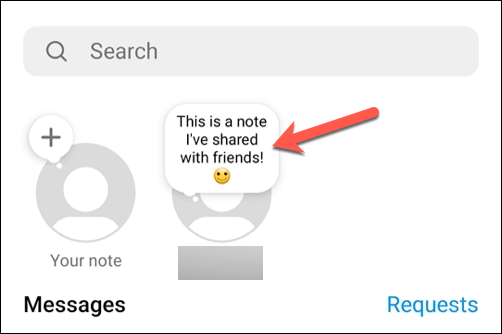
- The note will pop up from the bottom, allowing you to view it fully. You’ll also see your keyboard pop up so you can send a message in response.
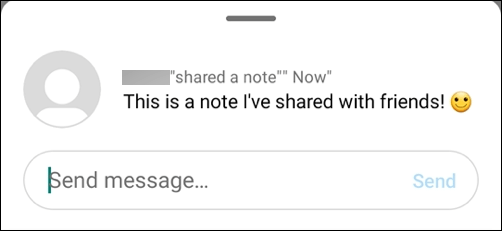
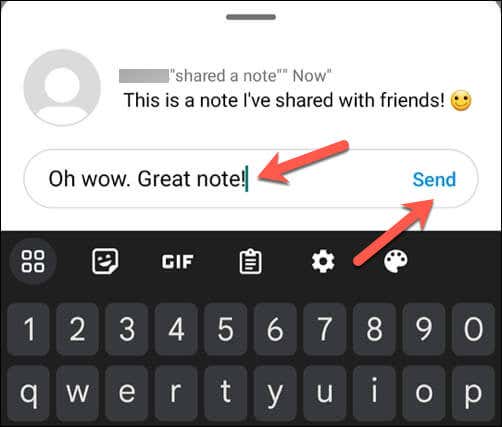
- Type your message into the box and press Send to reply to a note. Your reply will appear as a normal unread chat in your direct messages inbox. You can also send photos, videos, stickers, GIFs, or voice messages as replies.
- To close the note preview, swipe down or tap anywhere outside it to return to your messages.
How to Use Notes on Instagram Effectively
The steps above will help you to create a note, but you’ll need to know how to use the Instagram notes feature effectively. Here are some tips you can use to help create notes for your Instagram followers that work for your audience.
- Use notes to share something interesting or exciting in your life. If you want a reaction from your friends, you’ll need to make sure your note is interesting enough to gain it!
- Use notes to ask questions or kick start a conversation with your friends. For example, “What are you reading these days?” or “Have you seen the latest episode of That TV Show?”.
- Consider using notes to plan or invite your friends to do something. For example, “Anyone up for a movie night?” or “Let’s go hiking this weekend—who’s in?”.
- One thing to remember—use notes sparingly and selectively. Don’t spam your friends with too many notes or share them with everyone you follow. Choose who to share them with and ensure they remain relevant and interesting.
Share Your Thoughts on Instagram
Thanks to the steps above, you can quickly use the notes feature on Instagram to share your thoughts, feelings, or important news with your closest friends and followers.
Do you want to spice up your Instagram profile? Consider creating your own Instagram avatar. If you’re having trouble with Instagram messages not sending, don’t forget to troubleshoot the problem by updating your Instagram app and restarting your phone.