

Discord’s a unique platform that you can use for casual chats with your friends, connecting with a gaming community, or even for professional communication. But there will be times when you want to hide specific messages or parts of them.
Discord’s spoiler tags allow you to initially hide text or attachments on Discord and let the other people on the server decide whether they want to see the contents or not.
Let’s learn how to add spoiler tags and how to use them properly on Discord.
What Are Spoiler Tags & Why Use Them
Discord allows you to add emojis, GIFs, images, and links to your messages. Unfortunately, some of those links, images, or text comments might contain spoilers that not everyone will want to see.
On Discord, you can use spoiler tags to mark your messages, parts of messages, or your attachments as spoilers. When another user sees a message marked as a spoiler, they can choose whether to click on it and reveal the contents or to ignore it. If they choose to ignore it, they’ll only see a grey box over the hidden content.

Spoiler tags are a great way to alert someone you’re sharing the information they might not be ready for. You can apply spoiler tags to your Discord messages in your browser, the Discord app on Windows and Mac, or the mobile app for Android, iPhone, or iPad.
How to Use a Spoiler Tag on Discord
Depending on what you need to hide – text, images, or attachments – there are different ways to apply spoiler tags on Discord.
How to Add a Spoiler Tag to Text Messages
If you want to hide a part of or an entire text message on Discord, you can use any of the following ways to do it. The instructions are the same for the mobile app, the desktop app, and the app’s web version.
If you want to mark a part of your text message as a spoiler on Discord, follow the steps below.
- Open the Discord app on your device.
- Start typing a message. Then, highlight the part of your text message that you want to hide.
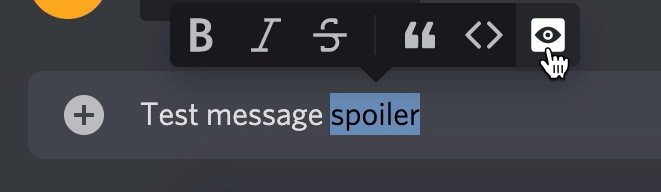
- You’ll see the text formatting bar appear right above the highlighted text. Select the eye icon to tag the text as a spoiler.
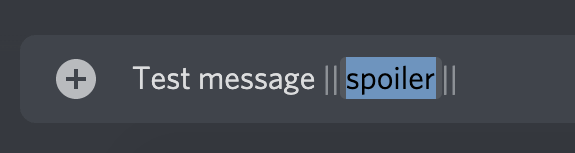
You’ll see two vertical bars (pipes) appear before and after your selected text. It means this text is now marked as a spoiler. Alternatively, you can add those two bars at the beginning and the end of the text you want to hide with the pipe key on your keyboard. Any text wrapped in those bars will also be marked as a spoiler.
Note that if you’re trying to hide text within code blocks using a spoiler tag, it won’t work on Discord. In that case, you need to use a different way to hide it.
If you want to mark your entire text message as a spoiler on Discord, follow the steps below.
- Open the Discord app on your device.
- Type /spoiler at the beginning before you start typing your message.
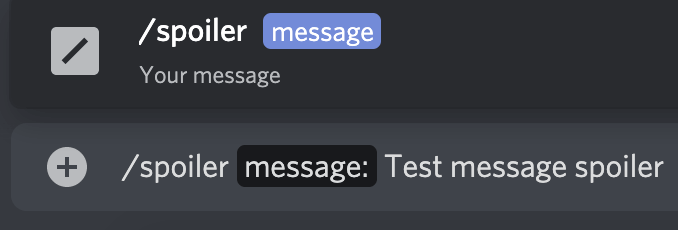
This will hide your entire text message until the recipient decides to reveal its contents. The message will appear with a dark grey box over it. To view a spoiler message on Discord, the recipient will have to click on it first. Once you’ve revealed a spoiler, the only way to re-hide it is to leave the Discord channel.
How to Add a Spoiler Tag to Images or Attachments
Discord allows you to mark images and other attachments that you send in chats as spoilers. Unfortunately, marking them with /spoiler or wrapping them in bars won’t work here.
One more limitation is that you can’t mark your attachments as spoilers on mobile. Instead, you’ll have to use the Discord website or the desktop version of the app (both Windows and Mac).
To hide an attachment on a Discord chat, follow the steps below.
- Open the Discord app on your desktop or in your browser.
- Open a Discord chat and select the plus icon next to the left side of the message box.

- Select the file that you want to add and select Open. You can also drag and drop your attachment right into the Discord chat.
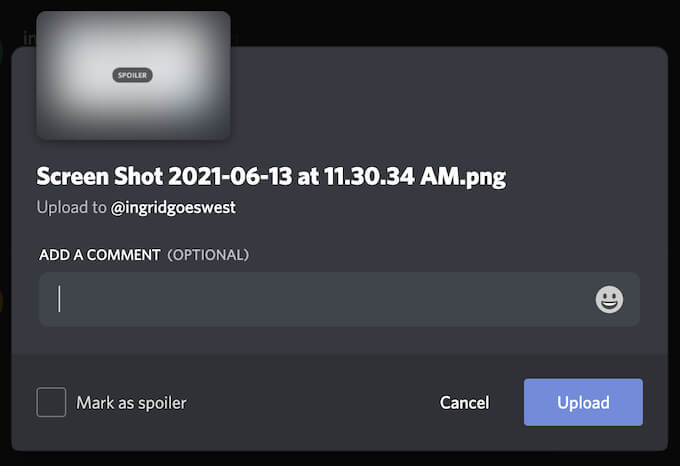
- In the preview box, you can add a comment to your attachment or an emoji. Then, select Mark as Spoiler in the lower-left corner to hide the attachment in the chat.
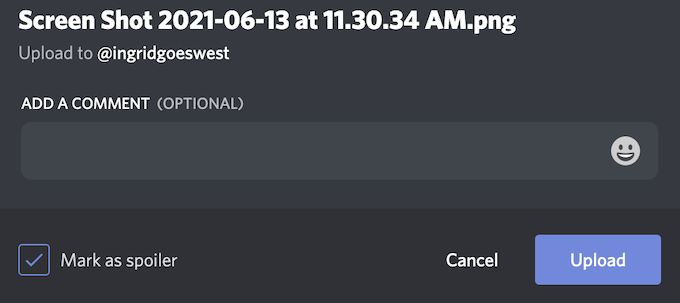
- Select Upload.
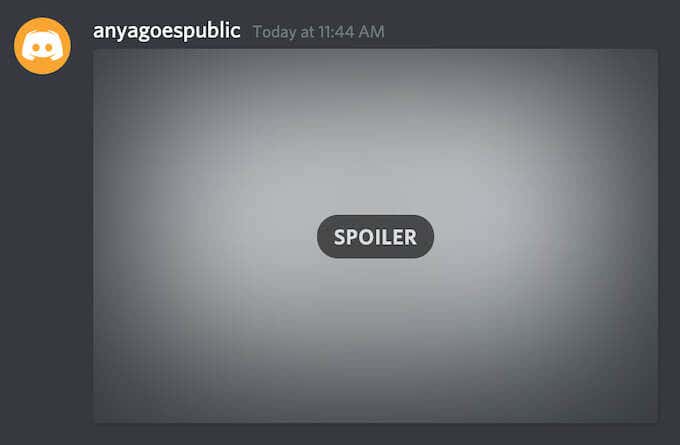
After it’s uploaded, your attachment will appear in the chat as a grey image marked as Spoiler. The recipients will have to click on the file before it’s revealed to them. Once the spoiler tag is removed, Discord will display the file as usual.
How to Turn Off Spoiler Tags on Discord
Now, as handy as spoiler tags can be, you might not want people to use them in your Discord server. You might even want to turn off all spoilers and stop seeing them everywhere in the app.
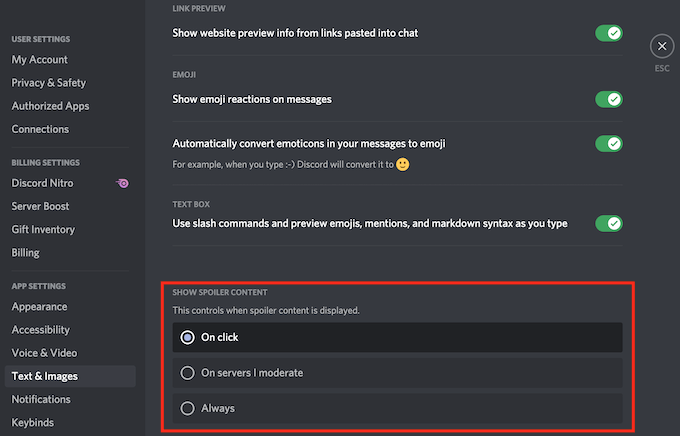
Discord allows you to turn the spoiler tags feature off. To do that, open the Discord app on your computer or in your browser and follow the path User Settings > Text & Images. You can then choose one of the following options.
- On click: The default setting that allows the use of spoilers.
- On servers I moderate: Disables spoilers on all servers where you have a role with Manage Messages enabled.
- Always: Disables all spoilers.
Start Using Spoiler Tags on Discord
Now you can browse your Discord chats without being afraid to see something you’re not ready for. Start using spoiler tags yourself to make sure other people don’t catch any spoilers through the content you’re sharing on Discord.
Do you use spoiler tags on Discord, or do you believe it’s a useless feature? Share your thoughts with us in the comments below.