
Since Twitter first launched in 2006, it’s become one of the most important social media networks in the world, for reasons that are both positive and negative.
While it’s a great place to build relationships with others, not every Twitter user is worthy of your attention. Blocking other Twitter users (and being blocked yourself) is an unfortunate, but sometimes necessary, part of the user experience.
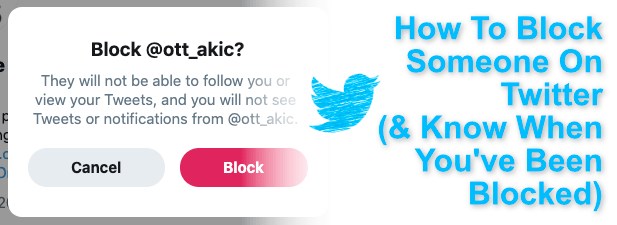
Here’s how to block someone on Twitter, and check if you’ve been blocked yourself.
What Happens When You Block Someone On Twitter?
Build up a Twitter account and, before long, somebody will come along to try and ruin your fun. It’s unfortunate, but that’s the internet—people aren’t always nice. That’s why Twitter and other social media platforms allow you to completely remove these people from view by blocking them.
When you block someone on Twitter, you completely remove any links you have with that user. If you’re following each other, you’ll both be removed from each other’s followers list, and they (nor you) will be able to refollow afterwards unless the block is removed.
You won’t be able to see their tweets, be tagged in photos, be added to lists, or be messaged by (or indeed, message) the user being blocked. That user can still create a new account to get around the problem, but if that’s the case, you can report them for harassment using Twitter’s own built-in reporting system.
However, that isn’t guaranteed to do much—you may end up needing to get busy with the block button to solve the problem if any new accounts appear.
How To Check If You’ve Been Blocked On Twitter
Before you block someone on Twitter, it might be worth checking if you’ve been blocked yourself. You won’t be notified if another user blocks you, but you can find out for yourself.
While you won’t be able to interact with their profile, you can check if you’ve been blocked by opening the Twitter search and typing in the user’s Twitter account username (or visiting their Twitter account directly by URL).
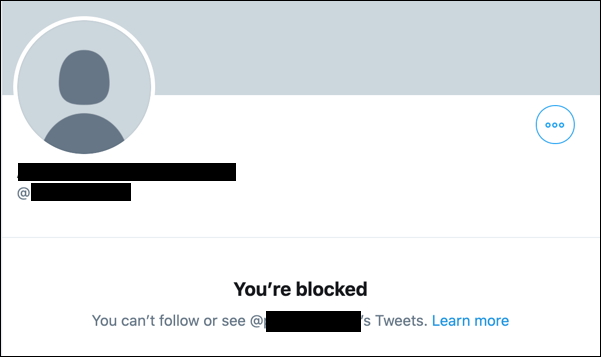
Twitter will tell you immediately if you’ve been blocked, with a You’re blocked message visible in the center of the profile. You’ll be able to see the user’s profile name, picture, and username—but that’s it.
Unfortunately, there’s no way to get around this, except by making another account. This isn’t something we’d recommend, either. If you’ve been blocked, it may be better to spend the time evaluating your behavior and consider what you may have done for the block to occur.
However, don’t forget that users will block other users for no real reason from time to time, and that’s okay. If that happens, accept, move on, and interact with other Twitter users who enjoy your content instead.
How To Block Someone On Twitter From Your Web Browser
It’s exceptionally easy to block another Twitter user. If you’re using the Twitter web interface, you can quickly block another user by following these steps.
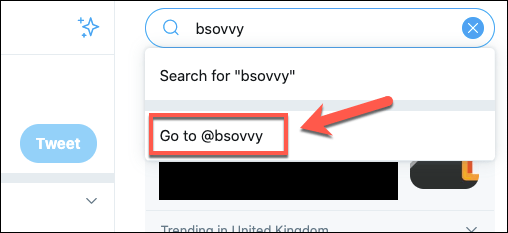
- Start by opening the Twitter website in your preferred browser and signing in. Once you’ve signed in, type the username of the Twitter user you’re looking for in the search bar at the top and click the Go to @profile option, or type the direct URL for their Twitter account into the address bar.
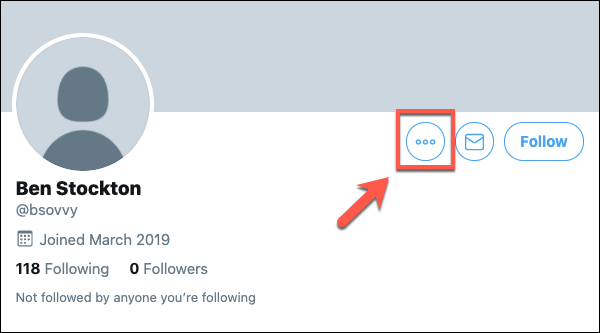
- Once you’re on the profile of the user you wish to block, press the three-dots menu icon next to the message and follow buttons.
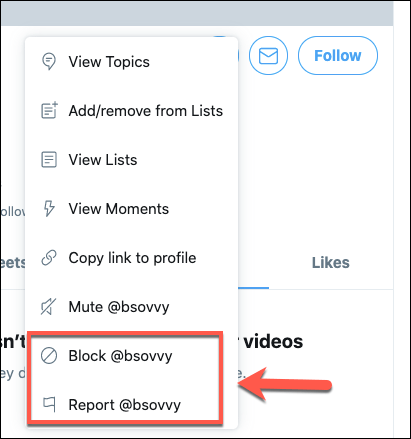
- From the menu, click the Block @profile button. You can also choose to click Report @profile for seriously abusive users, as reporting a user will also block them in the process.
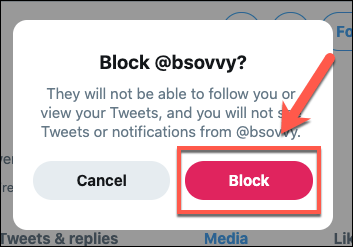
- Twitter will ask you to confirm that you actually want to block that profile. Press the Block button to confirm.
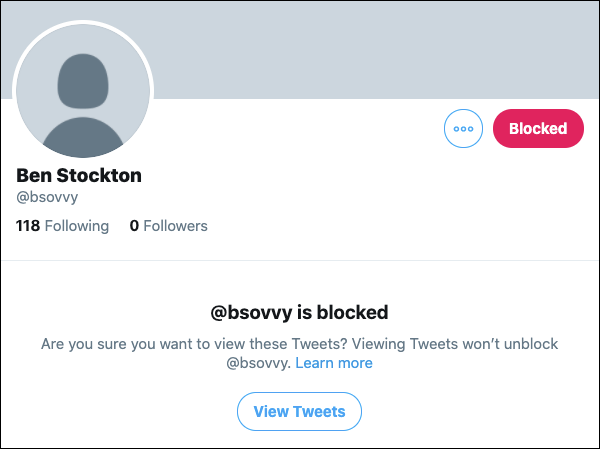
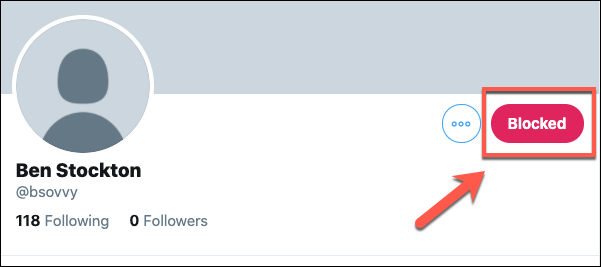
Once confirmed, the profile will be immediately blocked. The message and follow buttons will be replaced with a red, Blocked button instead.
- To unblock a user after they’ve been blocked, click the Blocked button.
- Twitter will ask you to confirm that you do want to unblock the user. Click Unblock to confirm this.
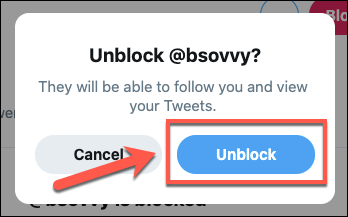
If you unblock a user, your profile will immediately become visible to them again. They can follow you again, message you, and interact with your profile like any other Twitter user.
How To Block Someone On Twitter Using The Twitter App
Blocking a Twitter user is an easy process for mobile users, too. The Twitter app is near-identical for Android and iOS users, so these instructions should work across both platforms.
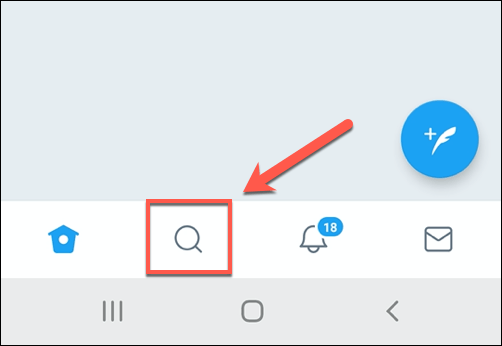
- To block a user on Twitter, open the Twitter app and search for the user, which you can do by tapping the Search icon in the bottom menu.
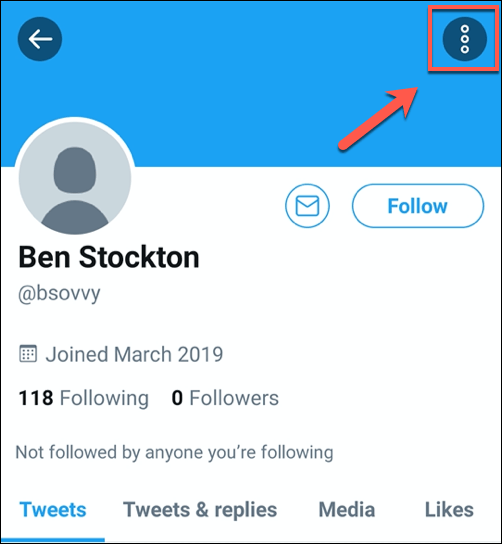
- Once you’re on a user’s profile, tap the three-dots menu icon in the top-right.
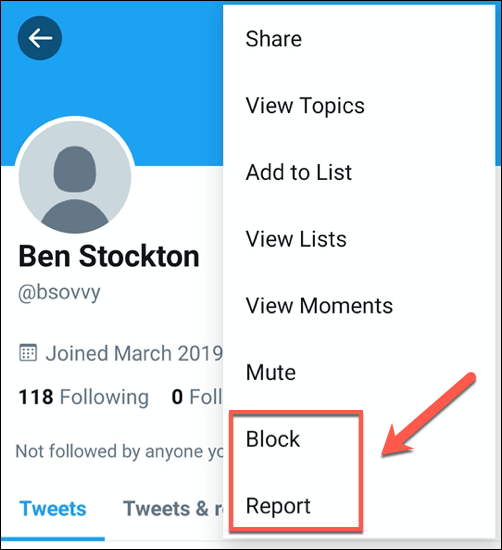
- In the menu that appears, tap the Block button. You can also tap Report instead to block and report abusive users.
- The Twitter app will ask you to confirm that you actually wish to block the user. Tap Block to confirm.
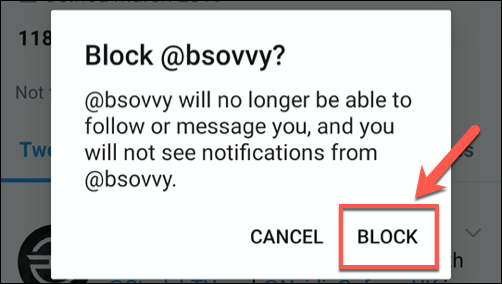
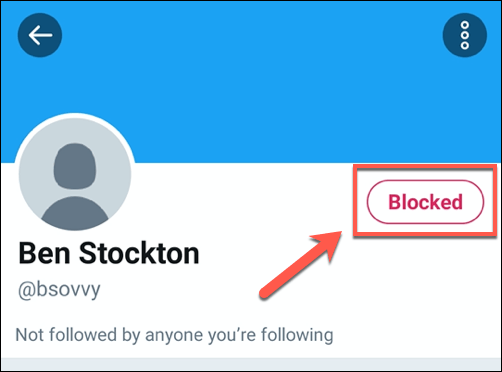
Twitter will immediately block the user as soon as you confirm your choice. As with the Twitter web interface, it’s easy to unblock the user in the future, should you wish to.
- Tap the Blocked button in the top-right corner of the blocked user’s profile.
- Twitter will ask you to confirm that you do wish to unblock the user’s account. Tap Yes to confirm.
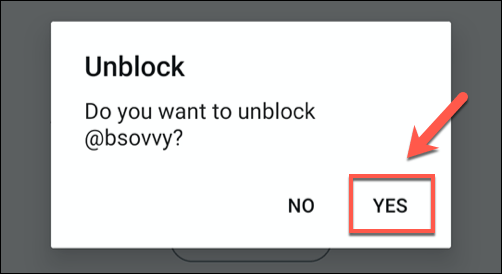
Once confirmed, Twitter will unblock the user. Both parties will be able to interact with each other immediately at this point, but if you unblock a user by mistake, you can block them again immediately using the steps listed above.
Building Better Relationships On Twitter
Blocking other users on Twitter is sometimes the only way to deal with trolls or to stop problematic content from filtering into your own Twitter feed. If you want to build better relationships on Twitter, create Twitter Lists to split your favorite accounts into different categories, such as sports or news.
Of course, you could decide to leave Twitter completely and build your own Twitter-like website, although this is only a useful option for communities that already exist. If Twitter is too much to handle, you can always delete your Twitter account and head for other social networks like Instagram instead.