

We’ve all got Snaps we want to keep private, whether personal photos, or just something you don’t want anybody else using your phone to see. You can already create Private Stories on Snapchat, and now, for those extra private Snaps, you can protect your Snapchat privacy with the My Eyes Only Snapchat feature. This feature protects those private Snaps with a passcode — so only those with the passcode can view the Snaps.
We’ll show you how to set up My Eyes Only and how to add or remove Snaps to keep your most private Snaps safe from prying eyes.
How to Set Up My Eyes Only
It takes just a few seconds to set up My Eyes Only. You’ll need to have one Story or Snap saved to Memories or share content from your Camera Roll to Snapchat. Here’s how to set up My Eyes Only:
- From Snapchat’s Camera Screen, swipe up to open Memories, then tap Snaps or Camera Roll.
- Press and hold on a Snap, then tap My Eyes Only.
- If you don’t see this option, you may need to tap More > Hide Snap (My Eyes Only).
- Tap Quick Setup.
- Create your passcode (a four-digit number).
- Your Snap will now be moved to My Eyes Only.

How to Add Snaps to My Eyes Only
Now that you’ve set up the My Eyes Only Snapchat feature, it’s easy to move saved Stories or Snaps from Memories to My Eyes Only — or move videos or photos from your Camera Roll to My Eyes Only. Here’s how to add snaps to my Eyes Only:
- From the Camera Screen, swipe up to open Memories.
- Tap Snaps, Camera Roll, or Stories at the top.
- Press and hold on the item you want to move to My Eyes Only.
- If you’ve selected a Snap, tap More > Hide Snap (My Eyes Only).

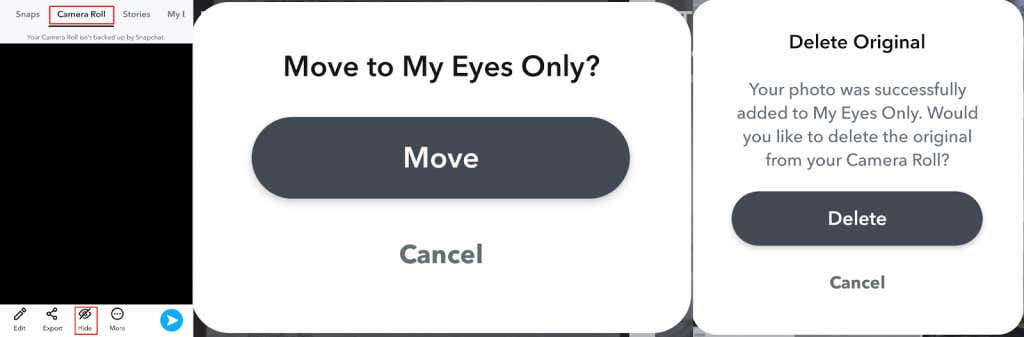
- For items in Camera Roll, tap Hide.
- A pop-up will ask you, “Move to My Eyes Only?”
- Tap Move to confirm (or Cancel if you’ve changed your mind).
- If moving items from your Camera Roll, you’ll also be asked if you want to delete the original from your Camera Roll. Tap Delete if you want to do that.
How to Remove Snaps From My Eyes Only
Just as it’s easy to move Snaps to My Eyes Only, removing them takes just a few seconds. Here’s how to do that:
- From the Camera Screen, swipe up to open Memories.
- At the top, scroll to the right and tap My Eyes Only.
- Enter your passcode when prompted.
- Press and hold on the Snap you want to remove.
- Tap Unhide.

How to Recover Deleted Snaps From My Eyes Only
If you accidentally delete snaps from My Eyes Only or forget your My Eyes Only passcode, you’ll be unable to access any of the Snaps saved to My Eyes Only. It’s not as simple as forgetting your Snapchat password or email — Snapchat support can’t help you recover your passcode or Snaps. You can reset your passcode, but you’ll lose access to any Snaps previously saved to My Eyes Only. Resetting the passcode creates a new My Eyes Only — so this time, make sure you choose a memorable passcode.
The My Eyes Only Snapchat feature is a great way to protect your special and private Snaps from anybody looking through your phone or accessing your Snapchat account without your permission. It’s quick and easy to set up and add and remove Snaps from My Eyes Only in just a few taps. Just don’t forget to choose an easy-to-remember passcode, as if you forget your passcode, you’ll lose access to your My Eyes Only Snaps forever!