

Instagram is a popular platform for sharing photos, videos, and messages, but there’s one downside—unwanted interactions. You may want a bit of peace from the messages you receive, but if you open up a direct message, the sender will know you’ve read it straight away.
There isn’t a way to turn off read receipts on Instagram, but there are some workarounds if you want a quick peek at a message without alerting the sender. If you want to control your read receipts on Instagram, follow the steps below.
Can You Turn Off Read Receipts on Instagram?
There isn’t a setting to turn off read receipts on Instagram (at this time). However, that doesn’t mean it’s impossible to stop read receipts from being sent—temporarily, at least.
There isn’t a permanent method to stop them, but you can use airplane mode on your device as a workaround to view messages without sending read receipts immediately. This works by blocking Instagram from updating its servers (and thus the sender) that you’ve read the message.
However, once you turn off airplane mode and connect to the internet again, the read receipts will be sent. You’ll need to keep this in mind.
How to Disable Instagram Read Receipts Using Airplane Mode
One way to indirectly disable read receipts on Instagram is by using the airplane mode feature on your device. This method allows you to read messages without notifying the sender that you’ve seen them.
As we’ve mentioned already, this isn’t a permanent solution. It’ll only give you a quick way to view your Instagram messages, and only if the app has loaded the messages for you without opening the message thread directly.
This should happen if you open your Instagram app’s messages ‘folder.’ However, if you’ve missed out on a long thread of messages, you may only see that a small selection of them load (or they don’t load at all).
To use airplane mode to read messages on Instagram, follow the steps below.
- Launch the Instagram app on your device and tap the messages icon in the top-right to open your message inbox. Allow the messages to load, but don’t open or read them just yet.

- Before opening any message, you’ll need to enable airplane mode. To do this on Android, swipe down from the notifications panel and tap the airplane mode or flight mode icon (depending on your device). Recent iPhone users can do this by swiping from the top-right and tapping the airplane icon in the Control Center.
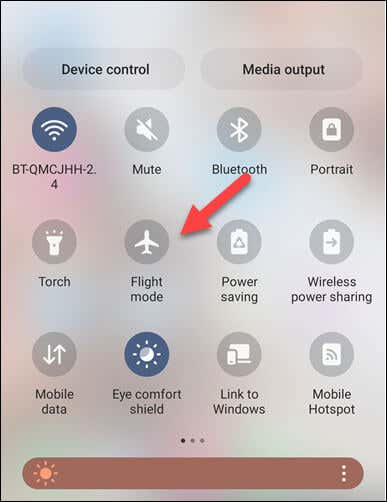
- Airplane Mode will disable all wireless connections on your device, including Wi-Fi and mobile data. Ensure the Wi-Fi symbol is grayed out or has a line through it before proceeding.
- Next, return to the Instagram app and open the message you want to read. Since your device is not connected to the internet, Instagram cannot register that you’ve read the message.
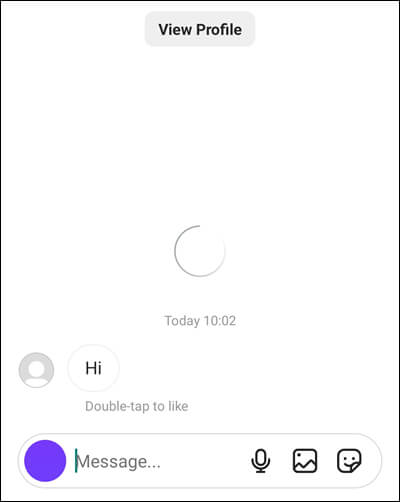
- After reading the message, close the Instagram app and make sure it’s not running in the background.
- When you’re ready, open your notifications panel (on Android) or Control Center (on iPhone and iPad) to disable airplane mode and reconnect your device to your Wi-Fi network or mobile data.
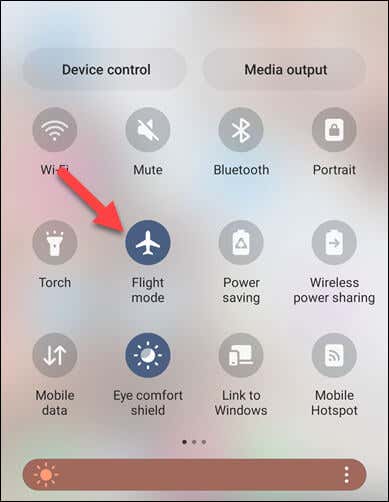
With any luck, Instagram will still not show the message as read, because it wasn’t connected to the internet when you opened it. However, this may not last for long (or work at all), so your mileage may vary.
How to Disable Instagram Message Notifications
If you tap a message notification on Instagram, it’ll take you straight to the message (and send a read receipt in the process). If you’re worried about your privacy, it’s probably a good idea to disable these message notifications.
This will stop you from accidentally opening up a message without intending to. You’ll need to manually check and open any messages you receive afterward.
To disable message notifications on Instagram, follow these steps.
- Open the Instagram app on your device and navigate to your profile by tapping your profile icon at the bottom, then tap the menu icon (with three horizontal lines) in the upper-right corner.
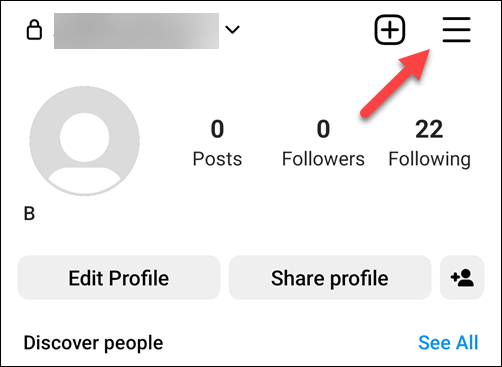
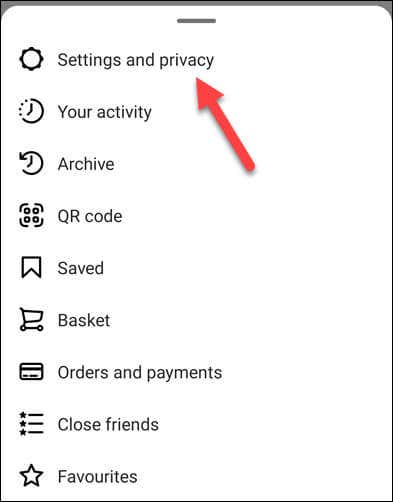
- Next, tap the Settings and privacy option (with the gear icon) located at the top of the pop-up menu.
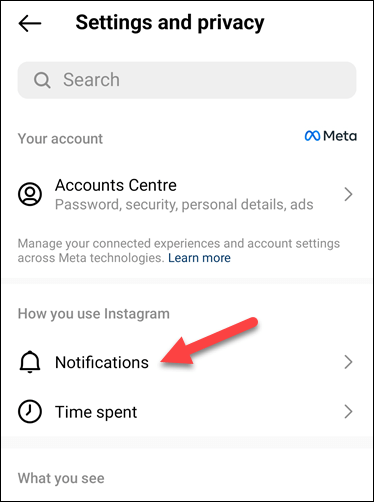
- Select Notifications from the list of available settings.
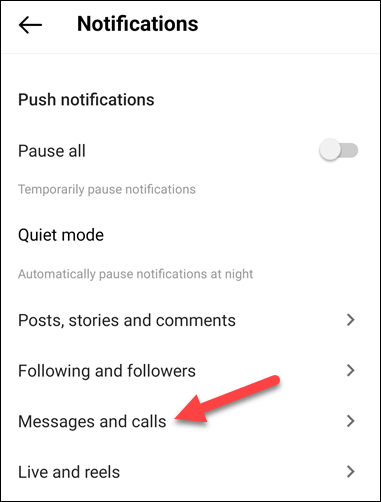
- Next, tap Messages and calls.
- Tap the Off option next to each setting in the Messages and calls section to disable all message notifications in your Instagram app.
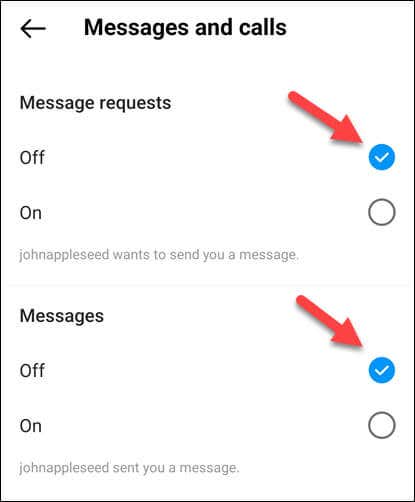
Once you’ve completed these steps, you’ll no longer receive message notifications from Instagram. This means you can access your messages at your own pace and read them without the sender knowing instantly that you’ve seen their message.
However, don’t forget to check your Instagram inbox regularly to avoid missing any important messages.
Managing Your Instagram Account
While you can’t directly turn off read receipts on Instagram, you can use the workarounds above to help you avoid them (at least temporarily).
Having trouble sending messages on Instagram yourself? You’ll need to troubleshoot the problem by reinstalling the app or signing out of your profile.
Don’t forget; if you’re worried about your privacy, you can always delete your Instagram account and switch to another platform.