

Whether you’re trying to watch a recipe reel or view a friend’s story, there’s nothing more frustrating than no sound on Instagram ruining your experience. If you’re noticing no sound on Instagram Reels or Stories, there’s usually a quick fix to get things back on track. We’ve got 9 ways to fix your issue with no sound on Instagram.
1. Check if a Story or Reel Actually Has Audio
You might be panicking that there’s no sound on Instagram when the content you’re watching doesn’t actually have any sound. If you don’t see a music icon or tune name, it could be that the Reel or Story you’re watching simply doesn’t have sound at all.
2. Check Silent Mode Isn’t Enabled
This may sound obvious, but is silent mode enabled on your phone? If that’s the case, you won’t hear any sound on Instagram Stories or Reels. Hopefully, double-checking and disabling silent mode will solve your problem.
3. Try Turning Up Your Phone’s Volume
Like the previous fix, this one is pretty simple. It might be that the volume on your phone or tablet is simply turned down. Try turning it up to see if that changes things.

4. Use a VPN
One pretty common reason to experience no sound on Instagram Reels is that the track or song used isn’t licensed to stream in your part of the world. You can get around this by using a VPN. Just connect your VPN to a region server where the song is licensed (usually, this would be the country where the person sharing the Reel resides), and this should resolve your problem.
5. Check For Instagram Updates
One quick way to fix the no sound on Instagram issue is to ensure you have the latest version of the app. Check the Google Play store or Apple App Store for any updates, install them, restart your device, and see if the issue is fixed.
6. Try Logging Out and In Again
Some issues can be easily fixed by logging out of the app and back in again. Here’s how to do this, but make sure you know your login details.
- Open the Instagram app.
- At the bottom right of your screen, tap on your Profile Picture.
- Tap the hamburger menu at the top right, then select Settings and Privacy.
- Scroll to the bottom of the list and tap Log Out.
- Log back in using the same account details to see if the problem has been resolved.

7. Try Clearing Your Instagram Cache
Still got no sound on Instagram Stories and reels? Clearing the app’s cache can often resolve issues. Here’s how to do that.
- Go to Settings on your device.
- Scroll down, then tap on Apps or Application Manager.
- Find the Instagram app and tap on it.
- Tap Storage or Clear Data.
- Tap Clear Cache to confirm you want to clear the cache.
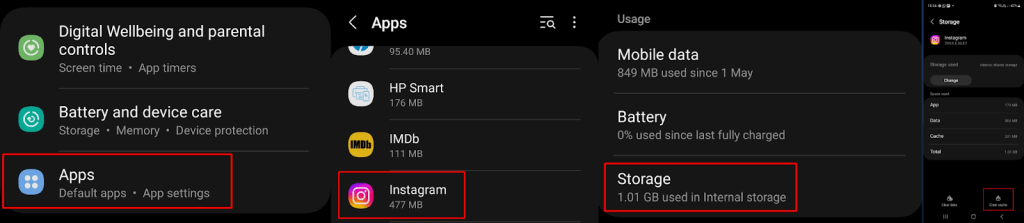
It’s a good idea to restart the app after you’ve cleared the cache.
8. Reinstall Instagram
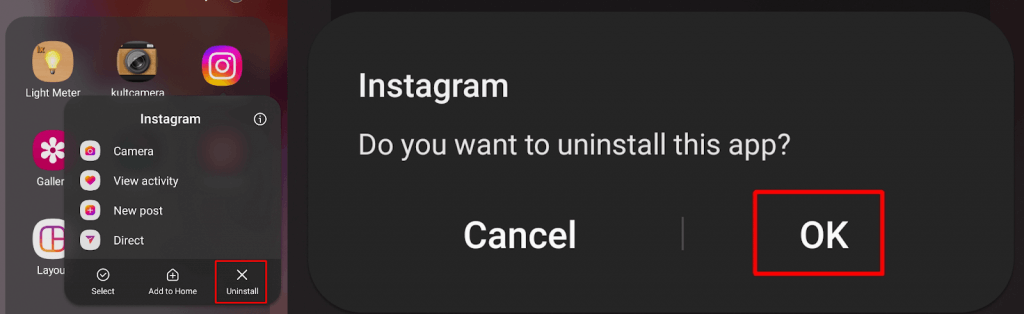
If you still can’t hear any sound on Instagram Reels or Stories, try uninstalling and reinstalling the app. Make sure you remember your login details or have them stored on your phone before you do this, though. Here’s how to do it.
- Long-tap on the Instagram icon on your device and select Uninstall or Remove App.
- You may see a confirmation message, in which case, tap OK or Delete App to confirm you want to delete Instagram.
- Once the app has been deleted, open the Google Play Store or Apple App Store and download Instagram again.
9. Report the Issue to Instagram
If you’re still having a sound issue after trying all of the above fixes, it’s time to reach out for support. It may be that this is an issue affecting other people, or it could even be a new issue that Instagram doesn’t know about yet. The support team is usually pretty responsive to any reported issues. Here’s how to report the sound issue to Instagram:
- Open the Instagram app and select your Profile Picture.
- Tap the Hamburger Menu at the top right, then select Settings and Privacy.
- Scroll down and under More Info and Support, tap Help.

- Tap Report a Problem.
- On the following pop-up screen, tap Report Problem Without Shaking
- On the next screen you’ll be asked if you’d like to include complete logs and diagnostics. Tap Include and Continue or Don’t Include and Continue, depending on your preferences.
- Fill out the box with details of the issue you’re experiencing, when it happens, what device and OS you are using, etc. You can also upload a screenshot of the issue by tapping Upload or Screenshot.
- Tap Send once you’ve finished typing, and your report will be sent to Instagram support.

Experiencing no sound on Instagram Stories and Reels can be a pain, particularly if there’s content you need to watch and listen to right now. Hopefully, one of these fixes will help resolve the issue quickly, so you can get back to enjoying content on Instagram, complete with sound. We’ve also got some fixes to try if you’re experiencing other issues with Instagram not working, or if yourInstagram filters are not working.