
Does your phone refuse to play any sounds when you access an Instagram Story? If so, your phone or Instagram app may be experiencing an issue. Here are the methods you can use on your Apple iPhone or Android device to unmute the popular app.
1. Turn Off Your Phone’s Silent Mode
When you have trouble playing sounds on your smartphone, the first thing to check is if your phone is in silent mode. You or someone else may have enabled this mode, causing your phone not to play any sounds.
In this case, turn off the mode and bring your phone back to Ring mode to fix your issue.
On Android
- Slide the Ring/Silent toggle on your phone to disable Silent mode and enable Ring mode.
- Play your Instagram Story.
On iPhone
- Flip the Ring/Silent switch so you don’t see the orange color behind the switch. This indicates your phone is in Ring mode.
- Open and play your Instagram Story.
2. Turn Up Your Phone’s Volume to Fix a No Sound Issue
If you still don’t get audio in your Instagram Stories, increase your phone’s volume to see if that fixes your problem. Your phone’s current volume might be too low, making the Story sound inaudible.
You can use your phone’s physical Volume Up key to increase the volume. Keep pressing this key until your phone has reached at least 50% volume level. Then, play your Instagram Story and see if you can hear the audio.
3. Turn Off Bluetooth on Your Phone
One reason you can’t hear the audio in Instagram Stories is that you’ve connected a Bluetooth audio accessory to your phone, and your phone is routing all the audio to that device. You can disconnect your accessory from your phone to resolve your issue.
A quick way to verify and fix that is to turn off Bluetooth on your device.
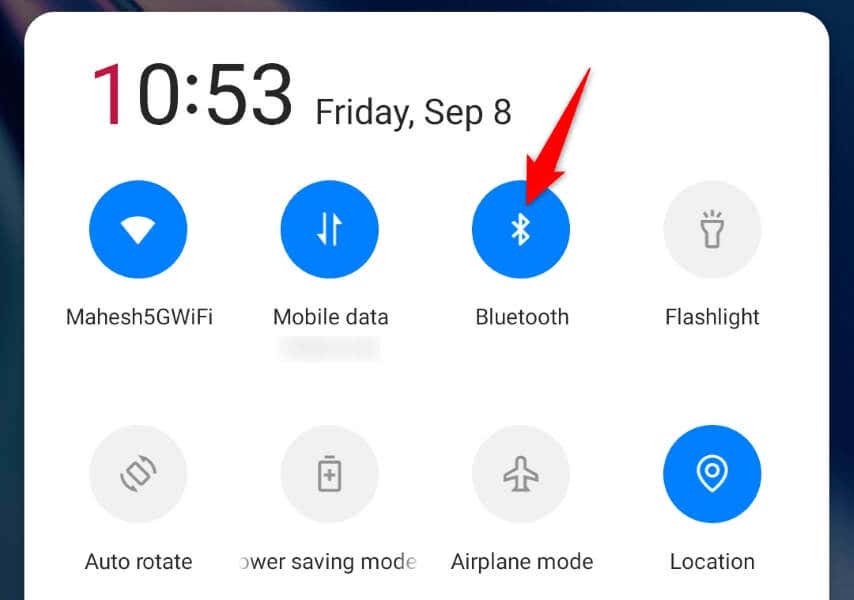
On Android
- Pull down twice from the top of your phone’s screen.
- Select Bluetooth in the menu to turn off the feature.
- Play your Instagram Story.
On iPhone
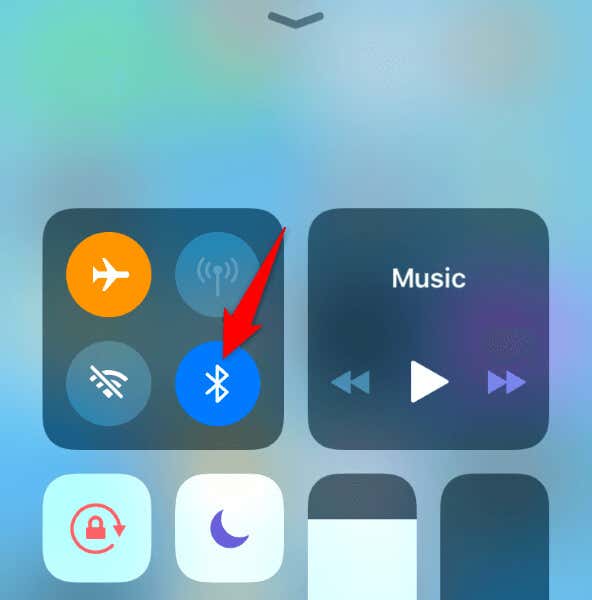
- Swipe down from the top-right corner of your iPhone’s screen.
- Tap the Bluetooth icon to turn off the feature.
- Access your Instagram Story.
4. Clear Instagram’s Cache Files on Your Android Phone
If you still don’t hear the audio for Stories in your Instagram feed, your app’s cache files might be corrupted. Like many other apps, Instagram creates and utilizes cache files to improve your overall app experience. When these files become corrupted, you experience various issues in the app, including the one you’re currently facing.
You can fix that issue by clearing your app’s cache files. You don’t lose your account data when you do this, and Instagram will rebuild these files as you use the app.
Note that you can only perform this procedure on an Android phone. The iPhone doesn’t allow you to clear an app’s cache files.
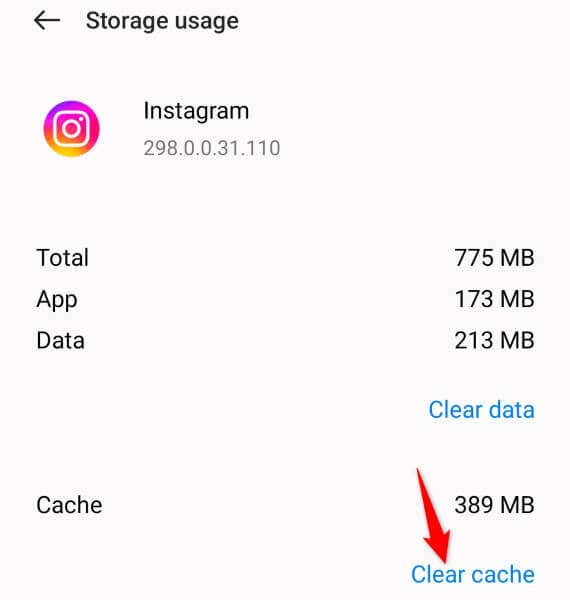
- Open your phone’s app drawer, tap and hold on Instagram, and select App info.
- Choose Storage usage on the following screen.
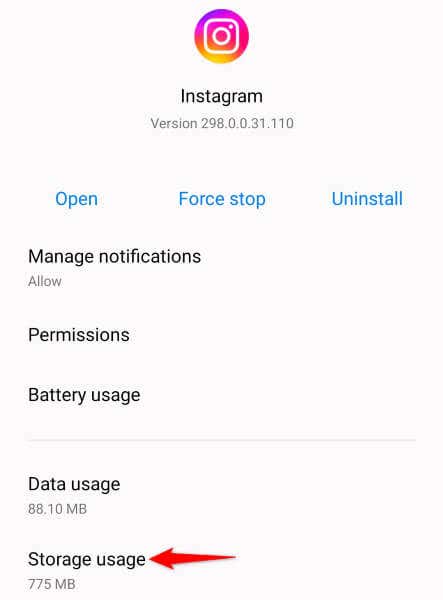
- Select Clear cache to delete your app’s cached files.
- Open the Instagram app and play your Story.
5. Install Pending Instagram Updates on Your iPhone or Android Phone
Instagram’s outdated app version can cause many random issues, and this may be the reason you have trouble playing the audio for your Instagram Stories. You can fix version-related issues like this by updating your app on your phone.
Updating Instagram on your phone fixes many app bugs and possibly adds new features.
On Android
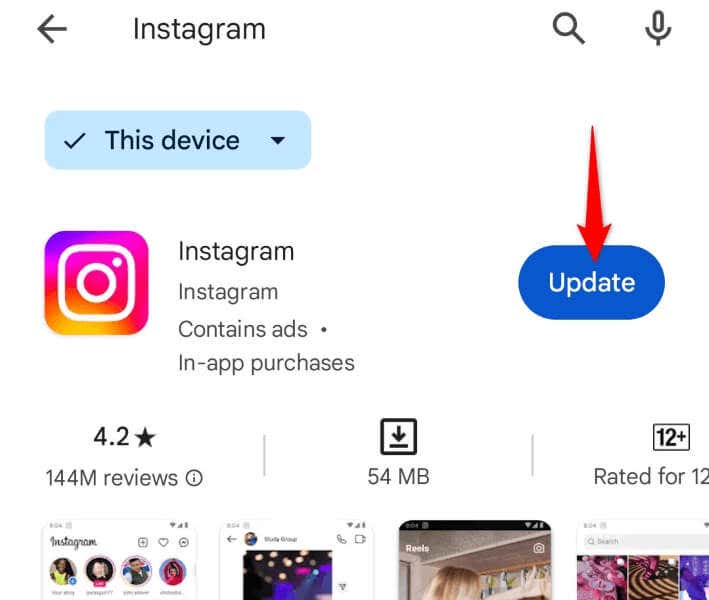
- Launch Play Store on your phone.
- Find Instagram in the store.
- Select Update next to the app to bring the app to the latest version.
On iPhone
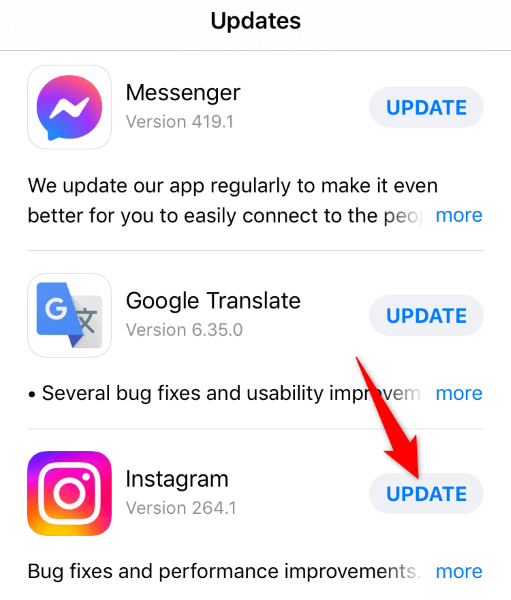
- Open App Store on your iPhone.
- Select Updates in the bottom bar.
- Choose Update next to Instagram on the list.
6. Use a VPN to Unmute Instagram Stories
If you don’t hear the audio only in certain Stories on Instagram, those Stories’ soundtracks might be unavailable in your region. Instagram may not have the rights to play those soundtracks in your current region, causing your Stories to remain muted.
In this case, you can bypass that restriction by using a VPN on your phone. A VPN allows you to change your phone’s online location, letting you bypass many limits on various apps and sites.
There are many VPN apps you can choose from, and nearly all of them work on both iOS and Android devices. After installing such an app, launch the app, turn on the service, and play your Instagram Story.
7. Sign Out and Back Into Your Instagram Account
If your phone still fails to play the audio for your Instagram Story, your login session in the app might have a problem. You can resolve these login-related issues by signing out and back into your account in the app.
You don’t lose your account data when you do this, but you’ll have to enter your account’s username and password to log back in.
- Open Instagram on your phone.
- Select your profile icon in the bottom bar.
- Tap the three horizontal lines in the top-right corner.
- Choose Settings and privacy in the menu.
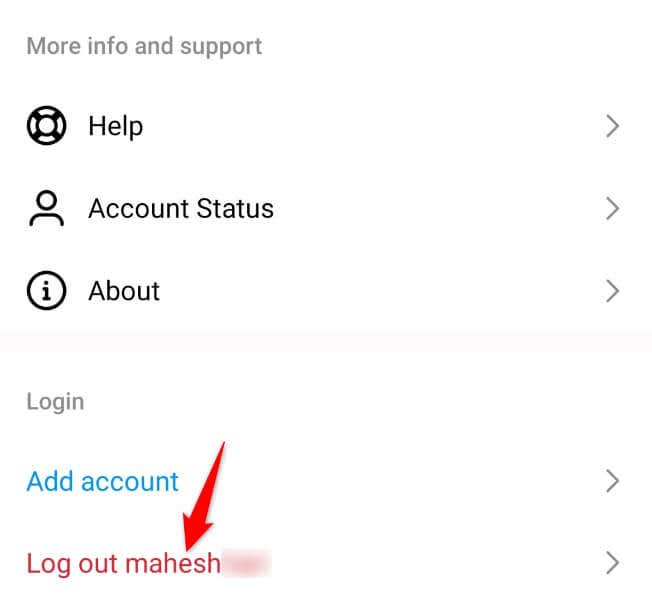
- Scroll to the bottom and choose Log out [Username].
- Log back into your account in the app.
8. Remove and Reinstall Instagram on Your Phone
If your Instagram Stories remain muted even after following the above methods, your app itself may be faulty. It isn’t too uncommon for apps to go corrupt and malfunction, and this may be the case with your Instagram app.
In this case, you can resolve the issue by removing and reinstalling the app on your phone. This deletes all app files from your phone and installs new files, fixing all file-related issues.
You don’t lose any data when you do this. However, you’ll have to log back into your account when you reinstall the app on your phone.
On Android
- Tap and hold on Instagram in your app drawer and select Uninstall.
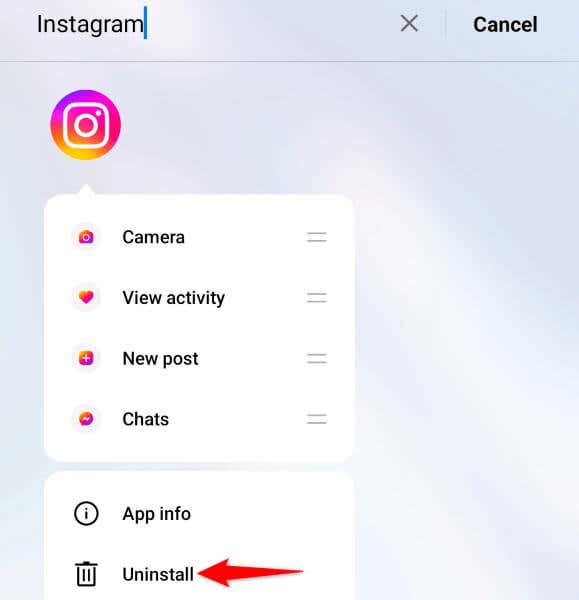
- Choose Uninstall in the prompt.
- Re-download the app by opening Play Store, finding Instagram, and tapping Install.
On iPhone
- Tap and hold on Instagram on your phone’s home screen.
- Select Remove App > Delete App in the menu.
- Reinstall the app by launching App Store, finding Instagram, and selecting the download icon.
9. The Instagram Story Doesn’t Have Any Audio
If reinstalling the app didn’t fix your issue, it’s possible your Instagram Story itself is muted. The creator may not have added any music tracks to the Story, keeping the Story soundless.
In this case, you can’t do anything as the original Story is without audio.
Many Ways to Resolve an Instagram Story Sound Issue on Your Phone
If your phone doesn’t play any music when you access an Instagram Story, there’s a good chance something is wrong on your phone. You can tweak a few options here and there on your phone as well as in the Instagram app to possibly resolve your issue.
Once you’ve done that, you can find that all your Instagram Stories play the audio. Happy using this social media platform!