

Are you having trouble sending messages with the Instagram app on your iPhone or Android phone? Chances are an app glitch is causing your messages not to be delivered. We’ll show you how to fix that as well as other causes of the issue.
Other reasons you can’t send messages from your Instagram account include an inactive internet connection, Instagram being down, your Instagram app cache being corrupt, your app version being outdated, and more.
1. Make Sure Your Internet Is Working
One of the reasons you can’t send messages with Instagram is that your internet connection isn’t working. With an inactive connection, the app can’t connect to the servers, failing to deliver your messages.
You can check your phone’s connection status by opening your preferred web browser and launching a site. If the site fails to load, your connection has an issue. You’ll have to fix that problem before you can begin messaging with Instagram.
You can try to resolve your phone internet problem or seek your internet service provider’s help.
2. Check if Instagram Is Down
Another reason you can’t send messages with Instagram is that the platform is down. Like many other online services, Instagram’s servers can face an outage, causing all its functionalities to stop working.
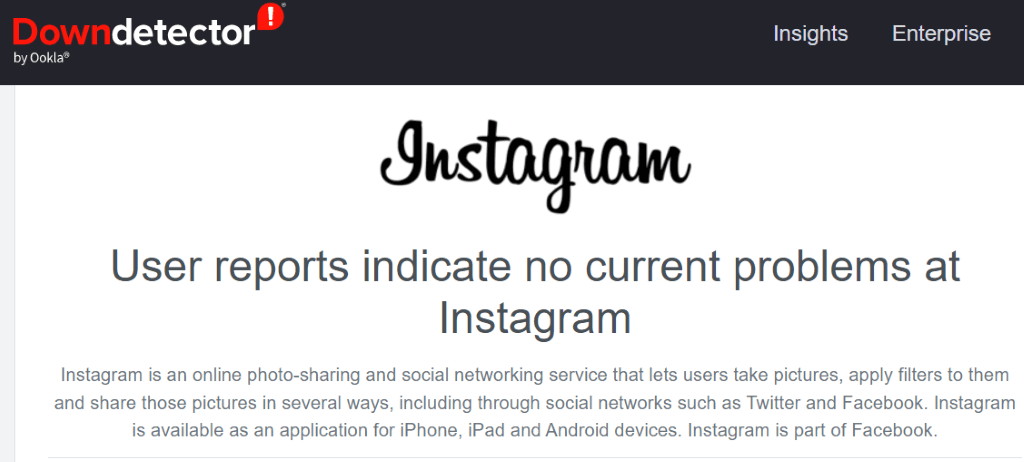
You can check if Instagram is indeed down by using a site like Downdetector. You’ll get to know if this social media platform is experiencing any issues on this site. If Instagram is indeed down, you’ll have to wait until the company brings the servers back up.
In the meantime, you can use other instant messaging apps to communicate with your contacts.
3. Fix Instagram’s Message Problems by Clearing the Cache
Instagram stores cache files on your phone to smoothen your app usage experience. These files sometimes become corrupt, making the app unstable. This may be the reason you can’t send messages with the app.
Fortunately, resolving issues with an app’s cache files is easy as all you have to do is clear the faulty cache files. Doing this doesn’t delete your data in the app or make you lose any other items.
Note that you can only clear an app’s cache files on Android devices. The iPhone doesn’t allow you to delete an app’s cache data; you’ll have to uninstall and reinstall the app to do that.
- Open Settings on your Android phone.
- Select Apps > App management in Settings.
- Choose Instagram on the list.
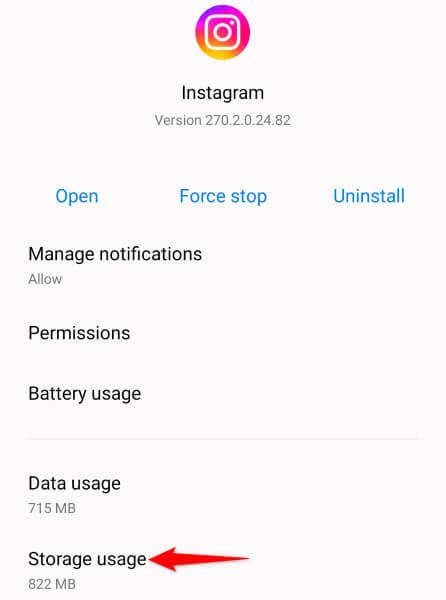
- Select Storage usage.
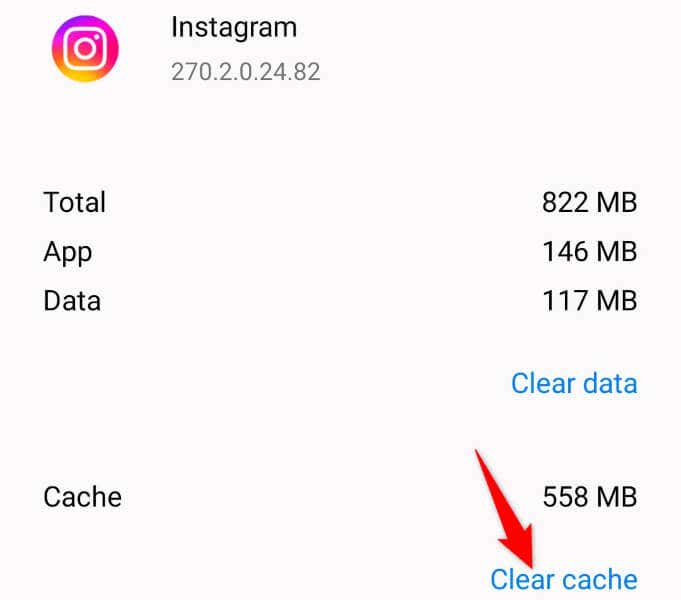
- Tap Clear cache to delete the Instagram cache.
- Launch the Instagram app from your app drawer or home screen
4. Update Instagram on Your iPhone or Android Phone
Sometimes, an app’s bugs prevent you from using certain features. You not being able to send messages with Instagram may be the result of an issue in the application.
In this case, you can get the latest bug fixes and possibly new features by updating your app to the latest version. This ensures you have as much of a bug-free experience as possible, and that you can enjoy the latest and the greatest app features on your phone.
On Android
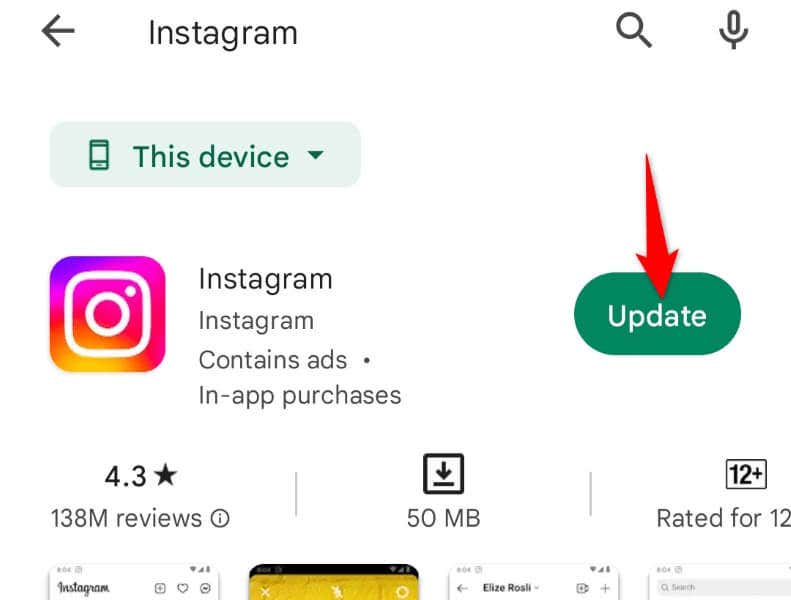
- Open Google Play Store on your phone.
- Find Instagram.
- Tap Update next to the app in the search results.
On iPhone
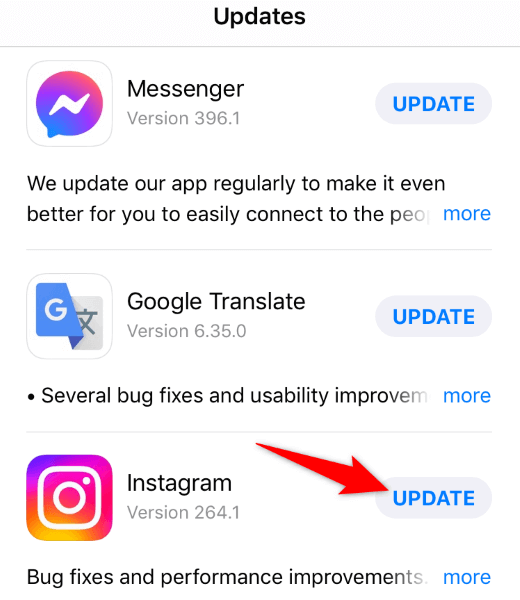
- Launch App Store on your iPhone.
- Select Updates at the bottom.
- Choose Update next to Instagram on the list.
5. Log Out and Back Into Your Account in the Instagram App
If you still can’t send messages with Instagram, your login session in the app may have issues. In this case, sign out and back into your account in the app to resolve your issue.
You’ll need your Instagram login details to log back into the account, so keep those details handy.
- Launch Instagram on your phone.
- Select your profile icon in the bottom-right corner.
- Choose the three horizontal lines in the top-right corner and select Settings.
- Scroll down Settings and tap Log out.
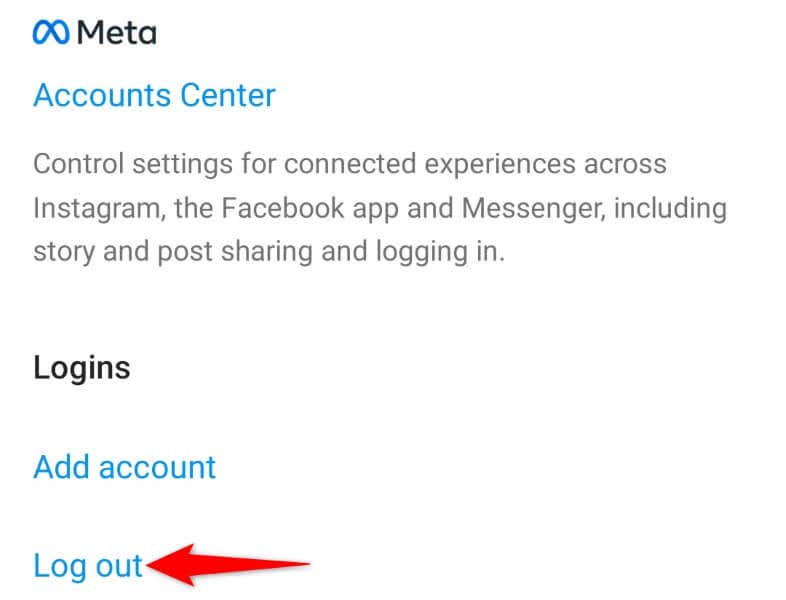
- Select Not now in the prompt.
- Close and reopen Instagram, then log in to your account.
6. Uninstall and Reinstall Instagram on Your Phone
If signing out and back in didn’t fix your issue, remove and reinstall the Instagram app on your phone. This will delete the app’s existing files from your device, some of which may be corrupt, resolving your app problems.
Again, you’ll need your Instagram username and password to log back into your account after reinstalling the app, so keep those details handy.
On Android
- Launch your phone’s app drawer, tap and hold on Instagram, and select Uninstall.
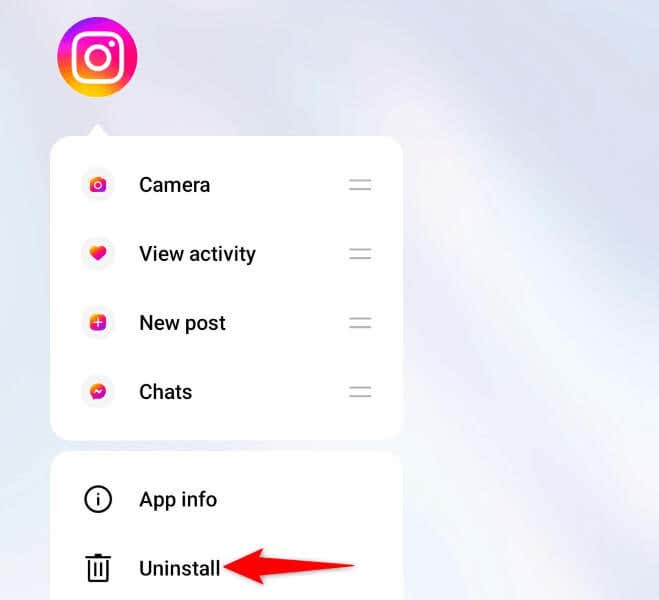
- Choose Uninstall in the prompt to remove the app from your phone.
- Open Play Store, find Instagram, and select Install.
On iPhone
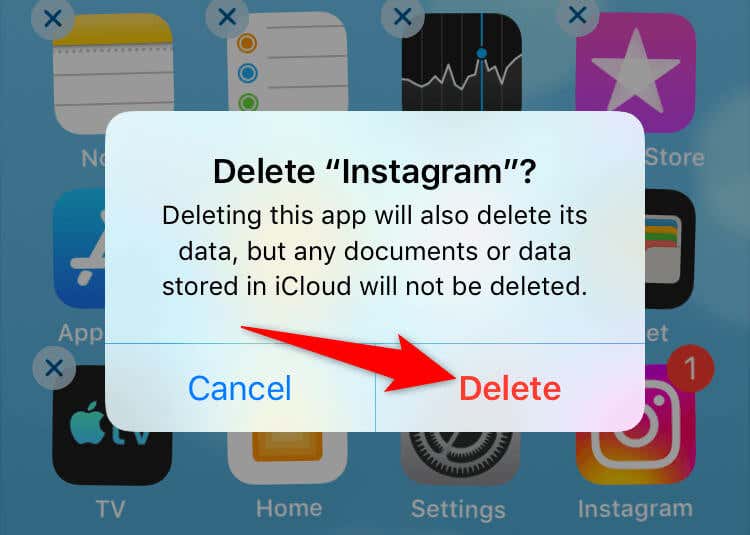
- Tap and hold on Instagram on your home screen.
- Choose X in the app’s top-left corner.
- Select Delete in the prompt.
- Reinstall the app by launching App Store, finding Instagram, and tapping the download icon.
7. Send Instagram Messages From the Web Version
If you must send someone a message and the Instagram app doesn’t work, use Instagram’s web version on your computer to send and receive messages. This version works pretty much the same as your mobile app.
- Open your preferred desktop web browser and launch Instagram.com. Then, sign in to your account.
- Select Messages from the sidebar on the left.
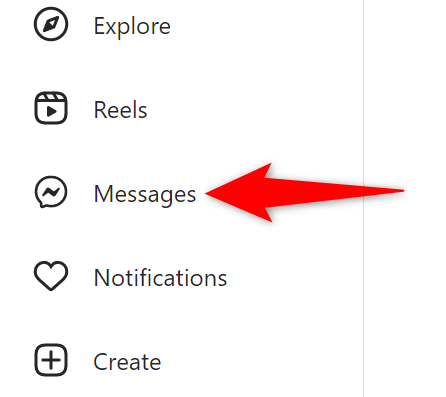
- Choose the Instagram DMs you’d like to continue, type your message, and press Enter.
Resolve Instagram’s Failed Message Delivery on Your Phone
The Instagram Direct Messages issues can prevent you from communicating with your friends and family on the platform. If you can’t resolve the problem by closing and reopening the app, use the methods above, and your message issue should be resolved.
Then, you can access all your received messages as well as send new messages from within the Instagram app on your iPhone or Android phone.