
It can be pretty frustrating if you’re trying to watch a video on Instagram or respond to a post and Instagram keeps logging you out. Instagram not working could be caused by any number of things, from an outdated app version to an issue with browser extensions. If you’re wondering, “Why does Instagram keep logging me out?” we’re here to help. We’ve got 12 fixes to try if you just can’t seem to stay logged into the popular social media platform.
1. Restart Your Mobile Device or Computer
Restarting your mobile device or computer can resolve many common issues with Instagram, including problems where it keeps logging you out.
2. Check Your Internet Connection
Your internet connectivity could be the reason why Instagram keeps logging you out. Check your router and restart it if necessary. Make sure you’re in an area with a good internet connection. If you’re using public or shared Wi-Fi, check the signal strength.
3. Check if Instagram Is Down
The reason Instagram keeps logging you out could be as simple as a server outage. You can check DownDetector to see if Instagram is currently down and report the problem you’re having with the site or app if there are no known outages.

4. Update Instagram App
Ensuring you’re running the latest version of the Instagram app means you’ll have all the latest bug fixes. Your app should update automatically, but you can always check in the Google Play Store, Apple App Store, or Microsoft Store if you’re running the latest version of Instagram.
5. Check Your Device’s Time and Date Settings
If your device isn’t showing the correct time and date, Instagram could respond by repeatedly logging you out of your account due to a security conflict from certificates on your device and Instagram’s servers.
Though your devices should update their time and date automatically, you can check these settings are enabled and update the time and date manually, if needed. Here’s how to do that on Windows devices and Android devices.
Update the time and date on a Windows PC
- Right-click on the clock at the bottom right of your screen and select Adjust Time and Date.
- Ensure that Set Time Zone Automatically and Set Time Automatically are toggled on.
- Also, you can toggle on Set Time Automatically but then choose your time zone from the drop-down list. If you choose this option, don’t forget to toggle on Adjust for Daylight Saving Time Automatically.
- Your computer should now update the time and date automatically.
- You can also manually adjust the date and time if the automatic changes are incorrect.

Update the time and date on an Android Device
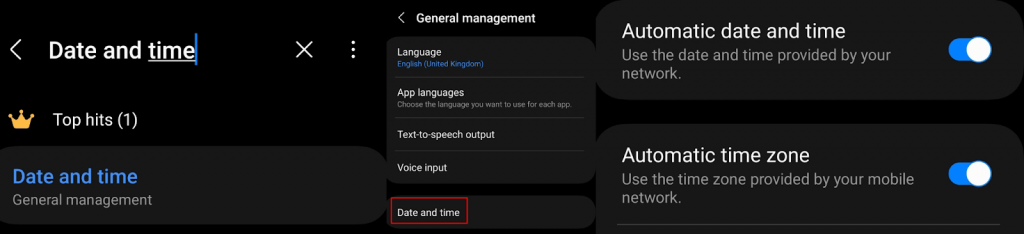
- Go to Settings.
- Search for Date and Time.
- Tap Date and Time.
- Ensure Automatic Date and Time and Automatic Time Zone are toggled on.
6. Clear Instagram Cache
A corrupted cache could be at fault if Instagram keeps logging you out. Luckily, it’s easy to clear your Instagram cache on your PC or mobile device, and here’s how to do it on the Instagram app and in your browser.
Clear the Cache in the Instagram app
- On your mobile device, go to Settings > Apps.
- Select Instagram from the list of apps.
- Select Storage, then tap Clear Cache and Clear Data.

Clear the Instagram Cache in Google Chrome
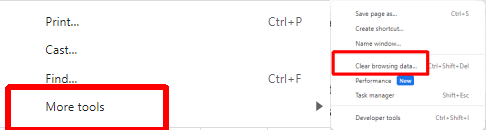
- Launch Google Chrome and click the three vertical dots menu at the top right of your screen.
- Select More Tools.
- Click Clear Browsing Data.
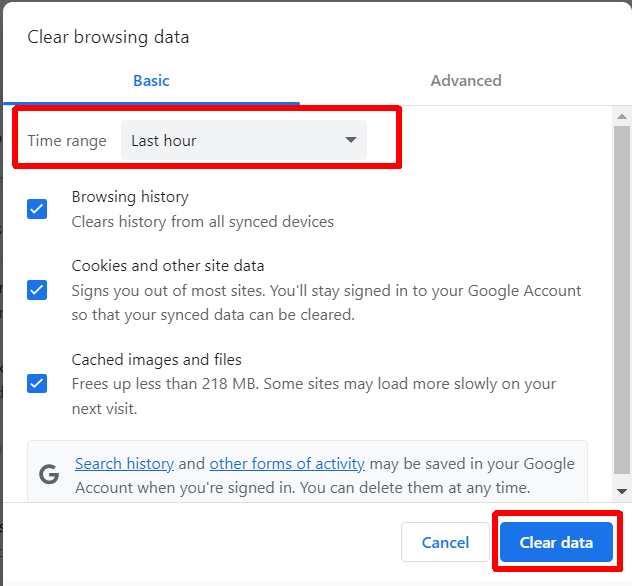
- Choose the data you want to delete, such as cached images and files, cookies and other site data, and browsing history.
- Click Clear Data to clear your cache.
- Close, then relaunch Google Chrome to see if the issue is resolved.
7. Disable Browser Extensions
If Instagram logs you out while using the platform in your browser, it may be an issue with your browser extensions. A specific browser extension may be causing conflict with Instagram. Try turning off browser extensions to see if this fixes the problem.
- Launch Google Chrome.
- Click the three vertical dots menu at the top right of your screen.
- Select Extensions > Manage Extensions.
- Choose the extension you wish to disable or remove.
- To disable an extension, simply toggle it off.
- To remove it completely, click Remove.
- If you’re unsure which extension may be causing the issue, start with any recently installed. You can always try toggling each extension off individually to figure out which one (if any) is causing the problem.

8. Disable Your VPN
A VPN is a great way to browse privately and can also be beneficial for accessing content locked to another location. However, your VPN could be preventing access to Instagram or specific content on Instagram, causing the platform to log you out repeatedly. Try disabling your VPN to see if this fixes the problem.
9. Disable or Remove Third-Party Apps
If you’re using a third-party app to access Instagram from your mobile device — such as an app that lets you sign in with multiple accounts — this may be the reason Instagram keeps logging you out. Sometimes, these apps create bugs that can affect your Instagram experience. If you suspect this is the case, disable or remove them from your device to see if this resolves things.
10. Reinstall Instagram
Is Instagram still logging you out or crashing? Perhaps the app is corrupted. Try uninstalling then reinstalling the app on your device, and hopefully the issue will be fixed.
11. Check Your Account Hasn’t Been Hacked
Instagram may keep logging you out if your account has suspicious activity. Keep an eye on any unusual logins or activity indicating your account has been hacked. If you suspect you’ve been hacked, change your Instagram password immediately and consider turning on two factor authentication to protect your account.
12. Contact Instagram Support
If none of the above fixes have worked for you, it’s time to contact Instagram support. The support team should be able to help you figure out what’s causing your issue and come up with a fix that should hopefully mean you don’t have to worry about Instagram logging you out every five minutes. Here’s how to contact support through the Instagram app:
- Tap your profile picture, then tap the three horizontal lines hamburger menu at the top right of the app.
- Tap Settings and Privacy.
- Scroll down, then tap Help > Report a Problem.
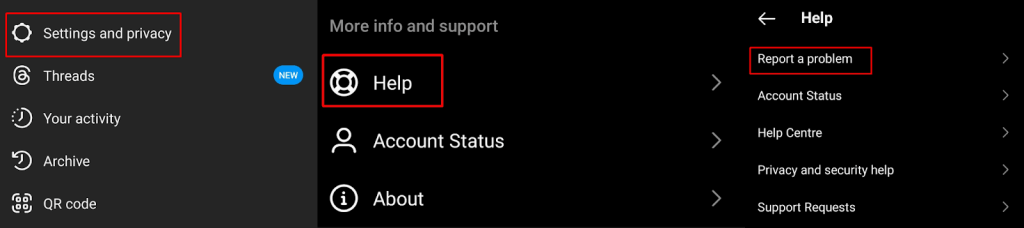
- Tap Report Problem Without Shaking.
- Choose whether to include logs and diagnostics by selecting Include and Continue or Don’t Include and Continue.
- Type details of the problem into the text box. You can also attach screenshots.
- Once done, hit Send.

Hopefully, one of these fixes has worked for you, so you’re not still wondering, “Why does Instagram keep logging me out?” Most of these fixes only take a few seconds to a few minutes to implement, and often, the issue with Instagram logging you out can be resolved quickly. Before you go, here’s how to fix Instagram lagging on Android and iPhone.