
Can’t send or receive messages on Instagram? Have your Instagram DMs stopped working? Many items can cause this problem. Your internet connection may be faulty, or your Instagram app for iPhone or Android may have issues. We’ll show you a few ways to resolve this issue so you can resume sending and receiving messages on this platform. Let’s dive in.
Some reasons you can’t send or receive messages on Instagram are that Instagram is down, your app’s cache is faulty, your phone’s operating system has a minor problem, your login session in the app isn’t working correctly, and more.
1. Check Your Apple iPhone or Android Phone’s Internet Connection
Instagram relies on your phone’s internet connection to send and receive messages. It’s possible your phone’s internet has stopped working, causing your DMs not to function.
In this case, check and ensure your internet connection is active. You can do this by launching an internet-enabled app on your phone and accessing some web content. If your content doesn’t load, your connection is faulty.
You can follow a few basic troubleshooting tips, like rejoining your Wi-Fi network and rebooting your router, to potentially fix your internet problems. If these methods don’t work, contact your internet service provider (ISP) for further help.
2. Check if Instagram Is Down
If your phone’s internet connection is active, check if Instagram’s servers are facing an outage. The platform’s servers may be experiencing issues, causing your DM issue.
You can check if Instagram is down by visiting the Downdetector site. This site collects downtime reports from users and lets you know if an online service is down.
If that site says Instagram is down, you can’t do anything but wait until the company restores the service. In the meantime, you can use other instant messaging apps to stay in touch with your friends and family.
3. Force Close and Reopen the Instagram App
One reason your DMs aren’t working is that your Instagram app has glitches. These minor app problems can prevent you from accessing various app features.
In this case, you can try to resolve those minor issues by force closing and reopening your Instagram app. Note that you can only force close an app on Android devices.
- Launch your phone’s app drawer, tap and hold on Instagram, and select App info.
- Choose Force stop on the open screen.
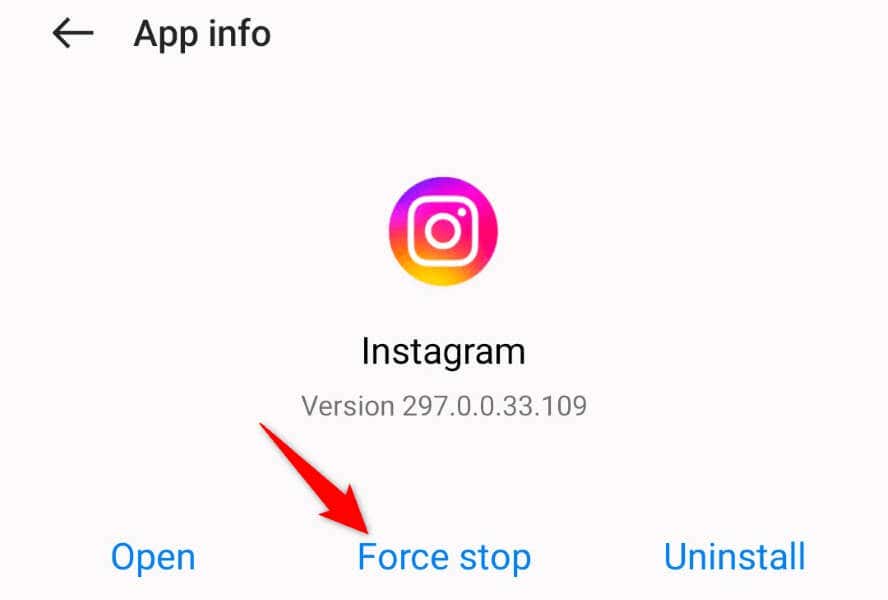
- Select Force stop in the prompt.
- Launch your Instagram app.
4. Clear Instagram Cache on Your Android Phone
If your Instagram DMs still aren’t working, your app’s saved cache might be corrupted. A corrupt app cache prevents the app from functioning normally, causing many issues. Luckily, fixing a bad cache is easy, as you can clear the faulty cache and relaunch your app.
Clearing your app’s cache doesn’t delete your account data in the app. Your app will rebuild this cache as you use the app features. Note that you can only clear an app’s cache on Android. You’ll have to uninstall and reinstall the app on an iPhone to remove the app’s cached data.
- Open your phone’s app drawer, tap and hold on Instagram, and select App info.
- Choose Storage usage on the following screen.
- Select Clear cache to remove the app’s cached files.
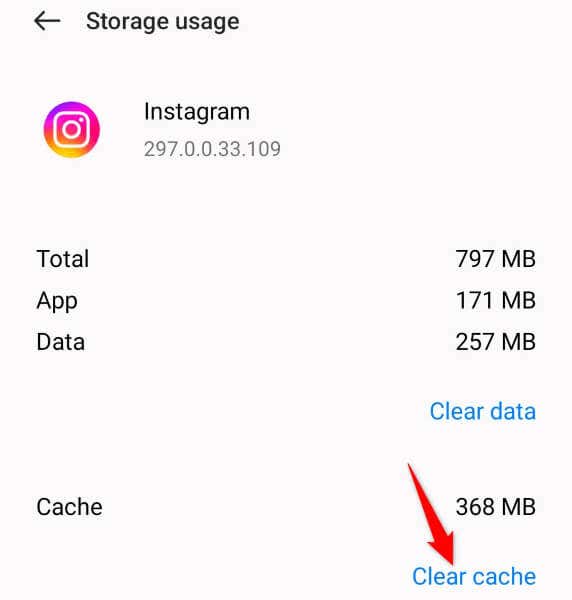
- Launch your Instagram app.
5. Update Instagram for iOS or Android
If you’re using an outdated version of Instagram on your phone, that may be why you can’t send and receive messages. Old app versions are often buggy, and one way to resolve those bugs is to update your app.
Updating Instagram resolves your app bugs and possibly brings new features.
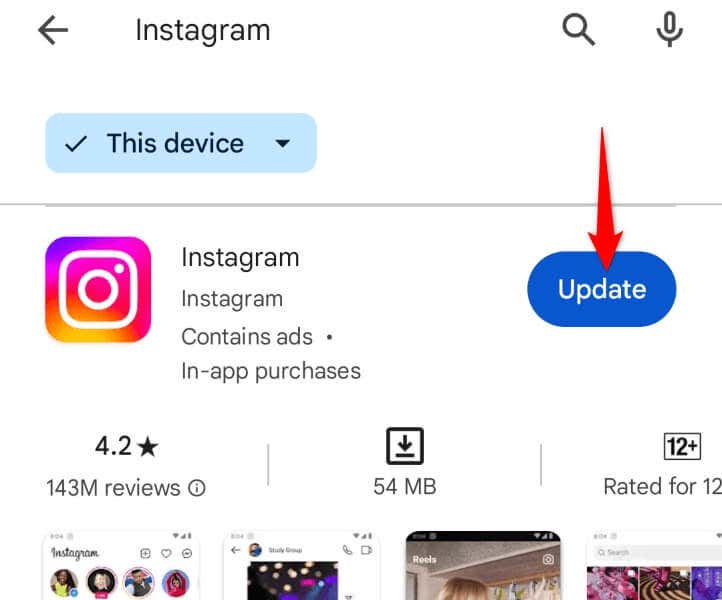
On Android
- Open Play Store on your phone.
- Find Instagram.
- Select Update next to the app to update the app to the latest version.
On iPhone
- Launch App Store on your iOS device.
- Select Updates in the bottom bar.
- Choose Update next to Instagram on the list.
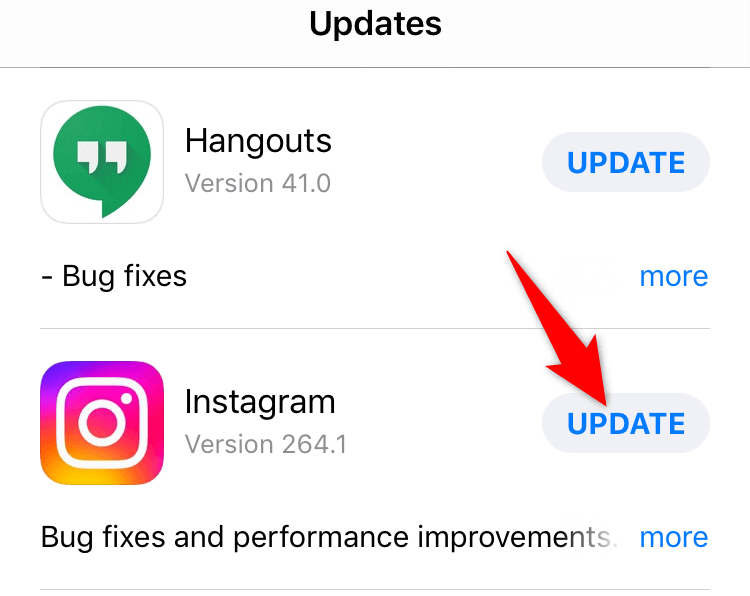
Launch your updated Instagram app, and your DM issue should be resolved.
6. Fix Instagram DMs Not Working by Restarting Your iPhone or Android Phone
If your Instagram DM problem still isn’t fixed, your iPhone or Android phone may be experiencing an issue. Your phone’s system issues can affect your installed apps, which may be the case with you.
You can try to fix your phone’s minor issues by rebooting your phone. Doing so turns off and back on all your phone features, possibly fixing many minor glitches.
Ensure you’ve saved your unsaved work before powering off your phone.
On Android
- Press and hold down the Power button on your phone.
- Select Restart in the menu.
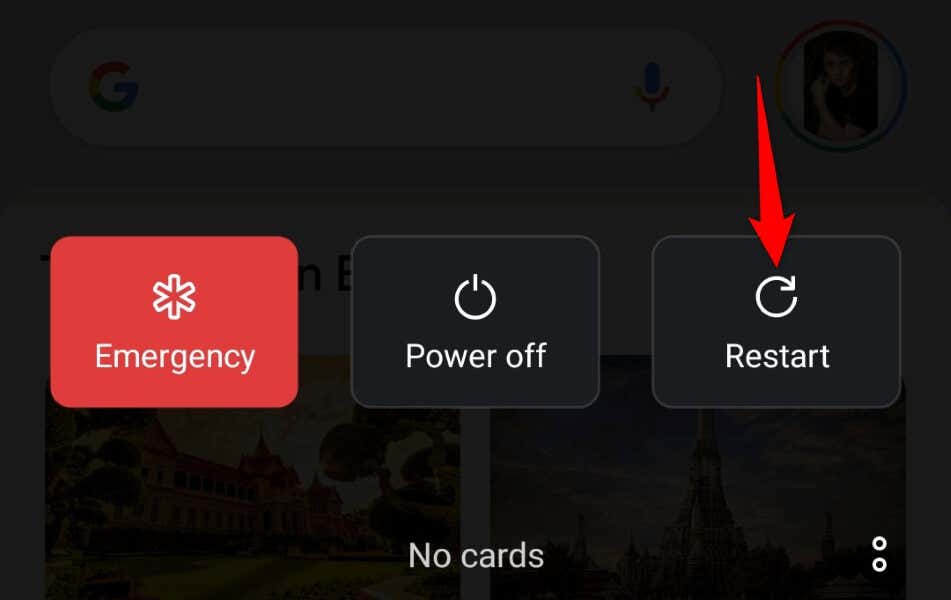
- Open Instagram when your phone boots up.
On iPhone
- Press and hold down Volume Up + Side or Volume Down + Side on your phone.
- Drag the slider to the right to turn off your phone.
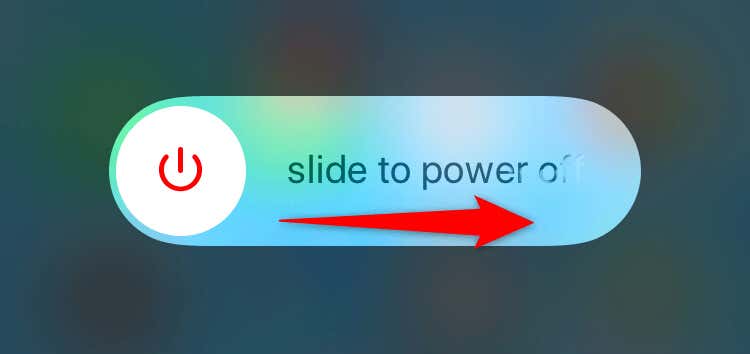
- Turn on your phone by pressing and holding down the Side button.
- Launch the Instagram app.
7. Sign Out and Back Into Your Instagram Account
If you continue to face issues sending or receiving messages with Instagram’s DM feature, your login session in the app may be problematic. Such issues can prevent your app from fetching new messages from Instagram’s servers.
One way to fix this issue is to log out and back into your account in the app. Doing so refreshes your login session, fixing the current login problems.
- Launch Instagram on your phone.
- Select your profile picture in the bottom bar.
- Tap the three horizontal lines in the top-right corner and choose Settings and privacy.
- Scroll down the page and choose Log out [Your Username].
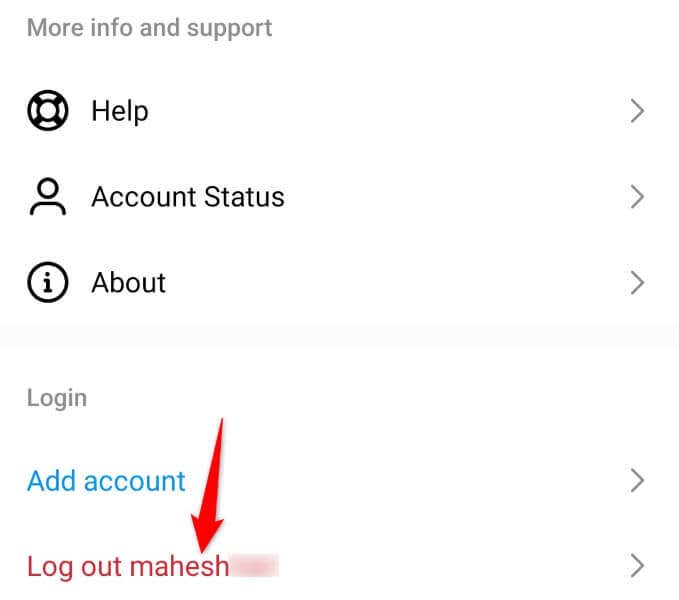
- Close and relaunch Instagram, then log back into your account.
8. Fix Instagram Direct Messages Issues by Reinstalling the App
If your Instagram DMs haven’t started working even after following the above methods, your app itself may be faulty. Such app issues are common, and you can resolve these problems by removing and reinstalling your app.
Uninstalling the app removes all the app’s bad files, and redownloading the app brings working new app files. You don’t lose your account data when you do this; however, you’ll have to log back into your account.
On Android
- Tap and hold on Instagram in your app drawer and choose Uninstall.
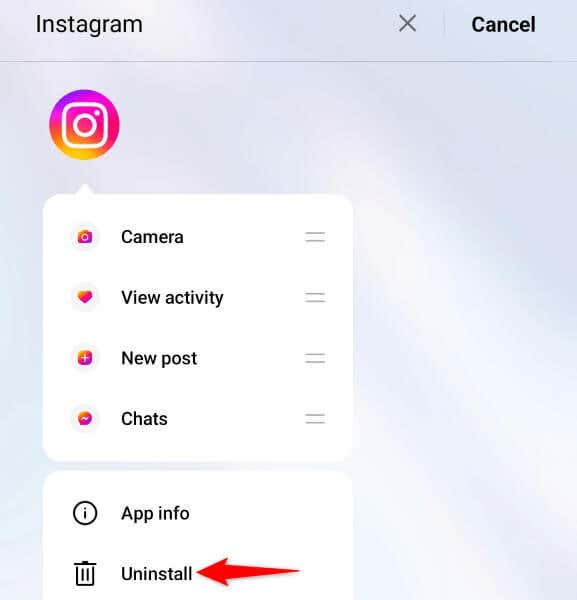
- Select Uninstall in the prompt.
- Launch Google Play Store, find Instagram, and tap Install.
On iPhone
- Tap and hold on Instagram on your home screen and choose Remove App > Delete App.
- Open App Store, find Instagram, and tap the download icon.
Restore Instagram’s DM Functionality on Your iPhone or Android Phone
Instagram’s Direct Messages feature stops working for various reasons. Your app may be faulty, or there may be an issue with your phone. Either way, you can follow the above-mentioned methods to resolve your problem and resume your chat sessions.
We hope the guide helps you out.