

Telegram is considered one of the best free messaging apps for several reasons. You can use Telegram to exchange large files with your friends, have secret chats, edit or delete messages after you send them, and all without worrying about the security of your private data.
However, not many people know about one of the most useful features of Telegram. You can use this app to send high-quality photos and videos online. We’ll teach you all about this feature, and how to use it on both mobile and desktop versions of the app.
Why Use Telegram to Send High-Quality Photos & Videos?
Messengers are great for exchanging photos and videos. It can quickly become frustrating if the files you send or receive are blurry. That happens because social media and messaging platforms use different image compression techniques. While this simplifies the process of exchanging media files and allows you to send and receive photos quickly, it also means that the quality differs from the original when it reaches the recipient.
Sending uncompressed files can help you avoid disappointment and make sure both the sender and the recipient get the same quality photos and videos. Plus, on Telegram, you don’t have to worry about the files being too big, as the app allows you to exchange large files. Thanks to Telegram’s superior security protocols, you also don’t have to worry about keeping your media files private.
What’s the Max File Size that You Can Share on Telegram?
On Telegram, you can send individual files of up to 2GB in size. That exceeds the limits of any other messaging platform. For example, the maximum file size that WhatsApp allows is 16MB for all media, and 100MB for the files you share as documents.

As long as your photo or video doesn’t exceed 2GB, you can send it via Telegram at its full quality. You can also use Telegram as unlimited cloud storage for your files. Even if you accidentally delete a file from your phone but still have it on Telegram, you can download it again at any time.
How to Send Uncompressed Photos & Videos in Telegram Mobile
There are two ways to send uncompressed media files in the Telegram mobile app. To send high-quality photos & videos from your smartphone, follow the steps below. The steps are the same for both iOS and Android.
- Open Telegram on your smartphone and navigate to the chat where you want to send your pictures & videos.
- In the chat, select the Attachment icon on the right side of the message box.
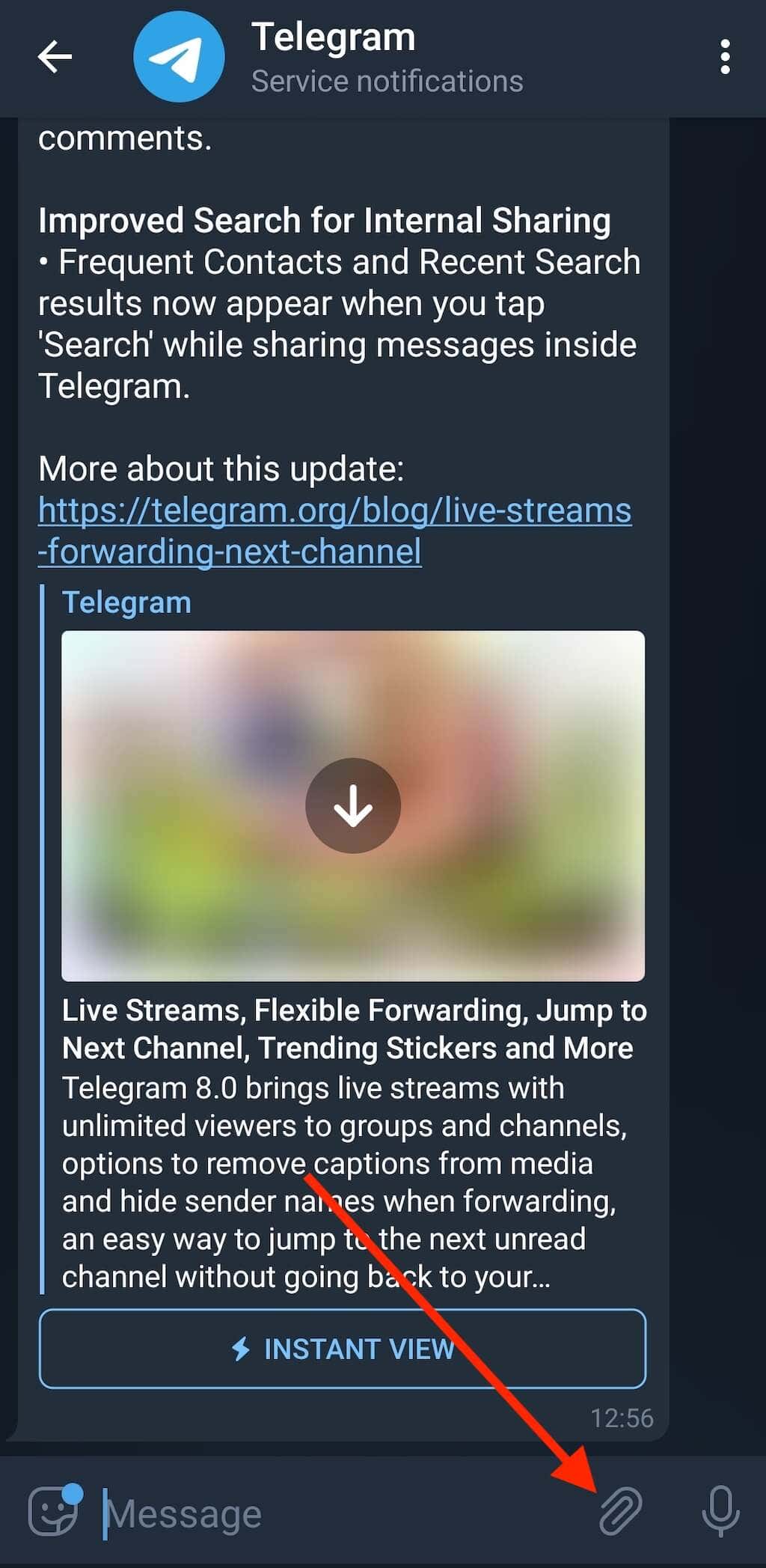
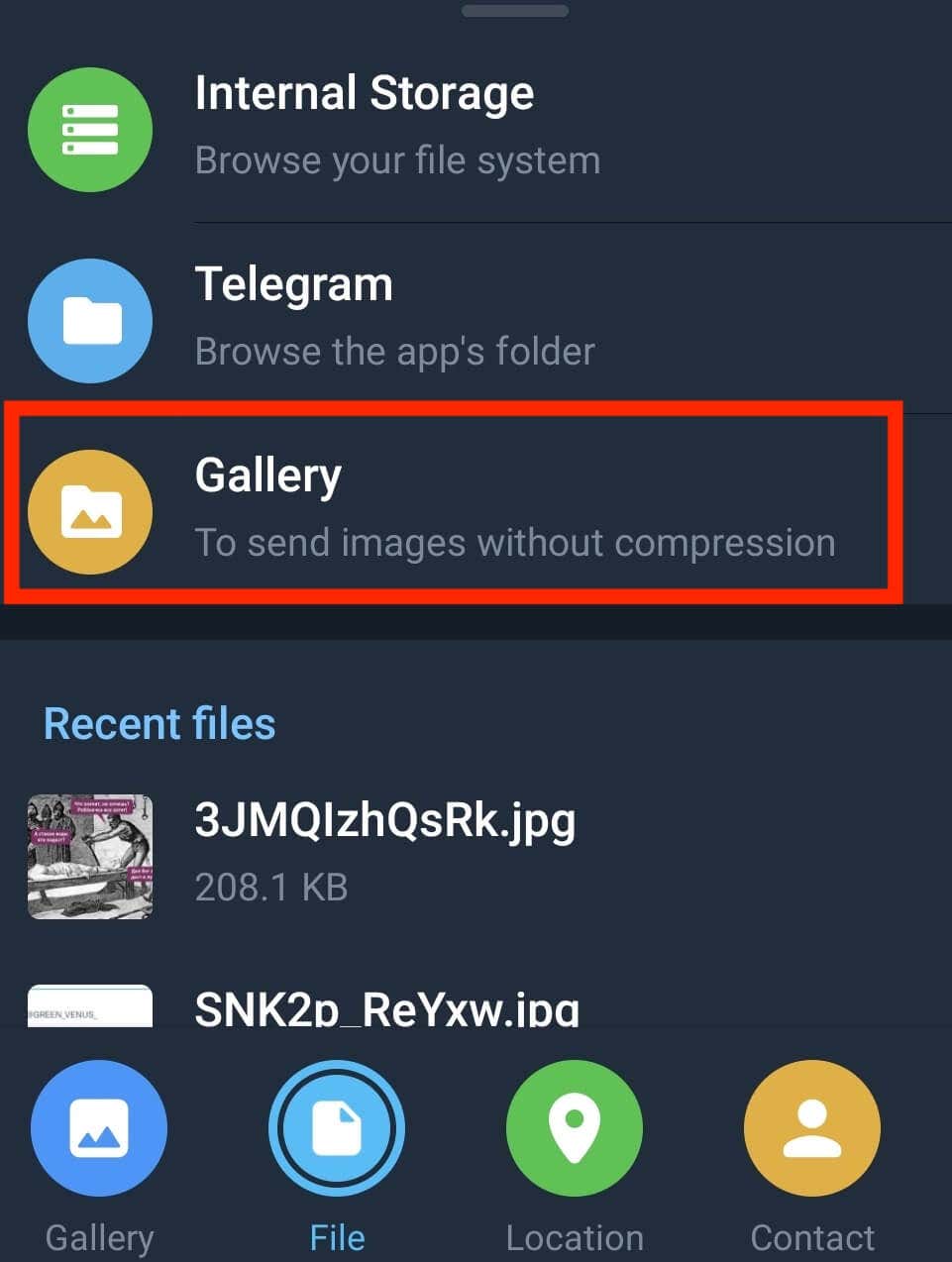
- Select File from the options at the bottom of your screen.

- Telegram will then give you three more options to locate your files: Internal Storage, Telegram, and Gallery. Select Gallery.
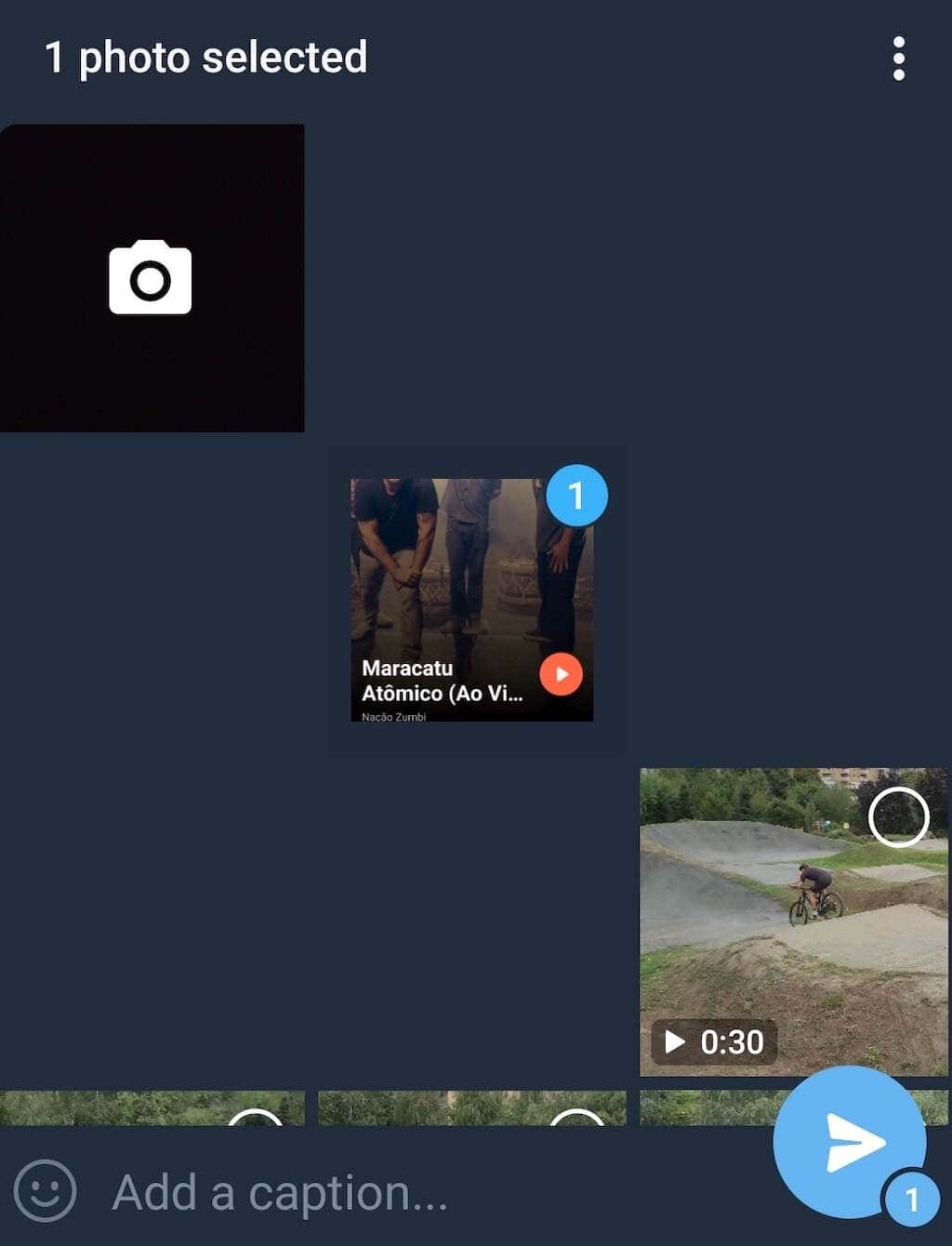
- On the next screen, select the photos and videos you’d like to send, and select Send.

The photos and videos you send using this method will be delivered in their original quality. You can also use the following method to send uncompressed files on Telegram.
- Open Telegram on your phone and find the chat where you want to send your pictures & videos.
- When you open the chat, select the Attachment icon in the message box.
- Select the media files that you want to send from your Gallery.
- Select the three vertical dots on top of the box and select Send without compression.
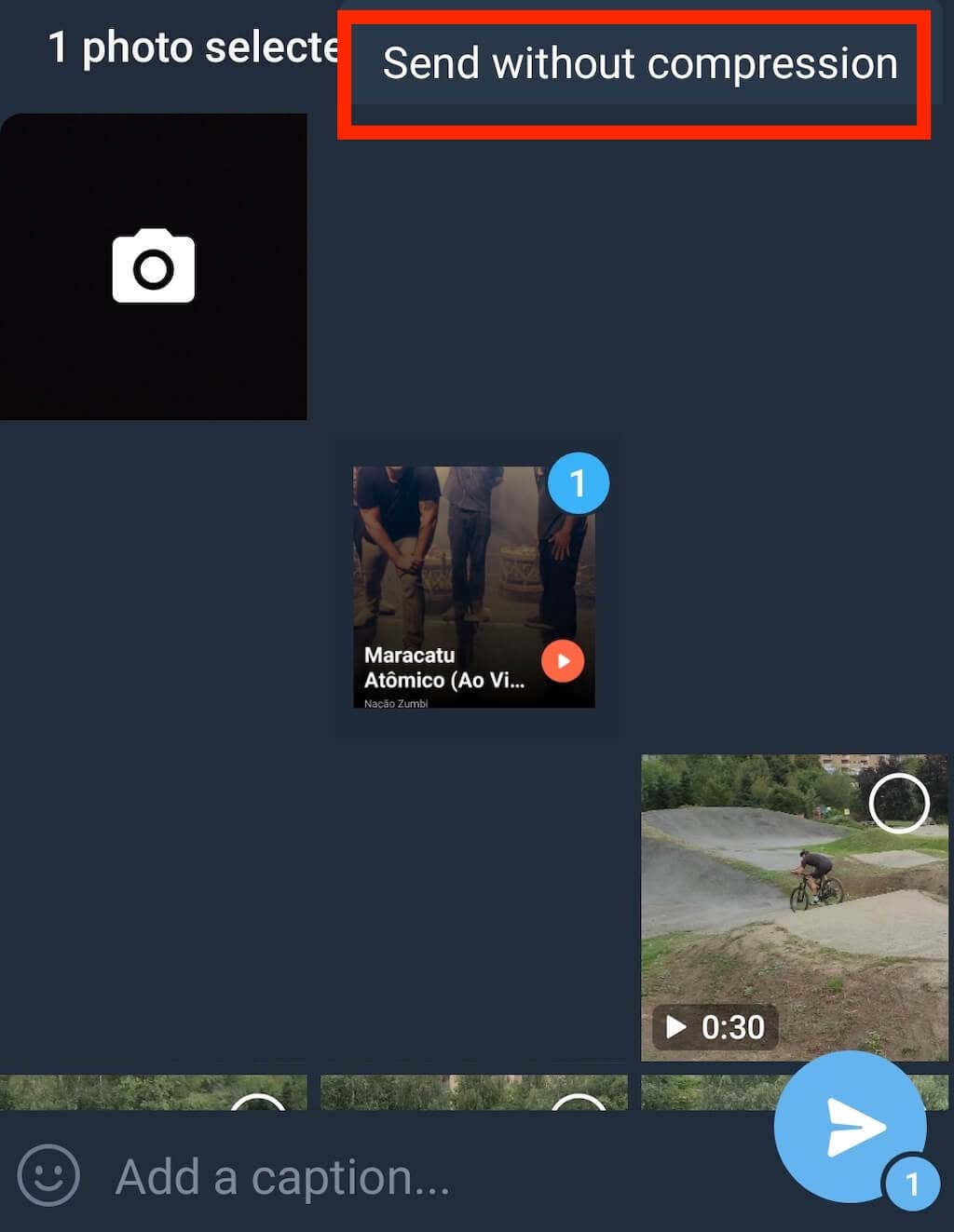
Your files will then be sent without being compressed first.
How to Send Uncompressed Photos and Videos in Telegram Desktop
What if you have your high-quality photos and videos saved on your computer? You can also send them in Telegram without having to sacrifice the quality using the desktop app. To send uncompressed photos and videos in Telegram from your computer, follow the steps below.
- Open the Telegram desktop or web app.
- Open the chat where you want to send your files.
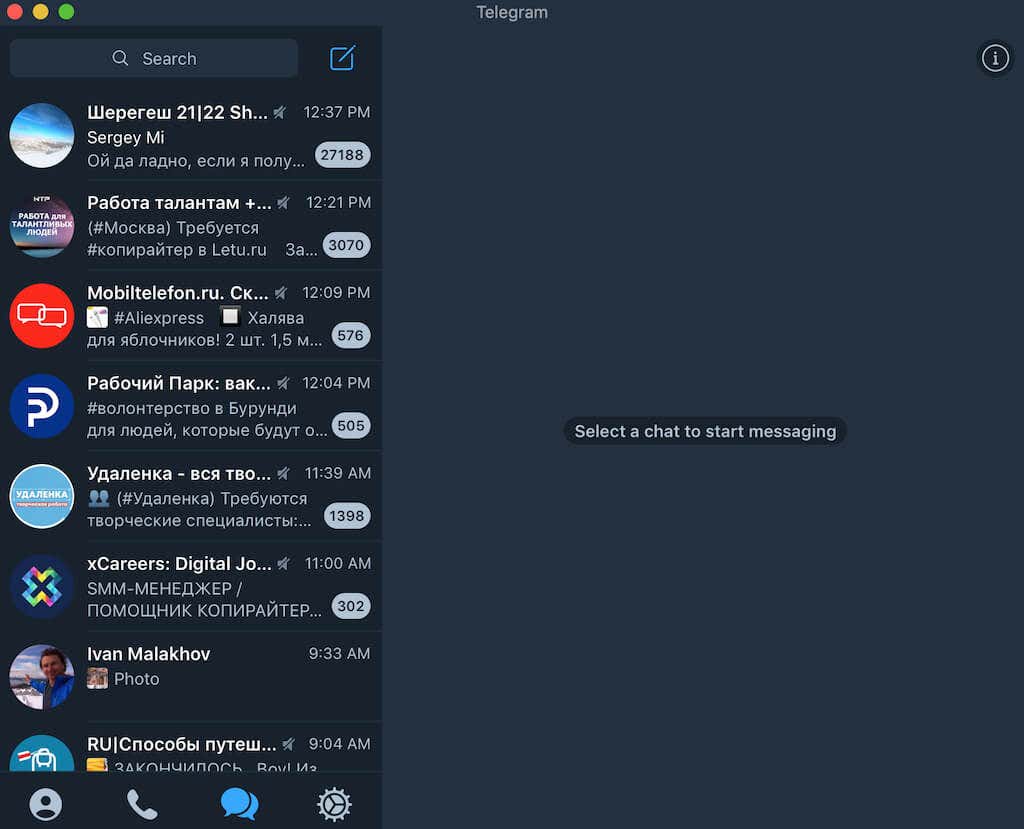
- Select the Attachment icon (on the left side of the message box if you’re using the desktop app, and on the right side if you’re using Telegram web).

- Select the files that you want to share. Then select Open.
- In the pop-up, you’ll see two options: Send in a quick way and Send without compression. Select Send without compression.
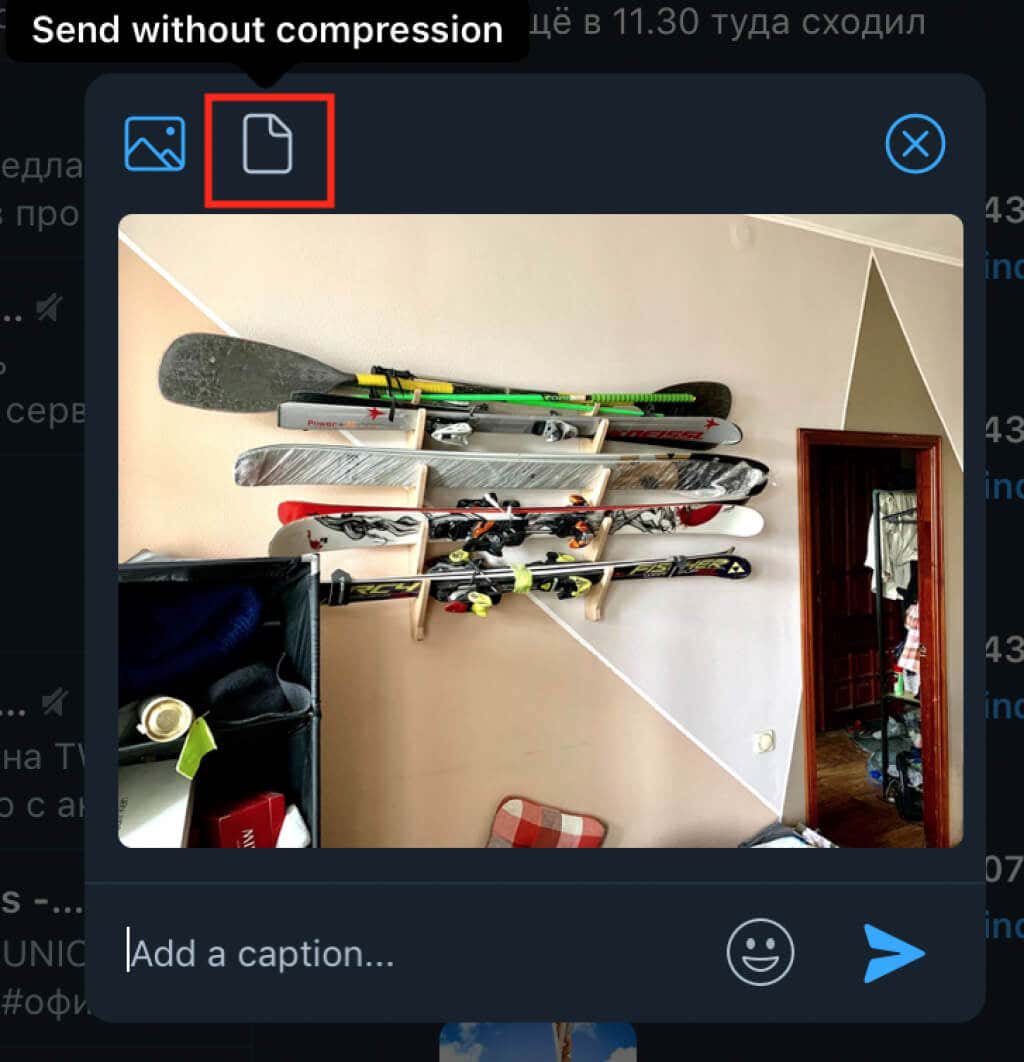
If you’re sending videos from your computer using Telegram, you won’t see the option to send your files without compression. That’s because Telegram doesn’t compress video files, so you don’t have to worry about keeping your high-quality.
Share Your High-Quality Photos and Videos on Telegram
You can choose any of the methods we described to exchange images and videos with your friends or colleagues on Telegram without worrying about compression and reduced quality.
Do you often send high-quality photos & videos online? Do you use Telegram for it or some other app? Share your experience with file transfers in the comments section below.