Skip to content
ONLINE 101010 TECH 010101 TIPS
  • Latest
  • News
  • How-To
  • Social
  • Streaming
  • Gaming
  • Reviews
  • Latest
  • News
  • How-To
  • Social
  • Streaming
  • Gaming
  • Reviews
  1. Home/
  2. Social Media/
  3. How to Update TikTok on Your Devices

How to Update TikTok on Your Devices

Anya Zhukova
January 26, 2024
3 min read
TikTok app icon on phone. - preview-media-how-to-update-tiktok-on-your-devices-1

The TikTok app undergoes frequent updates, introducing exciting features, enhanced performance, and smoother user experiences. Whether on Android or iPhone, your phone handles all app updates automatically. However, there may be times when you want to manually update TikTok. We’ll show you how to update it, no matter which device you’re using.

Why Update TikTok on Your Devices

Bug fixes are a big deal. Updating TikTok means tackling technical glitches like crashes that might be causing a less-than-optimal experience.

TikTok keeps adding new features like updated filters, stickers, effects, and other trending TikTok video editing tools. The latest app version often translates to smoother performance. Let us guide you through the process.

How to Update TikTok App on Android

If your Android device doesn’t install automatic updates for your social media mobile apps like TikTok, you must use the Google Play Store. Before you begin, check that your phone is connected to Wi-Fi and that you have a strong internet connection.

  1. On your smartphone, open the Play Store app.
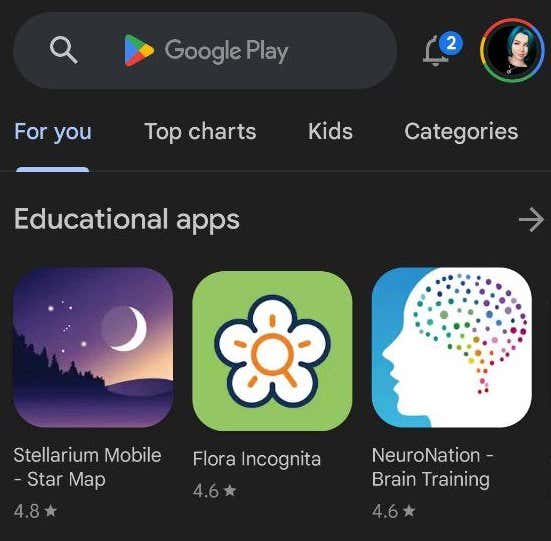
play store apps
  1. In the Search Bar on top of the screen, type TikTok and select TikTok from the search options.
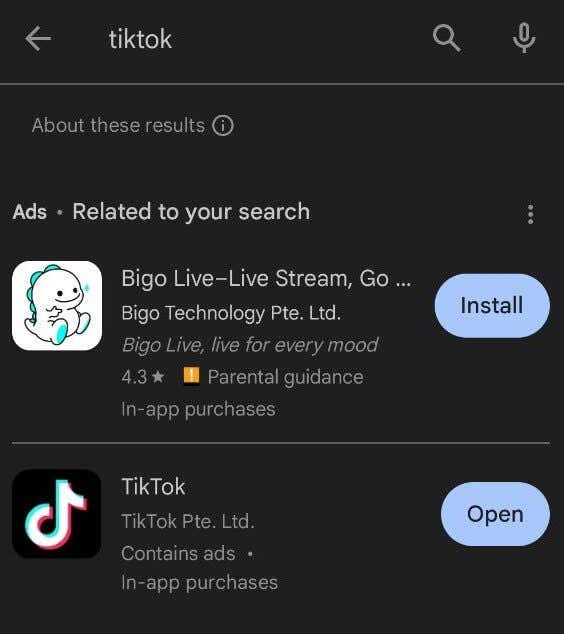
search for TikTok in search box
  1. If any updates are available, you’ll see the option to Update the TikTok app next to it.
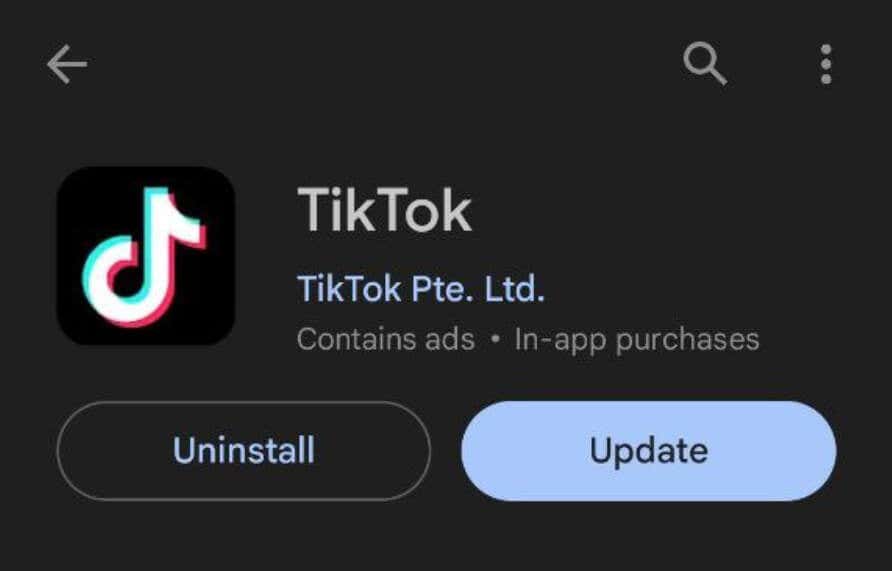
TikTok app Uninstall or Update buttons
  1. If you see Open instead of Update, you already have the latest TikTok version installed on your smartphone and don’t need to do anything.

TikTok Open button

Your phone will now start downloading the new TikTok update. After it’s finished, select Open to use the latest app version.

How to Update TikTok on iPhone and iPad

On iOS, you’ll need to use the Apple App Store to find and install the latest TikTok updates. To update TikTok on iPhone and iPad, follow the steps below.

  1. On your device, open the App Store.
  2. In the App Store, select your profile picture in the top right corner and swipe down on the page to refresh it. Find TikTok in the Upcoming Automatic Updates list, select Update to install the update immediately.
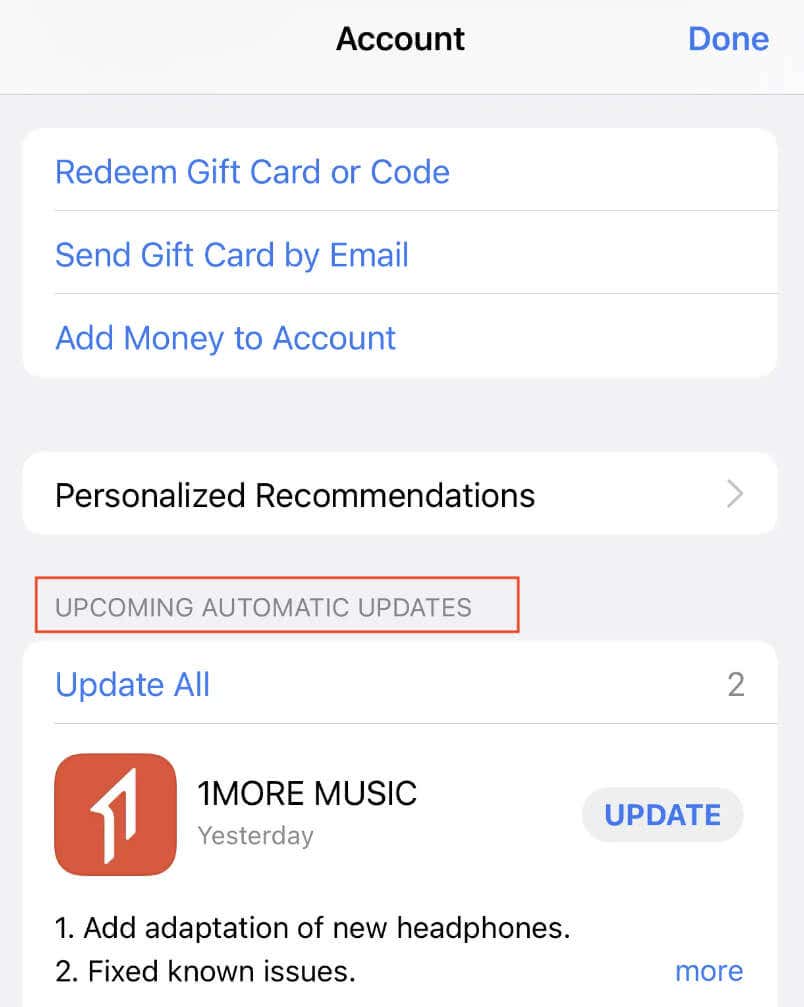
Upcoming automatic updates in App Store
  1. Alternatively, type TikTok in the Search Bar on the screen and select Update next to the app’s name.
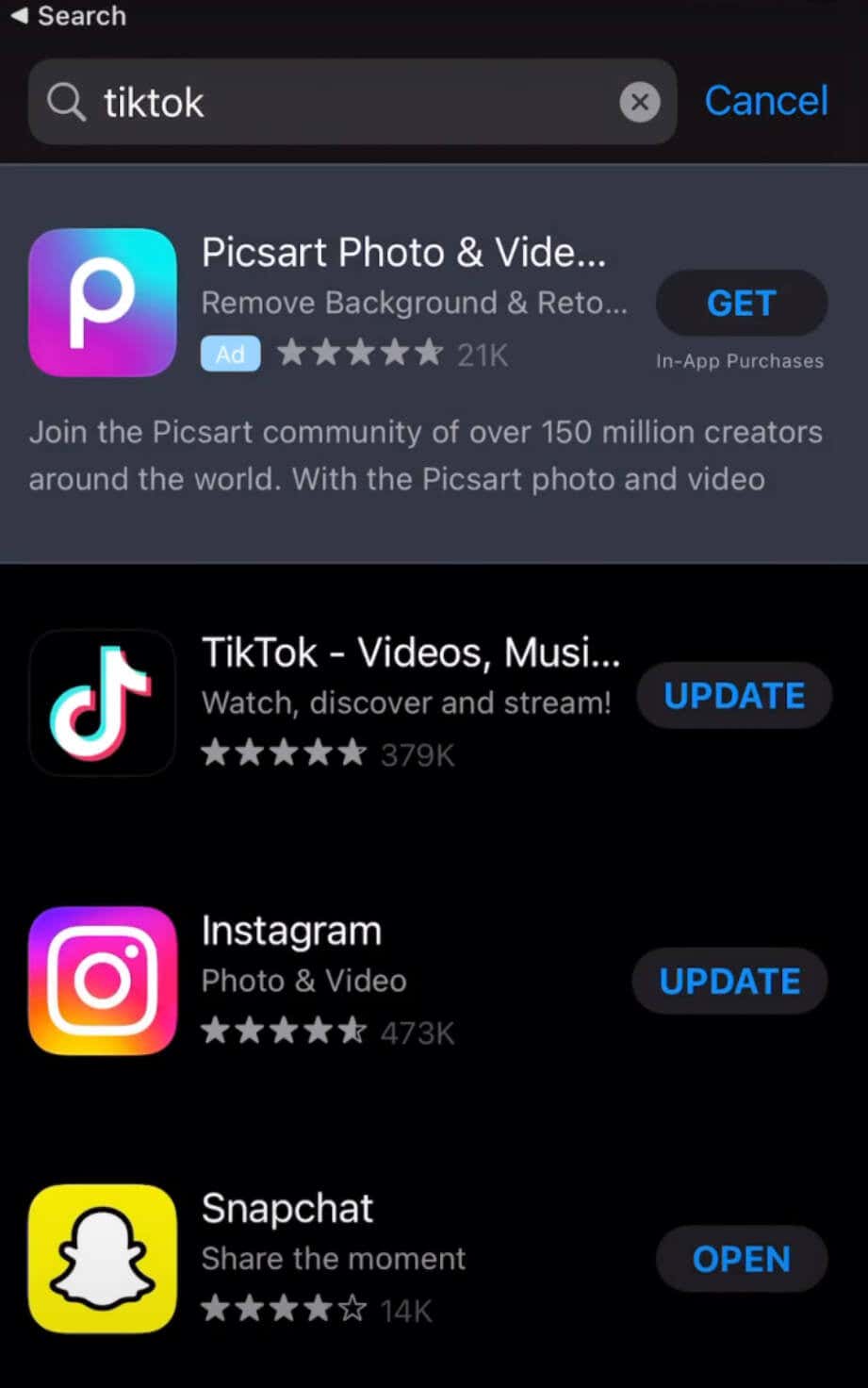
Search for TikTok and list of updates
  1. If you don’t see TikTok in the list of apps or if it says Open instead of Update next to it, your app is updated, and you don’t need to do anything.

Your device will now download and install the latest updates. When it’s finished, open TikTok to use the latest app version.

What if You Can’t Update TikTok?

Ensuring TikTok is up-to-date is critical to unlocking its full potential with the latest features and fewer app bugs. If you’re encountering update issues, this could be a minor glitch, internet connectivity hiccups, or storage overload.

Sometimes, a quick reboot, switching between mobile data and Wi-Fi, restarting your router or modem, and clearing your device’s storage space can fix most update issues.

Tags: TikTok
Share
Written by

Anya Zhukova

Anya is a freelance technology writer. Originally from Russia, she is currently a full-time Remote Worker and Digital Nomad. With a background in Journalism, Language Studies, and Technical Translation, Anya couldn't imagine her life and work without using modern technology on a daily basis. Always looking out for new ways to make her life and location-independent lifestyle easier, she hopes to share her experiences as a tech- and internet-addict through her writing. <a href='https://www.online-tech-tips.com/author/azhukova/'>Read Anya's Full Bio</a>

View Anya's Profile

Recent Posts

  •  - personal finance tools
    10 AI Money Apps That Make Mint Look MedievalJun 6, 2025
  •  - smartwatches
    Is a Smartwatch Worth It in 2025 and Beyond?May 20, 2025
  •  - slow wifi
    How to Fix Slow Wi-Fi on Your SmartphoneMay 6, 2025
  • Programmer coding at computer. - vibe coding
    Vibe Coding 101: Your Guide to AI-Powered ProgrammingMar 26, 2025

Search

Categories

  • Gaming (345)
  • How-To (1,119)
  • News (43)
  • Reviews (437)
  • Social Media (461)
  • Streaming (174)
  • Uncategorized (4)

Popular Tags

Adobe AI Alexa Amazon Android Buying Guides ChatGPT Chrome Discord Explainers Facebook FireTV Gadget Reviews Gmail Google Google Docs Google Maps Google Sheets Home Networking Hulu Instagram Internet LinkedIn Minecraft Netflix Nintendo Switch PlayStation Premiere Reddit Remote Work Roblox Roku Roundups Smart Home Snapchat Software Reviews Spotify Steam TikTok Twitch VR WhatsApp Windows X (Twitter) YouTube

Our Publishing Family

Online Tech Tips is part of the AK Internet Consulting publishing family.

  • HELP DESK GEEK
  • THE BACK ROOM TECH
  • SWITCHING TO MAC
  • XBOX ADVISOR

Daily Email Newsletter

Connect With Us

About Online Tech Tips

Online Tech Tips has published easy-to-follow technology tutorials, honest reviews, and practical how-to guides since 2007 — helping millions of readers solve tech problems and get more from their devices.

Learn More →

© 2007-2026 Online Tech Tips.com, LLC.
All Rights Reserved.

  • Home
  • About Us
  • Editorial Standards
  • Contact Us
  • Terms of Use
  • Privacy Policy
Online