

One of the most asked questions by Instagram users is how to mark their direct messages as unread. The unread messages feature is available on Facebook Messenger, so why not on Instagram?
There are various reasons why you might want to do it. Perhaps you were snooping on your friend’s social media account and accidentally read his new messages, or you want to remind yourself to read a certain message later. Whatever the reason, you should know that marking the Instagram DM’s as unread is not that simple.
Who Can Unread Messages on Instagram?
Until recently there was no way for any Instagram users to unread messages. Even now that feature is reserved for businesses and creator accounts. The “Mark as Unread” option is not yet available for private accounts or desktop Instagram users.
You should know that when you mark an Instagram message as unread, that doesn’t mean the sender won’t know you have read it. It will still be marked as “Seen” for them. Unfortunately, there is no way for you to hide the fact you saw the message. Marking the message as unread will work only on the receiver’s end. But there are additional ways you can prevent the sender from knowing you saw their message. More on that at the end of this article. First, let’s see how to unread messages on Instagram both on professional and private accounts.
How to Mark Instagram Messages as Unread on Professional Account
The process of marking DMs as unread on professional Instagram accounts is straightforward. But those who are new to advertising their business through the Instagram app might not know how to do it. When you open your inbox, you will see three tabs, Primary, General, and Requests. These tabs are there to help you sort your messages.
The primary tab will contain text messages from people you labeled as important. That means Instagram will notify you when you receive a message in the Primary inbox, and you can read it immediately. The messages in the General tab are reserved for all other senders, and you will not receive notifications for these messages. You can opt to see them and respond to them whenever you have time. Message requests are DMs sent by people with whom you typically don’t interact.
Now that you know how to navigate your Instagram inbox, and are familiar with all its tabs, you can choose how to prioritize the DMs and which ones to mark as unread to respond to them later. Follow these steps to do it on a professional account.
1. Open Instagram.
2. Go to Inbox.

3. Tap on three dots in the upper right corner of the screen.
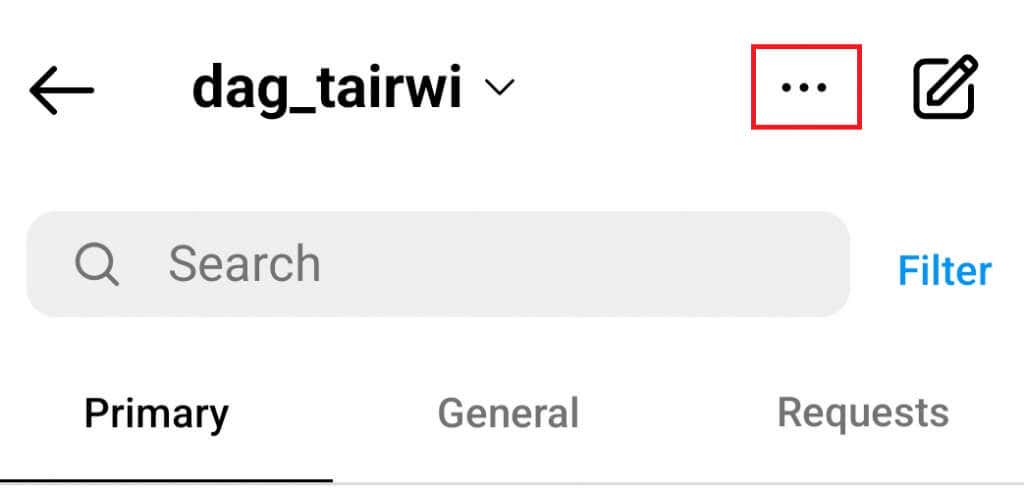
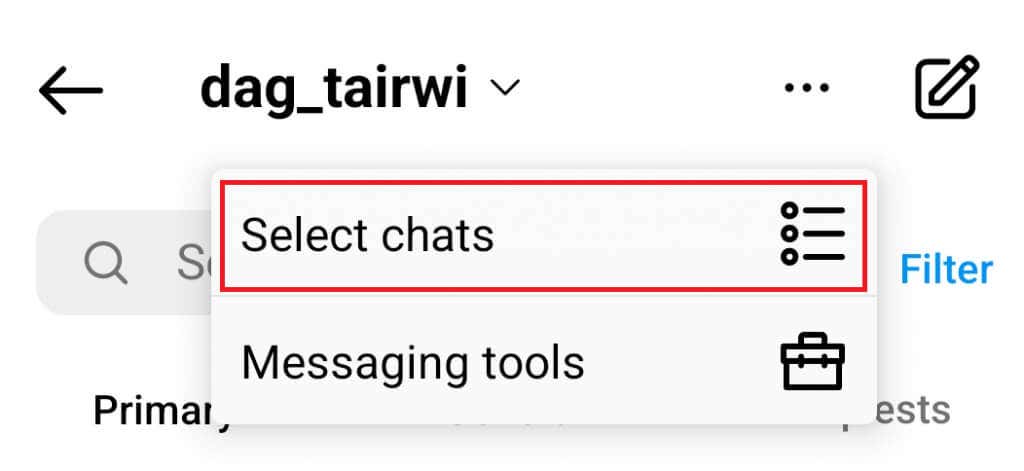
4. Tap on the selecting icon.
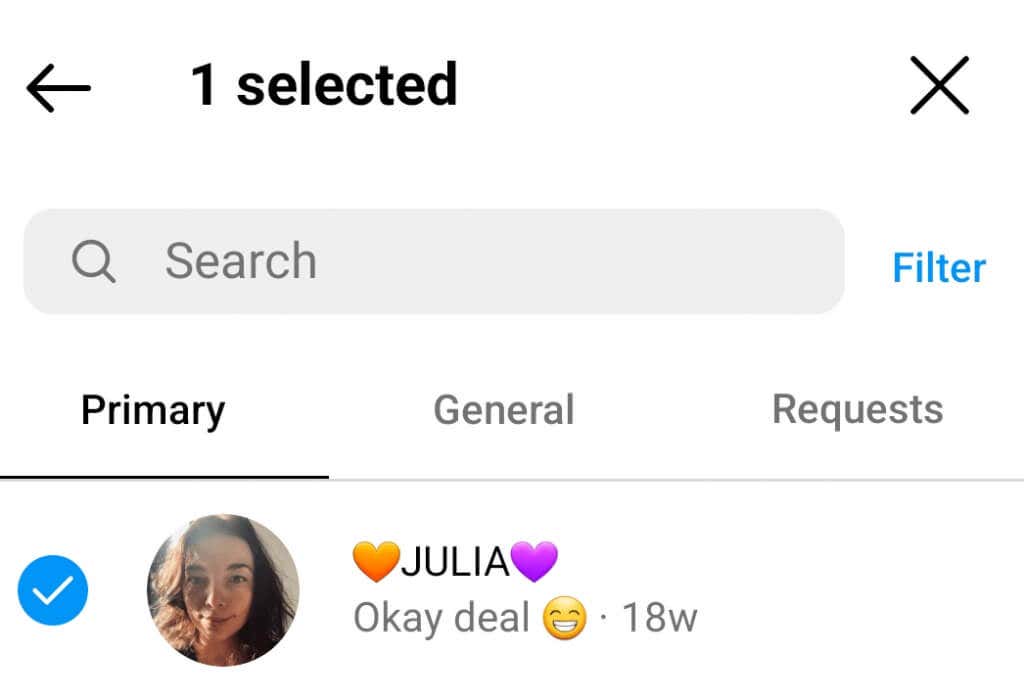
5. Tap on the conversation you want to mark as unread to select it.
6. Tap on More at the bottom of the screen.
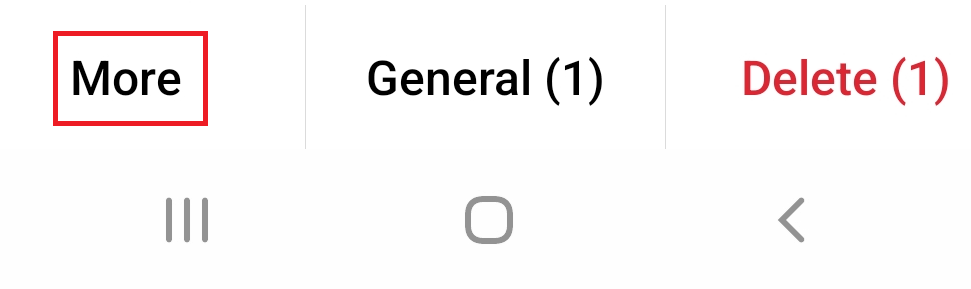
7. Tap Mark as Unread.
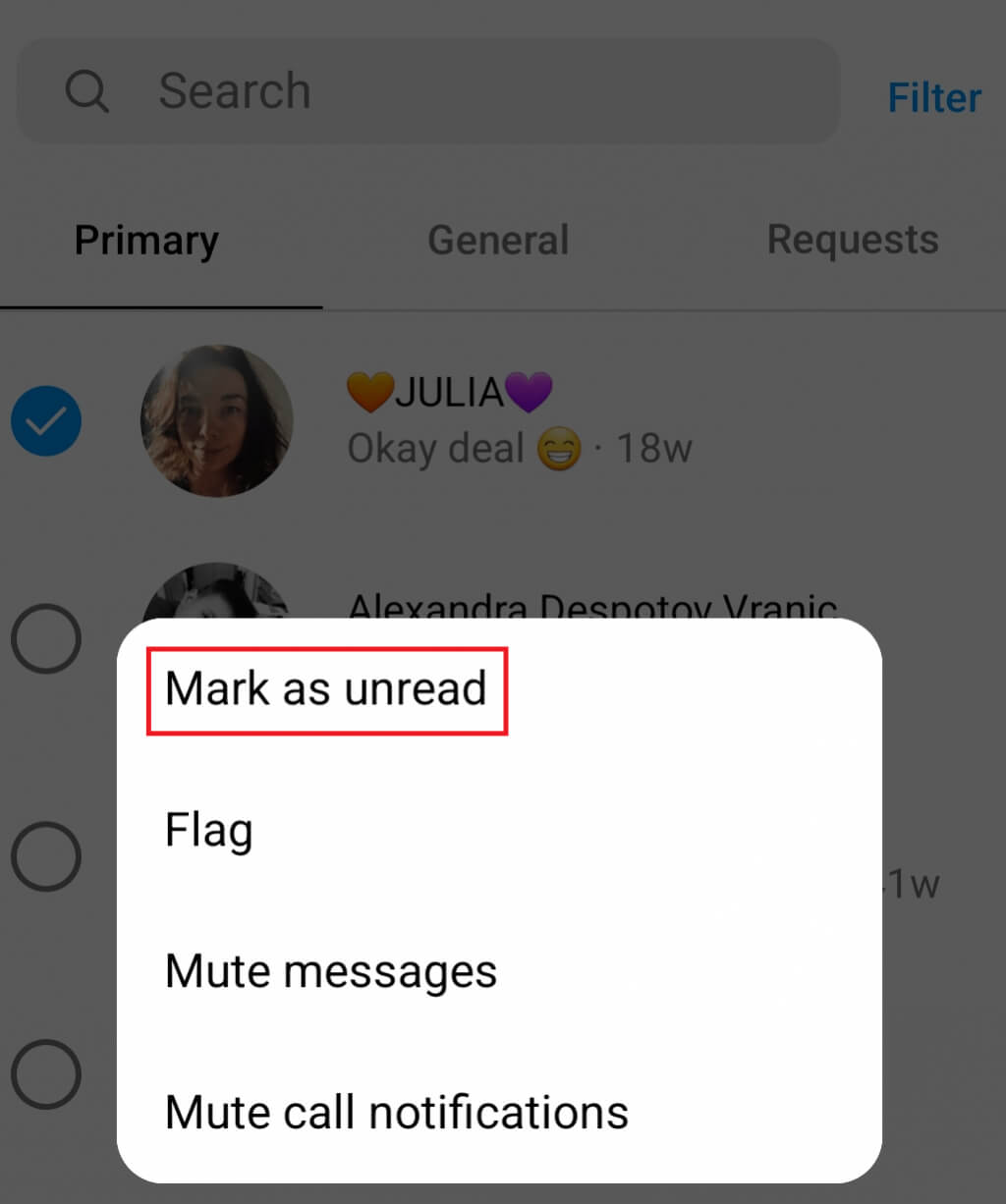
It is that easy to unread your messages on an Instagram business account. You could also:
1. Open your inbox.
2. Find the chat you wish to mark as unread.
3. Tap and hold the conversation for a few seconds and the option to Mark as Unread will appear among other options. Simply tap on it.
A blue dot will appear next to the conversation you just marked as unread.
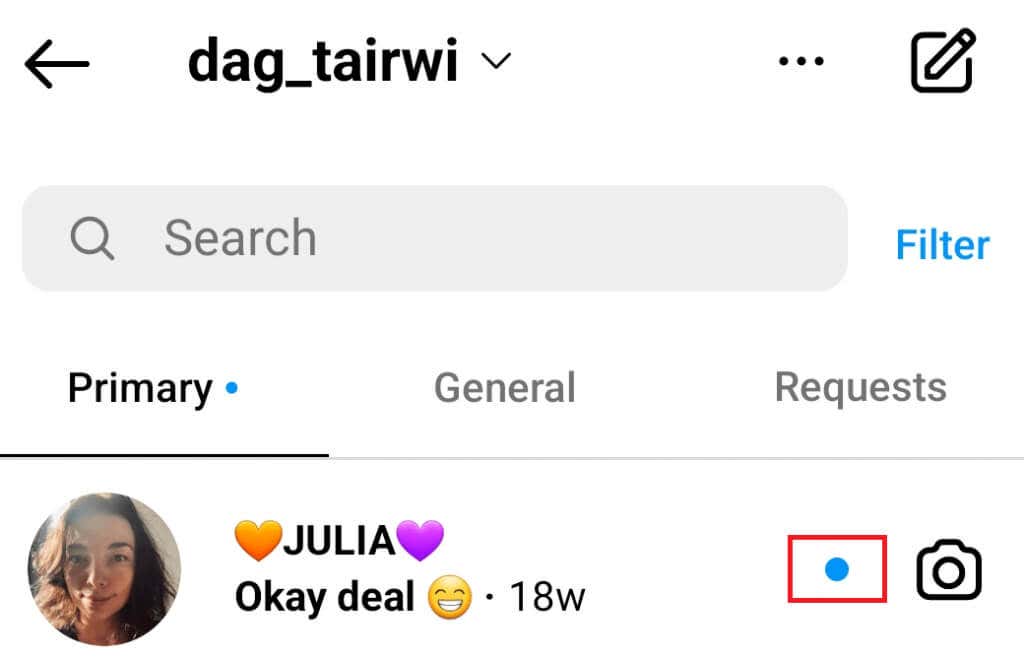
In your notification, you will have a red number signifying the number of unread messages you have. The marked one will be added to it.

How to Mark Instagram Messages as Unread on Personal Account
Personal accounts simply don’t have the option to mark Instagram messages as unread. This may change in the future, but for now, Instagram developers are silent on the matter. There are some ways around this inconvenience and we will explore them here.
Since professional accounts have the option to mark messages as unread, why not simply change the type of the account? This won’t really influence anything about your Instagram page, except you will have some additional features. Your friends and followers will remain the same, and they will be able to continue chatting with you, commenting, and liking your posts.
The only change that matters will be your privacy. With a professional account, you can’t make your profile completely private. This is because creators and businesses want their audience to reach them, and there’s no point in hiding.
Here is how you can quickly switch the type of your Instagram account:
1. Tap on your profile picture at the lower right corner of the screen.
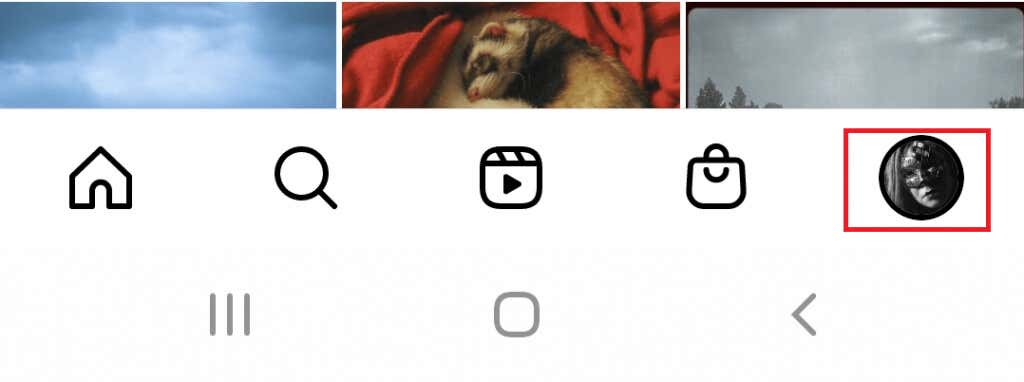
2. Tap on the hamburger icon, the three horizontal lines in the right corner at the top of the screen.

3. Tap Settings.
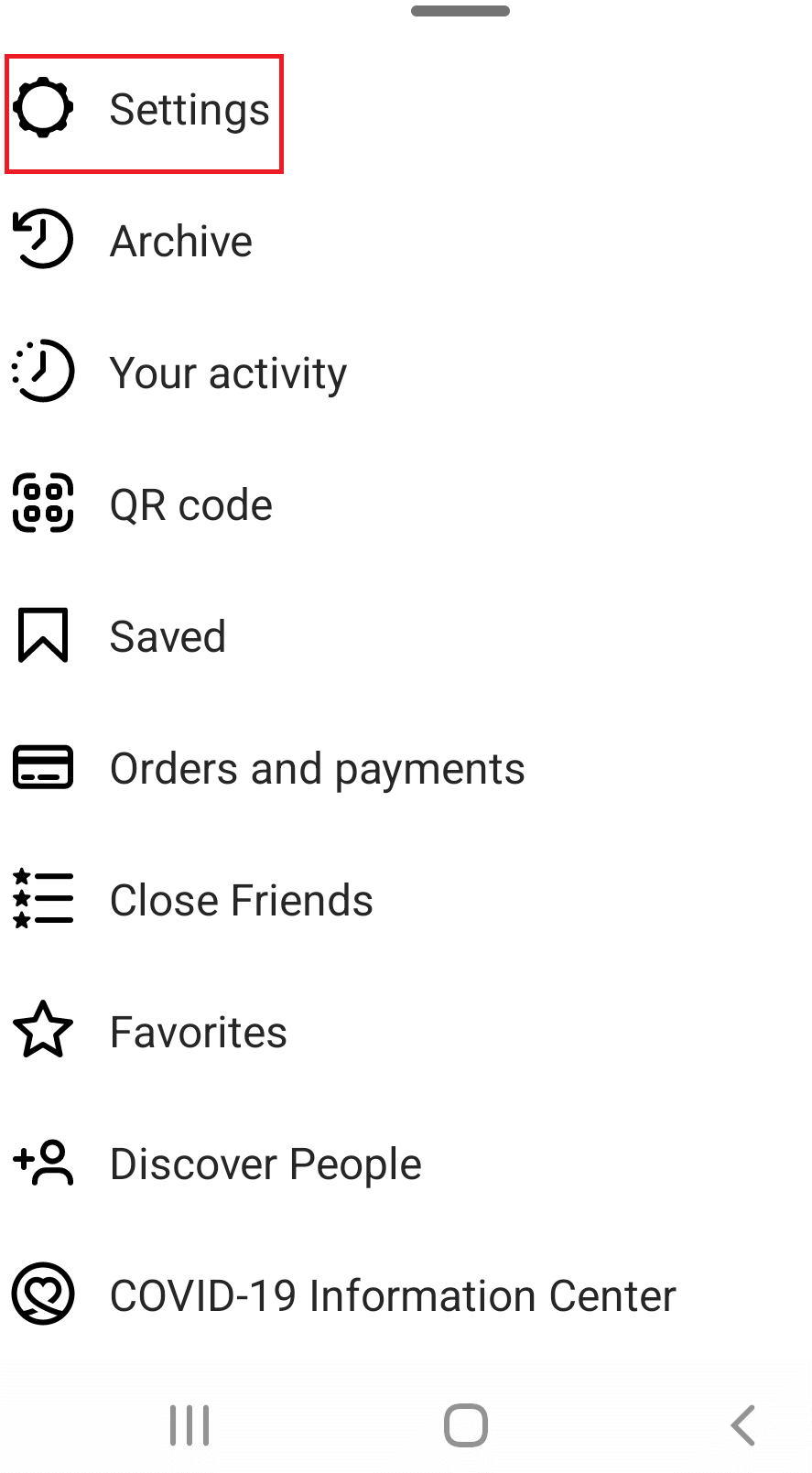
4. Navigate to the Account and tap it.
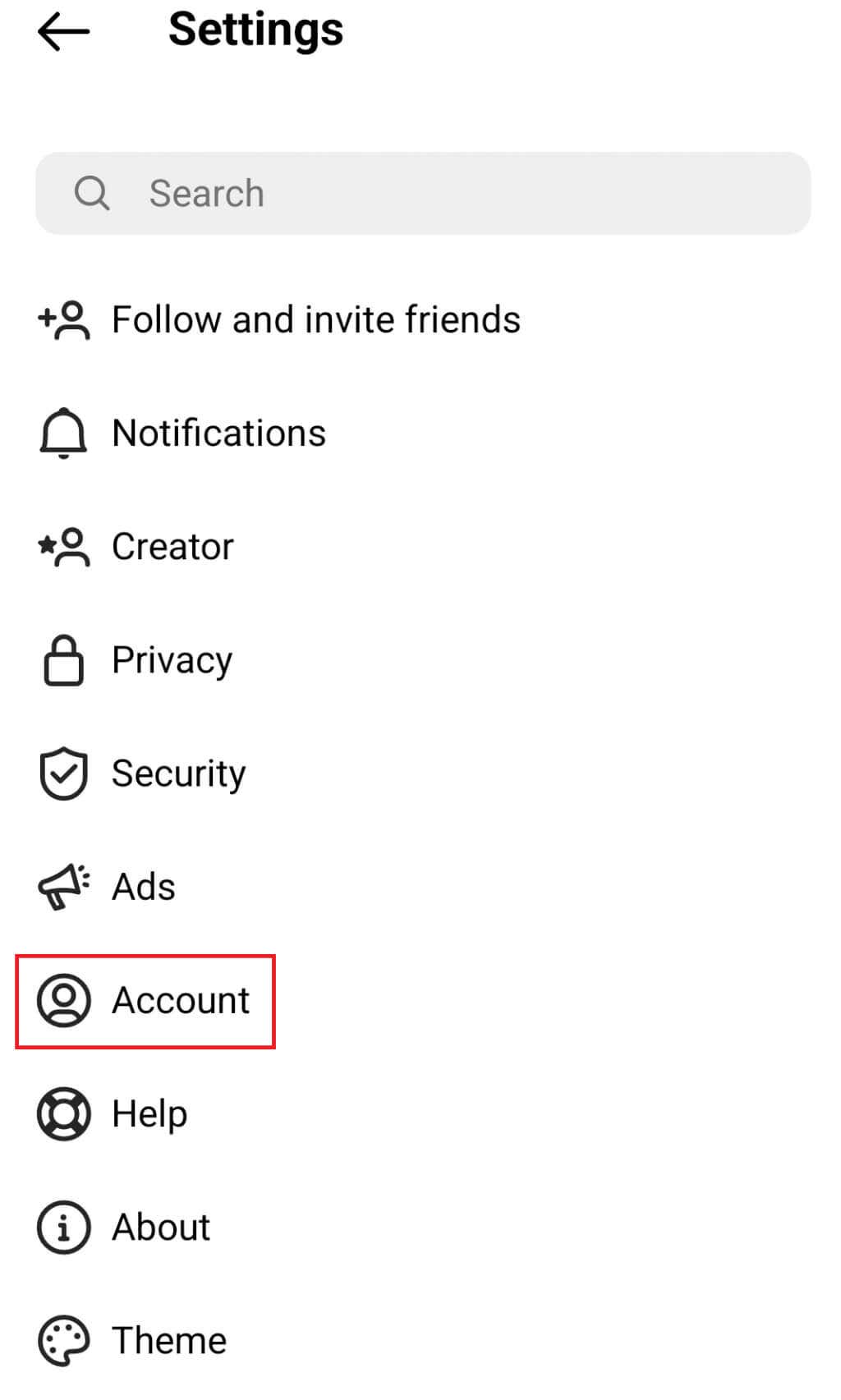
5. Scroll all the way down and find the Switch to Professional Account option, then tap it.
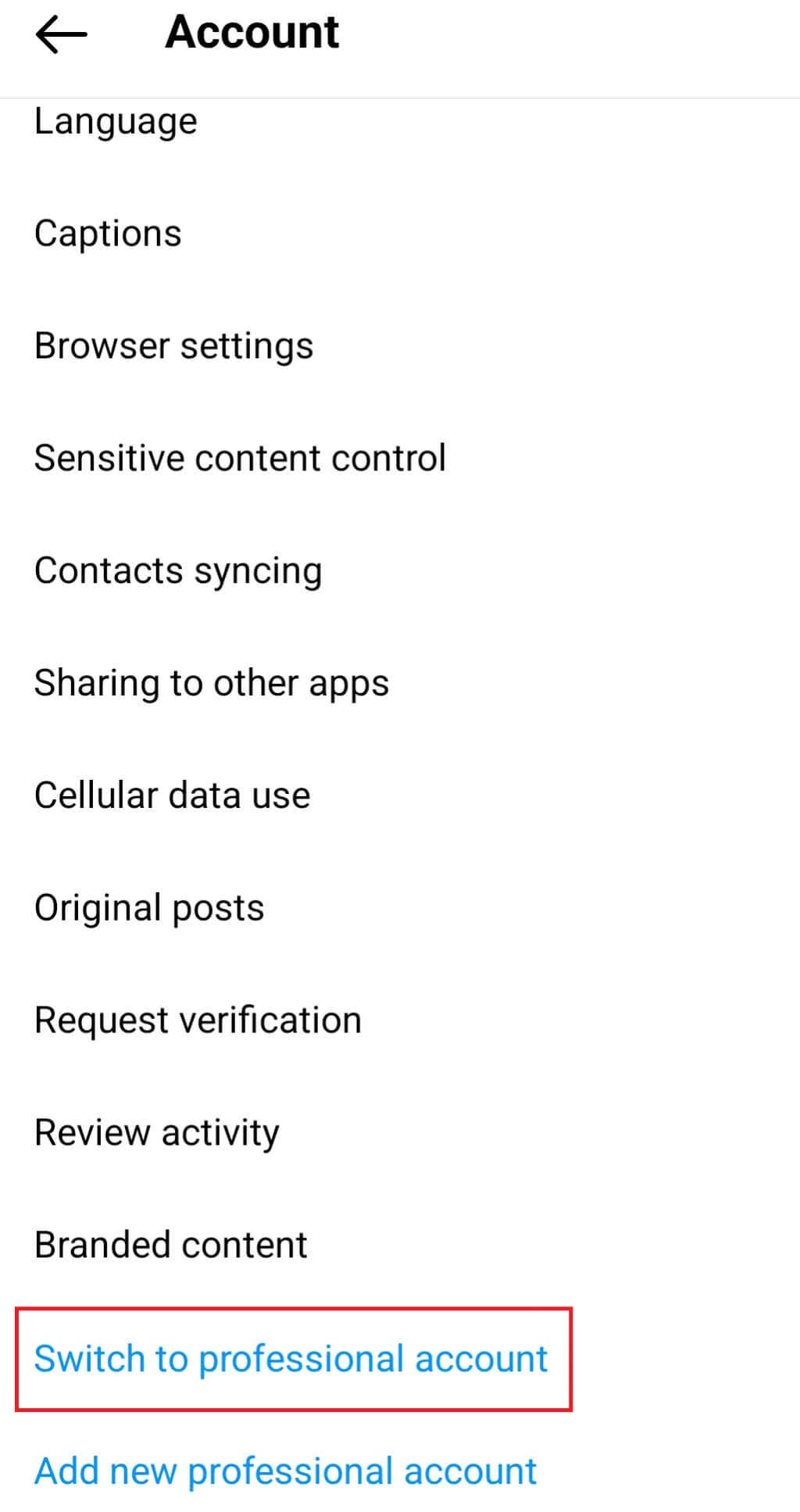
6. Tap the Continue button several times until you reach the category section.
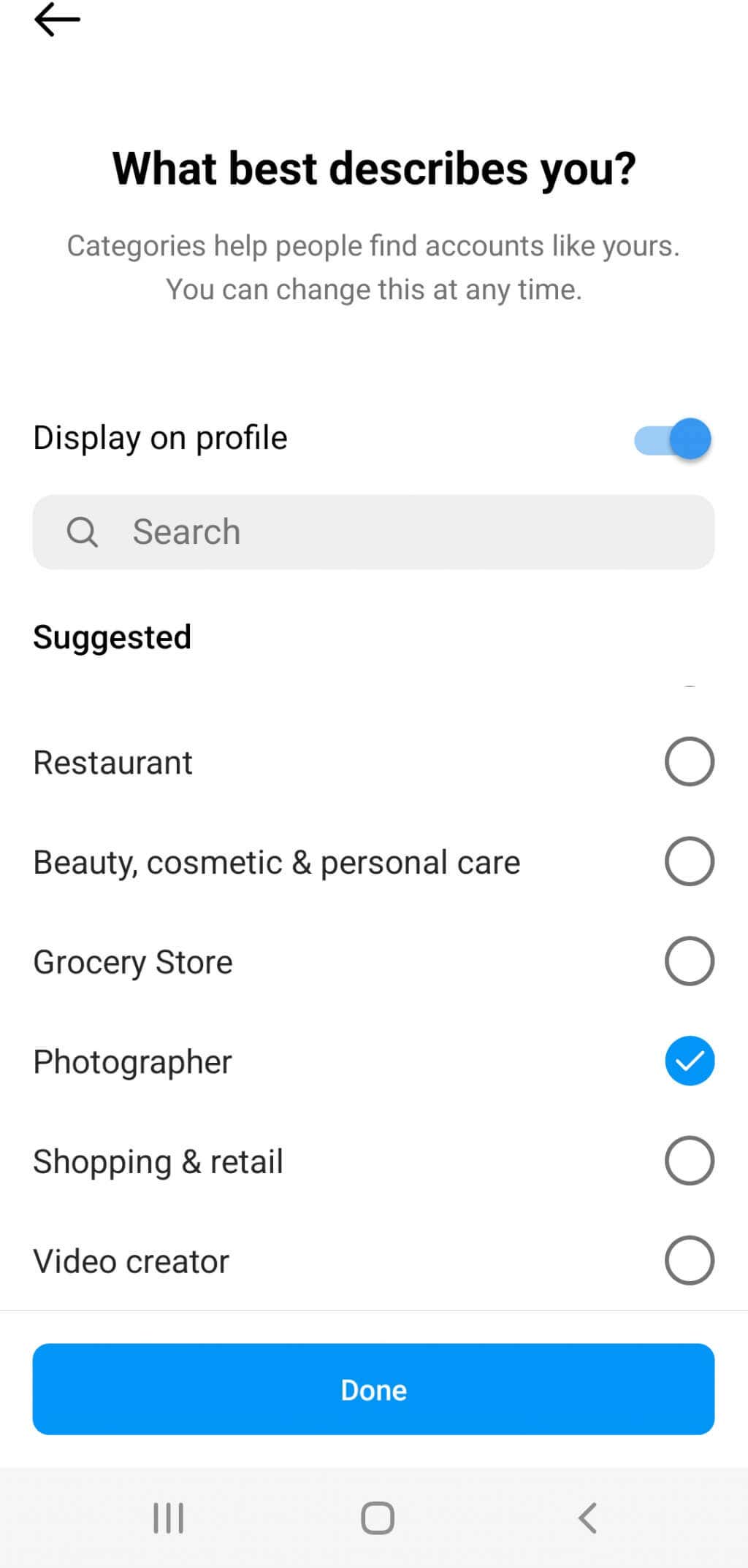
7. Select what best describes you. You can choose whatever you feel like here and you can choose whether to display it on your profile or not. Tap Done and wait several seconds for Instagram to process the account type switch.
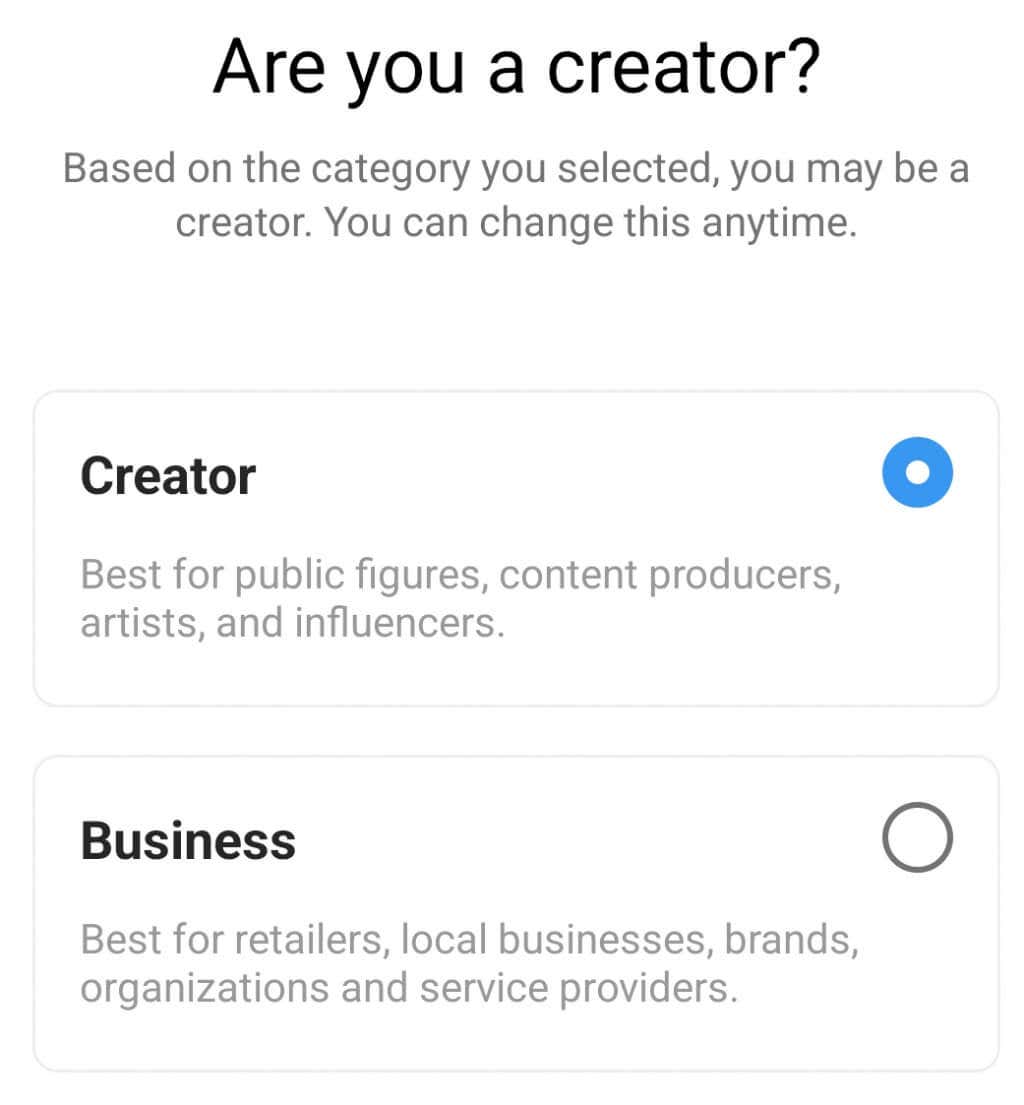
8. Now you get to choose if you want a Creator or a Business profile. Once you are done press Next.
9. You can choose to set up your professional account immediately or skip this step.
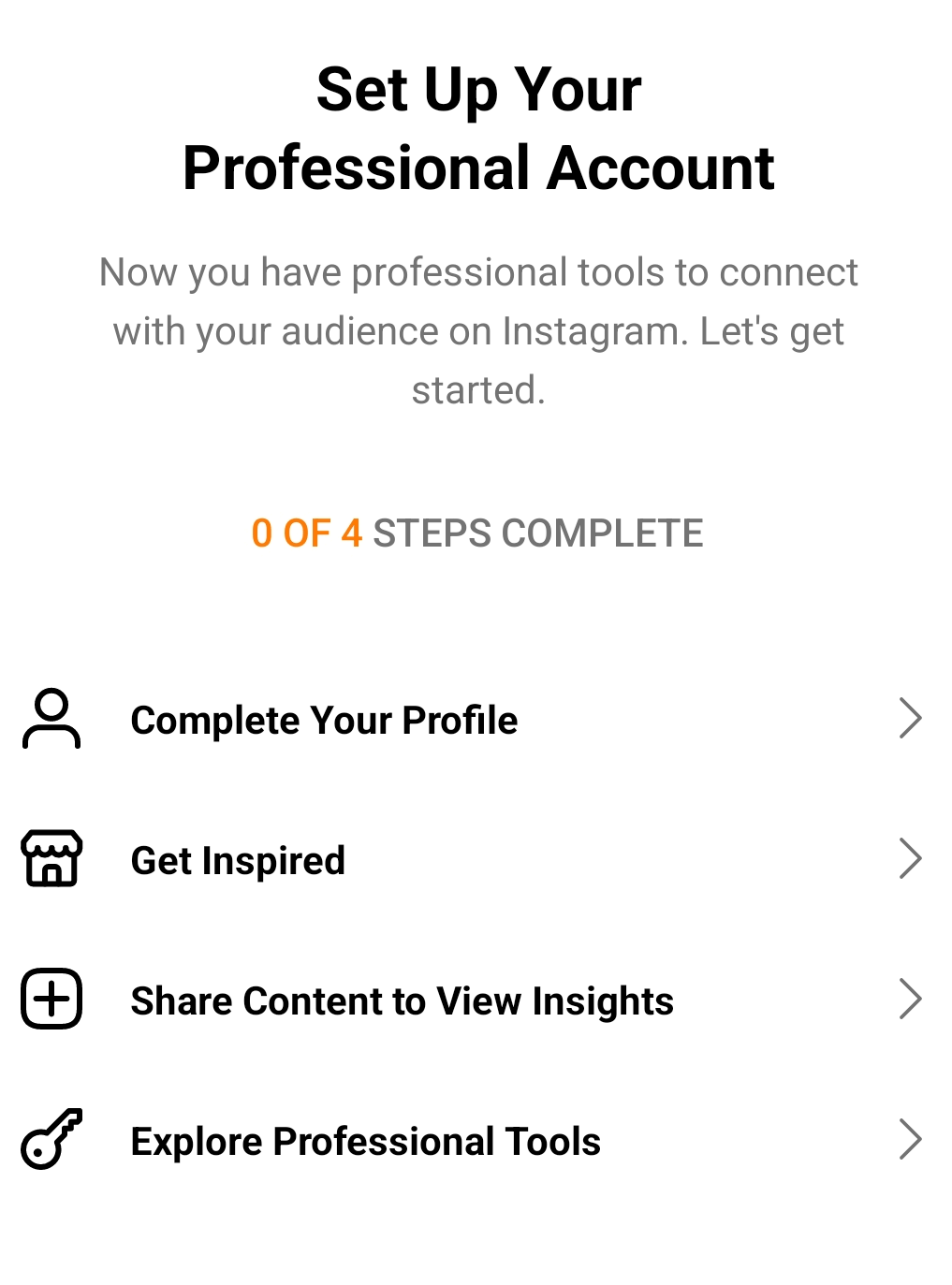
You’ve successfully set up the professional Instagram profile and now you can enjoy all the perks that come with it, including marking the messages as unread. To unread Instagram direct messages simply follow the steps from the previous section.
Unfortunately, there is no other way of marking your messages as unread with personal profiles. But if your goal is not really to mark the message but to prevent a user from knowing that you have read it, there is something you could do, just keep reading.
How to Unread Instagram Messages Without Recipient Knowing You’ve Seen Them
If you wish to keep your personal profile and never switch to the professional one, you can opt to put some users in the Restrict mode. This will prevent them from seeing your posts and interacting with them. The good side of this is that you will be able to read Instagram messages they sent you, without them ever knowing. However, this won’t make the received Instagram DM unread.
Here is how you can put anyone in Restrict mode:
1. Find the user you wish to restrict. You can either search for them on Instagram or among your followers.
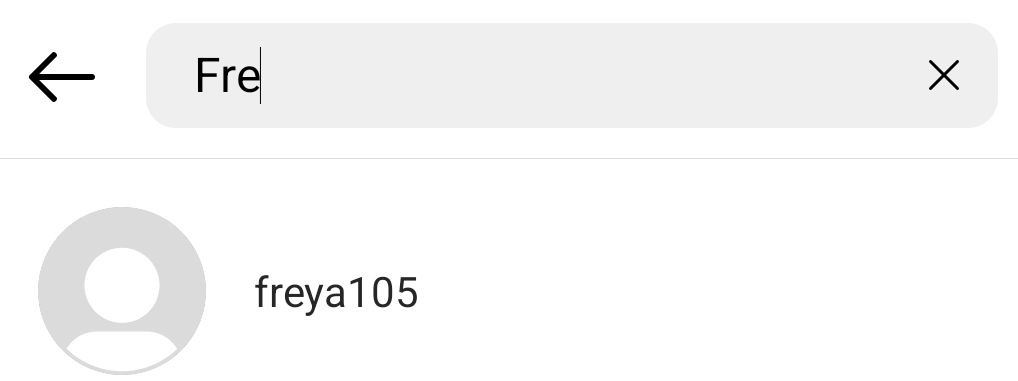
2. Once you find the person, tap on them to enter their profile. Once there tap on the three dots in the top right corner of your screen.

3. A pop-up window will appear on your screen asking you to choose the action. Tap on Restrict
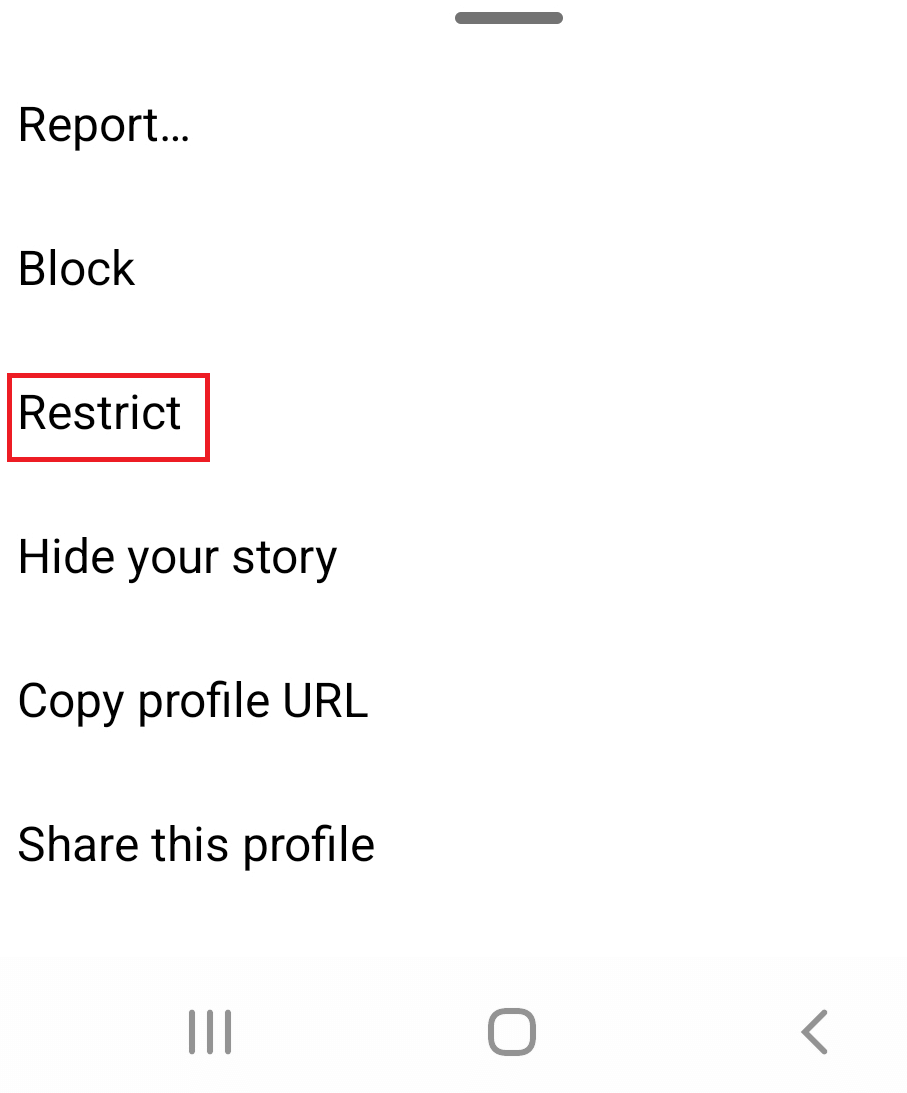
And just like that, you restricted this user and will be able to read their Instagram DM without them noticing it. Note that all the messages you receive from the restricted user will show up in your General inbox tab. That also means you won’t receive a notification when this user messages you. You can restrict users through the official app or through a desktop version of Instagram. Pretty neat feature.