

Are you sick of Snapchat’s constant notifications on your iPhone or Android phone? If so, it’s easy to turn off this app’s notifications on your smartphone. You can disable all the app alerts or select the ones you’re not interested in. You can deactivate the Story and message notifications as well. We’ll show you how to do that all in Snapchat on your iOS or Android device.
Note that all the methods below are reversible, meaning you can turn any notification off and back on whenever you want. We’ve explained how to turn an alert back on in case you’re interested in receiving specific notifications on your phone.
How to Turn Off All Snapchat Notifications on Android
If you’re an Android user wishing to disable your Snapchat notifications, you can use your phone’s Settings app to turn off all the alerts. Android’s Settings app lets you deactivate notifications for any installed app on your phone, including Snapchat.
Note that the steps to disable your app alerts will vary slightly depending on your Android phone model.
- Launch Settings on your Android phone.
- Select Apps > App management in Settings.
- Choose Snapchat on the app list.
- Select Manage notifications.
- Turn off the Allow notifications option.
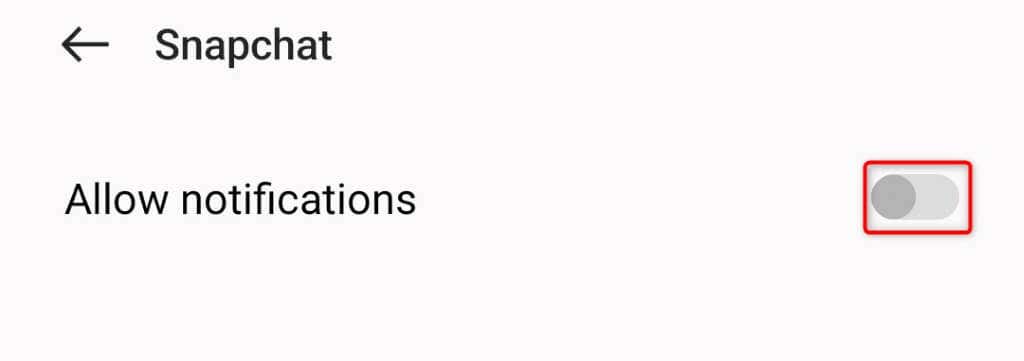
You can re-activate your app alerts in the future by turning on the Allow notifications option.
How to Disable All Snapchat Alerts on Apple iPhone
If you’re using Snapchat on an iPhone, you can use your phone’s Settings app to turn off all your app notifications. Like Android, iOS also lets you turn off all the notifications for any app using the built-in Settings app.
- Open Settings on your iPhone.
- Select Notifications.
- Find and tap Snapchat on the list.
- Toggle off the Allow Notifications option.
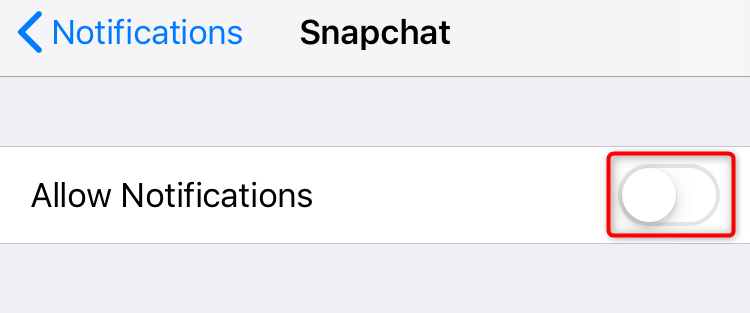
You can re-enable your app alerts in the future by toggling on the Allow Notifications option.
How to Turn Off Story Notifications for a Specific User on Snapchat
If you aren’t interested in receiving an alert when someone specific posts a Story on their Snapchat account, you have the option to disable such alerts. You can turn off Story notifications per-user in Snapchat on your iPhone or Android device.
- Launch Snapchat on your phone.
- Select your profile picture or Bitmoji in the top-left corner and choose My Friends.
- Select the friend whose Story alerts you don’t want to get.
- Choose the three dots in the top-right corner and select Story Settings.
- Disable the Story Notifications option.
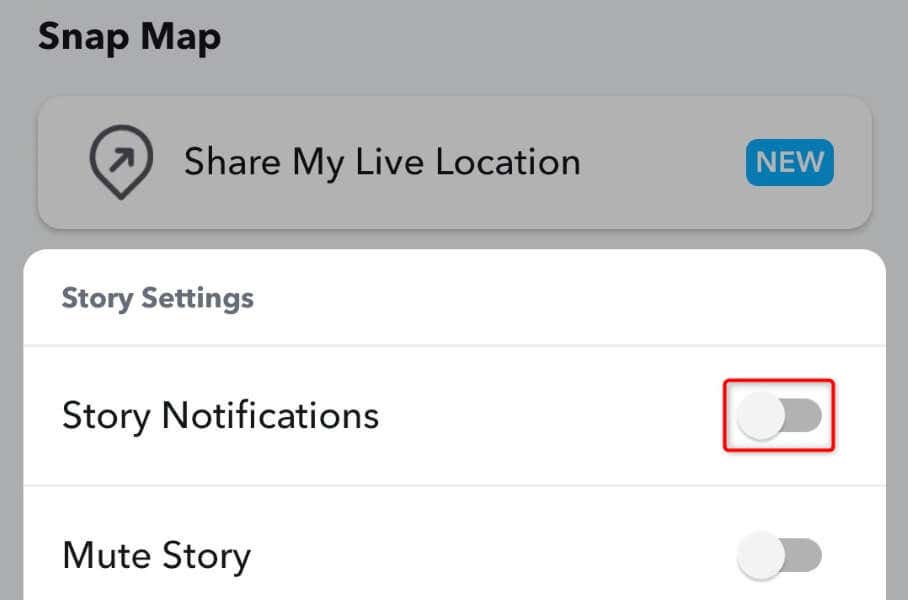
You can re-enable the Story notifications anytime by turning on the Story Notifications option.
How to Disable Message Alerts for a Specific Person on Snapchat
If you don’t want Snapchat to alert you when someone specific sends you a message, you can turn off the message alerts for that user in your app. Again, you can control this setting on a per-user basis.
- Open Snapchat on your phone.
- Select the Chat option in the bottom bar.
- Tap and hold on the user who you want to disable the message notifications for.
- Select Chat Settings in the open menu.
- Turn off the Message Notifications option.
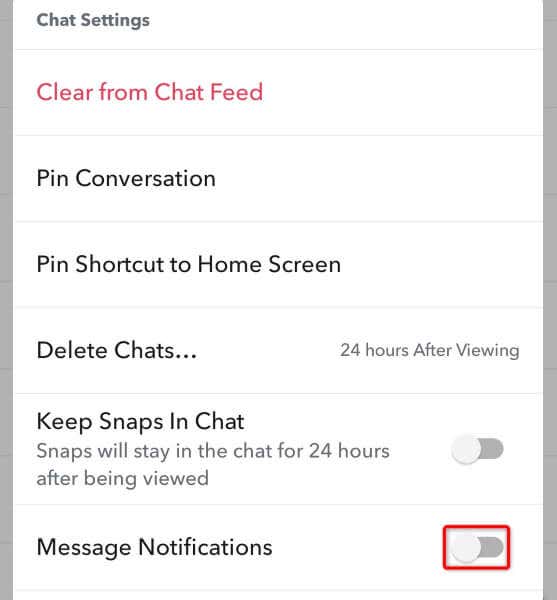
You can turn your message alerts back on at any time by activating the Message Notifications option.
How to Deactivate Selective Notifications in Your Snapchat App
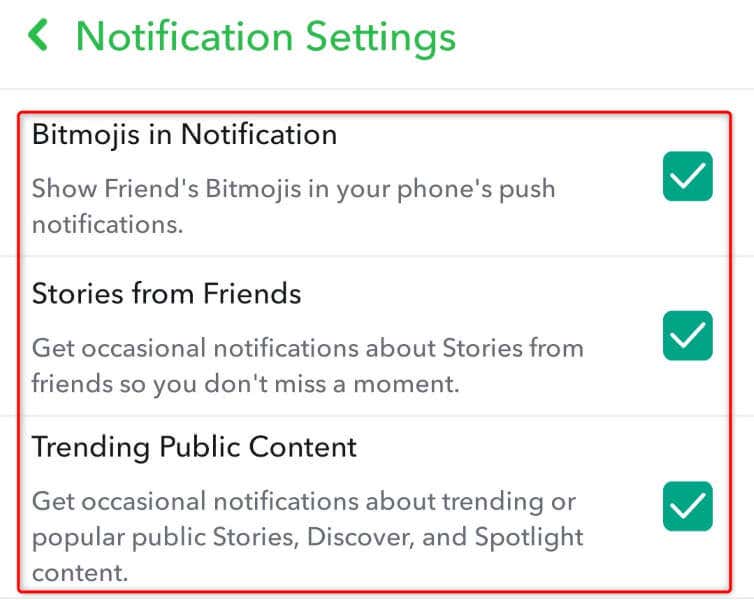
If you’re looking to turn off other Snapchat alerts, such as the ones for mentions and memories, you have the option to do so.
- Launch Snapchat on your phone.
- Select your profile icon or Bitmoji in the top-left corner and choose Settings (a gear icon) in the top-right corner.
- Select Notifications on the following page.
- Review and turn on or off any notifications you want.
What to Do if Your Snapchat Notifications Aren’t Working?
If your Snapchat notifications aren’t working even after you’ve enabled them, your Snapchat app may be outdated, or your app’s cache files may be corrupted. Either way, you can resolve your issue and get your alerts working again in the app.
Update Your Snapchat App
One way to fix many issues with your app is to update your app. Doing so brings various bug fixes that patch the issues with your app. This can resolve your notification problem in Snapchat.
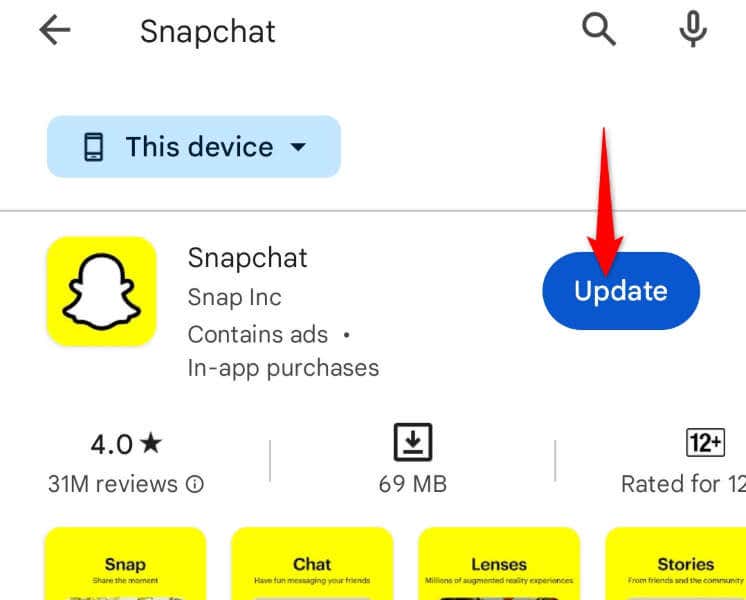
You can update Snapchat on an Android phone by visiting Google Play Store, finding Snapchat, and tapping Update next to the app.
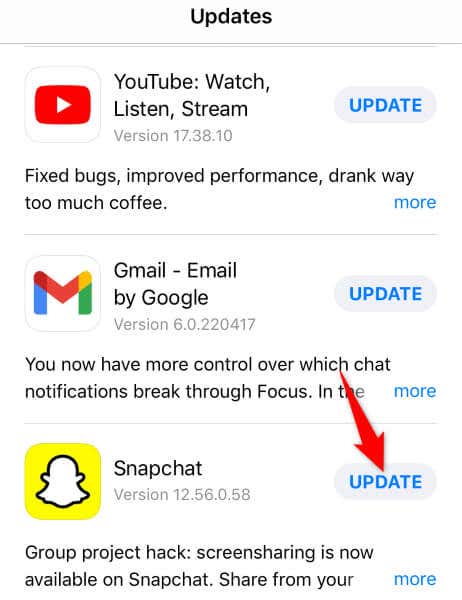
You can update Snapchat on an iPhone by opening App Store, selecting the Updates tab, and choosing Update next to Snapchat.
Launch the updated app on your phone, and your issue should be fixed.
Clear Your Snapchat App Cache
If your Snapchat app’s cache files are corrupted, that may be why you aren’t receiving any alerts. In this case, clear your app’s bad cache, and your issue will be resolved.
Note that you don’t lose your account data when you clear your app’s cache. Also, you can only perform this procedure on an Android phone; the iPhone doesn’t allow you to delete an app’s cache files.
- Find the Snapchat app in your phone’s app drawer or home screen.
- Tap and hold on the app and select App info.
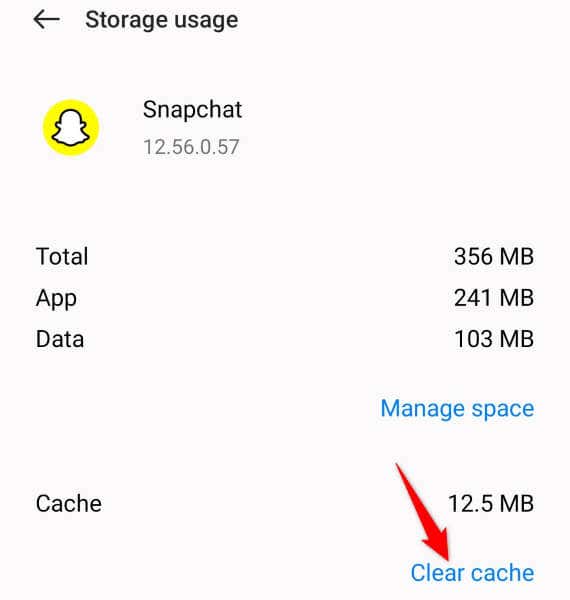
- Choose Storage usage on the following screen.
- Select Clear cache to remove the app’s cache files.
- Launch your app.
Disabling and Re-Enabling Your Snapchat App Alerts Is Easier Than You Think
Whether you’re sick of constant notifications or only looking to receive specific alerts from the app, it’s easy to manage various alert settings in the Snapchat app on your mobile phone. The app allows you to enable as well as disable any notification you want, as described above.
We hope the guide above helps you set the desired notification settings in Snapchat on your phone so you only get the alerts you’re interested in.