Skip to content
ONLINE 101010 TECH 010101 TIPS
  • News
  • How-To
  • Social
  • Streaming
  • Gaming
  • Reviews
  • Videos

Explore

  • News
  • How-To
  • Social
  • Streaming
  • Gaming
  • Reviews
  • Videos

About & help

  • About Us
  • Editorial Standards
  • Contact Us
  • Terms of Use
  • Privacy Policy
  • Advertise
0%
In this article
    1. Home/
    2. Social Media/
    3. How to Stop People from Adding You to Groups on Facebook

    How to Stop People from Adding You to Groups on Facebook

    Patrick Hearn
    June 26, 2022
    4 min read

    Online Tech Tips is reader-supported. We may earn a commission when you buy through links on our site. Learn more.

    - facebook

    You can use Facebook to stay in touch with friends, buy or sell products, join fan groups, and more. But problems arise when you get added to groups by other people, especially if that group is designed to spam you or sell you something.

    The good news is that Facebook’s privacy controls let you stop others from adding you to Facebook groups. Facebook stopped allowing anyone to add you to a group without permission in 2019, but you can still be plagued with notifications to join groups—an almost equally-as-annoying process.

    This is how you can stop people from adding you to groups on Facebook.

    Talk to Your Friends

    This is a simple solution, but one that’s often overlooked. If your friends are adding you and inviting you to groups, just ask them to stop and say you aren’t interested. If they don’t stop, you can always use one of the other options on this list.

    Join and Leave the Group

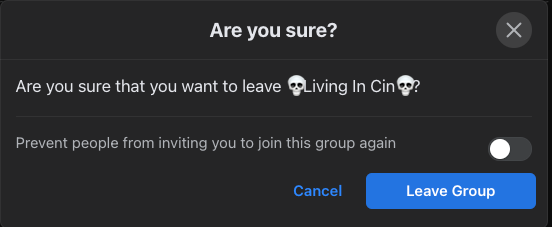
    One of the easiest ways to prevent anyone from inviting you back to a group (especially if it’s a spam group) is to join the group and then leave it. Select Leave Group. A confirmation window will appear. You’ll see a toggle beside the option to Prevent people from inviting you to join this group again.

    Switch that toggle on, and no one will be able to send you an invite to the group. It effectively blocks any invitation for that one specific community and is an easy way to avoid invites from friends that have been hacked and have not yet regained their accounts. 
    - image-23

    Block the Facebook Account

    If another person on Facebook continues inviting you to groups, you always have the option to block them. It can cause a bit of drama, especially if that person doesn’t react well to boundaries, but it’s an easy way to prevent invitations from coming your way. 

    If you receive too many unsolicited invitations, it might be time to block people on your Friends list. 

    1. To block or unfriend someone, go to your friends list. Beside that person’s name, select the three dots. 

    - image-24
    1. You can unfriend or block that person by selecting the option in the list. The difference is that if you unfriend someone, you can still visit their profile to see posts. You can’t do that if you block them. Whatever option you choose, that person will not be notified of your action.

    Change Group Privacy Settings

    If you are an administrator of a group and find that people (or bots) are sending group invites to many people, you can change permissions and who is allowed to do what as part of the group.

    1. From the group page, select Group settings in the sidebar on the left-hand side of the screen.

    - image-25
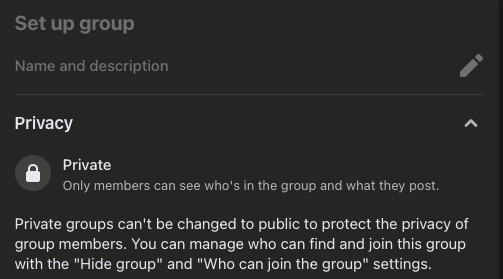
    1. Beneath Set up group, select the down arrow beside Privacy and choose Private. Once you do this, the group cannot be set to public again. Closed groups must remain that way to protect the privacy of members. 
    - image-26
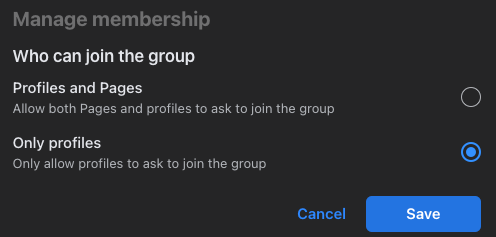
    1. Scroll down farther. Below Manage membership, select the pencil icon besides Who can join the group and choose Only profiles. Select Save.
    - image-27

    These settings also give you other options, like what each group member is allowed to do. Managing a group is a big task (something you should keep in mind if you want to start a new group), so don’t be afraid to trim down the member list to remove spammers or reduce functionality depending on what members are doing.

    Stopping unwanted invites is a lot easier than it used to be, but it can still be a bit of an annoyance at the best of times. Don’t be afraid to speak to friends and ask them to stop. If you are invited back to the same group time and time again, just leave it and hit that toggle – it will take less time than arguing will. 

    Tags: Facebook
    Share
    Written by

    Patrick Hearn

    Patrick is an Atlanta-based technology writer with a background in programming and smart home technology. When he isn’t writing, nose to the grindstone, he can be found keeping up with the latest developments in the tech world and upping his coffee game. Read Patrick's Full Bio

    View Patrick's Profile

    Weekly Newsletter

    One email a week. Unsubscribe anytime.

    Recent Posts

    • How to Fix Netflix Poor Video Quality on Any Device (2026 Guide) - How to Fix Netflix Poor Video Quality on Any Device (2026 Guide)
      How to Fix Netflix Poor Video Quality on Any Device (2026 Guide)Sep 25, 2026
    • How to Fix Spotify Pausing When You Open Discord (Or Any Other App) - How to Fix Spotify Pausing When You Open Discord (Or Any Other App)
      How to Fix Spotify Pausing When You Open Discord (Or Any Other App)Sep 24, 2026
    • How to Fix Premiere Pro Not Opening or Crashing on Windows and Mac - How to Fix Premiere Pro Not Opening or Crashing on Windows and Mac
      How to Fix Premiere Pro Not Opening or Crashing on Windows and MacSep 23, 2026
    • Fix Discord Audio Issues with AirPods & Bluetooth Headphones - Fix Discord Audio Issues with AirPods & Bluetooth Headphones
      Fix Discord Audio Issues with AirPods & Bluetooth HeadphonesSep 22, 2026

    Search

    Categories

    • AI Tools (1)
    • Gaming (351)
    • How-To (1,182)
    • News (45)
    • Reviews (455)
    • Social Media (470)
    • Streaming (182)
    • Uncategorized (22)

    Popular Tags

    Adobe AI Alexa Amazon Android Buying Guides ChatGPT Chrome Discord Explainers Facebook FireTV Gadget Reviews Gmail Google Google Docs Google Maps Google Sheets Home Networking Hulu Instagram Internet LinkedIn Minecraft Netflix Nintendo Switch PlayStation Premiere Reddit Remote Work Roblox Roku Roundups Smart Home Snapchat Software Reviews Spotify Steam TikTok Twitch VR WhatsApp Windows X (Twitter) YouTube

    Our Publishing Family

    Online Tech Tips is part of the AK Internet Consulting publishing family.

    • HELP DESK GEEK
    • THE BACK ROOM TECH
    • SWITCHING TO MAC
    • XBOX ADVISOR

    Weekly Newsletter

    One email a week. Unsubscribe anytime.

    Connect With Us

    About Online Tech Tips

    Online Tech Tips has published easy-to-follow technology tutorials, honest reviews, and practical how-to guides since 2007 — helping millions of readers solve tech problems and get more from their devices.

    Learn More →

    Advertise →

    © 2007-2026 Online Tech Tips.com, LLC.
    All Rights Reserved.

    • Home
    • About Us
    • Editorial Standards
    • Contact Us
    • Terms of Use
    • Privacy Policy
    • Advertise
    Online