

Social media is all about sharing, right? Facebook has a “share” button and Twitter has the “retweet”. So, why does Instagram make it so tricky to repost content shared by other users?
Even though it’s not easy, influencers and brands use reposting strategies to grow their following and build a stronger reputation.
As Instagram is now the second most engaged social network with over a billion monthly active users, learning how to repost and share Instagram posts is beneficial to your brand.
Terms Of Use
Before we get into explaining different ways to repost or share, it’s important to know that according to Instagram’s terms of use, you technically need written permission to re-post someone else’s content.
There are a few ways to request permission. One is to ask the owner of the content in the comment you leave on their photo.
The other is to send them an Instagram direct message. To make sure that there is no confusion about which specific image you are asking to repost, send the image itself directly to the user as a direct message.
Follow the steps below:
- Find the post on their account.
- Next, click on the paper airplane icon (see screenshot below).
- Type in the account owner’s name.
- Ask permission to repost their post in this direct message.
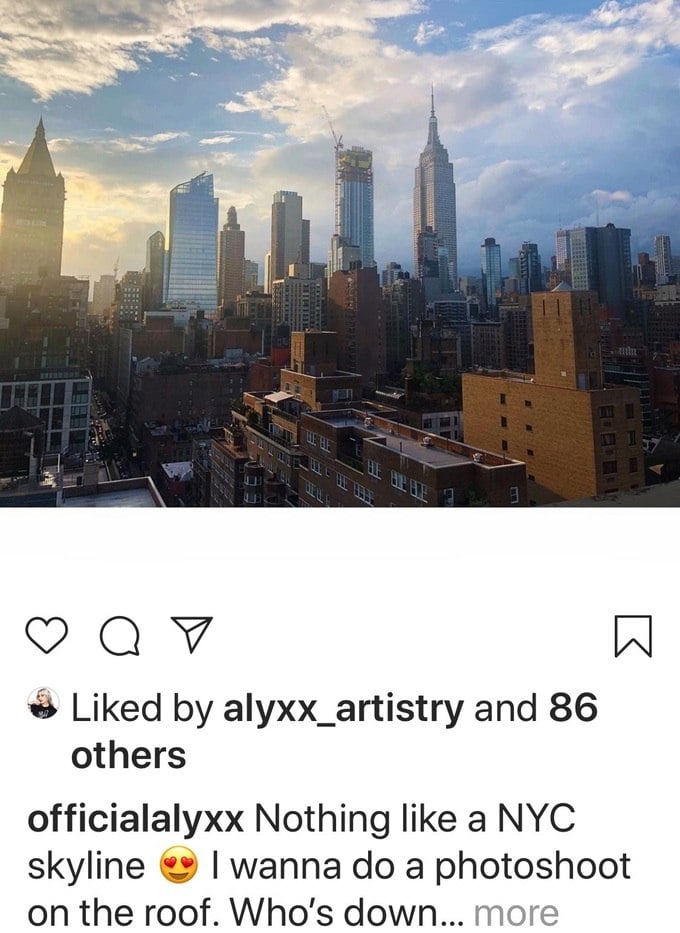
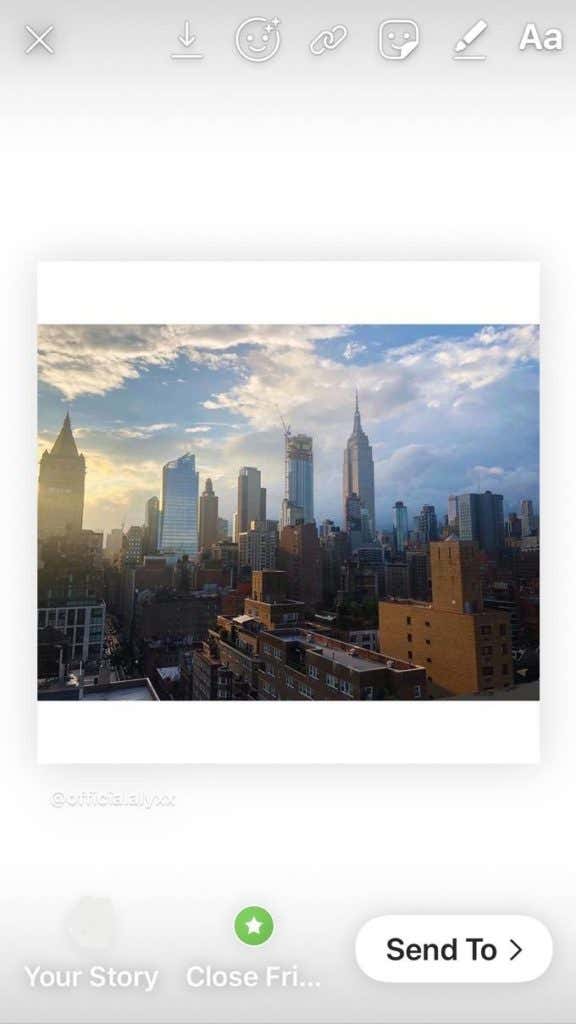
Instagram does give you the ability to share others’ images in your story. Use the same airplane icon that you used to send a direct message when asking permission to repost an image. You can use the Instagram app or a third party tool that enables you to use Instagram on your PC.
Sharing Instagram Posts On Other Platforms
After you find a post you want to share, click on the three dots at the top right-hand corner of the image.
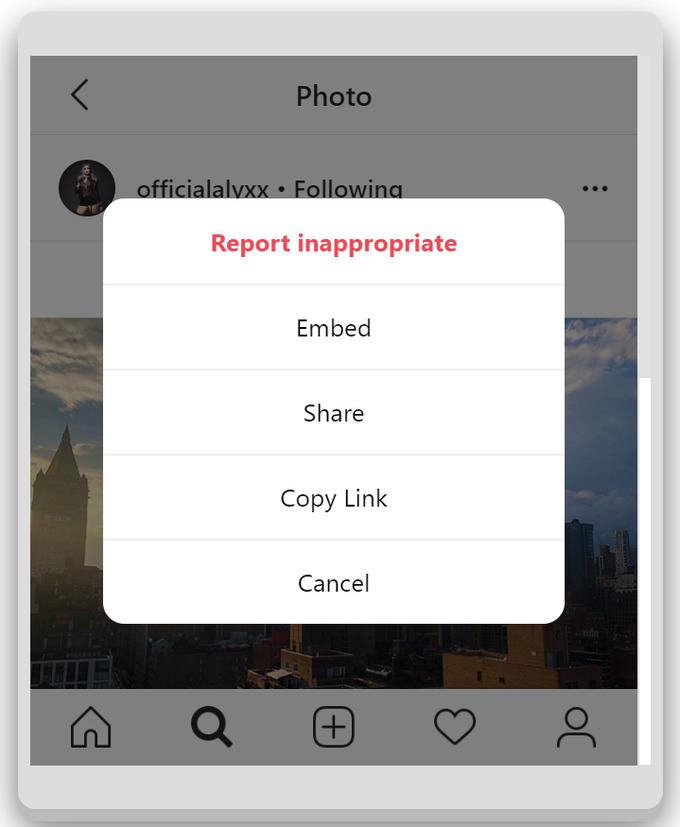
Now click share.
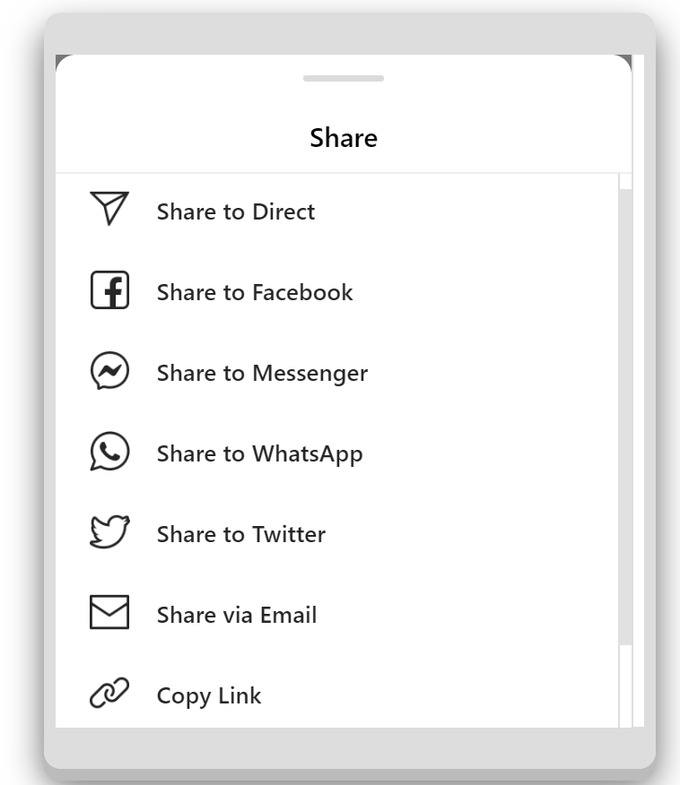
You can share the post in the following ways (see screenshot above).
- To your direct Instagram connections in a private message.
- As a message on Facebook Messenger.
- Directly on your Facebook personal profile or a page you manage.
- On Twitter.
- Via email.
- Copy link (requires a 3rd party app).
Notice in the screenshot below, when you share to Facebook, Instagram takes care of giving credit to the original owner of the post.

When you share to Twitter, the image itself does not show up in your feed. A link to the original post does show up.
This is not ideal as it doesn’t add much visual value to your Twitter feed.

Your followers will have to click on the link to see the original image on Instagram.
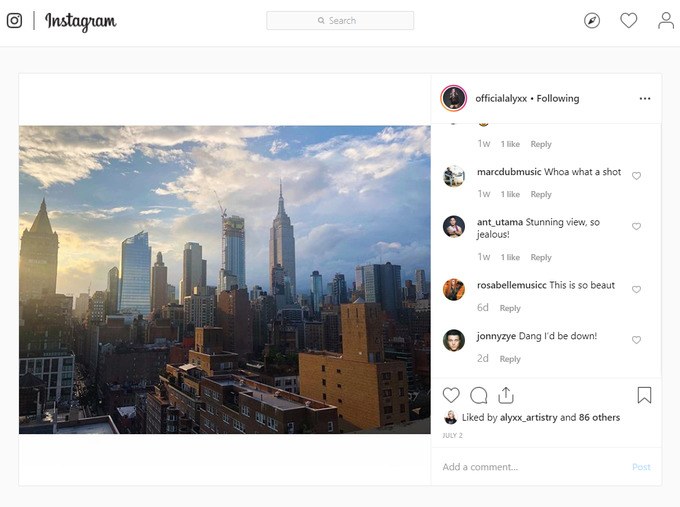
What if you want to share a post you like on Instagram on your own feed and not in a private message? Below are a few ways you can share:
Manually Regram
You can take a screenshot of an image and upload it to Instagram like you would any other photo or video from your camera.
Instagram even offers native editing tools so that you can adjust the dimensions.
If you choose to repost an image manually, don’t forget to:
- Ask permission from the owner of the content.
- Tag the owner.
- Give attribution to the owner of the picture. One way is to add a caption on the image citing the original source, such as “Photo credit: “@username”.
There’s An App For That
When a need becomes apparent to anyone, anywhere, for anything, someone will develop an app for it. Sharing on Instagram is no exception.
Once you have the permission needed to repost, you can use the copy link option above and use one of the following apps.
Repost For Instagram 2019
Repost for Instagram is available for both iOS and Android. It enables you to repost multiple videos and images.
A great benefit is that the app will add a watermark to the content you want to repost.
The watermark includes the username of the original Instagram user and gives attribution to the owner.
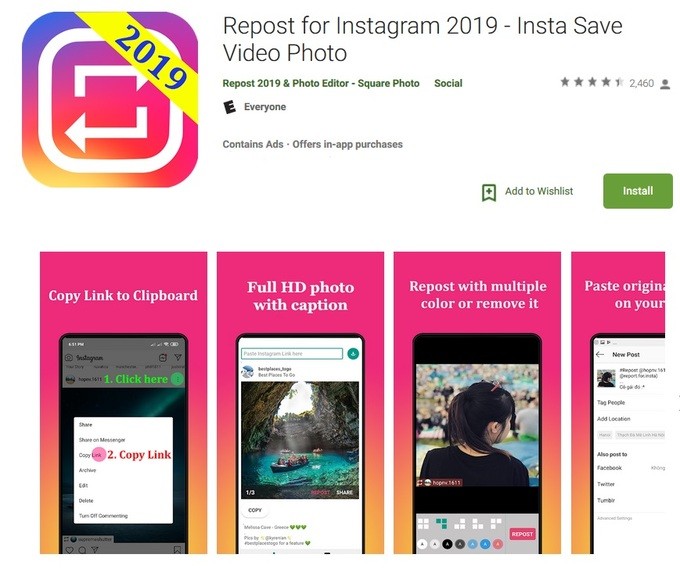
Some of the features of this app make it easy for you to:
- Automatically copy the original caption and paste it into your own post.
- Easily report multiple videos or images quickly.
- Download and repost videos from IGTV.
Follow the steps below to repost images using this app to Instagram:
- Find the video or image you want to repost.
- Locate and click on the three dots at the top right-hand side of the post and click.
- Select “copy link”.
- You will only be able to copy links of public posts.
- Private images will not have a “copy link” option.
- The repost app will automatically start downloading your video or image.
- Open the app where you will see a notification once the download is complete.
- Choose “repost to Instagram”.
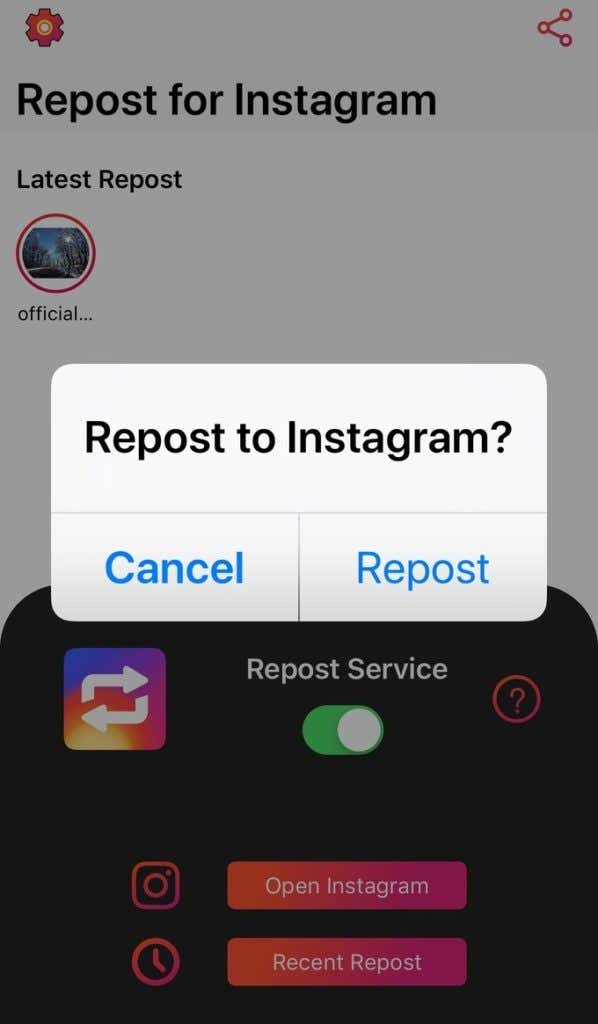
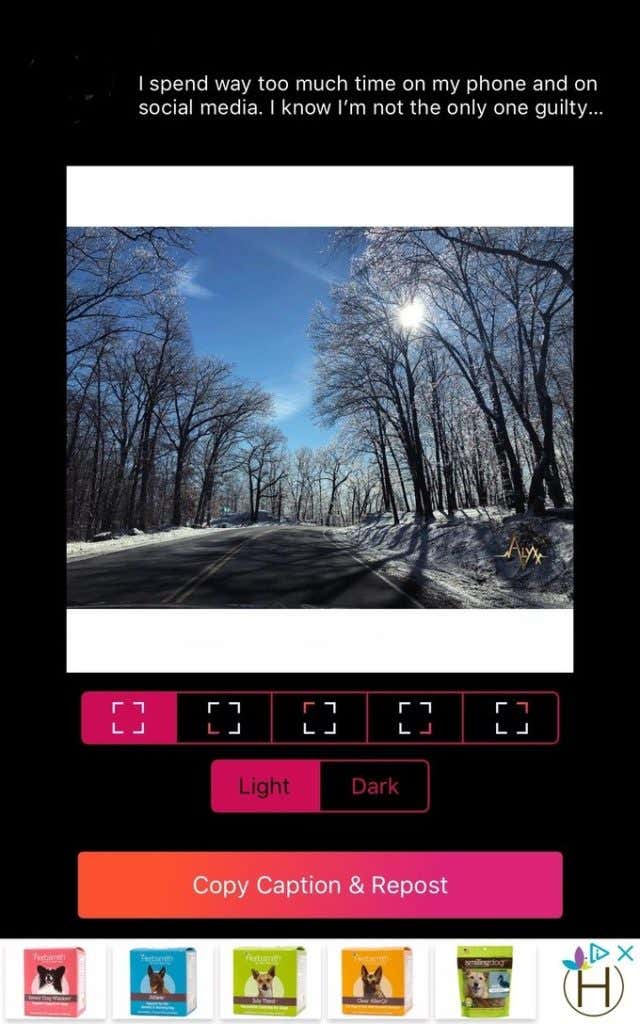
When you select Repost, the app allows you to choose the location on the post where you give attribution to the owner of the image.
You can also select light or dark for the owner’s username.
Select Copy Caption & Repost, and you’re done.
Now that you have learned how to share and repost Instagram images, you can add Instagram marketing to your social media marketing initiatives.