

Twitter has a sensitive media policy to block tweets that contain “potentially sensitive content.” Depending on how you use Twitter, you may want to either display all content in your feed or block certain types of content.
In this tutorial, we’ll share everything there’s to know about sensitive content on Twitter, including how to disable Twitter’s warnings to view sensitive content and block potentially sensitive content to hide it from your search results.
What Is Sensitive Content on Twitter?
According to Twitter’s sensitive media policy, there are a few types of content that you cannot post on the Twitter app. These include media files that are “graphic, share violent or adult nudity and sexual behavior, depict excessively gory content, sexual violence, and/or assault, bestiality or necrophilia.”
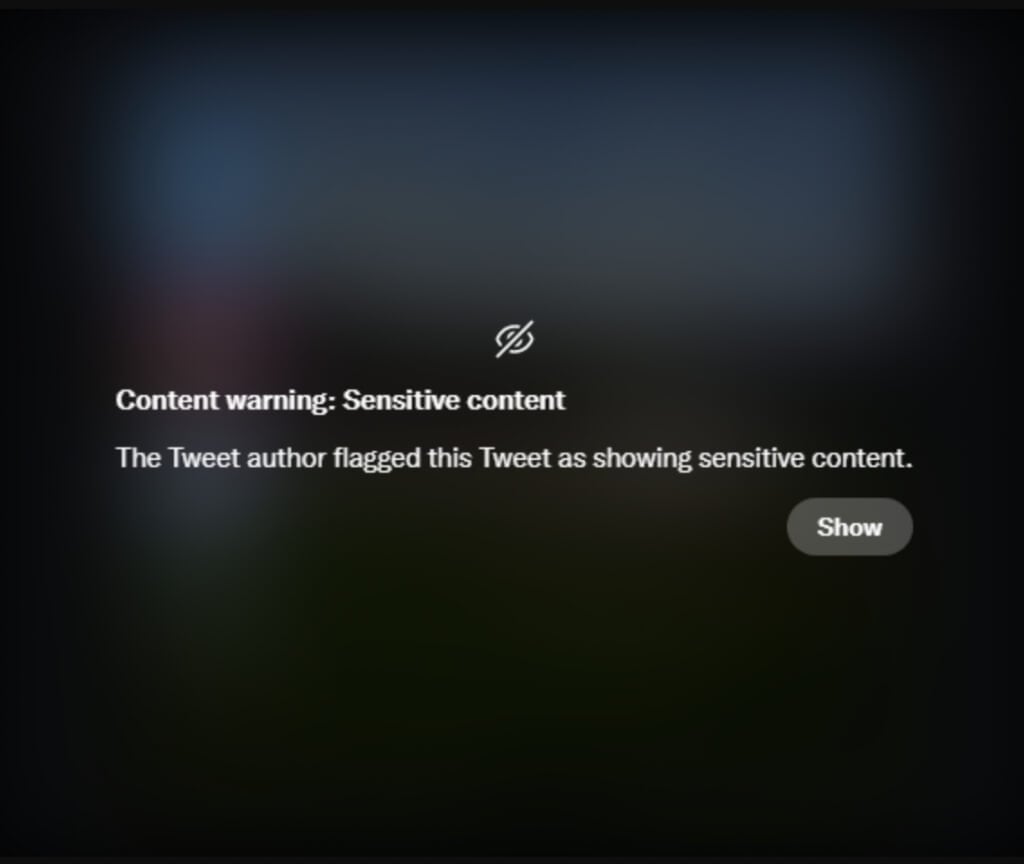
Aside from that and content considered illegal, you can post almost anything else on Twitter, but it might get labeled as “potentially sensitive content.” In other words, content that other users may not want to see. Users under 18 are automatically restricted from Tweets with such a label.
Generally, Twitter is a more liberal and open social media platform regarding the types of content you can share as compared to Instagram or Facebook. You can share things like graphic content and consensually produced adult content on Twitter, as long as you mark this media as sensitive. Even if you don’t mark your media as sensitive, it may still be labeled as such if Twitter deems it necessary.

By default, Twitter places a warning over this media: “This media may contain sensitive material”, or “This media includes potentially sensitive content.” However, you can disable the sensitive content warning (even on Apple devices like iPhone and iPad) if you want to see that content or if you don’t want the warning message to be displayed over your own tweets.
How to See Sensitive Content on Twitter
If you’re over 18 (and have your birth date included in your profile) and want the unblocked experience, you can adjust the sensitive content settings of your profile to show you all content found on Twitter without any restrictions.
Of course, if you don’t have a Twitter account yet, you’ll need to create one and sign in to have access to these settings.
If you already have your Twitter account, follow our step-by-step guide to learn how to unblock sensitive content and display media files without warning.The instructions are the same for Android, iOS, Windows, and Mac users.
- Open Twitter on your device and sign into your account.
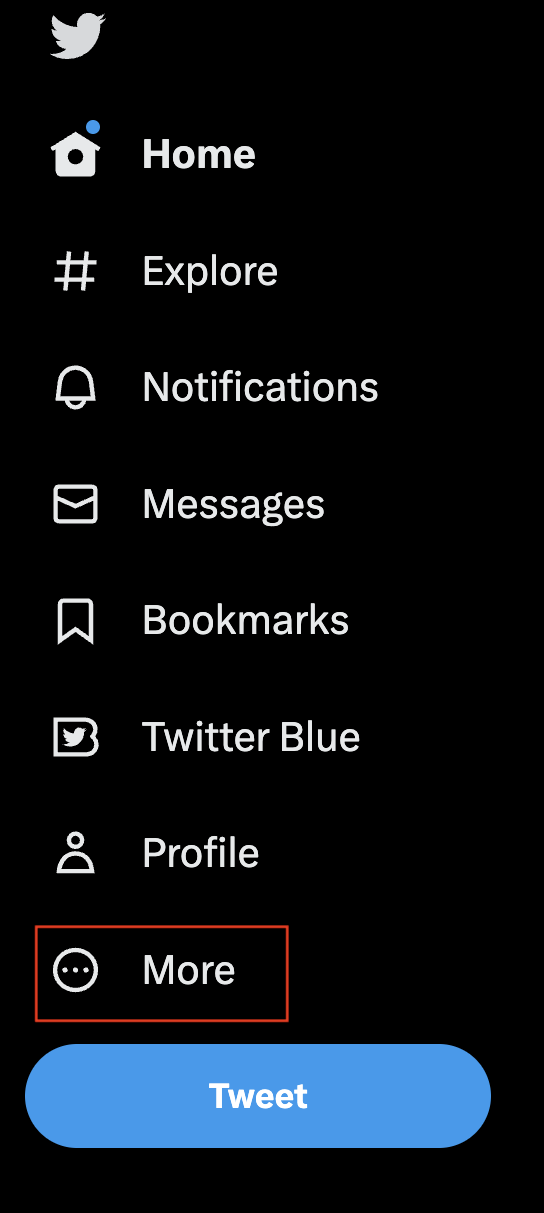
- Select your profile picture on mobile or More on desktop.
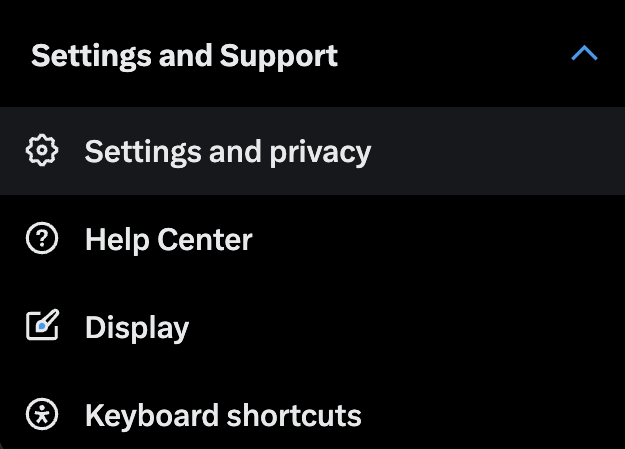
- From the drop-down menu, select Settings and Support > Settings and privacy.
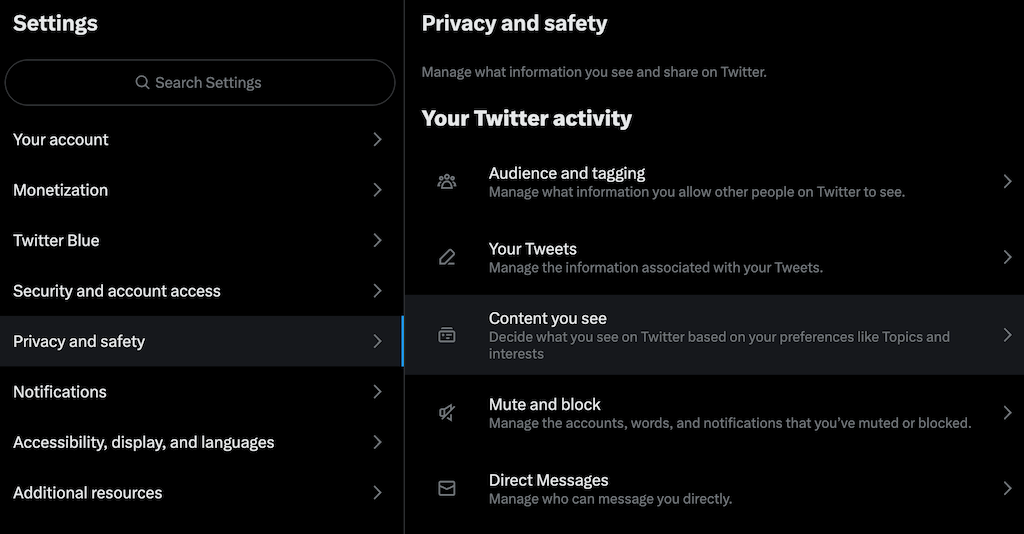
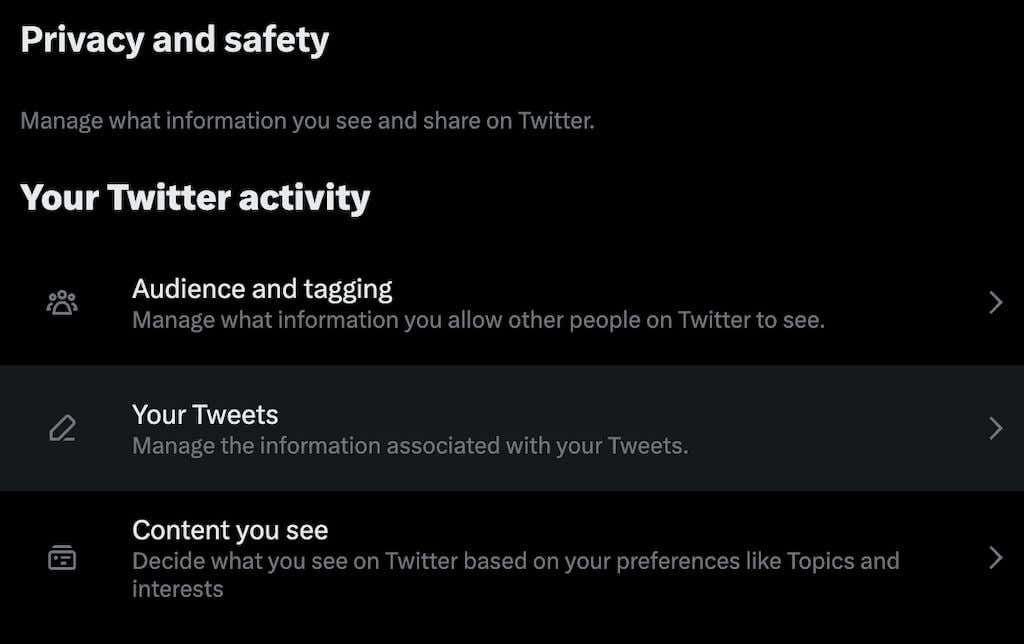
- Select Privacy and safety, then under Your Twitter activity, select Content you see.
- Select the checkbox next to the Display media that may contain sensitive content.
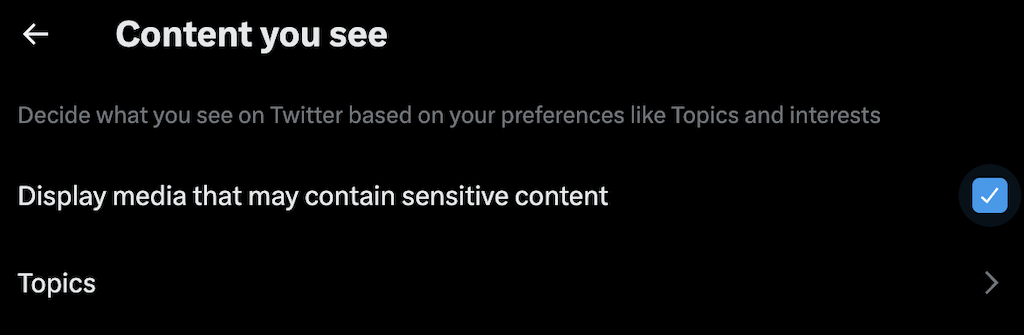
Now even the media marked as sensitive (by a user or Twitter) will be displayed in your Twitter feed.
If you’re planning on viewing sensitive content on Twitter, it may be a good idea to hide what you’re looking at. One way to do it is by using a secure browser with enhanced privacy features that will block or delete cookies to stop web tracking.
How to Show Sensitive Content in Searches
Tweets containing sensitive content are hidden from searches by default. If you want to make them appear in your Twitter searches, you’ll need to enable them manually via the sensitive media settings.
This option is available on the Twitter website and in the Android app, but unfortunately, not in the Twitter app for iPhone and iPad.
To show Tweets containing sensitive content in your Twitter searches, follow the steps below.
- Open Twitter on your mobile app or in a web browser.
- Select your profile icon (mobile) or More (desktop).
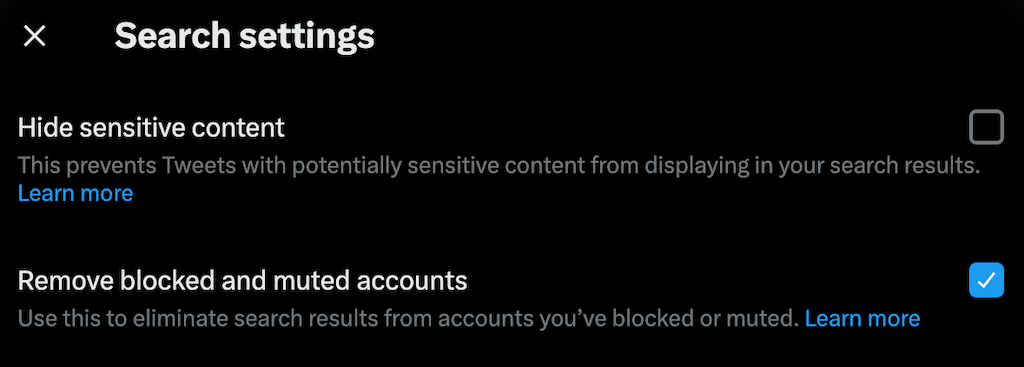
- Follow the path Settings and Support > Settings and privacy > Privacy and safety > Content you see > Search settings.
- Uncheck the box next to the Hide Sensitive Content option.
How to Remove Sensitive Content Warning From Your Own Tweets
If Twitter keeps labeling your Tweets as “containing potentially sensitive content” and you believe it’s hurting your reach on Twitter, you can change the privacy settings to remove that warning from your future Tweets.
This option is available to Android and web users, but not the iPhone and iPad users.
To stop Twitter from marking media you upload as sensitive, follow the steps below.
- Go on Twitter and select your profile icon (mobile) or More (desktop).
- Follow the path Settings and Support > Settings and privacy > Privacy and safety > Your Tweets.
- Uncheck the box next to the Mark media you Tweet as having material that may be sensitive option.
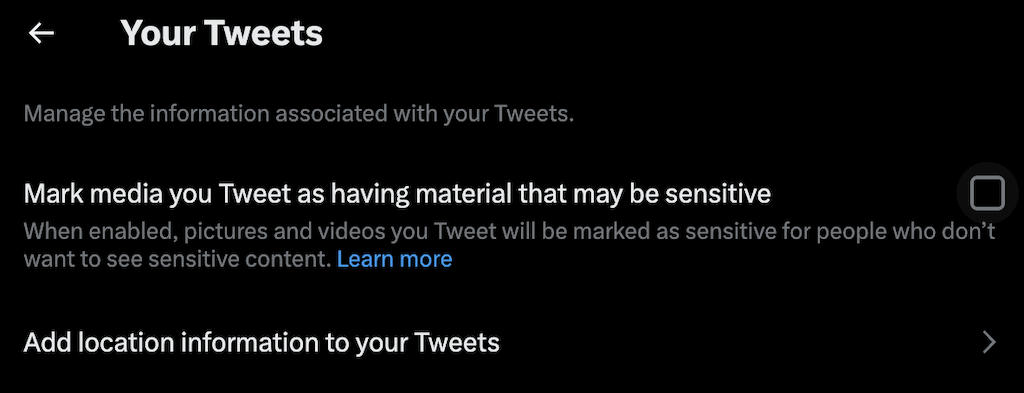
If you can’t disable this setting, Twitter permanently enabled this option for your account. It happens when Twitter notices you uploading sensitive media without labeling it as such on a regular basis.
As long as you don’t abuse this option, you should be able to control whether you want Tweets with sensitive content to appear in your Twitter searches.
How to Block Sensitive Content on Twitter
Blocking sensitive content and tweets that contain it is the default option on Twitter, so you don’t have to do anything to make it happen.
If you’ve previously changed your Privacy and safety settings to view the media containing sensitive content on Twitter, don’t worry, as they’re easy to reverse.
You’ll need to go back to those Twitter settings and make sure you have the Display media that may contain sensitive content option disabled and the Hide Sensitive Content option enabled to reverse the changes.
How to Report Sensitive Media on Twitter
If you’ve come across media in Tweets that you believe should be marked as sensitive, Twitter encourages you to report it using a special process.
To report a Tweet containing sensitive media, follow the steps below.
- Go to Twitter.com, or open the Twitter app for iOS or Android.
- Navigate to the Tweet you want to report.
- In the top right corner of the Tweet, select the three horizontal dots icon.
- From the drop-down menu, select Report Tweet.
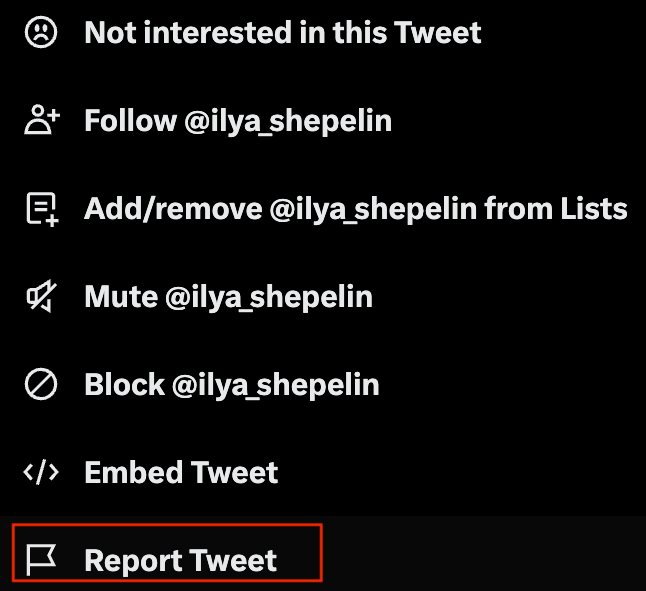
- Select Start report.
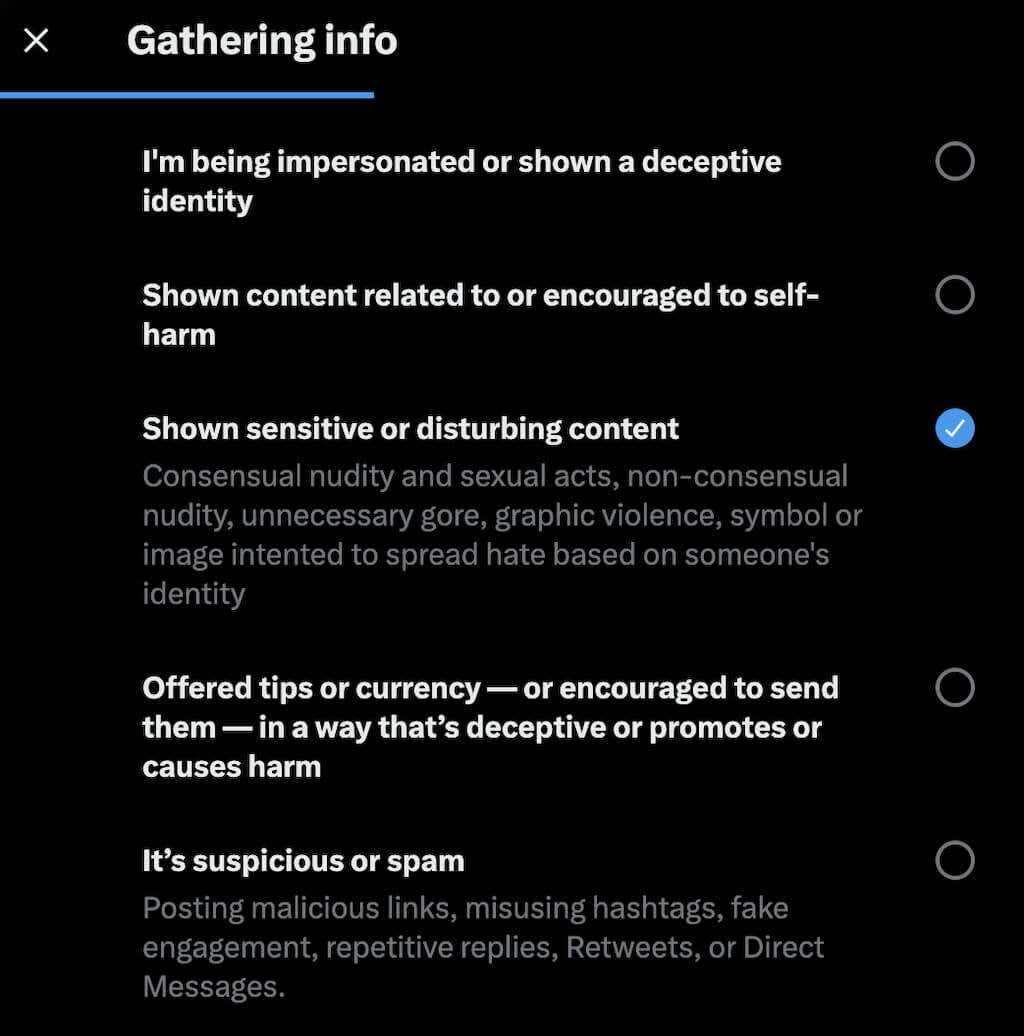
- Answer a few questions under Gathering info and select Shown sensitive or disturbing content in the end. Twitter will then provide recommendations for additional actions you can take to improve your Twitter experience.
If you’re reporting something you don’t like and Twitter hasn’t placed a warning label on it, it’s possible that the selected Tweet doesn’t meet the sensitive content criteria. In that case, it won’t be labeled as sensitive and will continue being displayed on the site.
However, if you believe the content you see to be disturbing, flagging it will bring it to the attention of the Twitter team. If they find any violations, they’ll place a label over it or remove it from Twitter for good.
Take Control Over Your Twitter Feed
Twitter is a massive platform with a diverse audience. Thanks to that, there isn’t much that you can’t find on Twitter. Luckily, the Twitter team came up with a way to regulate different types of content and offered you a few ways to control what you see on the network.
If you want to become more active on Twitter, check out our guide with tips and tricks you can learn to Tweet like a pro.