
Discord is an excellent alternative to conference call services like Zoom or Slack. It’s free and comes with all the same features that you’d expect from a telecommuting app, including the ability to share your screen from desktop and smartphone.
If you’re using Discord as initially intended – for gaming purposes – screen sharing will come in handy when you want to stream your gameplay or host a D&D game online. Screen sharing has many non-gaming uses too. While on a video call, you can share a Word or Excel document with your colleagues or point out a location in a presentation.
Here’s how to share your screen on Discord from your computer or mobile.
How to Screen Share on Discord from Desktop
You can easily share your screen on Discord using the Video Call feature. This method works on Mac & Windows, and you can share your screen when you use the Discord app and when you use Discord in your browser.
How to Share Your Screen Using the Discord App
To start screen sharing using the Discord app on your computer, follow the steps below.
- Open the Discord app on your computer.
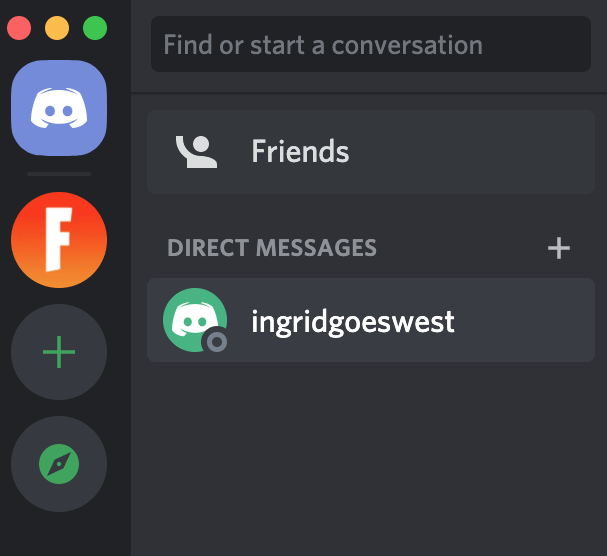
- Find the user that you want to share your screen with on your Friends list or in Direct Messages if you already have an open chat with them. Select this user.
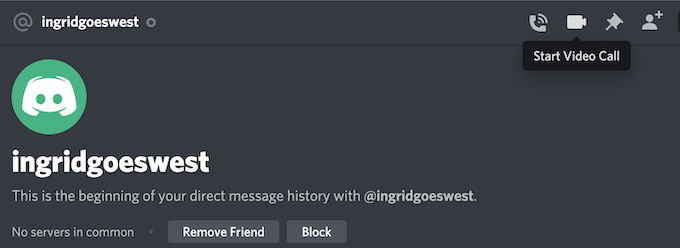
- In the upper-right corner of the app, select Start Video Call.
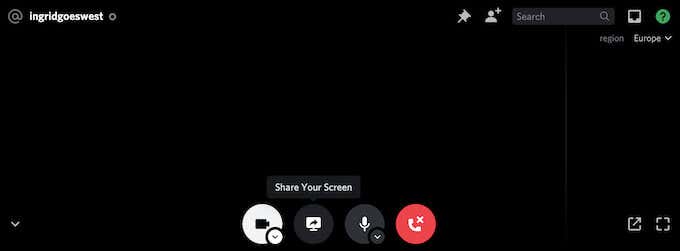
- Once the call starts, select Share Your Screen to begin screen sharing.
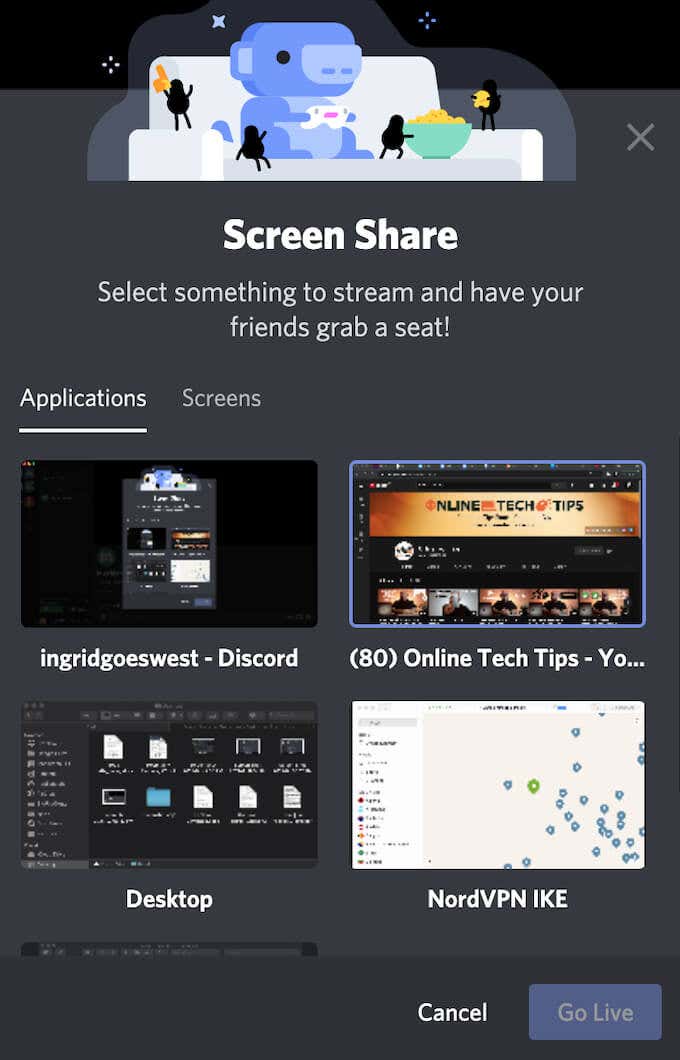
You’ll see the Screen Share menu pop-up. Here you can choose only to share one of the Applications that you have running. This option is better for when you want to stream your gameplay or watch a YouTube video together. Alternatively, select Screens to share your entire screen with the other user.
- After choosing the screen sharing mode, double-check if you’re sharing it with the right streaming channel. You can also select the Resolution and the Frame Rate that you want.
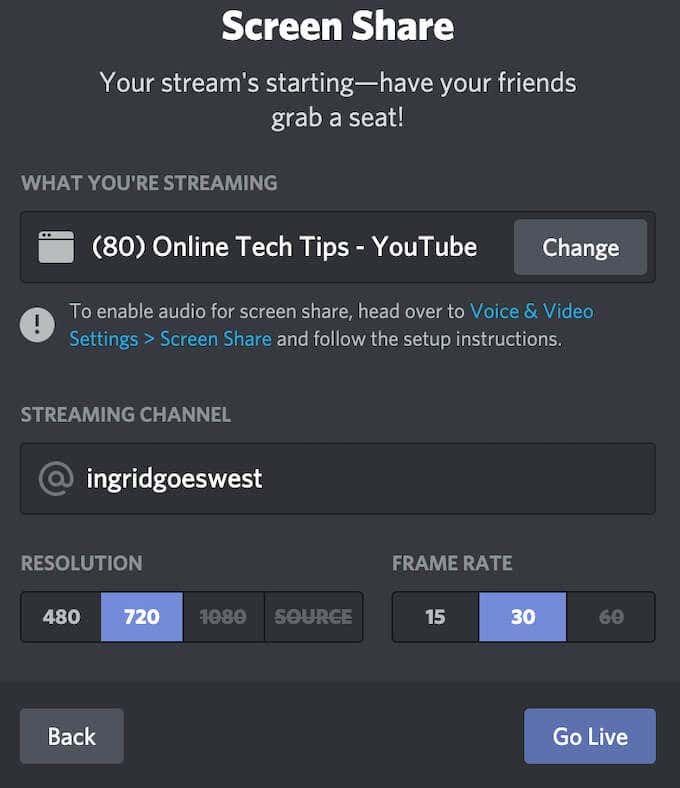
- Select Go Live to begin screen sharing.
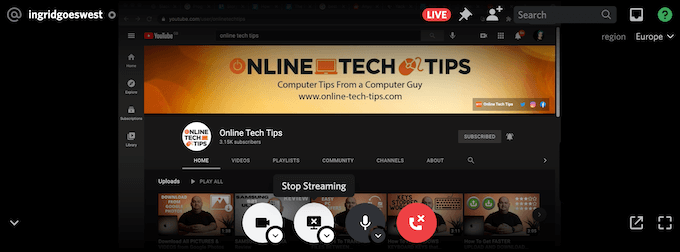
You can pause or stop sharing your screen at any time during the video call. To do that, select Stop Streaming, and you’ll switch from screen sharing to sharing the video from your webcam with the channel instead.
How to Screen Share on Discord With Your Browser
If you prefer using Discord in your browser, you can also share your screen from the site. To start screen sharing on Discord using your browser, follow the steps below.
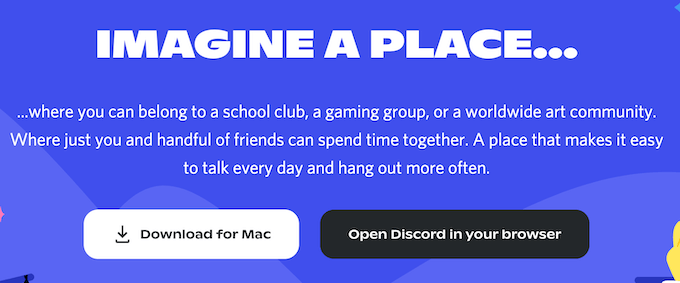
- Go to Discord.com and select Open Discord in your browser.
- Find the user that you want to share your screen with in your Friends list or in Direct Messages if you already have an open chat with them. Select this user.
- In the upper-right corner of the window, select Start Video Call.
- Once the call starts, select Share Your Screen to begin screen sharing.
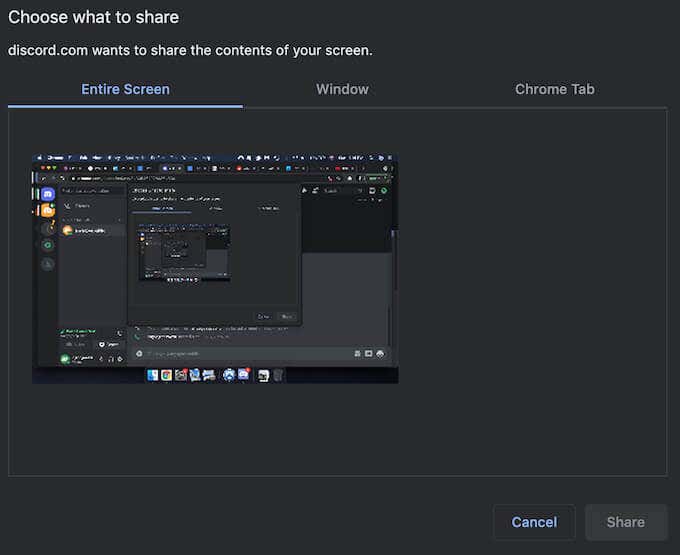
In this case, the pop-up menu is different and has more options. Under Choose what to share, you can select to share your Entire Screen, a single Window (to share the contents of only one application), or a Chrome Tab. When sharing a selected Chrome Tab, you also get an option to Share audio.
- After you choose the screen sharing mode, select Share to begin sharing your screen.
If you want to pause or stop sharing your screen at any time during the video call, select Stop Streaming. This will stop screen sharing and switch to your webcam instead.
How to Share Your Screen on Discord from Mobile
Discord allows you to share your screen from your smartphone as well. However, there’s no option to choose which part of the screen or which app to share. Instead, the other user will see your entire screen in real-time. They will see any notifications or messages that you get during the call.
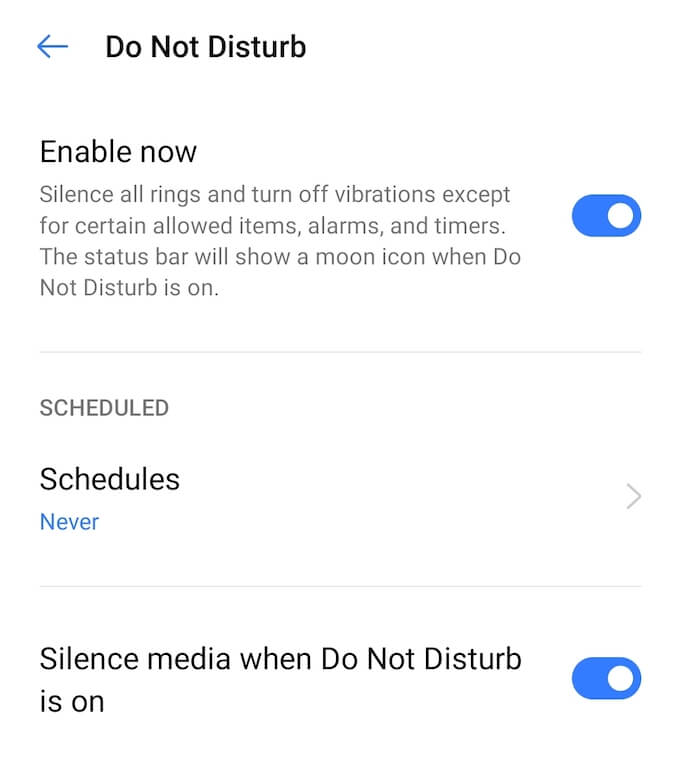
To avoid showing any sensitive information, make sure to close any apps that you don’t want to accidentally switch to and enable the Do Not Disturb mode on your smartphone to silence the notifications. Then proceed to start your Discord video call.
How to Screen Share Using the Discord Mobile App
Before you proceed, make sure your Discord app is up-to-date, and you have the latest version installed on your phone. To start screen sharing on Discord from your smartphone, follow the steps below.
- Open the Discord app on your phone.
- Find the user that you want to share your screen with and start a chat with them.
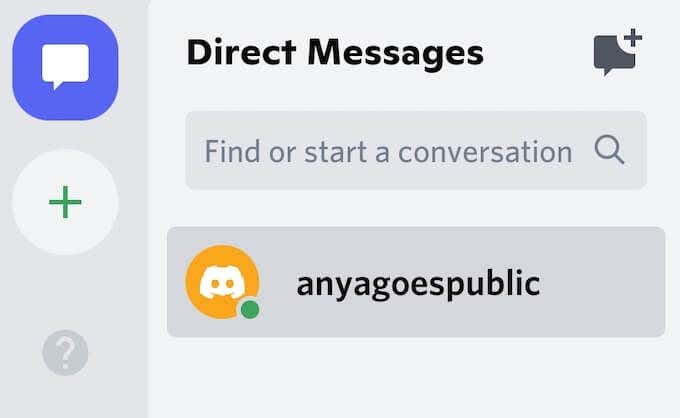
- In the upper-right corner of the app, select Start Video Call.
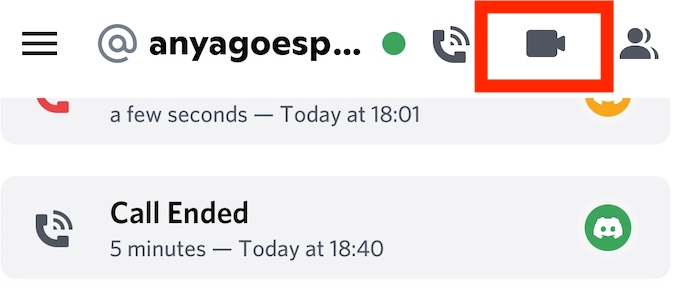
- Once the call starts, select Share Your Screen. Discord will then ask for your permission to record or cast your screen. Select Start now to begin screen sharing.
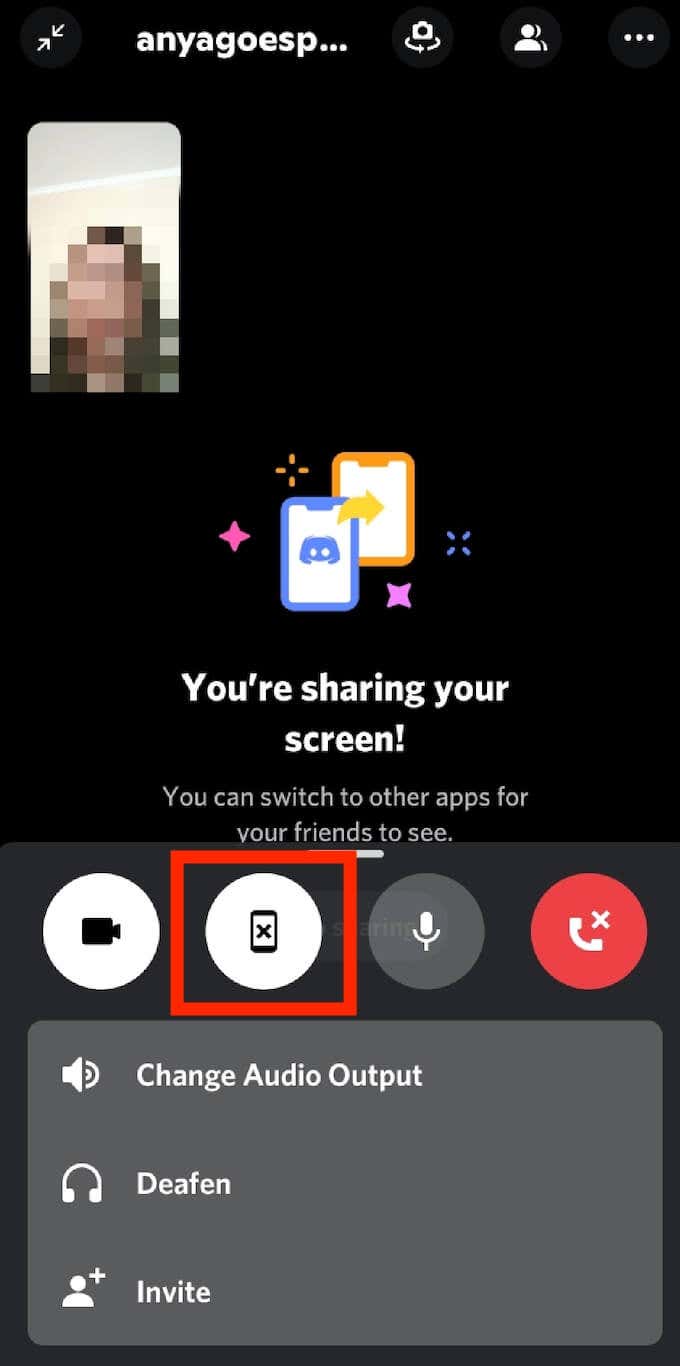
Discord will then display the You’re sharing your screen message. Simply switch to another app that you want to stream for another user. To pause or stop sharing your screen at any time during the video call, open Discord and select Stop sharing. The video will then switch back to the view from your camera.
What if Screen Sharing on Discord Isn’t Working?
The ability to share your screen with others is advantageous. Screen sharing can come in handy when you want to share your gameplay or show the software you’re using to others. If you find that this feature isn’t working on Discord, you can troubleshoot the issue and find out what’s causing it.