

Snapchat is a great platform for sending discrete, timed videos and photos to friends and family. You can share candid scenes and important messages, safe in the knowledge that the content you share can’t be saved unless you allow it.
Unfortunately, that isn’t always a good thing, especially if you’re looking to save a Snapchat video yourself. If you want to know how to save Snapchat videos, you’ll need to be aware of some limitations. This guide has everything you need to know about saving Snapchat videos.
Can You Save Snapchat Videos?
It is possible to save Snapchat videos, depending on the source. If you created the videos yourself, you can export them to your camera roll so you can keep them indefinitely and use them outside the platform. This works for both Android and iPhone devices.
You can also export videos you receive from other users, but only if they’ve sent the videos as attachments in a Snapchat text chat. You can’t save short, timed, and full-screen Snapchat videos in the app itself. You also can’t save videos that appear as part of a user’s Snapchat story.
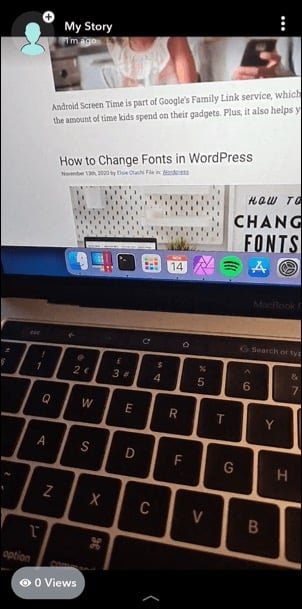
You can only save these videos by taking a screenshot or a screen recording using a mobile screen recording app. However, trying to take screenshots or recordings like this will alert the other user.
Snapchat is a platform for disposable videos, so you’ll need to be careful if you try to save Snapchat videos when you shouldn’t. Not only can this alienate your relationships with the video senders, but it may also be viewed as harassment and place you in breach of Snapchat’s terms of service.
Saving Your Own Snapchat Videos
If you’ve recorded a video (or taken a photo) in the Snapchat app, you can easily save it before it’s sent on both Android and iPhone devices.
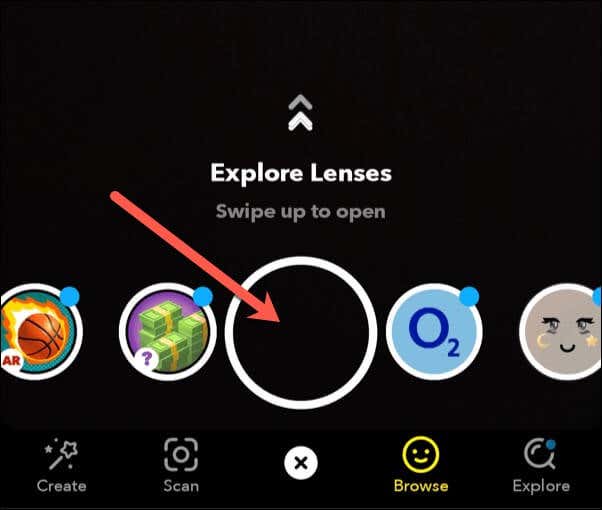
- To do this, open the Snapchat app and record a video by pressing and holding the Record button in the center of the app’s camera view.
- To save a Snapchat video you’ve recorded, tap the Download button in the bottom-left corner.
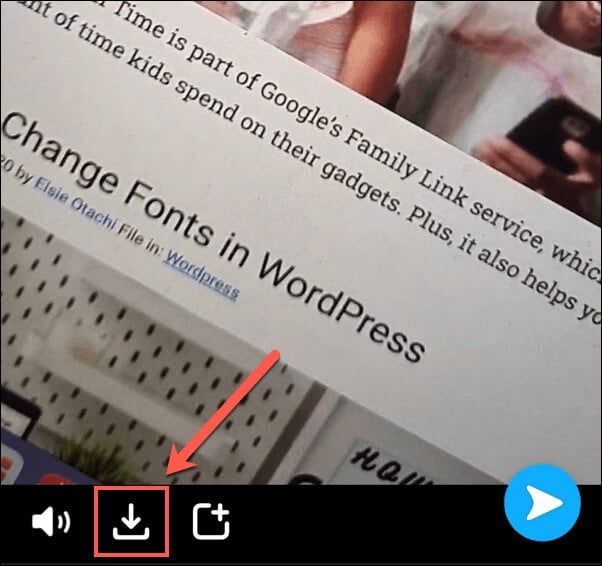
The recorded video will now be available in your device’s camera roll for you to use elsewhere.
How to Save Your Own Snapchat Story Videos
Snapchat Stories provide an overview of the last 24 hours for that user, showing a curated list of activities, messages, and more. You can export these videos, but you can only do this before the videos expire, unless the videos are set to be saved automatically to your Snapchat Memories section.
- To save a Snapchat Story video, open the Snapchat app and tap the Bitmoji or Story icon in the top-left corner.

- In the Stories section of your Snapchat user profile, you can choose to save a single Snapchat Story video or an entire day’s worth of Snapchat Story videos at once. To save Story videos from a whole day, tap the three horizontal dots menu icon next to the My Story section.
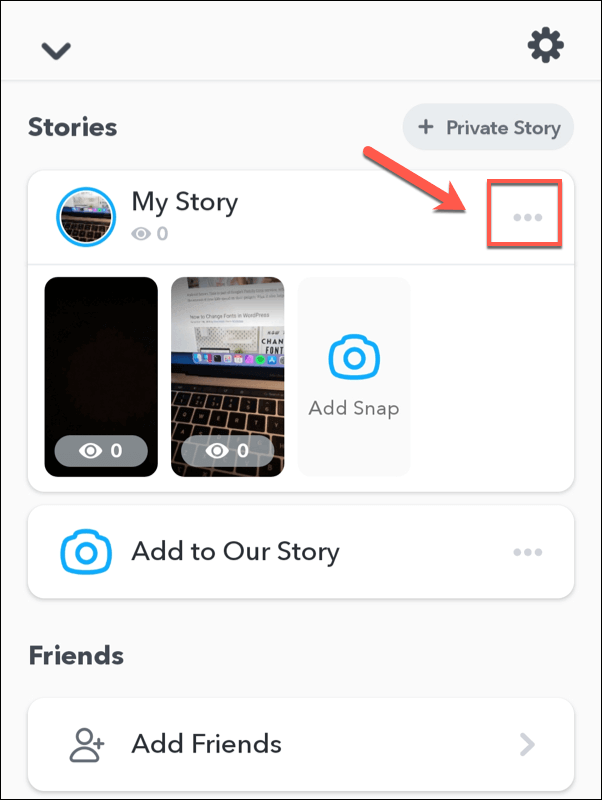
- In the bottom menu, tap Save Story to save the videos to your camera roll.
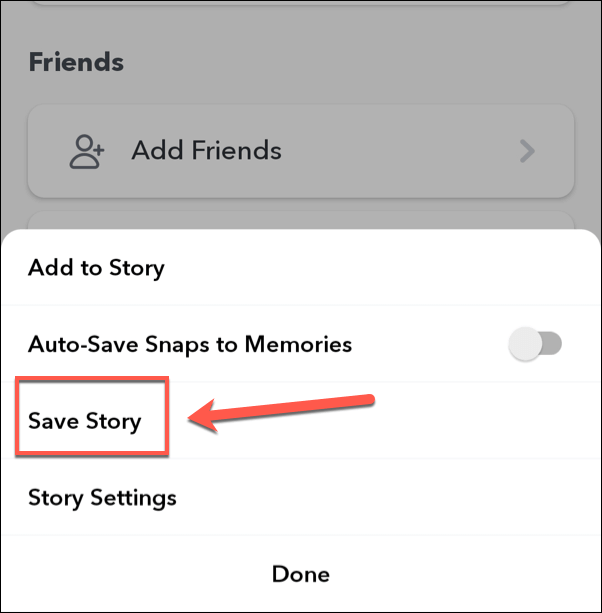
- If you want to save an individual Snapchat Story video instead, tap the individual video listed under the My Story section in your user profile area to view it.

- Tap the hamburger menu icon in the top-right corner to access the settings for that video.

- To save the Story video, tap the Save button at the bottom.

As with videos you take privately, any videos you save from your Snapchat Story will be exported to your device’s camera roll.
Save Attached Snapchat Videos From Other Users
If you receive a video as an attachment in a Snapchat text chat, then you can save and export it (assuming you have permission to). Doing this will alert the sender, so you should only do this if you’ve received permission to do so.
To save an attached Snapchat video, open the Snapchat chat, then tap and hold the attached video. In the pop-up menu, tap the Save to Camera Roll option to export the video.
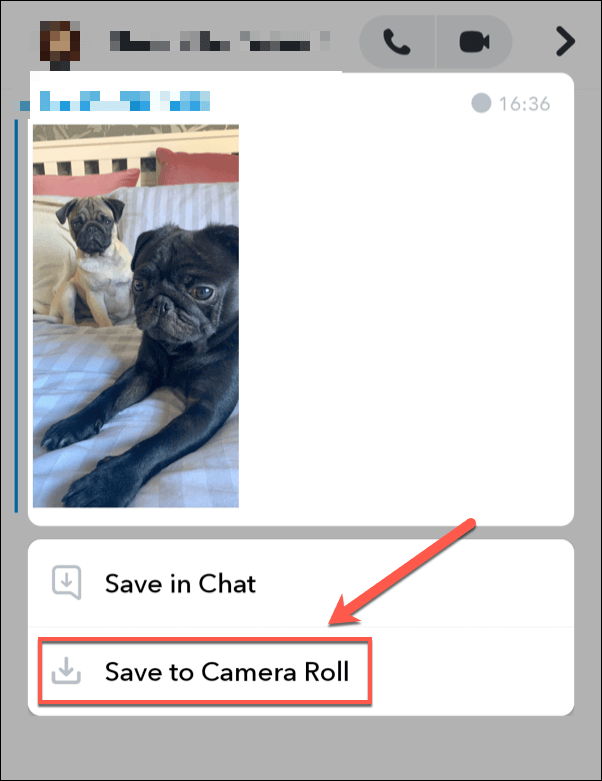
This will save the video to your camera roll for you to use elsewhere.
Save Full Screen Snapchat Videos and Stories
Unlike attached Snapchat videos, you can’t save full screen Snapchat videos sent from other users. These are “typical” Snapchat messages that are temporary as intended. Likewise, Snapchat Stories from other users can’t be saved by other users within the Snapchat app itself.
The only way around this problem is to use a mobile video recorder (or to take a screenshot if you want to save a picture instead). If you do this, the other user will be immediately alerted, and there isn’t any way around this without breaking Snapchat’s terms of service.
iPhones have built-in screen recording technology, while Android device owners with Android 9 or less will need to install a third-party app like AZ Screen Recorder. Android 10 device owners can use the built-in screen recording feature instead.
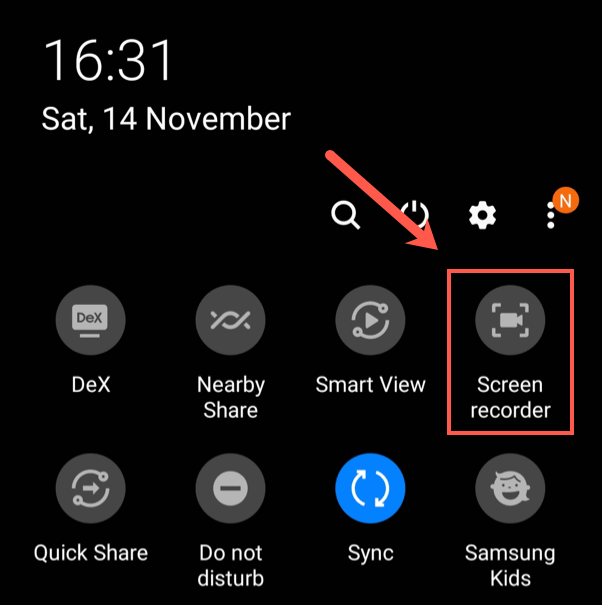
- Android 10 users can begin a screen recording by swiping down their notifications menu and tapping the Screen Recorder icon. With this mode active, you can then play a received Snapchat video or Snapchat Story to record the content you wish to save before tapping the Screen Recorder icon again to stop recording.
- iPhone users will need to open the Settings app on their phone to begin screen recording. From there, tap Control Center > Customize Controls and tap the + (plus) icon next to the Screen Recording option to add it to the Control Center menu.
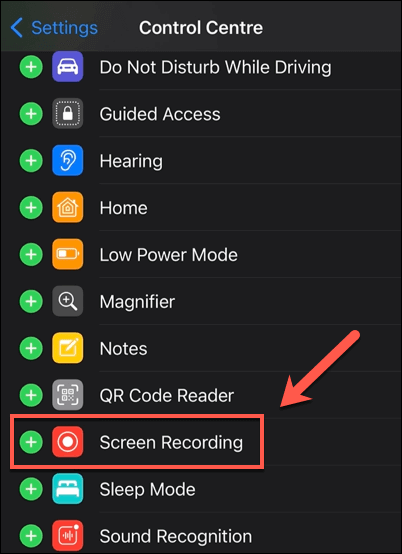
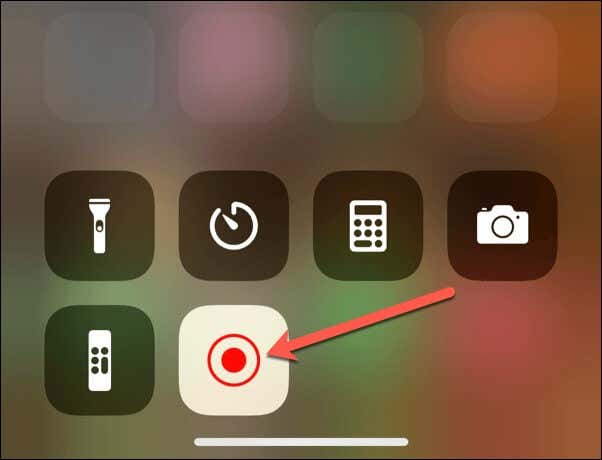
- With screen recording enabled, open the Control Center by swiping up from the top-right corner (or bottom, depending on your iPhone model). In the Control Center, tap the white circular icon, then tap Start Recording to begin the recording process.
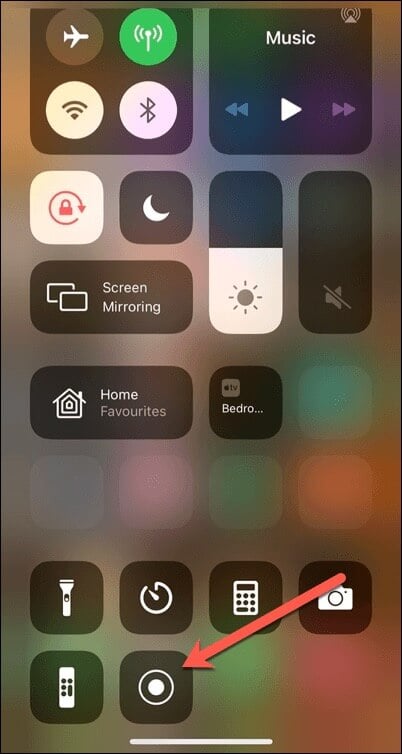
- Record the received Snapchat video or Snapchat Story, then re-open the Control Center. From there, tap the red circular icon again to stop the recording.
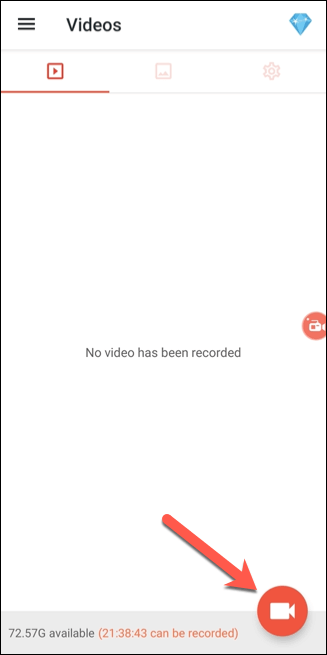
- As mentioned, Android 9 (and older) users will need to install an app like AZ Screen Recorder to record other user’s Snapchat videos and Stories. In the AZ Recorder app window, tap the Record icon in the bottom-left to begin recording.
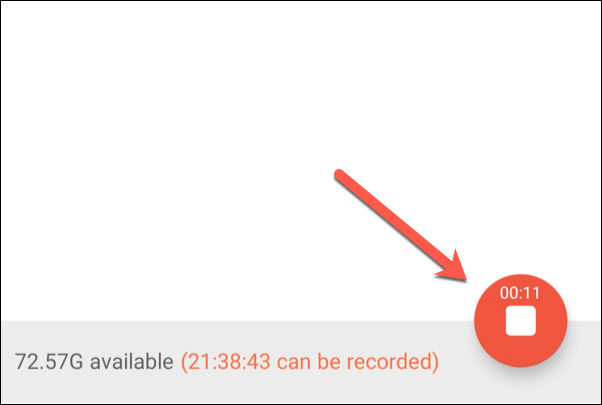
- With the app recording, open the Snapchat Story or video to play and record it. Return to the app, then tap the Record icon again to end the recording and save it to your camera roll.
Making the Most of Snapchat
Now that you know how to save Snapchat videos, you can begin to save your most important memories. You can take this a step further by using Snapchat’s own Memories section to view a list of previously saved Snaps. Do this by swiping up from the bottom in Snapchat’s camera view mode.
The platform isn’t for everyone, so if you’re worried about your safety, then make sure that you’ve implemented the best Snapchat privacy tips, including hiding your details from unknown users. You can also change your Snapchat username or, if you want to, delete your Snapchat account and wipe your data entirely.