

Instagram is a window into our lives, so as it exploded in popularity users started advocating for online safety features. It’s no secret that some users get the urge to troll, harass, and cyberbully others because they feel safe in virtual space. That’s why we’re going to discuss how to restrict someone on Instagram.
As part of the fight against cyberbullying, Instagram launched some new privacy and security features, among them the ability to restrict certain accounts. Individuals, businesses, and brands can now take control of the comment section on their posts, so make sure to also check out if someone restricted you on Instagram.
What Is the Restrict Function on Instagram?
Cyberbullying was a major issue on Instagram, so the developers created the restrict feature to give users a tool to protect themselves from unwanted interactions.
When you restrict someone’s Instagram account, you’re limiting their access to your profile. But you are doing it subtly.
Let’s say you have an annoying co-worker who occasionally embarrasses you online. By restricting this colleague, you will limit their ability to post on your page without any confrontation. You will still be able to interact with this person whenever you want, but they won’t be able to send you unsolicited direct messages.
Because the restriction function is discrete in nature, it is also useful in preventing psychological abuse. If you’re dealing with severe harassment, the restriction function will allow you to avoid nasty comments and messages without letting the cyberbully know they were restricted. Also, you can use this feature against followers who spam your page.
What Happens When You Restrict Someone and What Stays the Same
There will be some significant changes when you restrict someone. Keep in mind that restricting someone is not the same as blocking. It is best to make sure you understand what exactly the restriction function does before you proceed.
If you tap the “Restrict” button you can expect the following changes to happen.
Messages Will Automatically Go to the Message Requests Folder
You’re not limited to restricting only the people on your list of followers, or the people who follow you. You can restrict anyone on Instagram. You can find the messages from restricted accounts in the message requests. This is located in a folder at the top right corner of your direct message folder. Here, you will also find any responses a restricted person made to your stories.
If a restricted person decides to send you a DM, you won’t receive a notification. But if you choose to view the message, you can do so easily. The person won’t be notified that you viewed the message unless you accept it. But if you want to reply, you will have to remove the restriction.
Restricted Users Can’t See Your Activity Status
The activity status lets you know when someone is online or the time they were last online. If you feel uncomfortable with people knowing your activity status, you can choose to turn off this feature. Keep in mind that if you do so, you’re hiding your activity status from everyone. Moreover, you won’t be able to see their activity status.
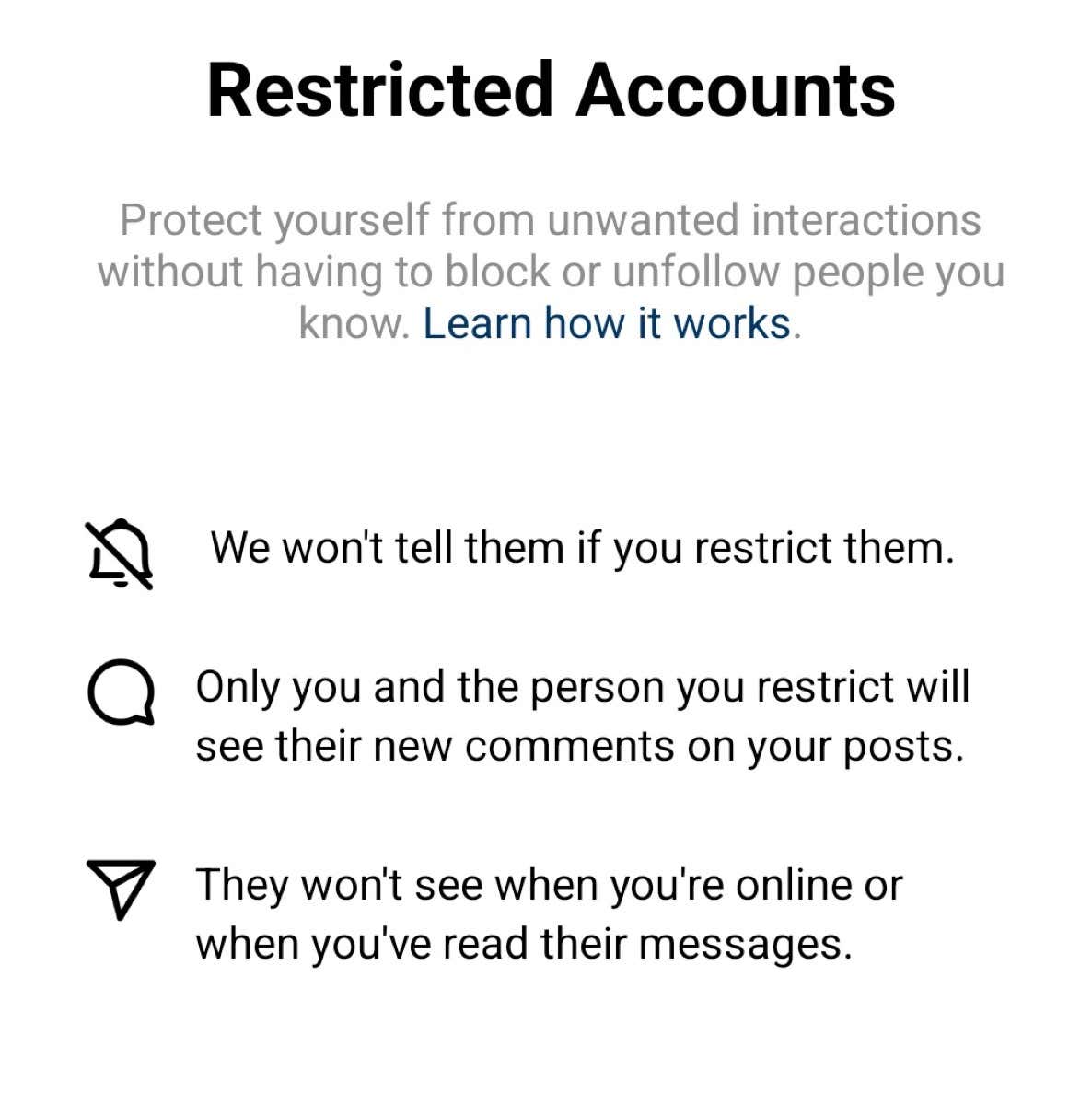
If you choose to restrict a person, be confident that only that one person will be unable to see your activity status. All other friends on your follower list will see it without problems.
New Comments on Your Instagram Posts Are Hidden
If you restrict someone that doesn’t mean they won’t be able to comment on your posts. However, their future comments will automatically be hidden. You or your followers won’t be able to see their comments. You also won’t get a notification when a restricted person comments.
You can choose to view the hidden comment and you can either delete the unwanted comment or approve it so others can see it too. You can also simply ignore the hidden comment.
Notified When in Group Chat with a Restricted Instagram User
This will allow you to decide to remain in the conversation, remove the restriction, or leave the group chat.
Some Things Stay the Same
Now that you know what will change if you decide to restrict someone, let’s see what will stay the same.
The restriction is about additional safety. The restricted person doesn’t need to know you’ve restricted them. They can still send you messages, make and see comments, and see all the content you put on Instagram such as Reels, Stories, and news feed posts.
The restricted person will be able to continue liking your content, and their likes will be visible to everyone. You will also be able to see their content and interact with their account normally. Restricting someone is not the same as removing them from your followers’ list, or unfollowing them.
What Is the Difference Between Instagram Block and Instagram Restrict Functions?
While the restriction function is considered to be a subtle safety measure, the block feature on Instagram is a drastic one. The person you block will know they have been blocked. Your Instagram profile will appear empty to them, they won’t be able to message you or comment on your posts. You won’t be able to do so either.
Blocking someone can lead to unpleasant situations and confrontations in real life. It often happens that a blocked person gets angry. You might want to avoid this, especially if you feel the person is endangering your safety. This is why restriction is often a better option.
How to Restrict Someone on Instagram
There are several ways to restrict someone using the Android or Apple Instagram app. You can do it directly from their profile, or through the comments they left on your post. You can also do it through the direct messages the person has sent you and through the settings in your profile. Here is how to do it from the multiple menus.
From the User’s Profile
1. Use Instagram’s search option to find the person you want to restrict.
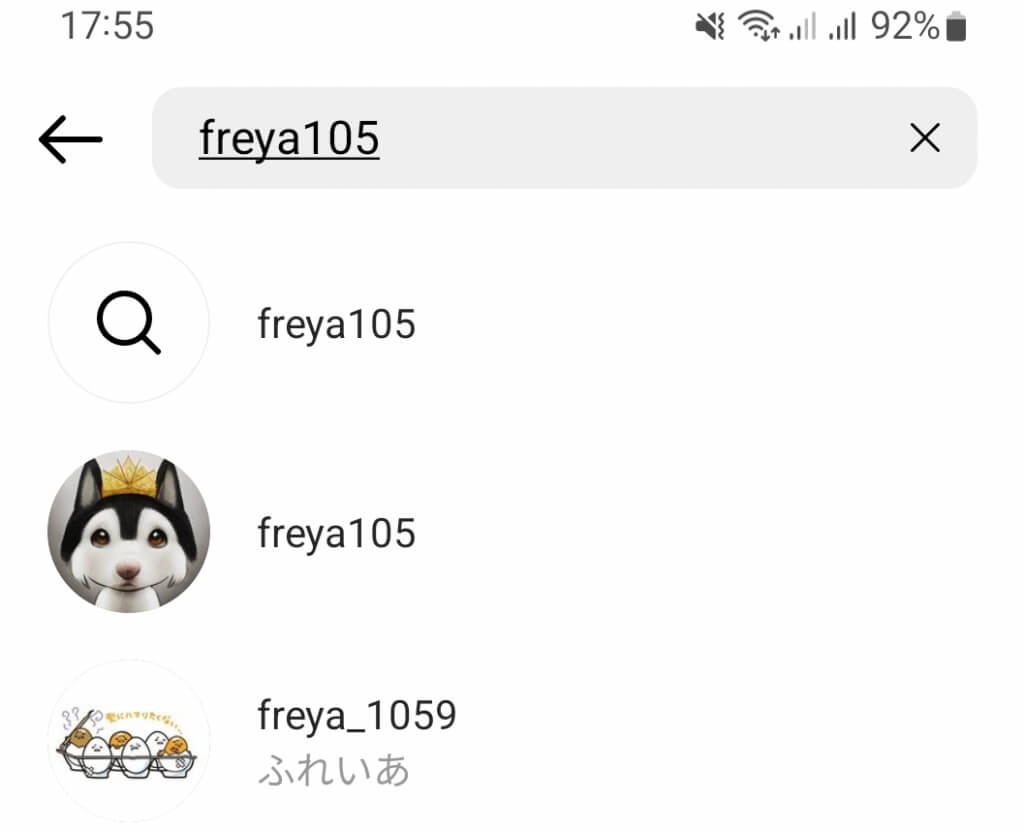
2. Open their profile by tapping on their profile picture, and look for three dots next to their name.
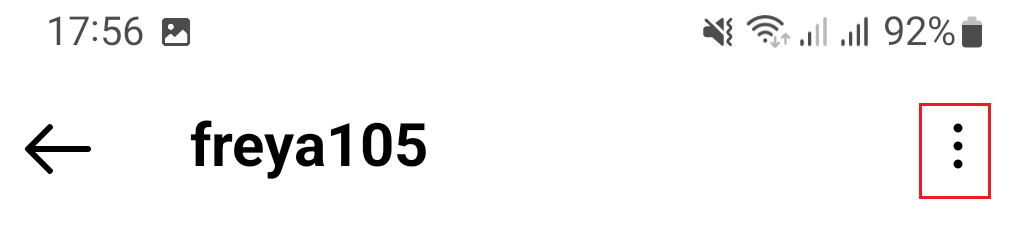
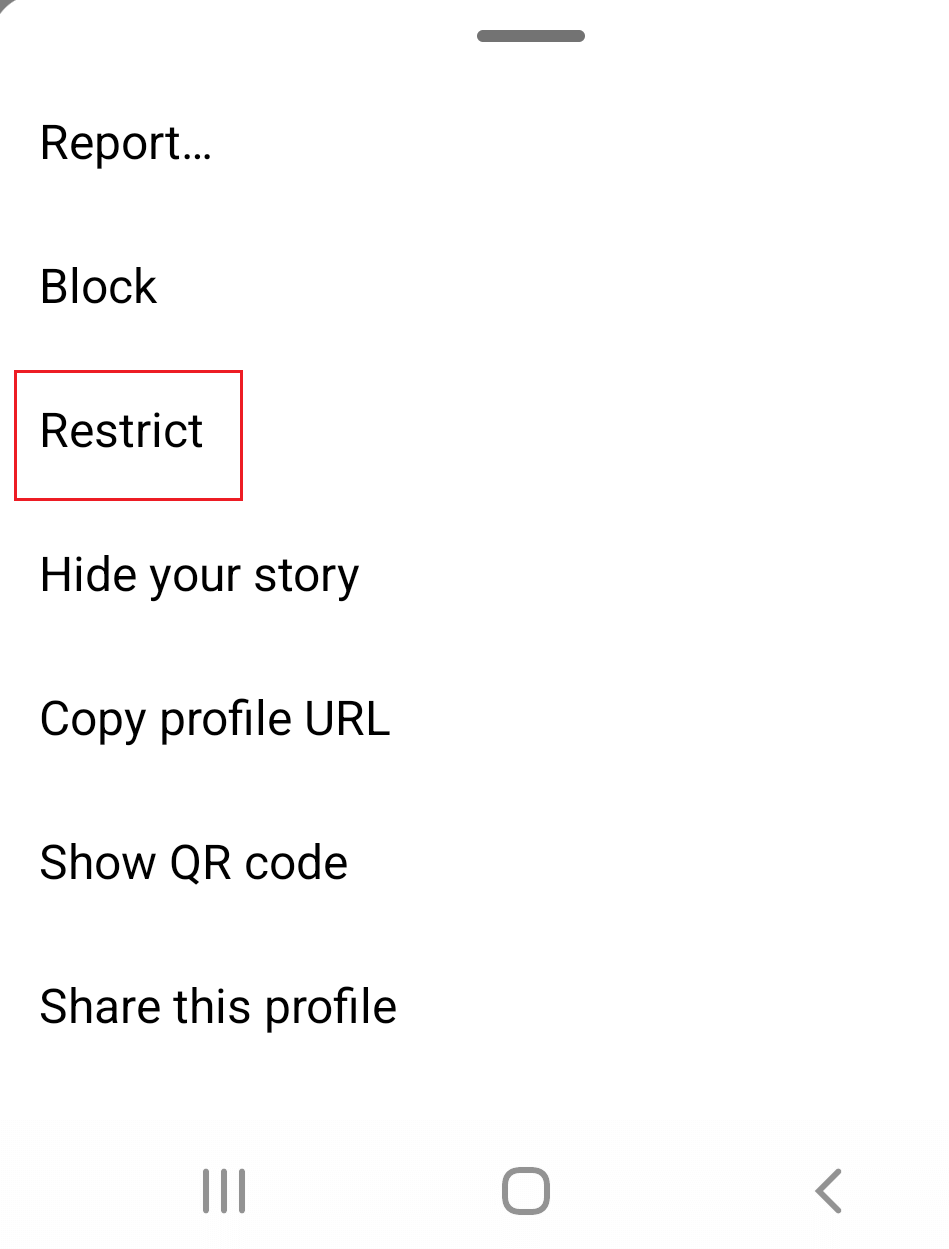
3. Tap Restrict. A pop-up will be displayed where you will confirm your choice.
From Comments
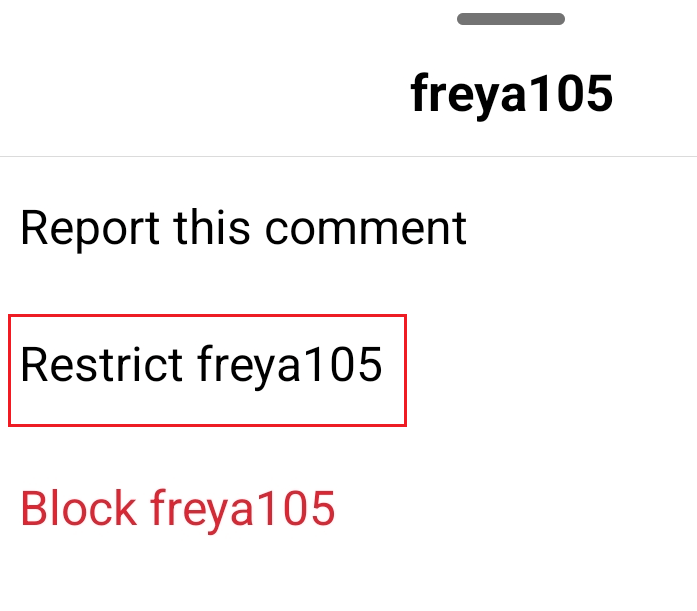
1. Choose the comment on your post made by a person you wish to restrict. On the Android app hold it to select. On the Apple device swipe left.
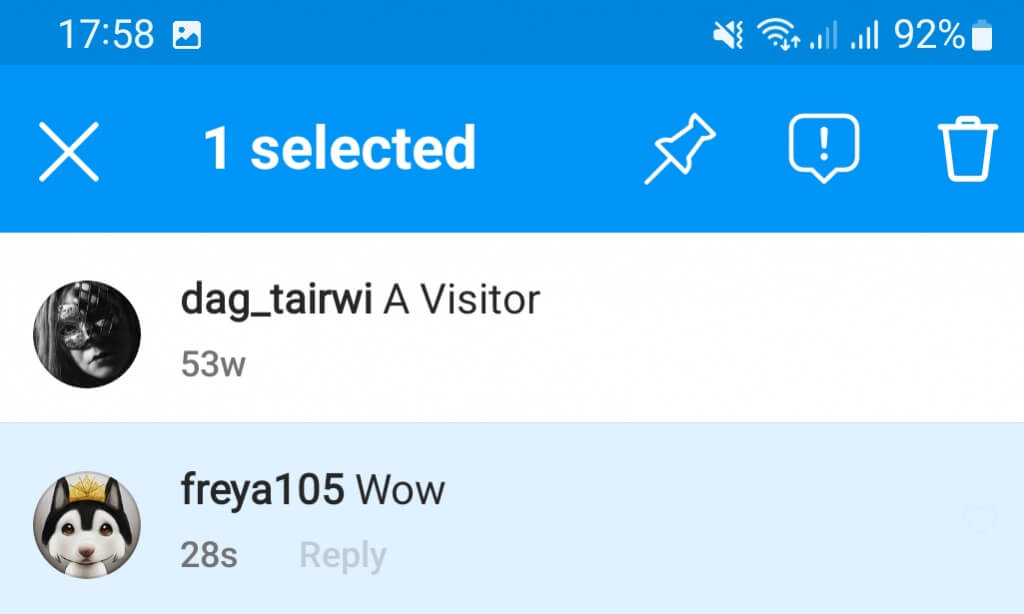
2. Find the exclamation mark symbol in the blue menu that shows up at the top of the screen.
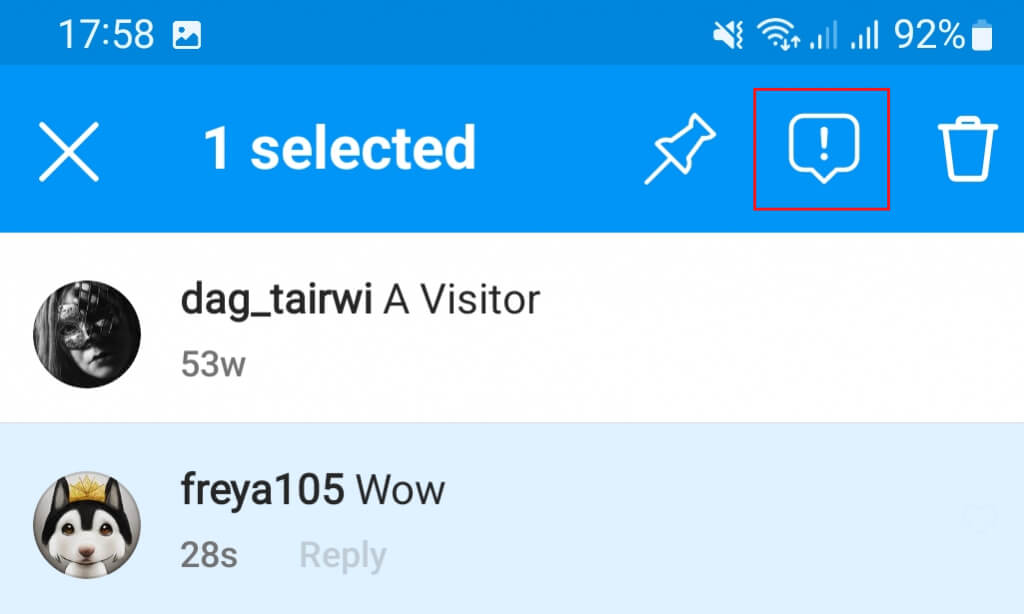
3. Select Restrict and confirm your choice.
From Direct Messages
1. Find and open a conversation with the person you want to restrict.
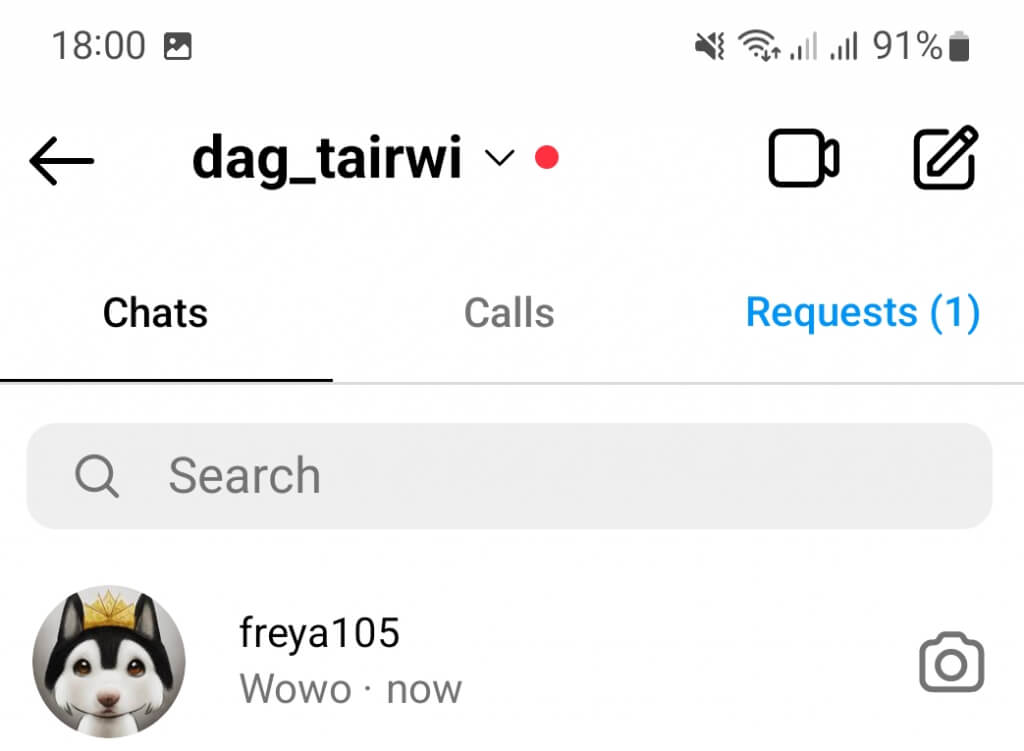
2. Open the DM and tap on the name of the user displayed at the top of the screen.
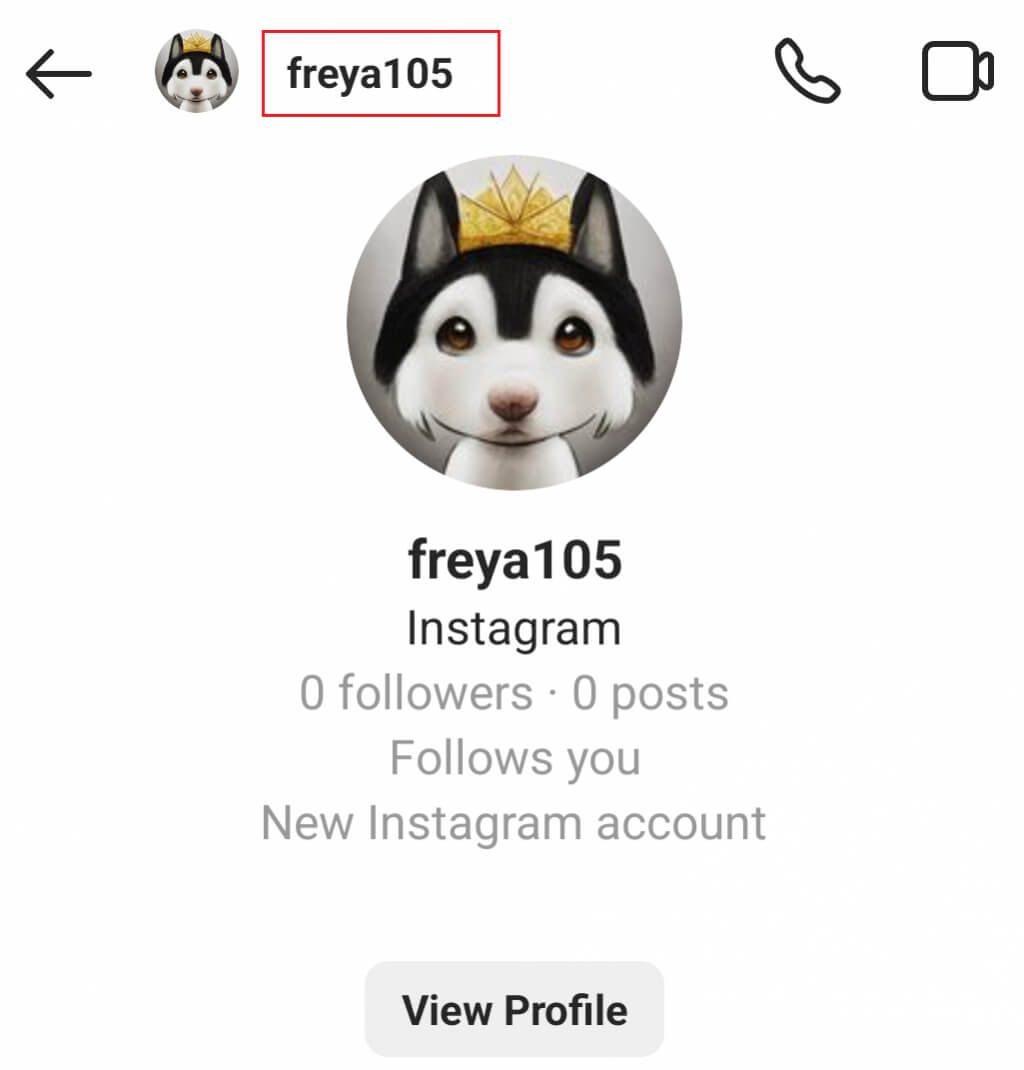
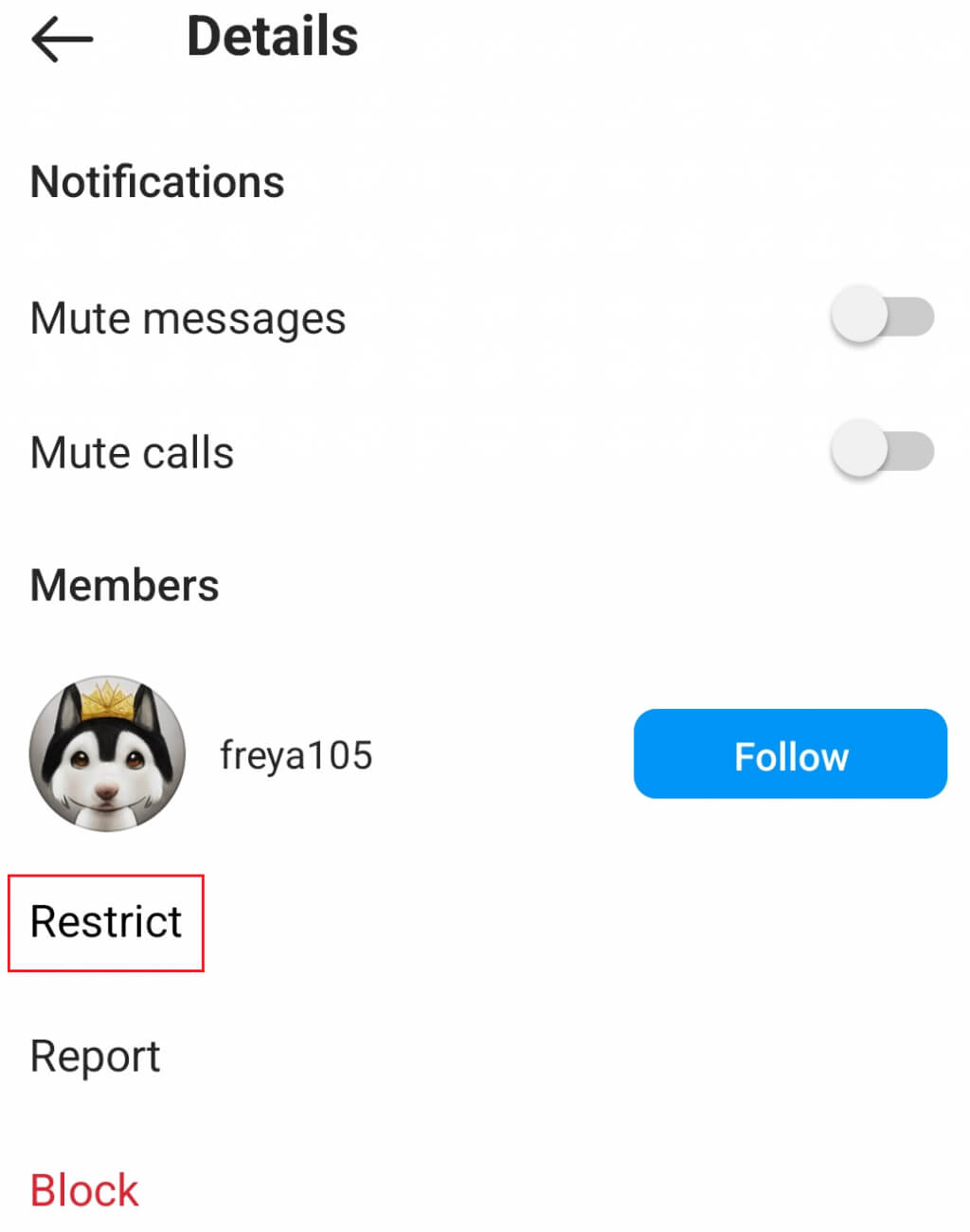
3. A new menu will appear. Choose the Restrict option located near the bottom of the screen.
From the Settings Menu
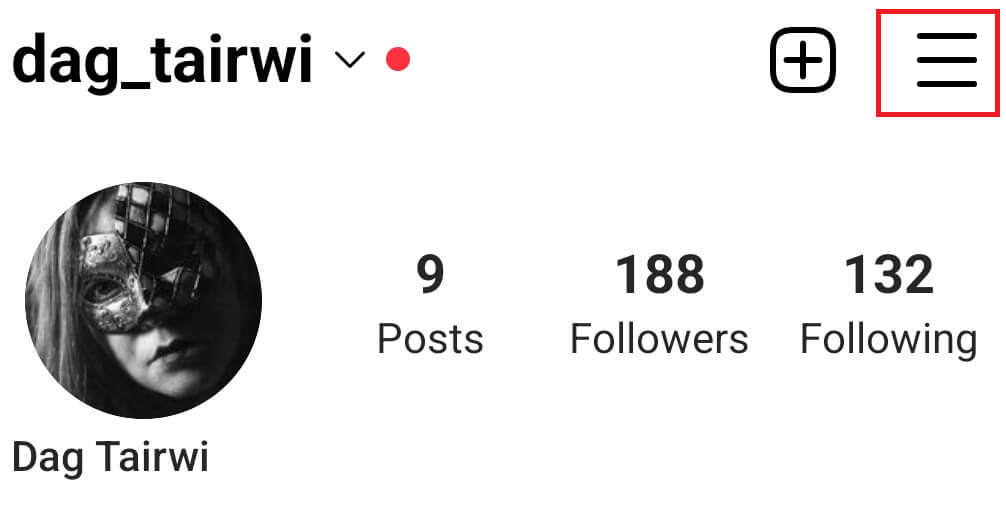
1. Go to your Instagram profile and tap the hamburger menu.
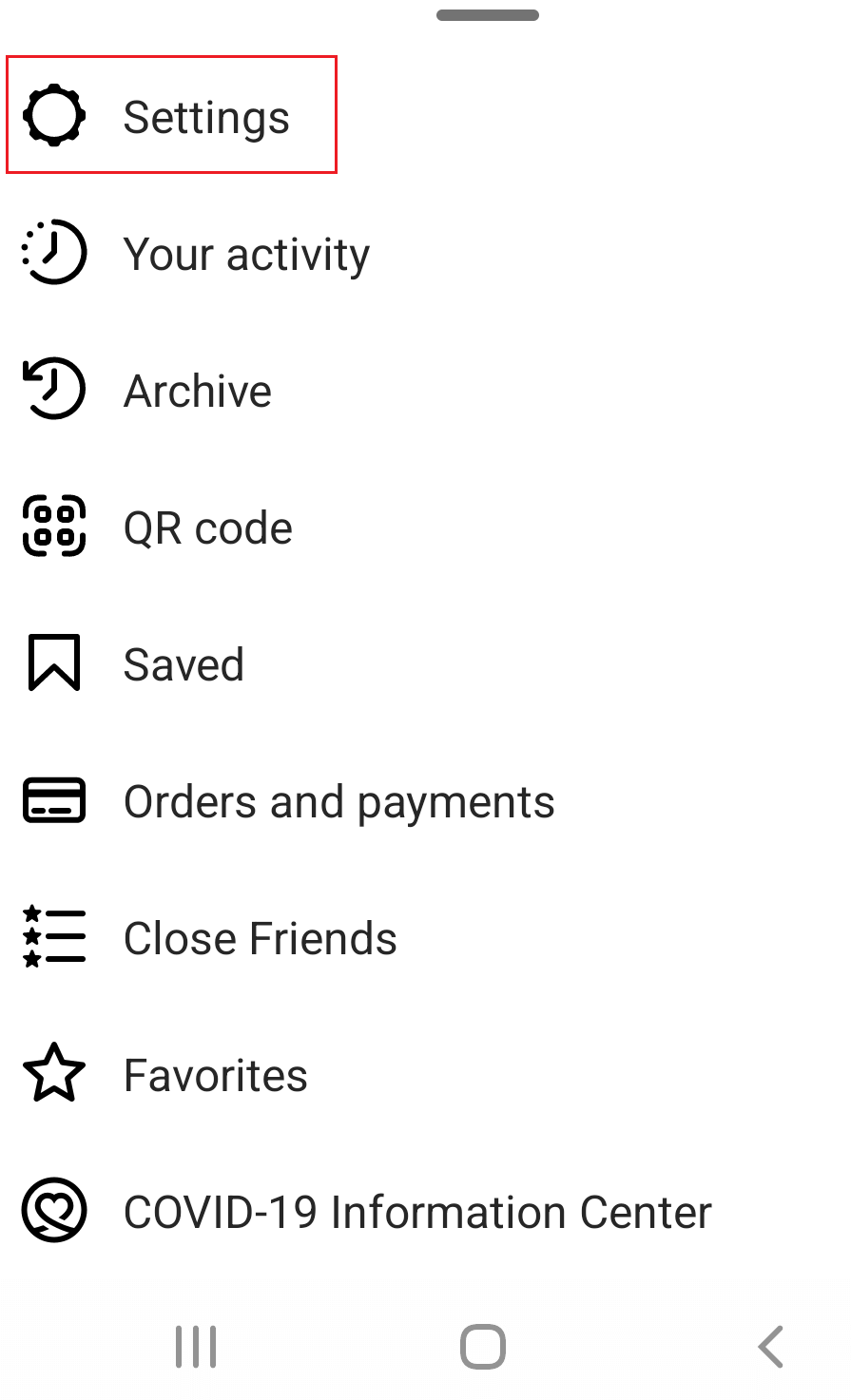
2. Tap Settings
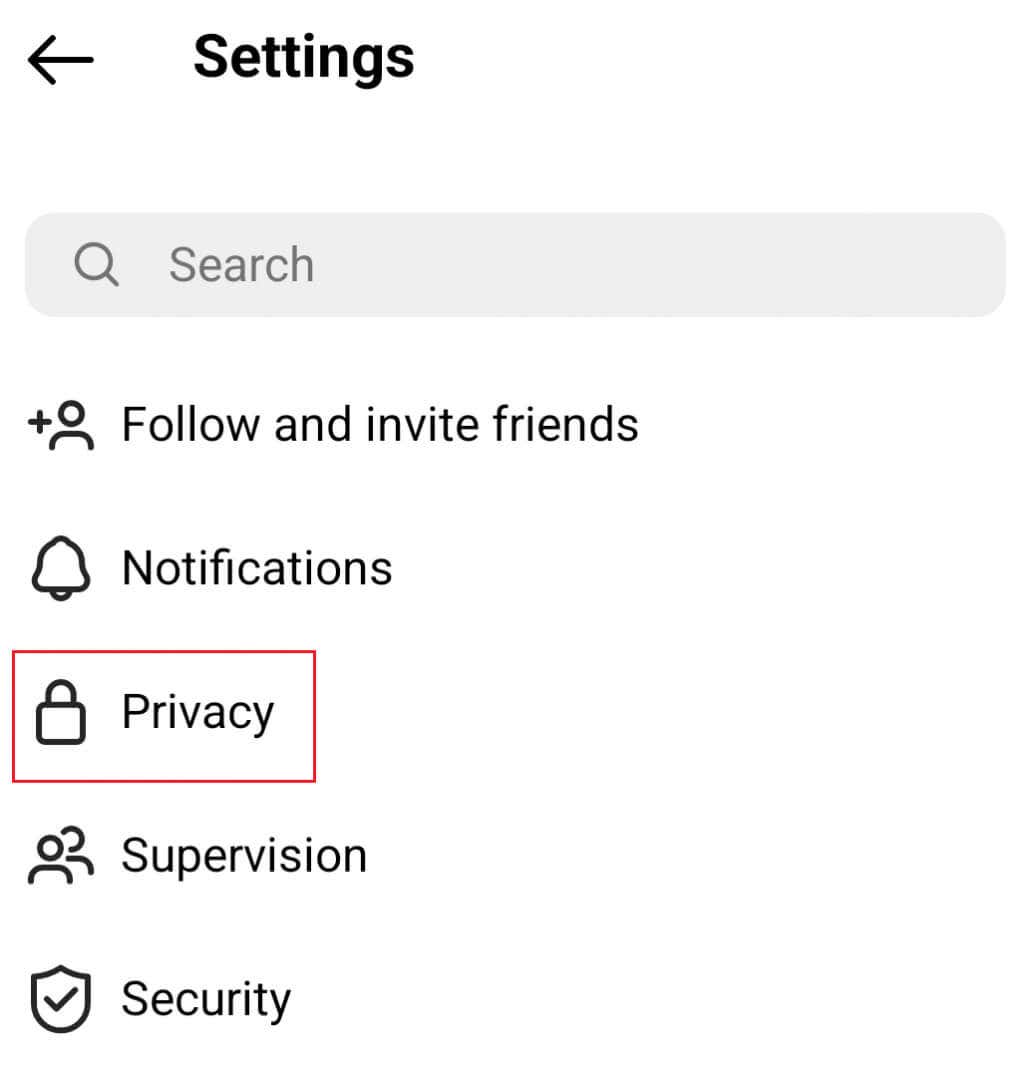
3. Choose Privacy.
4. Find the Restricted Accounts menu under the Connections section and tap it.
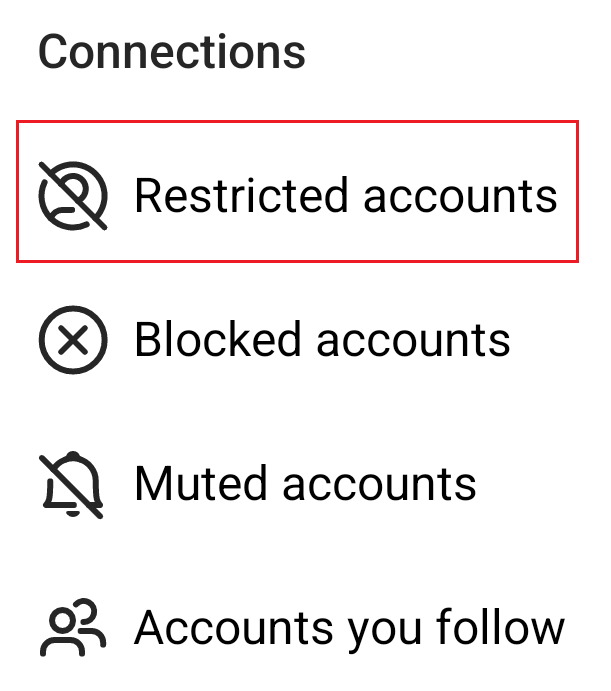
5. Search for the user you wish to restrict. Here you can add as many users as you want.
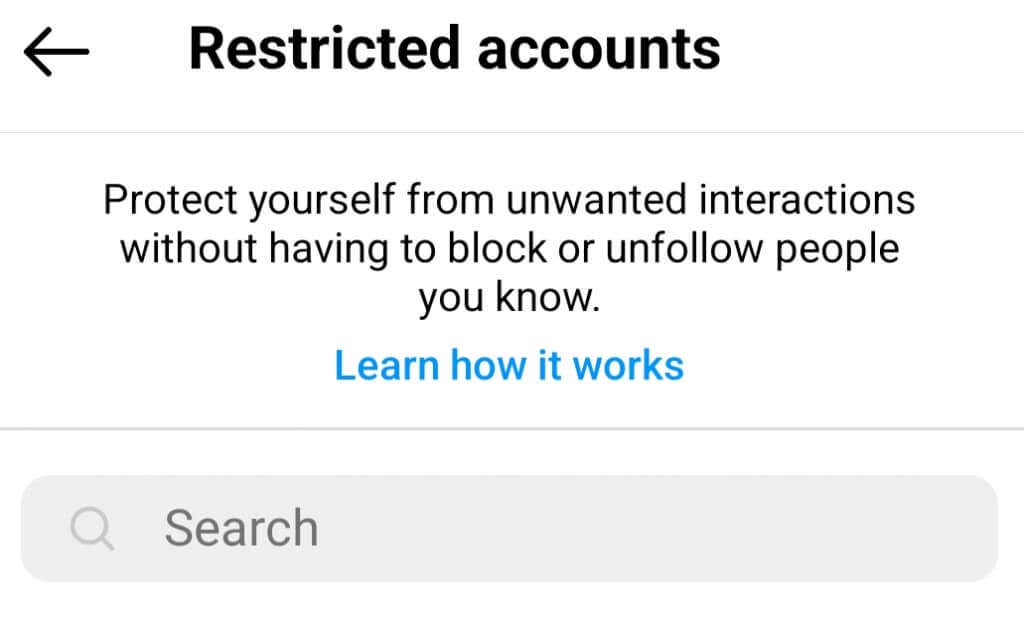
You can use the list of restricted accounts to unrestrict the user in the future. You can also do it from the restricted user’s profile by tapping the three dots, or through their message requests.
Manage Instagram and all other social media platforms to prevent online harassment. Also, make sure to check out our guide on how to block someone on Facebook Messenger.