
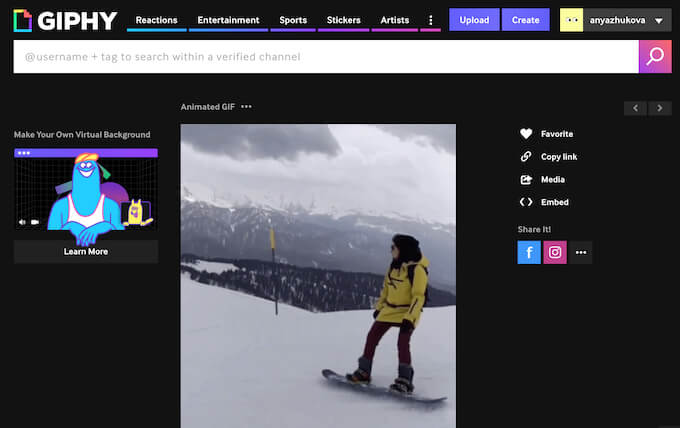
GIFs are a great way to convey your emotions online. You can post it on your timeline to share your thoughts on a topic, send it to one of your friends to share a laugh, or use it to comment on someone’s post.
The only problem with GIFs is that not all of the social networks support this format and allow you to easily use GIFs on their site. In this article, you’ll learn how to post a GIF on Facebook, Instagram, Reddit, and Twitter and will never have to Google it again.
How to Post a GIF on Facebook
Before you post your GIF anywhere, you’ll need to create it. There are multiple ways to create a GIF. You can use Photoshop to create a GIF out of images or videos. If you’re not an experienced Photoshop user, you can use one of the online GIF makers instead. Some of the most popular options are GIPHY and Make a GIF.
After you’ve created and downloaded the GIF on your device, you can post it on Facebook. To post a GIF on your Facebook timeline as a status update, follow the steps below.
- Open Facebook and log into your account.
- Select to Create post.
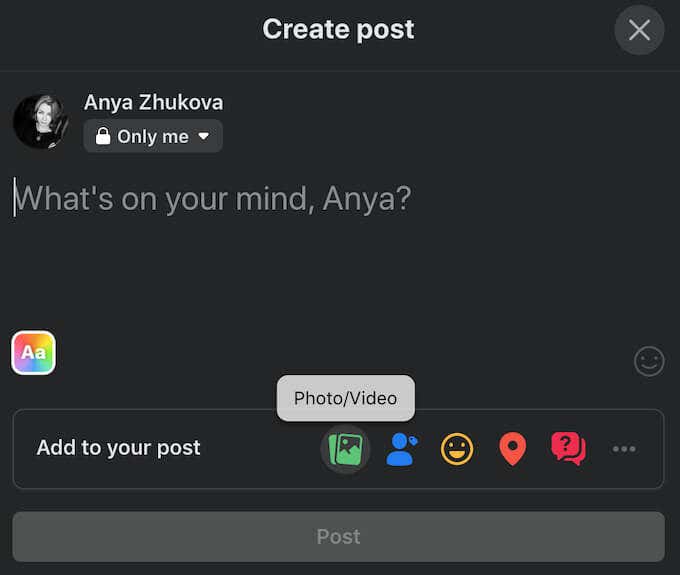
- Under Add to your post select Photo/Video.

- Find your GIF and select Open.

The GIF will then appear as an attachment to your post. Select Post to upload it on Facebook.
Facebook also has its own GIF gallery that you can use to post a GIF on your Facebook timeline. You can find it under Add to your post when you select More (three horizontal dots) > GIF.
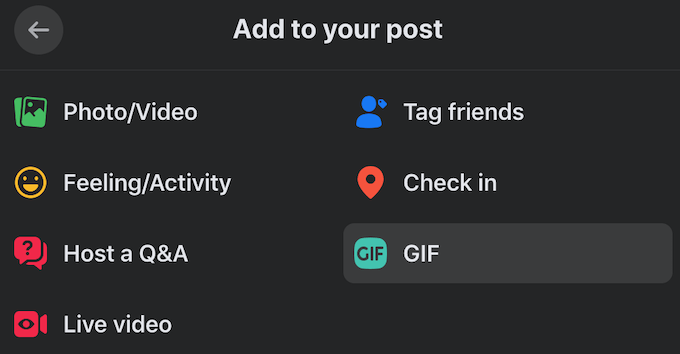
You can then browse the gallery or use the Search bar to find the GIF that you need. You’ll find the same GIF gallery in Facebook Messenger chat when you want to send a GIF to someone on Facebook as a message.
You might want to use a GIF to comment on someone’s post or reply to their comment on Facebook. To do that, follow the steps below.
- Open Facebook and find the post that you want to comment on.
- Select Comment.

- Select Comment with a GIF to choose a GIF from Facebook’s gallery. To use a custom GIF as a comment, select Attach a photo or video, find your GIF and select Open to attach it.
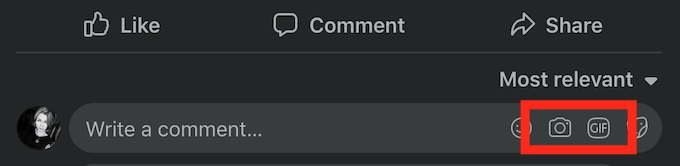
You’ll then see your GIF appear in the thread of comments on Facebook.
How to Post a GIF on Instagram
Unlike Facebook, Instagram doesn’t make it easy to post GIFs. The network doesn’t support the GIF format, and when you try to upload it to Instagram, it appears as a still image.
However, it’s not impossible. You can upload a GIF as an Instagram Story, as well as a normal post on your feed. You can do all of that using the app called GIPHY. First, download and install it on your smartphone. To upload a GIF on Instagram using GIPHY follow the steps below.
- Open GIPHY. Log into your account or create a new one.

- Giphy has its own GIF gallery that you can use to find a GIF that you want to post. To make a custom GIF and post it on Instagram, select Create.

- Select a GIF that you previously created from your device’s gallery or choose a video that you want to turn into a GIF.
- On the Upload Your GIF page, select Share GIF.

- Select the Instagram icon to post your GIF on Instagram. Select to either share it on your Feed or Stories.
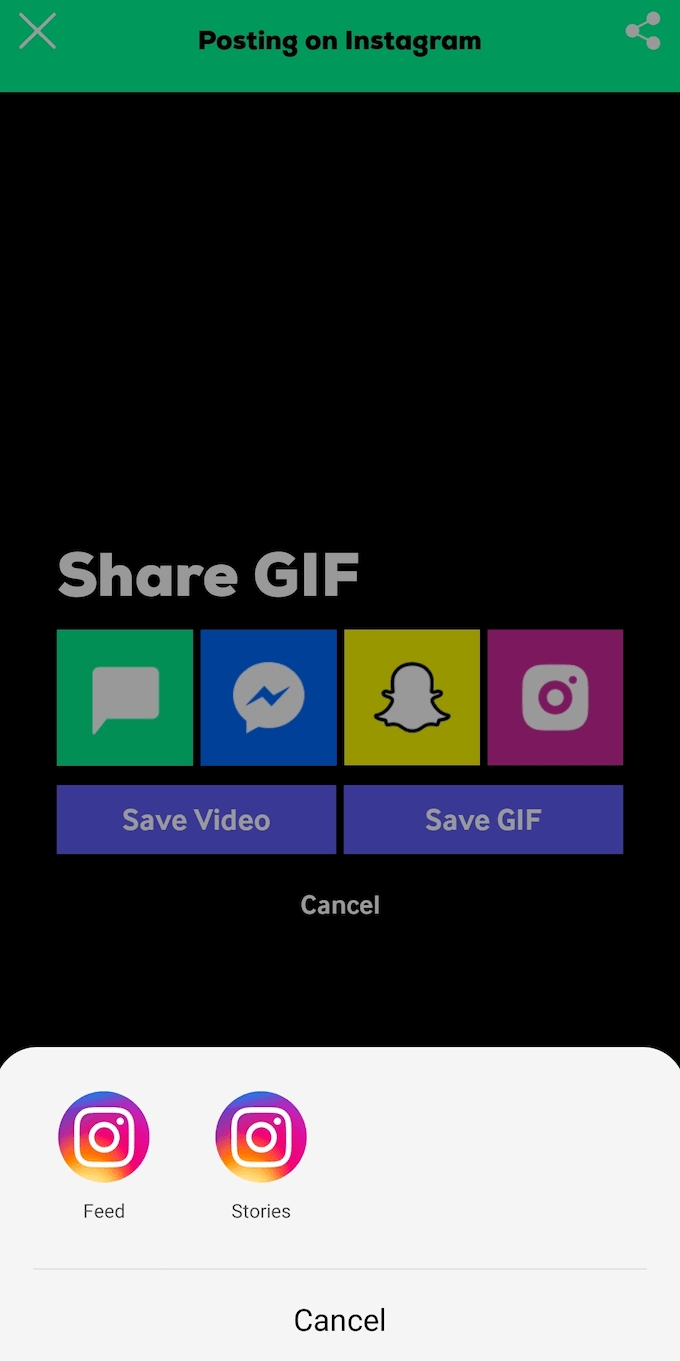
GIPHY will then redirect you to Instagram where you can upload your GIF. You can use the same method to upload GIFs that you create in GIPHY on Facebook or Snapchat.
How to Post a GIF on Reddit
Reddit is the place where the use of GIFs is the most appropriate and anticipated. While you can’t use a GIF as a comment, you can upload it on your profile page, as well as post it on a community page. To post a GIF on Reddit, follow the steps below.
- Open Reddit and log into your account.
- Select Create Post.

- Under Choose a community select the community page where you want to post your GIF.
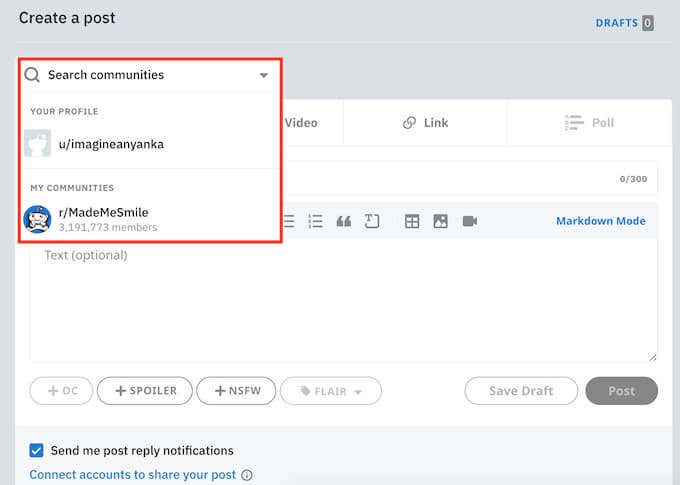
- Select Images & Video. Drag and drop your GIF, or select Upload to open it.
- Go back to the Post tab, fill in Title and Text (optional).
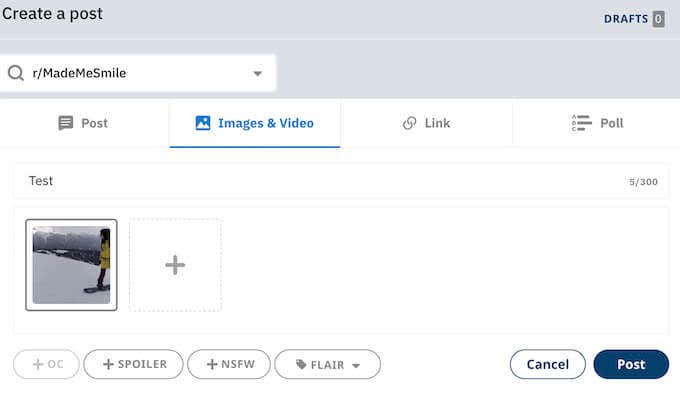
- When you’re happy with the contents of your post, select Post.

The GIF will then appear on the community page as a normal post on Reddit.
How to Post a GIF on Twitter
If you want to Tweet like a pro, you need to be able to use any media type to support your tweets and comments. That includes GIFs. The good news is that using GIFs on Twitter is pretty easy. Similar to Facebook, Twitter has its own GIF gallery that you can choose GIFs from. To post a GIF on Twitter, follow the steps below.
- Open Twitter and log into your account.
- Under What’s happening select GIF to choose a GIF from Twitter’s gallery. You can browse GIFs according to popular search results or use the Search bar to find the GIF you want to post.
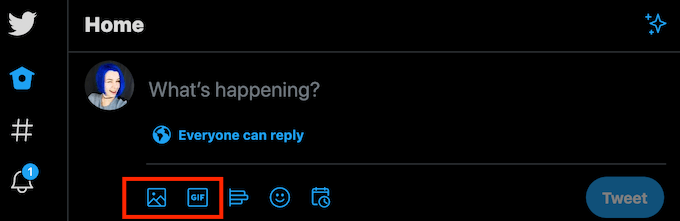
- If you want to post a custom GIF that you created, select Media.
- Find your GIF and select Open.
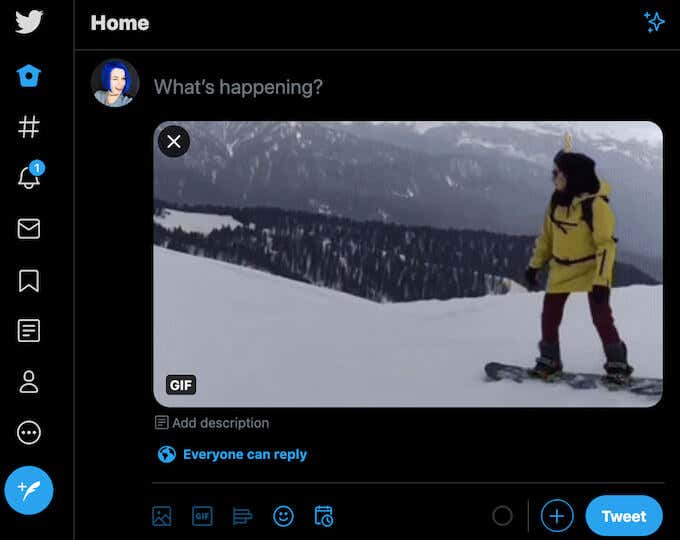
The GIF will then appear as an attachment to your post. Select Tweet to upload it on Twitter.
If you want to use a GIF to reply to someone’s Tweet, follow the steps below.
- Open Twitter and find the Tweet that you want to reply to.
- Select Reply under the Tweet.
- Select GIF to choose a GIF from Twitter’s gallery, or select Media to upload your own.

- Select Reply to post your comment.
The GIF will then appear as a reply to the selected Tweet.
How to Post a GIF on Any Site
GIFs are great when you want to express yourself quickly without having to type out long messages or replies. If you’re trying to post a GIF on a site or platform that doesn’t support the format and the methods we mentioned don’t work, you can convert the GIF back into a video and upload it online.
How often do you use GIFs online? Did we cover all the sites that make posting GIFs seem more difficult than it should be? Share your thoughts with us in the comments section below.