

If you’ve ever found yourself drowning in a sea of Tweets you’d rather not see, you can use the mute function on X (formerly known as Twitter) to prevent them from appearing in various places.
The mute function lets you filter out specific words, usernames, etc., preventing them from appearing on your screen while browsing. You can use this feature on both X for the Web or mobile app.
How Muting Works on X (Twitter)
X lets you filter out specific words, phrases, usernames, emojis, or hashtags you want to avoid. Once you’ve muted these terms, you won’t see Tweets that contain these terms in your Notifications tab, Home timeline, or email notifications, as well as push notifications you might get from X.
Here’s some additional information you should know about the mute function.
- Case-Insensitive: Muting isn’t case-sensitive. If you mute “Ford,” then any variation of that, such as “FORD,” “ford,” and “fORD,” is muted.
- Punctuation: You can add punctuation to terms you want to mute, but you don’t need to add the punctuation if you expect that term to come at the end of a sentence.
- Hashtags: Muting a word automatically mutes its hashtag, too.
- Usernames: Add @ before a username to mute mentions of that account, not the entire account itself.
- Character Limit: You can mute terms up to X’s max character count.
- Languages: You can mute terms in any language supported by X.
- Duration: The default period for the mute setting is Forever, but other options exist.
- Settings: You can manage your mute list in X’s settings.
- Recommendations: Muted terms are excluded from X’s email and platform recommendations.
This level of control is excellent in that it allows you to tailor your experience on X to suit your personal preferences and comfort level. It’s a good way to prevent spoilers, inappropriate language, and other content from being shown to you while using X.
How to Mute Content on X (Twitter) for the Web
You can mute content on X for the Web, but the option is a bit buried.
- Open X in a web browser and click More in the left-hand pane.

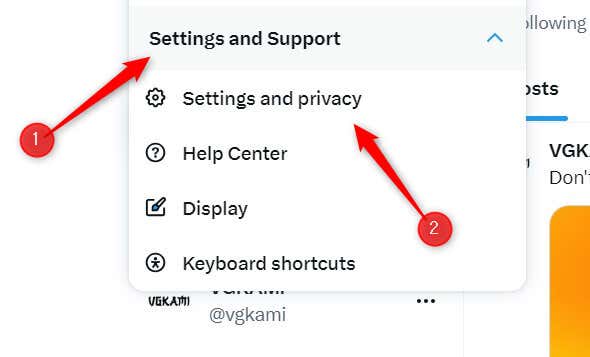
- Click Settings and Support to expand a menu with a few relevant options. Here, select Settings and privacy.
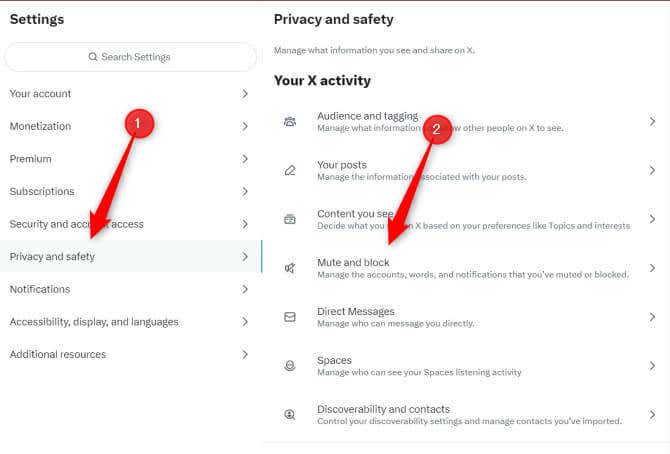
- In the left-hand pane, click Privacy and safety, then select Mute and Block in the Privacy and safety window.
- On this next screen, select Muted words.

- You’ll see a brief explanation of what happens when you mute words. Click the plus icon in the top-right corner.

- This is where you can add the terms you want to mute. You’ll need to input each entry by itself. Enter the term you want to mute in the text box, choose where you want to mute the word from, select how long you want the word to be muted, and then click Save.

These terms will no longer appear to you on X unless you specifically search for them.
How to Mute Content on X (Twitter) for iOS and Android
Most people use X on iOS and Android, so it’s no surprise that you can also take advantage of the mute feature here. Here’s how it’s done.
- Tap your Profile picture in the top-left corner of the screen, and then tap Settings and Support > Settings and privacy.

- Next, tap Privacy and safety.

- On the next screen, tap Mute and block.
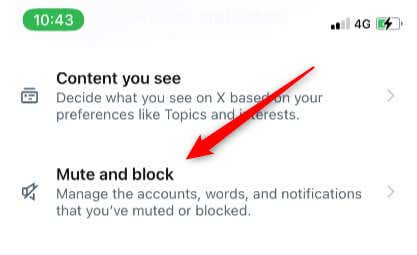
- You’ll see a few mute and block options, but you want to select Muted words here.

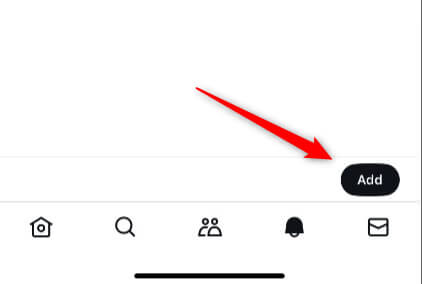
- Next, tap Add in the bottom-right corner of the screen.
- You’re finally on the screen where you can add the terms you want to mute. Tap the text box and enter one term at a time. You can also choose where to mute the terms and the duration you want the term to be muted. Tap Save when you’re done.

These terms will no longer appear to you on X unless you specifically search for it.
Take Control of Your Feed
The mute function on X is a personal curation tool, giving you control over what you see—or, more importantly, what you don’t want to see—while scrolling through your timeline or checking notifications. From avoiding spoilers to minimizing exposure to sensitive or disturbing content, muting is an effective way to tailor your online experience to your preferences.