
Similar to Apple Memojis on iPhone, iPad, and Mac, you can create an avatar on Instagram. Then, use your avatar stickers in direct messages or Instagram stories you create.
Whether you want an exact look-alike of yourself or something a little different, you can create and customize almost every pixel of your mini-me.
Ready? Here’s how to make an Instagram avatar on your mobile device.
Create an Avatar on Instagram
As of this writing, the avatar feature is only available in the Instagram app on Android and iPhone. You cannot create or edit your avatar or see the avatar stickers on the Instagram website.
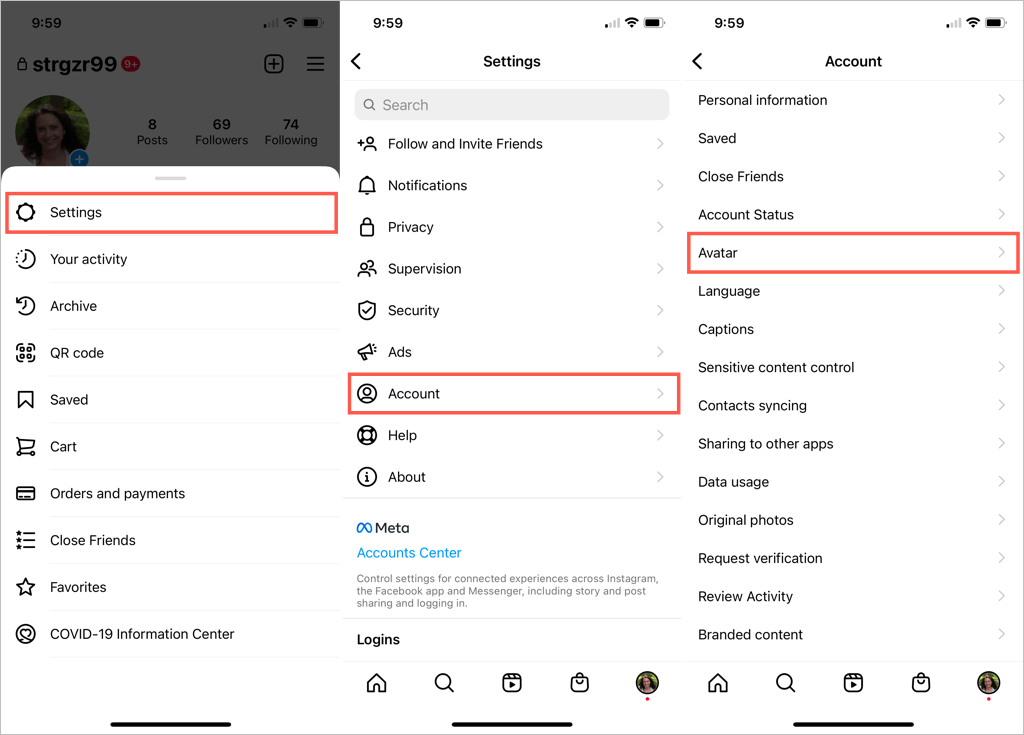
- Head to the Instagram profile tab and select the menu icon on the top right.
- Choose Settings and then Account.
- Pick Avatar on the Account settings screen.
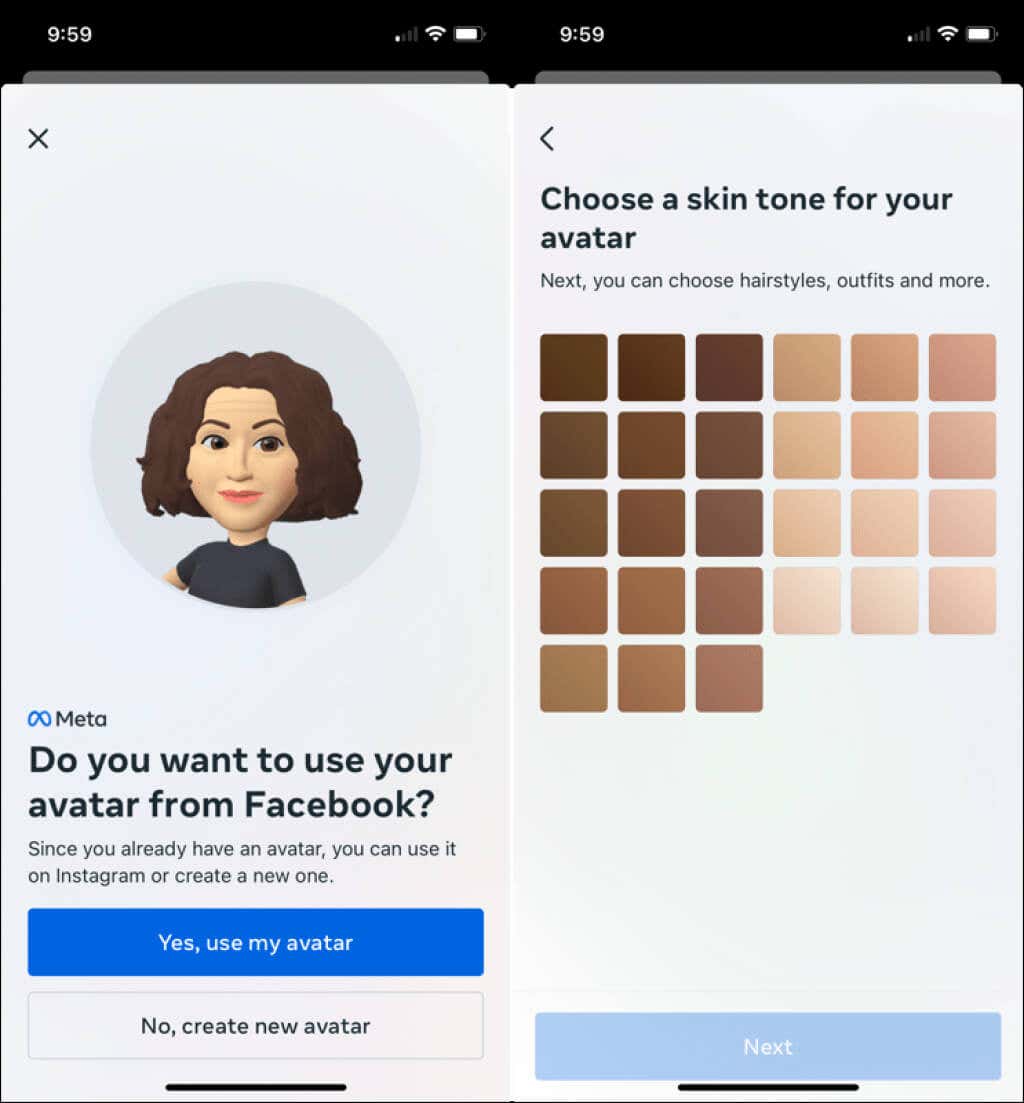
If you have Instagram and Facebook linked, you may see a message letting you know that you can use your Facebook avatar (if you have one) on Instagram. Choose Yes, use my avatar if you prefer to just use the Facebook option. Otherwise, pick No, create new avatar to set up your little self.
Start by selecting your Skin Tone and choose Next to continue to the customizations.
Customize Your Avatar
You can see a preview of your avatar along the way at the top of the screen. On the top right, below Done, is a mirror icon. Select that to display a picture of yourself next to the preview using your device’s front-facing camera. This is a fun way to match your current appearance.
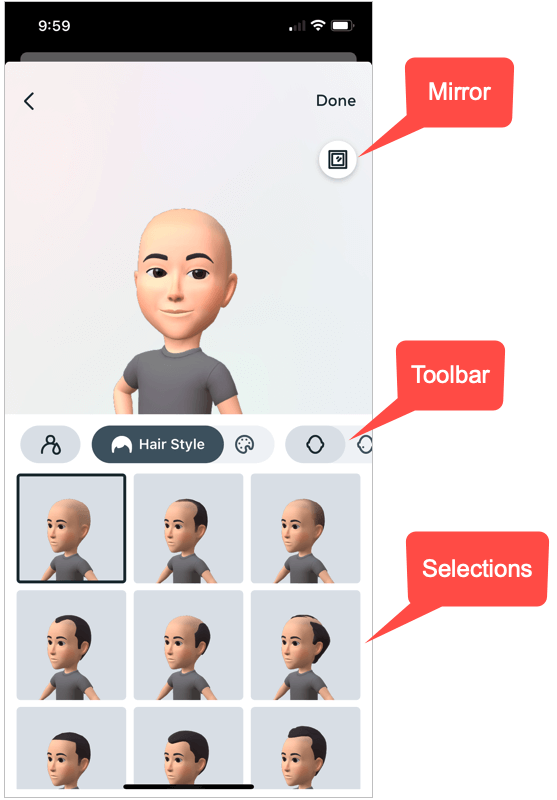
Beneath the preview, you have a toolbar with all of the options you can select. You can swipe left or right on the toolbar to arrive at a particular item at any time.
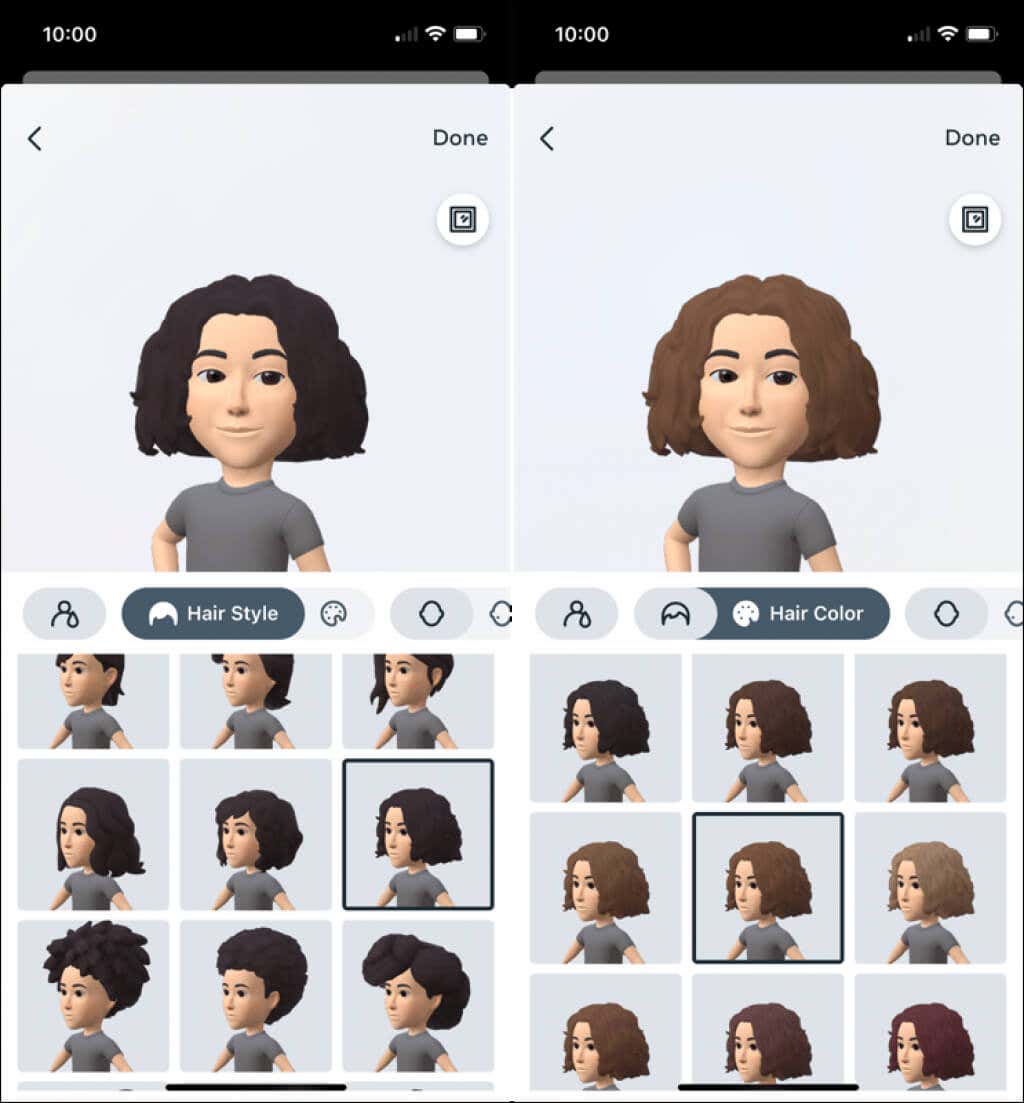
Hair Style and Color
If you follow the toolbar order, you’ll begin by picking your Hair Style from many options. Then, select Hair Color directly to the right and pick your shade.
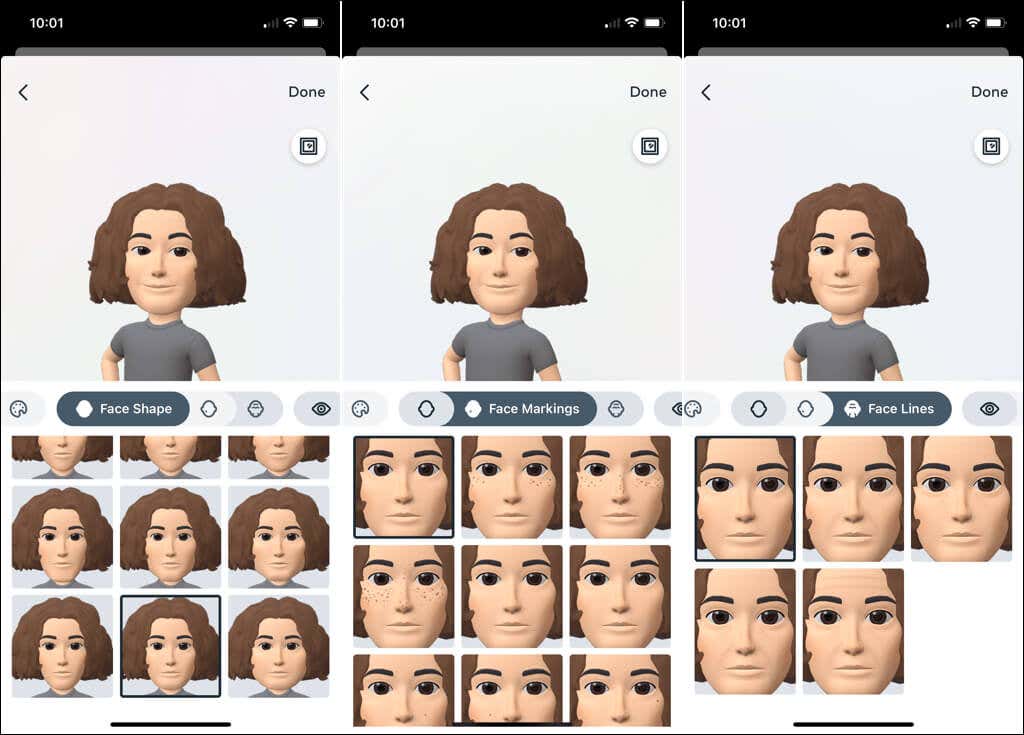
Face Shape, Markings, and Lines
Next, choose the Face Shape option and select the shape you want to use. This is when the mirror option comes in handy for getting that right shape.
Then, pick the Face Markings option to add freckles or other beauty marks and the Face Lines option to include those lines we all love.
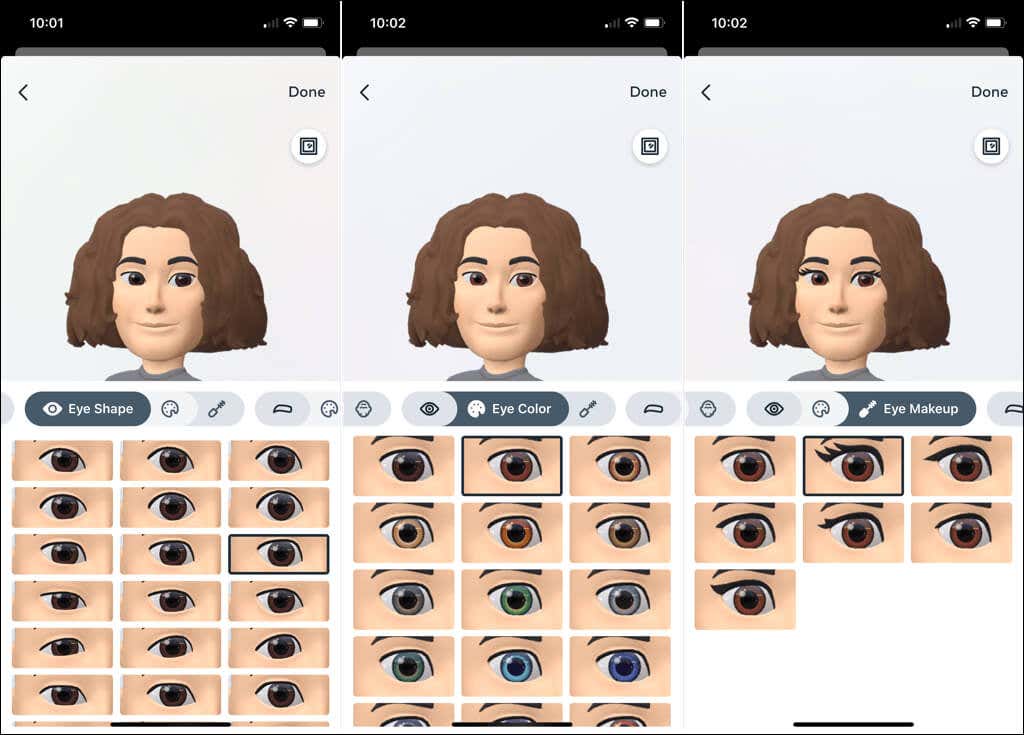
Eye Shape, Color, and Makeup
Now you can pick the Eye Shape from many, many options. Then, choose Eye Color to select your shade. If you want to enhance your eyes with some eyeliner, pick the Eye Makeup tool and choose a fun or elegant look.
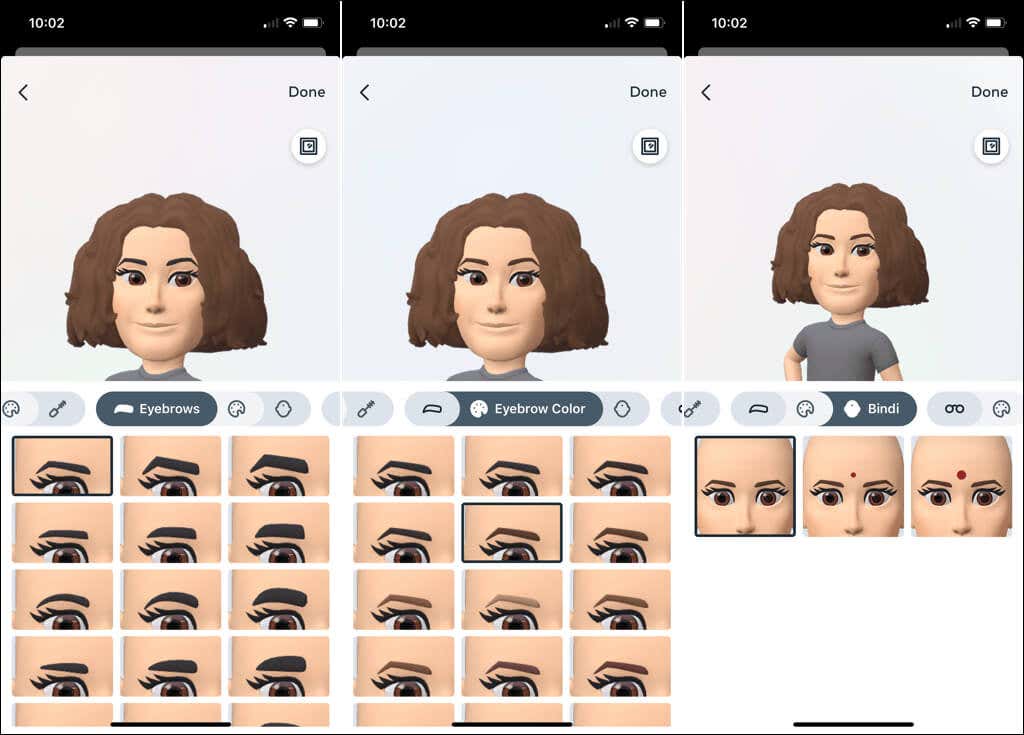
Eyebrows, Color, and Bindi
Moving on, you’ll see the Eyebrows option to match the shape of your brows, followed by the Eyebrow Color you want to use. Next, you can choose a Bindi option if you like.
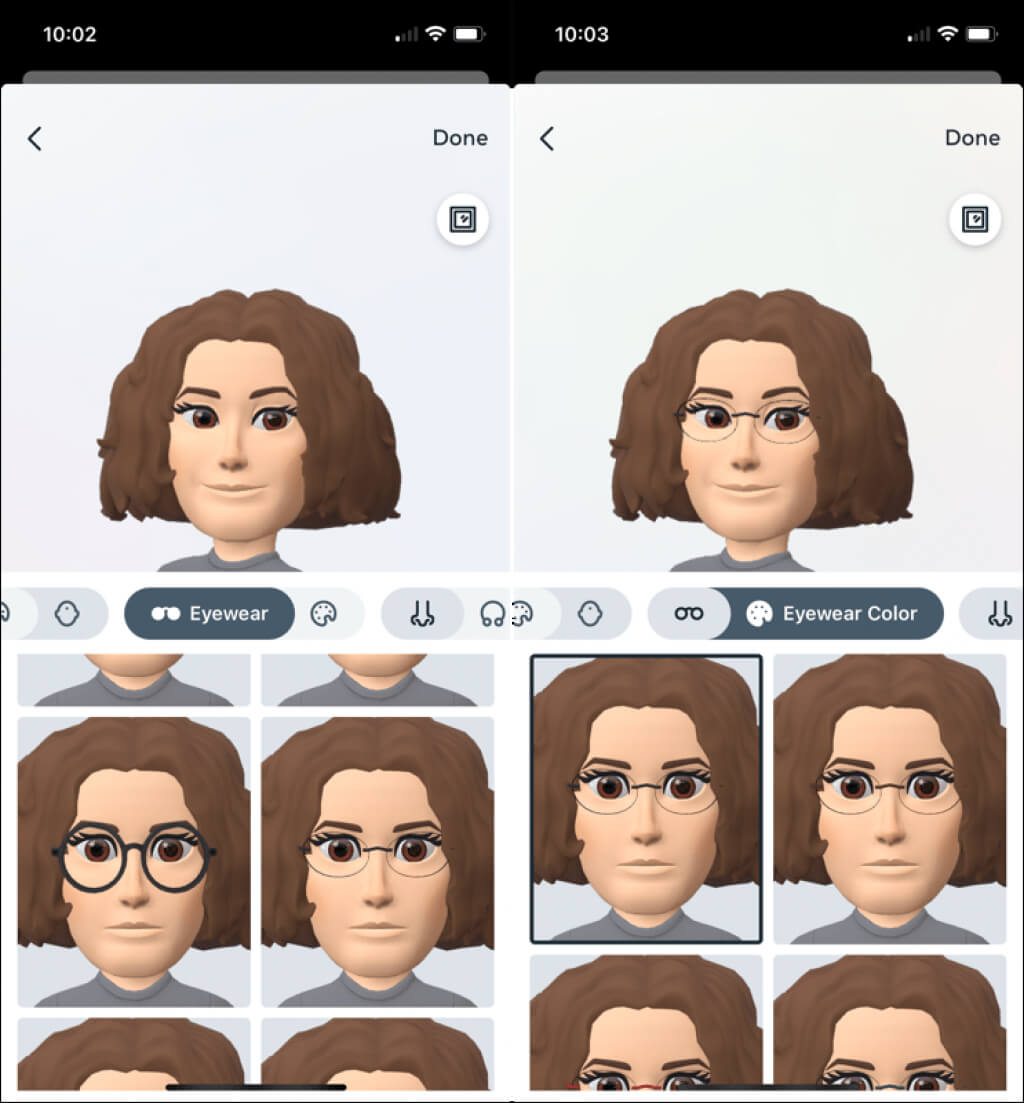
Eyewear and Color
If you wear eyeglasses, you can select a cool pair of Eyewear for your avatar. Match your current look or try something new. You can then pick the Eyewear Color.
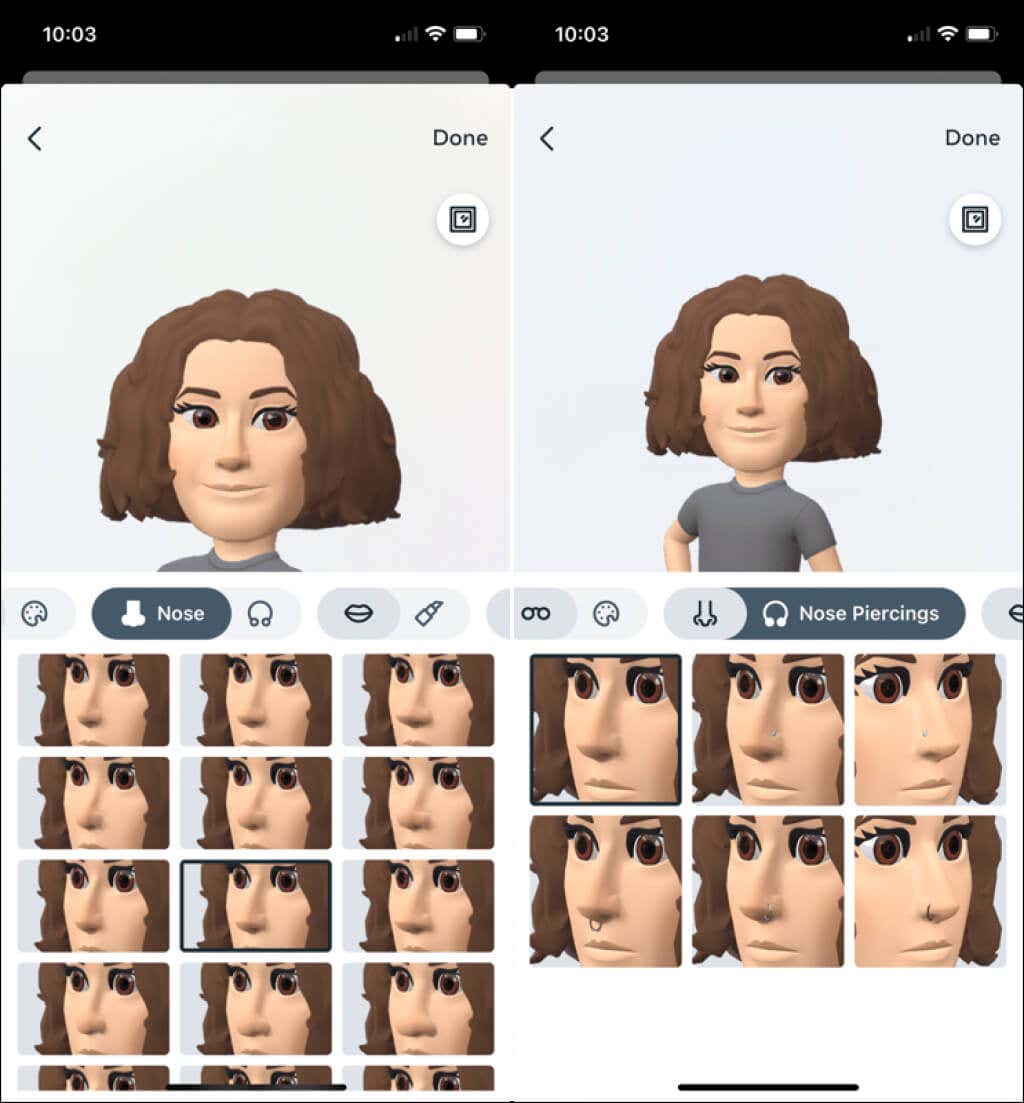
Nose and Piercings
No matter the shape of your nose, you’ll find it with the next option for Nose. If you have a nose piercing, be sure to add that next with post and hoop options in the Nose Piercings section.
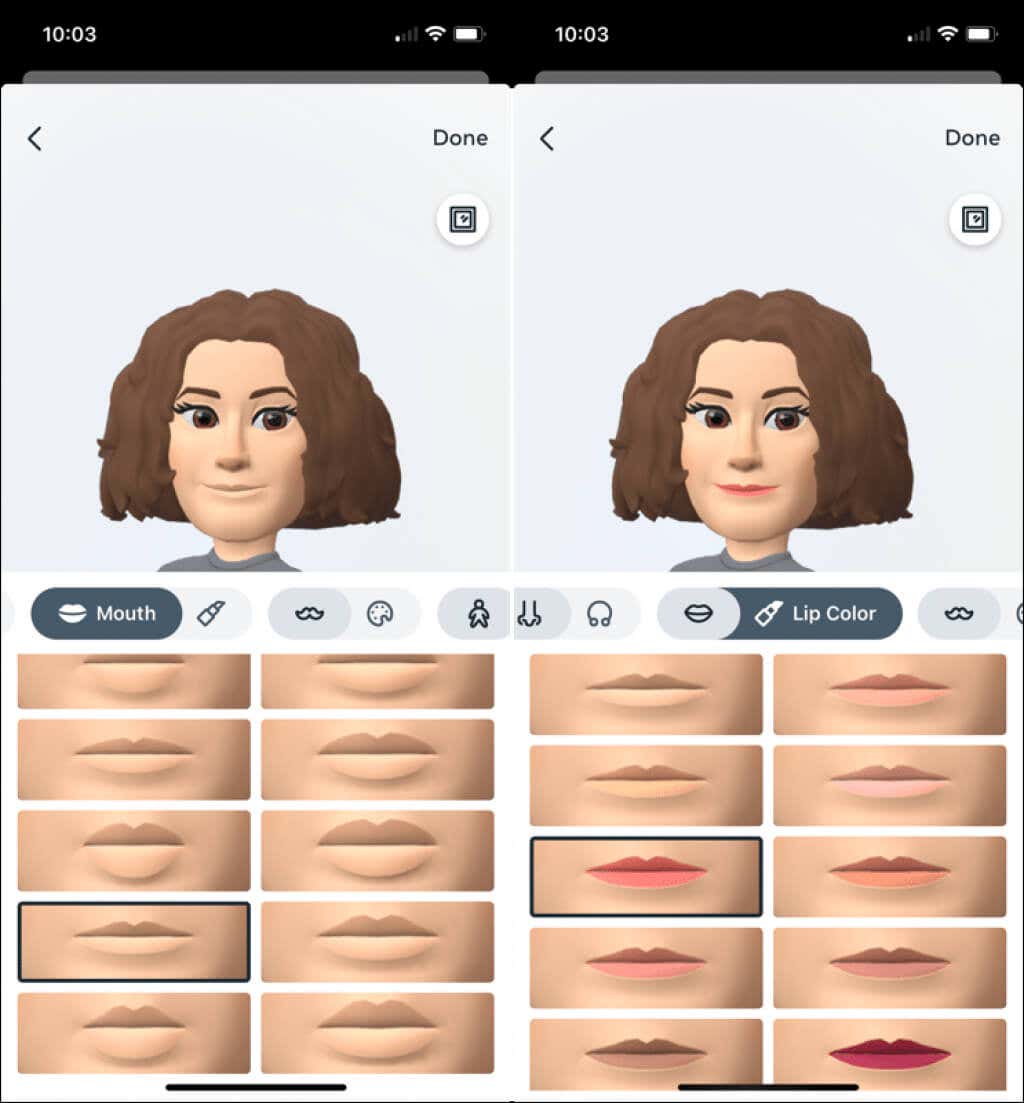
Mouth and Color
Next, comes the Mouth area for you to pick the shape of your lips. Of course, you can follow that up by adding Lip Color.
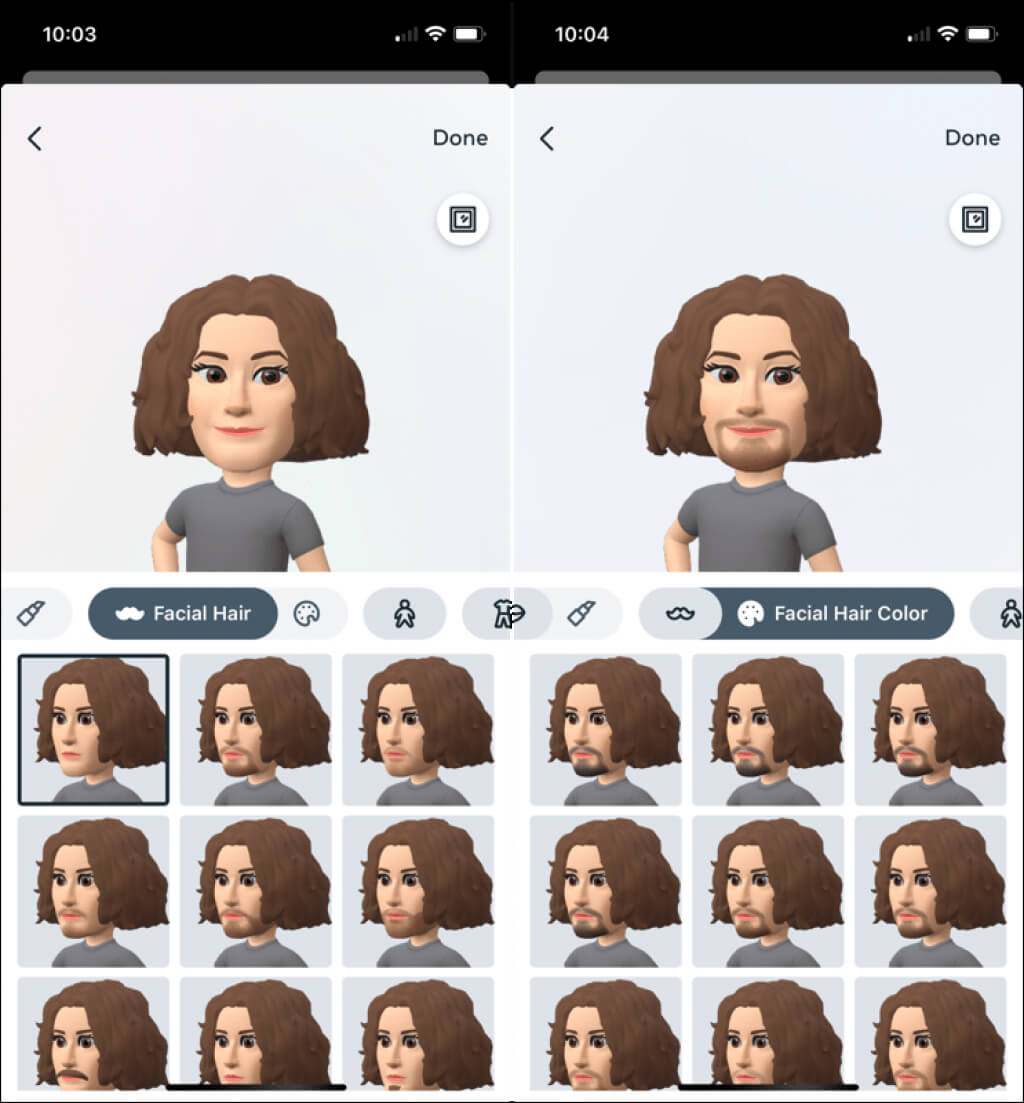
Facial Hair and Color
Have a mustache, beard, or goatee? Select your style in the Facial Hair section and then use the Facial Hair Color area to match it up.
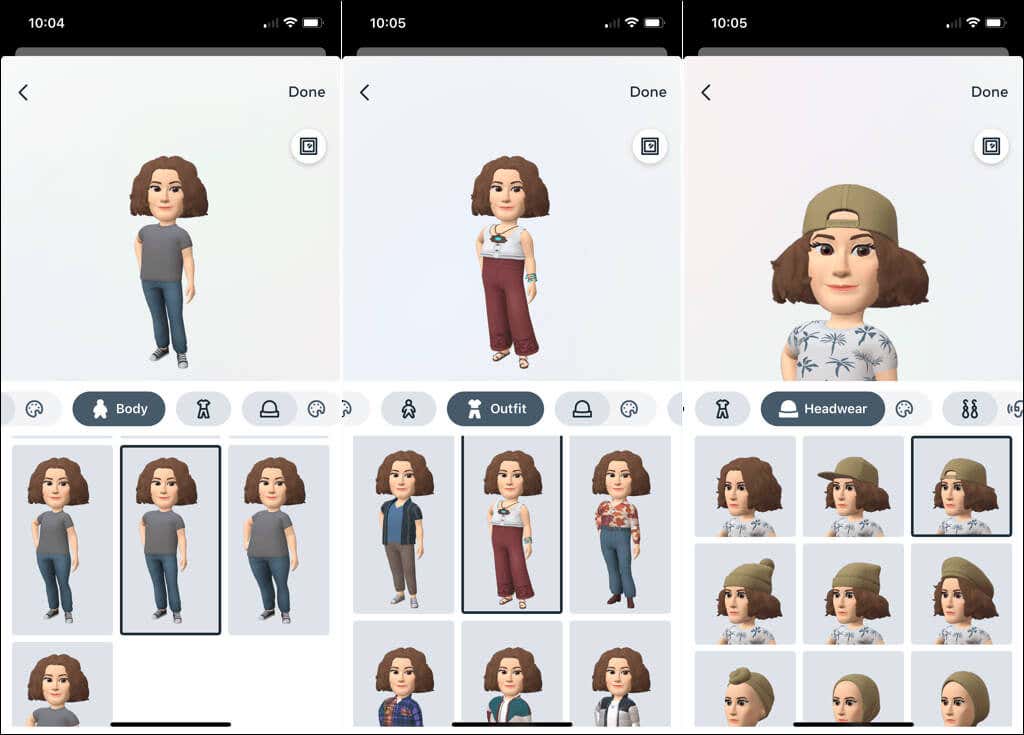
Body, Outfit, and Headwear
Instagram avatars are for all shapes and sizes, so move onto the Body section to select yours. Then, get rid of those boring clothes and pick a cute, colorful, or cool Outfit. There are many, many to choose from for all tastes and styles.
If you want to add a cap, beret, or other gear, use the Headwear option and then select the Headwear Color.
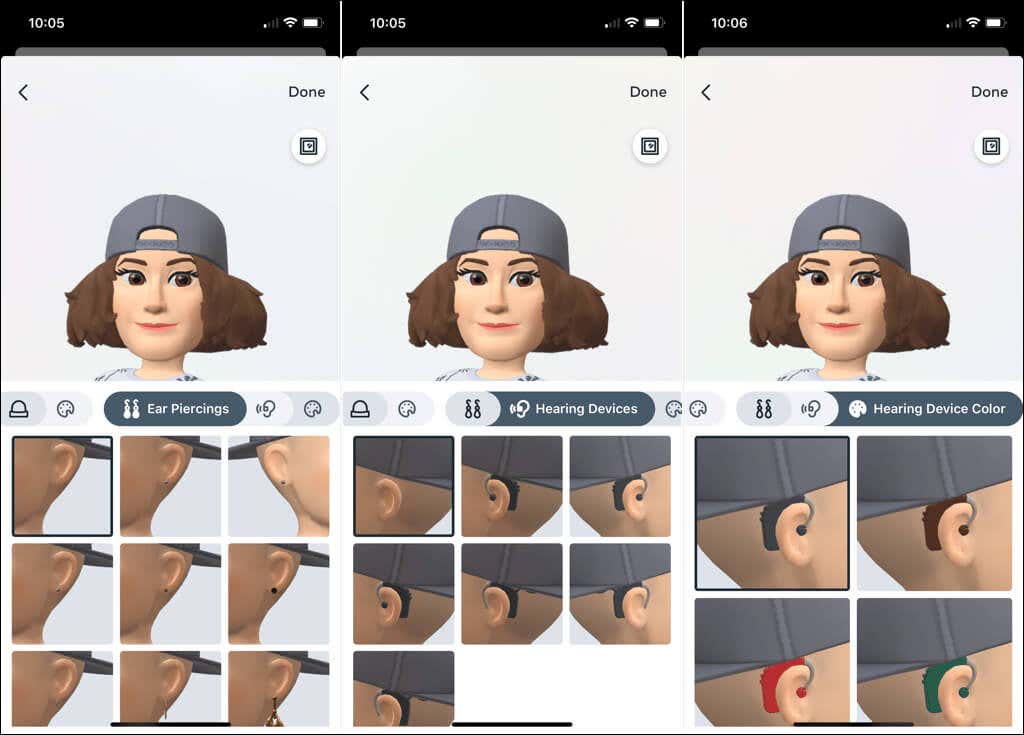
Ear Piercings and Hearing Devices
If you have pierced ears, pick out a pair of Ear Piercings next. For those with a hearing device, you can choose the style and color in the Hearing Devices and Hearing Device Color sections.
Save Your Avatar
Once you finish customizing your avatar, pick Done in the top-right corner and then Save changes in the pop-up box. You’ll see a brief message as your avatar is being updated; select Next when it finishes.
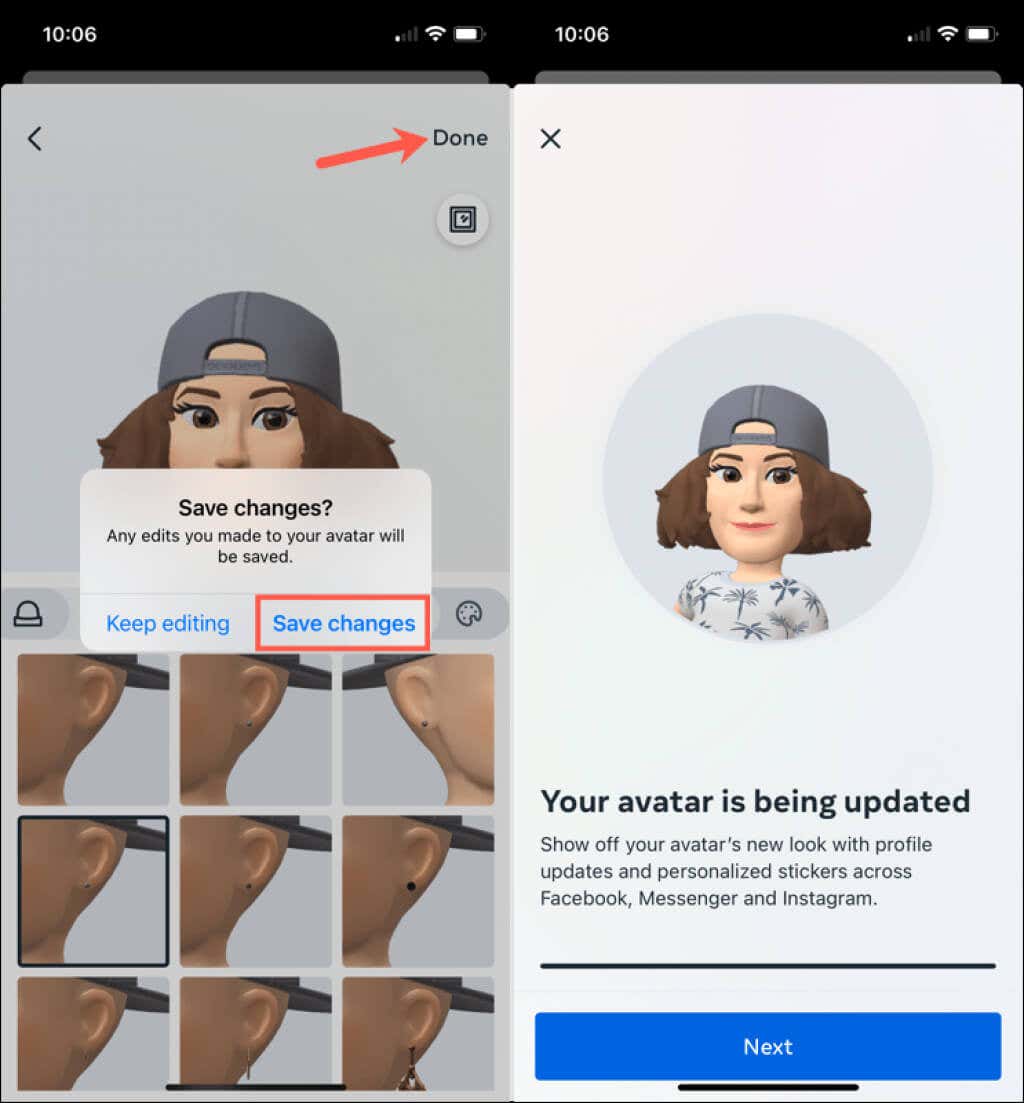
That’s all there is to it! You now have a nifty little you to use in messages and stories.
Share Your Avatar Sticker
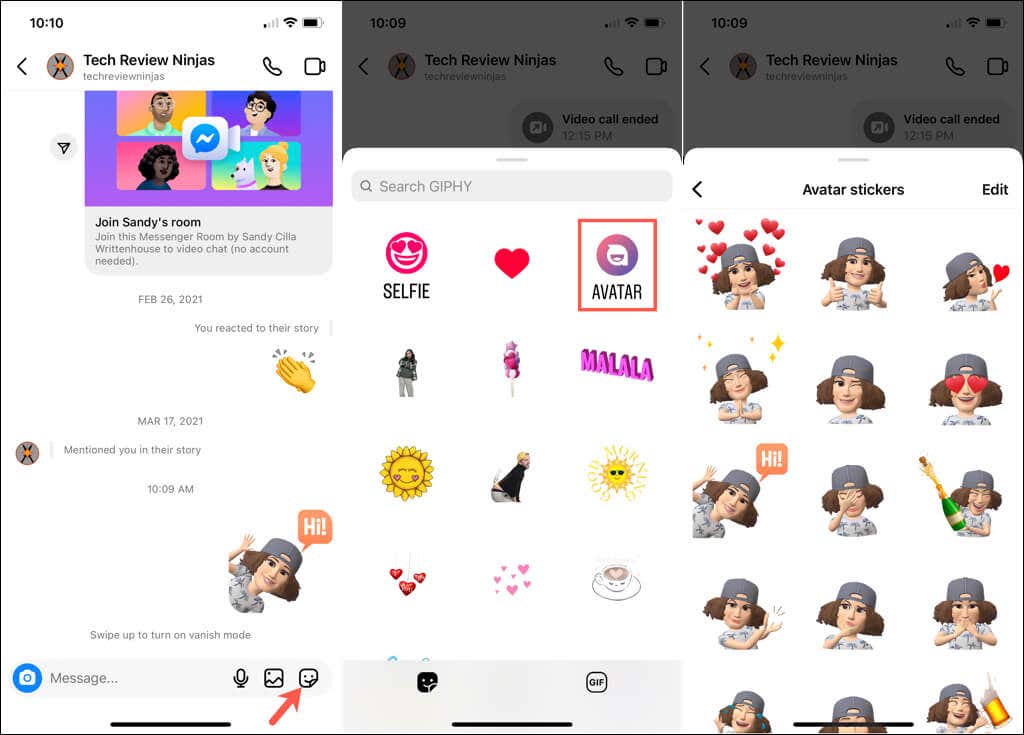
You can use stickers of your avatar in Instagram messages and stories. Plus, you can use them in Facebook and Messenger too. You’ll see many expressions for your avatar that range from a celebration to love to a simple “Hi”.
Add a Sticker to a Message
To add an avatar sticker to a direct message, tap the sticker icon to the right of the message field.
Select Avatar and then pick the expression you want to use. The sticker will land in the message to your Instagram pal.
Add a Sticker to a Story
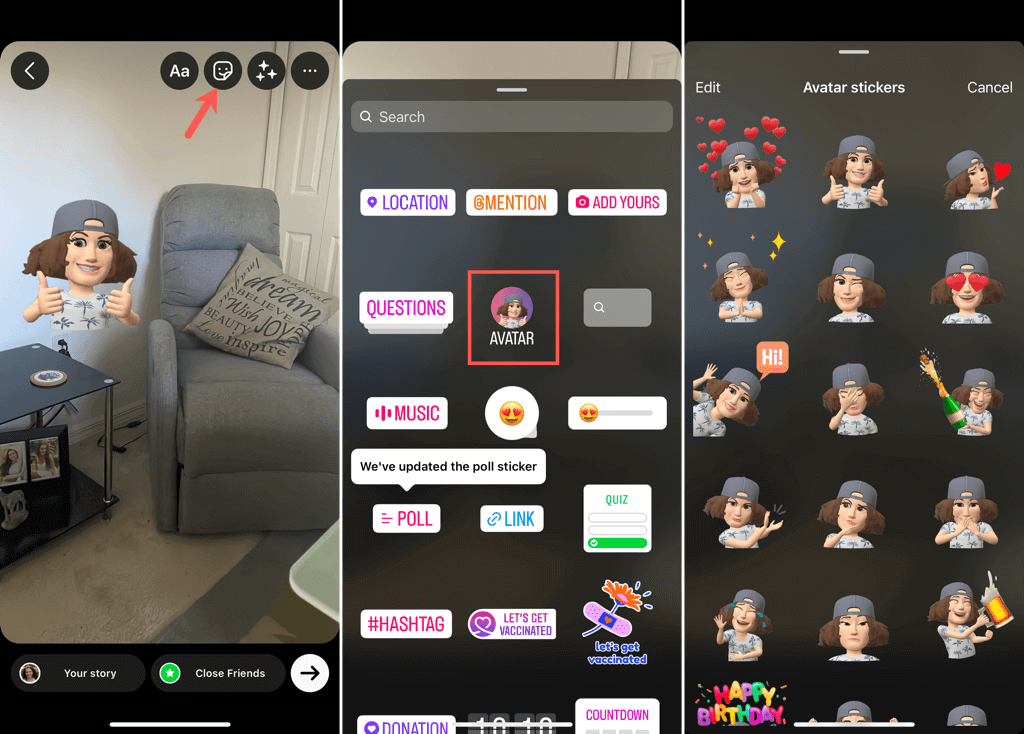
To add an avatar sticker to your story, start creating your story as you normally would. At the top of the screen, choose the sticker icon.
Select Avatar and pick the expression you want to use. When the sticker displays on your story, tap and drag to move it where you want it. Then, continue to edit or share your story as normal.
Edit Your Avatar
Maybe you got a new hair style or color, grew a beard, or got a new pair of glasses. You can edit your Instagram avatar any time you like one of these ways:
- Follow the same steps above to access your Settings > Account > Avatar.
- Select Edit Profile on the profile tab. Then, choose Edit avatar.
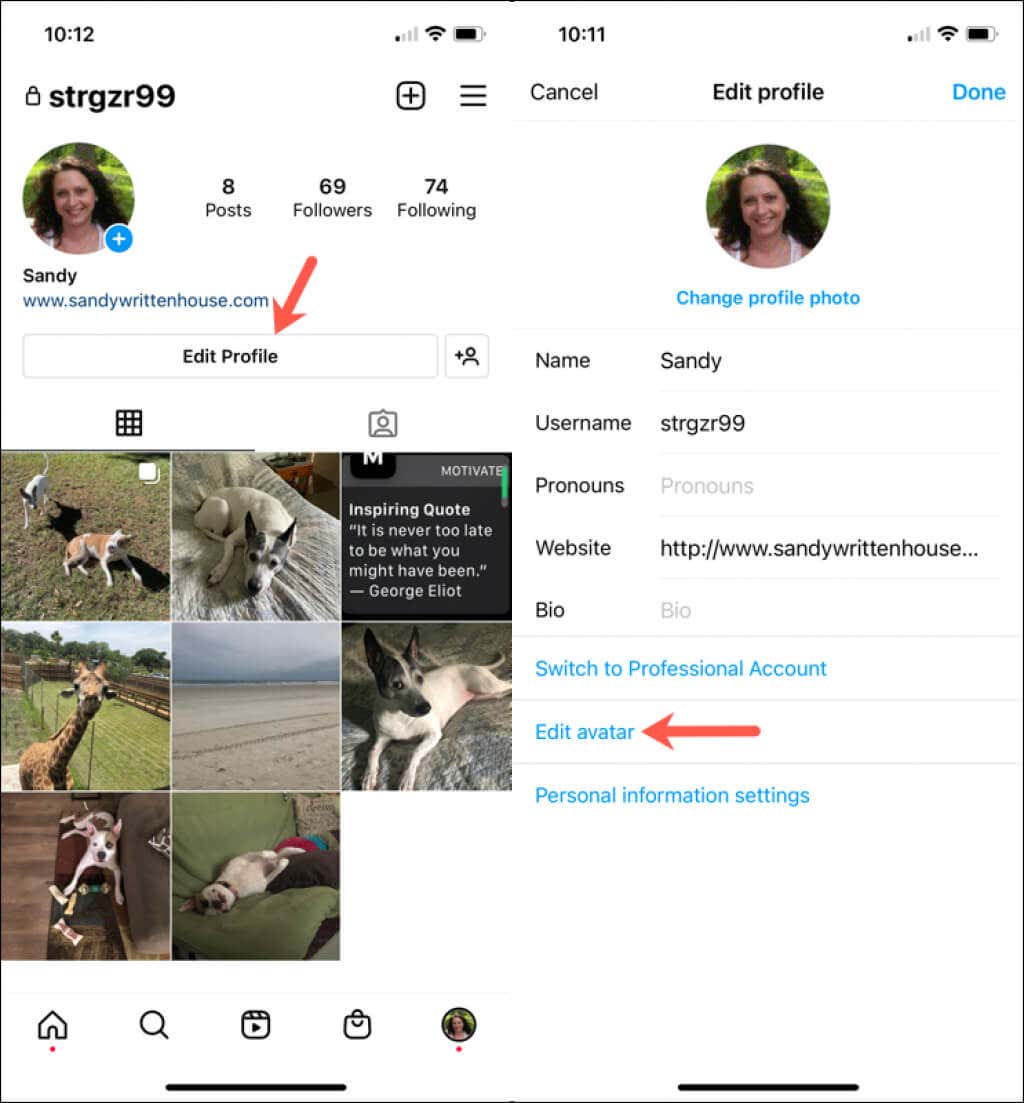
You’ll then see your current avatar in the preview with all of the same customization options as you did initially. Make your changes, select Done, and pick Save Changes to save the new you.
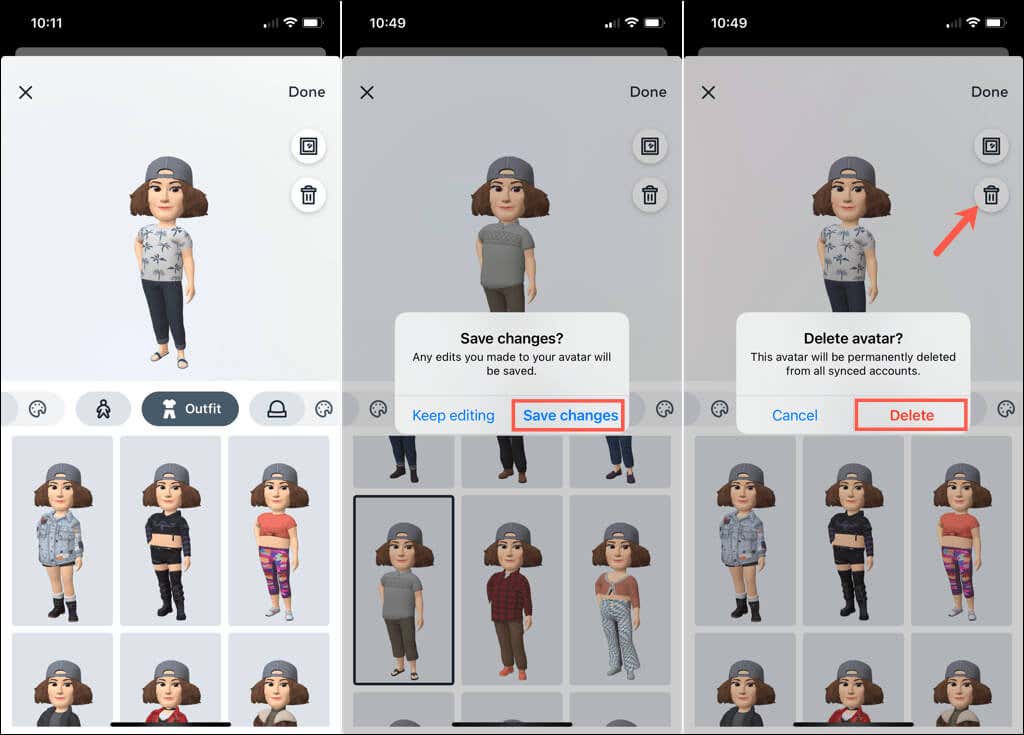
If you prefer to remove the avatar completely, choose the trash can in the preview section and then confirm you want to get rid of your avatar by selecting Delete.
After you have some fun making your Instagram avatar, how about trying your hand at creating your own emoji?