
Snapchat has always been about sharing content with multiple users at once. For those who don’t want to showcase their life to absolutely everyone, the platform offers an option to restrict who can view their content by creating private Snapchat stories.
Stories are a great format for sharing memorable moments of your life with your followers on social media. But when you only mean to share your quick snaps with certain people from your friends list, learn how to create Private stories on Snapchat.
Snapchat Stories in a Nutshell
If you’re new to Snapchat, you might be confused by all the different types of Snapchat stories. To avoid accidentally sharing your story with the wrong people, here are the main facts you need to know about stories on Snapchat.
There are three types of stories on Snapchat:
- My stories. These are the stories created by default when you add your snaps using the Story button on your main screen. These can be viewed only by your friends on Snapchat.
- Public stories. These are the stories that any Snapchat user can see when they select a location of where you posted the story on the Snap Map. You can set all your stories to be public in the Snapchat settings.
- Private stories. The stories visible to only those friends that you manually selected on Snapchat. The rest of your friends as well as other Snapchat users can’t access your private stories.
How to Create a Private Snapchat Story
When you add a photo or a video to your story, it’s automatically set to be visible to all of your friends on Snapchat. To create a private story and control who can see the snaps that you add to it, follow the steps below.
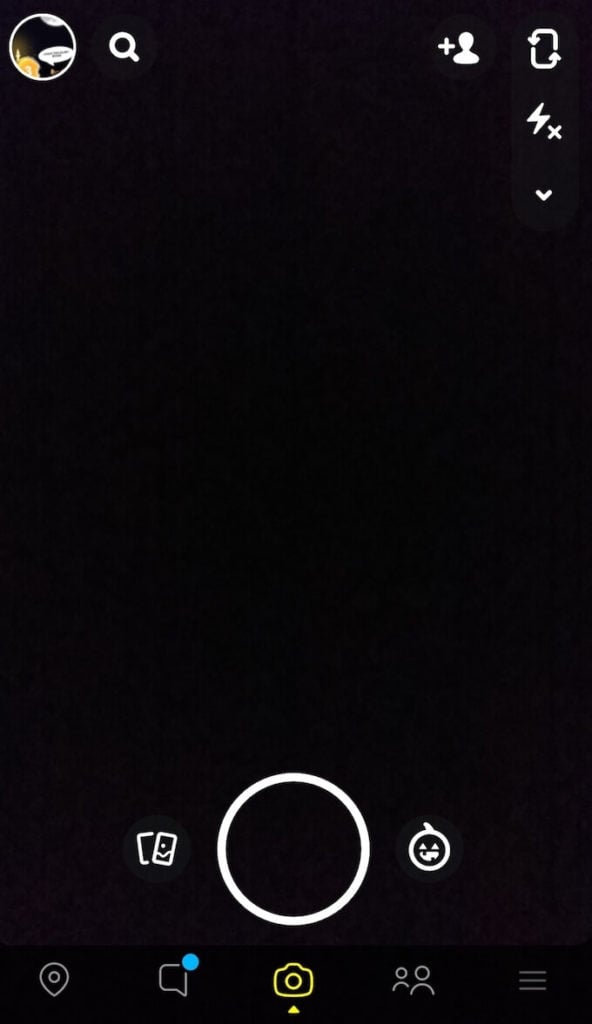
- Open Snapchat and take a photo or record a video that you want to add to your story. Alternatively, choose a photo from your Camera Roll to add to your story.
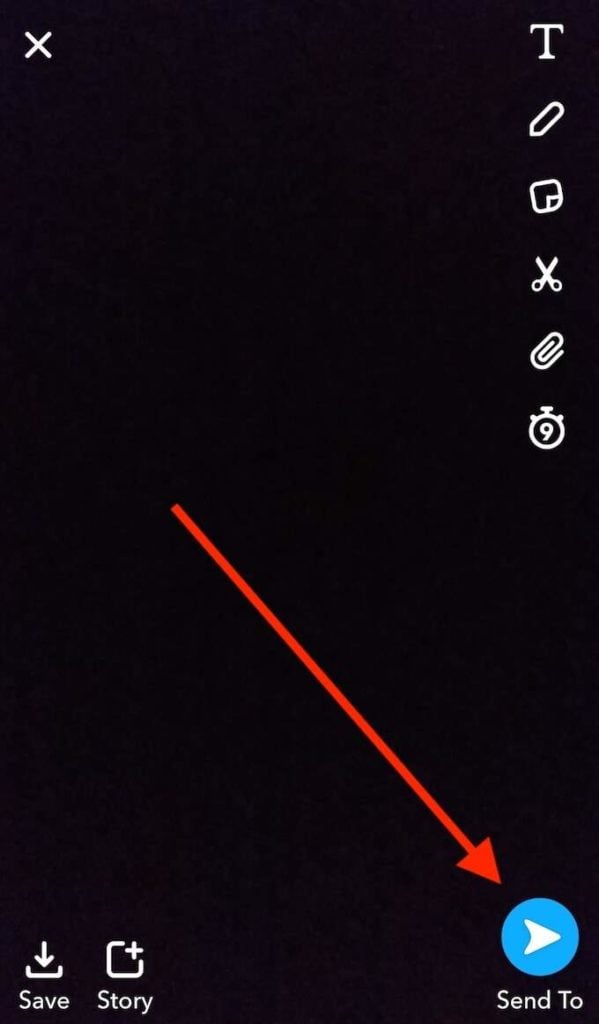
- In the bottom-right corner of the screen, select Send To.
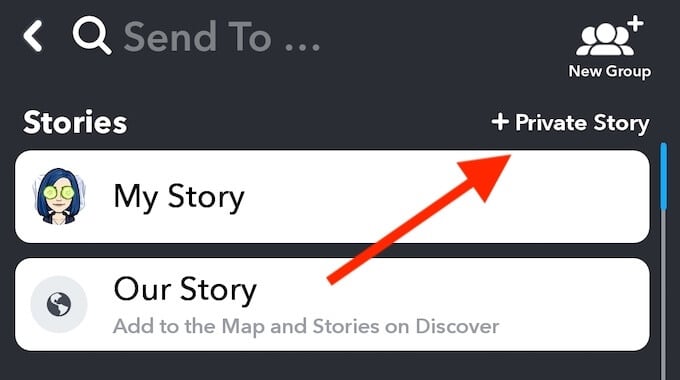
- Under Stories, instead of My Story select +Private Story.
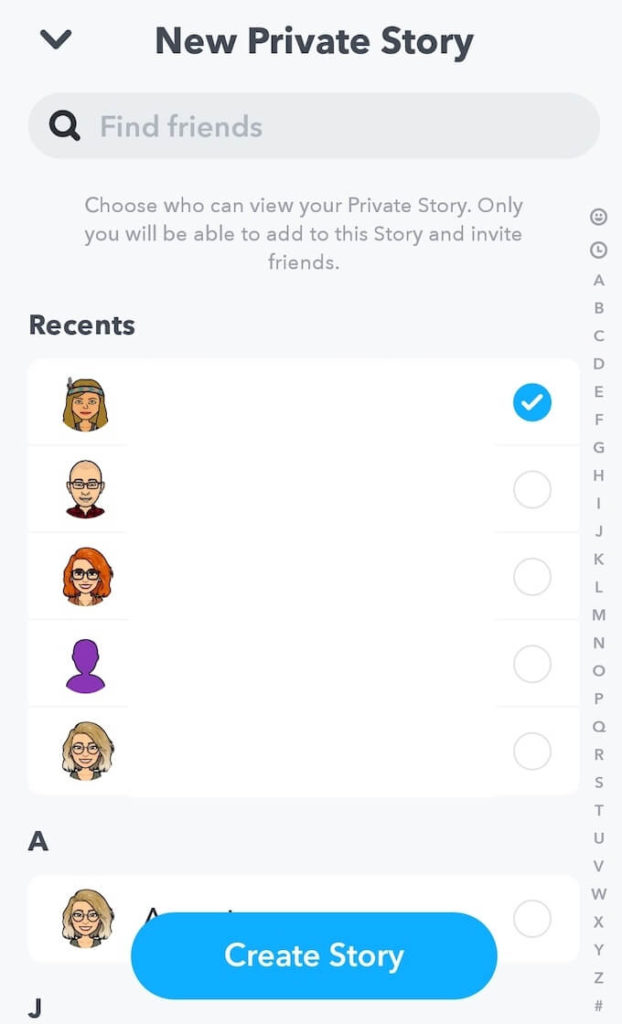
- From your friends list, pick the users you want to share your new private story with. Then select Create Story.
You can also create a private story from your Snapchat profile page. To do that, follow the steps below.
- Open Snapchat and go to your profile page.
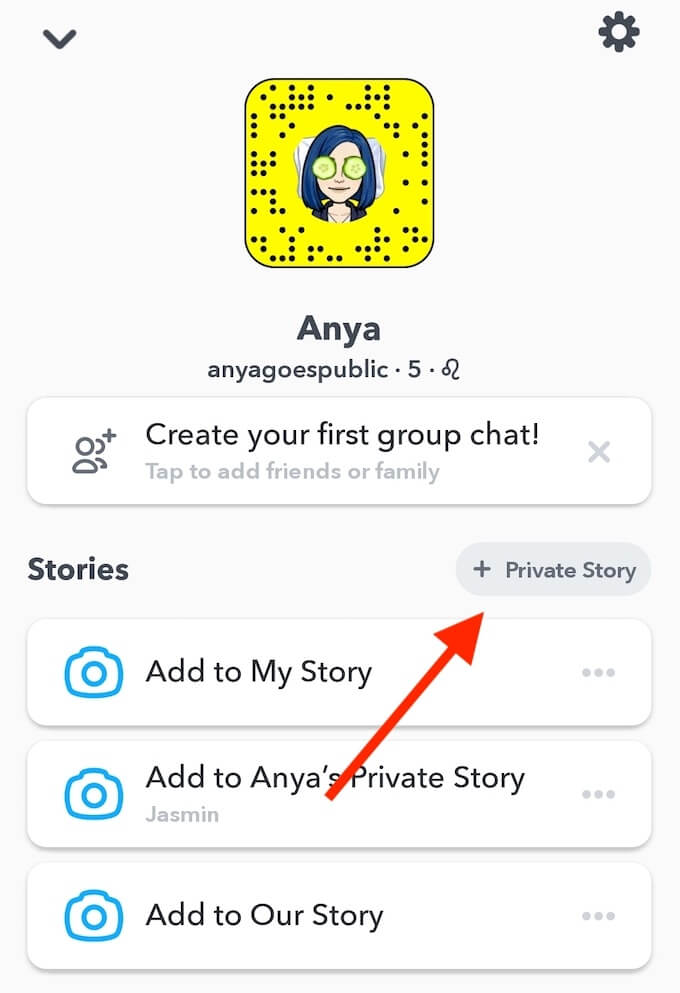
- Under Stories, select +Private Story.
- From your friends list, pick the users you want to share your new private story with. Then select Create Story.
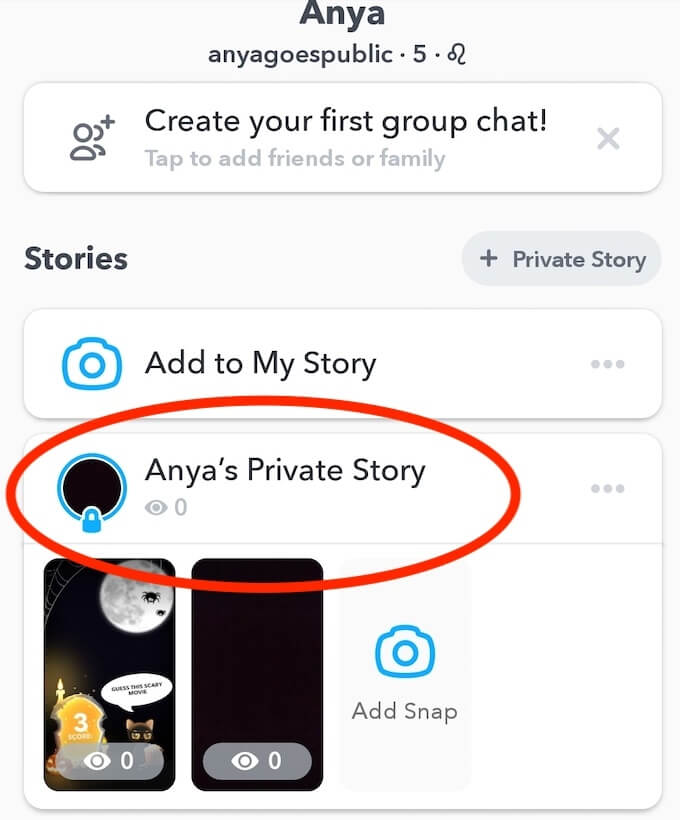
You can then view your private stories in the Stories section of your Snapchat profile. The private stories are marked with a padlock and have an eye icon next to them indicating the number of users who can see your story.
How to Add and Remove Snaps From Your Private Stories
After you create a Private Story on Snapchat, you can go back and edit it by adding more snaps or removing old ones.
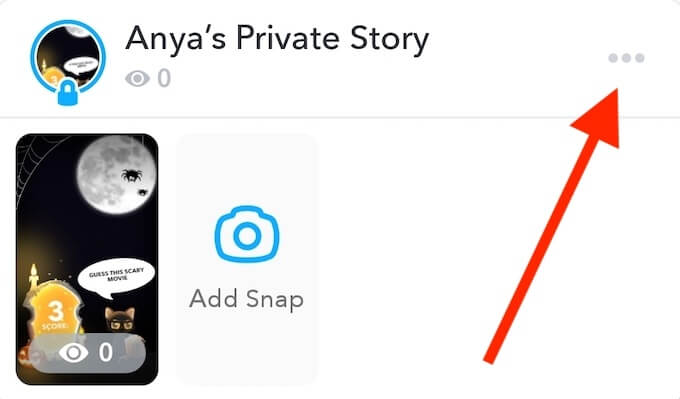
To add snaps to your Private Story, go to the Stories section of your Snapchat profile. Find the Private Story you want to edit and select Add Snap. You can also select the three horizontal dots next to the story, and select Add to Story from the menu.
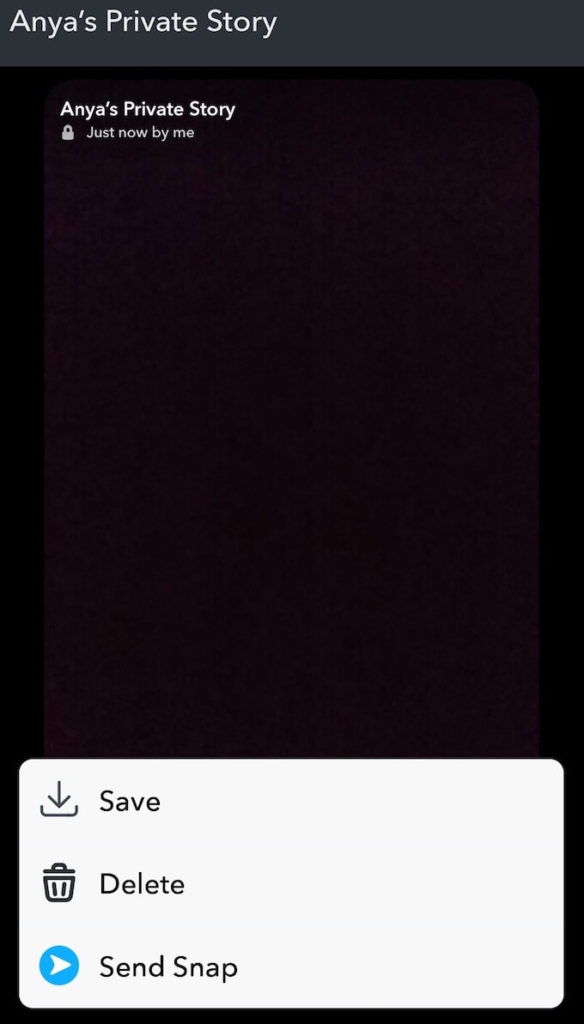
To remove snaps from your Private Story, find the story you want to edit and select the snap you want to delete. In the upper-right corner of the screen, find the three horizontal dots and select Delete from the menu. That will remove the chosen snap from your story.
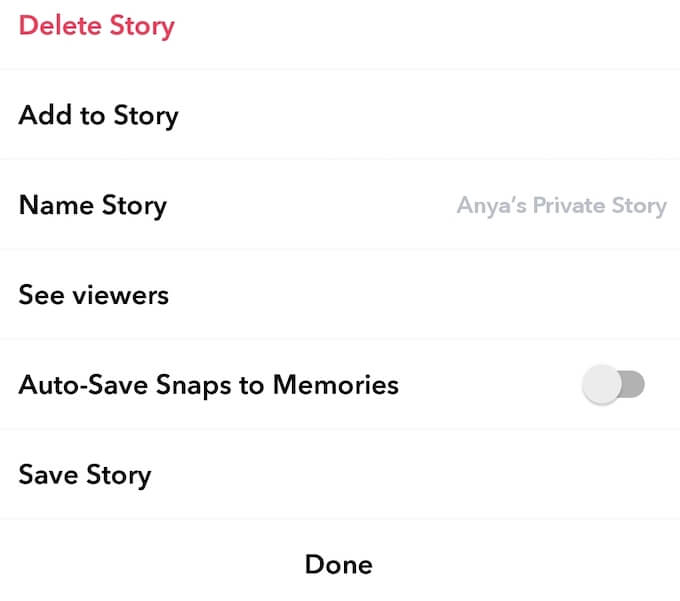
Other things you can do after you create a Private Story on Snapchat include changing its name, adding or removing Snapchat users from it, and tweaking the settings to auto-save snaps to Memories to view them later. You can find all of these options in your Private Story’s menu by selecting the three horizontal dots next to it.
Other Types of Stories on Snapchat
While there are only three main types of stories on Snapchat, there are also collaborative stories called Our Story and Campus Story that are basically Public Stories that are location-specific. If you ever wanted to see the snaps uploaded in your neighborhood, you can do it thanks to the feature called Our Story. You can go to the Snap Map and find different stories that people share in various locations.
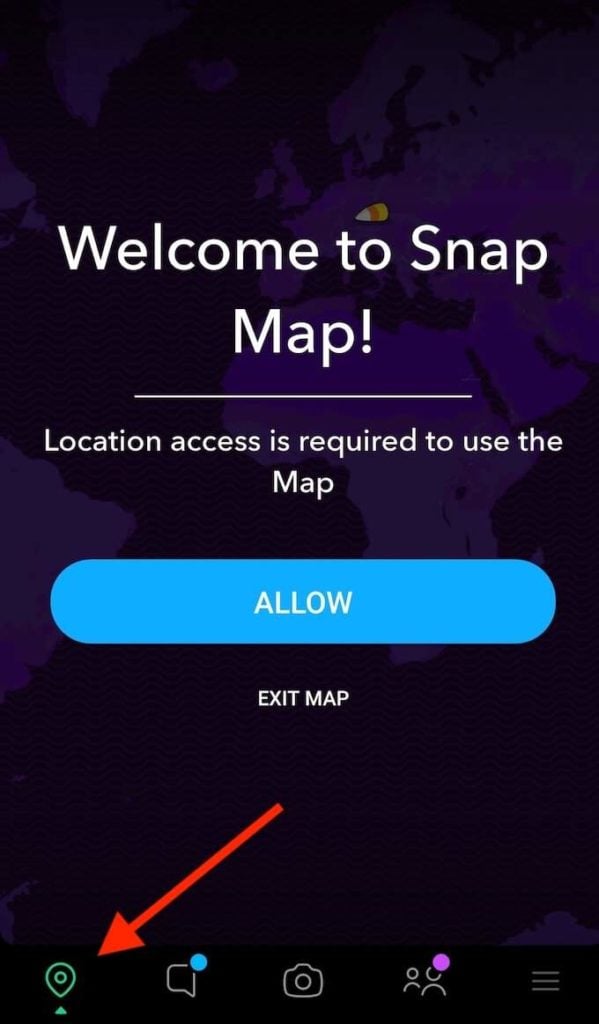
To access the Snap Map, select the location icon in the bottom-left corner of your screen, or swipe right from the main Snapchat screen.
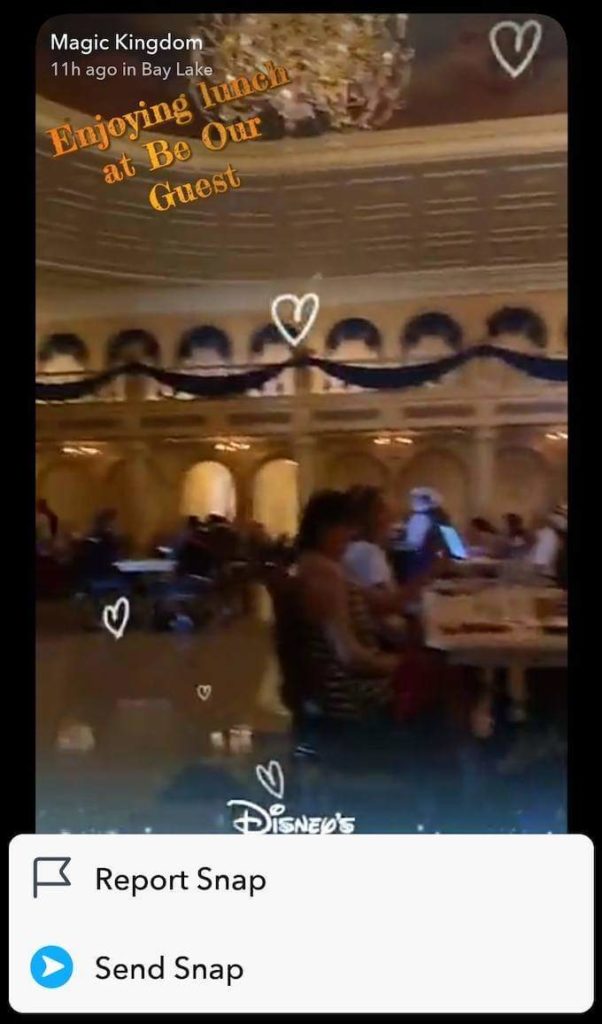
Unlike My Stories, the stories you’ll find on Snap Map can easily be shared and forwarded. Meaning that if you decide to delete a snap that you added to Our Story afterwards, there’s no guarantee that you’ll get it off the internet. It might have already been forwarded and shared to other Snapchat users.
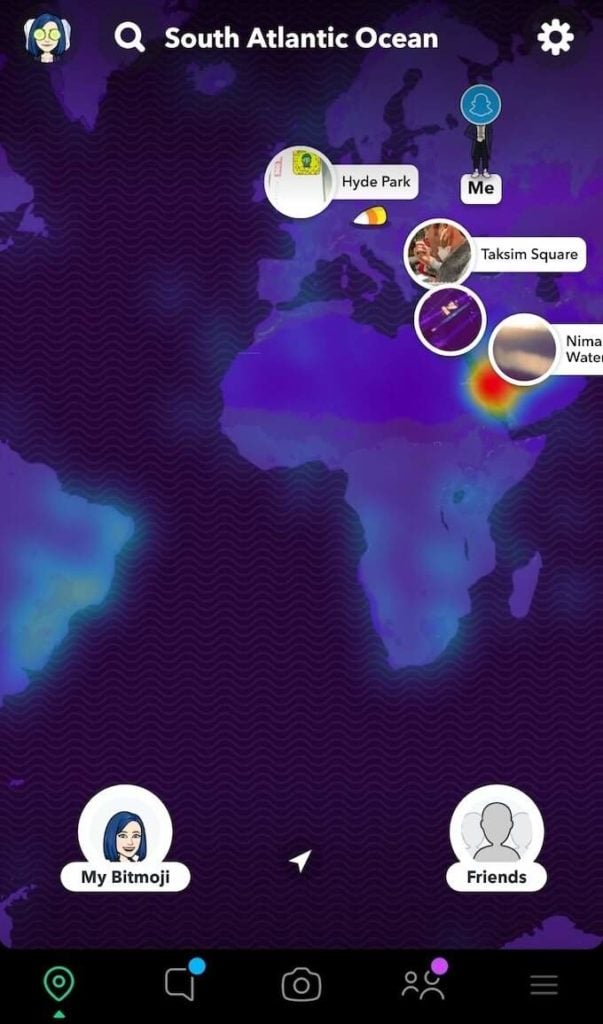
These location-based stories are also curated by Snapchat staff to ensure the content is appropriate for all viewers. Campus Stories are a type of Our Stories that are campus-specific. If you live on campus or visited one in the last 24 hours, you’ll see them pop up on your Snap Map. It’s a neat way to bring the community of students together.
Make Sure Your Private Content Stays Private
If you’re not careful with the type of content you share in your Snapchat stories, you’re bound to start receiving invites from strangers, snaps from random users, spam, and weird chat requests. To avoid that, make sure you don’t post any personal or sensitive information even when using Private Stories, and take the time to learn the best Snapchat privacy tips.
When you share stories on Snapchat, do you set them to public or to private? Would you want your stories to be viewed by Snapchat users in your area, even if they’re complete strangers? Share your thoughts on Snapchat stories with us in the comments below.