
It’s easy to know when you’re blocked on Instagram—you’ll no longer see the person’s profile. When someone restricts you, their profile remains visible, making it difficult to know when you’re restricted. In this article, we’ll show you how to know if someone restricted you on Instagram. You’ll also learn to use the restrict feature to limit people’s access to your Instagram content.
What Happens When Someone Restricts You on Instagram?
Instagram’s “Restrict” option is a privacy feature that allows users to limit unwanted interactions with a particular user or account. To know whether someone restricted you on Instagram, you first need to understand what this feature does.
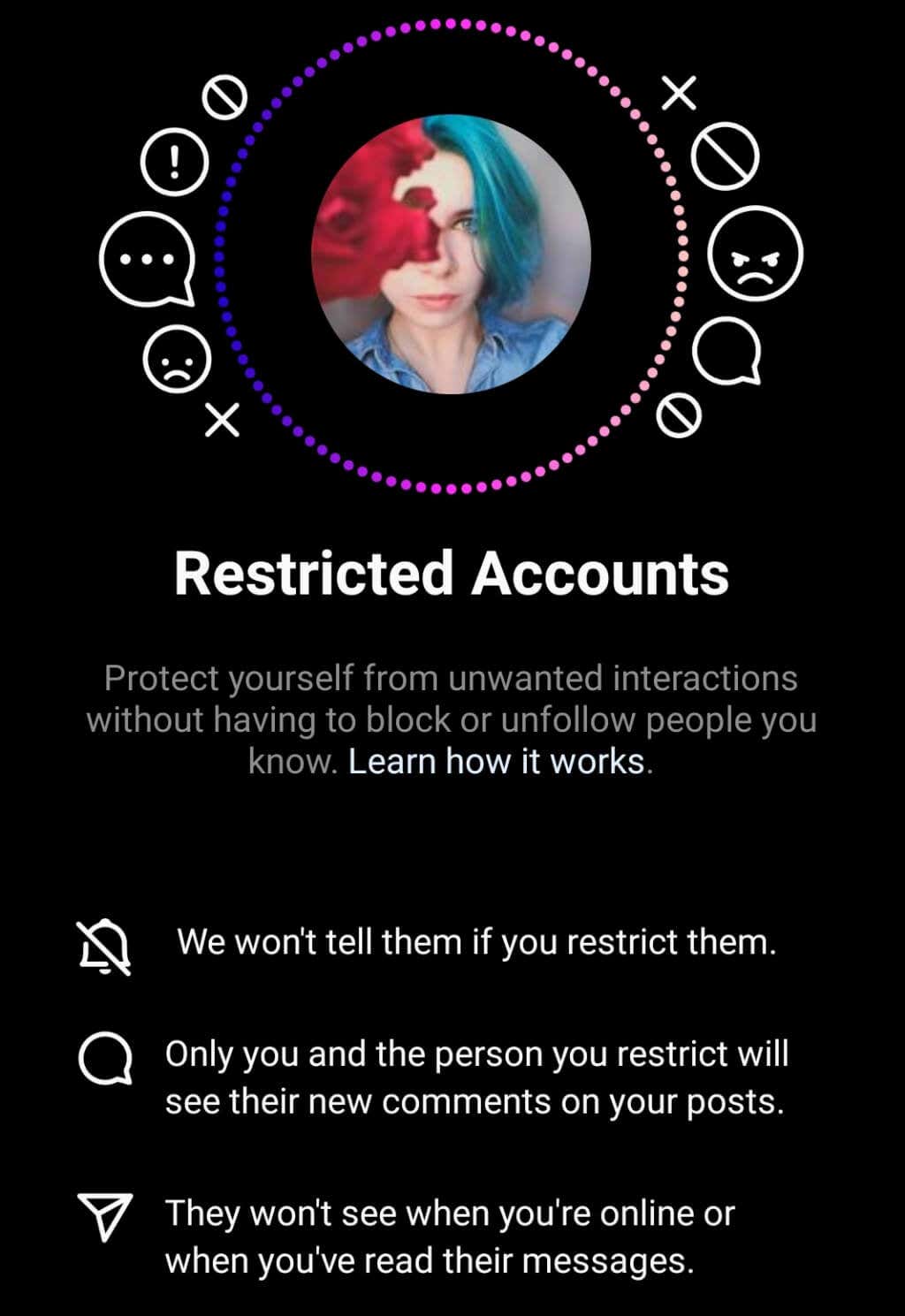
You usually won’t notice when an Instagram user restricts your account. The effect is a lot more subtle than when someone blocks you. Particularly because when you’re restricted, you can still view the user’s Instagram profile and see their content—posts, stories, reels, and comments. You can even like their posts and send them direct messages (DMs).
However, there are some things you won’t be able to do or see, like how Instagram shows them your comments, DMs, posts, and other notifications.
Getting Blocked vs Restricted on Instagram: Differences
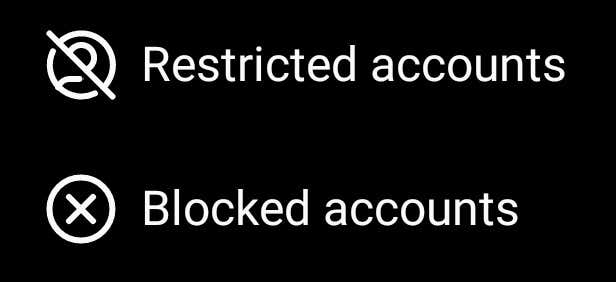
Being blocked on Instagram differs from being restricted. When you open the profile of someone who blocked you, it appears blank or nonexistent. You won’t see their profile picture, follower/following count, Instagram posts, story highlights, post count, or bio information.
If you’re only restricted, you’ll see the user’s posts, bio, follower count, story highlights, and any other content on the page. Likewise, you can like their posts, leave comments, react to their stories, and interact with comments from other users in their posts’ comment section.
You can even send messages to people who restrict your Instagram account, and they’ll receive them in their inbox. However, your DMs will appear as a request that the person can block, delete, or accept.
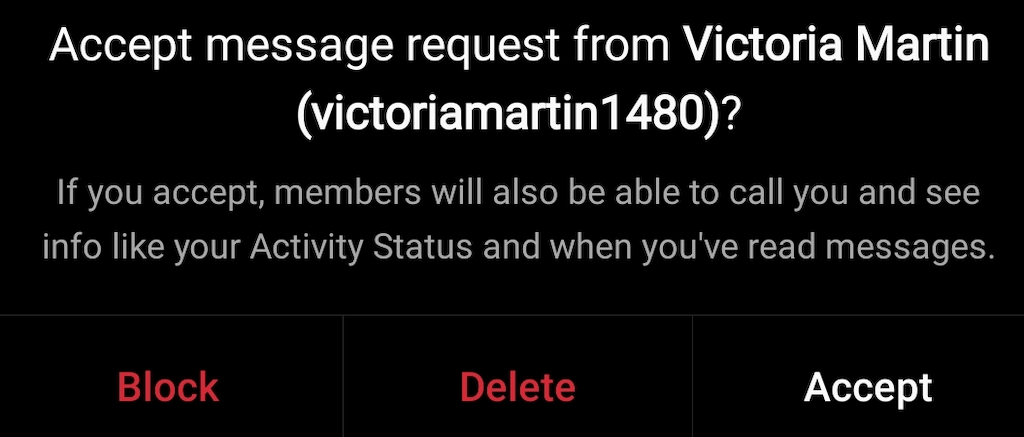
Instagram won’t tell you whether or not they received your DM, and you won’t see their last active status either. If someone blocks you, Instagram won’t deliver your messages to the person’s inbox.
As a restricted user, you can still tag or mention the person who restricted you in a post, story, or comment. However, Instagram won’t notify them of the tag or mention. If you’re blocked, you won’t be able to tag or mention whoever blocked you.
How to Tell If Someone Restricted You on Instagram
It’s quite tricky to know if someone restricted you on Instagram. If you think someone restricted your Instagram account, there are ways to confirm your suspicion.
1. Leave a Comment on the Suspected Account and Check It Later
Instagram first introduced the restriction feature to reduce cyberbullying. The primary function of this feature is to restrict unwanted comments from a user. On your end, it won’t look like anything has changed. You can still leave comments on posts as usual. You’ll also be able to view your comments, but they may be hidden from everybody else.
The user who restricted you will see your new comment appear behind a restricted comment message. They can then choose to approve your comment or keep it hidden from everybody else. If they approve your comment, it’ll become public. If they deny it, only you and the user who restricted you will see the comment.
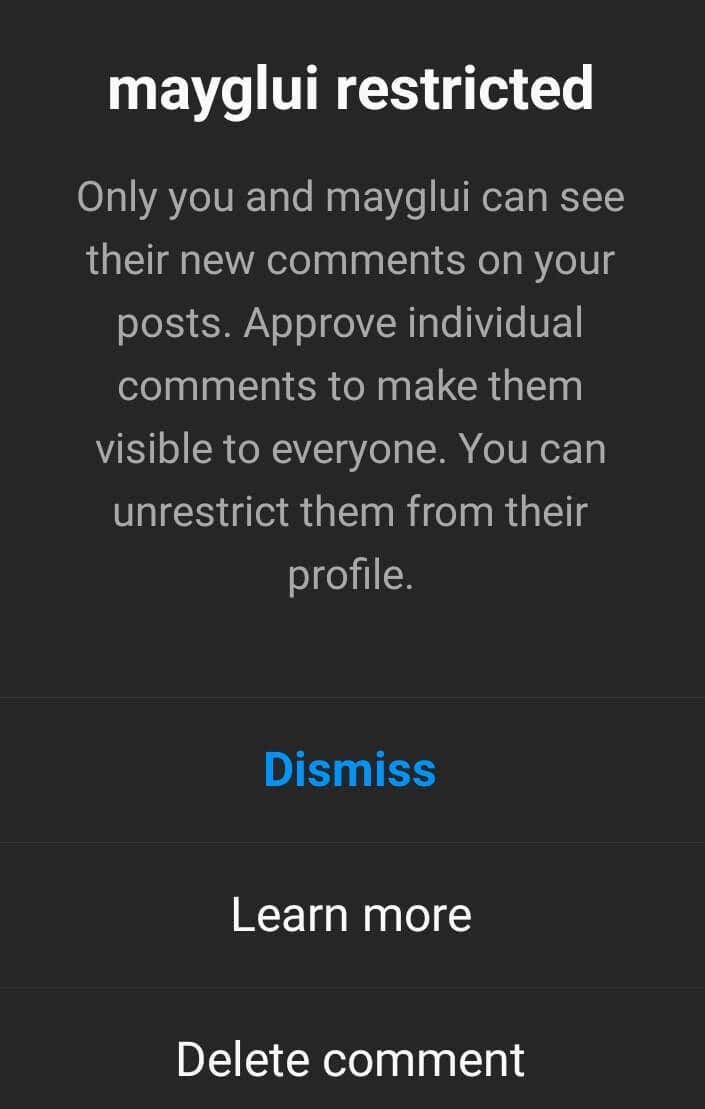
So, how exactly can you find out if someone restricted your comments? Go to this user’s account on Instagram and leave a new comment on their post. Since comments will show up on your primary account as usual anyway, you’ll need to access Instagram using your secondary account. If you don’t have a secondary account on Instagram, you can either create a new account, ask to use a friend’s account, or ask to use an Instagram account of your family member.
After posting a comment from your main account, check if you can view it from a different Instagram account. Ensure you do it immediately before the user who restricted you can approve it. If you don’t see your new comment appear immediately, it means the person restricted your account.
2. Send a Direct Message to the Person
You can also find out if you’ve been restricted or not using Instagram DMs. When an Instagram user restricts you, (your) messages to them will appear in a request folder rather than in a regular chat. The person who restricted you won’t be notified of any new message(s), and they’ll have to manually approve them to answer you. On the other hand, you won’t get notified if or when the user reads your direct message.
To determine whether you’ve been restricted, try sending a DM to the person. After sending the DM, all you have to do is wait. If you see the user being active on their account but not responding to your message for a long time, then it could be a sign that your suspicion was right and they’ve restricted you.
3. Check Their Activity Status
When you are restricted, you can no longer view the user’s activity status. That means you won’t be able to see the last time they were online or the last time they checked their messages.
You can try to check the activity status of the person who you suspect has restricted you. Before that, ensure “Show Activity Status” is enabled in your Instagram settings.
To do that, open your profile in the Instagram app, tap the menu icon, go to Messages and story replies > Show activity status, and turn on Show Activity Status.
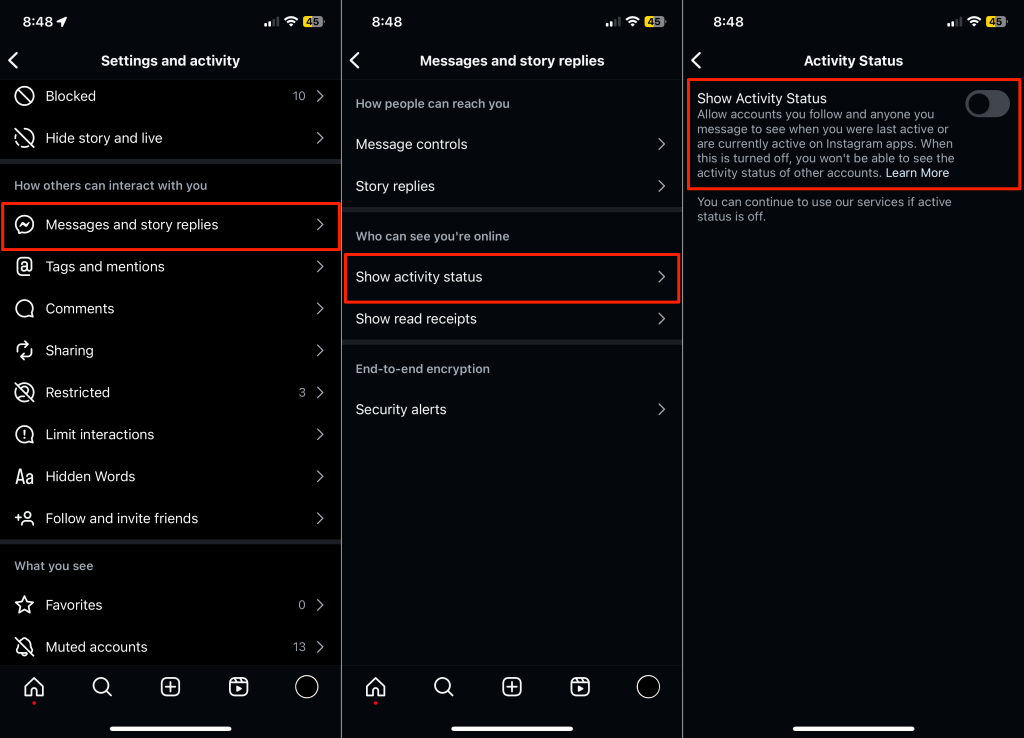
When the Activity Status feature is on, you can see when the people you follow and message were last active on Instagram. Now head back to the user’s profile and check if you can see their last seen status (or their Active status if they’re currently online).
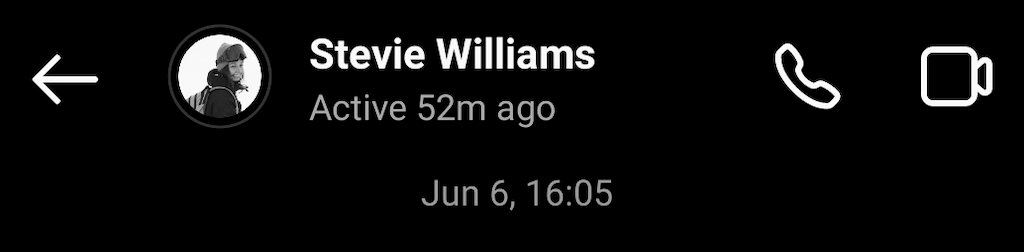
If you don’t see this info, even though they recently posted on Instagram, there’s a chance they restricted you. However, it’s also possible that they turned off the option to show Activity Status.
How to Restrict Someone on Instagram
Whether you find out that someone restricted you or not, one day you might need to use this feature on someone else yourself. If you want to restrict someone on Instagram, you can do it through comments, messages, and settings. The instructions are the same for iOS and Android users.
How to Restrict Someone in Comments
You can restrict someone in your post’s comments section. To do that, follow the steps below.
- Open your post in the Instagram app and tap View all comments.
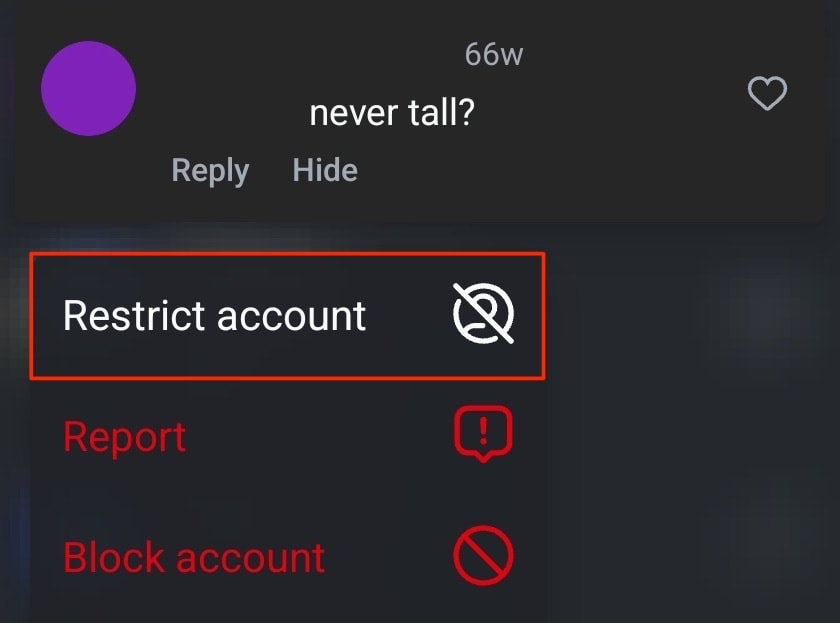
- Swipe left on the comment (on iPhone), tap the Info icon, and select Restrict.
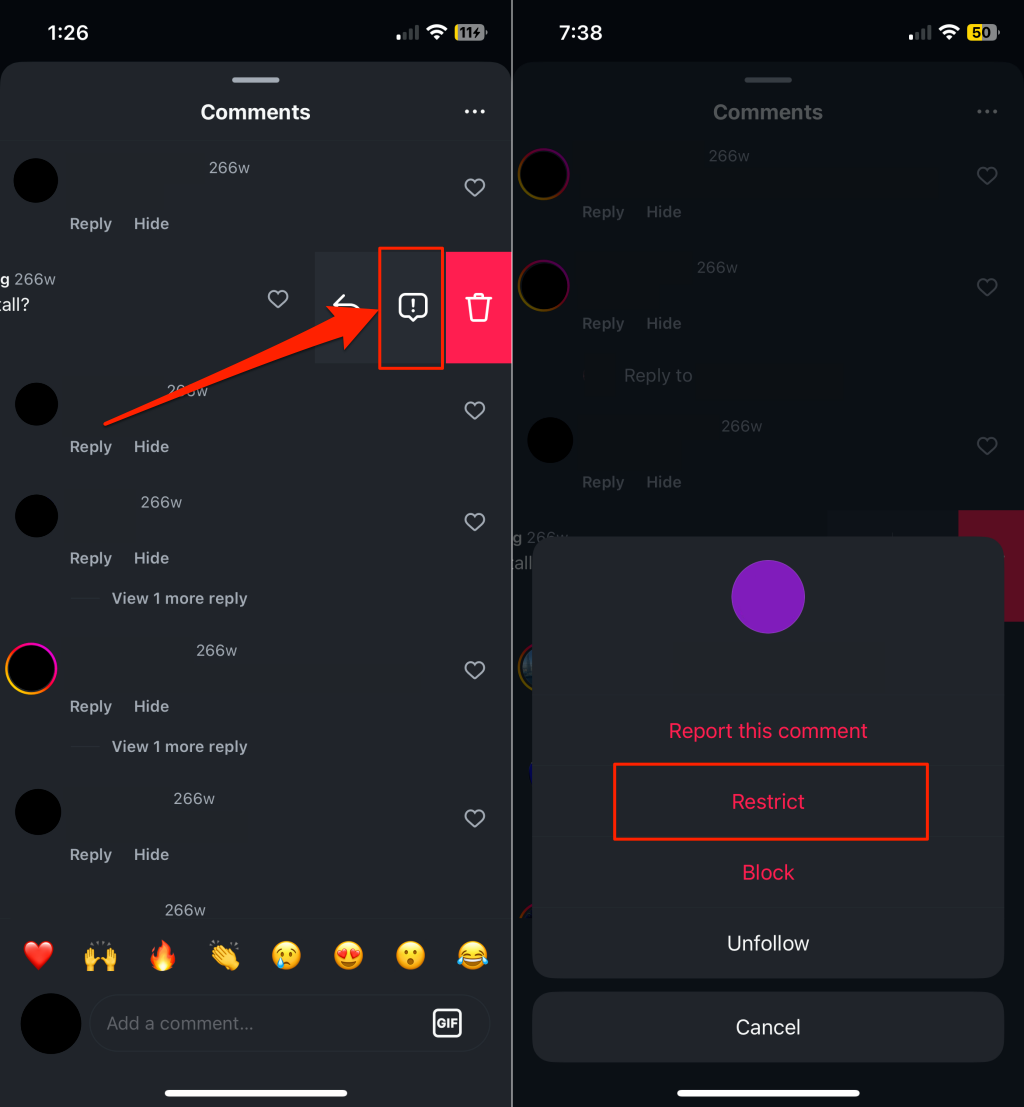 If you use an Android device, tap and hold the comment, then select Restrict account.
How to Restrict Someone in Messages
Another way to restrict a user on Instagram is via messages. To do that, follow the steps below.
- Open the chat with the person you want to restrict.
- Select their name at the top of the chat.
- Tap Options and select Restrict.
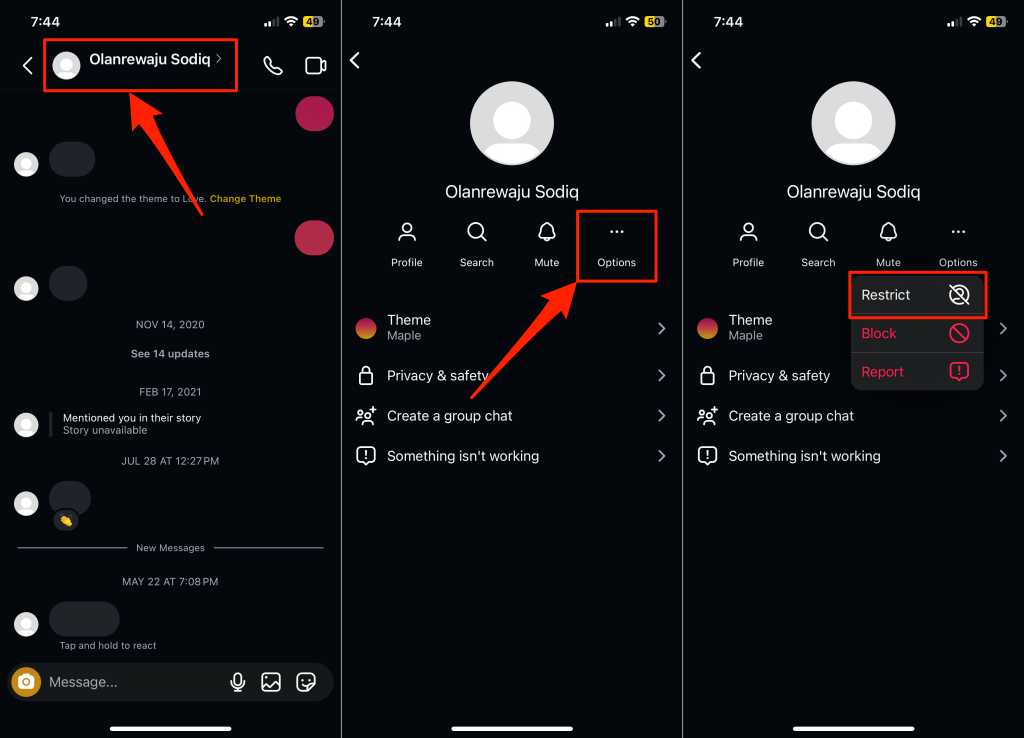
How to Restrict Someone in Settings
You can use the Settings menu to restrict someone on Instagram. Here’s how you can do that.
- Open Instagram and go to your profile page.
- Select the three horizontal lines icon in the top-right corner to open the Menu.
- Follow the path Privacy > Connections > Restricted accounts > Continue.
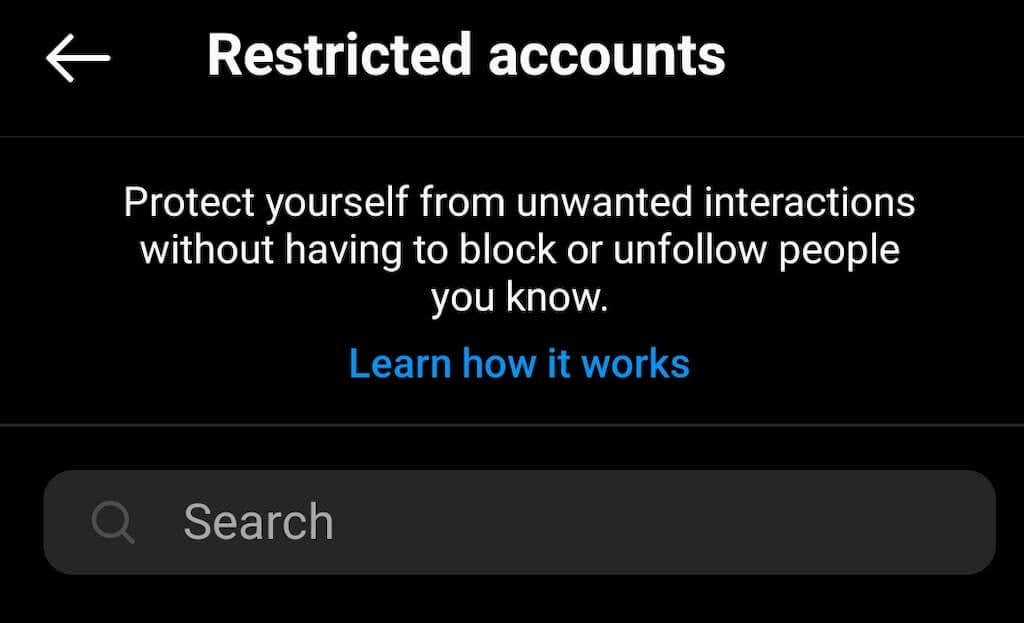
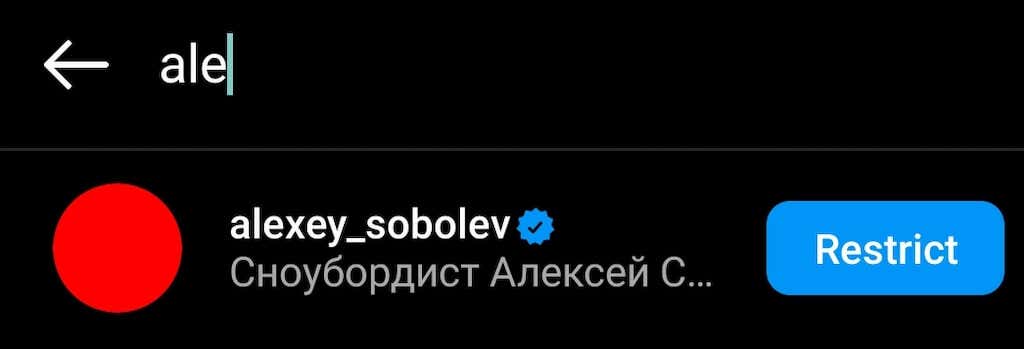
- Use the Search bar to find the account you want to restrict and select Restrict next to their username.
How to Restrict Someone on Their Profile
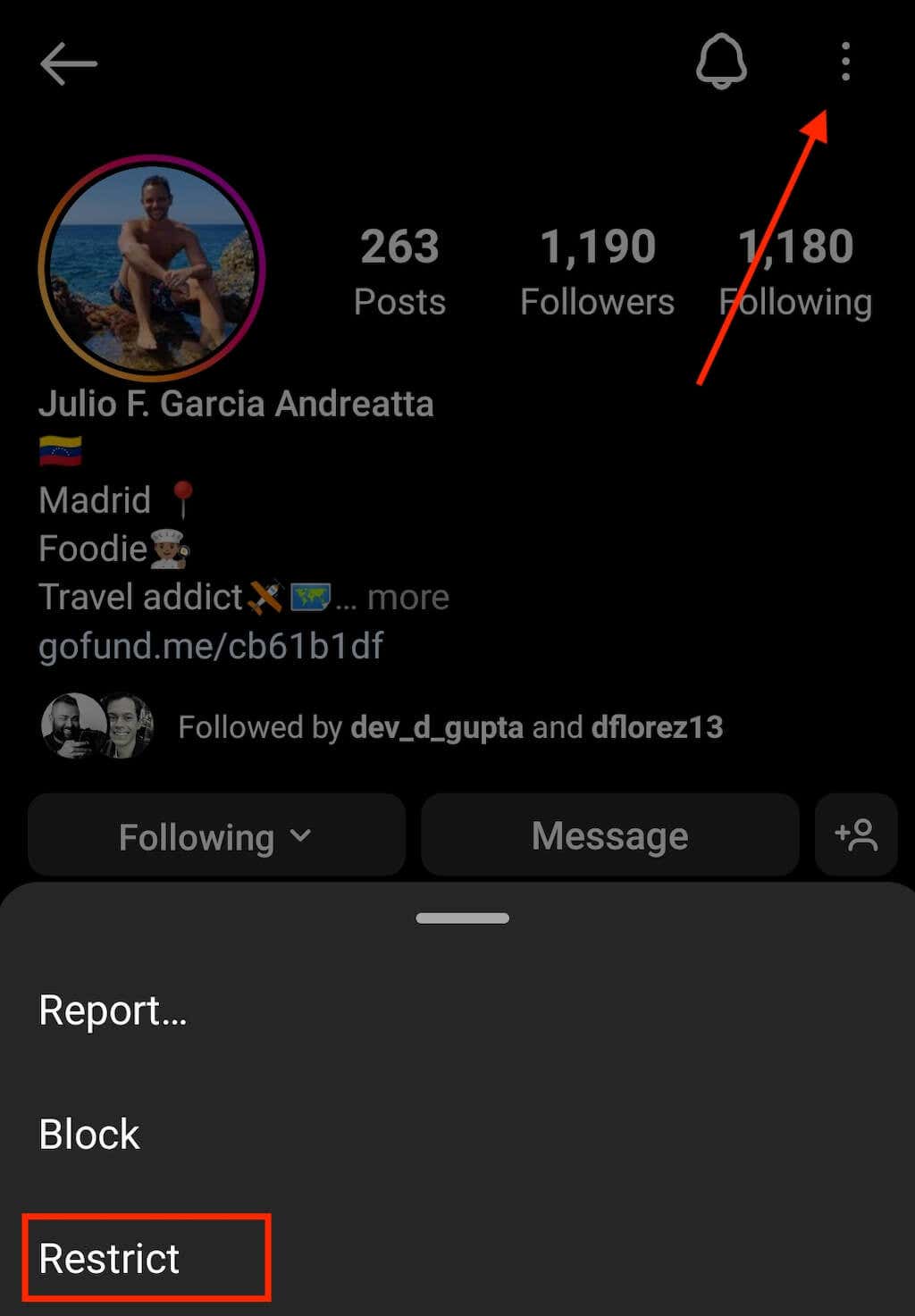
If you’re viewing an Instagram user’s profile, you can restrict their account right from their profile page.
Tap the three-dots menu icon in the top-right corner of their profile and select Restrict.
How to Unrestrict Someone on Instagram
You can unrestrict someone through the same channel(s) you restricted them: comments section, account settings, their profile, and DMs.
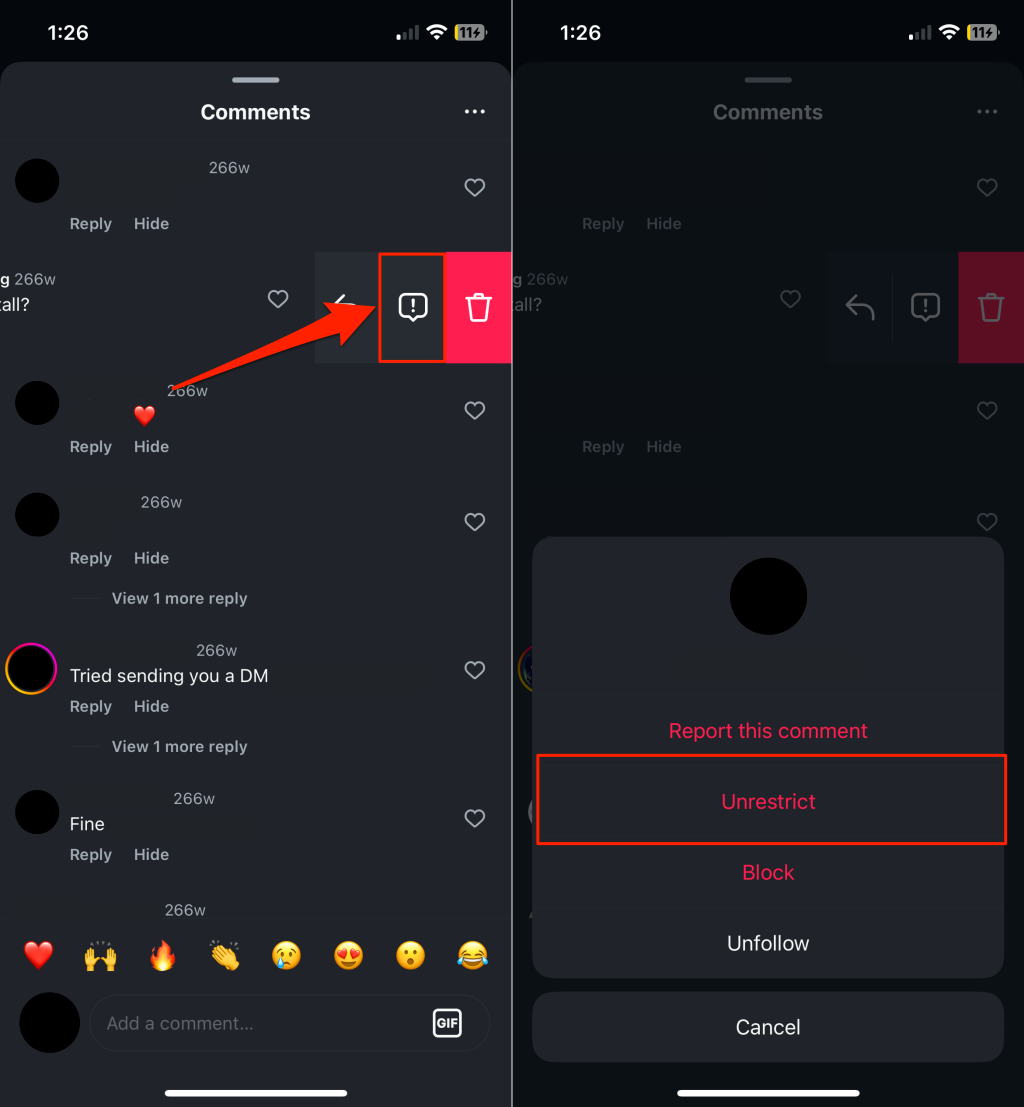
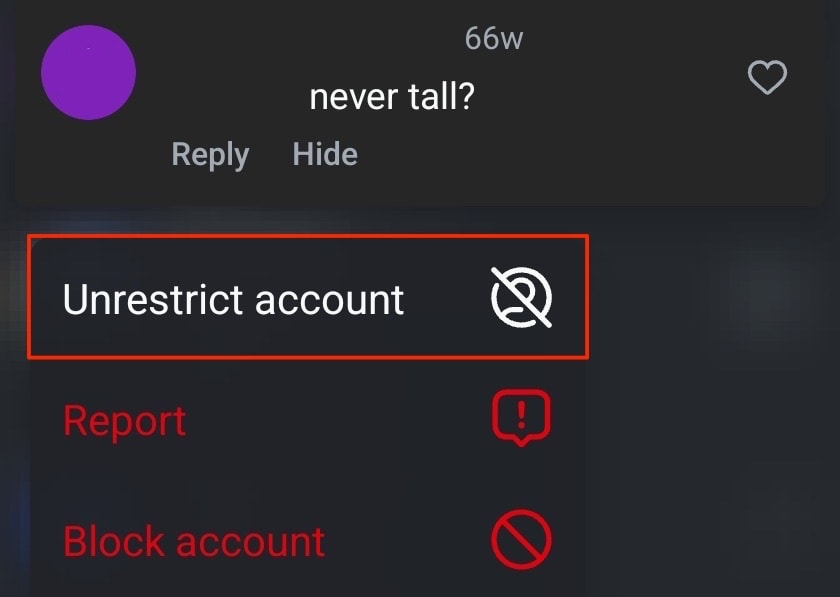
To unrestrict someone through your post, tap and hold the person’s comment on the post, and select Unrestrict account. On an iPhone, swipe left on the person’s comment, tap the Info icon, and select Unrestrict.
If you use an Android phone, tap and hold the comment, and tap Unrestict.
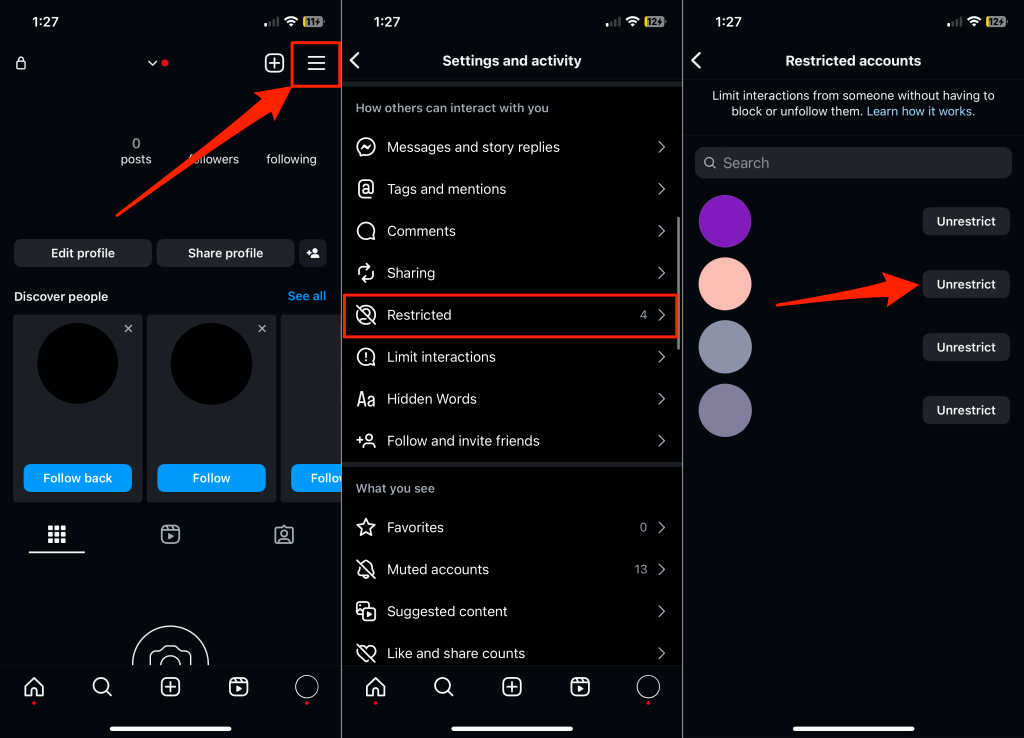
Unrestricting someone from your account settings is equally straightforward. Open your profile, tap the Menu icon, and go to Settings and activity > Restricted. You’ll see a list of all restricted Instagram accounts. Tap the Unrestrict button next to the restricted account.
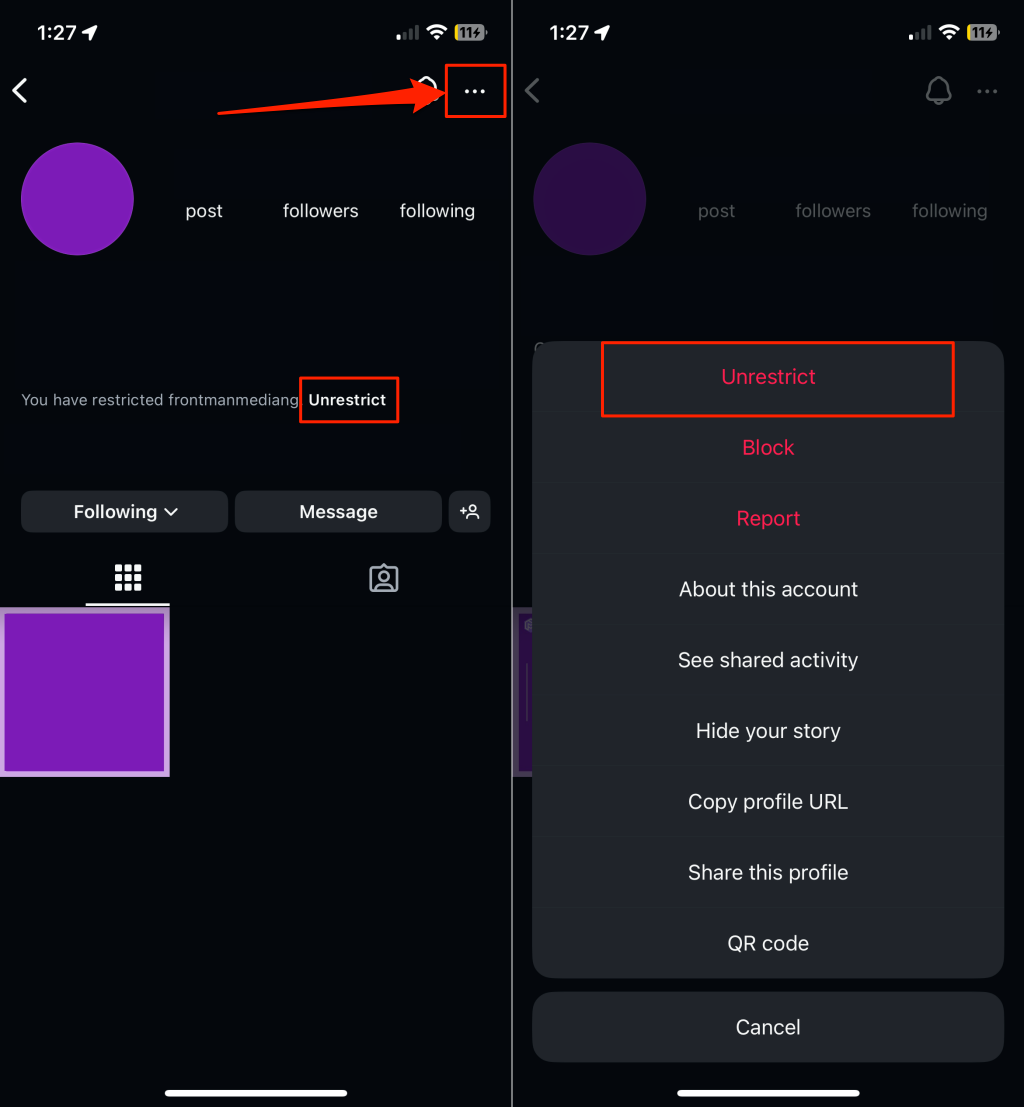
You can also unrestrict someone by tapping the Unrestrict button on their profile page. Alternatively, tap the three-dot menu icon in the top-right corner and select Unrestrict.
Best Practices to Avoid Banned or Blocked By Instagram
Being respectful is the easiest way to maintain access to your Instagram account. Don’t post offensive replies or comments on people’s content (post, story, reel, etc.) to avoid getting reported for online harassment or bullying,
Overusing certain Instagram features in a spam-like manner can also get your account temporarily restricted. Hence, avoid using (irrelevant or excessive) hashtags to get more engagement on your post. Likewise, avoid following too many accounts within a short period of time.
Avoid violating Instagram’s Community Guidelines or Terms of Use. This includes posting content that promotes hate speech, misinformation, scam/fraud, drugs, nudity, violence, etc.
Furthermore, post only original content or content that you have the right to share. Instagram can take down your account for using or posting content that violates someone’s intellectual property or copyright.
You should avoid linking your account to third-party apps, bots, or services that claim to help boost followers, likes, or views. These apps sometimes violate Instagram’s Community Guidelines or Terms of Use.
How to Fix Someone Restricting You on Instagram
Finding out for sure if someone has restricted you on Instagram can be difficult if you don’t know the signs to look for. Plus, there’s not much you can do to gain back access to the person’s profile once they restrict you. Your best bet is to reach out to them personally and figure out how to resolve the problem together.